These wishes are only used when you (re)generate the schedule. See the page [Creating the day schedule](https://docs.flltools.com/books/flltools-documentation-english/page/creating-the-day-schedule).
**More Information (4):** The **Yell** (team cheer), a **Robot Description** and an **Innovation project description**. These texts appear on the public team page (see [Team features](https://docs.flltools.com/books/flltools-documentation-english/page/team-features)). [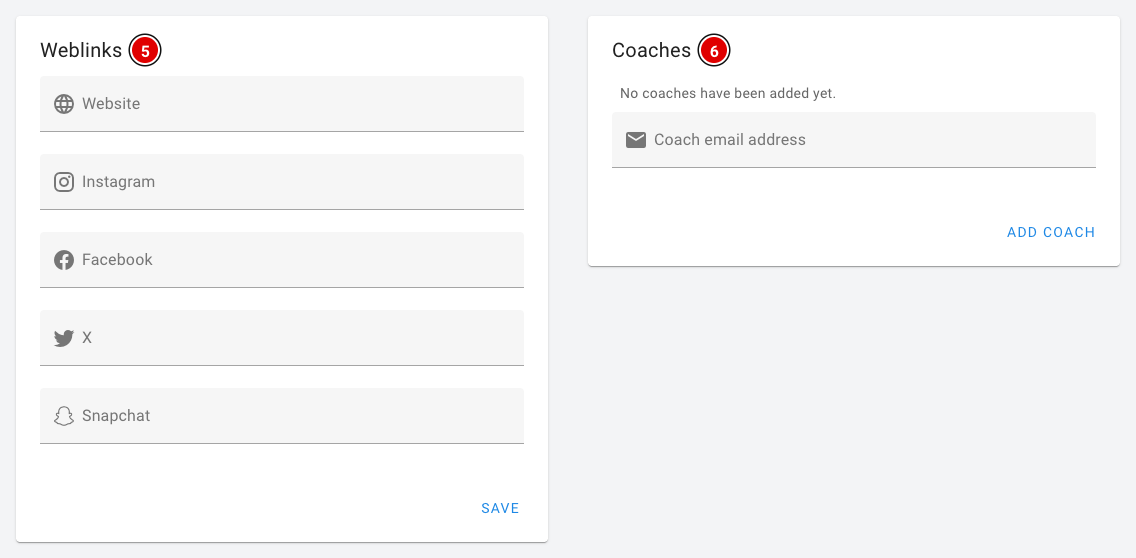](https://docs.flltools.com/uploads/images/gallery/2026-10/gW7team-updaten-04.png) **Weblinks (5):** The team's website and social media: Website, Instagram, Facebook, X and Snapchat. **Coaches (6):** This is where you link a coach to the team. Enter the coach's e-mail address and click **Add coach**. The coach then receives an e-mail: - Doesn't the coach have an account yet? Then an account is created and the coach receives a link to set their own password. - Does the coach already have an account? Then the coach receives a message that they have been added to an additional team. - The bin icon next to a coach removes the link again. The coach's account remains. The coach can then update the team details themselves. See the heading *The coach portal* on the page [Team features](https://docs.flltools.com/books/flltools-documentation-english/page/team-features). **Custom information:** If you have created your own team fields (for example a pit number), a **Custom information** block also appears, in which you fill them in per team. How to create these fields is explained on the page [Entering teams into the system](https://docs.flltools.com/books/flltools-documentation-english/page/entering-teams-into-the-system). ### Saving - Click **Save** to save the changes. Each block has its own **Save** button, but they all save the whole page. So you can change several blocks first and then press **Save** once. - A message appears at the bottom of the screen when saving has succeeded. # Uploading team photos When the *Advanced Team Management* module is on, every team can have a team photo. The photo appears on the public team page, so parents, visitors and other teams can see who is behind a team name. As the organiser you can upload the photo, but coaches can also do it themselves through the coach portal. ### Uploading a team photo - Go to the **Teams** page through the menu and open the team using the 3 dots and **Show** or **Edit** (see the page [Updating a team](https://docs.flltools.com/books/flltools-documentation-english/page/updating-a-team)). - In the **Grouppicture** block, click **Choose a photo (1)** and select the photo on your computer. - Click **Upload photo (2)**. [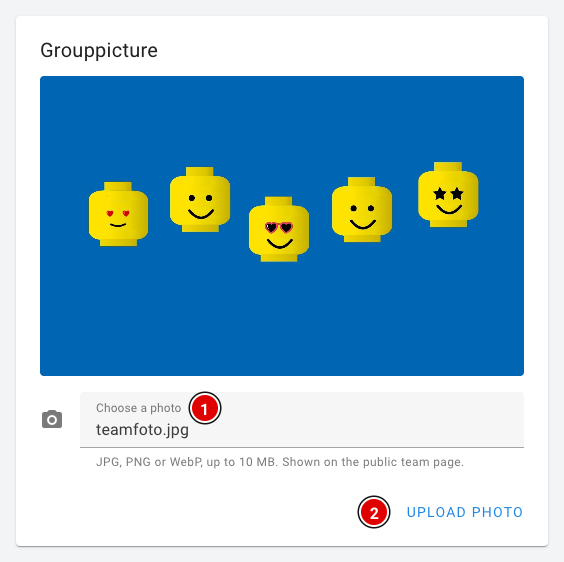](https://docs.flltools.com/uploads/images/gallery/2026-10/teamfoto-01.png) The photo is saved straight away, so you don't need to press any of the **Save** buttons on the team page. The message **The team photo has been updated.** appears at the bottom of the screen.You can upload a JPG, PNG or WebP photo of up to 10 MB. A landscape photo works best: the photo is cropped to fill the whole block, and with a portrait photo heads are easily cut off.
### Replacing or removing a team photo After uploading, the new photo is shown in the block. [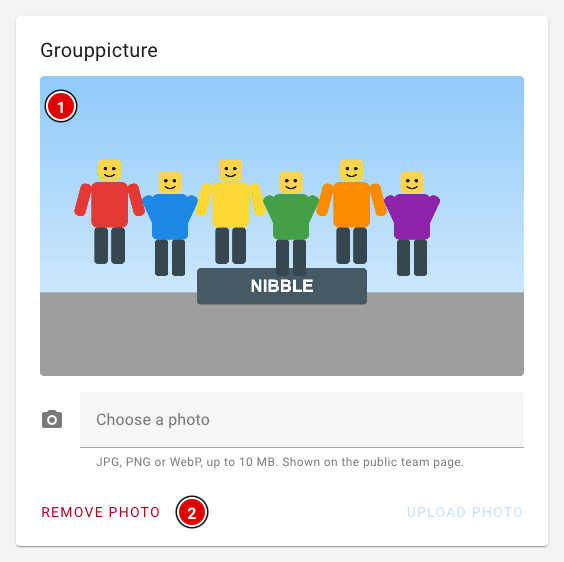](https://docs.flltools.com/uploads/images/gallery/2026-10/teamfoto-02.png) - **The team photo (1)**: This is how the photo looks now. Want a different photo? Simply upload a new one the same way. The old photo is then replaced and deleted. - **Remove photo (2)** removes the uploaded photo. The team page then shows the default image again, or no photo at all if there isn't one. This button only appears when a photo has been uploaded. ### The team photo on the public team page The **team photo (1)** is shown at the top of the team information on the public team page, above the team number, the team name and the yell. Anyone can view this page without logging in. You can read more about the team page on the page [Team features](https://docs.flltools.com/books/flltools-documentation-english/page/team-features). [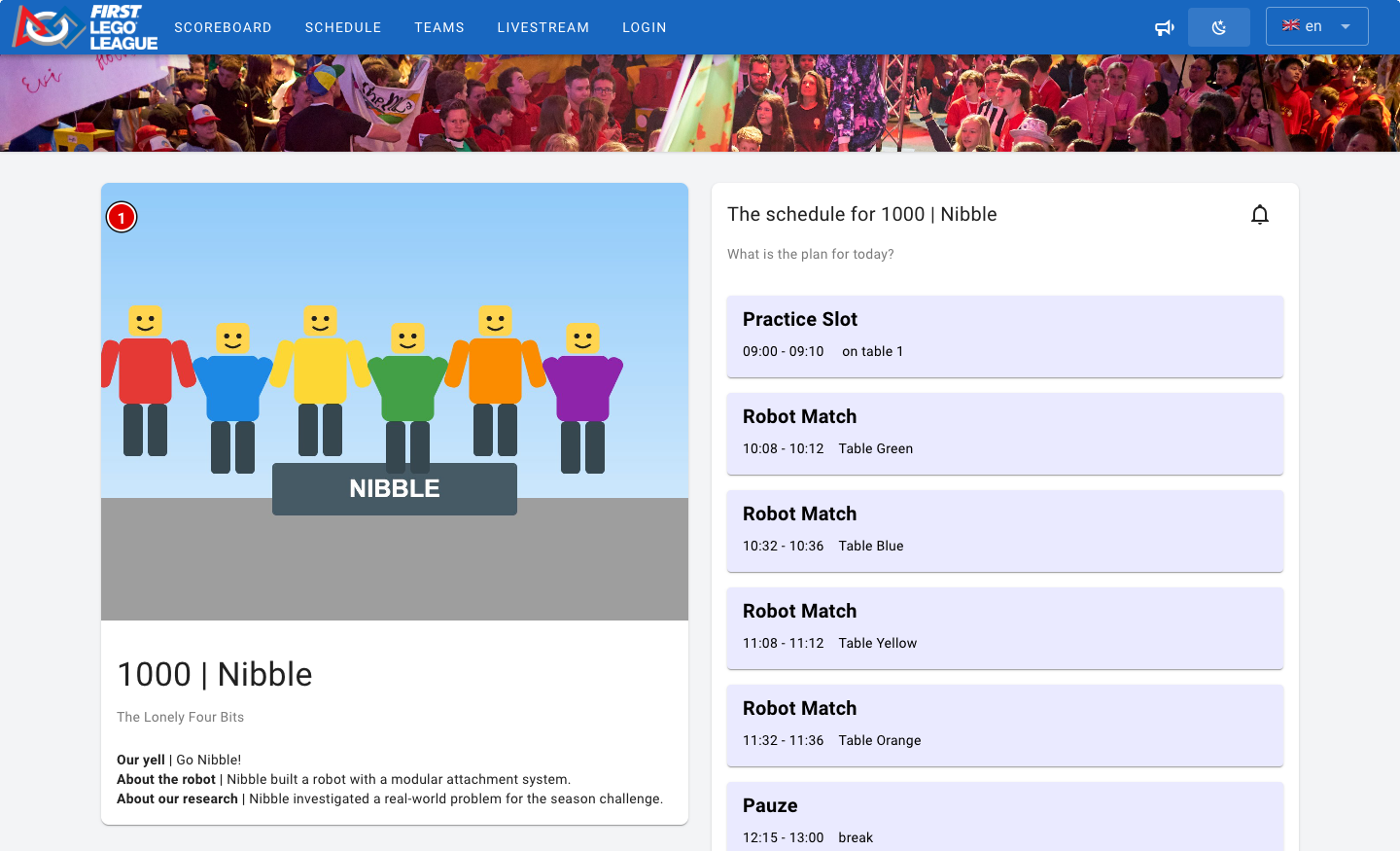](https://docs.flltools.com/uploads/images/gallery/2026-10/teamfoto-03.png)The team photo is visible to everyone. Teams often consist of minors, so only upload a photo if the team (and the parents) have given permission.
### Coaches upload their own team photo If you have linked a coach to the team (see *Coaches* on the page [Updating a team](https://docs.flltools.com/books/flltools-documentation-english/page/updating-a-team)), the coach can take care of the team photo themselves. That way you don't have to collect all the photos. [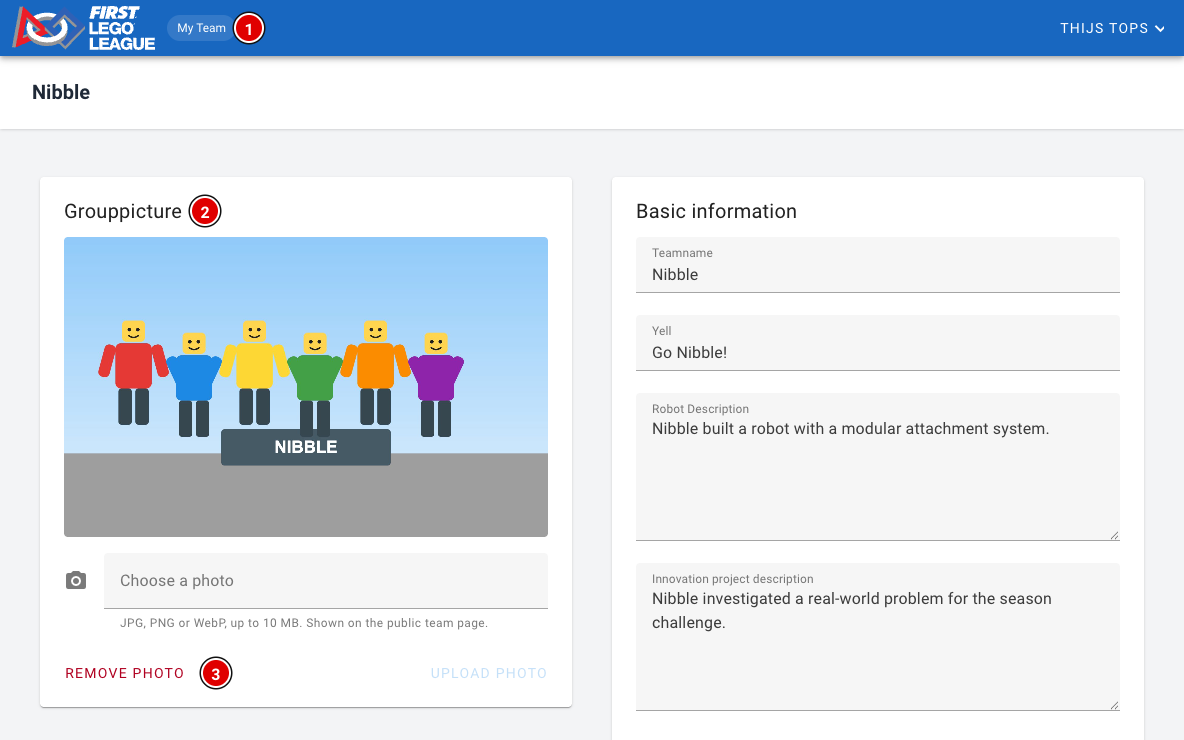](https://docs.flltools.com/uploads/images/gallery/2026-10/teamfoto-04.png) - The coach logs in and reaches their team's page through **My Team (1)**. - In the **Grouppicture (2)** block, uploading works exactly as described above: **Choose a photo** and then **Upload photo**. - With **Remove photo (3)** the coach can remove the photo again. If the coach uploads a new photo, it replaces any photo you had already uploaded, and the other way round. A team always has just one team photo. # Creating the exports The available exports can differ per event. For special requests, there may be more or fewer options on the page. The example below assumes a standard regional final. All exports are created with the data in FLLTools at that moment: team names, team numbers, the schedule and the results. So only create the exports once the teams and the schedule are complete. ### The exports page Go through **Setup** to **Exports**. [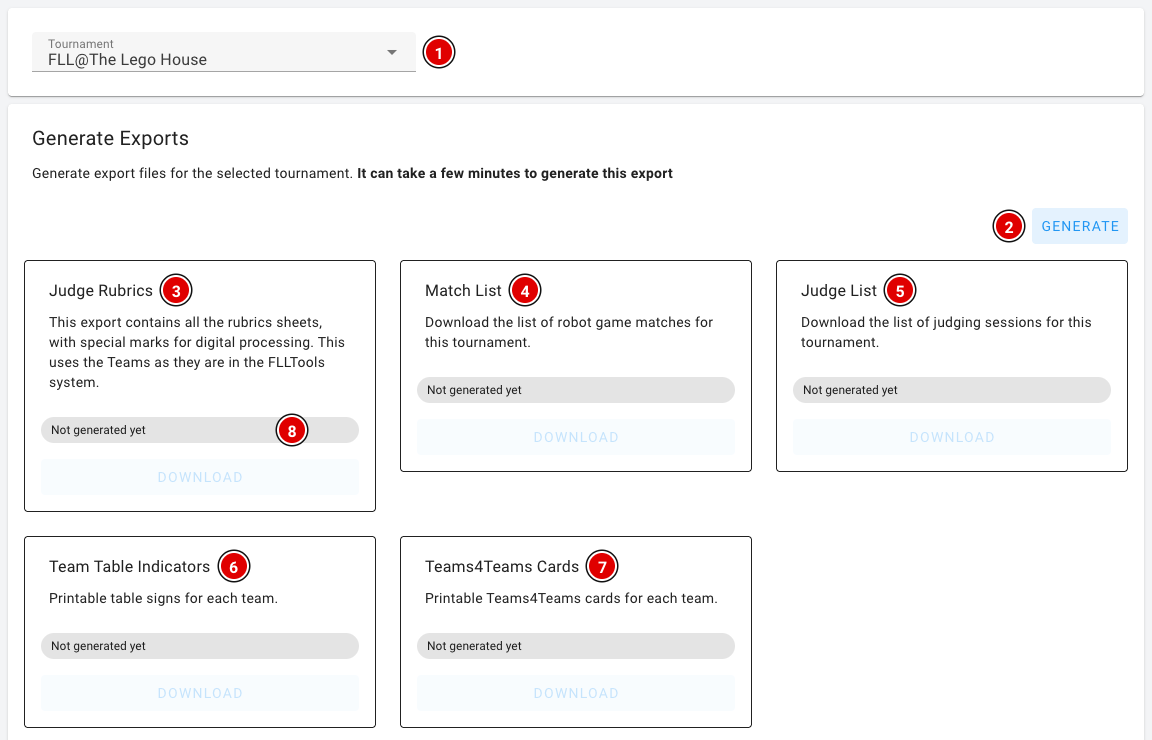](https://docs.flltools.com/uploads/images/gallery/2026-10/exports-01.png) - Choose the **Tournament (1)** at the top. By default this is the tournament you are working in at that moment. All exports on this page use this tournament. - Click **Generate (2)**. The PDFs are then created in the background. This can take a few minutes. - Each card shows the **status (8)**: *Not generated yet*, *Generating…* or *Ready* with the time the file was created. As soon as a file is ready, the **Download** button on that card becomes active. You don't need to refresh the page.Changed something after generating, such as a team name or the schedule? Click **Generate** again. The existing files are then replaced by new ones.
Explanation of the exports: - **Judge Rubrics (3)**: All judging forms (rubrics). The team names and team numbers are already filled in. If you use the **Judge Forms Scanner**, these forms are required, because the scanner uses the markers on the forms. - **Match List (4)**: An overview for the referees showing when each team should be at which table. - **Judge List (5)**: An overview of the times when each team has to appear before which jury. - **Team Table Indicators (6)**: Name cards for the tables: one A4 page (landscape) per team with the team number, team name and organisation. - **Teams4Teams Cards (7)**: Printable Teams4Teams cards for every team. ### Judging results and OJS Below the generated exports are two more cards. These files are created immediately when you click them; you don't need to press **Generate** first. [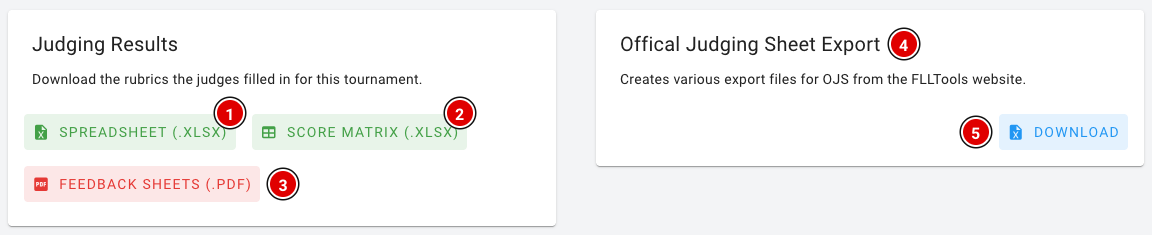](https://docs.flltools.com/uploads/images/gallery/2026-10/exports-02.png) **Judging Results:** The judging forms the judges filled in digitally (see [Judges' briefing](https://docs.flltools.com/books/flltools-documentation-english/page/judges-briefing)). There are three downloads: - **Spreadsheet (.xlsx) (1)**: All completed rubrics in one Excel file, with one line per team, rubric and judge, including the scores and the feedback. - **Score matrix (.xlsx) (2)**: An Excel file with one tab per rubric. Each row is a team, each column an assessment criterion, containing the chosen score (1 to 4). - **Feedback sheets (.pdf) (3)**: The completed rubrics as a PDF, one form per page, sorted by team number. You can hand these to the teams at the end of the day. **Official Judging Sheet Export (4):** **Download (5)** gives you an Excel file with all robot game scores and the Gracious Professionalism scores. You create this export at the end of the competition day. How to put this data into OJS is explained in the *Judges' deliberation* chapter on the page [FLLTools export to OJS](https://docs.flltools.com/books/flltools-documentation-english/page/flltools-export-to-ojs). ### Your own PDFs When the *Custom PDF Templates* module is switched on, you also see the **Custom PDF Templates** block at the bottom of the page. With it you create, for example, certificates or badges with your own design. This is explained on the page [Custom PDF templates](https://docs.flltools.com/books/flltools-documentation-english/page/custom-pdf-templates). The PDF exports can't be customised. Want an export with your own design? Use the custom PDF templates, or contactThis feature is part of the **Custom PDF Templates** module. Don't see the parts on this page? Switch the module on through **Setup** and **Settings** (see the page [Settings and modules](https://docs.flltools.com/books/flltools-documentation-english/page/settings-and-modules)). The feature is still in BETA.
### The template overview You reach the templates through **Setup**, **Exports** and then the **Manage Templates** button in the *Custom PDF Templates* block. [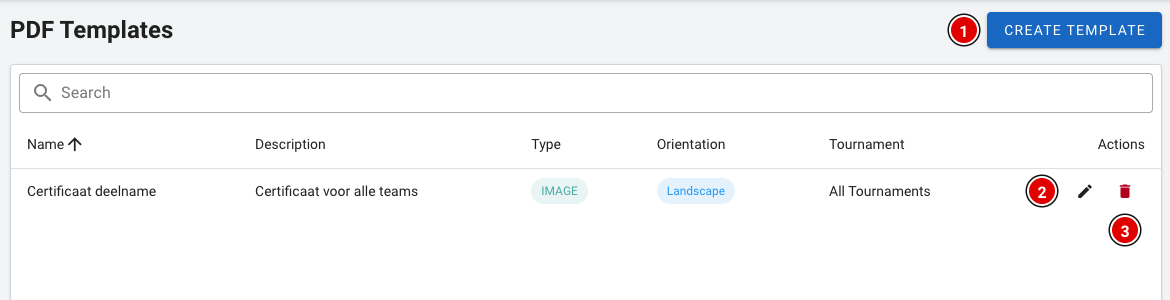](https://docs.flltools.com/uploads/images/gallery/2026-10/pdf-sjablonen-01.png) - **Create Template (1)** creates a new template. - The pencil **(2)** changes an existing template. - The bin **(3)** deletes a template. You are asked to confirm this first. ### Creating a template Click **Create Template**. First fill in the template details: [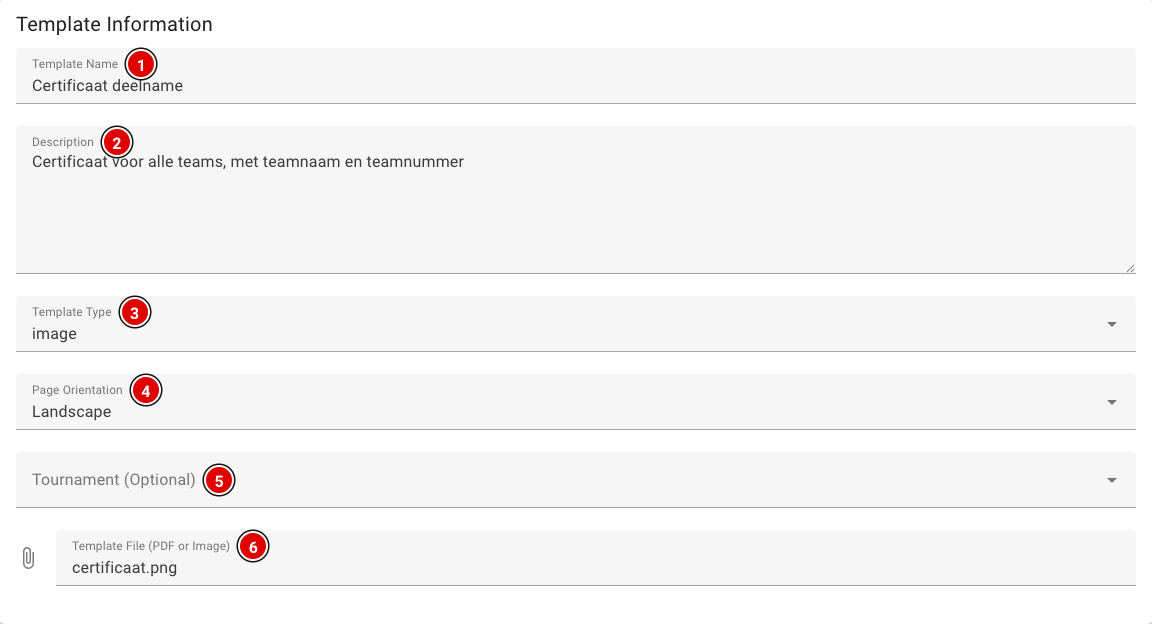](https://docs.flltools.com/uploads/images/gallery/2026-10/pdf-sjablonen-02.png) **Template Name (1):** The name of the template, for example "Participation certificate". **Description (2):** A short description. This field is optional. **Template Type (3):** Filled in automatically based on the file you upload (image or pdf). **Page Orientation (4):** Choose **Portrait** or **Landscape**. The document is always created on A4. **Tournament (Optional) (5):** Link the template to one tournament. If you leave this empty, you can use the template for all tournaments. **Template File (6):** The background of the document, at most 10 MB.Use an image (PNG or JPG) in A4 proportions for the background. Only then will you see the design in the editor and will it come out correctly in the PDF.
### Placing data on the background As soon as you have chosen an image, it appears in the **Template Editor**. [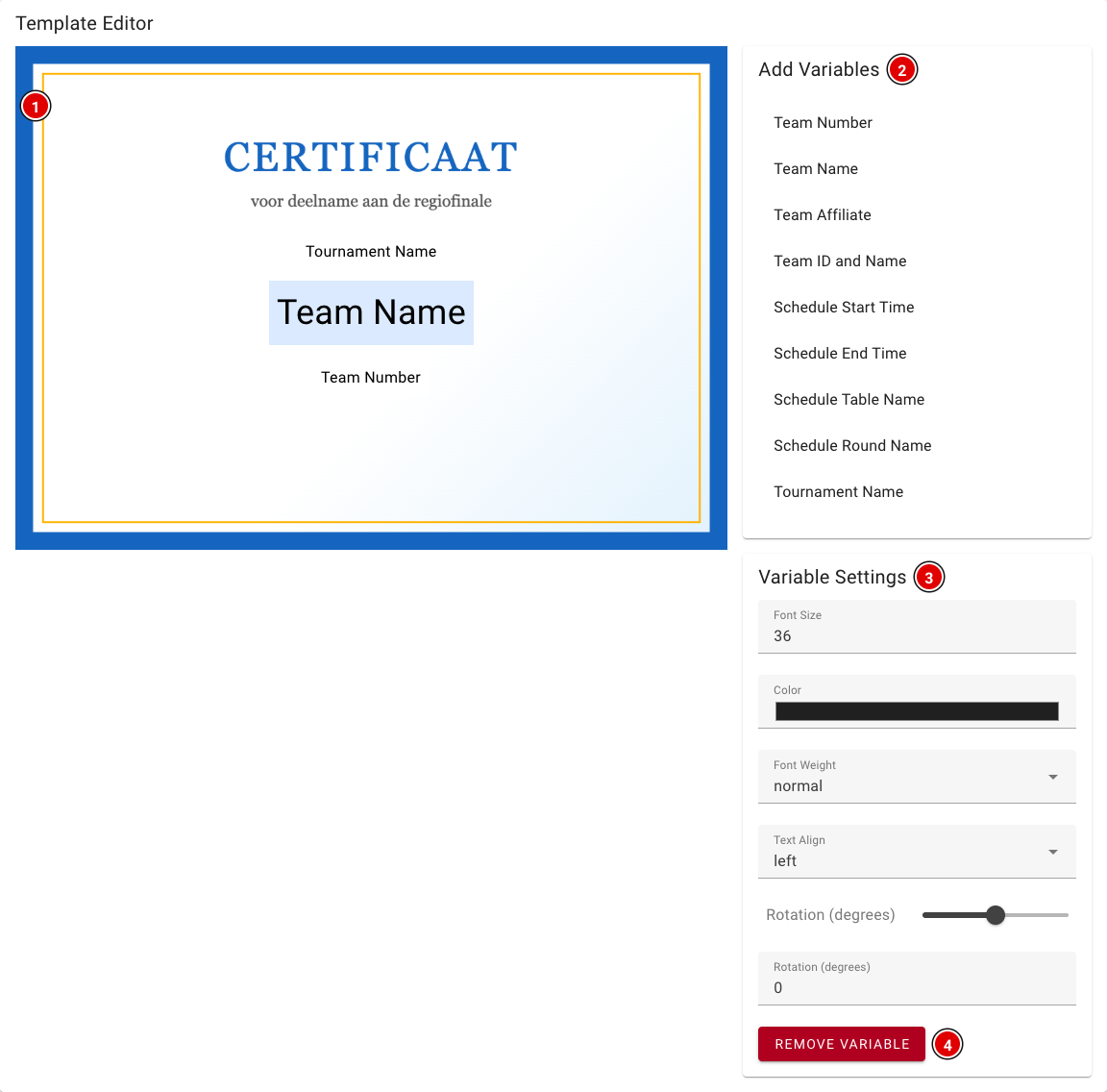](https://docs.flltools.com/uploads/images/gallery/2026-10/pdf-sjablonen-03.png) - **Preview (1)**: Shows the background with the placed data. Drag an item with the mouse to where it should go. - **Add Variables (2)**: Click an item to add it. You can choose from: - Team Number, Team Name, Team Affiliate (organisation) and Team ID and Name (for example "042 | Nibble") - Schedule Start Time, Schedule End Time, Schedule Table Name and Schedule Round Name: the time, table number and round of one of the team's robot matches - Tournament Name - **Variable Settings (3)**: Click a placed item to select it. You can then change the **Font Size**, **Color**, **Font Weight** (normal or bold), **Text Align** and **Rotation** here. - **Remove Variable (4)**: Removes the selected item.The schedule data is filled in with one robot match of the team. Want to show all matches per team? Use the *Match List* on the exports page.
Click **Create Template** at the bottom to save the template. You change an existing template in the same way; then click **Update Template**. If you don't upload a new file while editing, the current background is kept. ### Creating the PDF You create the PDFs on the exports page, in the **Custom PDF Templates** block. [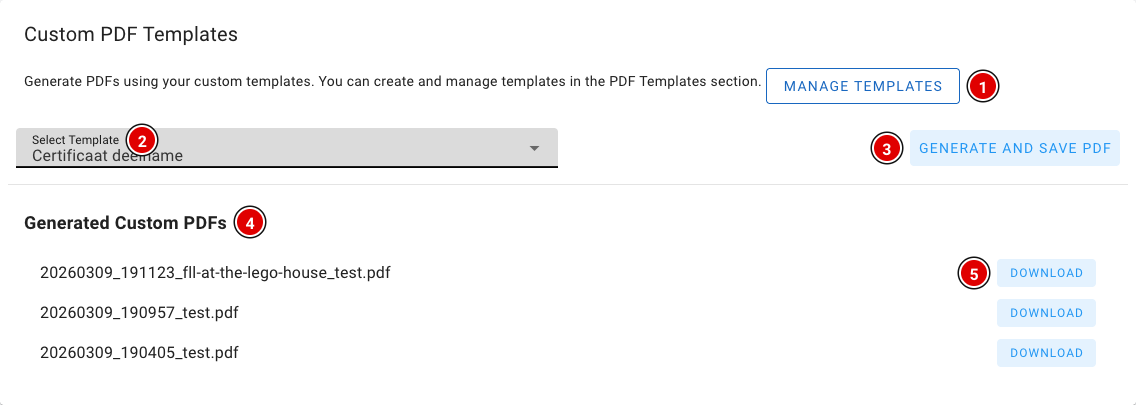](https://docs.flltools.com/uploads/images/gallery/2026-10/pdf-sjablonen-04.png) - Check at the top of the exports page that the right tournament is selected. - **Manage Templates (1)** takes you to the template overview. - Choose the template in **Select Template (2)**. - Click **Generate and Save PDF (3)**. FLLTools creates a PDF with a page for every team in the tournament. - The created files are listed under **Generated Custom PDFs (4)**, with the date and time in the file name. Click **Download (5)** to get a file. Have an idea for an export that would be useful more often? Let us know atBrowsers often only play sound after someone has clicked on the page. So after opening the timer screen, click on the page once, and do a sound check before the first match. Also make sure that computer's speakers are on.
### The timer on an info screen Want to show both the timer and the teams of that table pair at the competition tables? Use the **Timer + Table Pair Screen** info screen. This timer is synchronised with the timer screen and is controlled with the same buttons. How to create an info screen is explained on the page [Info screens](https://docs.flltools.com/books/flltools-documentation-english/page/info-screens). ### Control through the API The timer can also be controlled by another system, for example a physical start button. For this you create an API token with the **result.create** permission. The endpoints (start, pause, end, reset and toggle) are in the API documentation, through **Setup** and **API Docs**, under the *Timer* heading. Want to use this and need help? ContactInfo screens are part of the **Info Screen Module**. Don't see the button in the menu? Switch the module on through Setup → Settings (see the page [Settings and modules](https://docs.flltools.com/books/flltools-documentation-english/page/settings-and-modules)).
### Types of info screens - **General Info**: an overview for the main hall. On the left the upcoming items and judging sessions, on the right the scoreboard and at the bottom a scrolling bar with the latest scores. - **Table Screen**: for one competition table. Shows which team is playing now and who comes next, with the times. - **Table Pair Screen**: the same, but for a table pair side by side. - **Timer + Table Pair Screen**: a table pair with the match timer above it. Handy when one screen at the field has to show both the timer and the teams. - **Jury Screen**: for one judging room. Shows the current and the next session. Ideal next to the door of the judging room. - **Stream Overlay**: an overlay for the livestream, see the page [Livestream](https://docs.flltools.com/books/flltools-documentation-english/page/livestream). - **Practice Tables**: shows for each practice table who is practising now, who comes next and how many slots are still free. See the page [Practice tables and reservations](https://docs.flltools.com/books/flltools-documentation-english/page/practice-tables-and-reservations). ### Creating an info screen [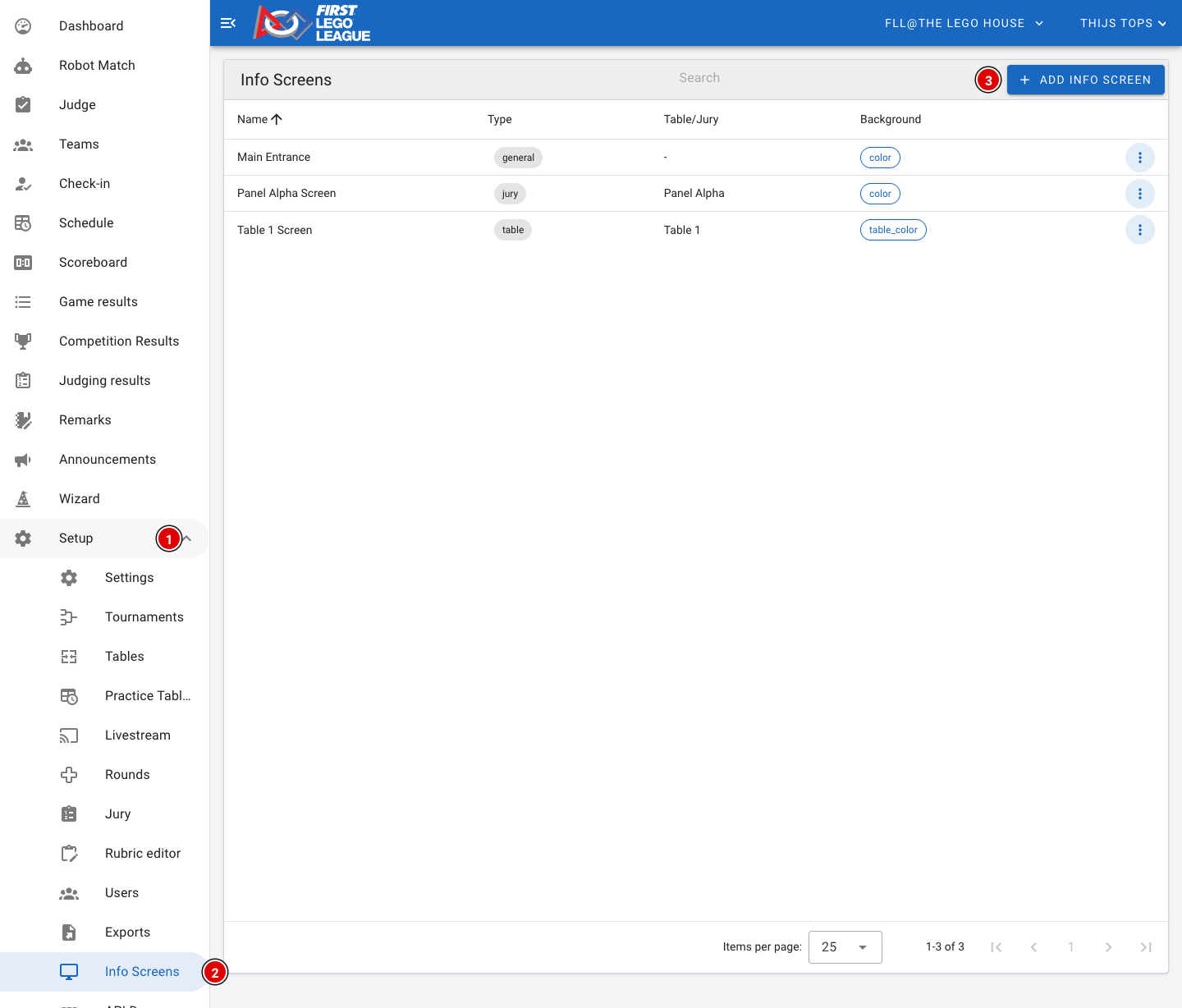](https://docs.flltools.com/uploads/images/gallery/2026-10/infoschermen-01.png) - Go through **Setup (1)** to **Info Screens (2)**. You see a list of all screens that have already been created. - Click **Add Info Screen (3)**. A window opens. [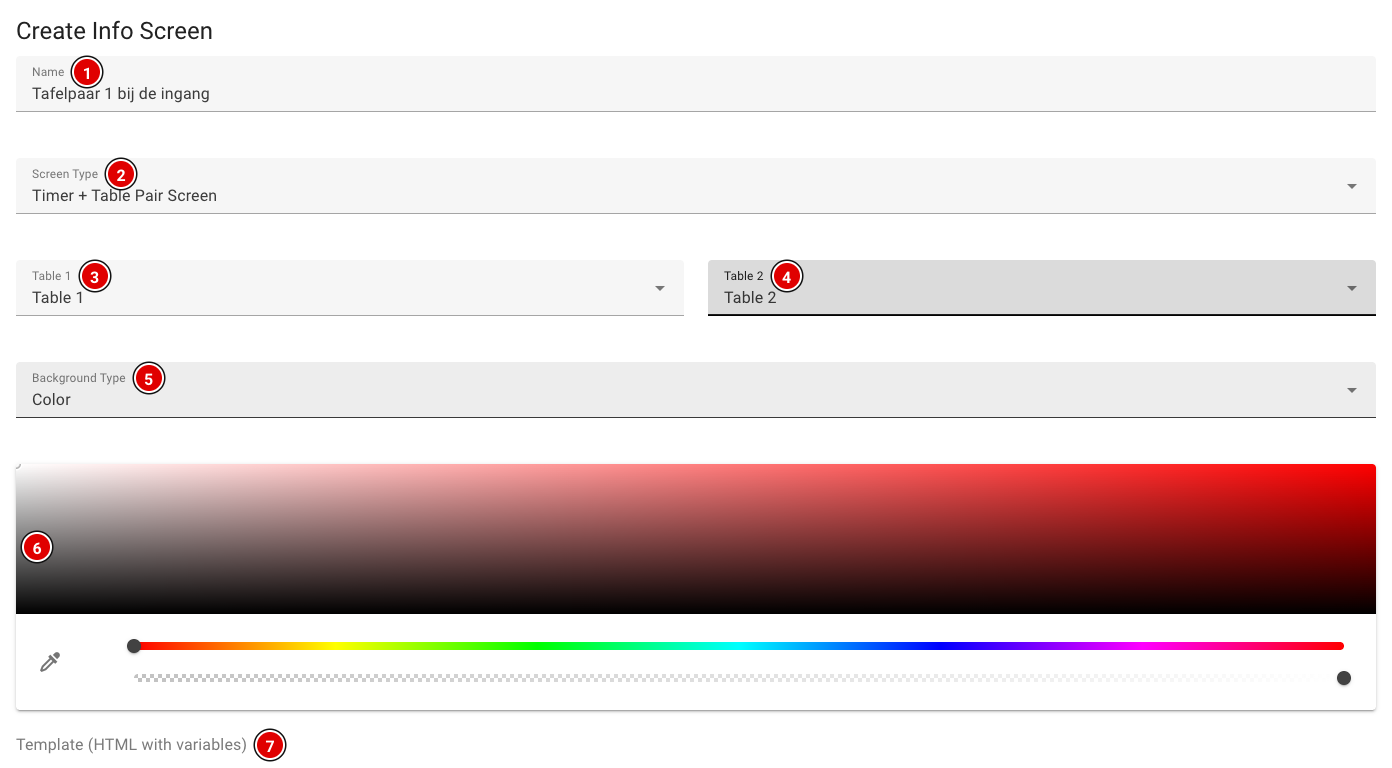](https://docs.flltools.com/uploads/images/gallery/2026-10/infoschermen-02.png) **Name (1):** A recognisable name, for example the place where the screen hangs ("Table pair 1 at the entrance"). You'll see this name again when you choose the screen on the computer. **Screen Type (2):** The type of screen, see the overview above. **Table 1 (3) and Table 2 (4):** Only for a (Timer +) Table Pair Screen: choose the two tables. For a Table Screen you choose one table, for a Jury Screen you choose the jury. **Background Type (5):** The background of the screen: - **Color**: a fixed colour, which you choose with the **colour picker (6)**. - **Image**: an image. Enter the web address (URL) of the image. - **Table Color (for table screens)**: only for table screens. The screen automatically gets the colour of the table; for a table pair each half gets the colour of its own table. **Template (7):** Optional. If you leave this empty, the screen uses the default layout. That's fine for most events. - Click **Create** at the bottom of the window. The screen appears in the list. - Through the **3 dots** next to a screen you can change it (**Edit**) or delete it (**Delete**). #### Creating your own layout (template) Want to decide yourself what's on the screen, for example a welcome text with the current time? Use the template editor at the bottom of the window. [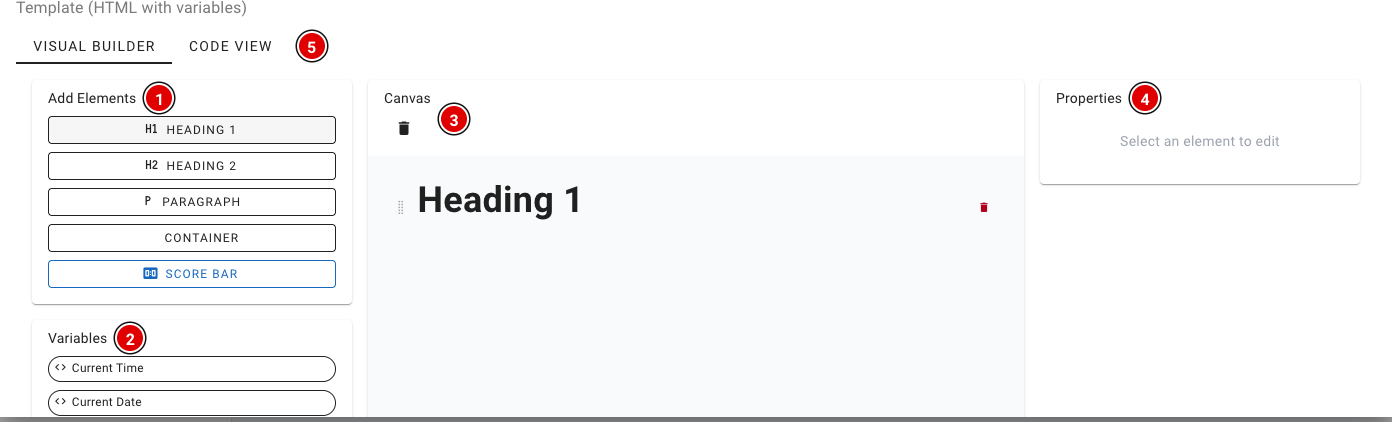](https://docs.flltools.com/uploads/images/gallery/2026-10/infoschermen-03.png) - **Add Elements (1)** adds headings, text, a container or a score bar (**Score Bar**). - **Variables (2)** contains data that is filled in automatically, such as the current time and date, the next item, the latest score and the leader. Which variables you see depends on the type of screen: a table screen, for example, also has the current and the next team. - The **Canvas (3)** shows your layout. You can drag and delete elements. - Click an element to change it under **Properties (4)**. - Through **Code View (5)** you can also edit the HTML directly. This is only needed for advanced users. ### Opening the screen on a TV or projector - On the computer connected to the screen, open a browser and go to [https://**yourevent**.flltools.nl/info-screens/select](https://yourevent.flltools.nl/info-screens/select). Replace "yourevent" with the name of your event. No login is needed. - You see a card for every screen that has been created. Click the screen you want to show. - Put the browser in full-screen mode (usually the **F11** key) and leave the screen on. [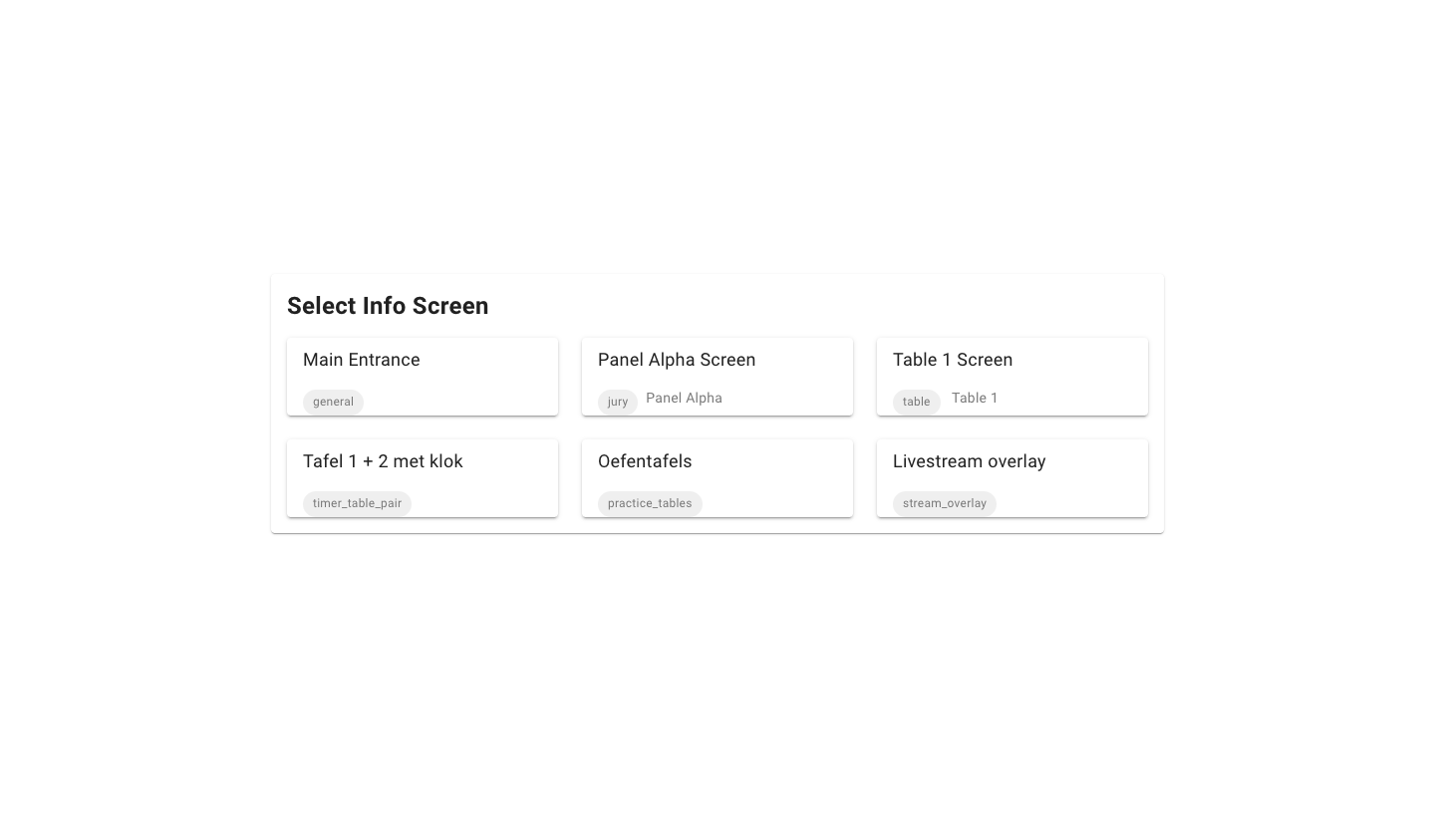](https://docs.flltools.com/uploads/images/gallery/2026-10/infoschermen-04.png) The screen refreshes every 30 seconds. When a new score comes in, the screen is updated immediately. So you don't need to touch it all day. This is what a **General Info** screen with the default layout looks like: [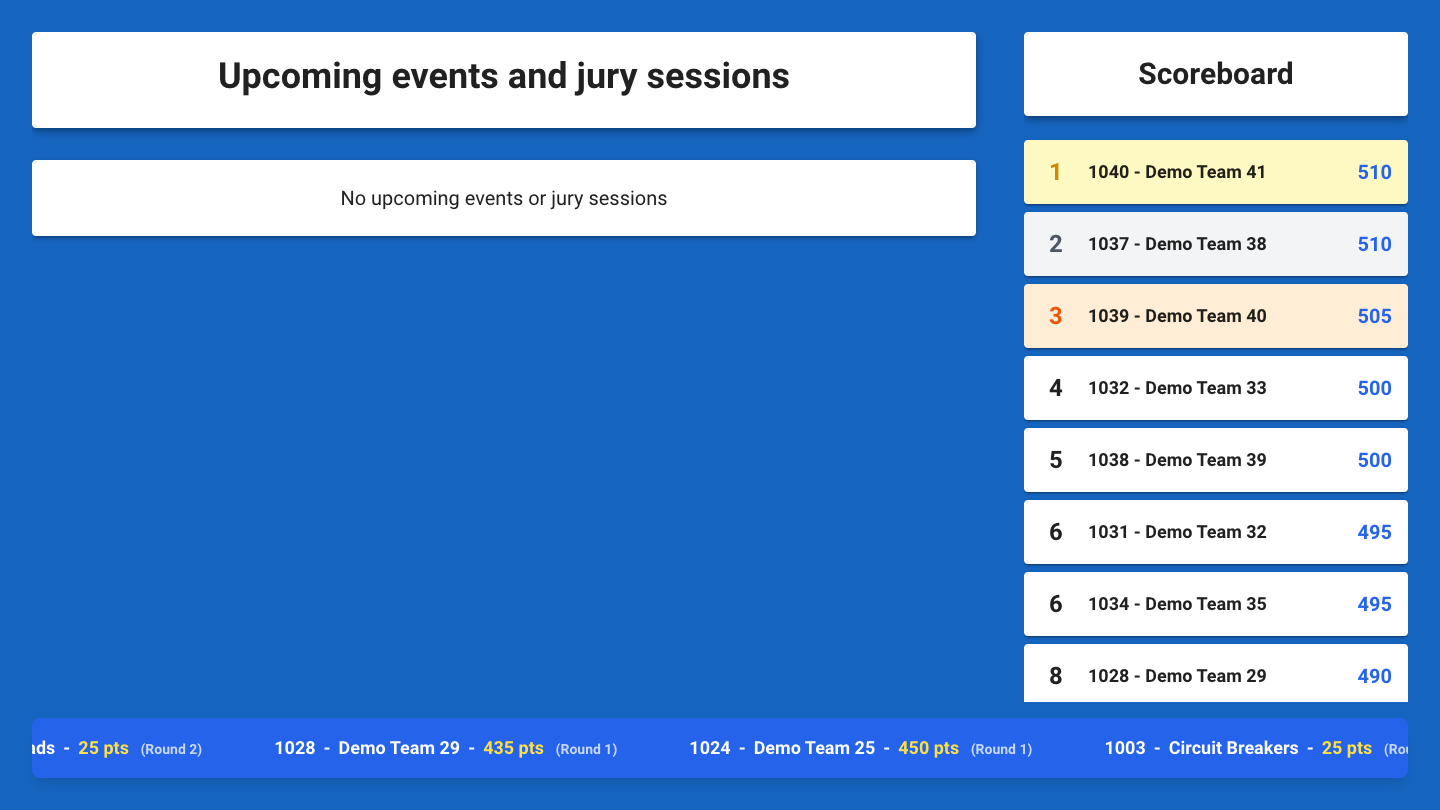](https://docs.flltools.com/uploads/images/gallery/2026-10/infoschermen-05.png) And a **Timer + Table Pair Screen**, with the timer above the two tables in their own table colour: [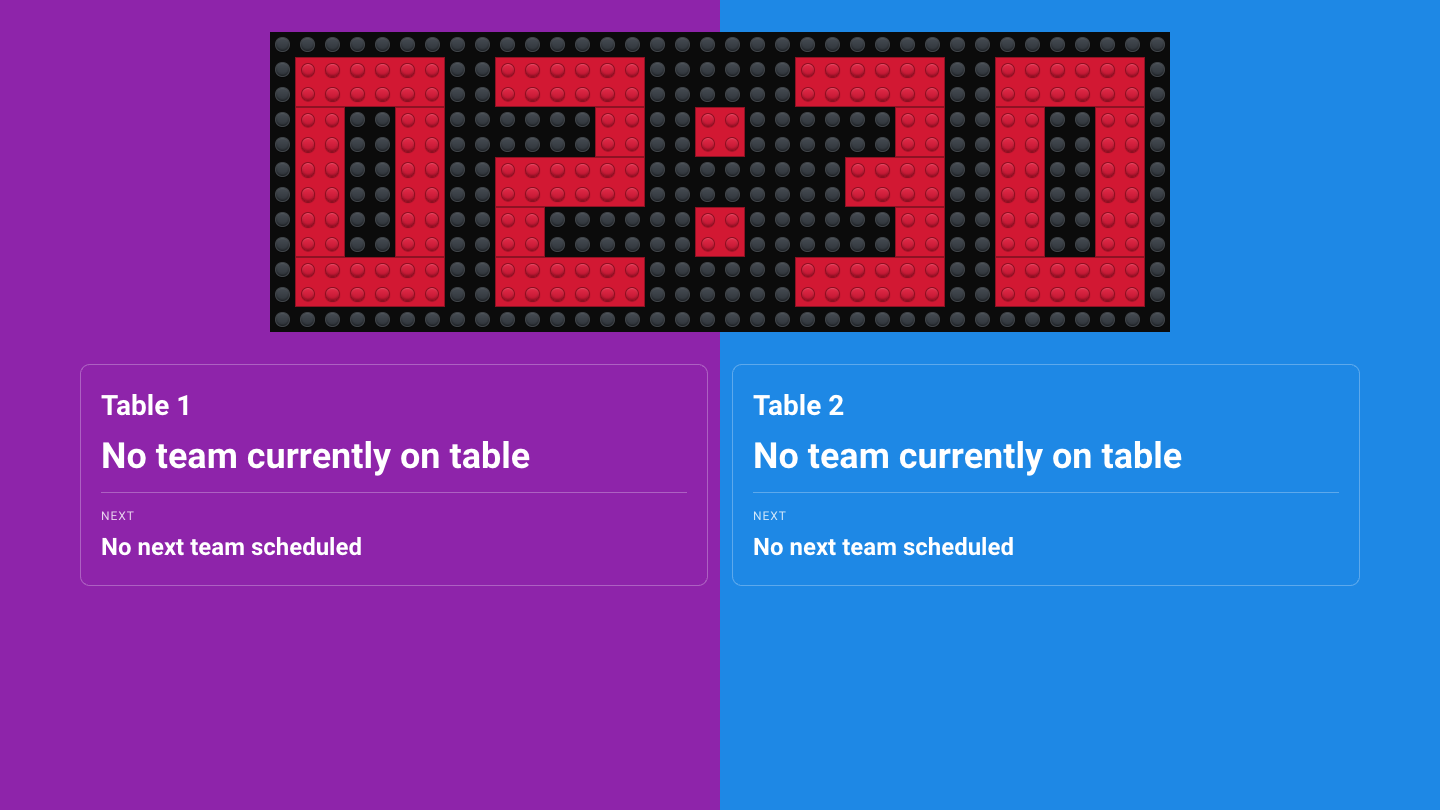](https://docs.flltools.com/uploads/images/gallery/2026-10/infoschermen-06.png) A **Jury Screen** shows the current and the next session of one jury: [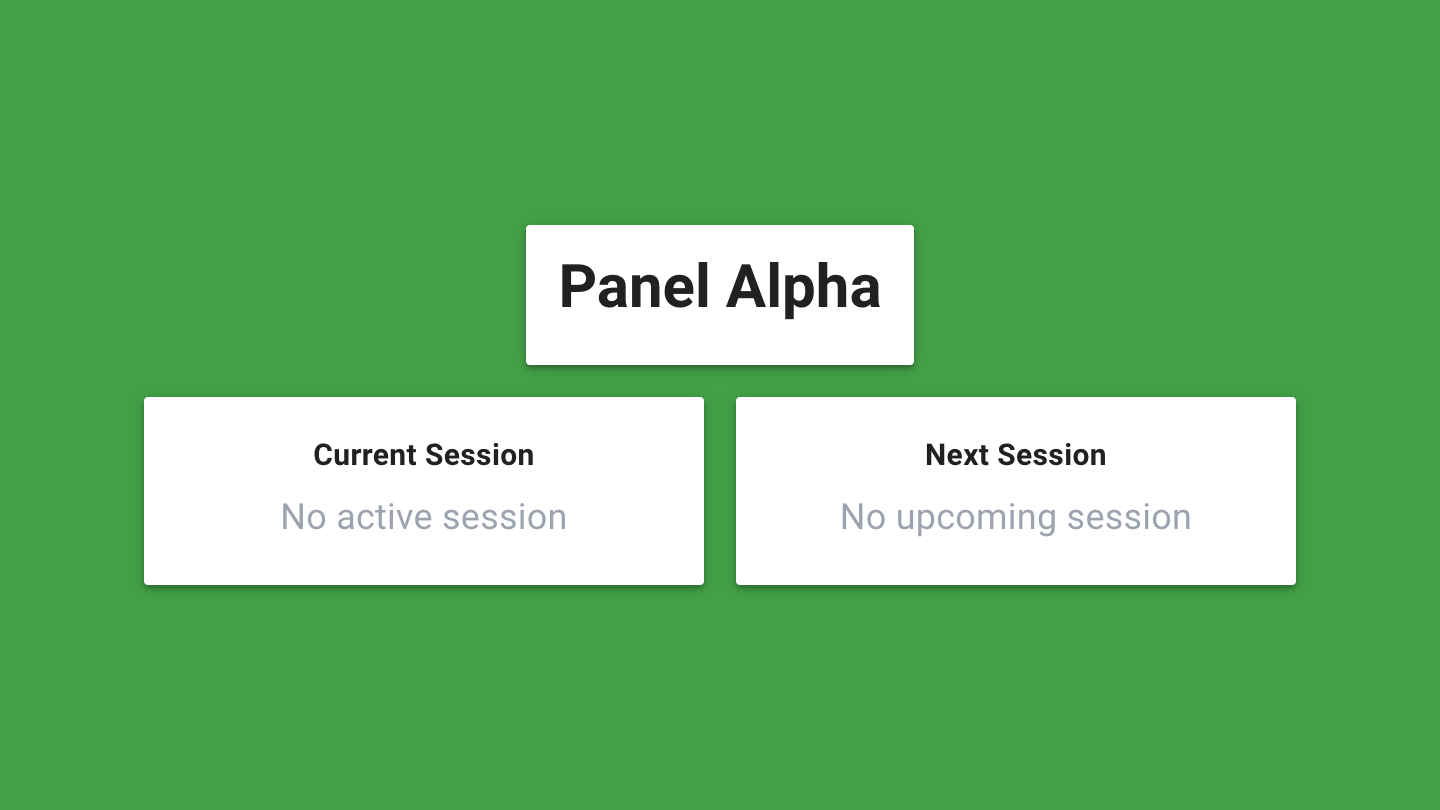](https://docs.flltools.com/uploads/images/gallery/2026-10/infoschermen-07.png) #### Language of the screen Info screens are in English by default. Want another language? Add **?lang=** with the language code to the address of the screen, for example **?lang=nl** for Dutch, **?lang=be** for Flemish or **?lang=fr** for French. ### Tips - Test the screens beforehand on the computers you will use at the event. - Switch off sleep mode and the screensaver on the computers, or the screen will go black halfway through the day. - Is a screen empty? Check that you chose the right table, table pair or jury, and that the day schedule has been loaded. Table and jury screens get their information from the schedule. # Livestream Broadcasting your event live through **Twitch** or **YouTube**? Then you can show the stream on your event's public site. Visitors then don't have to look for the right link themselves.The livestream is part of the **Livestream Module**. Switch it on through Setup → Settings if you don't see the **Livestream** button in the menu (see the page [Settings and modules](https://docs.flltools.com/books/flltools-documentation-english/page/settings-and-modules)).
### Setting up the livestream - Go through **Setup** to **Livestream**. [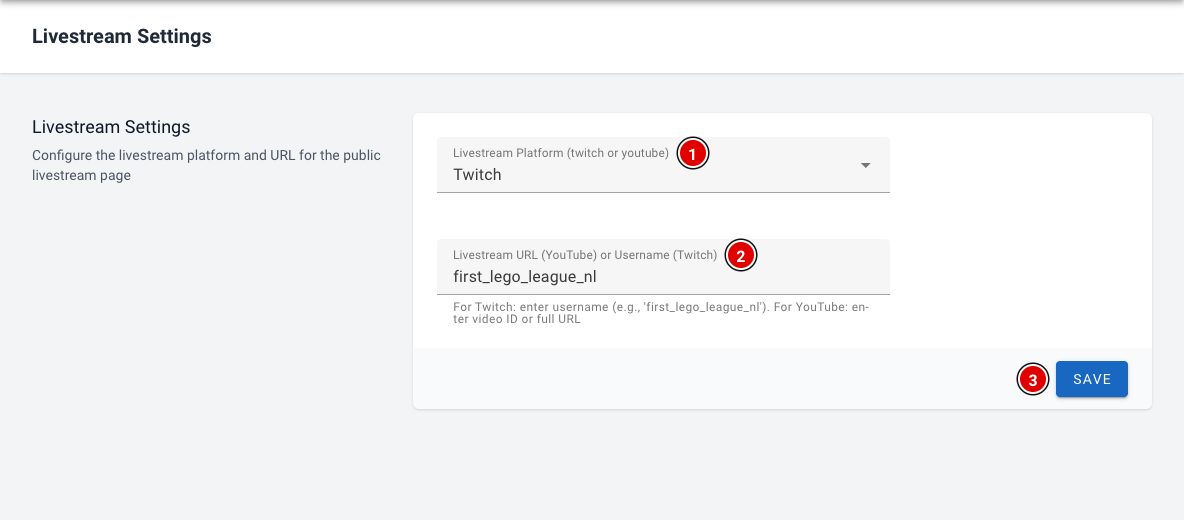](https://docs.flltools.com/uploads/images/gallery/2026-10/livestream-01.png) **Livestream Platform (1):** Choose **Twitch** or **YouTube**. **Livestream URL or Username (2):** - For Twitch, enter the channel name, for example **first\_lego\_league\_nl**. - For YouTube, enter the video ID, or paste the full address of the video (a **youtube.com/watch?v=…** or **youtu.be/…** link). Click **Save (3)**. The public page shows the stream straight away. ### The public livestream page Visitors find the stream through **Livestream** in the menu of the public site, or directly at [https://**yourevent**.flltools.nl/livestream](https://yourevent.flltools.nl/livestream). Replace "yourevent" with the name of your event. [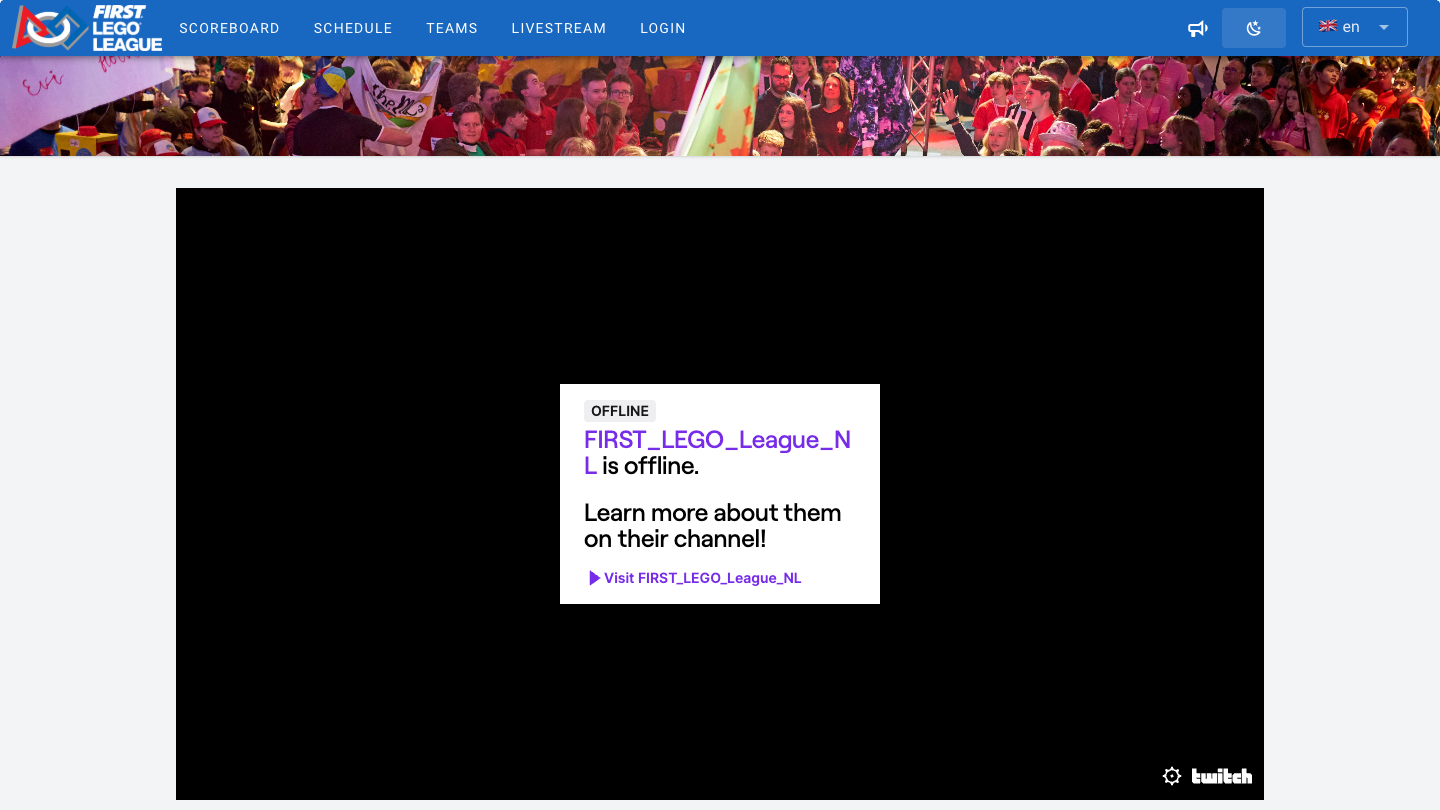](https://docs.flltools.com/uploads/images/gallery/2026-10/livestream-02.png) The player works like the normal Twitch or YouTube player: viewers can adjust the sound and put the video in full screen. If the stream isn't live (yet), Twitch shows this in the player. ### Scores on screen with the Stream Overlay Producing the broadcast yourself, for example with OBS? Then create an info screen of the **Stream Overlay** type (see the page [Info screens](https://docs.flltools.com/books/flltools-documentation-english/page/info-screens)). The overlay shows a scoreboard, a scrolling bar with the latest scores and a notification as soon as a new score comes in. [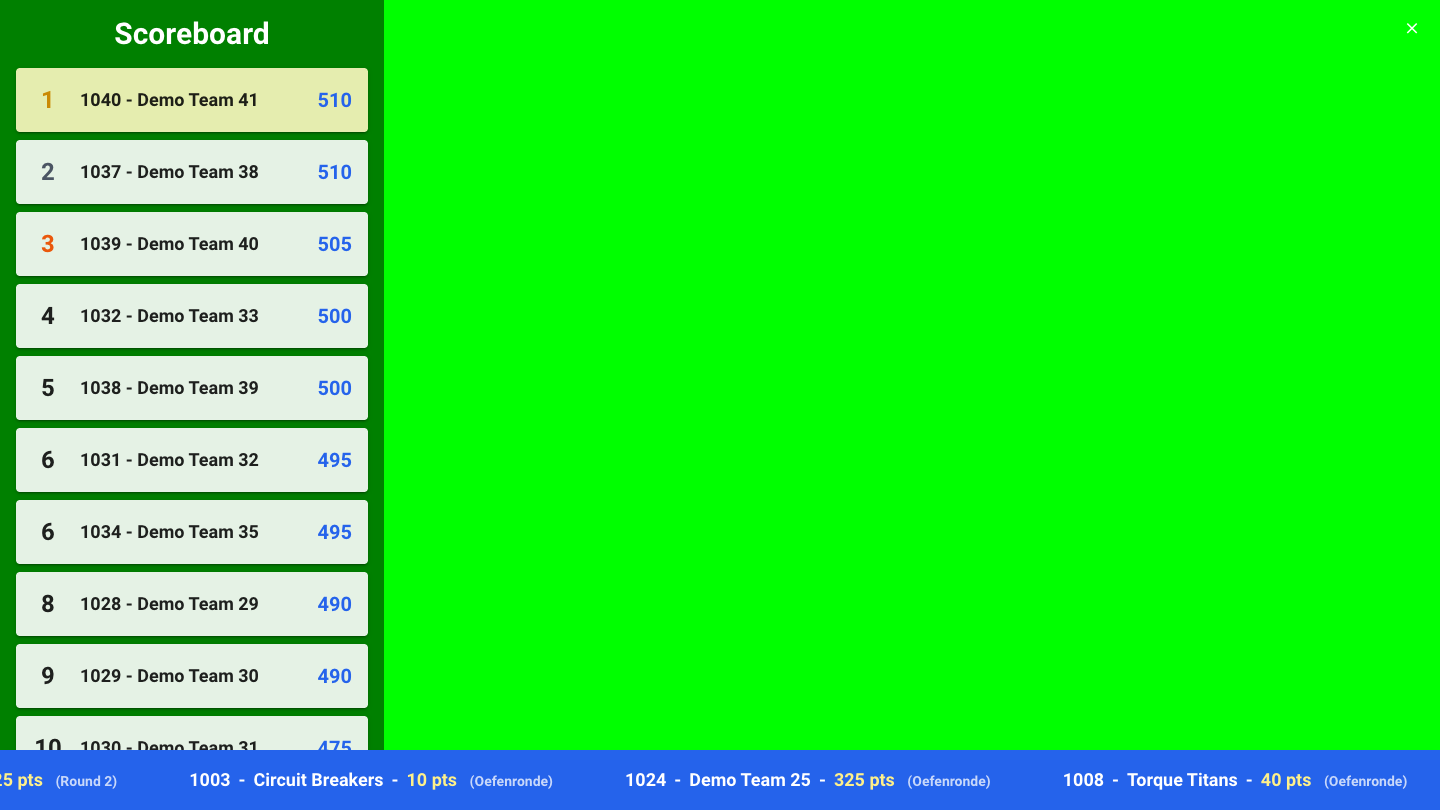](https://docs.flltools.com/uploads/images/gallery/2026-10/livestream-03.png) - Choose a bright background colour, for example green, as in the example. You can filter that colour out in your streaming software (chroma key), so only the scoreboard and the bar appear over your video. - The cross at the top right hides the scoreboard. Click the button that then appears to show the scoreboard again. The scrolling bar always stays visible. - Add the screen in your streaming software as a browser source with the address of the info screen. ### Tips - Check the channel name or video link beforehand. With a small typo the player stays empty. - Open the public page on another device before the event, so you're sure the right stream is shown. # Practice tables and reservations Many events have practice tables where teams can test their robot one more time. With FLLTools, teams book a practice slot themselves on a screen (for example a touchscreen or tablet) next to the practice tables. You set for each table how long a practice slot lasts and when the table is open. FLLTools automatically turns this into time slots.For this the **Practice Table Reservations** module must be switched on. You do this through Setup → Settings (see the page [Settings and modules](https://docs.flltools.com/books/flltools-documentation-english/page/settings-and-modules)). If the module is off, teams see on the reservation screen that no slots are available.
### Creating practice tables - Go through **Setup** to **Practice Tables**. - You see a list of all practice tables, with the colour, the slot length, the opening and closing time and the number of reservations. - Click **Add (1)** to add a practice table. [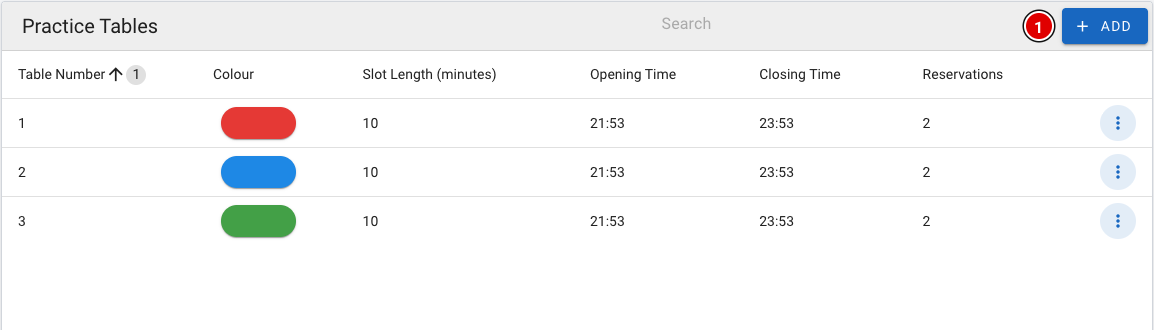](https://docs.flltools.com/uploads/images/gallery/2026-10/oefentafels-01.png) [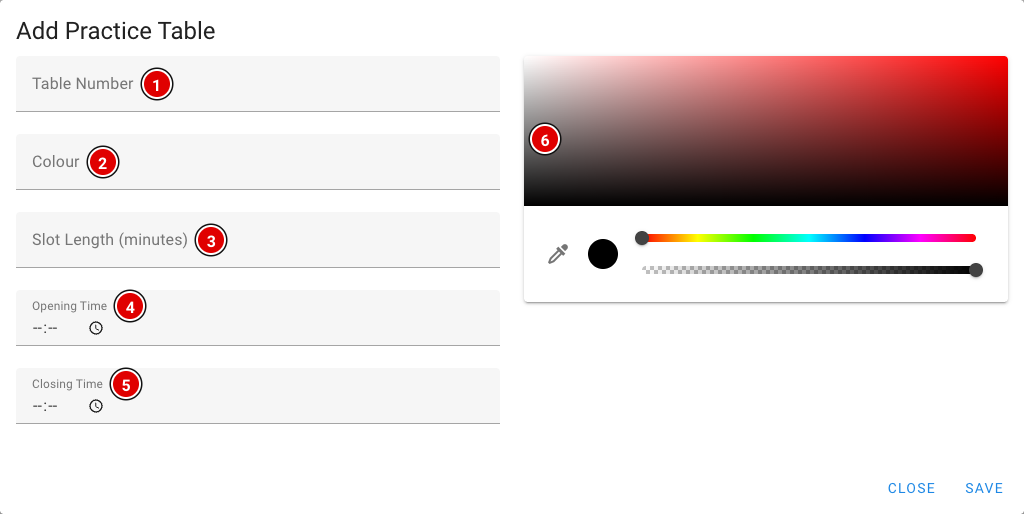](https://docs.flltools.com/uploads/images/gallery/2026-10/oefentafels-02.png) **Table Number (1):** The number of the practice table, for example 1, 2, 3. **Colour (2):** The name of the table's colour, for example "Red". This helps teams find the right table quickly. **Slot Length (minutes) (3):** How long a practice slot lasts, in minutes. **Opening Time (4):** From what time the table is open for practice. **Closing Time (5):** Until what time the table is open. **Colour picker (6):** The colour teams see on the reservation screen and the info screen. Click **Save**. The time slots are created automatically. A table open from 09:00 to 10:00 with a 15-minute slot, for example, gives four slots: 09:00, 09:15, 09:30 and 09:45. #### Maximum number of reservations per team How many practice slots a team may book ahead at the same time is set through Setup → Settings in **Max practice reservations per team** (2 by default). As soon as a practice slot has passed, it no longer counts and the team can book a new slot. ### Viewing and cancelling reservations - In the list, click the **3 dots** next to a practice table and choose **Edit**. - At the bottom of the window are all **Reservations (1)** for this table, with the time and the team. - **Cancel Reservation (2)** cancels a reservation. The slot then becomes available for another team. - Want to change the table itself? Change the fields and click **Update**. [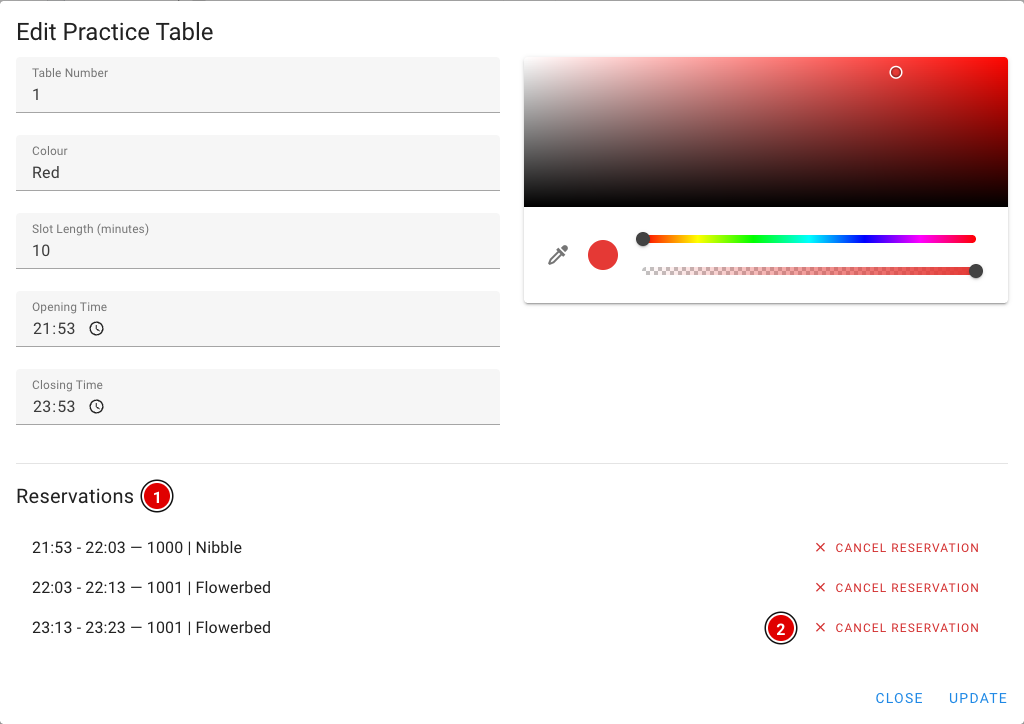](https://docs.flltools.com/uploads/images/gallery/2026-10/oefentafels-08.png)**Delete** in the menu deletes the whole practice table, including its time slots.
### How a team books a slot Place a computer, tablet or touchscreen next to the practice tables showing the page [https://**yourevent**.flltools.nl/practice-reservation](https://yourevent.flltools.nl/practice-reservation). Replace "yourevent" with the name of your event. No login is needed. #### Step 1: Entering the team number The team taps in its team number with the large number keys (or the keyboard) and presses **Continue**. If the number doesn't exist, a message appears and the team can try again. [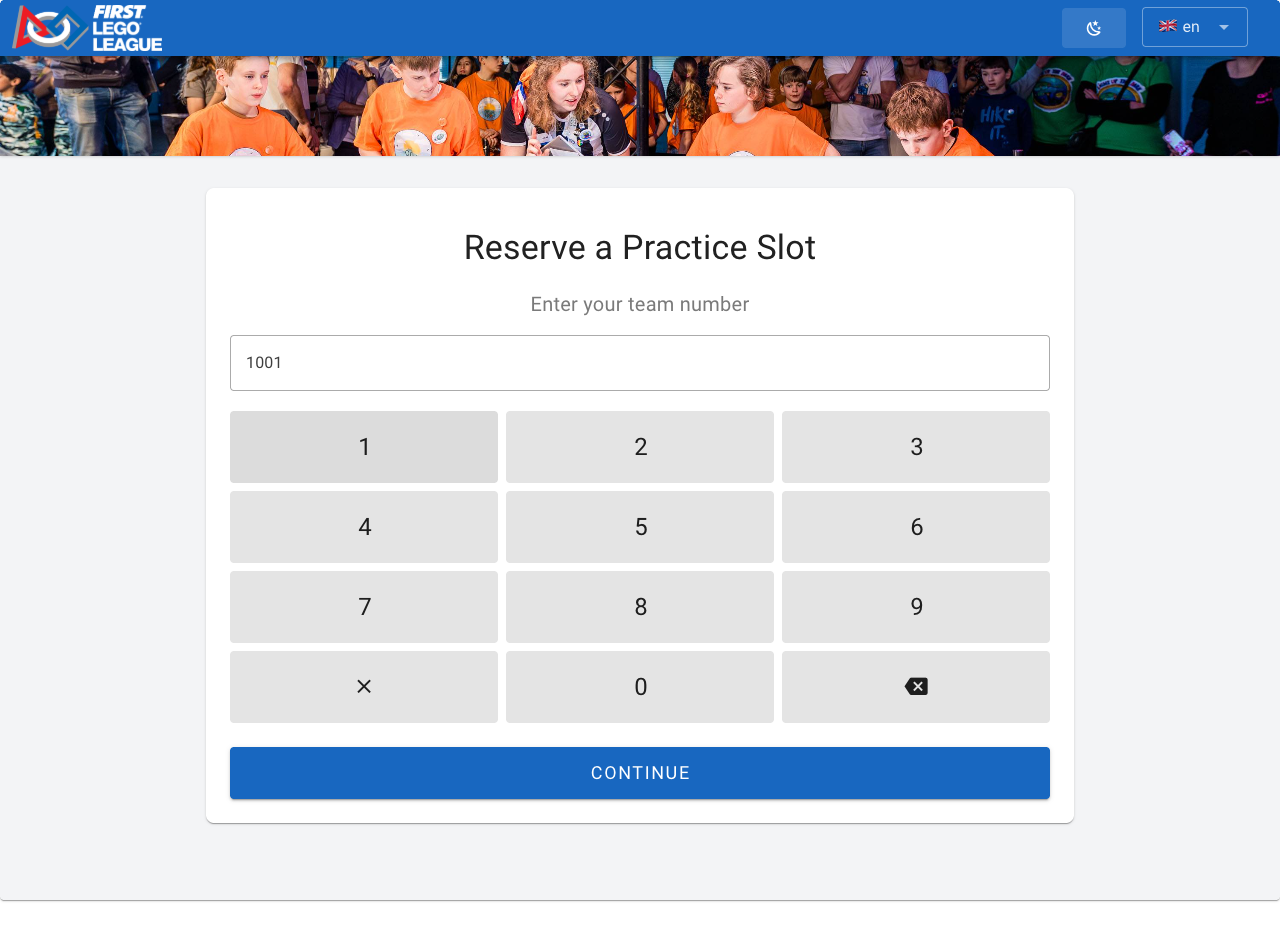](https://docs.flltools.com/uploads/images/gallery/2026-10/oefentafels-03.png) #### Step 2: Choosing a time The team now sees all free time slots: each column is a practice table, each row a time. An empty spot means that table is already taken or closed at that time. On the right is **Your Schedule**, the team's day schedule, so it can choose a time that doesn't clash with a match or judging session. [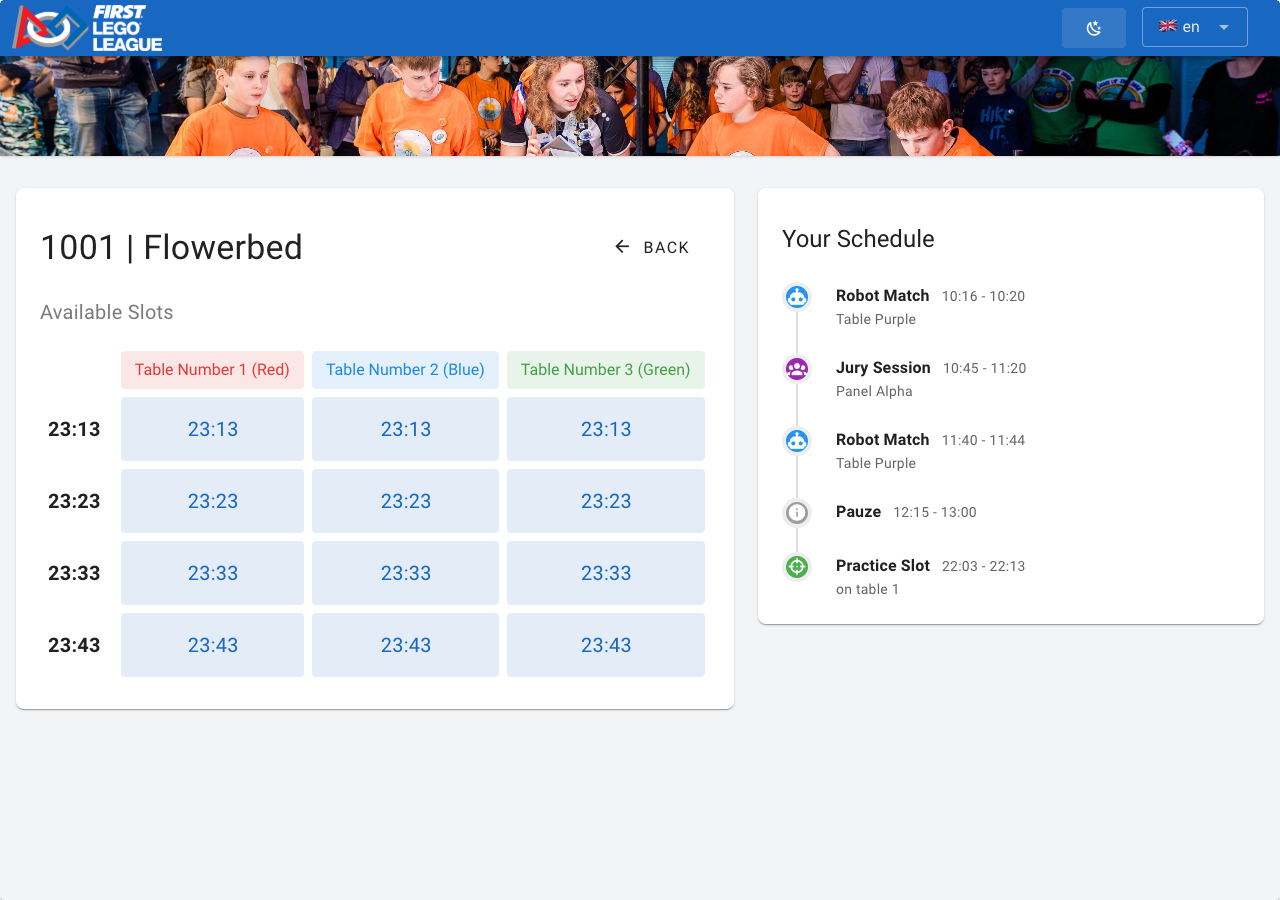](https://docs.flltools.com/uploads/images/gallery/2026-10/oefentafels-04.png) After choosing a time, the screen asks for confirmation. The team presses **Confirm** to book, or **Cancel** to go back. [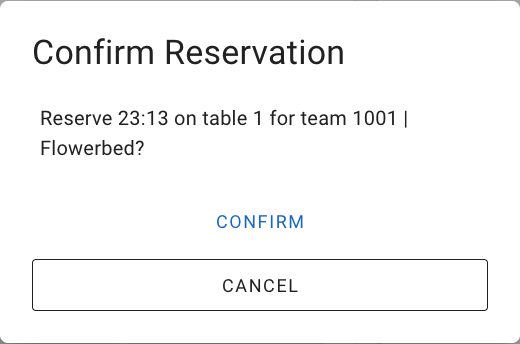](https://docs.flltools.com/uploads/images/gallery/2026-10/oefentafels-05.png) #### Step 3: Done The team sees **Reserved!**. **Make Another Reservation** lets it book another slot (if the maximum hasn't been reached yet); **Done** takes the screen back to the start. [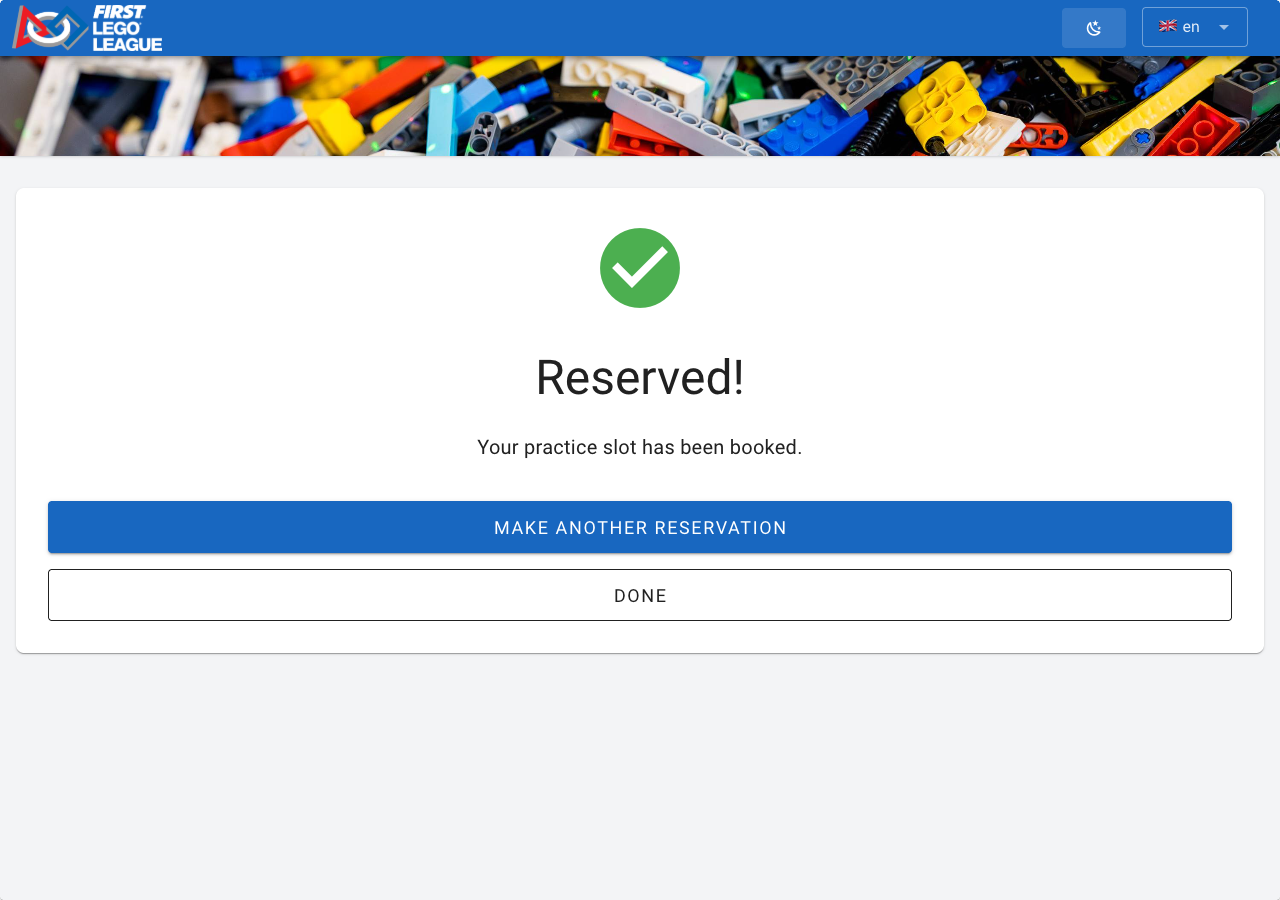](https://docs.flltools.com/uploads/images/gallery/2026-10/oefentafels-06.png) Good to know: - After 15 seconds without a touch, the screen automatically returns to the start. That way the previous team's details don't stay on screen. This doesn't happen while confirming. - If two teams choose the same slot at the same time, the second team gets a message that the slot has just been taken and chooses another time. - If a team has reached the maximum number of reservations, the screen says so. - Booked practice slots also appear in the schedule on the public team page. ### Practice tables on an info screen With an info screen of the **Practice Tables** type you show at the practice tables who is practising now (**Now**), who comes next (**Next**) and how many slots are still free. See the page [Info screens](https://docs.flltools.com/books/flltools-documentation-english/page/info-screens). [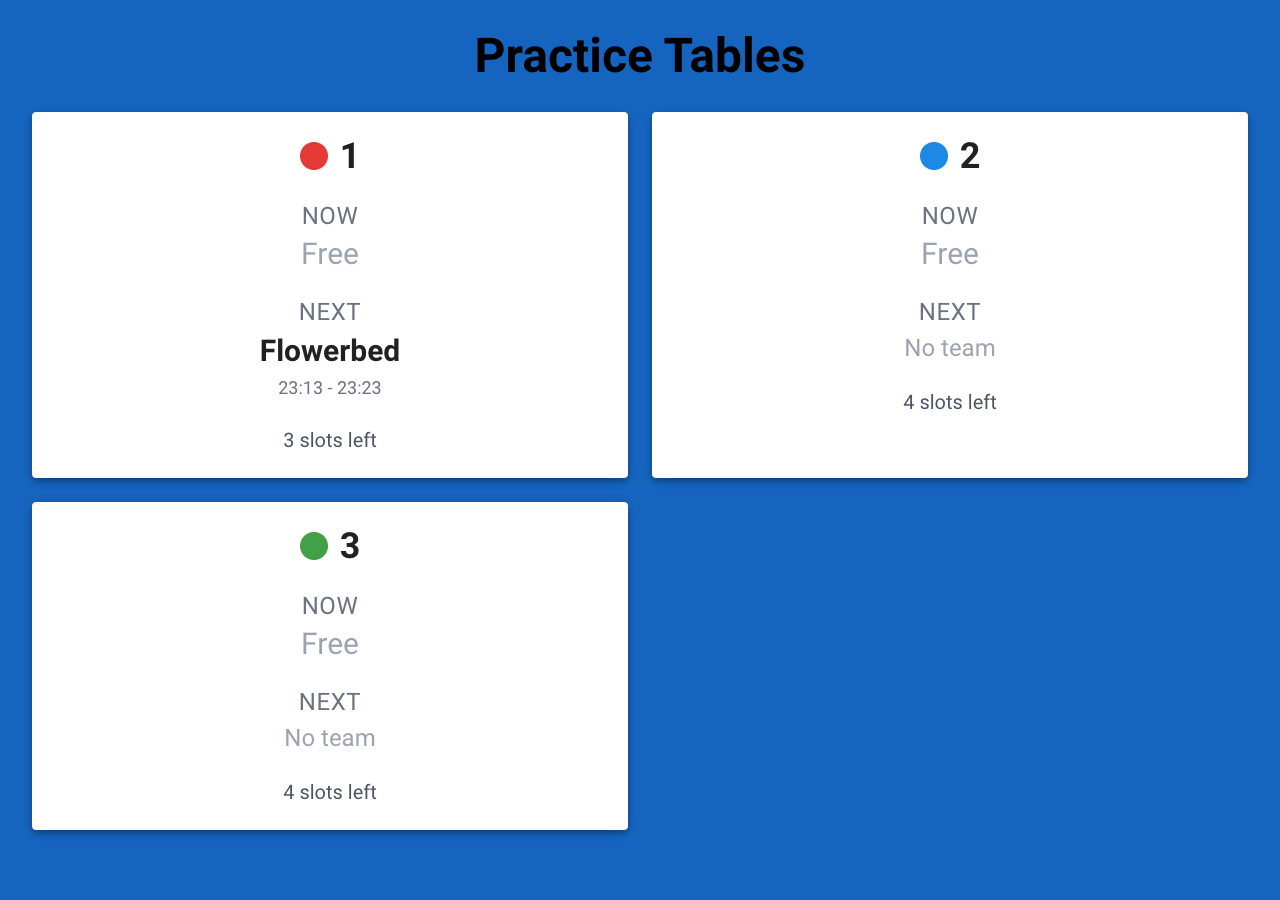](https://docs.flltools.com/uploads/images/gallery/2026-10/oefentafels-07.png) # Team features FLLTools has a public section where teams, coaches, parents and visitors can look up their team without logging in. In addition, when the *Advanced Team Management* module is on, coaches can update their team's details themselves. ### The team list [https://**yourevent**.flltools.nl/team](https://yourevent.flltools.nl/team) has a public list of all teams. Visitors also get here through **Teams (1)** in the menu at the top of the public pages. [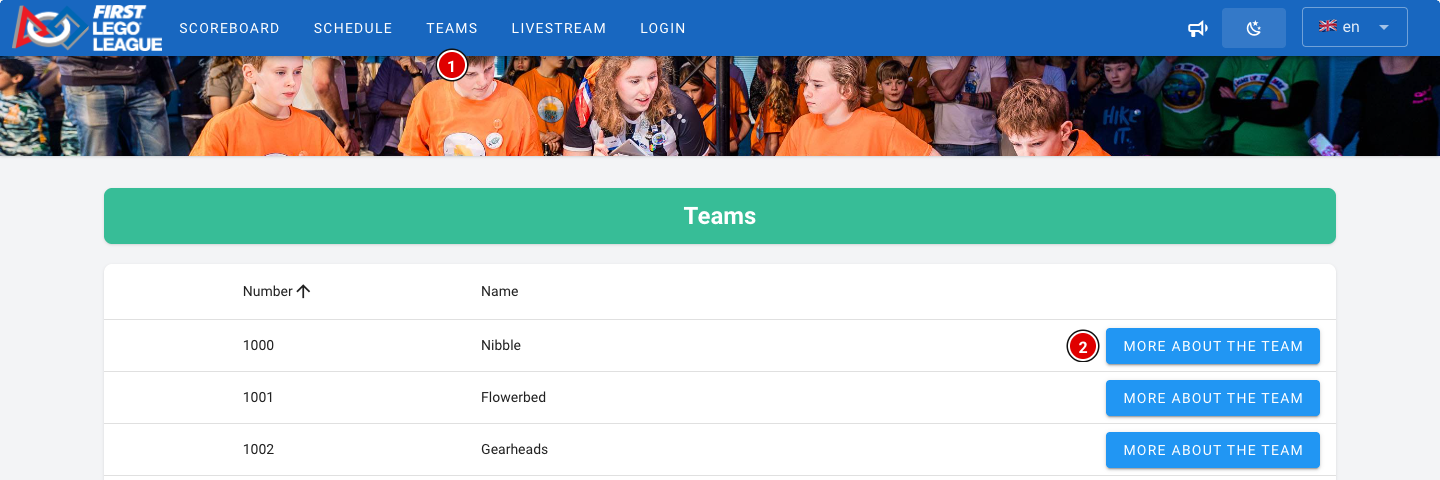](https://docs.flltools.com/uploads/images/gallery/2026-10/teamfunc-01.png) - Clicking the **More about the team (2)** button opens the team page. - The list refreshes automatically as soon as new scores come in. ### The team page The content of the team page depends on which modules are switched on. With all modules on, the page looks like this: [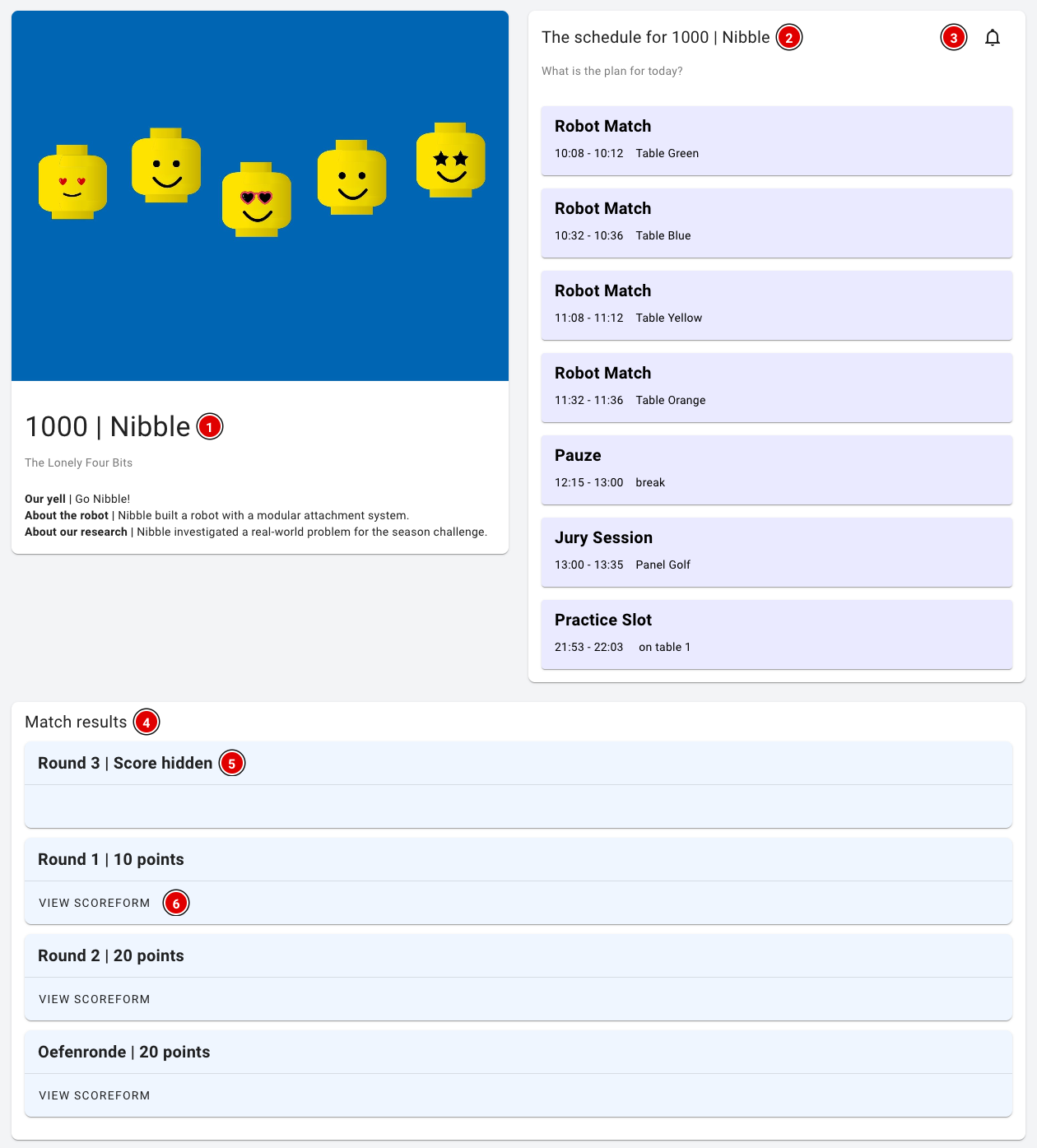](https://docs.flltools.com/uploads/images/gallery/2026-10/teamfunc-02.png) - **Team information (1)**: The team number, team name and organisation. With the *Advanced Team Management* module, the team photo, the team cheer (yell) and the descriptions of the robot and the innovation project are added here too. If you have created your own team fields set to *Public* (for example the pit number), they are shown here as well. - **Day schedule (2)**: With the Schedule module, the team sees where and when it is expected: robot matches (with the table), judging sessions (with the jury), breaks and other items from the schedule, and booked practice tables. - **Reminders (3)**: With the bell, visitors can sign up for a notification just before each of the team's items. See below. - **Match results (4)**: The team's scores per round. - A round with hidden scores shows **Score hidden (5)**. That keeps the excitement until the awards ceremony. See also the page [Making the last round visible](https://docs.flltools.com/books/flltools-documentation-english/page/making-the-last-round-visible). - **View scoreform (6)** lets the team view the fully completed score sheet of that round.The match results are only shown on the team page when **Publish results automatically** is on (through **Setup** and **Settings**). When this setting is off, the team sees a message that the results will be published after the tournament.
### Reminders for teams Teams and parents can get a notification on their own phone shortly before the team has to be somewhere. No account is needed for this. [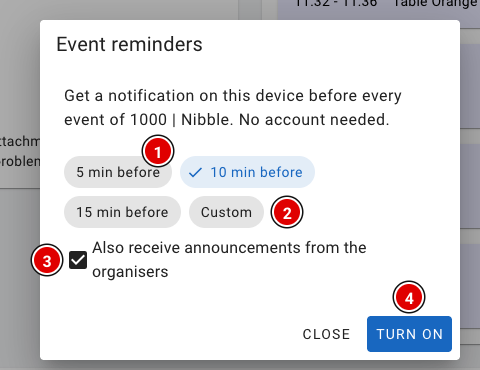](https://docs.flltools.com/uploads/images/gallery/2026-10/teamfunc-03.png) - Click the bell on the team page. - Choose how many minutes in advance the notification should come: **5, 10 or 15 min before (1)**, or choose **Custom (2)** and enter a number of minutes yourself (1 to 240). - Leave **Also receive announcements from the organisers (3)** ticked to also receive announcements from the organisation (see the page [Announcements](https://docs.flltools.com/books/flltools-documentation-english/page/announcements)). - Click **Turn on (4)** and allow the browser to show notifications. There is a notification for every robot match, judging session, practice table reservation and other item in that team's schedule. Through the same bell the visitor can change or switch off the notifications again.Notifications work in most browsers on Android and on a computer. On an iPhone they only work after the website has first been added to the home screen. If notifications are blocked for the website, the visitor first has to allow them in the browser settings.
### The coach portal When the *Advanced Team Management* module is on, you can add coaches to their team (see the page [Updating a team](https://docs.flltools.com/books/flltools-documentation-english/page/updating-a-team)). The coach receives an e-mail and can then log in. After logging in, the coach goes straight to their team's page. If someone coaches several teams, they choose the team first. [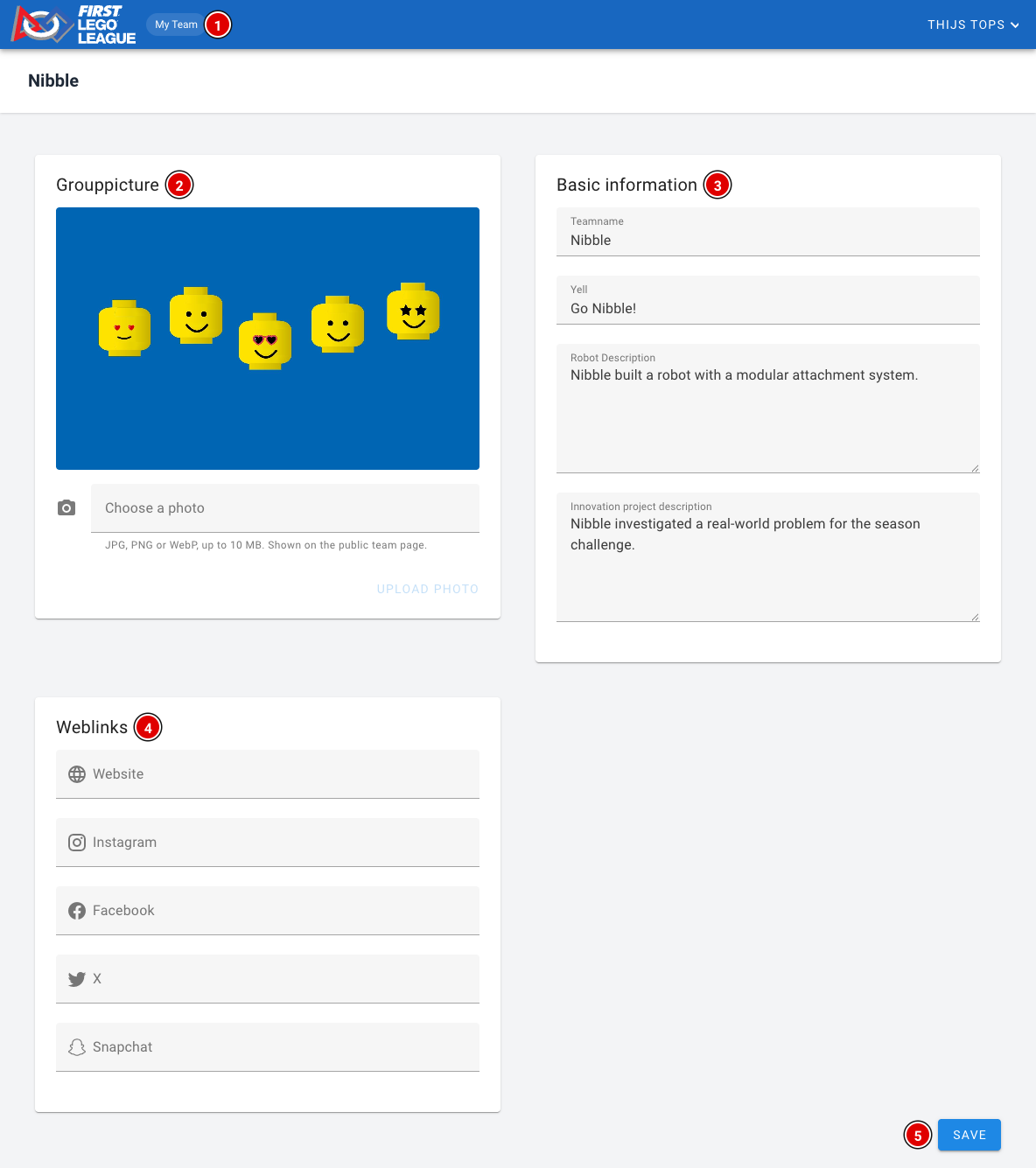](https://docs.flltools.com/uploads/images/gallery/2026-10/EXWteamfunc-04.png) - **My Team (1)**: Always takes the coach back to their team(s). - **Grouppicture (2)**: The coach can upload, replace or remove a team photo themselves. See the page [Uploading team photos](https://docs.flltools.com/books/flltools-documentation-english/page/uploading-team-photos). - **Basic information (3)**: The coach can change the team name, the team cheer (yell) and the descriptions of the robot and the innovation project. - **Weblinks (4)**: The team's website and social media. - **Save (5)** saves the changes. They are immediately visible on the public team page. The team photo has its own button and doesn't need **Save**. Only the organisation can change the team number, the tournament and the organisation. After the tournament (once the tournament's end time has passed), the coach also sees the team's completed judging forms, under **Judging rubrics (1)**. Each form shows which jury filled it in, with the score and the chosen levels per criterion. [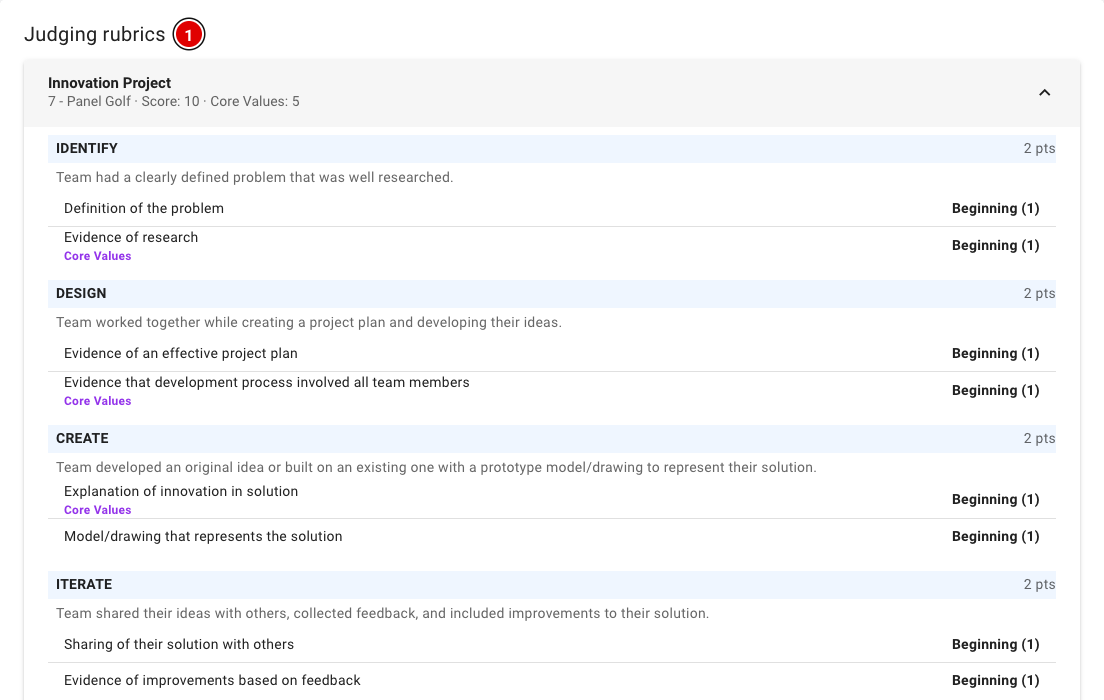](https://docs.flltools.com/uploads/images/gallery/2026-10/teamfunc-05.png) # Preparing OJS OJS (Official Judging Spreadsheet) is the official Excel file from *FIRST* in which the judging and robot scores come together and which is used to decide the awards. Whether you need OJS depends on how you do the judging. ### Do you need OJS? - **Digital judging in FLLTools:** if the judges fill in the rubrics in FLLTools, FLLTools calculates the rankings itself on the **Competition Results** page. There you see for each team the robot scores, the rankings for Core Values, Innovation Project and Robot Design, and the Champion's score. OJS is then not needed. See the page [Competition Results: determining the results](https://docs.flltools.com/books/flltools-documentation-english/page/competition-results-determining-the-results) in the Judges' deliberation chapter. - **Judging on paper:** if the judges only use paper forms, or your operational partner asks for OJS, prepare OJS as described below. You get the robot scores and the Gracious Professionalism scores from FLLTools later, see [FLLTools export to OJS](https://docs.flltools.com/books/flltools-documentation-english/page/flltools-export-to-ojs).Not sure which way your region works? Ask your operational partner or e-mail
| Address | What is it? | Login needed? | More information |
|---|---|---|---|
| **/timer** | The timer for the audience screen, without buttons. You control the timer from another computer. | No | [How the timer works](https://docs.flltools.com/books/flltools-documentation-english/page/how-the-timer-works) |
| **/scoreboard/kiosk** | The scoreboard without a menu or login button, for a big screen or a device in the venue. | No | [The scoreboard](https://docs.flltools.com/books/flltools-documentation-english/page/the-scoreboard) |
| **/info-screens/select** | This is where you choose which info screen a TV or projector shows. After that, each screen has its own address (/info-screens/...), which you can also bookmark. | No | [Info screens](https://docs.flltools.com/books/flltools-documentation-english/page/info-screens) |
| **/practice-reservation** | The reservation screen at the practice tables. Teams type in their team number and choose a free time. | No | [Practice tables and reservations](https://docs.flltools.com/books/flltools-documentation-english/page/practice-tables-and-reservations) |
| **/schedule/headReferee** | An overview for the head referee: which team is at which table at each time. | Yes | [Creating the day schedule](https://docs.flltools.com/books/flltools-documentation-english/page/creating-the-day-schedule) |
| **/scorecalculator** | A score calculator that teams and referees can use to work out the score of a match themselves. | No | See below |
| **/admin/scoresheets** | The score sheet editor: the missions, questions and points of the robot game. | Yes, admin only | See below |
| **/open-source** | A list of all open source packages FLLTools is built with, with their licences. | No | See below |
Put a kiosk or timer screen in full-screen mode (usually with the **F11** key). That way nobody sees the address bar, and nobody can go to another page by accident.
### The score calculator [https://**yourevent**.flltools.nl/scorecalculator](https://yourevent.flltools.nl/scorecalculator) shows the season's score sheet, exactly as the referees use it. No login is needed. Teams can use it to work out a match score at home or in the pits, and referees can practise with it during the referee briefing (see the page [Referee briefing](https://docs.flltools.com/books/flltools-documentation-english/page/referee-briefing)). [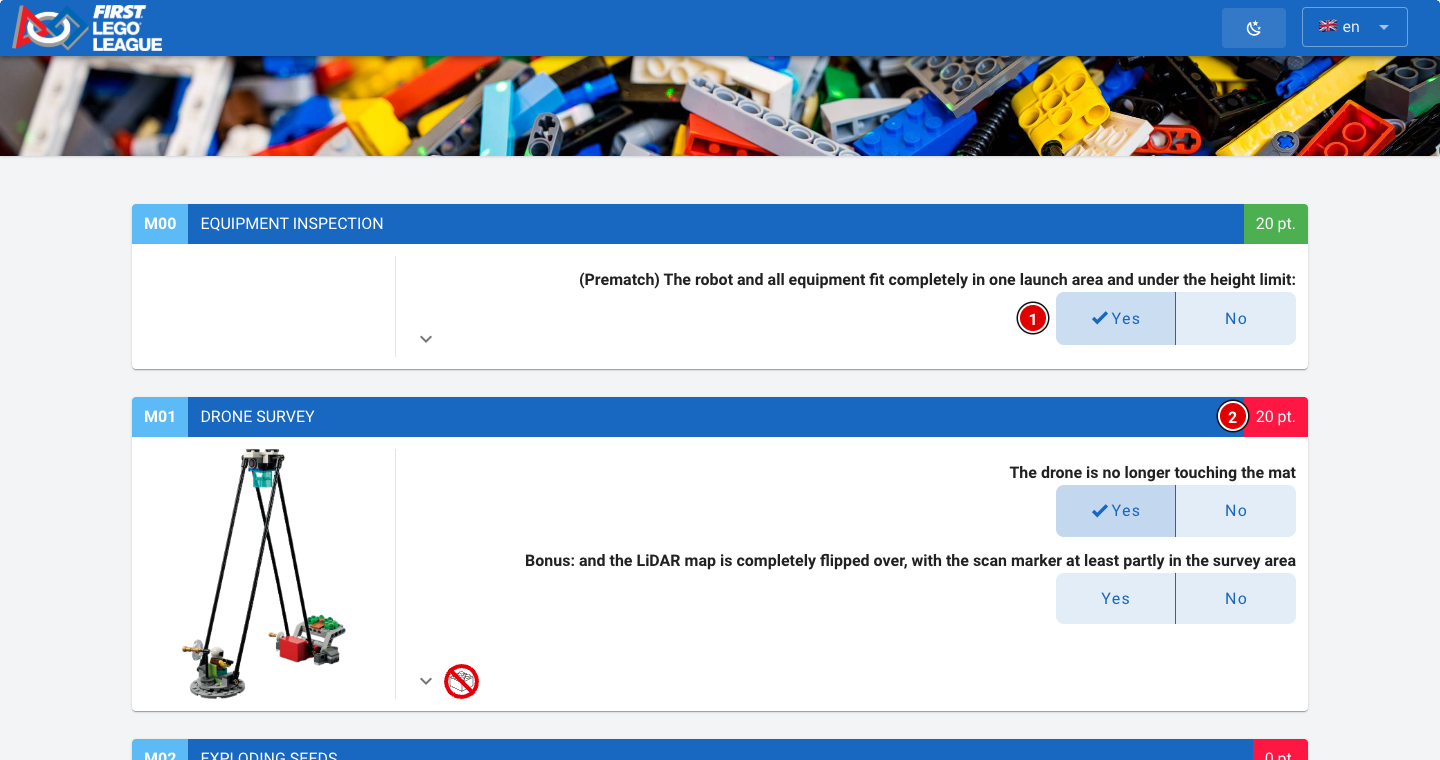](https://docs.flltools.com/uploads/images/gallery/2026-10/verborgen-01.png) - For each mission, click the right answers, for example **Yes (1)**. - On the right of each mission's bar you see the **points (2)** that mission earns. [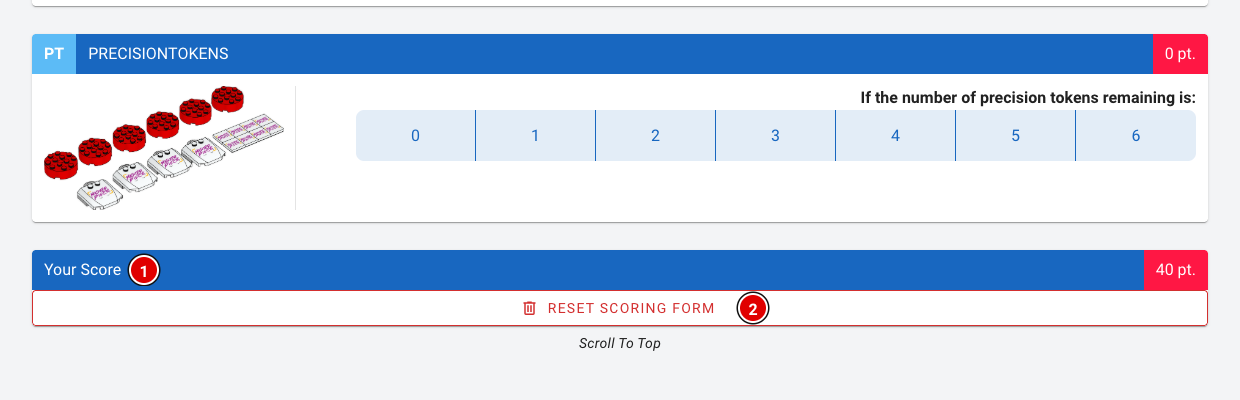](https://docs.flltools.com/uploads/images/gallery/2026-10/verborgen-02.png) - At the bottom, **Your Score (1)** shows the total score. - **Reset scoring form (2)** clears the form again.A score in the score calculator isn't saved anywhere and doesn't count towards the results. Competition scores are entered through **Robot Match** (see the page [Scoring desk](https://docs.flltools.com/books/flltools-documentation-english/page/scoring-desk)).
### The score sheet editor [https://**yourevent**.flltools.nl/admin/scoresheets](https://yourevent.flltools.nl/admin/scoresheets) lists all score sheets in FLLTools, one per season. This is where you view, change or export a score sheet, or add a new one. Only users with the admin role can open this page. [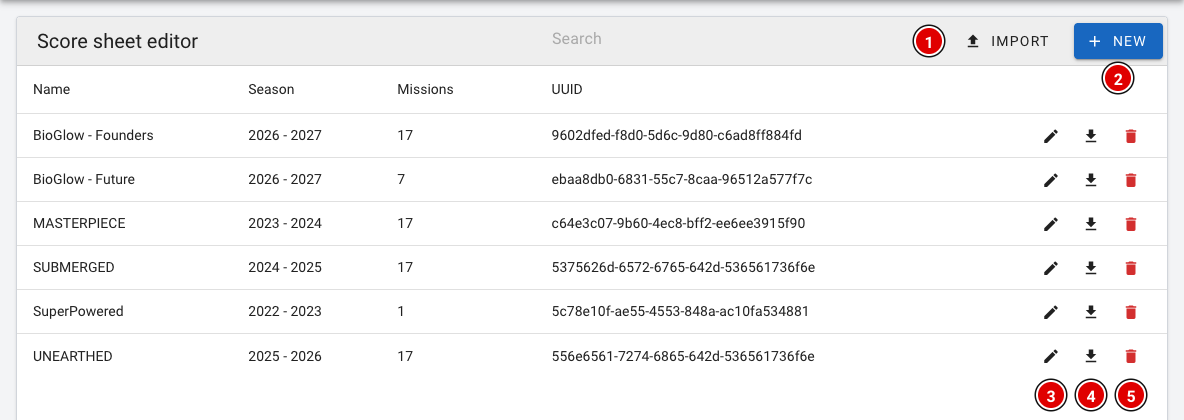](https://docs.flltools.com/uploads/images/gallery/2026-10/verborgen-03.png) - **Import (1)** loads a score sheet that was exported earlier, for example from another environment. - **New (2)** creates a new, empty score sheet. - **The pencil (3)** opens a score sheet so you can change it. - **The download arrow (4)** exports the score sheet as a file. - **The bin (5)** deletes the score sheet. This isn't possible once match scores have been entered with it. [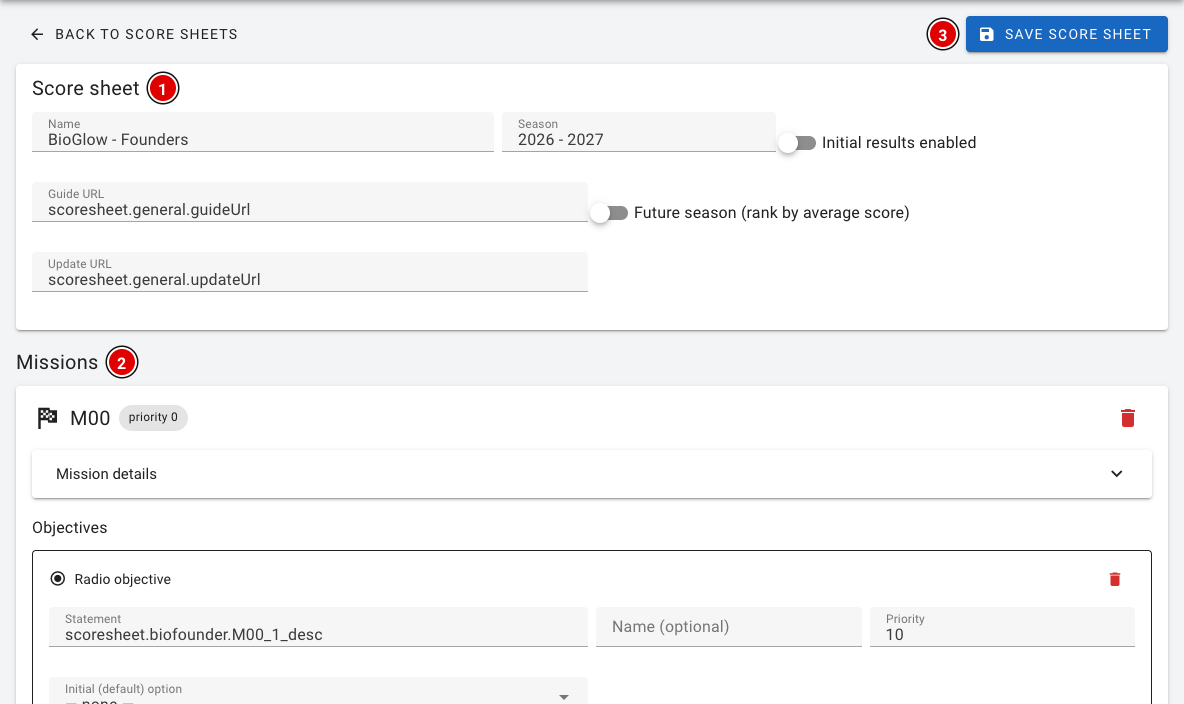](https://docs.flltools.com/uploads/images/gallery/2026-10/verborgen-04.png) - **Score sheet (1)**: The name and season of the sheet, with the links to the season's guide and updates. - **Missions (2)**: For each mission, the questions, the possible answers and the points. At the bottom, **Add mission** adds a mission. - Click **Save score sheet (3)** to save the changes.A change to a score sheet applies straight away to every tournament that uses it, including scores that have already been entered. So never change a score sheet during a tournament, and export it first as a backup. Texts such as *scoresheet.general.yes* refer to the translations in FLLTools; leave them as they are, or referees will no longer see the text in their own language.
### Open source packages [https://**yourevent**.flltools.nl/open-source](https://yourevent.flltools.nl/open-source) lists all open source packages FLLTools uses, with the version and licence of each package. You won't need this page during the tournament, but it's useful if someone asks what FLLTools is built with. ### Technical pages These pages are mainly meant for whoever manages FLLTools or wants to check something: - **/timer/test**: Shows all of the timer's digits. Useful for checking beforehand that the timer is easy to read on the audience screen. - **/healthcheck**: Only shows "OK" when FLLTools is running. Used to monitor the server. - **/app-version**: Shows the version of FLLTools that is currently running.