Competition day
Team check-in
The check-in module keeps track of which teams have reported in on arrival on competition day. At the registration desk you can see at a glance whether everyone is there, and when you check a team in you have the most important information for that team right at hand.
The check-in page is only visible when the Team Check-in Module is switched on in Setup → Settings. Users with the secretariat or admin role can use check-in.
The overview
- Click Check-in in the menu.
- You will see a list of all teams in the current tournament.
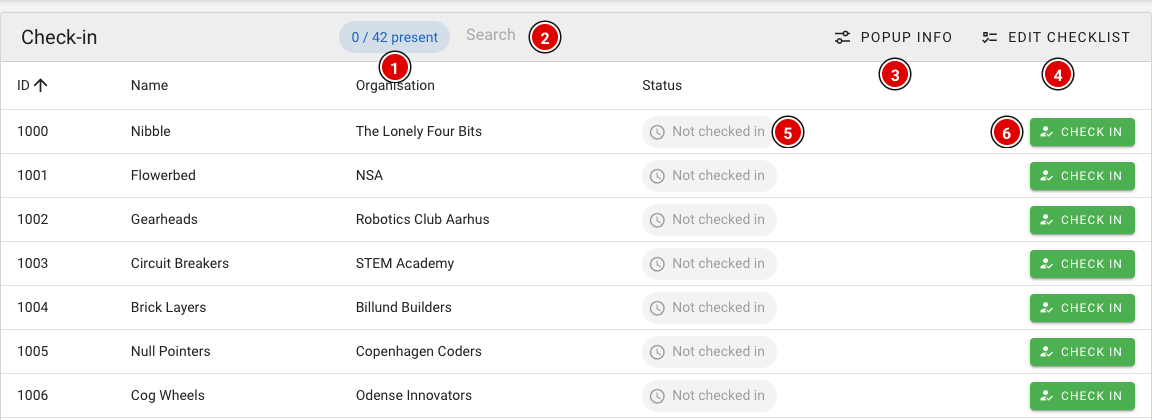
- Present (1): Counter showing how many teams have already checked in, for example 12 / 42 present.
- Search (2): Quickly search by team number, team name or organisation.
- Popup info (3): Choose which information you see when checking a team in (see below).
- Edit checklist (4): Set up a list of reminders for the desk (see below).
- Status (5): Not checked in or Checked in.
- Check in (6): Checks the team in.
Checking a team in
- Find the team and click Check in.
- If a checklist or popup information has been set up, a Before you check them in window opens first. It shows, for example, at what time and with which jury the team is expected.
- Click Check in again in the window to confirm, or Cancel to go back.
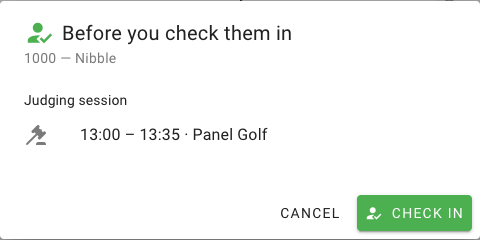
After check-in the status changes to Checked in (2) and the counter (1) goes up. Checked in the wrong team by mistake? Click Undo (3).

Setting up the popup info
With Popup info you choose which information appears in the check-in window. This applies to all teams.
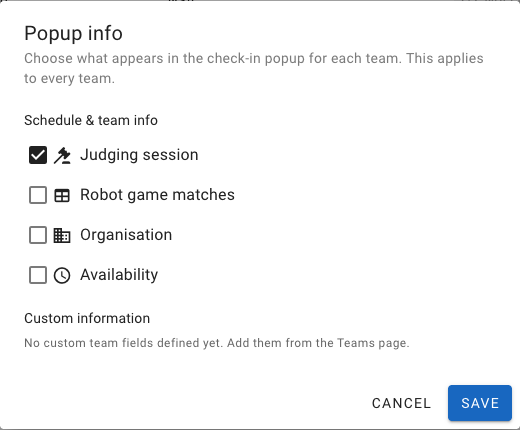
- Judging session: Time and jury of the team's judging session(s). This is on by default.
- Robot game matches: The team's matches, with time and table.
- Organisation: The team's organisation (school, club).
- Availability: When the team is available, if this has been filled in for the team.
- Custom information: Your own team fields created on the Teams page (via Custom fields). See the page Entering teams into the system.
Click Save to store your choice.
Checklist for the desk
With Edit checklist you create a list of reminders for the volunteers at the desk, for example collecting consent forms. These items appear in the check-in window and can be ticked off there.
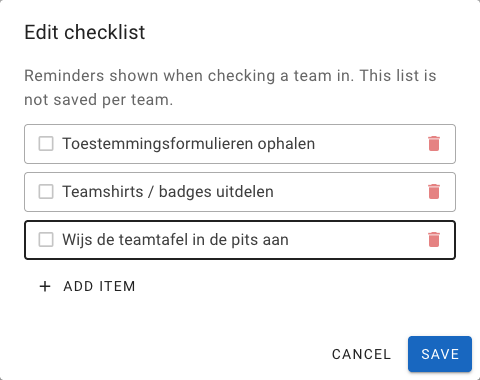
- Click Add item to add an item and use the bin icon to remove one.
- Click Save to store the checklist.
The checklist is only a reminder. Ticking items off is not saved per team. If you want to record something for a specific team, use Remarks.
Referee briefing
At the referee briefing, the head referee goes through this season's rules and updates. This has to happen every year. This document only explains the scoring tool for referees and is not a replacement for the briefing.
Before the event, every referee receives a login for the event's FLLTools website. The scoring tool works on a laptop, tablet and phone.
Entering the match details
- Click Robot Match in the menu.
- The top block contains the details of the match:
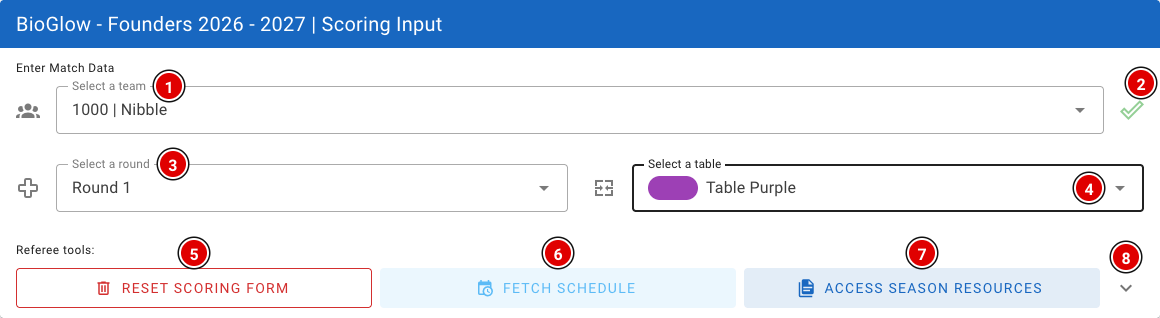
- Choose the team at Select a team (1). There is a built-in search, so a few letters of the team name or the team number are usually enough.
- The tick (2) locks the team selection, so you don't change the team by accident while scrolling through the form. Click it again to change the team.
- Choose the round at Select a round (3). If you work with a schedule, the round is filled in automatically. Always double-check it with the team.
- At Select a table (4), choose the table where the referee is standing. Tables are shown with their colour.
- Reset scoring form (5) clears the entire score sheet.
- Fetch schedule (6) loads the team that the schedule says is at your table right now (see below).
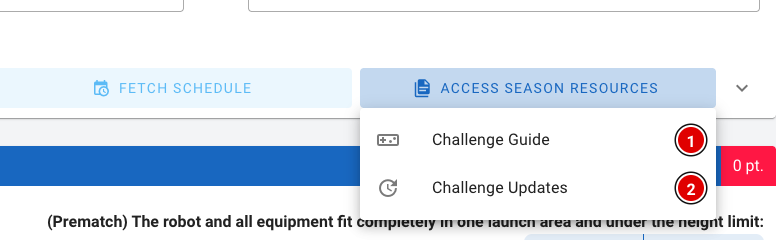
- Access season resources (7) opens a menu that gives quick access to the Challenge Guide (game rules) and the Challenge Updates during the match.
- The arrow (8) opens the scoring tool settings.
Settings and fetching the team from the schedule
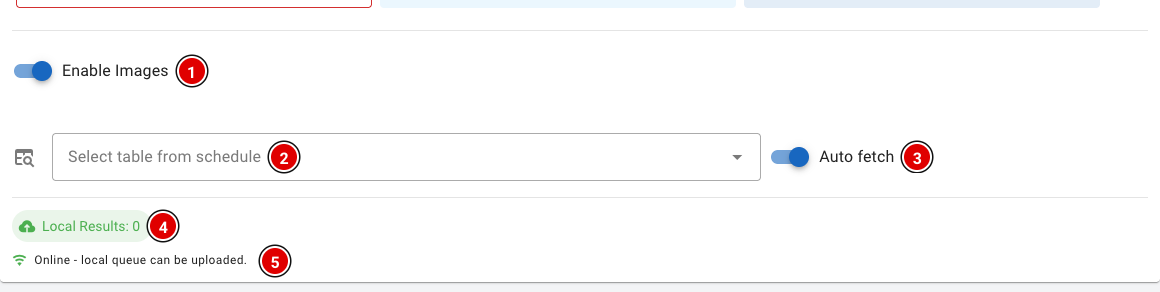
- Enable Images (1): Shows pictures of the mission models with the mission input. This is on by default. On a small phone it can be useful to switch it off.
- Select table from schedule (2): Choose the table where you are refereeing. This choice is remembered on the device.
- Auto fetch (3): When switched on, the team, round and table are filled in from the schedule as soon as you open the page or have submitted a score. That way the next team is ready straight away.
- Local Results (4) and the connection status (5): see Working without internet further down.
Fetch schedule and Auto fetch only work when the Schedule module is switched on and there is a schedule in FLLTools. See the page Creating the day schedule.
Mission input
The mission input is empty by default. The referee fills it in at the end of the match. Each mission has one or more questions. Usually you choose the answer with a button (for example Yes / No). For questions where you need to count something, use the minus (1) and plus (3) buttons, or type the number directly in the box (2).
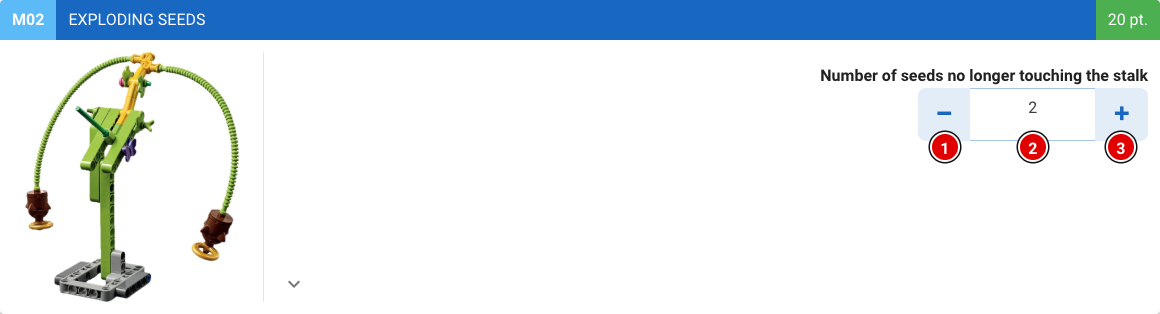
Some questions only appear when they apply, for example a bonus question that only counts if the first part of the mission succeeded. So answer the questions from top to bottom. Each mission has 3 states:
1. Not (fully) completed
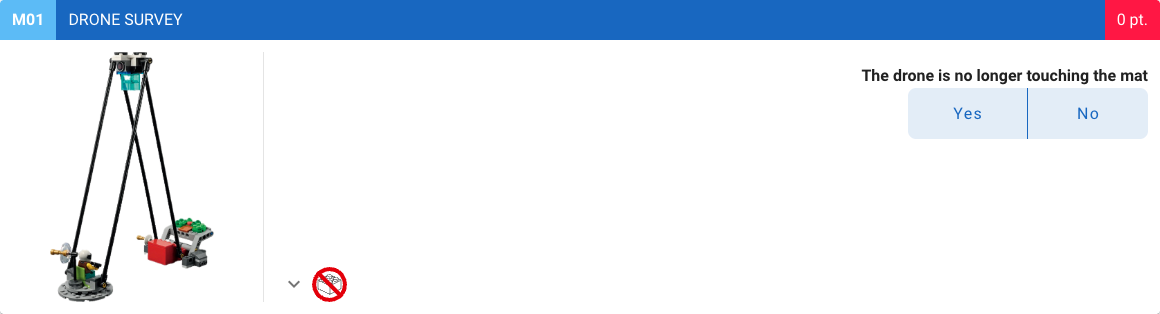
You can recognise this state by the red score.
2. Fully completed, points scored
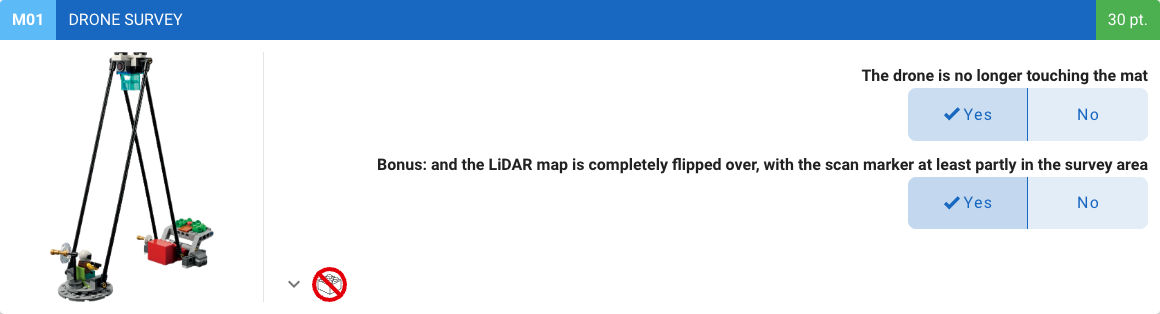
You can recognise this state by the green box next to the points.
3. Fully completed, no points scored
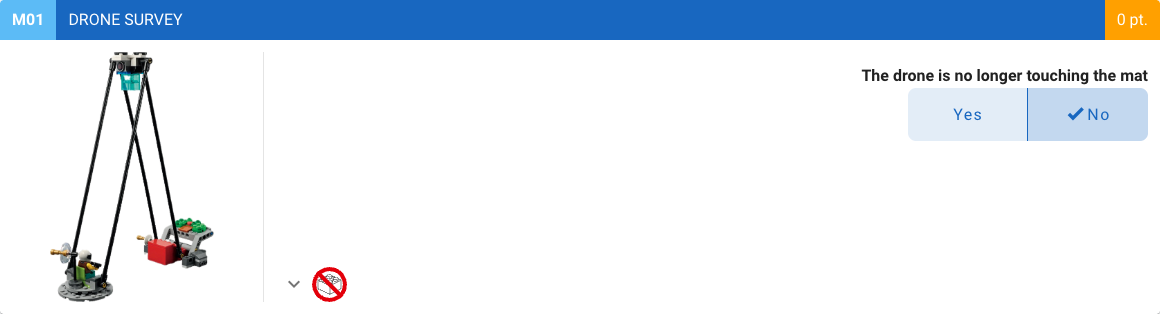
You can recognise this state by the orange box next to the points.
These states let you quickly see which missions are missing or have not been filled in correctly.
Signature and saving
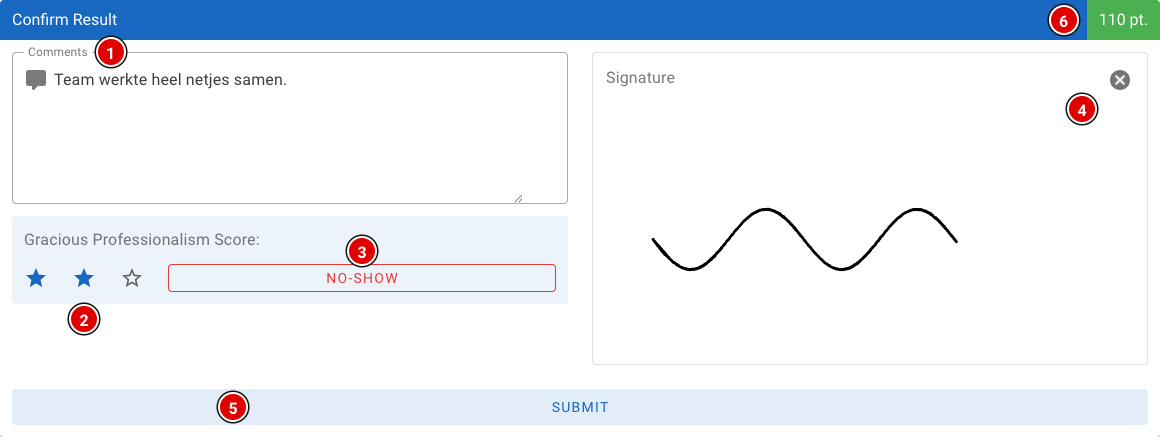
This block is at the bottom, below all missions. It is filled in last.
- Comments (1): Here you can add a comment. It is automatically also saved as a remark (category Table) for the team and taken into account during the judges' deliberation. So note anything that stands out about a team, both negative and positive.
- Gracious Professionalism Score (2): Give the team 1 to 3 stars. This is required; without stars the score cannot be saved.
- No-Show (3): Didn't the team show up? Click this button instead of giving stars.
- Signature (4): The signature. Every team must sign to confirm everything has been filled in correctly. The cross in the top right clears the signature.
- Submit (5): Saves the score. The total score is shown in the top right (6).
As long as something is missing, the button says what is wrong, for example Signature required or Scoresheet invalid. When the score sheet is invalid, a Fix It button appears. Clicking it scrolls the screen to the mission that has not been filled in correctly.
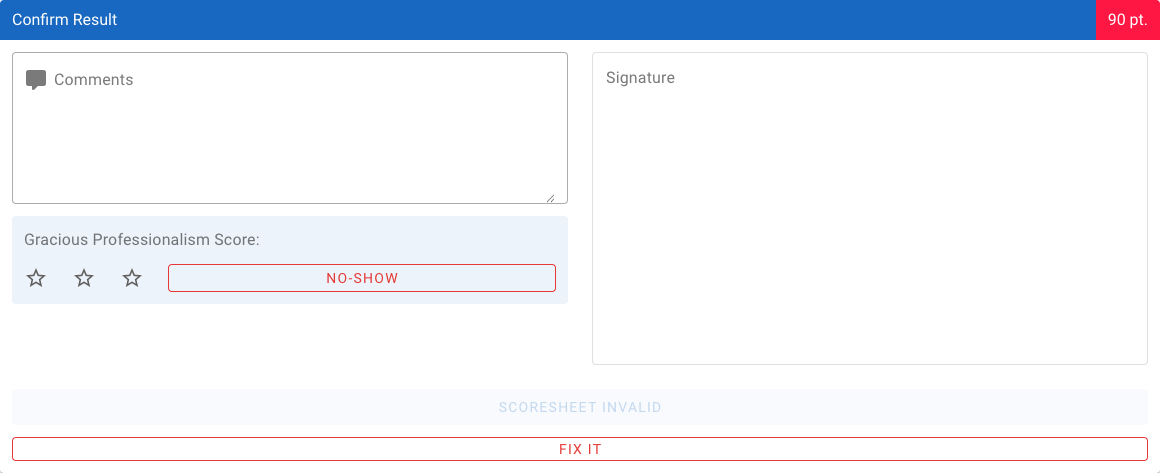
After saving, a confirmation with the team name and score appears, and the form is cleared for the next team.
For rounds with hidden scores (for example the last round), the total score can be shown blurred to the referee. Tap Tap to reveal score to see it anyway. You configure this with Hide score on referee input for hidden rounds in Setup → Settings.
Working without internet
Wi-Fi dropped out? No problem, the scoring tool keeps working. If you submit a score without an internet connection, it is stored safely on the device. You will get a message that the score has been saved locally.

- Local Results (1): The number of scores still waiting on the device.
- View Local Results (2): Shows which scores are still waiting, with team, round, table and score.
- Upload Local Results (3): Sends the waiting scores. This also happens automatically as soon as the connection is back.
- The connection status (4) shows whether the device is online or offline.
Do not close the browser or clear the browser data while there are still local results on the device. At the end of the day, check that Local Results is at 0.
Transferring scores with QR codes
If a device can't get back online at all, you can transfer the local scores to another device with QR codes, for example to the laptop at the scoring desk.
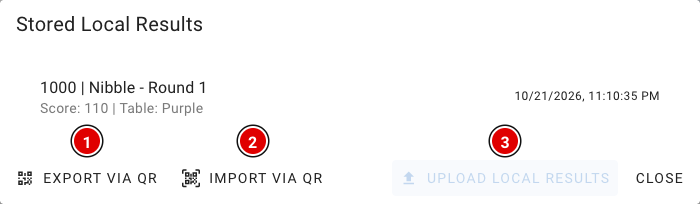
- Open View Local Results and click Export via QR (1). With Import via QR (2) you can also receive scores from another device on this screen. Upload Local Results (3) sends the scores when there is a connection.
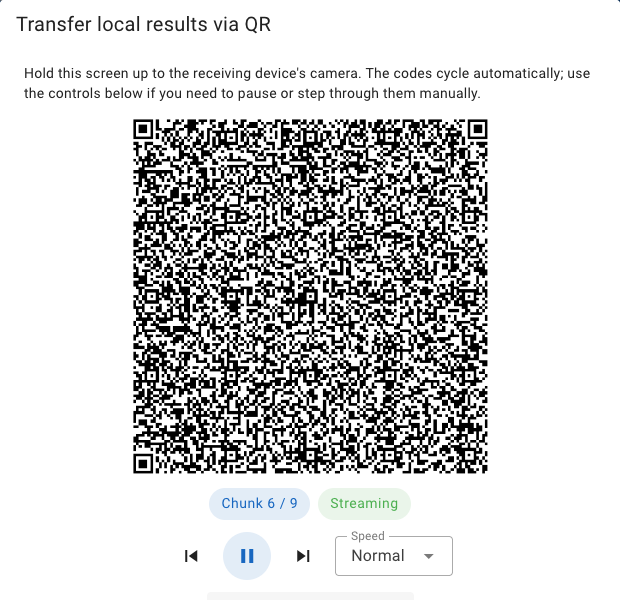
- A series of QR codes appears that changes automatically. Hold the screen in front of the camera of the receiving device. With the buttons below the QR code you can pause, go back or forward, and change the speed.
- The receiving device (usually the scoring desk) reads the codes. How that works is described on the page Scoring desk.
- When reading has succeeded, the receiving device shows a 6-character verification code. Enter this code at Verification code and click Verify code & delete transferred. Only then are the scores removed from the referee's device.
Judges' briefing
At the judges' briefing, the head judge goes through this season's rules and updates. This has to happen every year. This document only explains the forms and the judging tool for the judges and is not a replacement for the briefing.
The judges can assess teams in two ways: on paper using the judging forms from the exports, or digitally in FLLTools. Agree with the head judge in advance which method you will use.
Judging on paper
Extra important: make sure the judges tick exactly 1 box in each row, otherwise it is hard for the scoring desk to see what the score is.
The judges must assess each team on its own merits; teams may not be compared with each other. After each round the forms are collected and taken to the scoring desk.
The information below only applies to events that use Juryscan. Not sure whether you use it? Then you don't need to read this.
When Juryscan is used, the boxes must be filled in completely with a black pen or marker.
Was a box filled in incorrectly by mistake? Ask the head judge or the scoring desk for a new form. Otherwise the automated system may read the scan incorrectly.
Judging digitally
Digital judging is only possible when the Judge Module is switched on in Setup → Settings, the juries have been created and the tournament has the correct judging forms (rubrics). See the page about juries and rubrics.
The Judge portal
Judges who (only) have the judge role are taken to the Judge portal automatically after logging in. This is a simple environment with only what a judge needs.
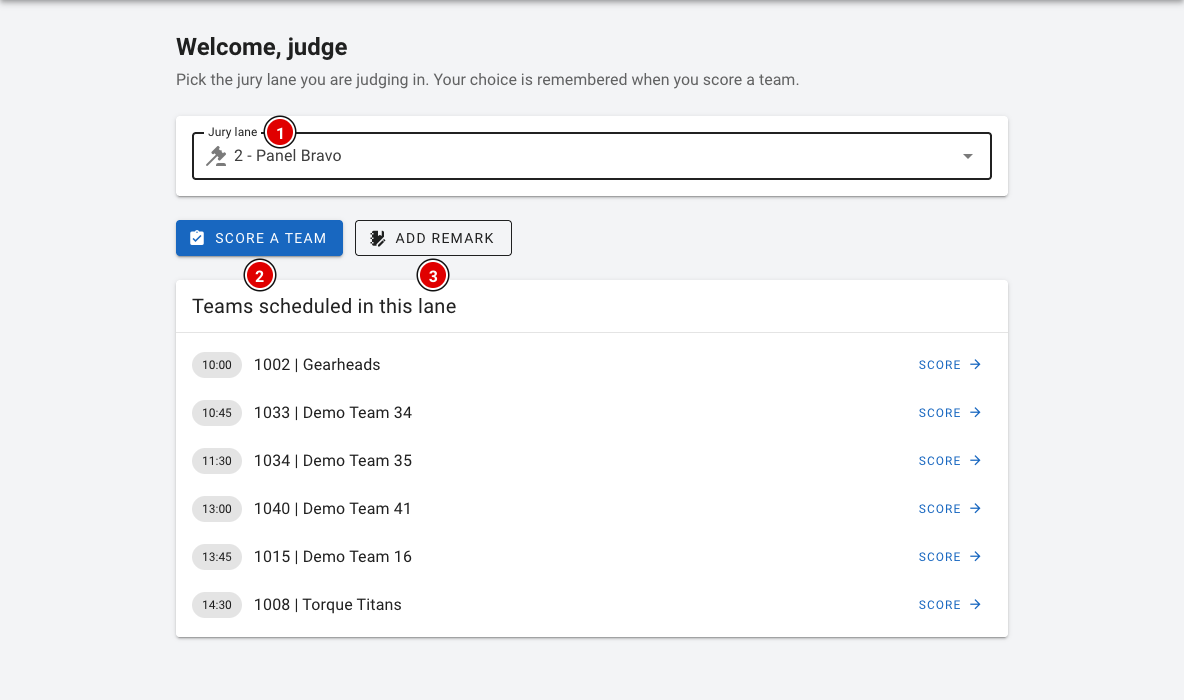
- At Jury lane (1), choose the jury (room) you are judging in. This choice is remembered.
- If there is a schedule, a list of the teams and times in your room appears under Teams scheduled in this lane. Click Score next to a team to assess that team straight away.
- Score a team (2) opens the judging form and lets you choose the team yourself.
- Add remark (3) lets you add a remark about a team for the judges' deliberation. See the page Remarks.
- Under Judging results in the menu you will find the assessments you entered yourself. You can still open and change them there.
Head judges, the scoring desk and administrators use the Judge button in the regular menu.
Assessing a team

- Team (1): Choose the team you are assessing. Type a few letters or the team number to search.
- Jury (2): The jury (room) in which the team is assessed.
- Rubric (3): The judging form, for example Innovation Project or Robot Design.
- Local Results (4): Just like for referees, assessments are stored locally when there is no internet and sent automatically later. See Working without internet on the page Referee briefing; it works exactly the same for judges, including transferring with QR codes.
Below that is the form, divided into sections as in the official judging form.
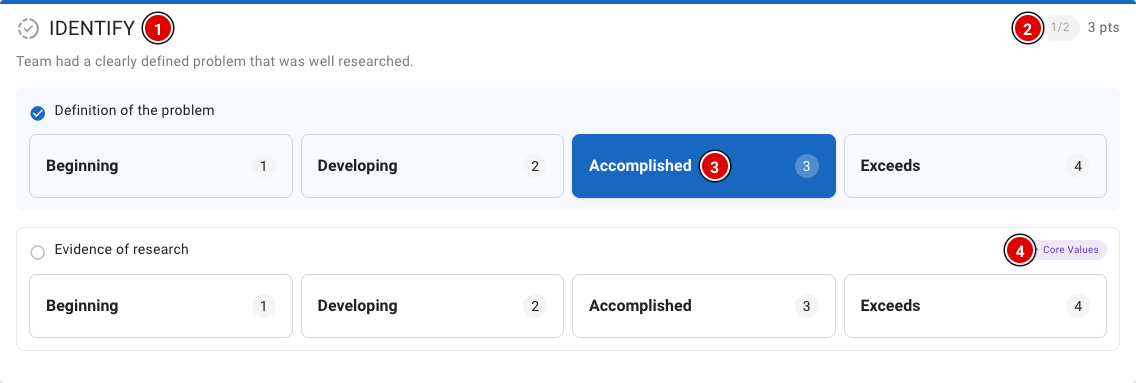
- Each section (1) has a short description and one or more criteria.
- In the top right (2) you can see how many criteria of this section have been filled in, and how many points that gives.
- For each criterion, choose the level (3) that fits best: Beginning (1), Developing (2), Accomplished (3) or Exceeds (4). You can always change your choice.
- Criteria with the Core Values (4) label also count towards the Core Values assessment.
At the bottom of the form is the Confirm rubric block.
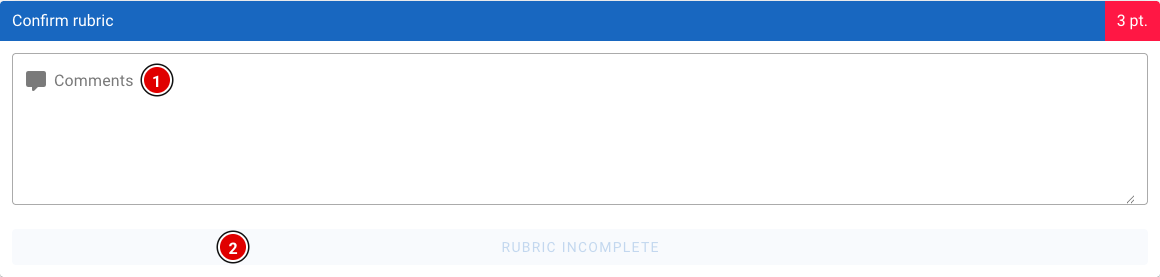
- Comments (1): Space for comments about the team.
- The button (2) shows Rubric incomplete as long as not all criteria have been filled in. When everything is filled in, the button changes to Submit and you can save the assessment.
Digital judging works the same way: assess each team on its own merits and do not compare teams with each other. The rankings are calculated automatically later on the page Competition Results.
Scoring desk
The scoring desk may not have many tasks, but it plays a crucial role. The desk keeps track of whether all scores come in correctly and checks for any mistakes. At the end of the day, the scoring desk makes sure all results are ready for the judges' deliberation.
Users with the secretariat role have access to everything on this page.
The dashboard
After logging in you land on the Dashboard. Here you can see at a glance how the day is going.
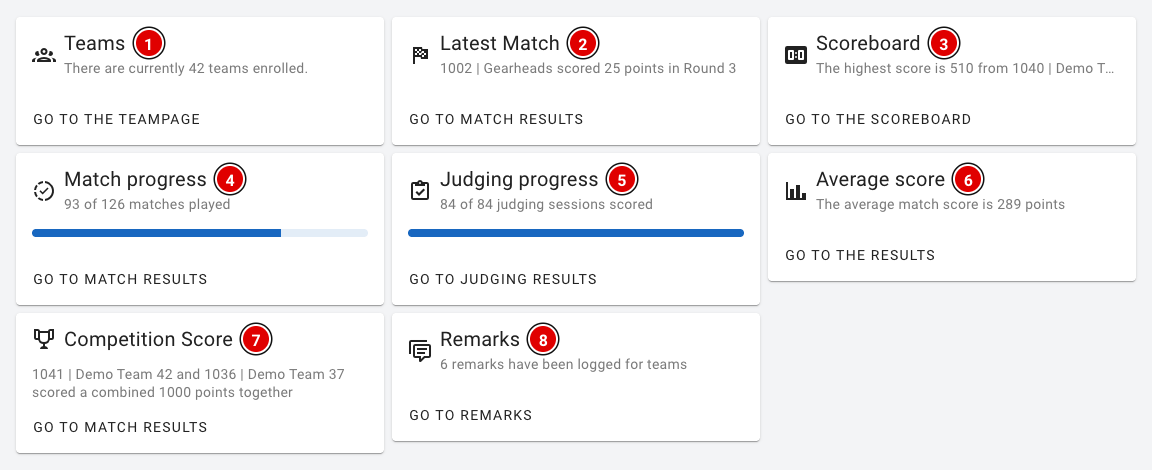
- Teams (1): The number of registered teams.
- Latest Match (2): The most recently entered score.
- Scoreboard (3): The highest score so far.
- Match progress (4): How many of the matches in the schedule have been played and entered.
- Judging progress (5): How many judging sessions have been assessed.
- Average score (6): The average match score.
- Competition Score (7): The two teams that achieved the highest combined score in a single match (playing at the same time on a table pair).
- Remarks (8): The number of remarks recorded about teams.
Checking match scores
Via Game results in the menu you can see all entered robot matches. The list refreshes automatically as soon as a new score comes in.
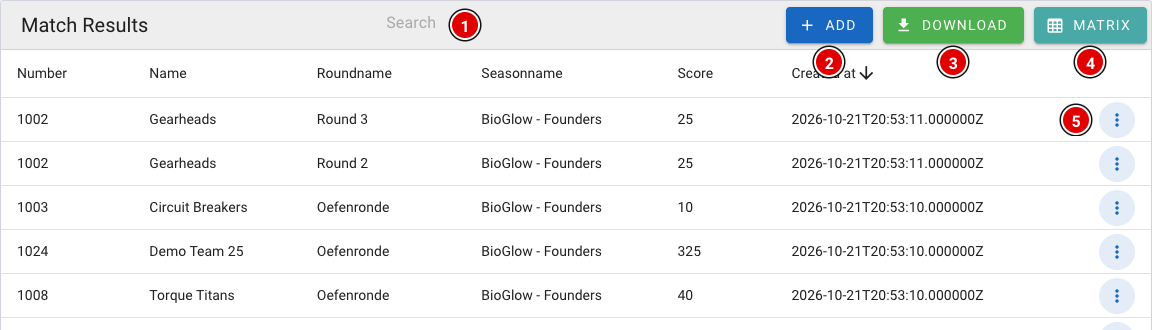
- Search (1): Search by team number, team name or round.
- Add (2): Enter a score yourself, for example from a paper score sheet. This works the same as for the referees (see Referee briefing).
- Download (3): Download an Excel file with all scores.
- Matrix (4): Opens the overview per team and round (see below).
- 3 dots (5): Opens the menu for a score.
Correcting a score
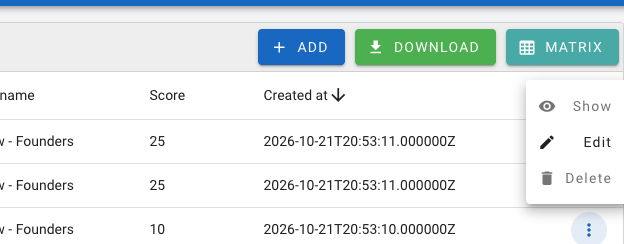
- Show: View the complete score sheet as it was filled in.
- Edit: Open the score sheet to fix a mistake. Change the answers and save the form.
- Delete: Delete the score, for example if a match was entered twice or for the wrong team.
If in doubt, always check with the head referee before you change or delete a score.
The matrix
The matrix shows all teams below each other and all rounds side by side. This lets you quickly see where a score is still missing or where something has been entered twice.
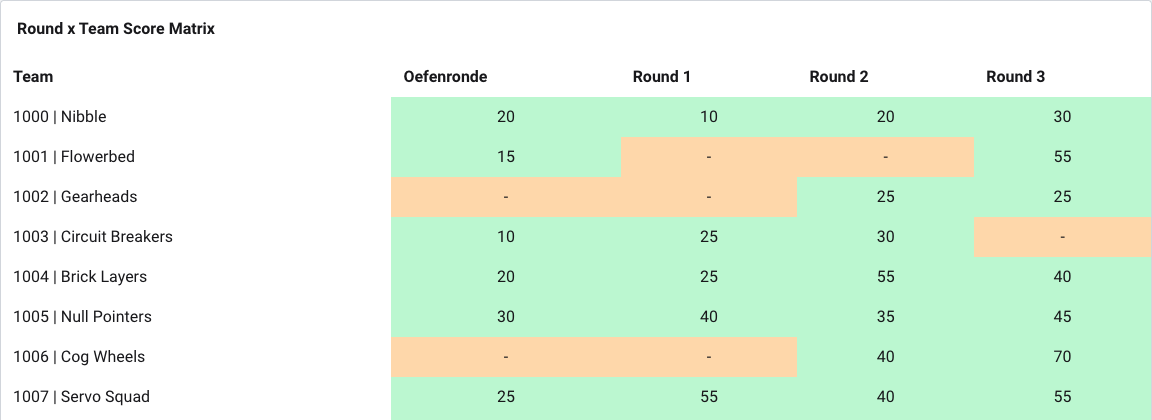

- Orange: There is no score yet for this team in this round. Check the schedule to see whether the match should already have been played.
- Green: There is exactly one score. That is how it should be.
- Red: There are several scores for the same team in the same round. Click the underlined score: a window opens with all scores in that cell, with table, who entered it and when. Open the score with Open referee result or delete the wrong one with Delete. The cell then turns green again.
Checking judging results
If the judges assess digitally, you will find all assessments under Judging results.
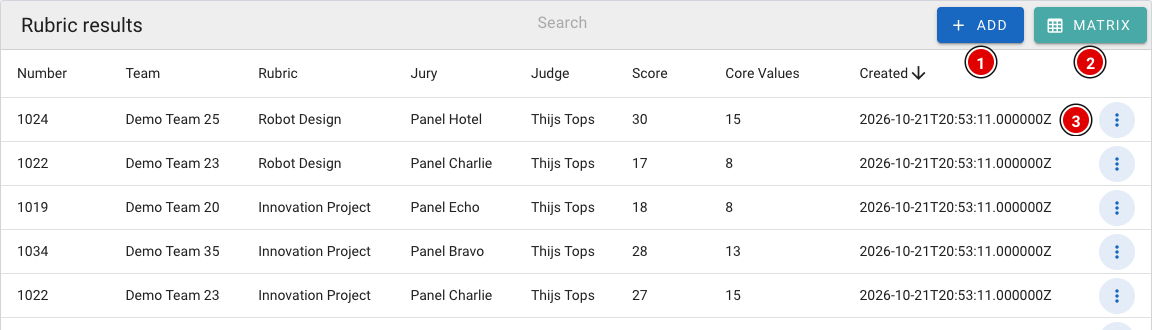
- Add (1): Enter an assessment yourself, for example from a paper judging form.
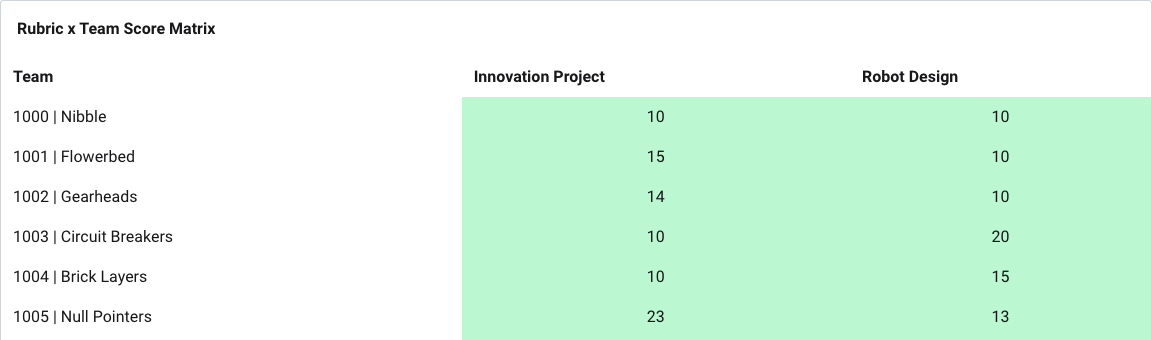
- Matrix (2): Overview of all teams and judging forms, with the same colours as for the match scores.
- 3 dots (3): View (Show), change (Edit) or delete (Delete) an assessment.
Receiving scores via QR codes
If a referee or judge has been without internet for a long time, the locally stored scores can be transferred to the scoring desk laptop via QR codes.
- Go via Setup to Settings and scroll to Import results via QR.
- Choose Import Referee Results (1) for match scores or Import Rubric Results (2) for judging results.

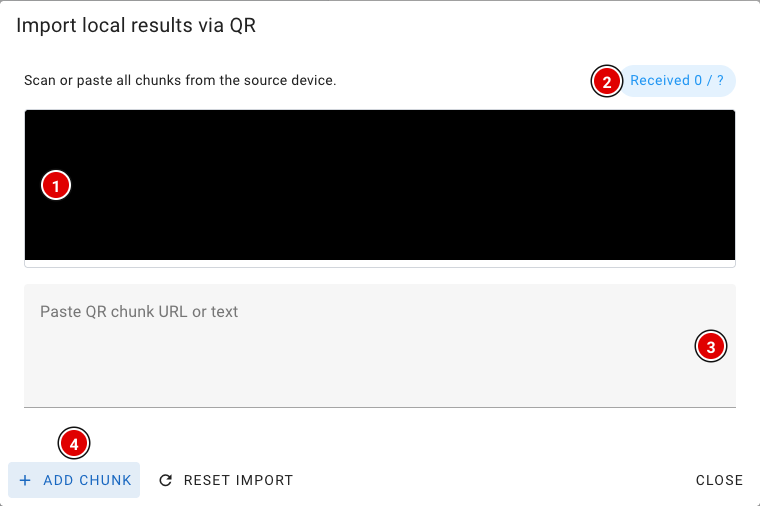
- The camera view (1) appears. Hold the camera in front of the screen with the changing QR codes on the other device. Allow the browser to use the camera.
- Received (2) shows how many codes have been received.
- Camera not working? Scan the codes with another scanner, paste the text or link into the box (3), and click Add chunk (4).
- Once all codes are in, a 6-character verification code appears. Pass it on to the referee or judge; they enter it on their own device so the scores can be safely removed there.
- The received scores are now stored as local results on the scoring desk laptop. On this laptop, open Robot Match (for match scores) or Judge (for judging results); if the laptop is online, the scores are sent automatically. Then check in the matrix that everything has arrived.
At the end of the day
- Check both matrices to make sure there are no orange or red cells left.
- Check that every referee and judge device shows Local Results: 0.
- Prepare the results for the judges' deliberation. See the chapter Judges' deliberation, with the pages Competition Results and OJS.
The scoreboard
FLLTools has a live scoreboard. As soon as a referee saves a score, the ranking is recalculated and the scoreboard refreshes by itself. So there is no need to reload the page.
There are 3 versions of the scoreboard.
Public scoreboard
This is the scoreboard visitors land on when they visit the site. You can find it at https://yourevent.flltools.nl/scoreboard (replace "yourevent" with the name of your event), or via Scoreboard (1) in the menu at the top.
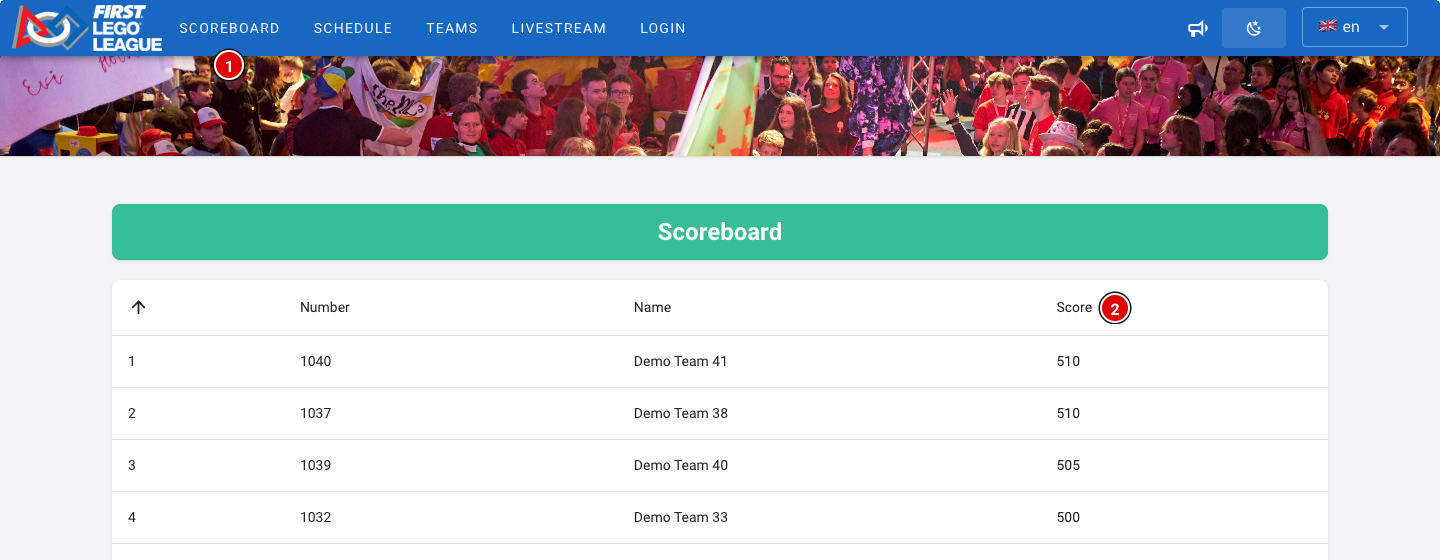
- Teams are ranked by their best score (2) across all rounds. Only the best match counts, as in the official FLL rules.
- If two teams have the same best score, the second-best score decides, then the third, and so on. Teams that are completely tied share the same place.
- Practice rounds and hidden rounds are not counted on this scoreboard. The practice round doesn't count towards the result, and the hidden rounds (usually the last round) keep the suspense going until the awards ceremony.
- A team appears on the scoreboard as soon as it has a score in a round that counts.
- If you run several tournaments, the public scoreboard shows the tournament selected at Public Tournament in Setup → Settings.
When playing with a score sheet for a future or trial season, teams are ranked by their average score instead of their best score.
Kiosk scoreboard
Want to show the scoreboard on a big screen or a publicly accessible device in the venue? Use https://yourevent.flltools.nl/scoreboard/kiosk. This scoreboard shows the same ranking, but without the menu and without a login button. Visitors can't navigate anywhere else from this screen.
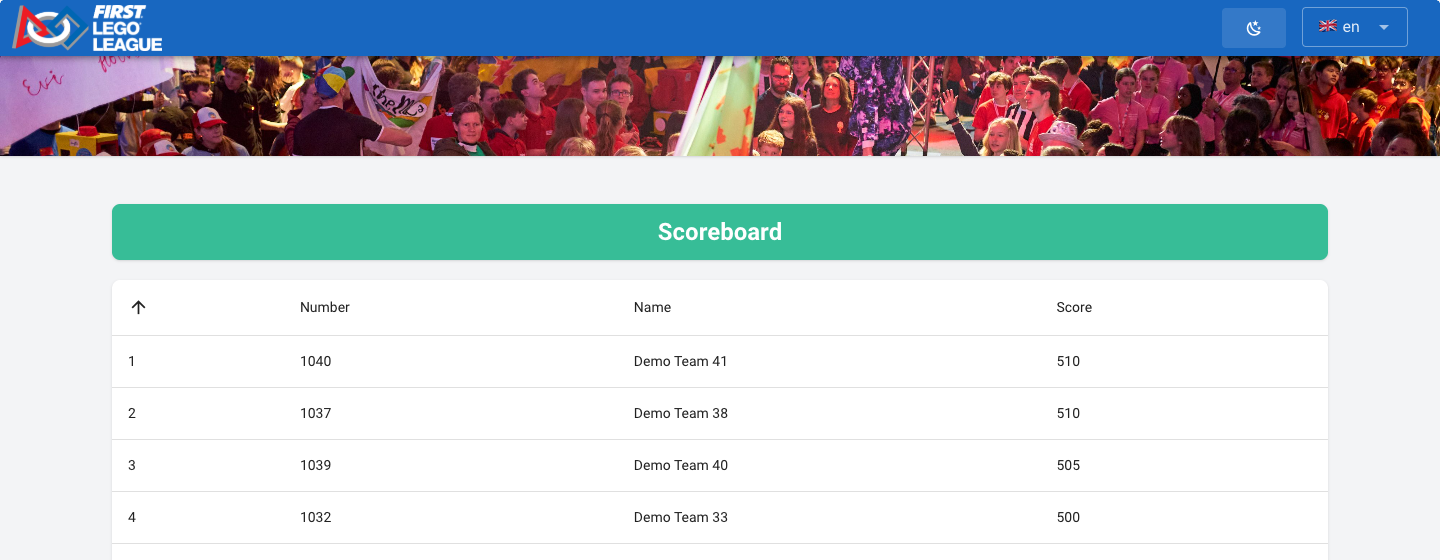
- Open the page in a browser on the computer connected to the screen.
- Put the browser in full-screen mode (usually with the F11 key).
- Turn off sleep mode and the screensaver on the computer, so the scoreboard stays visible all day.
Want to show the schedule, the timer or the tables on a screen as well as the scoreboard? Use the info screens. See the page about Info screens.
Administrative scoreboard
Logged-in users can find the administrative scoreboard via Scoreboard (1) in the menu. The same applies as for the public scoreboard, except that only the practice rounds are left out here. Hidden rounds are counted for logged-in users.
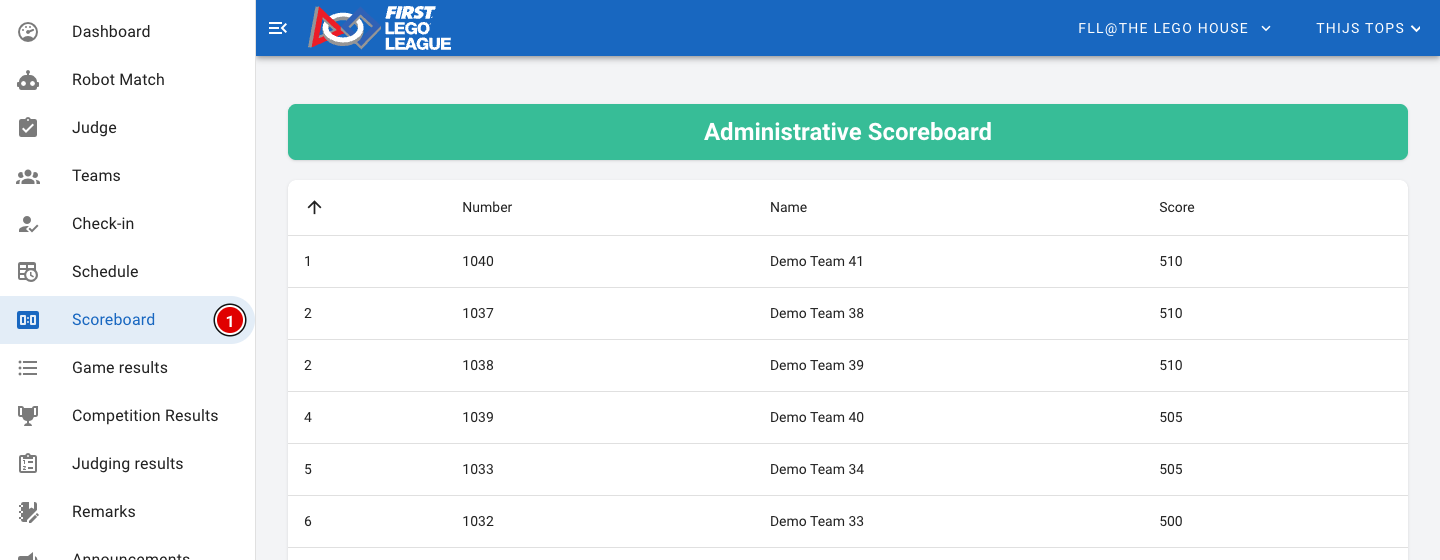
So don't show the administrative scoreboard on a public screen while rounds are still hidden. After the awards ceremony you make the hidden round visible; see the page Making the last round visible.
Remarks
The Remarks module is switched on by default. This is where remarks about teams are collected, so they are easy to find during the judges' deliberation. Remarks are placed in different categories and can be both positive and negative.
Where do remarks come from?
- Referees: Whatever a referee enters under Comments on the score sheet is automatically saved as a remark for the team, in the Table category.
- Judges: Via Add remark in the Judge portal. Judges only see and edit their own remarks there (under Remarks in their menu).
- Other volunteers: Anyone with a role (referee, judge, secretariat, administrator) can add a remark to inform the judges' deliberation, for example the volunteers in the pits or at check-in.
The overview
Go to Remarks in the menu. This overview is visible to the scoring desk and administrators, and only shows the remarks of the current tournament.
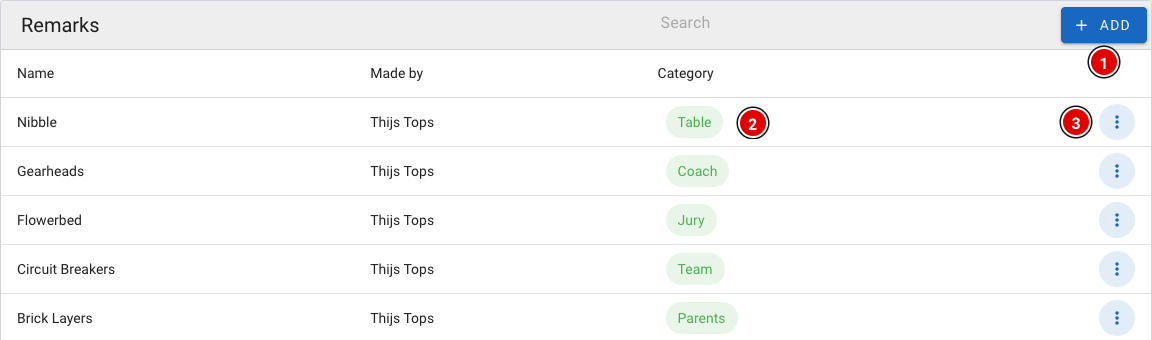
- Add (1) adds a new remark.
- The category (2) shows where the remark came from.
- Via the 3 dots (3) you can open (Show), change (Edit) or delete (Delete) a remark. Only an administrator can change and delete remarks.
The remarks themselves are not shown in the overview, in case other people are looking over your shoulder. You can read a remark by opening it via the menu.
Adding a remark
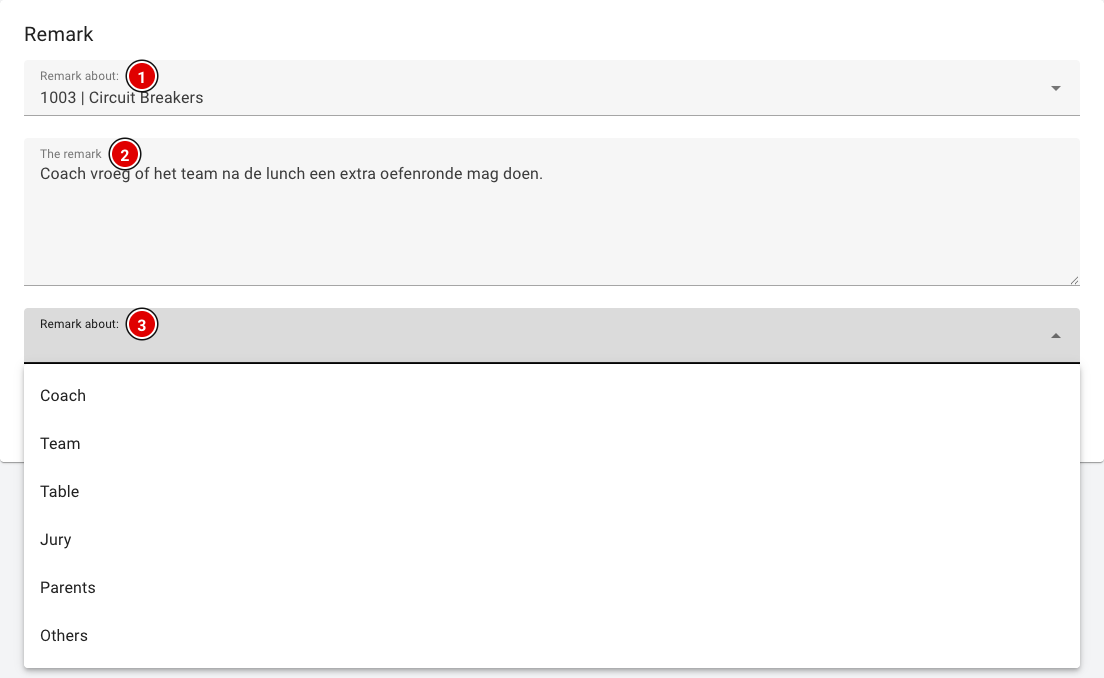
- Remark about (1): Choose the team the remark is about. Type a few letters or the team number to search.
- The remark (2): The remark itself. Keep it short and factual.
- Category (3): Who or where the remark comes from: Coach, Team, Table, Jury, Parents or Others. Note: in the tool this field is currently also labelled "Remark about:".
- Click Save to store the remark.
At the moment, remarks are deleted at the end of the year. We are working on keeping remarks across seasons, so that problems don't depend on volunteers remembering them but can be tracked systematically.
Announcements
With announcements you can send a push message to the phones and computers of visitors, coaches and volunteers during competition day. Useful for messages such as "Lunch is ready", "The awards ceremony starts in 10 minutes" or a change to the schedule.
How do people receive announcements?
A message only arrives on devices that have signed up:
- Visitors, teams and coaches: On the public website there is a megaphone button (1) at the top. Tap it and allow the browser to show notifications. No account is needed. Tapping it again switches announcements off.
- Volunteers with an account: They switch notifications on via their profile, with Enable Notifications under Notifications. See the page Logging in and finding your way around.

Put up a sign at the entrance or ask the host to mention that visitors can switch on announcements via the megaphone on the website. On an iPhone, push notifications only work after the website has been added to the home screen.
Sending an announcement
Announcements can be sent by the scoring desk and administrators.
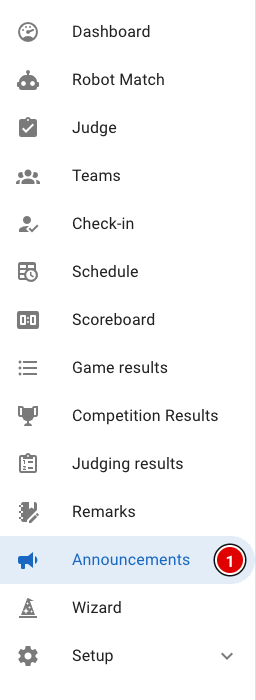
- Click Announcements (1) in the menu.
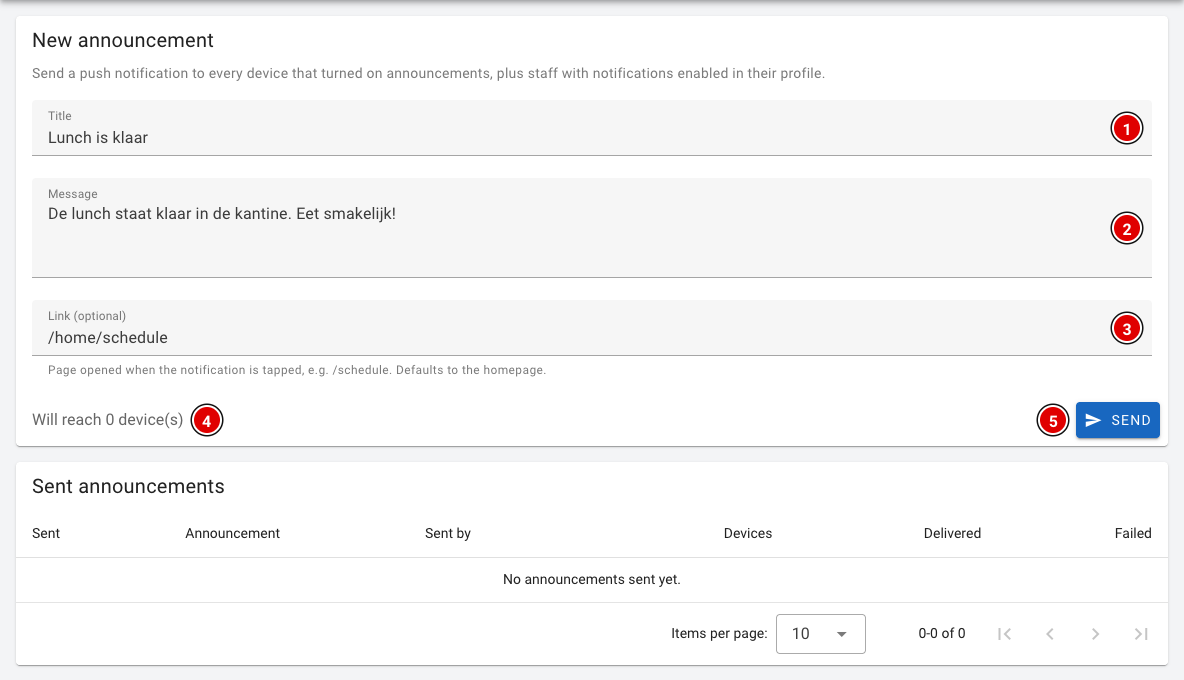
- Title (1): The title of the message, for example "Lunch is ready".
- Message (2): The message itself. Keep it short; only a little text is visible on a phone.
- Link (optional) (3): The page that opens when someone taps the notification, for example /home/schedule for the schedule or /scoreboard for the scoreboard. If you leave it empty, the homepage opens.
- Will reach (4): How many devices the message will reach.
- Click Send (5).
A confirmation question appears. Click Send again to actually send the message.
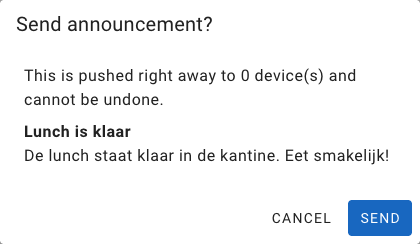
A sent announcement arrives immediately and cannot be recalled. So read the message carefully before you send it.
Sent announcements
Under Sent announcements you can see all previously sent messages, who sent them, to how many devices (Devices), and on how many devices the message was delivered (Delivered) or failed (Failed).
Do you see a message that web push is not configured? Then FLLTools can't send push messages on this environment (yet). Contact thijs@flltools.nl.