At the top right of the wizard you can choose the language. At the bottom of each step are the **Back** and **Next** buttons to move between steps.
### Step 1: Welcome [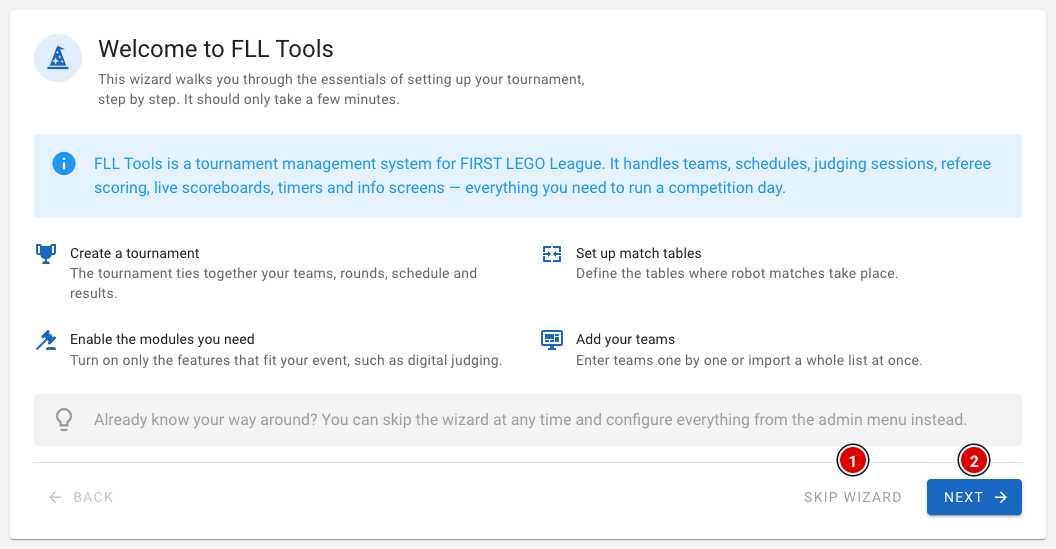](https://docs.flltools.com/uploads/images/gallery/2026-10/wizard-01.png) - The first step briefly explains what the wizard does. - Already know the tool well? Click **Skip wizard (1)**. You go straight to the dashboard and set everything up through the menu. - Click **Next (2)** to start. ### Step 2: Tournament [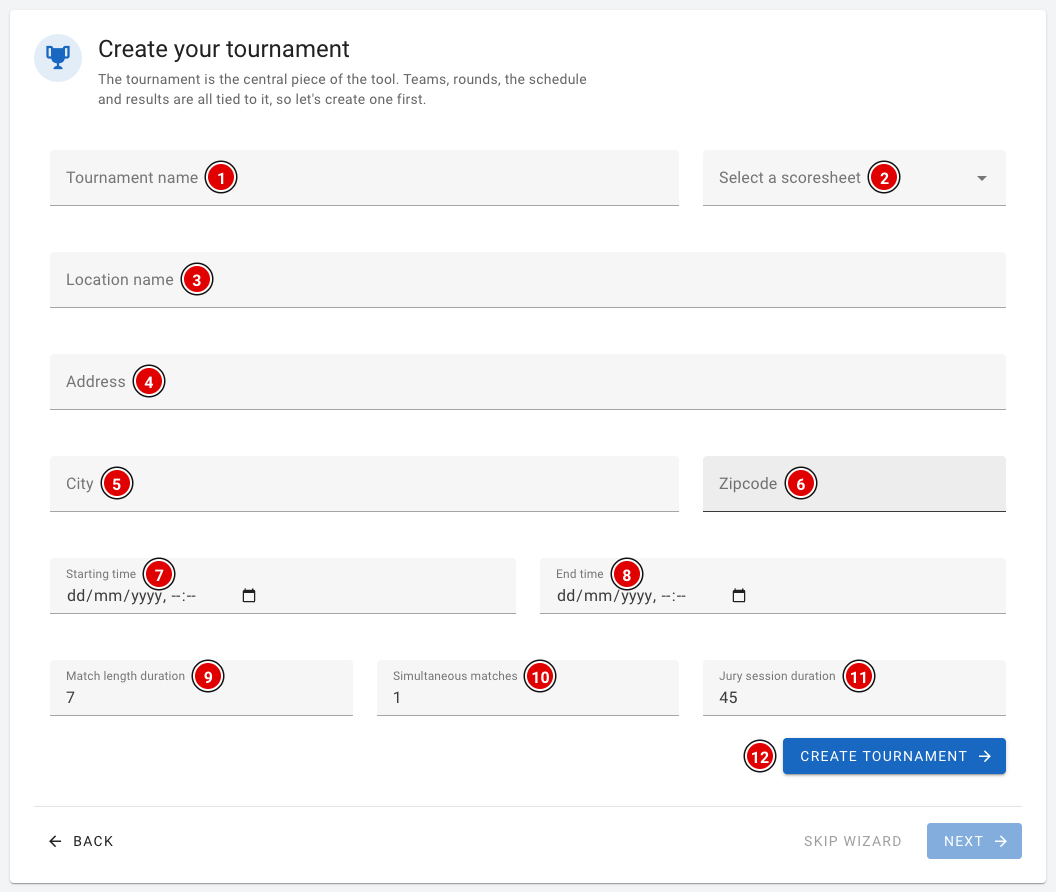](https://docs.flltools.com/uploads/images/gallery/2026-10/wizard-02.png) The tournament is the core of the tool: teams, rounds, the schedule and the results all belong to it. Fill in the fields: - **Tournament name (1)** and **Select a scoresheet (2)**: the name of your event and the score sheet of the current season. - **Location name (3)**, **Address (4)**, **City (5)** and **Zipcode (6)**: the venue of the event. - **Starting time (7)** and **End time (8)**: the start and end time of the competition day. - **Match length duration (9)**, **Simultaneous matches (10)** and **Jury session duration (11)**: these are used to create the day schedule. - Click **Create tournament (12)**. A detailed explanation of all fields, with advice on the times, is on the page [Creating the tournament](https://docs.flltools.com/books/flltools-documentation-english/page/creating-the-tournament). You can only continue to the next steps once the tournament has been created. ### Step 3: Tables [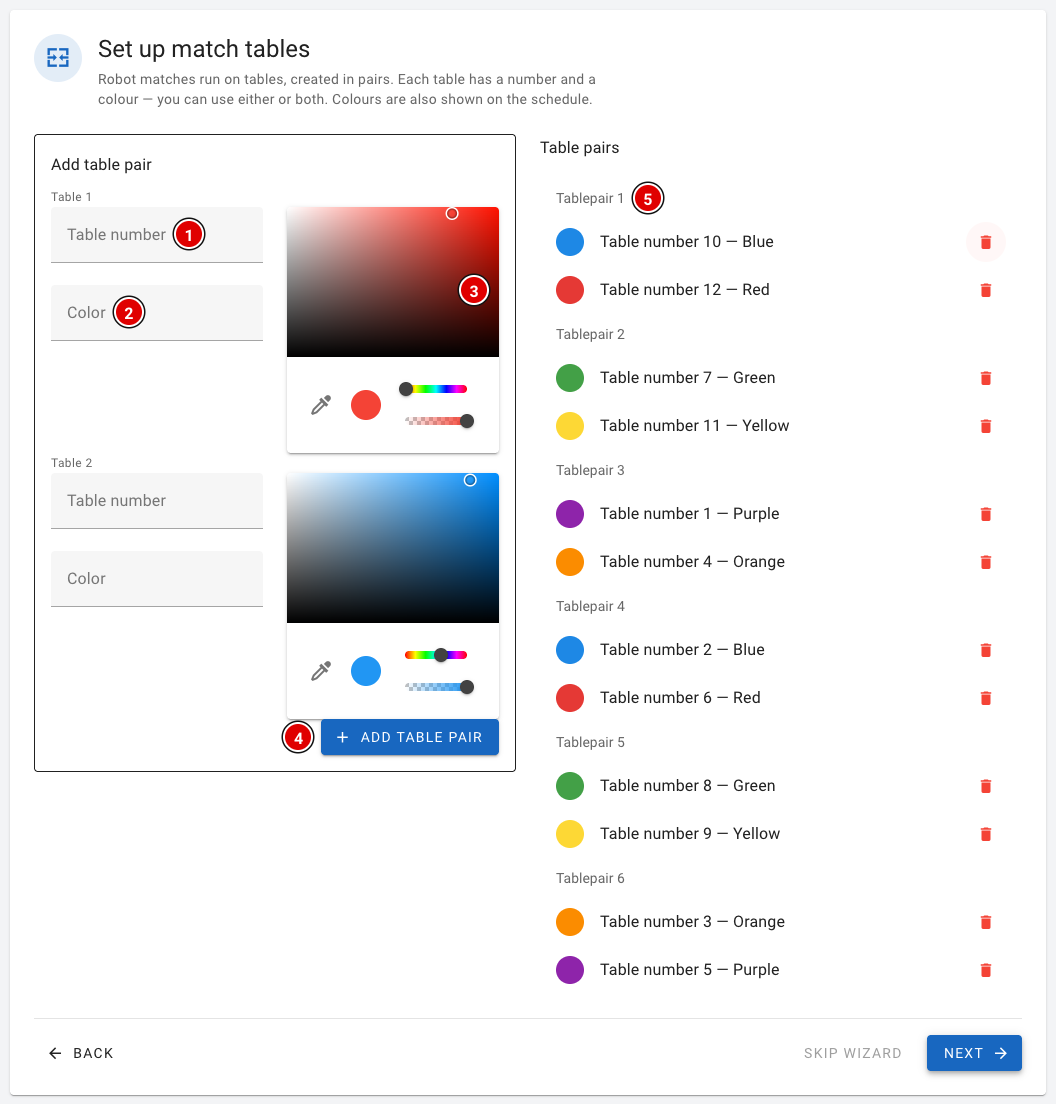](https://docs.flltools.com/uploads/images/gallery/2026-10/wizard-03.png) Robot matches are played on tables, and you always create tables in pairs. For both tables of the pair you fill in: - **Table number (1)**: the number of the table. - **Color (2)**: the name of the table, for example a colour. - **Colour picker (3)**: the colour used to show the table in the schedule and on the screens. - Click **Add table pair (4)**. The pair appears on the right in the **Table pairs (5)** list. Use the bin icon to remove a table again. - Repeat this until all tables have been created. ### Step 4: Rounds [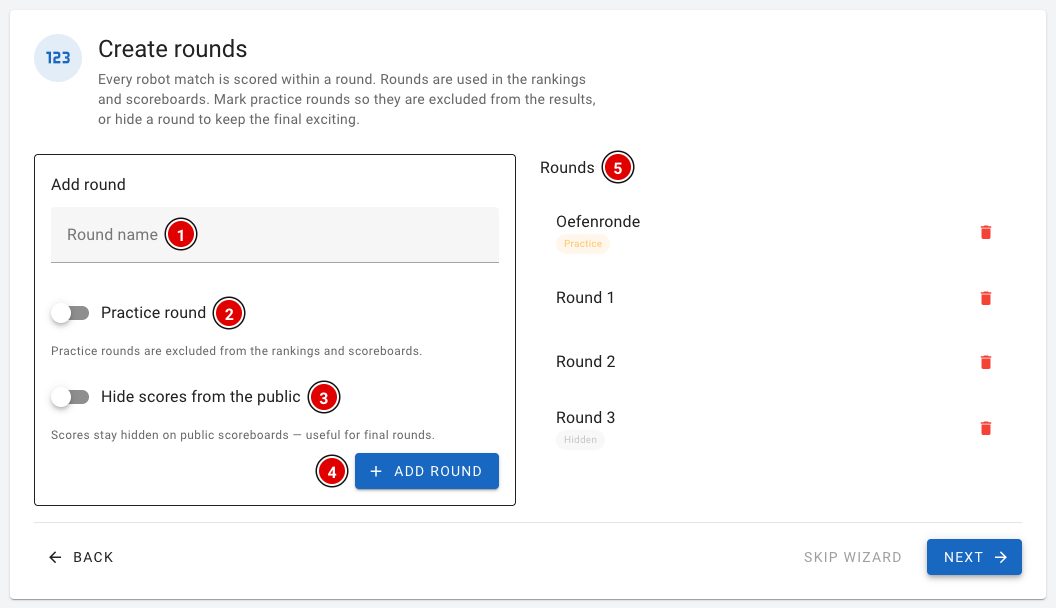](https://docs.flltools.com/uploads/images/gallery/2026-10/wizard-04.png) - Enter the name of the round in **Round name (1)**, for example "Practice round" or "Round 1". - Switch on **Practice round (2)** for a practice round. Practice rounds don't count in the rankings or on the scoreboards. - Switch on **Hide scores from the public (3)** if the scores of this round should stay hidden on the public scoreboards. This is handy for the last round, so it stays exciting until the awards ceremony. - Click **Add round (4)**. The round appears in the **Rounds (5)** list. Create the rounds in the order in which they are played, starting with the practice round. ### Step 5: Modules [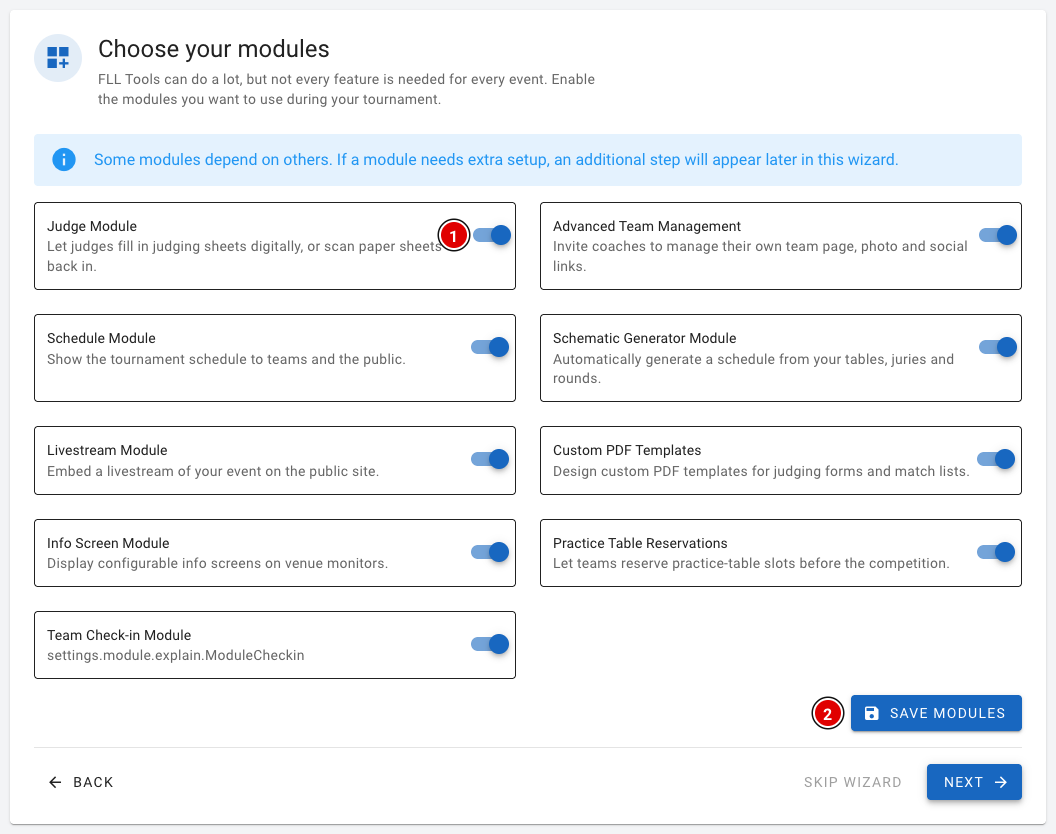](https://docs.flltools.com/uploads/images/gallery/2026-10/wizard-05.png) - Use the switches **(1)** to turn on the modules you want to use at your event. Each module has a short explanation. More information is on the page [Settings and modules](https://docs.flltools.com/books/flltools-documentation-english/page/settings-and-modules). - Click **Save modules (2)**. Some modules need extra settings. If you switch on the **Judge Module**, **Practice Table Reservations** or **Livestream Module**, an extra step appears in the wizard for it. ### Step 6: Judging (only with the Judge Module) [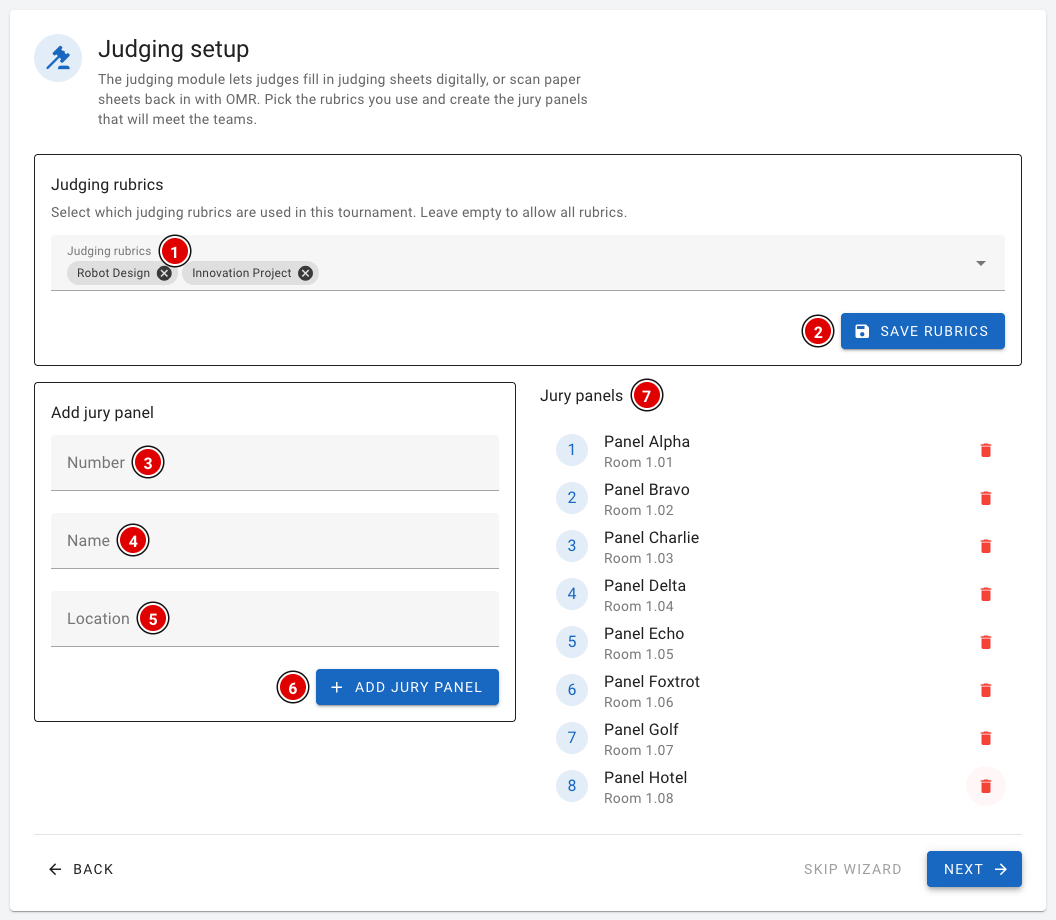](https://docs.flltools.com/uploads/images/gallery/2026-10/wizard-06.png) - In **Judging rubrics (1)**, choose which rubrics are used at your event. If you leave this field empty, all rubrics are available. Click **Save rubrics (2)**. - Then create the judging panels. Fill in the **Number (3)**, the **Name (4)** and the **Location (5)** (for example the room) and click **Add jury panel (6)**. - The judging panels appear in the **Jury panels (7)** list. ### Step 7: Practice tables (only with Practice Table Reservations) [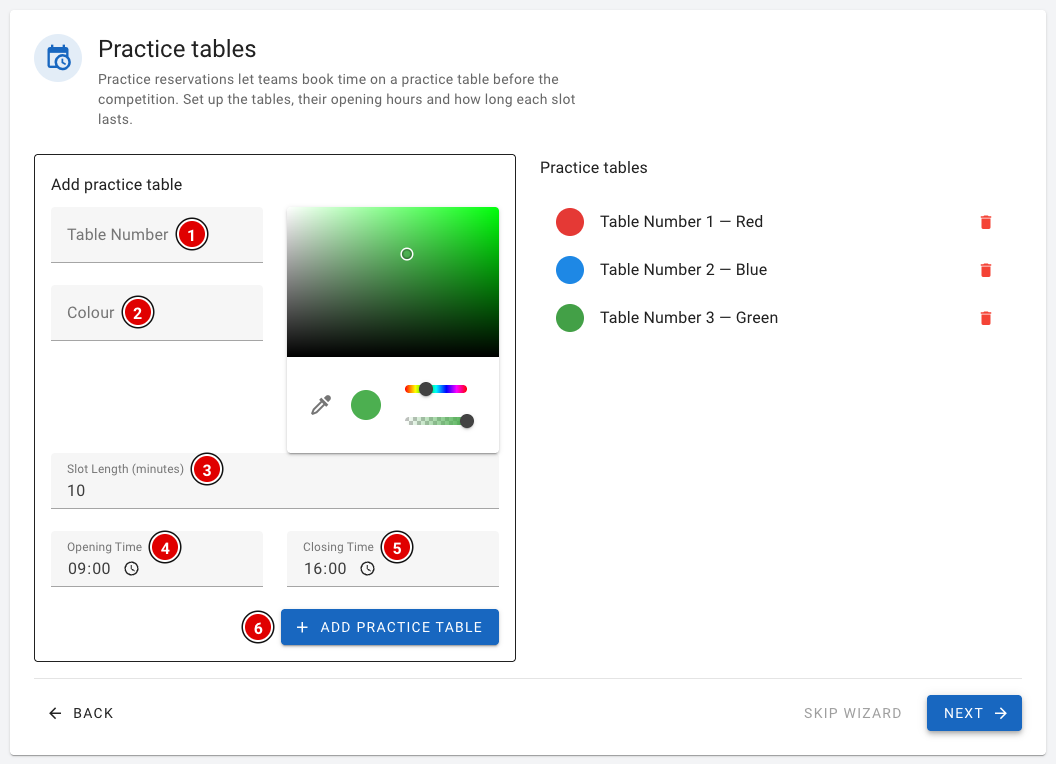](https://docs.flltools.com/uploads/images/gallery/2026-10/wizard-07.png) - Fill in the **Table Number (1)** and the **Colour (2)** of the practice table and pick a colour. - In **Slot Length (minutes) (3)**, enter how long a team may practise per reservation. - In **Opening Time (4)** and **Closing Time (5)**, enter when the table is available. FLLTools automatically divides this time into time slots. - Click **Add practice table (6)**. More about booking practice tables is on the page [Practice tables and reservations](https://docs.flltools.com/books/flltools-documentation-english/page/practice-tables-and-reservations). ### Step 8: Livestream (only with the Livestream Module) [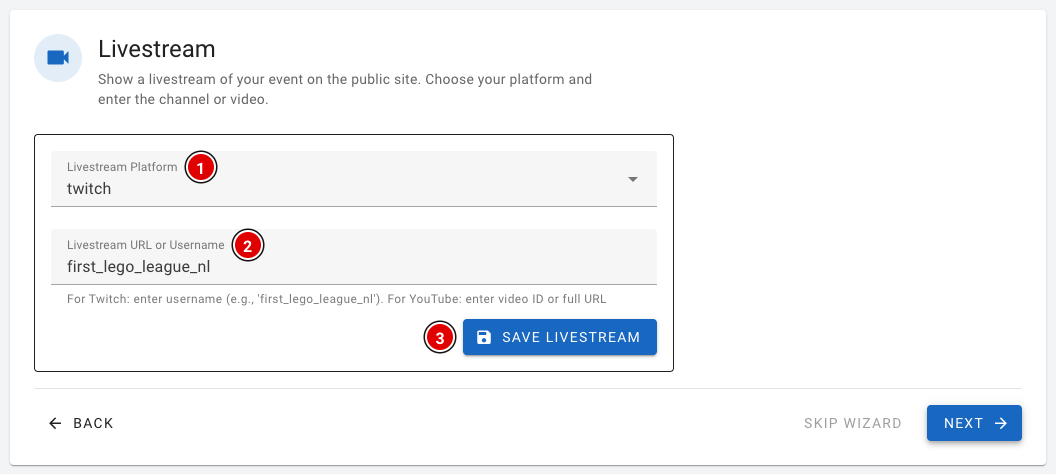](https://docs.flltools.com/uploads/images/gallery/2026-10/wizard-08.png) - In **Livestream Platform (1)**, choose whether you stream through Twitch or YouTube. - In **Livestream URL or Username (2)**, enter the username of the Twitch channel, or the link or video ID of the YouTube video. - Click **Save livestream (3)**. ### Step 9: Teams [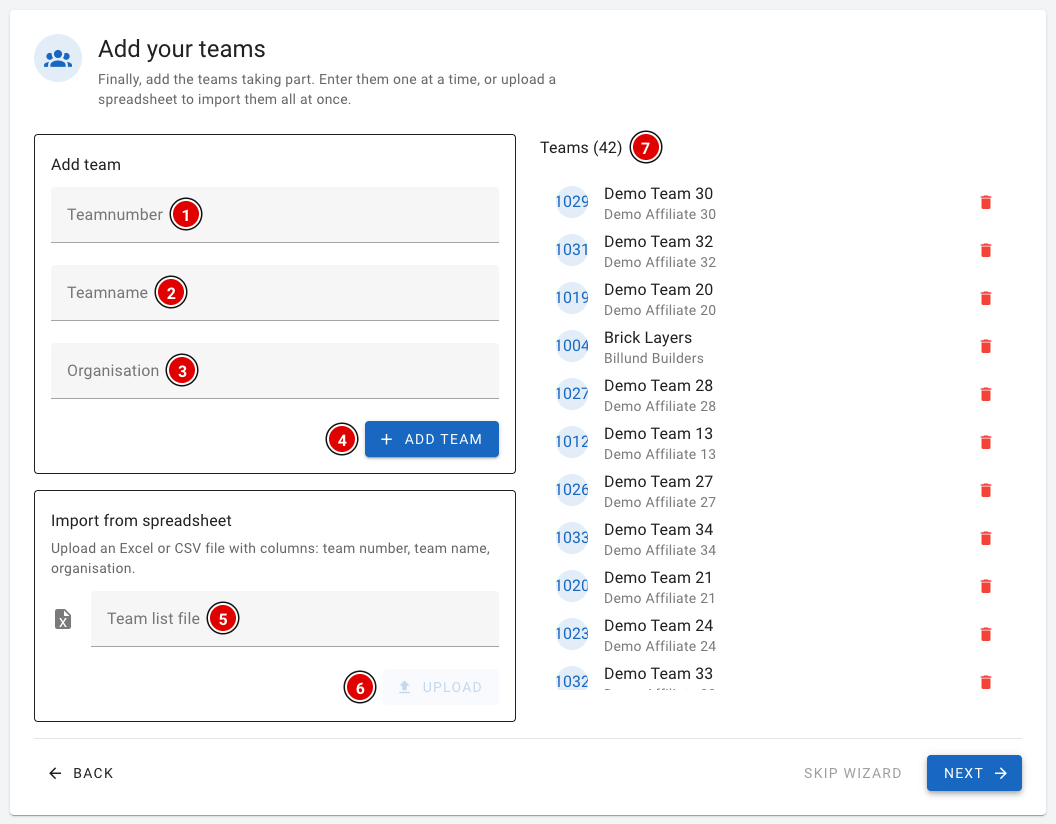](https://docs.flltools.com/uploads/images/gallery/2026-10/wizard-09.png) Finally you add the teams. You can do this one team at a time or all at once with a file. - One at a time: fill in the **Teamnumber (1)**, the **Teamname (2)** and the **Organisation (3)** and click **Add team (4)**. The team number must be a unique number and may not contain letters. - With a file: choose an Excel or CSV file in **Team list file (5)** and click **Upload (6)**. Column A is the team number, column B the team name and column C the organisation. Do NOT use a header row, or the upload will fail. - The teams appear on the right in the **Teams (7)** list. More about entering teams, for example with an export from your registration system, is on the page [Entering teams into the system](https://docs.flltools.com/books/flltools-documentation-english/page/entering-teams-into-the-system). ### Step 10: Done! [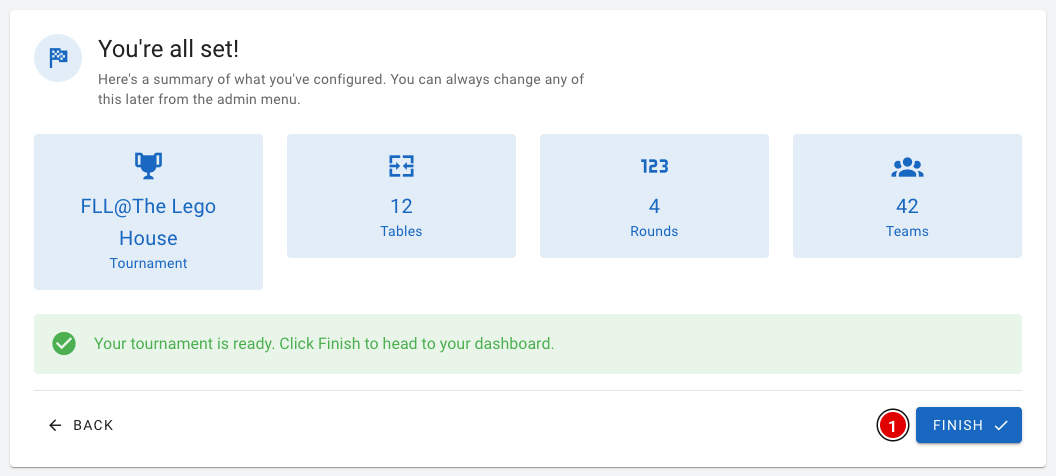](https://docs.flltools.com/uploads/images/gallery/2026-10/wizard-10.png) You see a summary of what you have set up: the tournament and the number of tables, rounds and teams. Click **Finish (1)** to go to the dashboard. After the wizard you're not quite finished yet. Don't forget: - the user accounts for referees and judges (see [Creating the users](https://docs.flltools.com/books/flltools-documentation-english/page/creating-the-users)); - the day schedule (see [Creating the day schedule](https://docs.flltools.com/books/flltools-documentation-english/page/creating-the-day-schedule)); - the other settings (see [Settings and modules](https://docs.flltools.com/books/flltools-documentation-english/page/settings-and-modules)). ### Hiding the wizard Not using the wizard? Then you can hide it. Go through **Setup** to **Settings** and switch on **Hide the setup wizard**. The **Wizard** button then disappears from the menu and the wizard no longer opens automatically. # Creating the tournament The e-mail you received contains the login details. Log in to your FLLTools event (see the page [Logging in and finding your way around](https://docs.flltools.com/books/flltools-documentation-english/page/logging-in-and-finding-your-way-around)). - For the rest of the instructions we use the link **yourevent.flltools.nl**. - Replace "yourevent" with the name of your event. - The language is set to English by default. You can change this in the user menu. The buttons and icons are in the same place in every language.You can also create the tournament with the Setup Wizard. It opens automatically if there is no tournament yet. See the page [The Setup Wizard](https://docs.flltools.com/books/flltools-documentation-english/page/the-setup-wizard). This page explains how to create and manage a tournament through the menu, and what all the fields mean.
### Going to the Tournaments page [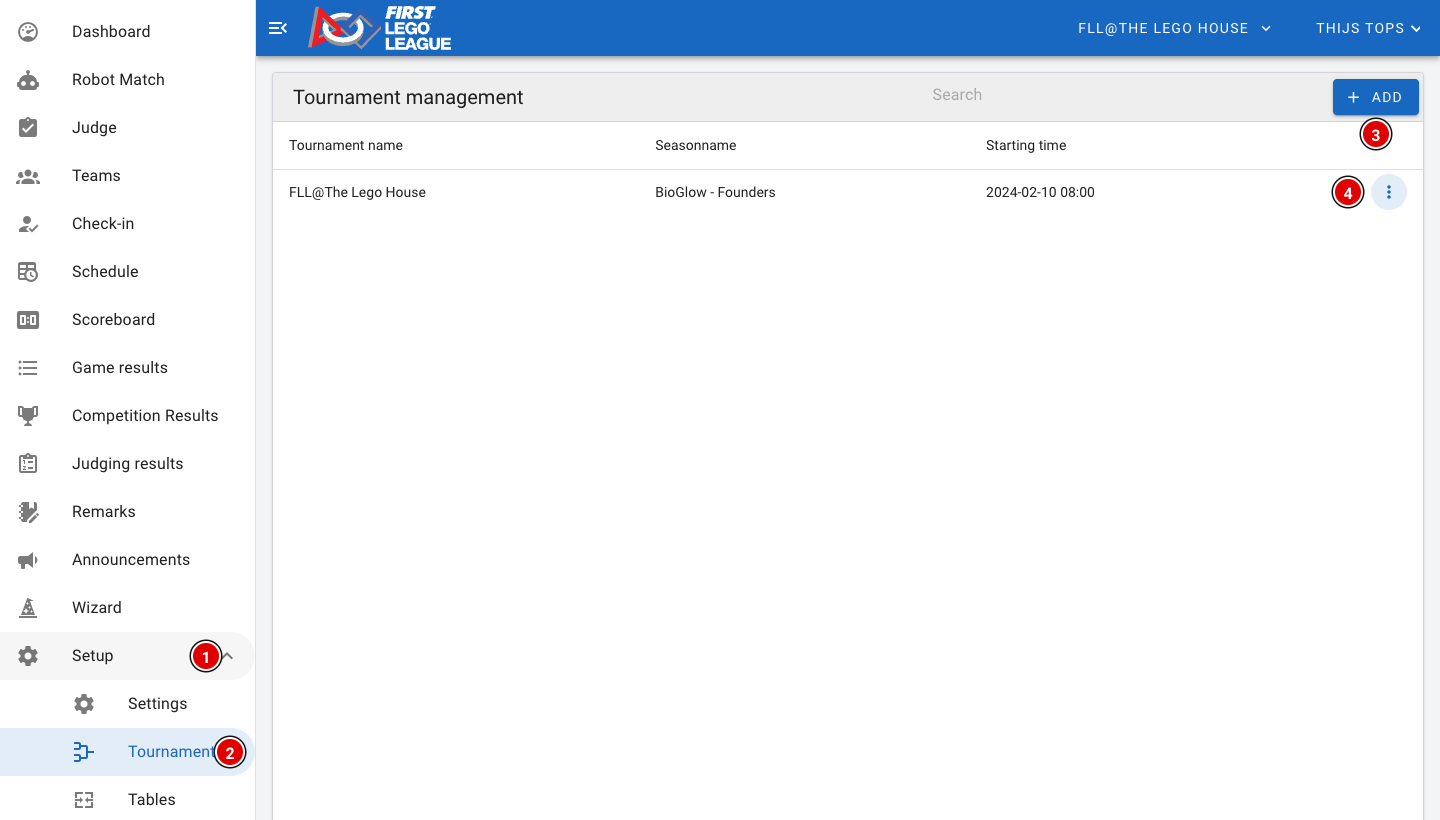](https://docs.flltools.com/uploads/images/gallery/2026-10/tournament-01.png) - Click **Setup (1)** and then **Tournaments (2)**. - You now see a list of all tournaments, with the season and the start time. FLLTools can manage several tournaments at the same time. This is handy, for example, when a region spreads its teams over two days. Each tournament has its own teams, rounds, juries, schedule and results. ### Creating a tournament - Click **Add (3)**. - A window opens where you can enter all the details. [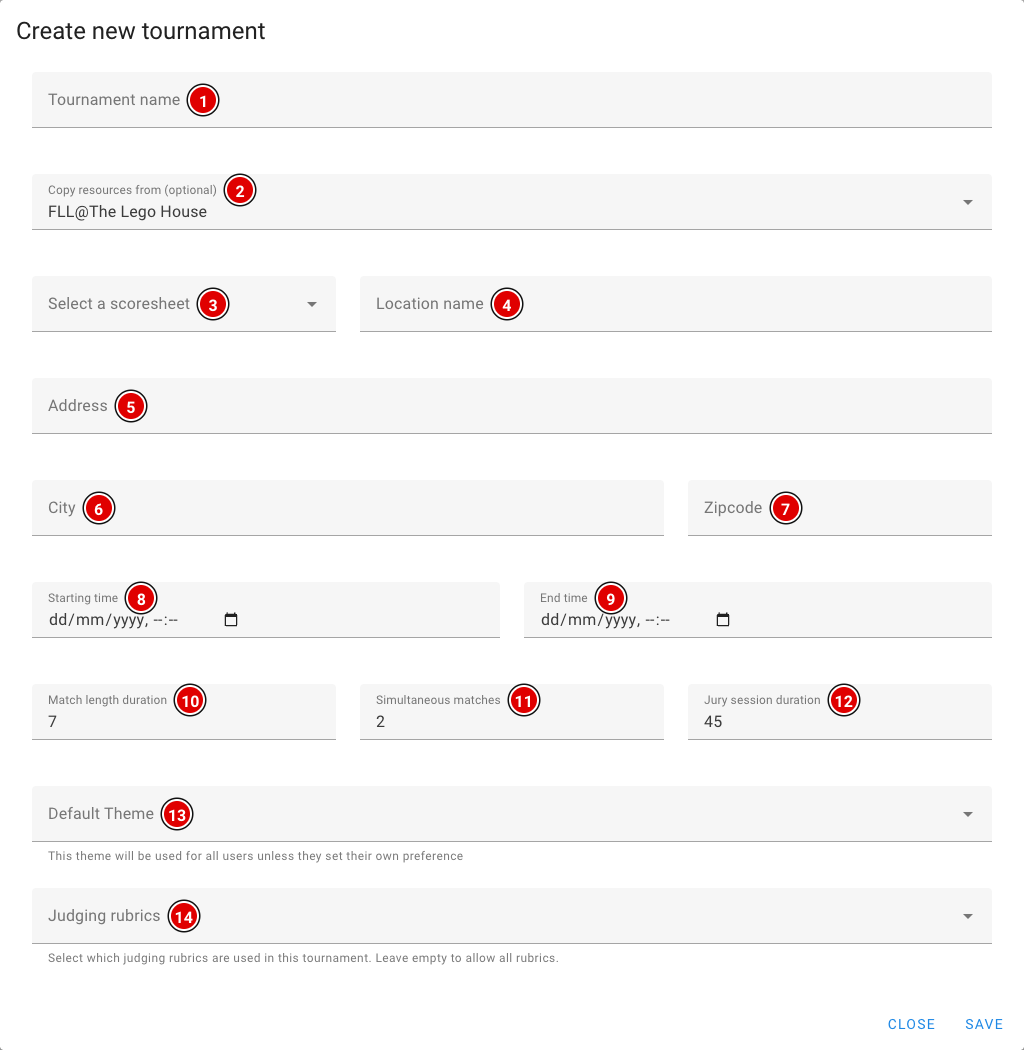](https://docs.flltools.com/uploads/images/gallery/2026-10/tournament-02.png) **Tournament name (1):** Enter the name of the tournament, for example "Regional final". **Copy resources from (optional) (2):** Choose an existing tournament to copy the rounds, juries, tables and chosen rubrics from. This saves a lot of work when you create a second day or a similar event. Teams are not copied. By default this field contains the tournament you are currently working in. Want to start with an empty tournament? Then clear this field. **Select a scoresheet (3):** Choose the score sheet of the current season. Need a different score sheet for an off-season event? Let us know and we'll load the right one. **Location name (4):** Name of the venue, for example "Building". **Address (5):** Address of the venue. **City (6):** City of the venue. **Zipcode (7):** Postcode of the venue. **Starting time (8):** Enter the date and start time of the competition day. This is used to create the day schedule. **End time (9):** Enter the date and the planned end time. This is also used for the day schedule. **Match length duration (10):** The length of a robot match in minutes. We advise 7 minutes per match. **Simultaneous matches (11):** The number of matches played at the same time. Each match is played on a table pair, so this is usually equal to the number of table pairs (half the number of tables). **Jury session duration (12):** The length of a judging session, including the time for the judges to discuss. For a good schedule we recommend a multiple of 9 minutes, with a minimum of 42 minutes. This matches the official flow: - 4 minutes to walk in - 30 minutes of judging - 4 minutes to tidy up - 4 minutes to fill in the forms **Default Theme (13):** The colour theme all users of this tournament see. Users who have chosen their own theme in their profile keep their own theme. If you leave this empty, the default theme is used. **Judging rubrics (14):** Choose which rubrics the judges use at this tournament. If you leave this field empty, all rubrics are available. This only matters if you use the Judge Module. When everything is filled in, click **Save** at the bottom of the window. You then return to the Tournaments page, with your tournament now in the list. ### Editing or deleting a tournament At the end of each row are **3 dots (4)** (see the first image). Click them: [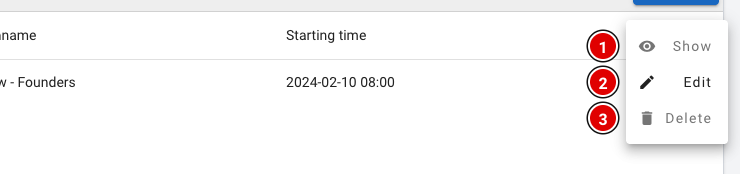](https://docs.flltools.com/uploads/images/gallery/2026-10/tournament-03.png) - **Show (1)**: view the tournament details. - **Edit (2)**: change the details. The same window opens as when creating it. Click **Update** to save. - **Delete (3)**: delete the tournament.Only delete a tournament if you are sure you no longer need it. All data belonging to the tournament can then no longer be used.
### Switching between tournaments [](https://docs.flltools.com/uploads/images/gallery/2026-10/tournament-04.png) The top bar shows which tournament you are working in **(1)**. Everything you see and do in the tool (teams, schedule, results, exports) belongs to this tournament. - Have more than one tournament? Click the name. A list of all tournaments opens. - Click the tournament you want to work in. The page reloads with that tournament's data. Which tournament visitors see on the public scoreboard and team pages is set in **Public Tournament** on the Settings page. See the page [Settings and modules](https://docs.flltools.com/books/flltools-documentation-english/page/settings-and-modules). The tournament has now been created and you can move on to the next step. # Settings and modules On the Settings page you decide how FLLTools works at your event. This is also where you switch the **modules** on or off: the parts of the tool you don't need at every event. Go through **Setup** to **Settings**. The page consists of several blocks, one below the other. Each block has its own **Save** button, so save each block separately after changing something. ### Basic settings [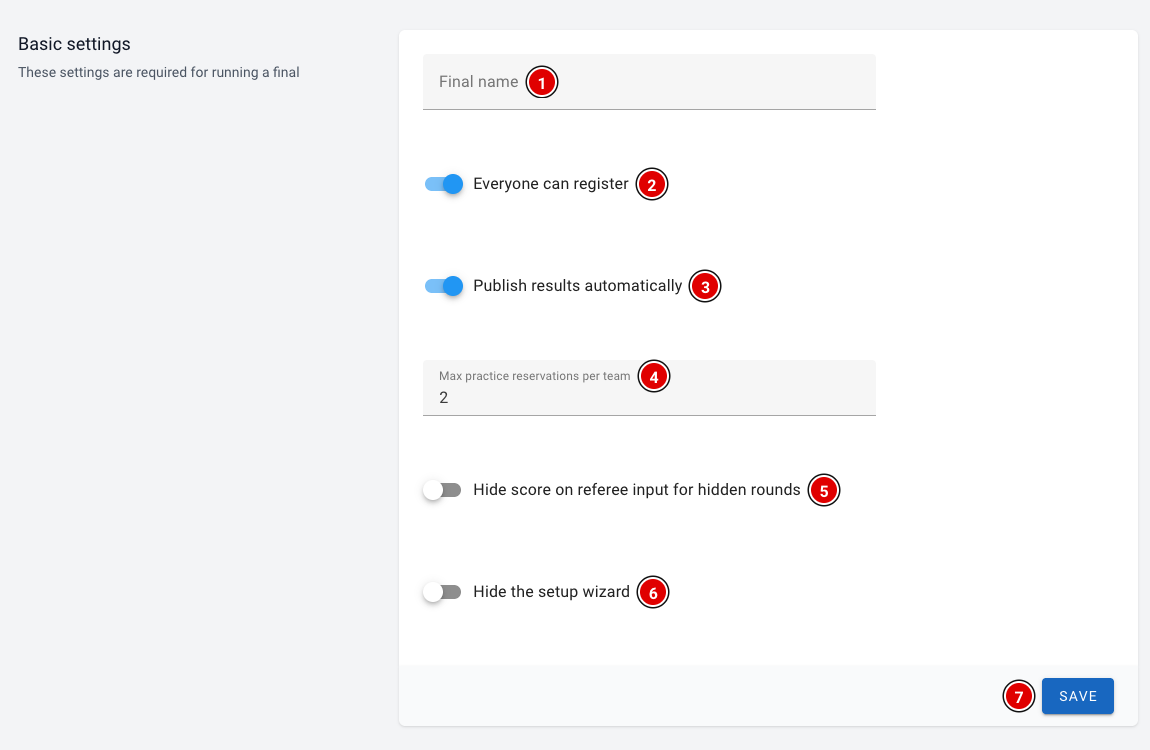](https://docs.flltools.com/uploads/images/gallery/2026-10/instellingen-01.png) **Final name (1):** The name of your event. It is shown on the login screen, below the title. **Everyone can register (2):** Intended to let visitors create their own account. You don't need this for a regional final: you create the accounts yourself (see the page [Creating the users](https://docs.flltools.com/books/flltools-documentation-english/page/creating-the-users)). **Publish results automatically (3):** When this is on, visitors see the teams' match results on the public team pages, including the filled-in score sheet. When it is off, the results are not visible there for visitors who aren't logged in. Rounds with hidden scores always stay hidden. **Max practice reservations per team (4):** How many practice table reservations a team may hold at the same time. Only relevant if you use the **Practice Table Reservations** module. **Hide score on referee input for hidden rounds (5):** When this is on, the total score on the referee screen is blurred in rounds with hidden scores, so a team can't look along. The referee can reveal the score by tapping it. **Hide the setup wizard (6):** Hides the **Wizard** button in the menu. The wizard then no longer opens automatically either. See the page [The Setup Wizard](https://docs.flltools.com/books/flltools-documentation-english/page/the-setup-wizard). Click **Save (7)** to save the changes in this block. ### Timer and modules [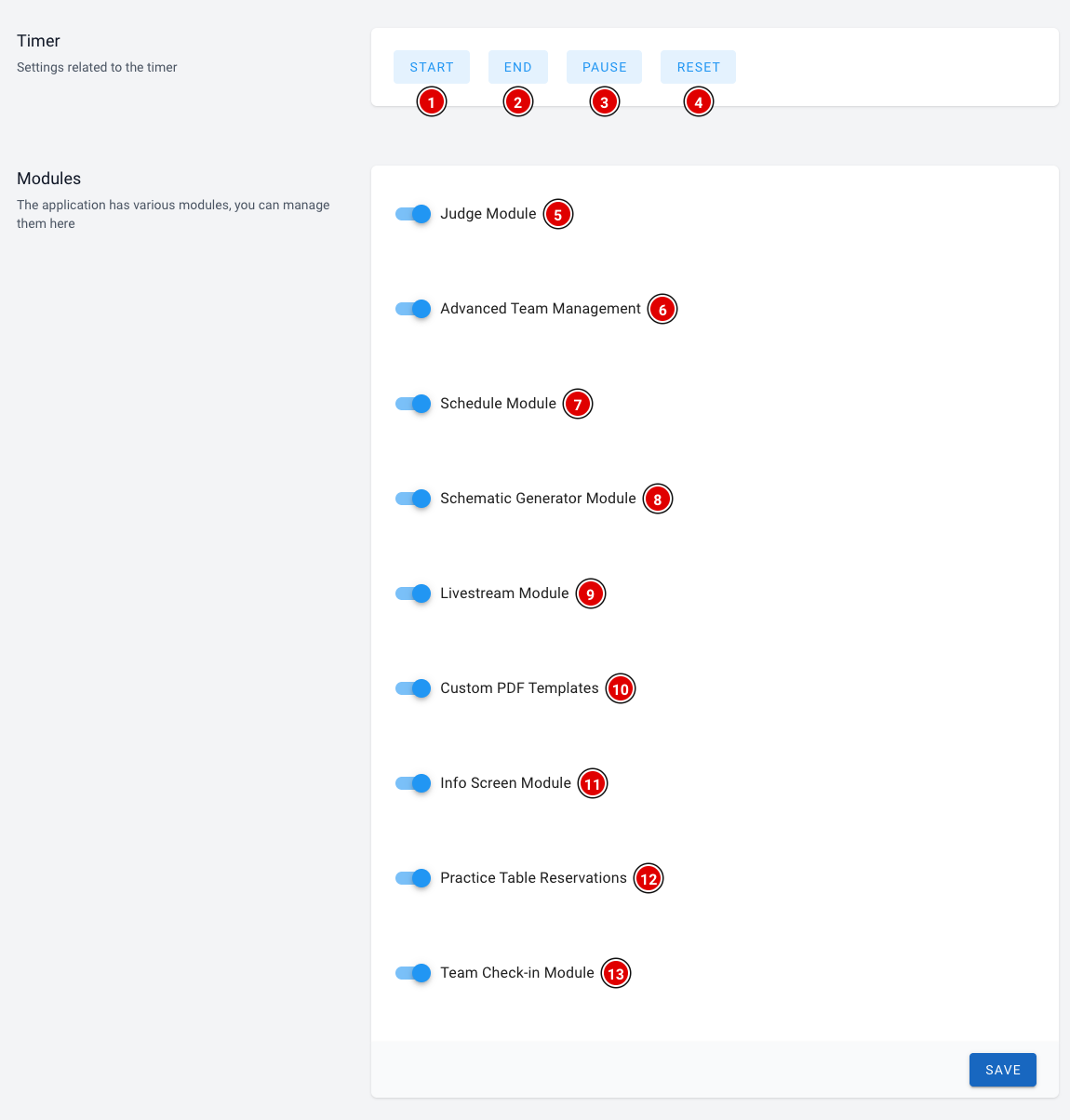](https://docs.flltools.com/uploads/images/gallery/2026-10/instellingen-02.png) #### Timer The **Start (1)**, **End (2)**, **Pause (3)** and **Reset (4)** buttons control the match timer on all screens. Each button opens in a new tab. How the timer works is explained on the page [How the timer works](https://docs.flltools.com/books/flltools-documentation-english/page/how-the-timer-works). #### Modules Switch a module on with its switch and click **Save** at the bottom of the block. After saving, the matching pages appear in the menu. If you switch a module off, they disappear again. Your data is kept. - **Judge Module (5)**: digital judging. Judges fill in the rubrics on a tablet or laptop, or paper forms are scanned in. Among other things, **Judge** and **Judging results** appear in the menu, and **Jury** and the **Rubric editor** under Setup. - **Advanced Team Management (6)**: coaches receive an invitation to maintain the team page themselves, with a team photo, descriptions and social media links. This extra information is then also shown on the public team page. - **Schedule Module (7)**: the day schedule. Teams and the public see on the public site and the team pages where and when they need to be. - **Schematic Generator Module (8)**: automatically creates a day schedule based on your teams, tables, juries and rounds. A button to generate the schedule then appears on the schedule page. See the page [Creating the day schedule](https://docs.flltools.com/books/flltools-documentation-english/page/creating-the-day-schedule). - **Livestream Module (9)**: shows the livestream (Twitch or YouTube) of your event on the public site. - **Custom PDF Templates (10)**: design your own PDF documents, such as name cards or certificates, with the team details filled in automatically. - **Info Screen Module (11)**: screens in the venue showing, for example, the schedule, the tables, the timer or the scoreboard. - **Practice Table Reservations (12)**: teams book a time slot on a practice table themselves. - **Team Check-in Module (13)**: keep track of which teams have reported on arrival. **Check-in** appears in the menu.It's best to leave a module you don't need switched off. That keeps the menu tidy for all volunteers. You can always switch modules on later.
### Public Tournament and QR import [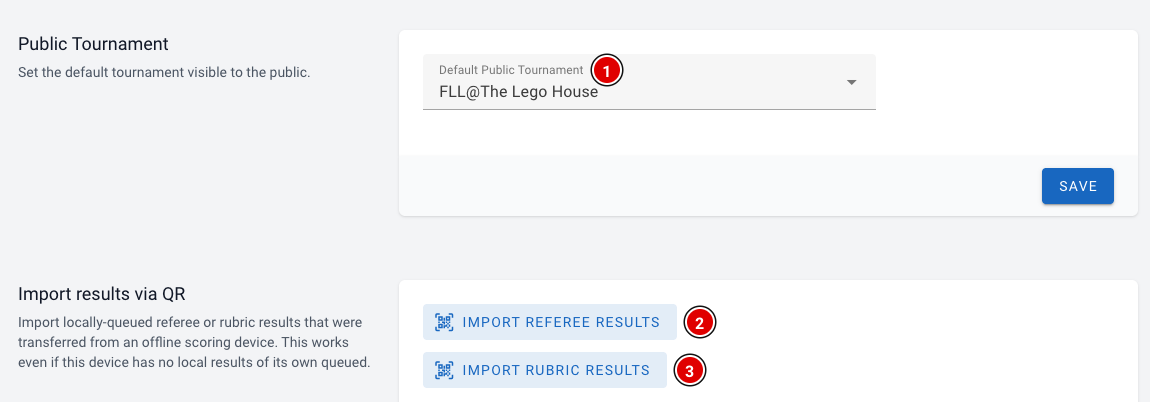](https://docs.flltools.com/uploads/images/gallery/2026-10/instellingen-03.png) #### Public Tournament In **Default Public Tournament (1)** you choose which tournament visitors see on the public pages, such as the scoreboard and the team pages. This is especially important if you have several tournaments. Click **Save** to save. #### Import results via QR Referees and judges can enter results without internet. Those results are stored on their device. If they can't be sent later, they can be transferred with a QR code. **Import Referee Results (2)** reads a QR code with match results, **Import Rubric Results (3)** one with judging results. You scan the QR codes with the device's camera. If the browser doesn't support the camera, you can also paste the code as text. More about this is on the page [Referee briefing](https://docs.flltools.com/books/flltools-documentation-english/page/referee-briefing). # Creating the rounds and the tables The next steps are creating the rounds and the tables. Both are an essential part of the scoring tool. Referees choose a round and a table for every match, and the scoreboard, the results and the day schedule are all organised by round and by table. So make sure both are set up correctly before you continue. ### Adjusting the rounds [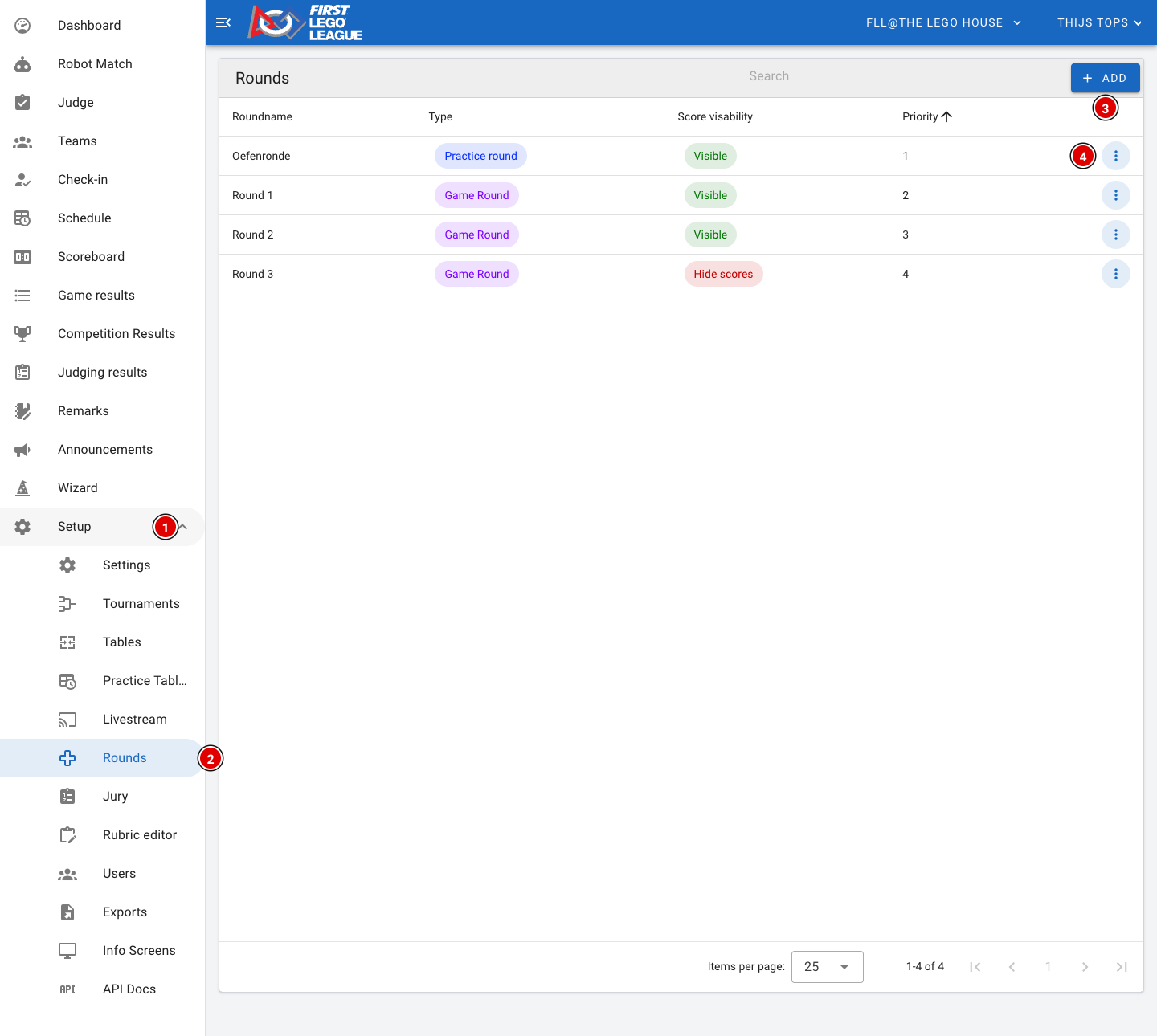](https://docs.flltools.com/uploads/images/gallery/2026-10/rondes-tafels-01.png) - Go through **Setup (1)** to **Rounds (2)**. - A new environment has 4 rounds by default: - 1 practice round - 3 real rounds - For each round you see the type (*Practice round* or *Game Round*), whether the scores are visible (*Visible* or *Hide scores*) and the priority. - Use **Add (3)** to create a new round. - Through the **3 dots (4)** at the end of a row you can view (*Show*), change (*Edit*) or delete (*Delete*) a round.Check that the last round is set to **Hide scores** if you only want to show the results of that round after the awards ceremony. Not set correctly? Change it through *Edit*.
#### Creating or changing a round [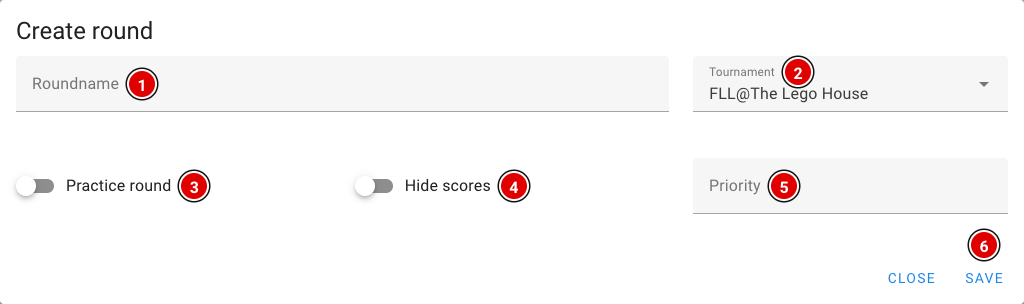](https://docs.flltools.com/uploads/images/gallery/2026-10/rondes-tafels-02.png) **Roundname (1):** The name of the round, for example "Practice round" or "Round 1". Referees, teams and the public see this name. **Tournament (2):** The tournament this round belongs to. Usually the right tournament is already filled in. **Practice round (3):** Switch this on for a practice round. Scores of a practice round don't count towards the results and are not shown on the public scoreboard. **Hide scores (4):** Switch this on if the scores of this round may not be publicly visible (yet). This is usually used for the last round, so it stays exciting until the awards ceremony. See also [Making the last round visible](https://docs.flltools.com/books/flltools-documentation-english/page/making-the-last-round-visible). **Priority (5):** The order of the rounds. A lower number comes first. Click **Save (6)** to save the round. Want to change an existing round? Choose *Edit* in the menu next to the round; you'll see the same window. Make sure there are no duplicate priorities and that they are in ascending order. Note: if you load a schedule (see [Creating the day schedule](https://docs.flltools.com/books/flltools-documentation-english/page/creating-the-day-schedule)), make sure the priorities start at 1 and go up: the practice round 1, round 1 = 2, and so on. The schedule links the matches to the right round through the priority. Otherwise an error will occur. A round that already has scores linked to it can no longer be deleted. ### Creating the tables Tables are a fixed part of FLLTools, so you no longer need to switch anything on in the settings. [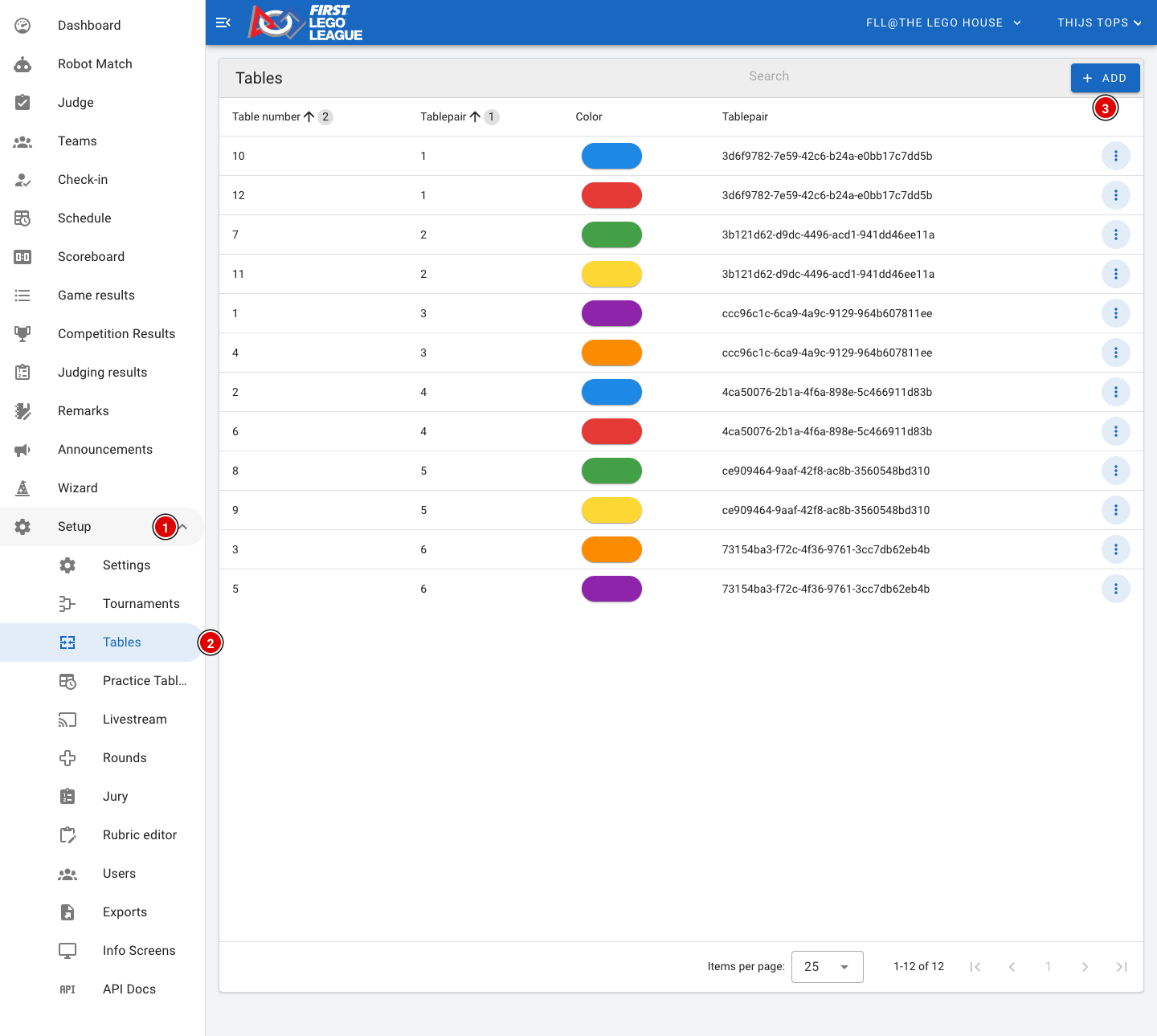](https://docs.flltools.com/uploads/images/gallery/2026-10/rondes-tafels-03.png) - Go through **Setup (1)** to **Tables (2)**. - For each table you see the table number, the table pair and the colour. Hover your mouse over the colour to see the name and the colour code. - Click **Add (3)** to add a new table pair. #### Setting up tables [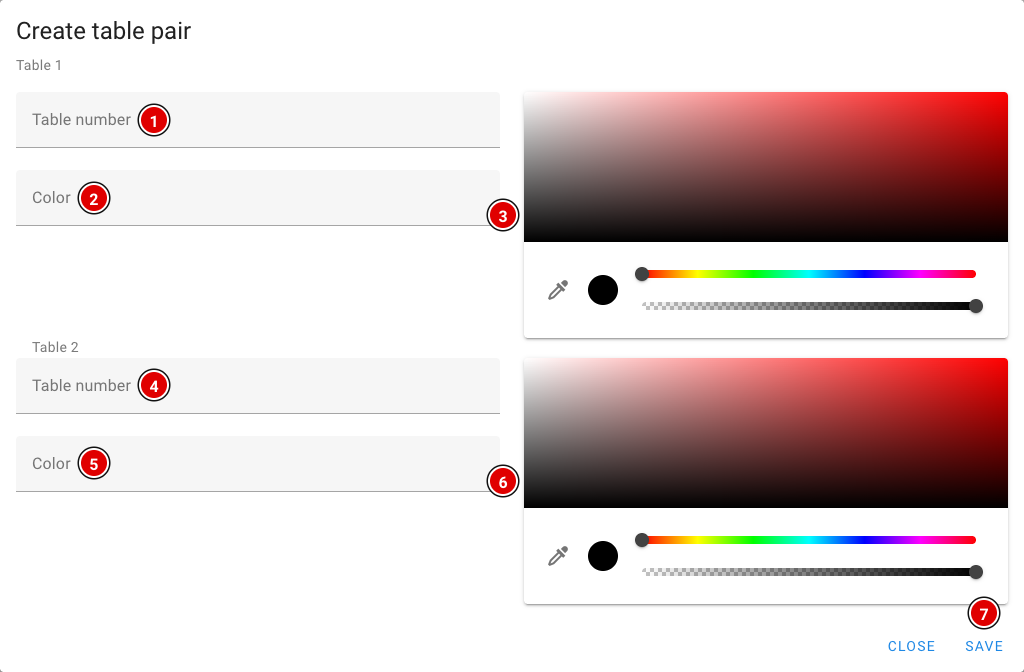](https://docs.flltools.com/uploads/images/gallery/2026-10/rondes-tafels-04.png) Tables are always created in pairs, because in the robot game 2 teams always play side by side. So you always fill in 2 tables at once. - **Table number (1)**: The number of the table. This must be a number. Start with 1 and keep numbering across all table pairs (1 and 2, then 3 and 4, and so on). Otherwise loading the schedule won't work. - **Color (2)**: The name of the table. Many regions use either the number or a colour here. The name can be anything. - **Colour picker (3)**: If the table has a colour, select it here. Otherwise select black. This colour is used in the schedule, for the referees and on the info screens. - **(4)**, **(5)** and **(6)** are exactly the same as (1), (2) and (3), but for the second table of the pair. - Click **Save (7)** when all fields are filled in. The tables appear on the page. - Repeat these steps until all tables have been created. Want to change one table later, for example its colour? Use *Edit* through the 3 dots next to the table. You then only change that one table.Choose clear colours that are easy to tell apart. Teams and referees often look for their table by colour, and the colour is also shown large on the info screens.
# Juries and rubrics Besides the robot game, teams are also assessed by judges. In FLLTools you set up two things for this: the **juries** (the judging panels or judging rooms the teams visit) and the **rubrics** the judges fill in.The judging parts are only visible when the **Judge Module** is switched on. See the page [Settings and modules](https://docs.flltools.com/books/flltools-documentation-english/page/settings-and-modules).
### Creating juries A jury is a group of judges in one room who see one team after another throughout the day. In the day schedule every team gets a judging session with one of the juries. [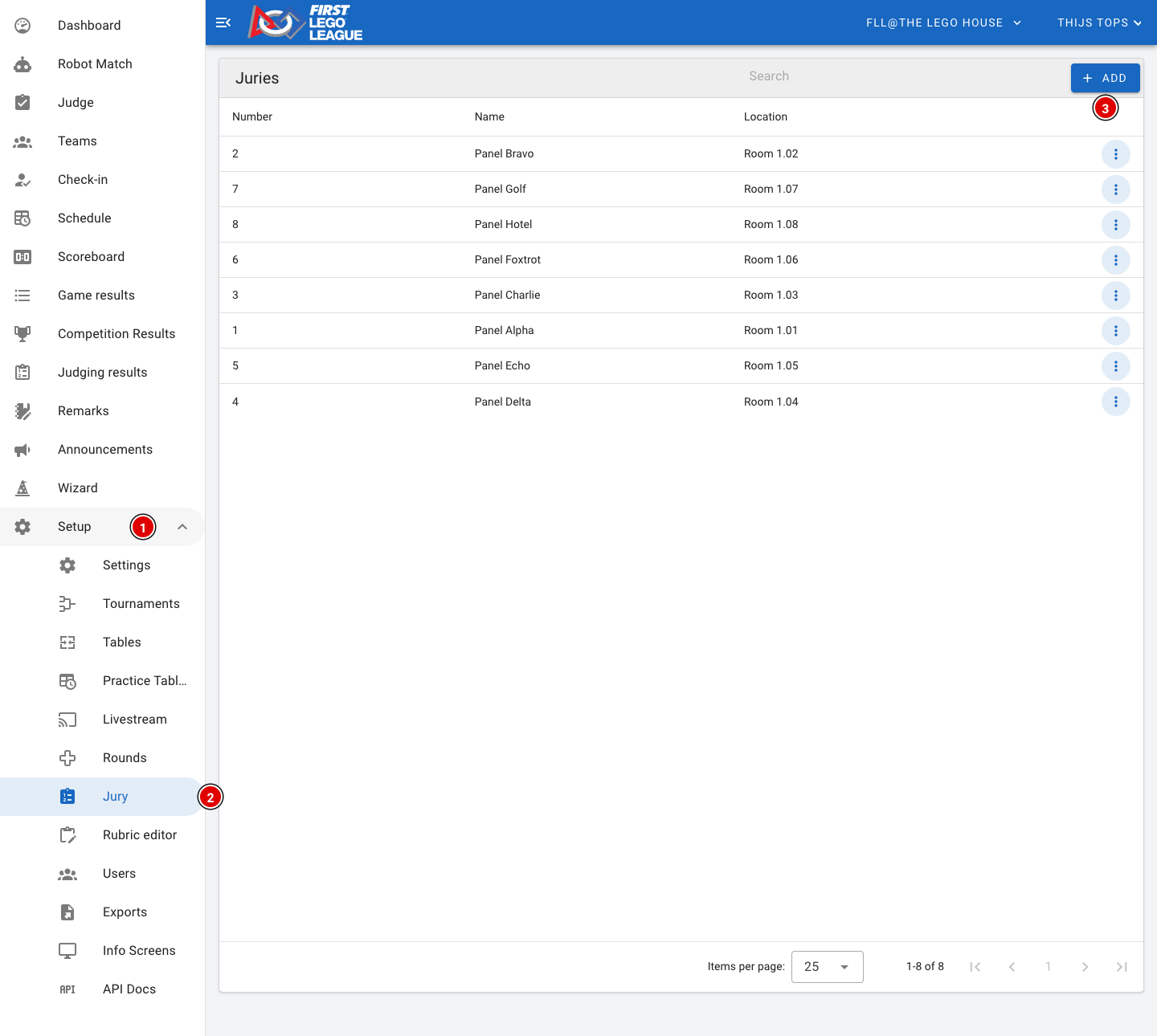](https://docs.flltools.com/uploads/images/gallery/2026-10/jury-01.png) - Go through **Setup (1)** to **Jury (2)**. - You see a list of all juries, with their number, name and location. - Click **Add (3)** to add a new jury. [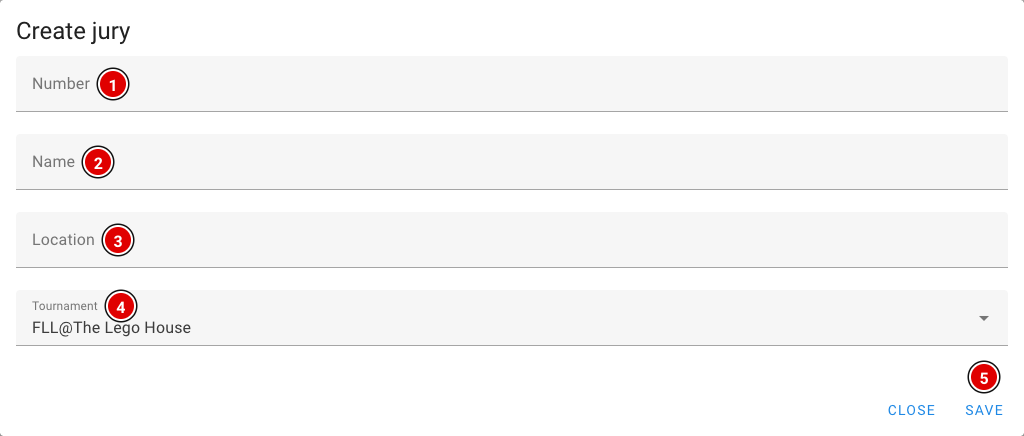](https://docs.flltools.com/uploads/images/gallery/2026-10/jury-02.png) **Number (1):** The number of the jury. Start with 1 and keep counting. The schedule (both the generator and an imported schedule) links the judging sessions to the right jury through this number. **Name (2):** The name of the jury, for example "Jury A" or "Panel Alpha". Teams see this name in their day schedule and on the info screens. **Location (3):** The room or place where this jury sits, for example "Room 1.02". That way teams and volunteers know where to go. **Tournament (4):** The tournament this jury belongs to. Click **Save (5)**. Repeat this until all juries have been created. Through the 3 dots next to a jury you can change or delete it later. ### Rubrics For each team the judges fill in a judging form, also called a rubric. The official rubrics of the season are already available in FLLTools, for example *Innovation Project*, *Robot Design* and the feedback form. In most cases you don't need to change anything here. #### Choosing which rubrics you use For each tournament you set which rubrics the judges use. You do this on the tournament itself: go through **Setup** to **Tournaments** and choose *Edit* for your tournament. [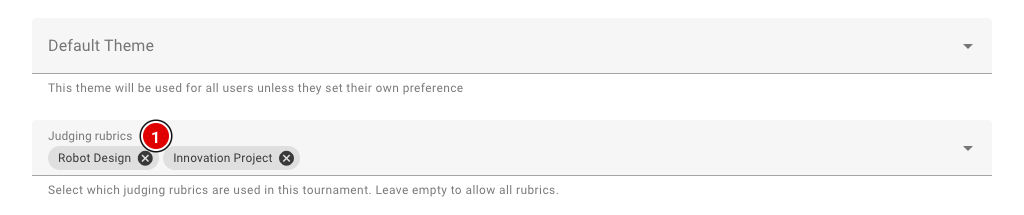](https://docs.flltools.com/uploads/images/gallery/2026-10/jury-05.png) - In **Judging rubrics (1)**, choose the rubrics that belong to your event. - If you leave this field empty, all rubrics are available, and judges will also see rubrics from other seasons. So always choose the rubrics of the current season. - Click **Save** at the bottom. Which rubrics count towards the rankings for the judges' deliberation is set on the page [Competition Results](https://docs.flltools.com/books/flltools-documentation-english/page/competition-results-determining-the-results) (see the Judges' deliberation chapter). #### The rubric editor Want to view or change a rubric, or load a rubric you received from us? Go through **Setup** to **Rubric editor**. [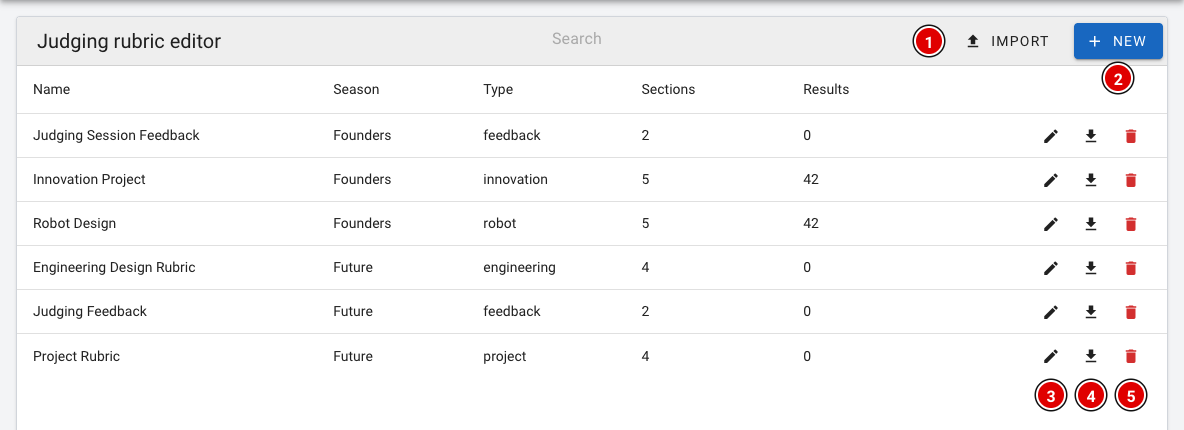](https://docs.flltools.com/uploads/images/gallery/2026-10/jury-03.png) - For each rubric you see the name, the season, the type, the number of parts (*Sections*) and the number of completed forms (*Results*). - Use **Import (1)** to load a rubric from a file (a *.rubric.json* file). - Use **New (2)** to create a new, empty rubric. You then fill in the name, the season and optionally the type. - The **pencil (3)** opens the rubric so you can change it. - The **download button (4)** saves the rubric as a file. Handy as a backup, or to share the rubric with another region. - The **bin (5)** deletes the rubric. A rubric that has already been used to assess teams can't be deleted. [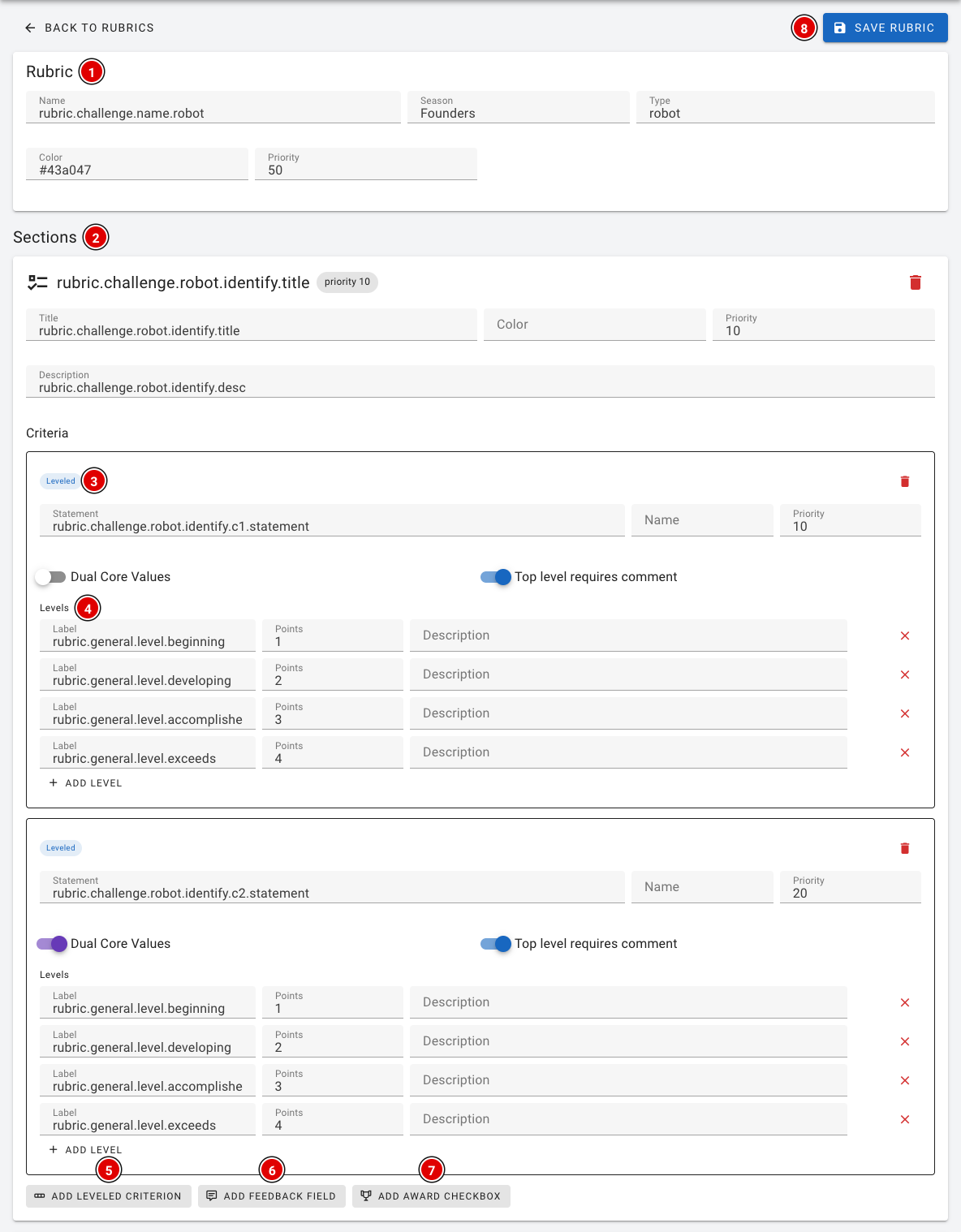](https://docs.flltools.com/uploads/images/gallery/2026-10/jury-04.png) A rubric is built up as follows: - **Rubric (1)**: The general details: name, season, type, colour and priority (the order in which the rubrics are shown). - **Sections (2)**: The parts of the form, such as *Identify*, *Design* and *Iterate*. Each part has a title, colour, priority and description. - **Leveled (3)**: A criterion within a part, with the statement the judges assess the team on. *Dual Core Values* indicates that this criterion also counts for Core Values. With *Top level requires comment*, the judges must write an explanation when they choose the highest level. - **Levels (4)**: The levels the judges choose from (for example Beginning, Developing, Accomplished and Exceeds), each with a number of points. - **Add leveled criterion (5)**, **Add feedback field (6)** and **Add award checkbox (7)** add, respectively, a criterion, a text field for feedback or a checkbox for an award nomination to a part. - Click **Save rubric (8)** to save all changes at once.In the editor you sometimes see texts like *rubric.challenge.robot.identify.title*. These are translation keys: judges automatically see the text in their own language on their screen. So don't change these keys unless you're sure what you're doing.
Don't change a rubric once the judges have started working with it. In doubt? Contact
If you don't use **Send an invitation email**, the user doesn't receive an e-mail. You then have to pass on the login details to the person yourself.
### The roles A role determines what someone is allowed to do in FLLTools. Give everyone only the role they need. - **Super Administrator**: For the FLLTools administrators. Can also log in as another user. - **Administrator**: Full access to the event: tournaments, settings, users, teams, schedule, results and exports. - **Secretariat**: For the scoring desk. Can manage teams, rounds, tables, the schedule, check-in, remarks and announcements, view and correct all scores and judging forms, and fill in the results (Competition Results). - **Head Referee**: For the head referee. Can enter scores, and also change and delete other people's scores. - **Referee**: For referees. Can enter scores and view the match results. - **Head Judge**: For the judge advisor / head judge. Can fill in judging forms, view and correct all judging forms, change rubrics and fill in the results (Competition Results). - **Judge**: For judges. Can fill in judging forms and view and change their own forms. - **Coach**: For coaches. Can change their own team's details and, after the event, view their own team's judging forms. Coaches are usually created automatically when you invite them on the team (see [Entering teams into the system](https://docs.flltools.com/books/flltools-documentation-english/page/entering-teams-into-the-system)). - **User** and **Guest**: Only viewing rights on the public parts, such as the scoreboard and the schedule. All roles except User and Guest can also add remarks about teams. ### Changing a user Click the **3 dots (4)** next to a user in the list and choose *Edit*. You then reach that user's page: [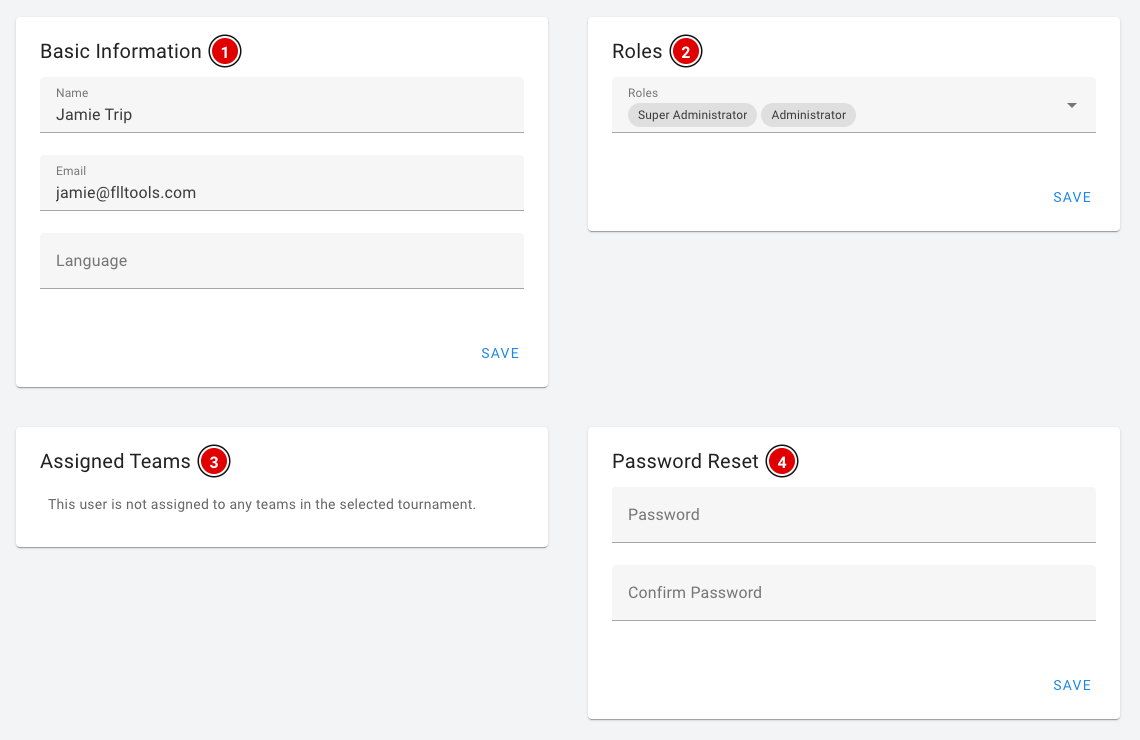](https://docs.flltools.com/uploads/images/gallery/2026-10/gebruikers-03.png) - **Basic Information (1)**: Name, e-mail address and language of the user. - **Roles (2)**: Add or remove roles here. - **Assigned Teams (3)**: The teams this user is linked to in the current tournament, for example as a coach. - **Password Reset (4)**: Set a new password. Enter the password twice. Each block has its own **Save** button, so click Save in the block you changed. [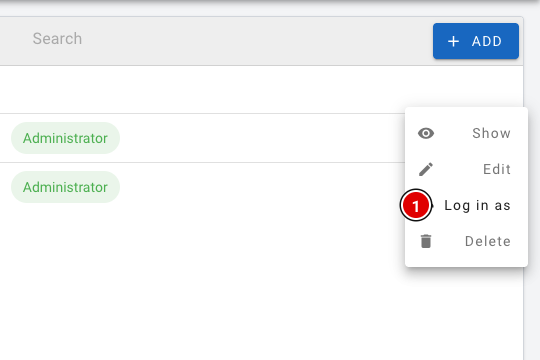](https://docs.flltools.com/uploads/images/gallery/2026-10/gebruikers-04.png) Super Administrators also see the **Log in as (1)** option in the menu. With it you can temporarily log in as that user, for example to check what a referee or judge sees. A message at the top of the screen then shows a button to return to your own account. ### FLLTools Unified Login For volunteers who help at several (regional) finals, and for regional partners / operational partners, we have the **FLLTools Unified Login**. With it you can log in to every event with the same login, through the **Login with SSO** button on the login screen. You then need just one login to log in everywhere. Would you like to use this? Send an e-mail toThe schedule is only visible when the **Schedule Module** is switched on. The button to generate a schedule appears when the **Schematic Generator Module** is on as well. See the page [Settings and modules](https://docs.flltools.com/books/flltools-documentation-english/page/settings-and-modules).
### Before you start The schedule is built from the data you have already entered. So first check that it is complete: - All teams are in the system (see [Entering teams into the system](https://docs.flltools.com/books/flltools-documentation-english/page/entering-teams-into-the-system)). - The rounds have been created, with ascending priorities starting at 1 (see [Creating the rounds and the tables](https://docs.flltools.com/books/flltools-documentation-english/page/creating-the-rounds-and-the-tables)). - All table pairs have been created, numbered from 1. - All juries have been created, numbered from 1 (see [Juries and rubrics](https://docs.flltools.com/books/flltools-documentation-english/page/juries-and-rubrics)). - The tournament has the correct start and end time, match length and judging session length (see [Creating the tournament](https://docs.flltools.com/books/flltools-documentation-english/page/creating-the-tournament)). Does a team arrive later, leave earlier, need extra time or not attend judging? You can set this per team on the team's page, in the **Scheduling** block (*Needs extra time*, *Does not attend judging*, *Available from* and *Available until*). The generator takes this into account. ### The schedule overview [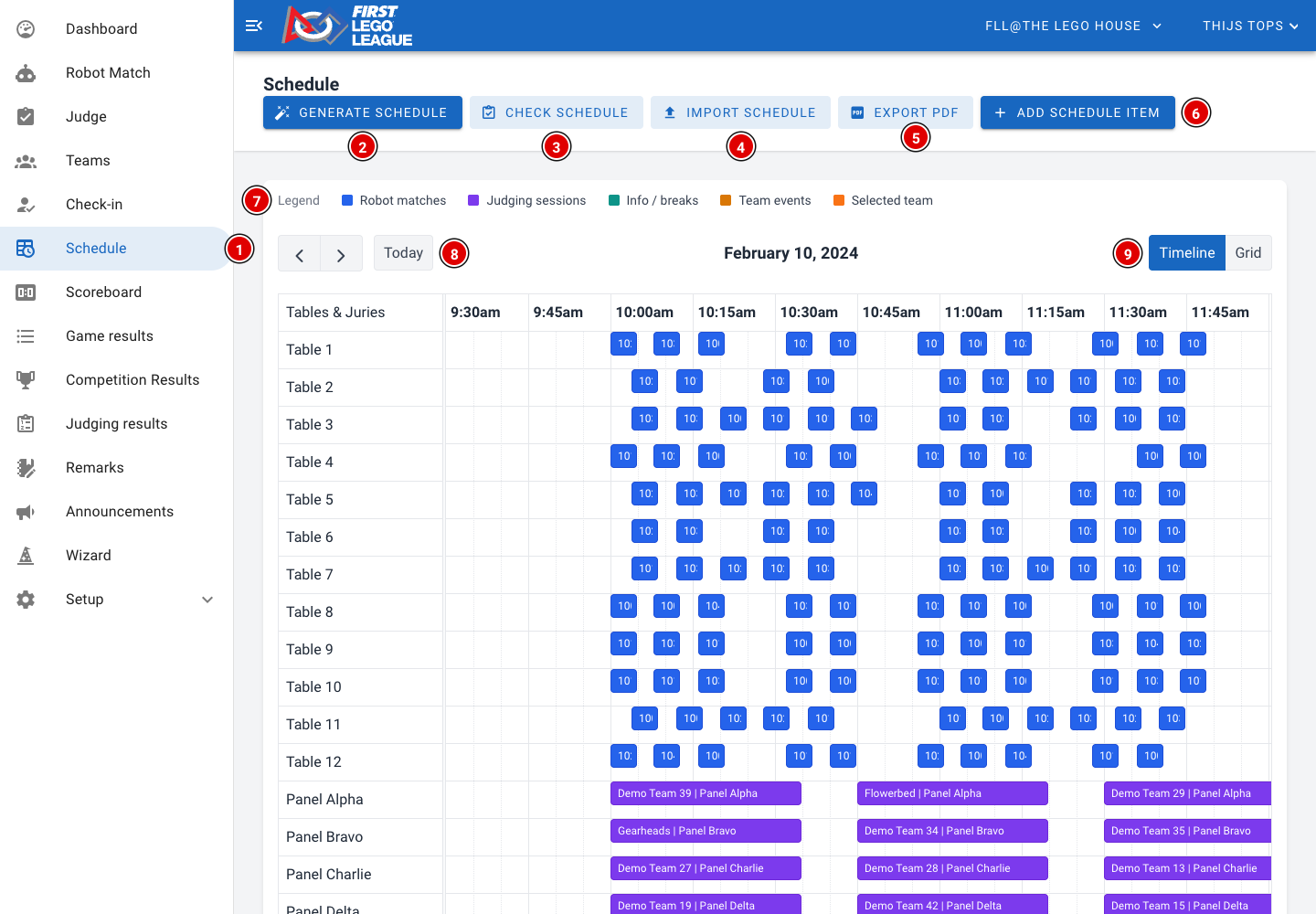](https://docs.flltools.com/uploads/images/gallery/2026-10/schema-01.png) - Go to **Schedule (1)** in the menu. - **Generate schedule (2)**: Let FLLTools create a schedule (see below). - **Check schedule (3)**: Check that every team has all its matches and its judging session. - **Import schedule (4)**: Import a schedule from an external tool. - **Export PDF (5)**: Download the complete schedule as a PDF, showing for each time which team is at which table and with which jury. - **Add schedule item (6)**: Add a single item to the schedule yourself. - The **Legend (7)** shows what the colours mean: blue are robot matches, purple judging sessions, green info and breaks, and orange other team activities. - Use the arrows and **Today (8)** to move between days. Handy if your event spans several days. - **Timeline / Grid (9)** switches between a timeline (tables and juries below each other) and a grid (tables and juries next to each other). #### Following a team Click a block in the schedule once. All items of that team are then highlighted in orange, so you see the team's whole day at a glance. [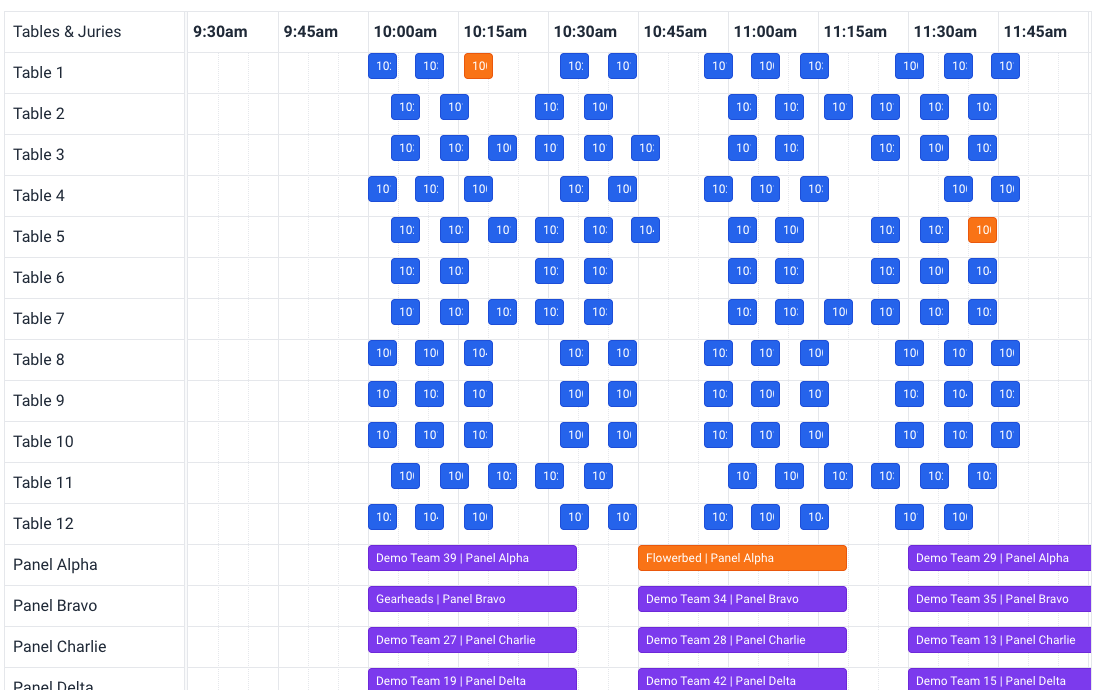](https://docs.flltools.com/uploads/images/gallery/2026-10/schema-02.png) #### Moving items and changing times - Drag a block to another time, or to another table or jury. - Drag the edge of a block to make it longer or shorter. - Double-click a block to see its details. Here you can also enter an exact start and end time if you want to place an item outside the 5-minute grid. Then click **Save**. [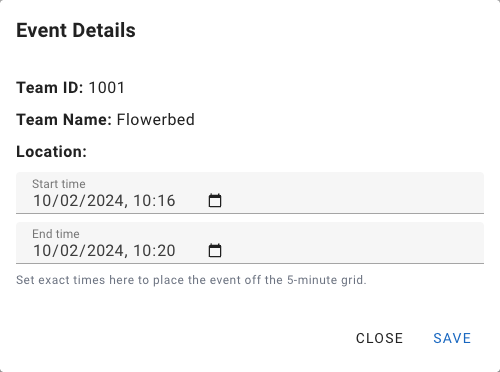](https://docs.flltools.com/uploads/images/gallery/2026-10/schema-03.png) Changes are saved immediately. If a change isn't possible, for example because it clashes with another item, you get a message and the block jumps back. ### Generating a schedule FLLTools can create a complete schedule itself: every team gets one judging session and one match per round, without any clashes. Click **Generate schedule**. [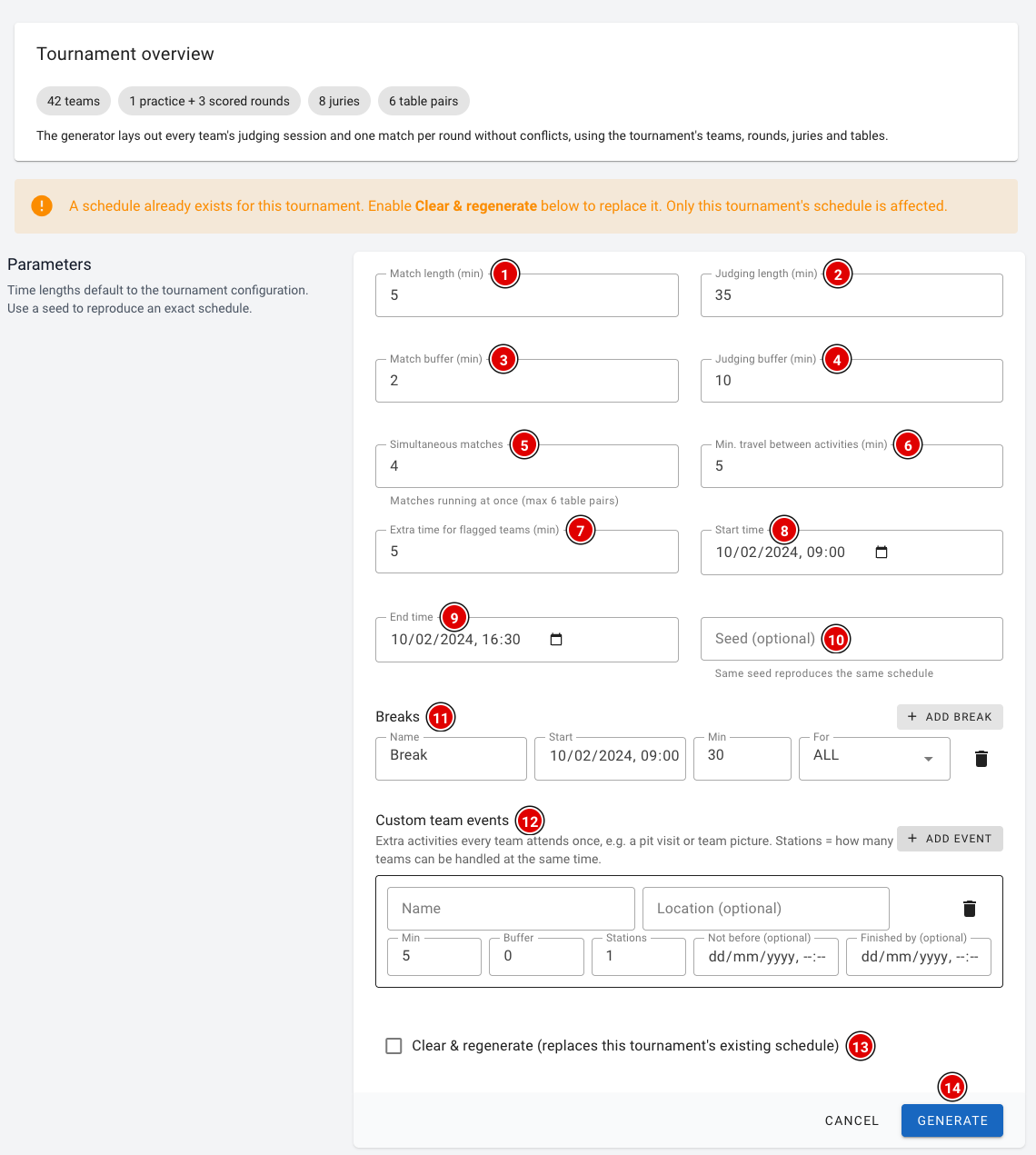](https://docs.flltools.com/uploads/images/gallery/2026-10/schema-06.png) At the top you see an overview of what goes into the schedule: the number of teams, rounds, juries and table pairs. Not right? Then first adjust the teams, rounds, juries or tables. The times are taken from the tournament by default. You can change them here: **Match length (1):** The length of a robot match in minutes. **Judging length (2):** The length of a judging session in minutes. **Match buffer (3):** Extra minutes between two matches at the same table, for example to reset the table. **Judging buffer (4):** Extra minutes between two judging sessions, for example for the judges to discuss and fill in the forms. **Simultaneous matches (5):** How many matches are played at the same time. This can be at most the number of table pairs. **Min. travel between activities (6):** The minimum number of minutes a team has between two items, to walk from the judges to the table (or the other way round). **Extra time for flagged teams (7):** How many extra minutes teams get that have *Needs extra time* switched on. **Start time (8)** and **End time (9):** The start and end of the schedule. **Seed (10):** Optional. With the same seed you get exactly the same schedule. Leave this empty if you don't know what to do with it. **Breaks (11):** Click **Add break** to add a break, such as lunch or the opening ceremony. Fill in the name, the start and the duration, and choose under *For* who the break applies to: *ALL* (everyone), *TABLE* (only the robot matches) or *JURY* (only the judges). **Custom team events (12):** Click **Add event** for an extra activity every team has to attend once, for example a pit visit or the team photo. Fill in the name, an optional location, the duration, the buffer and the number of *Stations* (how many teams can be there at the same time). Optionally you specify from when until when the activity takes place. **Clear & regenerate (13):** Is there already a schedule? Tick this box to replace the existing schedule. Only this tournament's schedule is replaced. Click **Generate (14)**. After a few seconds you return to the schedule overview with the new schedule. Couldn't all teams be scheduled? Then you end up on the **Check schedule** page (see below).As soon as scores or judging forms have been entered, a new schedule can no longer be generated, because those results are linked to the schedule. You then see this message:
[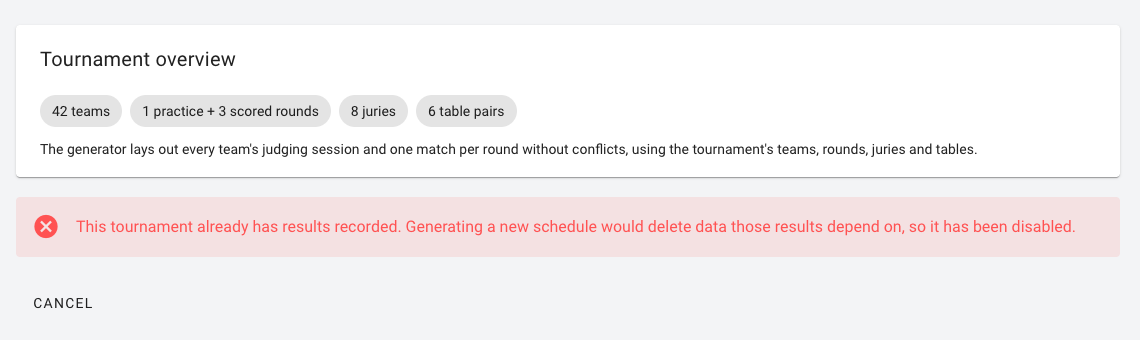](https://docs.flltools.com/uploads/images/gallery/2026-10/schema-05.png) Still want to change something? Then adjust the schedule by hand in the schedule overview. ### Checking the schedule **Check schedule** shows how many matches and judging sessions each team has. Teams with something missing are highlighted. [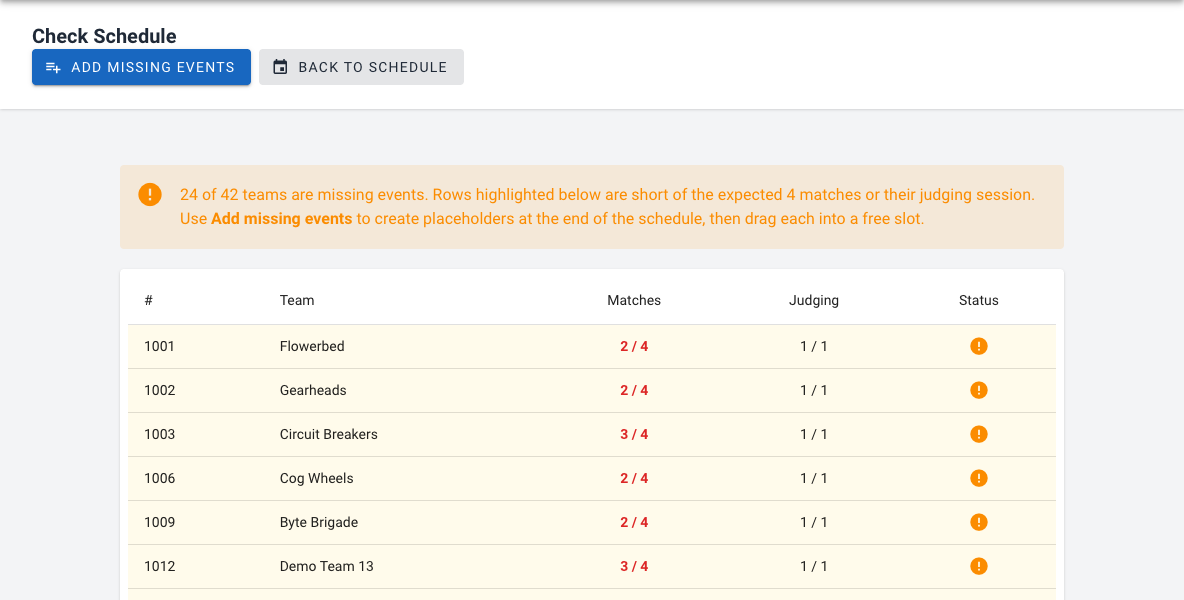](https://docs.flltools.com/uploads/images/gallery/2026-10/schema-07.png) - Click **Add missing events** to create a block at the end of the schedule for every missing item. - Go back to the schedule and drag these blocks to a free spot. ### Adding an item yourself Use **Add schedule item** to add a single item. First choose the type: [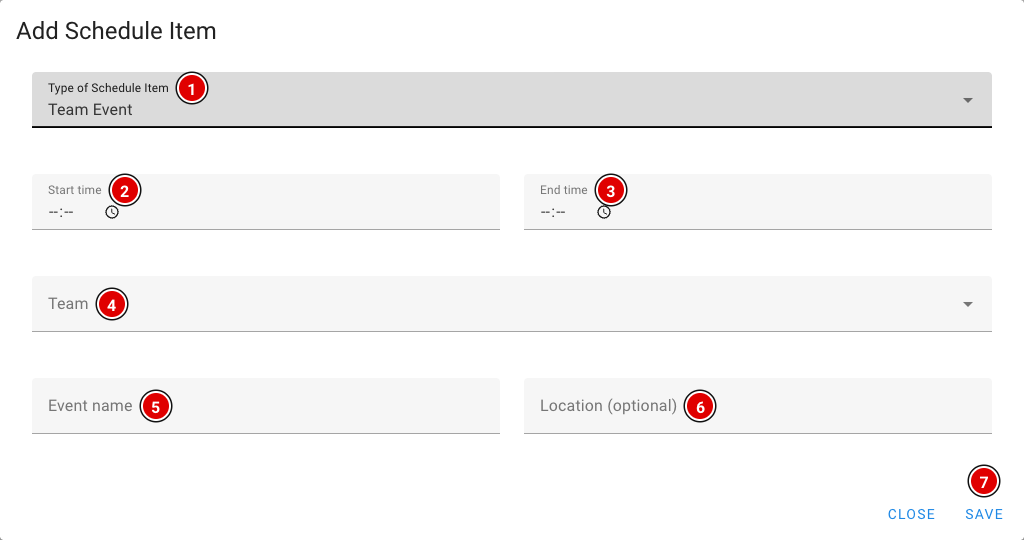](https://docs.flltools.com/uploads/images/gallery/2026-10/schema-04.png) - **Info Block**: A general block, such as the opening ceremony, lunch or the awards ceremony. You enter a type, a text and a category (*Jury*, *Table* or *All*), and choose whether the end time is shown. - **Jury Session**: A judging session. You choose the jury and the team. - **Robot Match**: A robot match. You choose the round, the table and the team. - **Team Event**: Another activity for a team, such as a pit visit. You choose the team and fill in the name and optionally the location. For each type, fill in the **Start time** and **End time** and click **Save**. ### Importing a schedule Created the schedule with an external tool? Then you can import it through **Import schedule**. - The import page has a link to the schedule generator at [https://koenvanwijk.github.io/fll-schedule/](https://koenvanwijk.github.io/fll-schedule/). - Fill in your event's details there and download the file. - On the import page, choose **Paste JSON** and paste the contents of the file, or choose **Load from URL** and enter the web address of the file. - Click **Import schedule**.The import is a BETA feature and will probably not be developed further. Preferably use the built-in generator. When importing, the rounds (priority), tables and juries must be numbered from 1, or loading will fail.
### The schedule for the head referee [https://yourevent.flltools.nl/schedule/headReferee](https://yourevent.flltools.nl/schedule/headReferee) has an overview especially for the head referee: for each time you see which team should be at which table. A dash means the table is free. Replace "yourevent" with the name of your event. [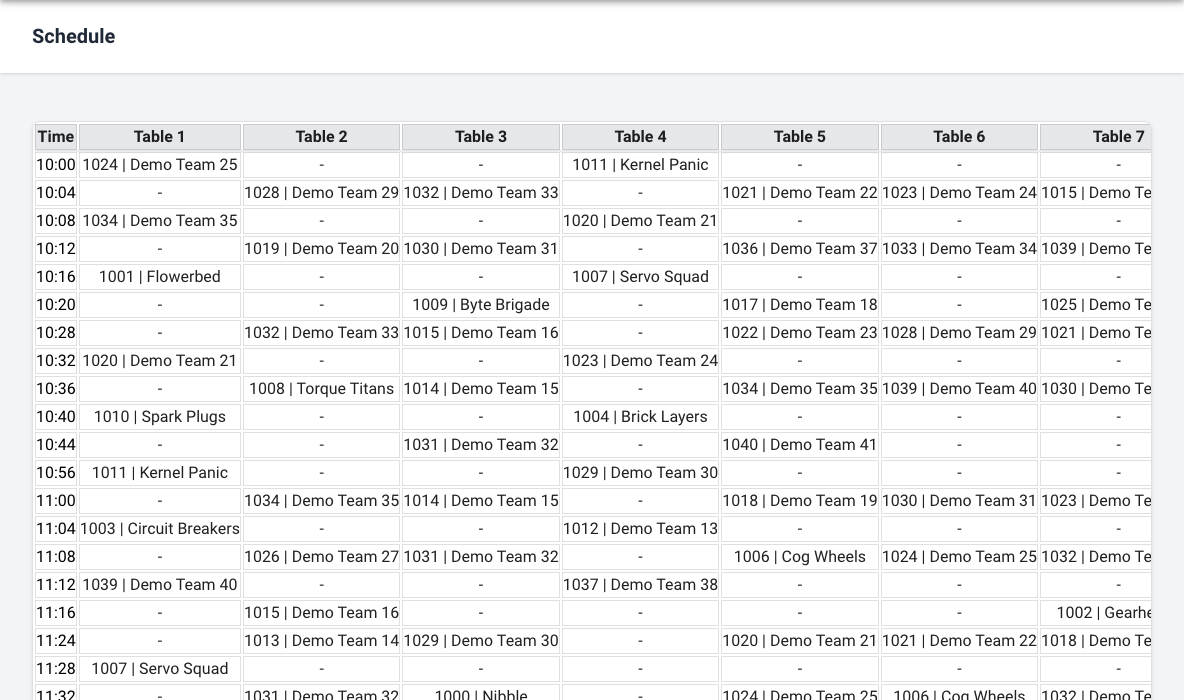](https://docs.flltools.com/uploads/images/gallery/2026-10/schema-09.png) ### The public schedule Teams, coaches and visitors can view the schedule through **Schedule** in the menu of the public website, at [https://yourevent.flltools.nl/home/schedule](https://yourevent.flltools.nl/home/schedule). Nothing can be changed there. In addition, each team sees its own day schedule on its team page (see [Team features](https://docs.flltools.com/books/flltools-documentation-english/page/team-features)). [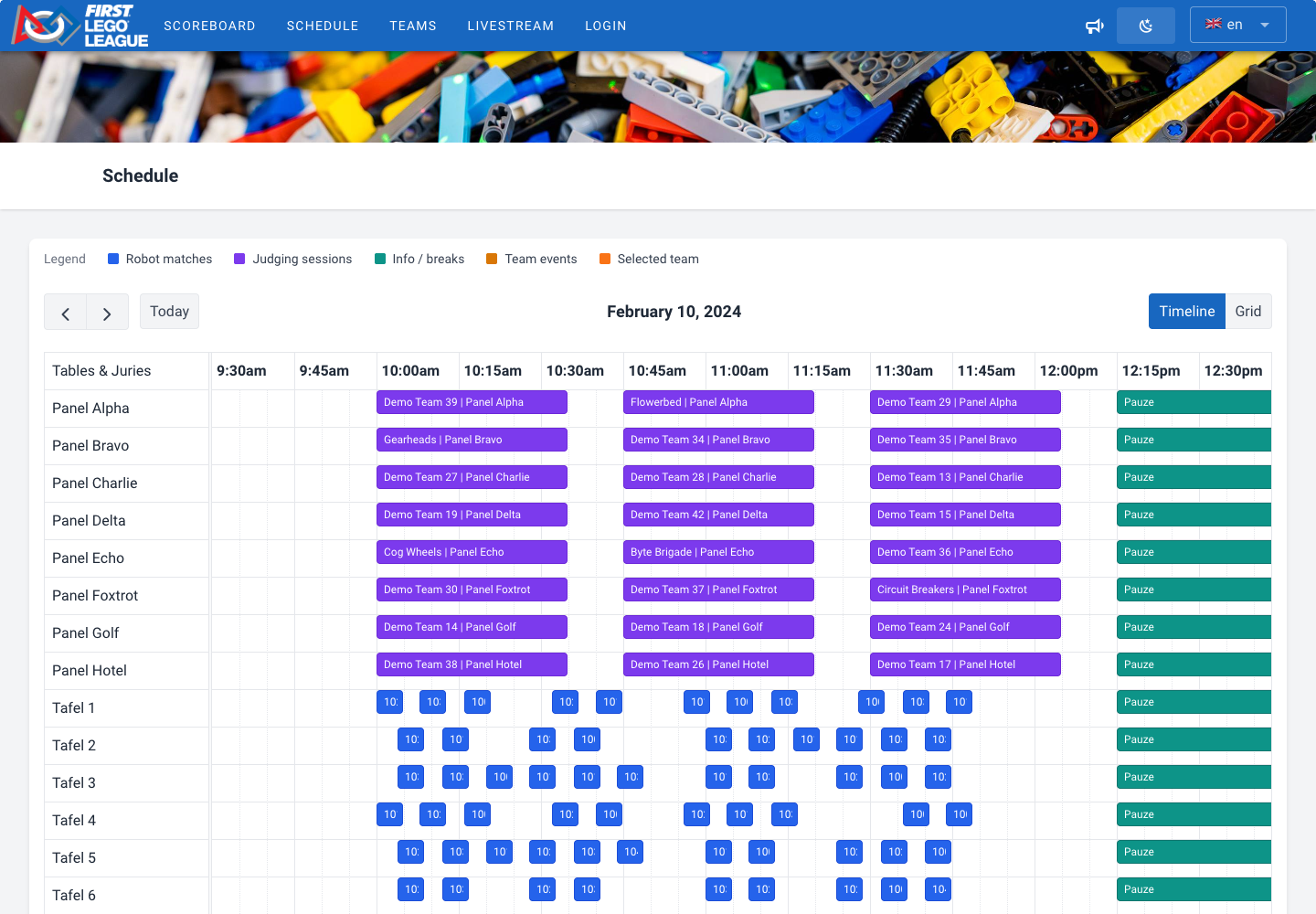](https://docs.flltools.com/uploads/images/gallery/2026-10/schema-10.png)