FLLTools Documentation English
This book contains the documentation for FLLTools, the tournament software used at FIRST LEGO League regional finals.
FLLTools is developed by volunteers. New features can therefore sometimes take a little longer, and the same goes for answering e-mail. Thank you for your understanding!
- Well before competition day
- Two weeks before the competition
- The Setup Wizard
- Creating the tournament
- Settings and modules
- Creating the rounds and the tables
- Juries and rubrics
- Creating the users
- Entering teams into the system
- Creating the day schedule
- A few days before the event
- Updating a team
- Uploading team photos
- Creating the exports
- Custom PDF templates
- How the timer works
- Info screens
- Livestream
- Practice tables and reservations
- Team features
- Preparing OJS
- Hidden pages
- Competition day
- Judges' deliberation
- After the event
Well before competition day
Request an environment
Operational partners and other organisers
Are you an operational partner, or another organiser, and would you like to use the FLLTools scoring system for your (regional) finals?
Please contact us at thijs@flltools.nl so we can discuss what would work best for you. The tool is easy to translate. The initial setup requires a bit more work, since the tool itself needs to be translated. After that, only the yearly updates and seasonal information, such as names and descriptions, need translation.
Regional finals of FIRST® LEGO® League in Belgium, Luxembourg and the Netherlands
The organisers of the FIRST® LEGO® League finals in Belgium, Luxembourg and the Netherlands automatically receive their login details by e-mail at least 1 month before the final. In most cases this is the contact address known to the operational partner. Haven't received anything 1 month before your final? Contact thijs@flltools.nl and we will make sure the details reach you quickly.
School and local events
We love that you want to use our tool! Send an e-mail to thijs@flltools.nl with:
- the date of your event;
- who the initial login details should be sent to.
Because maintaining, hosting and developing the tool isn't free, we ask for a voluntary contribution (so it's not required). Would you like to contribute? Mention it in your e-mail and we'll let you know how.
Decide what you need
FLLTools can do a lot. It has all kinds of features that make organising your regional final easier and automate a lot of work. Not every event needs everything. That's why FLLTools works with modules: parts you switch on or off yourself. This keeps the menus tidy, and you only see what you use. How to switch modules on is explained on the page Settings and modules.
Go through the list below beforehand and decide what you want to use at your event.
Always available
- Teams, rounds and tables: the basis of every event.
- Referee input (Robot Match): referees fill in the score sheet on a tablet or phone. This also works when the internet drops out for a while.
- Scoreboards: a public scoreboard for visitors and an administrative scoreboard for the organisation.
- The timer: the match timer for a big screen.
- Remarks: notes about teams for the judges' deliberation.
- Competition Results: an overview of all rankings the judges can use to decide the awards.
- Exports: judging forms, match lists, judging lists and the export to OJS.
Modules you can switch on
- Judging (Judge Module): judges fill in the rubrics digitally, or paper forms are scanned in.
- Advanced Team Management: coaches receive an invitation to maintain their own team page, team photo and social media links.
- Schedule (Schedule Module): the day schedule for teams, volunteers and the public.
- Schedule generator (Schematic Generator Module): FLLTools automatically creates a day schedule based on your teams, tables, juries and rounds. This now happens directly in the tool.
- Livestream: show the livestream of your event on the public website.
- Custom PDF Templates: design your own documents, such as name cards, table cards or certificates, with the team details filled in automatically.
- Info screens: screens in the venue showing the schedule, who is playing at which table, the timer or the scoreboard.
- Practice tables (Practice Table Reservations): teams book a time slot on a practice table themselves.
- Check-in (Team Check-in Module): keep track of which teams have reported on arrival.
Because FLLTools contains all team names, team numbers and organisation details, exports and screens can be made quickly and without mistakes. Especially at large events this saves a huge amount of manual work.
Custom work
Missing something? Some features need a bit of custom work. Depending on the size of the job, we may ask for a small voluntary contribution. This is a one-off, because the code becomes part of FLLTools. That way other organisations can use it too, and so can you next year. Contact thijs@flltools.nl about this.
Logging in and finding your way around
This page explains how to log in to FLLTools and how to find your way around the tool. In the instructions we use the link yourevent.flltools.nl. Replace "yourevent" with the name of your event.
Logging in
Go to https://yourevent.flltools.nl/login.
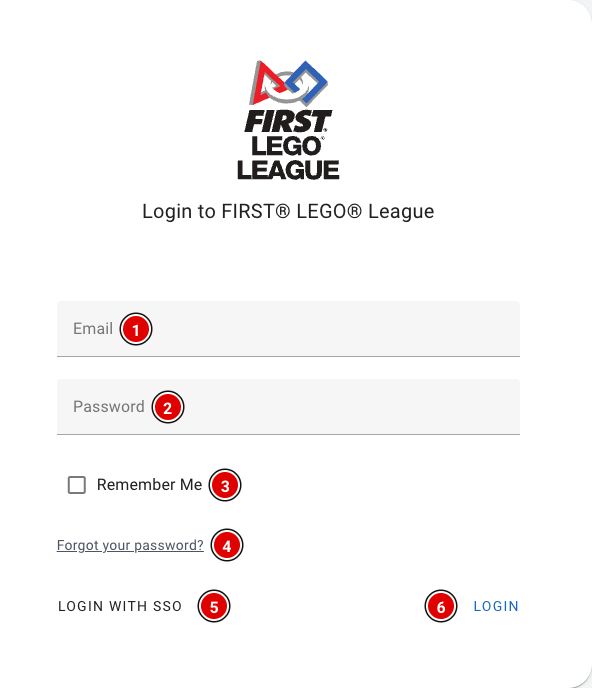
- Enter your e-mail address in Email (1) and your password in Password (2).
- Tick Remember Me (3) if you want to stay logged in on this device. Don't do this on a shared computer.
- Forgot your password? Click Forgot your password? (4) and you'll receive an e-mail to set a new password.
- Click Login (6).
After logging in you arrive at the dashboard. If there is no tournament yet and you are allowed to create tournaments, the Setup Wizard opens automatically (see the page The Setup Wizard).
FLLTools Unified Login
For volunteers who help at several (regional) finals, and for regional partners / operational partners, there is the FLLTools Unified Login. With it you log in to every event with the same details. Click Login with SSO (5) and log in on the page that opens. You are then taken back to FLLTools automatically.
Would you like to use this? Send an e-mail to thijs@flltools.com and you'll receive a login.
Finding your way around
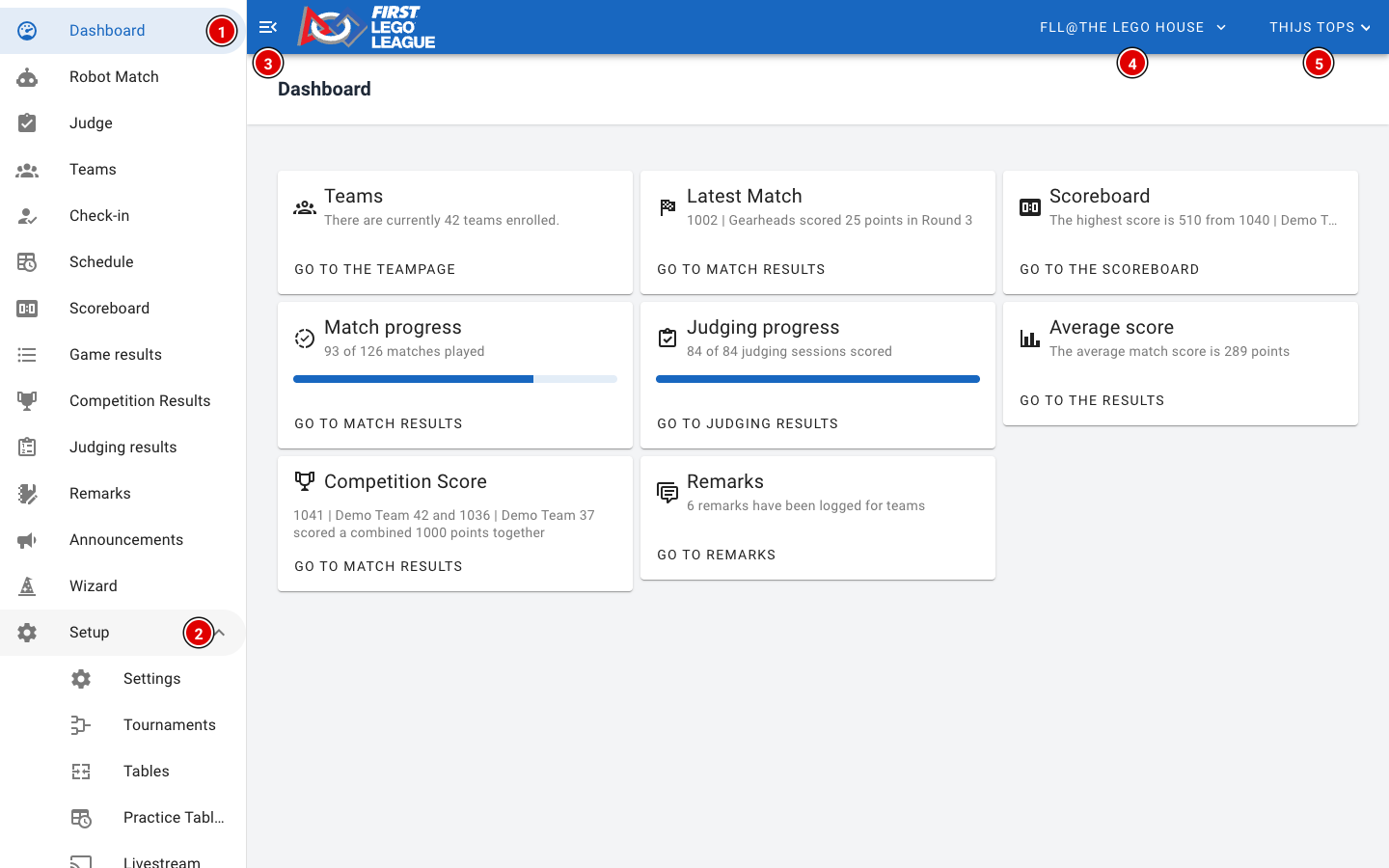
The Dashboard gives an overview of the event: the number of teams, the latest match, the highest score, how many matches and judging sessions have been entered, and how many remarks there are. The buttons on the cards take you straight to the matching page.
The user menu
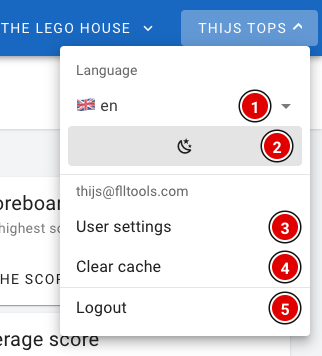
- Language (1): choose the language of the tool: English, Dutch, Belgian (Flemish) or French. The buttons and icons are in the same place in every language. This manual uses the English names.
- Dark mode (2): switch between a light and a dark view. Handy in a dark venue.
- User settings (3): your profile page, see below.
- Clear cache (4): wipes all data the tool has stored on this device. Only use this if the tool behaves strangely, for example after an update.
- Logout (5): log out on this device.
Be careful with Clear cache on a referee tablet! Results entered offline that haven't been sent yet are wiped too. First check that all results have been uploaded.
Your profile
Through User settings you reach your profile page.
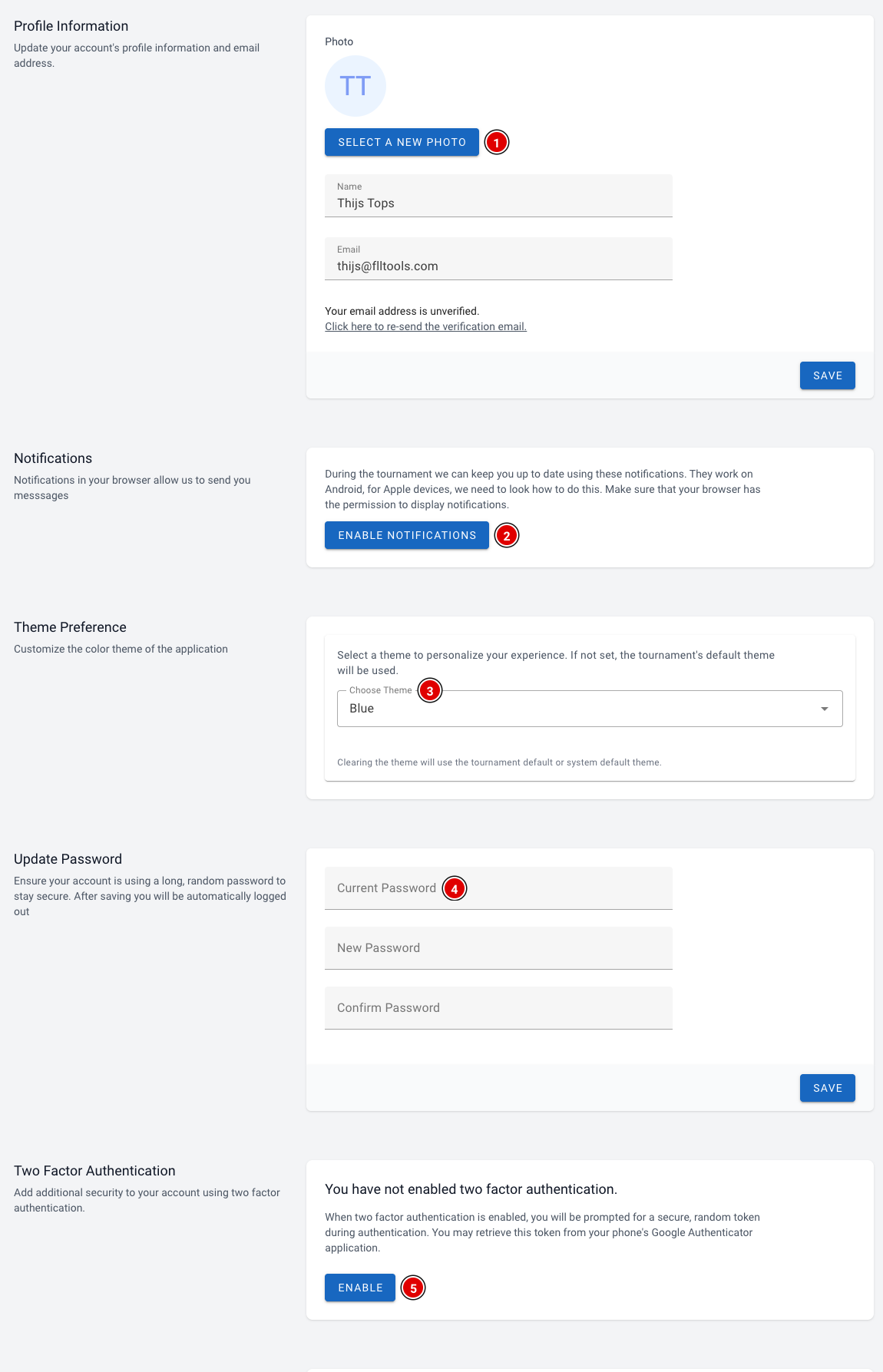
- Select a new photo (1): set a profile photo. Below it you can change your name and e-mail address. Click Save to save.
- Enable notifications (2): receive notifications in your browser during the event, for example announcements from the organisation. Your browser asks for permission; click allow. This works on Android and on a computer.
- Choose Theme (3): choose a colour theme for your account. If you don't choose one, the tournament's default theme is used.
- Update Password (4): change your password. After saving you are logged out automatically and log in again with your new password.
- Two Factor Authentication (5): switch on extra security. You scan a QR code with an authenticator app on your phone (for example Google Authenticator) and enter a code from that app when you log in. Keep the recovery codes you receive somewhere safe, for example in a password manager.
At the bottom of the page you see on which devices you are logged in. Logout all other devices logs you out everywhere except on the device you are using now. Handy if you have been logged in on a shared computer.
Two weeks before the competition
The steps to take about two weeks before competition day.
The Setup Wizard
The Setup Wizard takes you step by step through the most important settings of your event: the tournament, the tables, the rounds, the modules and the teams. For a standard regional final you're done in a few minutes.
- Logging in for the first time and there is no tournament yet? Then the wizard opens automatically.
- You can always reopen the wizard later through Wizard in the menu.
- Everything you set up in the wizard can be changed later through Setup in the menu. The other pages in this chapter explain each part in more detail.
At the top right of the wizard you can choose the language. At the bottom of each step are the Back and Next buttons to move between steps.
Step 1: Welcome
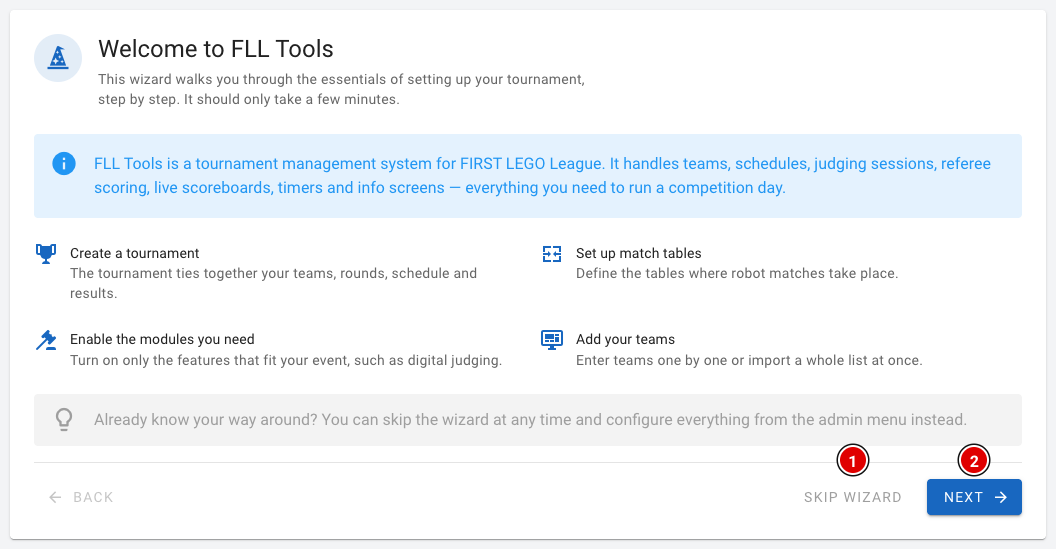
- The first step briefly explains what the wizard does.
- Already know the tool well? Click Skip wizard (1). You go straight to the dashboard and set everything up through the menu.
- Click Next (2) to start.
Step 2: Tournament
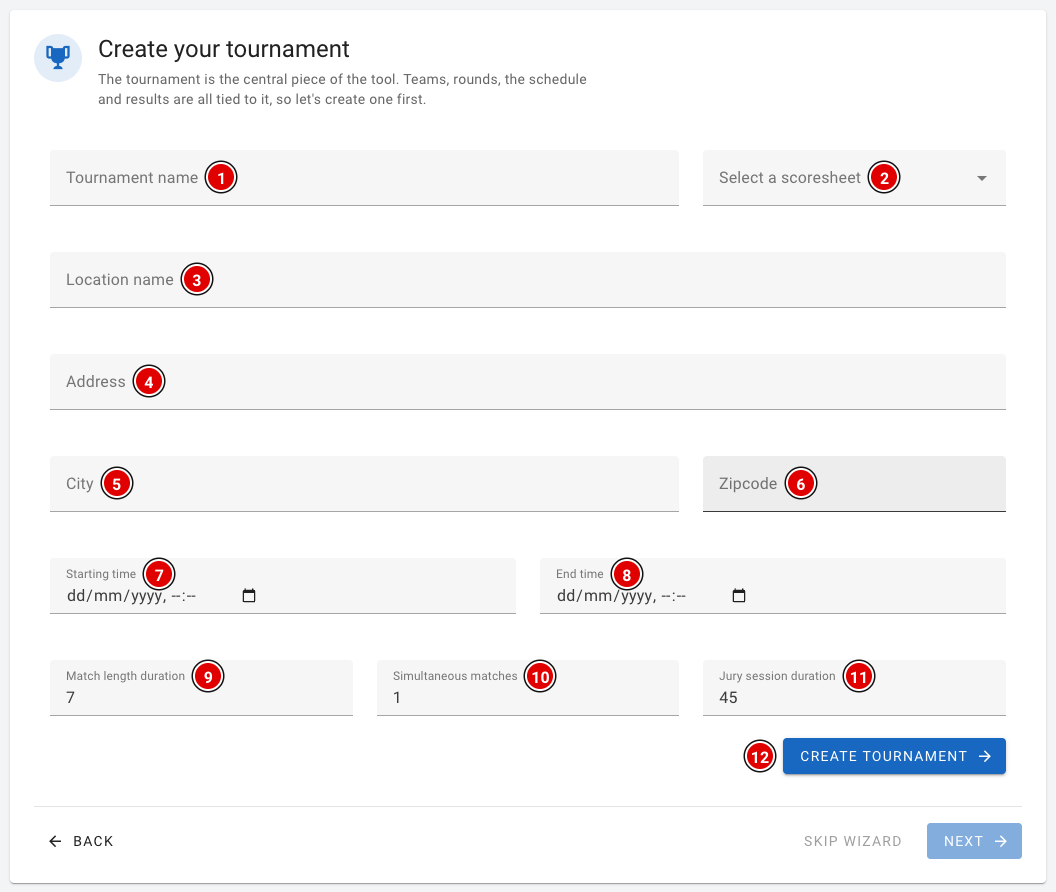
The tournament is the core of the tool: teams, rounds, the schedule and the results all belong to it. Fill in the fields:
- Tournament name (1) and Select a scoresheet (2): the name of your event and the score sheet of the current season.
- Location name (3), Address (4), City (5) and Zipcode (6): the venue of the event.
- Starting time (7) and End time (8): the start and end time of the competition day.
- Match length duration (9), Simultaneous matches (10) and Jury session duration (11): these are used to create the day schedule.
- Click Create tournament (12).
A detailed explanation of all fields, with advice on the times, is on the page Creating the tournament. You can only continue to the next steps once the tournament has been created.
Step 3: Tables
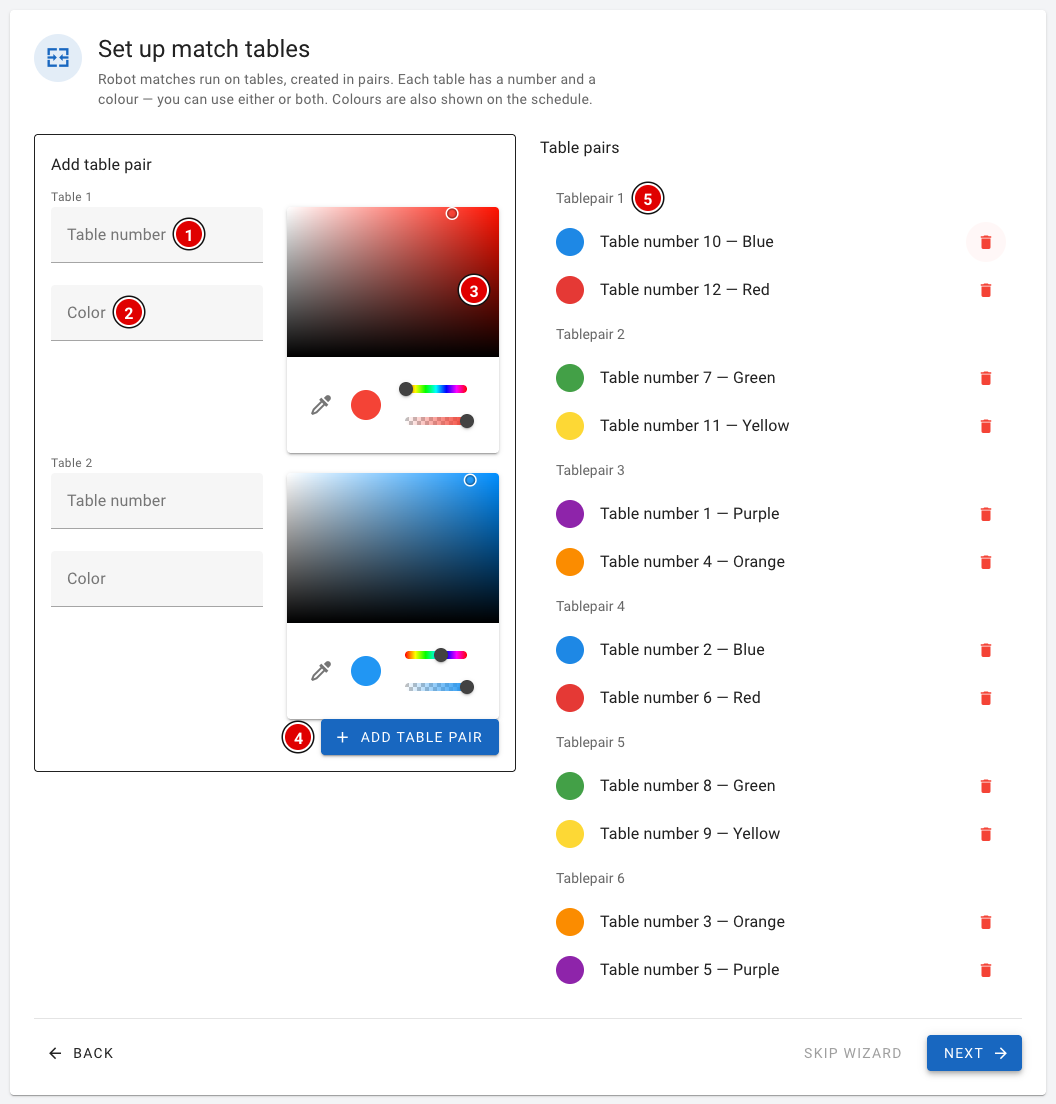
Robot matches are played on tables, and you always create tables in pairs. For both tables of the pair you fill in:
- Table number (1): the number of the table.
- Color (2): the name of the table, for example a colour.
- Colour picker (3): the colour used to show the table in the schedule and on the screens.
- Click Add table pair (4). The pair appears on the right in the Table pairs (5) list. Use the bin icon to remove a table again.
- Repeat this until all tables have been created.
Step 4: Rounds
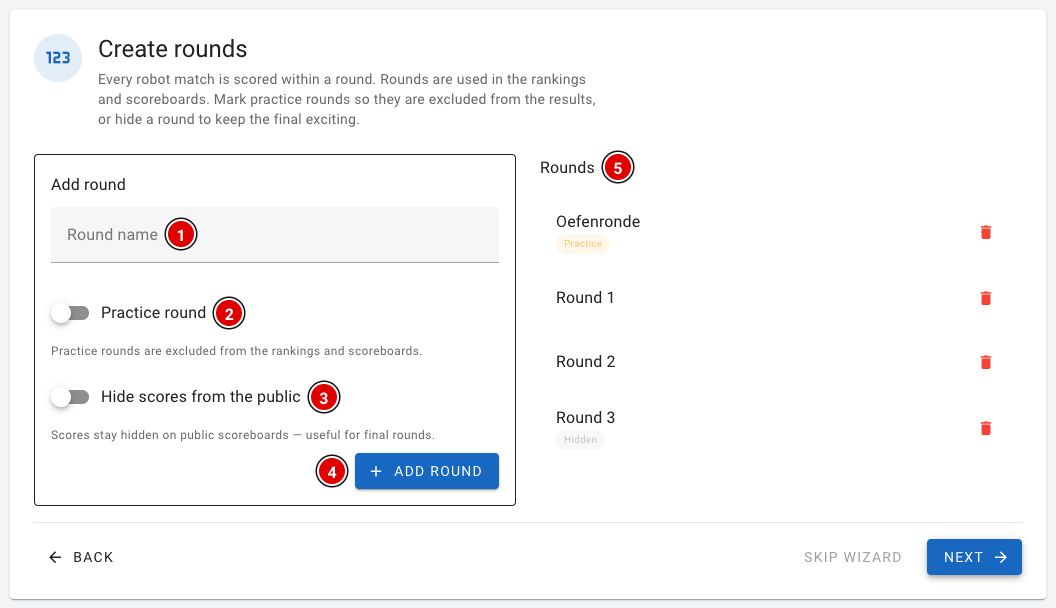
- Enter the name of the round in Round name (1), for example "Practice round" or "Round 1".
- Switch on Practice round (2) for a practice round. Practice rounds don't count in the rankings or on the scoreboards.
- Switch on Hide scores from the public (3) if the scores of this round should stay hidden on the public scoreboards. This is handy for the last round, so it stays exciting until the awards ceremony.
- Click Add round (4). The round appears in the Rounds (5) list.
Create the rounds in the order in which they are played, starting with the practice round.
Step 5: Modules
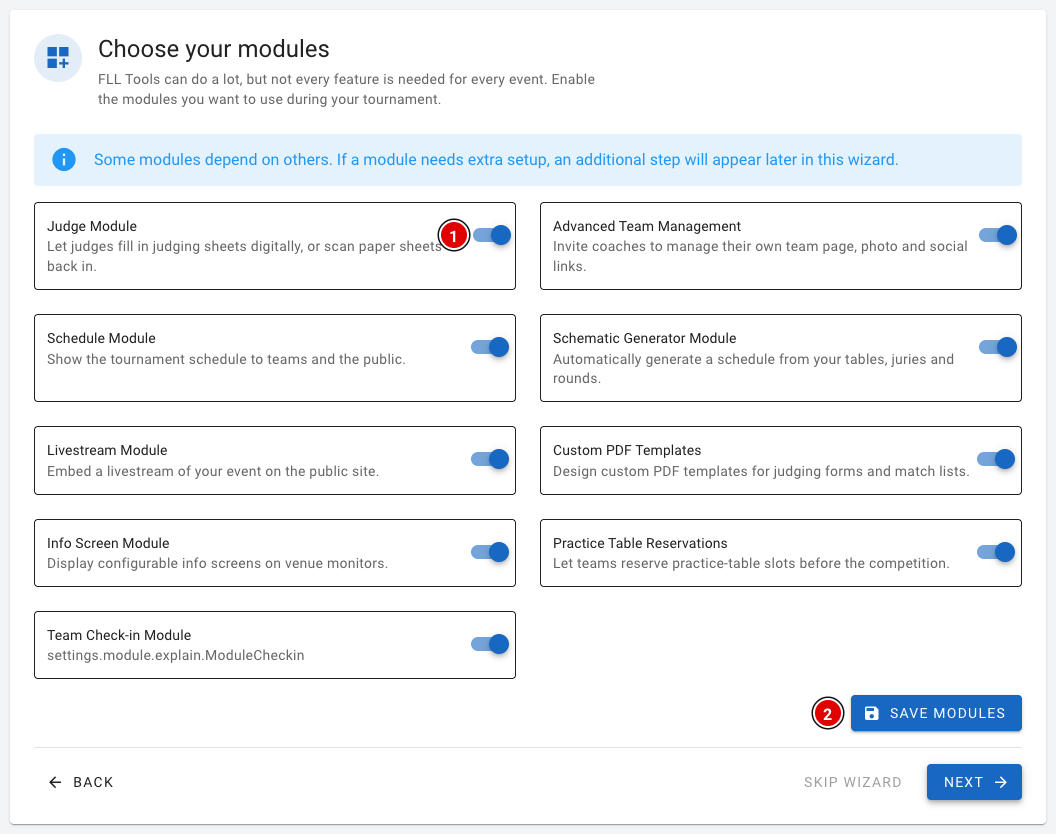
- Use the switches (1) to turn on the modules you want to use at your event. Each module has a short explanation. More information is on the page Settings and modules.
- Click Save modules (2).
Some modules need extra settings. If you switch on the Judge Module, Practice Table Reservations or Livestream Module, an extra step appears in the wizard for it.
Step 6: Judging (only with the Judge Module)
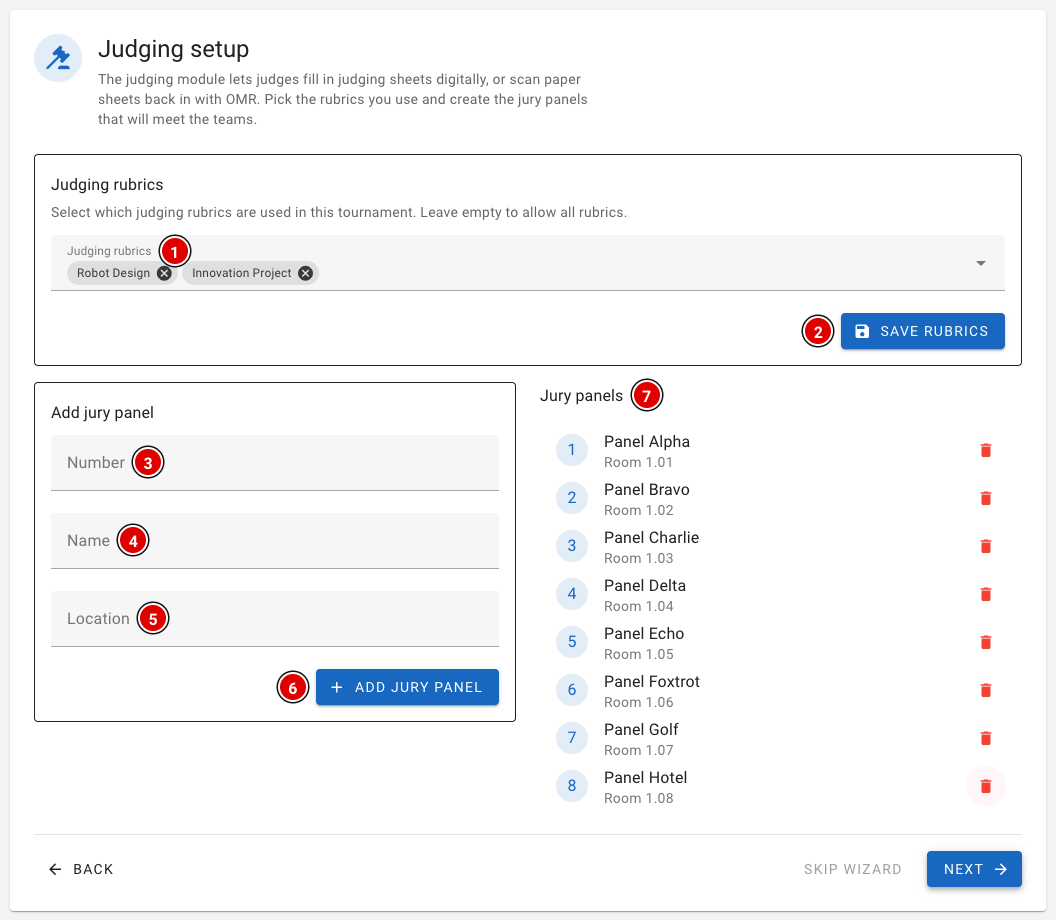
- In Judging rubrics (1), choose which rubrics are used at your event. If you leave this field empty, all rubrics are available. Click Save rubrics (2).
- Then create the judging panels. Fill in the Number (3), the Name (4) and the Location (5) (for example the room) and click Add jury panel (6).
- The judging panels appear in the Jury panels (7) list.
Step 7: Practice tables (only with Practice Table Reservations)
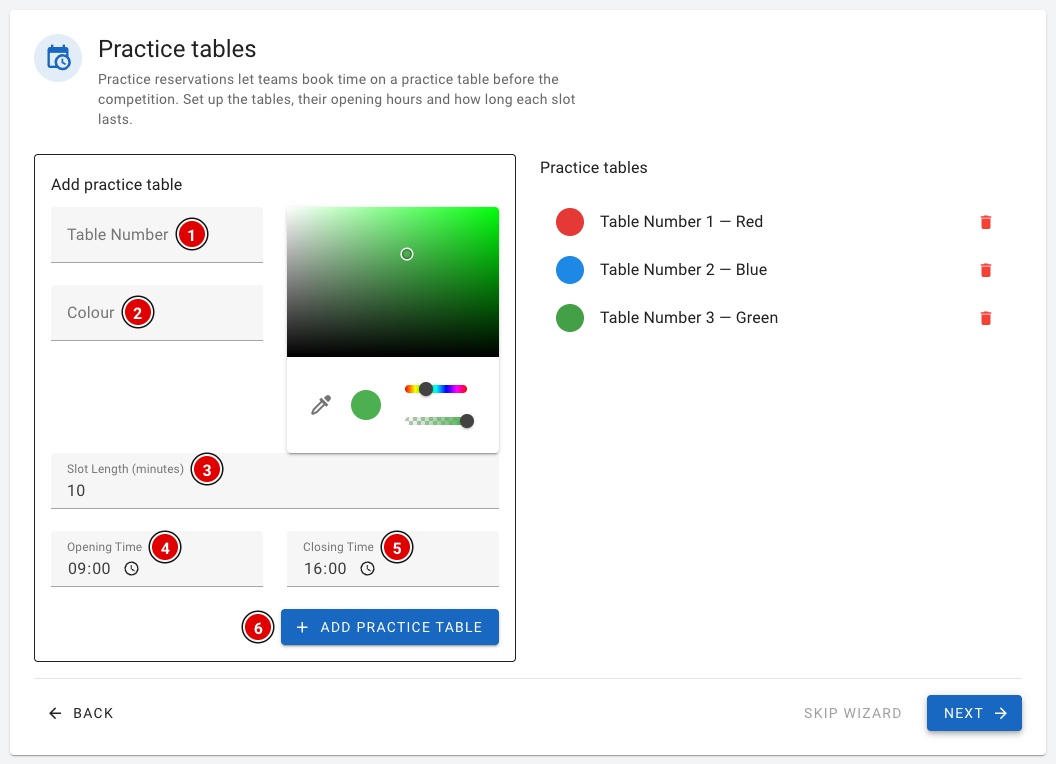
- Fill in the Table Number (1) and the Colour (2) of the practice table and pick a colour.
- In Slot Length (minutes) (3), enter how long a team may practise per reservation.
- In Opening Time (4) and Closing Time (5), enter when the table is available. FLLTools automatically divides this time into time slots.
- Click Add practice table (6).
More about booking practice tables is on the page Practice tables and reservations.
Step 8: Livestream (only with the Livestream Module)
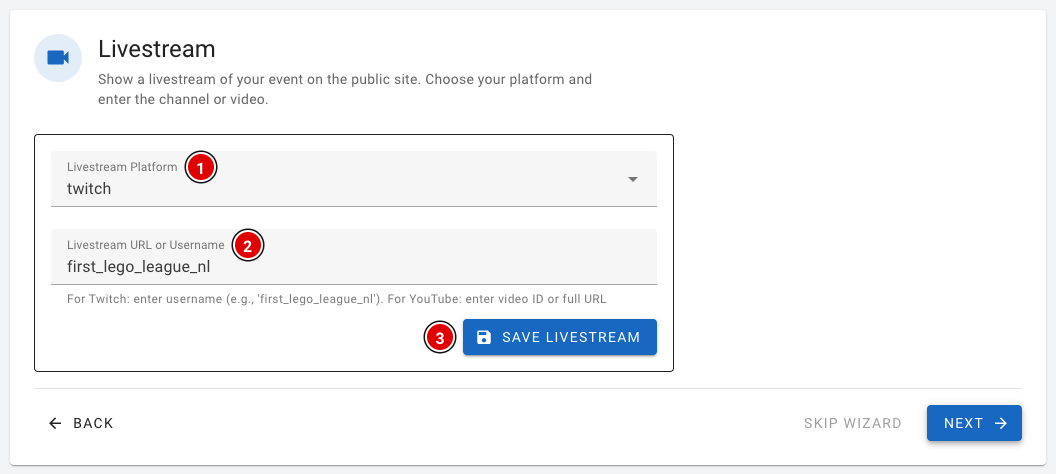
- In Livestream Platform (1), choose whether you stream through Twitch or YouTube.
- In Livestream URL or Username (2), enter the username of the Twitch channel, or the link or video ID of the YouTube video.
- Click Save livestream (3).
Step 9: Teams
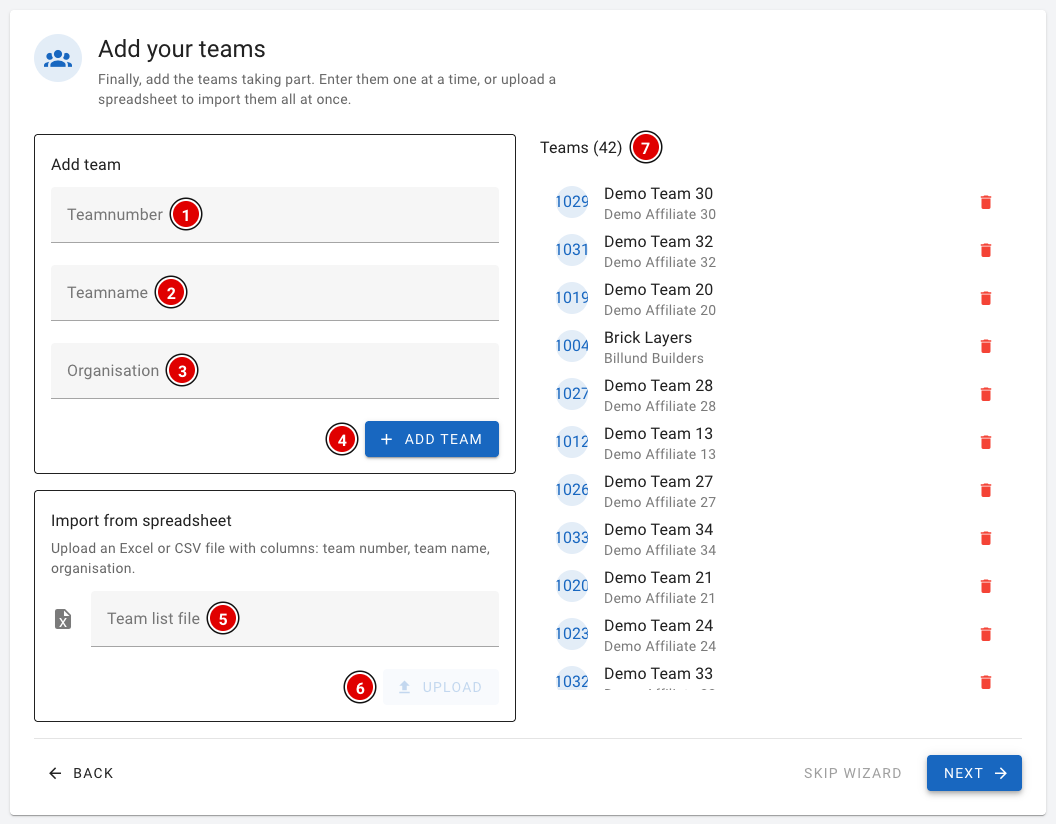
Finally you add the teams. You can do this one team at a time or all at once with a file.
- One at a time: fill in the Teamnumber (1), the Teamname (2) and the Organisation (3) and click Add team (4). The team number must be a unique number and may not contain letters.
- With a file: choose an Excel or CSV file in Team list file (5) and click Upload (6). Column A is the team number, column B the team name and column C the organisation. Do NOT use a header row, or the upload will fail.
- The teams appear on the right in the Teams (7) list.
More about entering teams, for example with an export from your registration system, is on the page Entering teams into the system.
Step 10: Done!
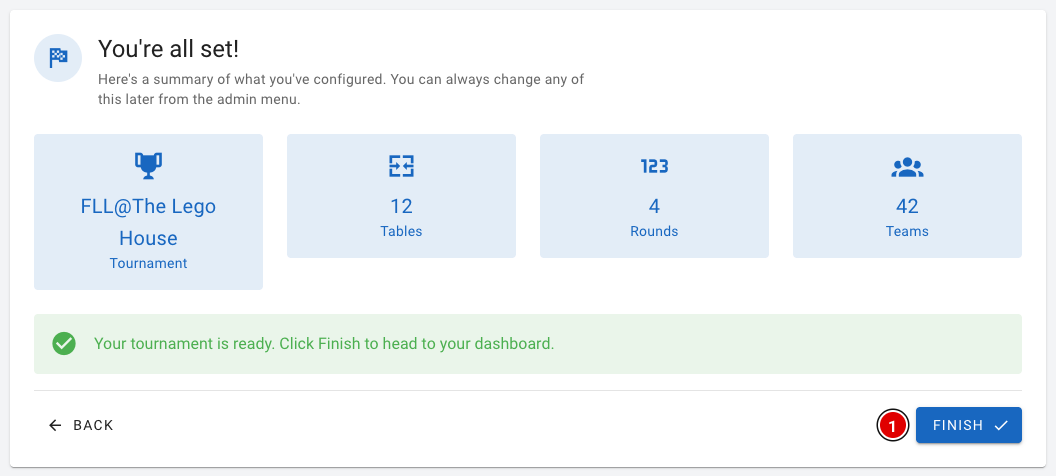
You see a summary of what you have set up: the tournament and the number of tables, rounds and teams. Click Finish (1) to go to the dashboard.
After the wizard you're not quite finished yet. Don't forget:
- the user accounts for referees and judges (see Creating the users);
- the day schedule (see Creating the day schedule);
- the other settings (see Settings and modules).
Hiding the wizard
Not using the wizard? Then you can hide it. Go through Setup to Settings and switch on Hide the setup wizard. The Wizard button then disappears from the menu and the wizard no longer opens automatically.
Creating the tournament
The e-mail you received contains the login details. Log in to your FLLTools event (see the page Logging in and finding your way around).
- For the rest of the instructions we use the link yourevent.flltools.nl.
- Replace "yourevent" with the name of your event.
- The language is set to English by default. You can change this in the user menu. The buttons and icons are in the same place in every language.
You can also create the tournament with the Setup Wizard. It opens automatically if there is no tournament yet. See the page The Setup Wizard. This page explains how to create and manage a tournament through the menu, and what all the fields mean.
Going to the Tournaments page
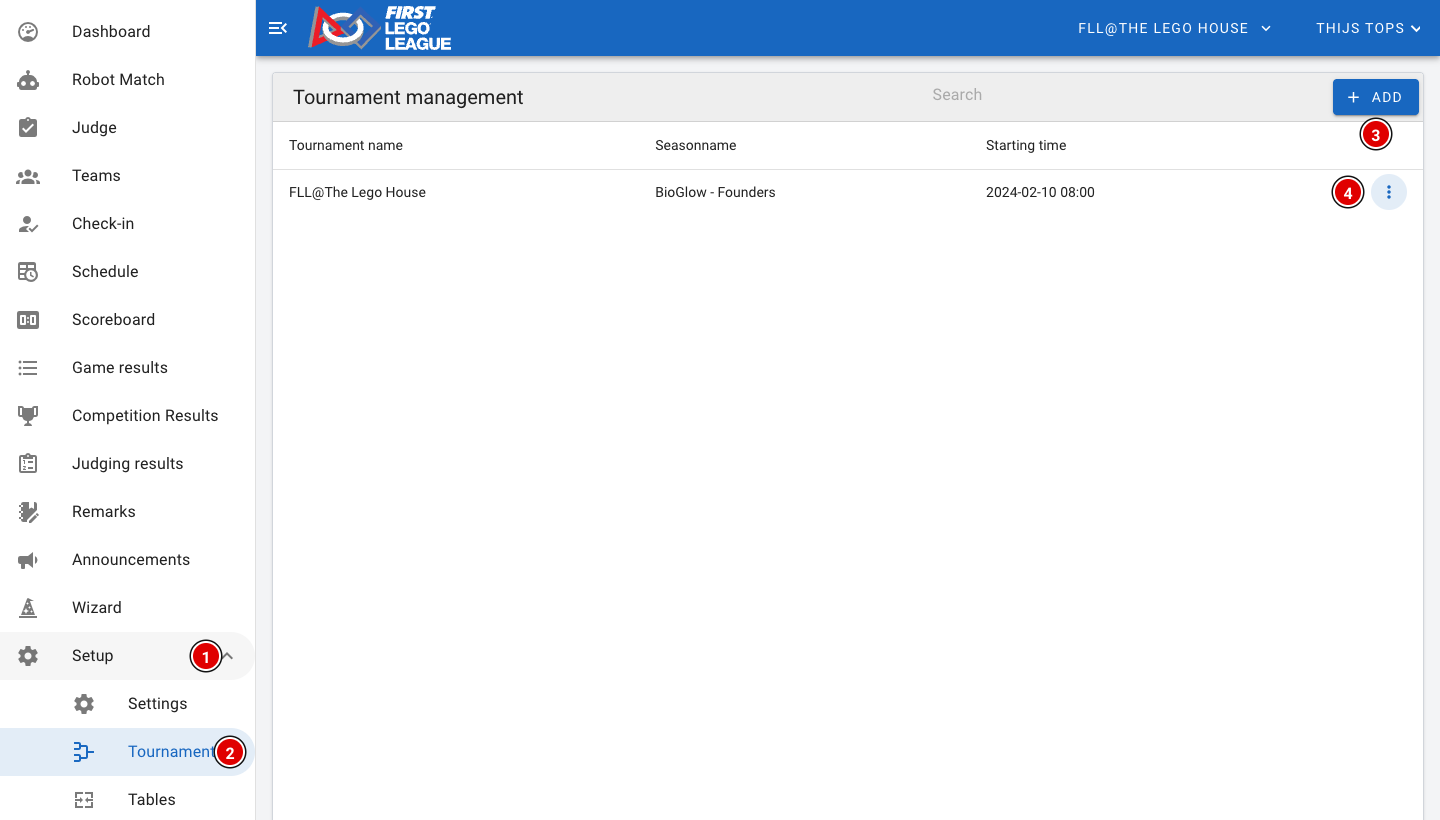
- Click Setup (1) and then Tournaments (2).
- You now see a list of all tournaments, with the season and the start time.
FLLTools can manage several tournaments at the same time. This is handy, for example, when a region spreads its teams over two days. Each tournament has its own teams, rounds, juries, schedule and results.
Creating a tournament
- Click Add (3).
- A window opens where you can enter all the details.
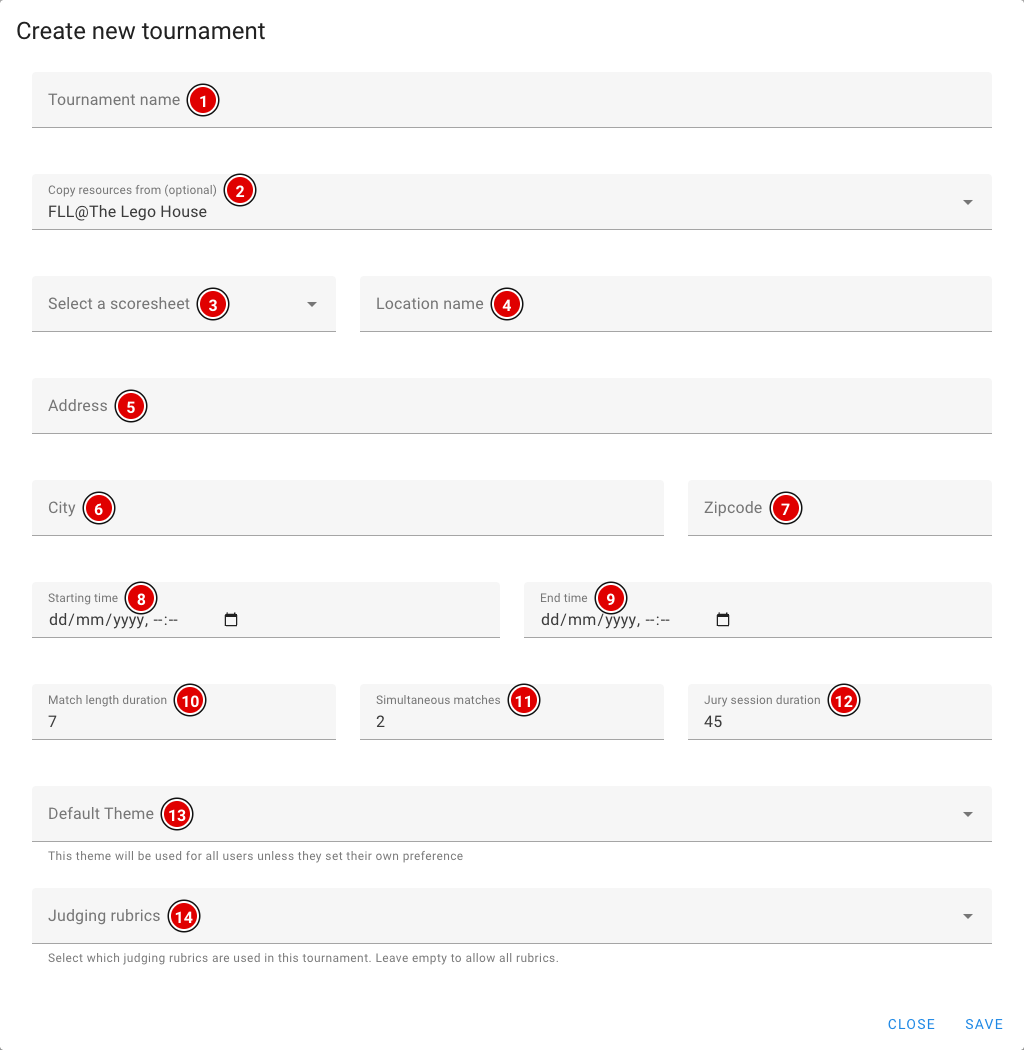
Tournament name (1): Enter the name of the tournament, for example "Regional final".
Copy resources from (optional) (2): Choose an existing tournament to copy the rounds, juries, tables and chosen rubrics from. This saves a lot of work when you create a second day or a similar event. Teams are not copied. By default this field contains the tournament you are currently working in. Want to start with an empty tournament? Then clear this field.
Select a scoresheet (3): Choose the score sheet of the current season. Need a different score sheet for an off-season event? Let us know and we'll load the right one.
Location name (4): Name of the venue, for example "Building".
Address (5): Address of the venue.
City (6): City of the venue.
Zipcode (7): Postcode of the venue.
Starting time (8): Enter the date and start time of the competition day. This is used to create the day schedule.
End time (9): Enter the date and the planned end time. This is also used for the day schedule.
Match length duration (10): The length of a robot match in minutes. We advise 7 minutes per match.
Simultaneous matches (11): The number of matches played at the same time. Each match is played on a table pair, so this is usually equal to the number of table pairs (half the number of tables).
Jury session duration (12): The length of a judging session, including the time for the judges to discuss. For a good schedule we recommend a multiple of 9 minutes, with a minimum of 42 minutes. This matches the official flow:
- 4 minutes to walk in
- 30 minutes of judging
- 4 minutes to tidy up
- 4 minutes to fill in the forms
Default Theme (13): The colour theme all users of this tournament see. Users who have chosen their own theme in their profile keep their own theme. If you leave this empty, the default theme is used.
Judging rubrics (14): Choose which rubrics the judges use at this tournament. If you leave this field empty, all rubrics are available. This only matters if you use the Judge Module.
When everything is filled in, click Save at the bottom of the window. You then return to the Tournaments page, with your tournament now in the list.
Editing or deleting a tournament
At the end of each row are 3 dots (4) (see the first image). Click them:
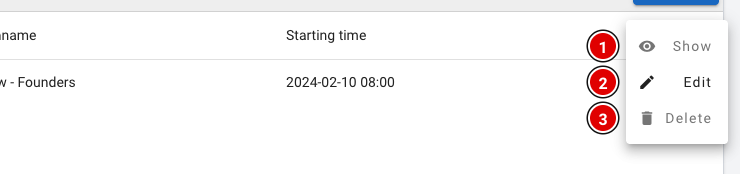
- Show (1): view the tournament details.
- Edit (2): change the details. The same window opens as when creating it. Click Update to save.
- Delete (3): delete the tournament.
Only delete a tournament if you are sure you no longer need it. All data belonging to the tournament can then no longer be used.
Switching between tournaments

The top bar shows which tournament you are working in (1). Everything you see and do in the tool (teams, schedule, results, exports) belongs to this tournament.
- Have more than one tournament? Click the name. A list of all tournaments opens.
- Click the tournament you want to work in. The page reloads with that tournament's data.
Which tournament visitors see on the public scoreboard and team pages is set in Public Tournament on the Settings page. See the page Settings and modules.
The tournament has now been created and you can move on to the next step.
Settings and modules
On the Settings page you decide how FLLTools works at your event. This is also where you switch the modules on or off: the parts of the tool you don't need at every event.
Go through Setup to Settings. The page consists of several blocks, one below the other. Each block has its own Save button, so save each block separately after changing something.
Basic settings
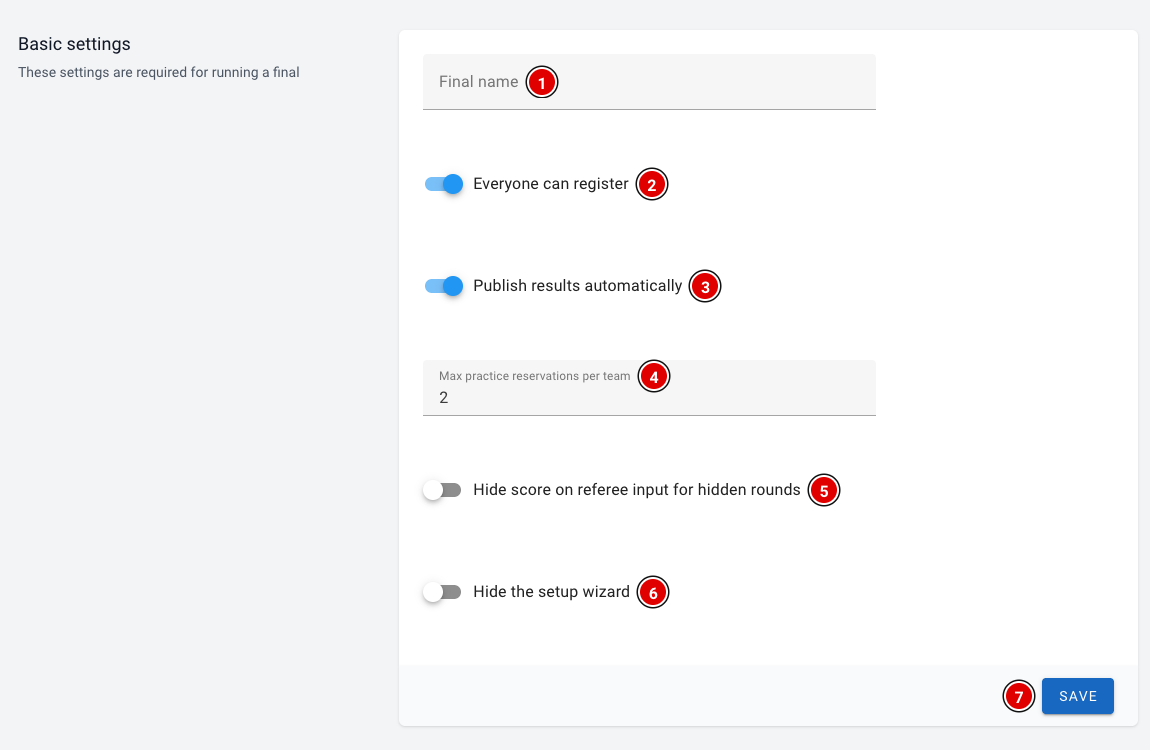
Final name (1): The name of your event. It is shown on the login screen, below the title.
Everyone can register (2): Intended to let visitors create their own account. You don't need this for a regional final: you create the accounts yourself (see the page Creating the users).
Publish results automatically (3): When this is on, visitors see the teams' match results on the public team pages, including the filled-in score sheet. When it is off, the results are not visible there for visitors who aren't logged in. Rounds with hidden scores always stay hidden.
Max practice reservations per team (4): How many practice table reservations a team may hold at the same time. Only relevant if you use the Practice Table Reservations module.
Hide score on referee input for hidden rounds (5): When this is on, the total score on the referee screen is blurred in rounds with hidden scores, so a team can't look along. The referee can reveal the score by tapping it.
Hide the setup wizard (6): Hides the Wizard button in the menu. The wizard then no longer opens automatically either. See the page The Setup Wizard.
Click Save (7) to save the changes in this block.
Timer and modules
Timer
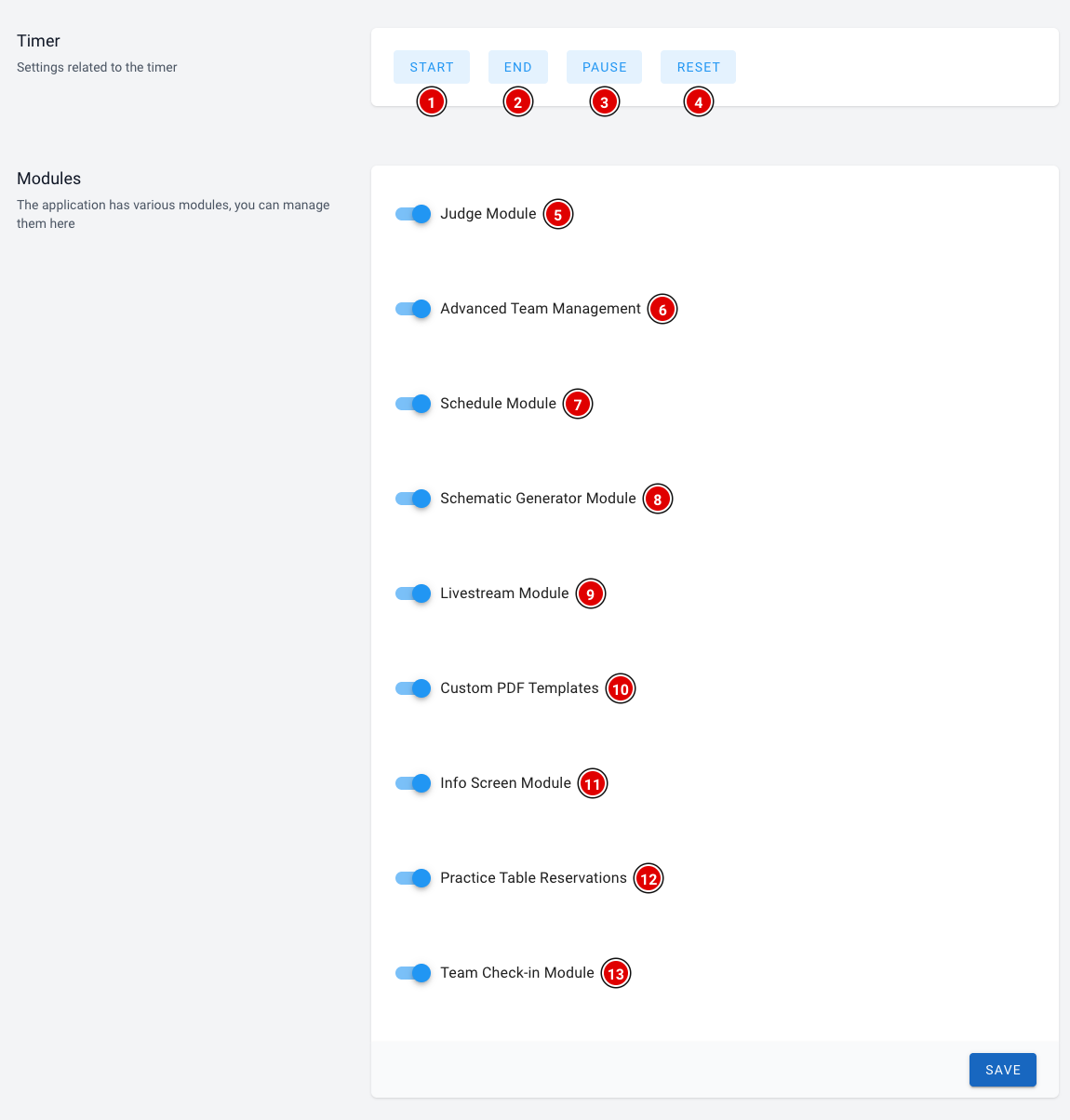
The Start (1), End (2), Pause (3) and Reset (4) buttons control the match timer on all screens. Each button opens in a new tab. How the timer works is explained on the page How the timer works.
Modules
Switch a module on with its switch and click Save at the bottom of the block. After saving, the matching pages appear in the menu. If you switch a module off, they disappear again. Your data is kept.
- Judge Module (5): digital judging. Judges fill in the rubrics on a tablet or laptop, or paper forms are scanned in. Among other things, Judge and Judging results appear in the menu, and Jury and the Rubric editor under Setup.
- Advanced Team Management (6): coaches receive an invitation to maintain the team page themselves, with a team photo, descriptions and social media links. This extra information is then also shown on the public team page.
- Schedule Module (7): the day schedule. Teams and the public see on the public site and the team pages where and when they need to be.
- Schematic Generator Module (8): automatically creates a day schedule based on your teams, tables, juries and rounds. A button to generate the schedule then appears on the schedule page. See the page Creating the day schedule.
- Livestream Module (9): shows the livestream (Twitch or YouTube) of your event on the public site.
- Custom PDF Templates (10): design your own PDF documents, such as name cards or certificates, with the team details filled in automatically.
- Info Screen Module (11): screens in the venue showing, for example, the schedule, the tables, the timer or the scoreboard.
- Practice Table Reservations (12): teams book a time slot on a practice table themselves.
- Team Check-in Module (13): keep track of which teams have reported on arrival. Check-in appears in the menu.
It's best to leave a module you don't need switched off. That keeps the menu tidy for all volunteers. You can always switch modules on later.
Public Tournament and QR import
Public Tournament
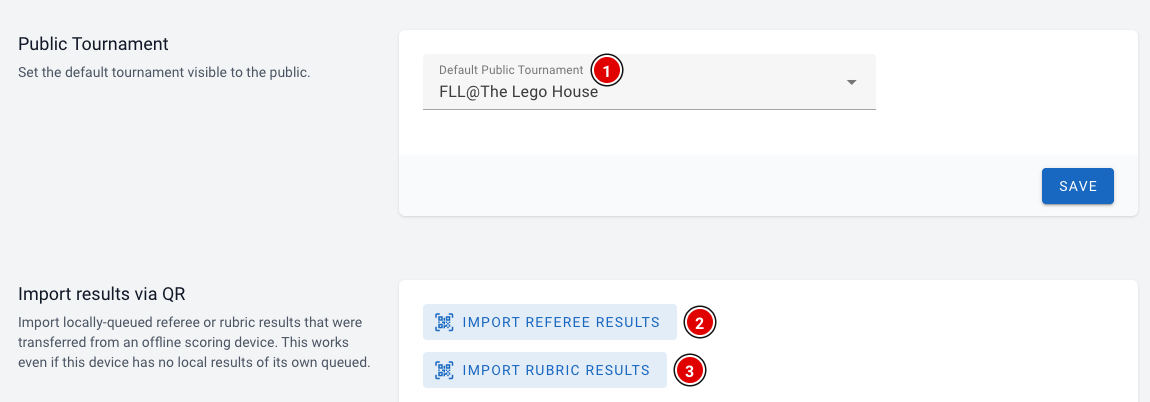
In Default Public Tournament (1) you choose which tournament visitors see on the public pages, such as the scoreboard and the team pages. This is especially important if you have several tournaments. Click Save to save.
Import results via QR
Referees and judges can enter results without internet. Those results are stored on their device. If they can't be sent later, they can be transferred with a QR code. Import Referee Results (2) reads a QR code with match results, Import Rubric Results (3) one with judging results. You scan the QR codes with the device's camera. If the browser doesn't support the camera, you can also paste the code as text. More about this is on the page Referee briefing.
Creating the rounds and the tables
The next steps are creating the rounds and the tables. Both are an essential part of the scoring tool. Referees choose a round and a table for every match, and the scoreboard, the results and the day schedule are all organised by round and by table. So make sure both are set up correctly before you continue.
Adjusting the rounds
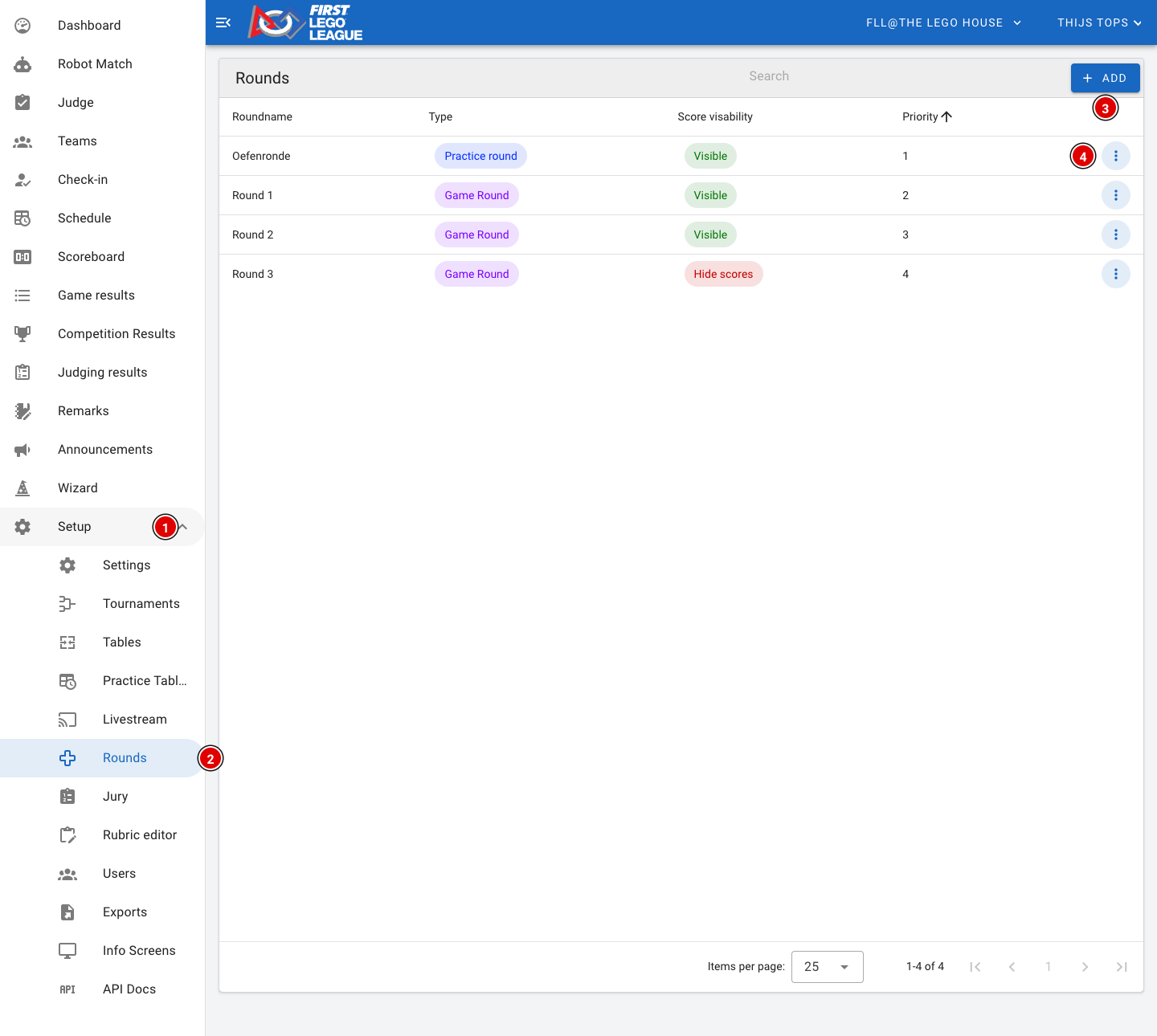
- Go through Setup (1) to Rounds (2).
- A new environment has 4 rounds by default:
- 1 practice round
- 3 real rounds
- For each round you see the type (Practice round or Game Round), whether the scores are visible (Visible or Hide scores) and the priority.
- Use Add (3) to create a new round.
- Through the 3 dots (4) at the end of a row you can view (Show), change (Edit) or delete (Delete) a round.
Check that the last round is set to Hide scores if you only want to show the results of that round after the awards ceremony. Not set correctly? Change it through Edit.
Creating or changing a round
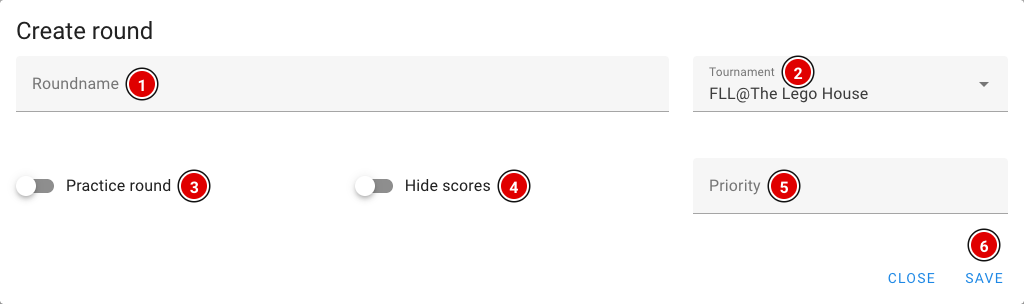
Roundname (1): The name of the round, for example "Practice round" or "Round 1". Referees, teams and the public see this name.
Tournament (2): The tournament this round belongs to. Usually the right tournament is already filled in.
Practice round (3): Switch this on for a practice round. Scores of a practice round don't count towards the results and are not shown on the public scoreboard.
Hide scores (4): Switch this on if the scores of this round may not be publicly visible (yet). This is usually used for the last round, so it stays exciting until the awards ceremony. See also Making the last round visible.
Priority (5): The order of the rounds. A lower number comes first.
Click Save (6) to save the round. Want to change an existing round? Choose Edit in the menu next to the round; you'll see the same window.
Make sure there are no duplicate priorities and that they are in ascending order.
Note: if you load a schedule (see Creating the day schedule), make sure the priorities start at 1 and go up: the practice round 1, round 1 = 2, and so on. The schedule links the matches to the right round through the priority. Otherwise an error will occur.
A round that already has scores linked to it can no longer be deleted.
Creating the tables
Tables are a fixed part of FLLTools, so you no longer need to switch anything on in the settings.
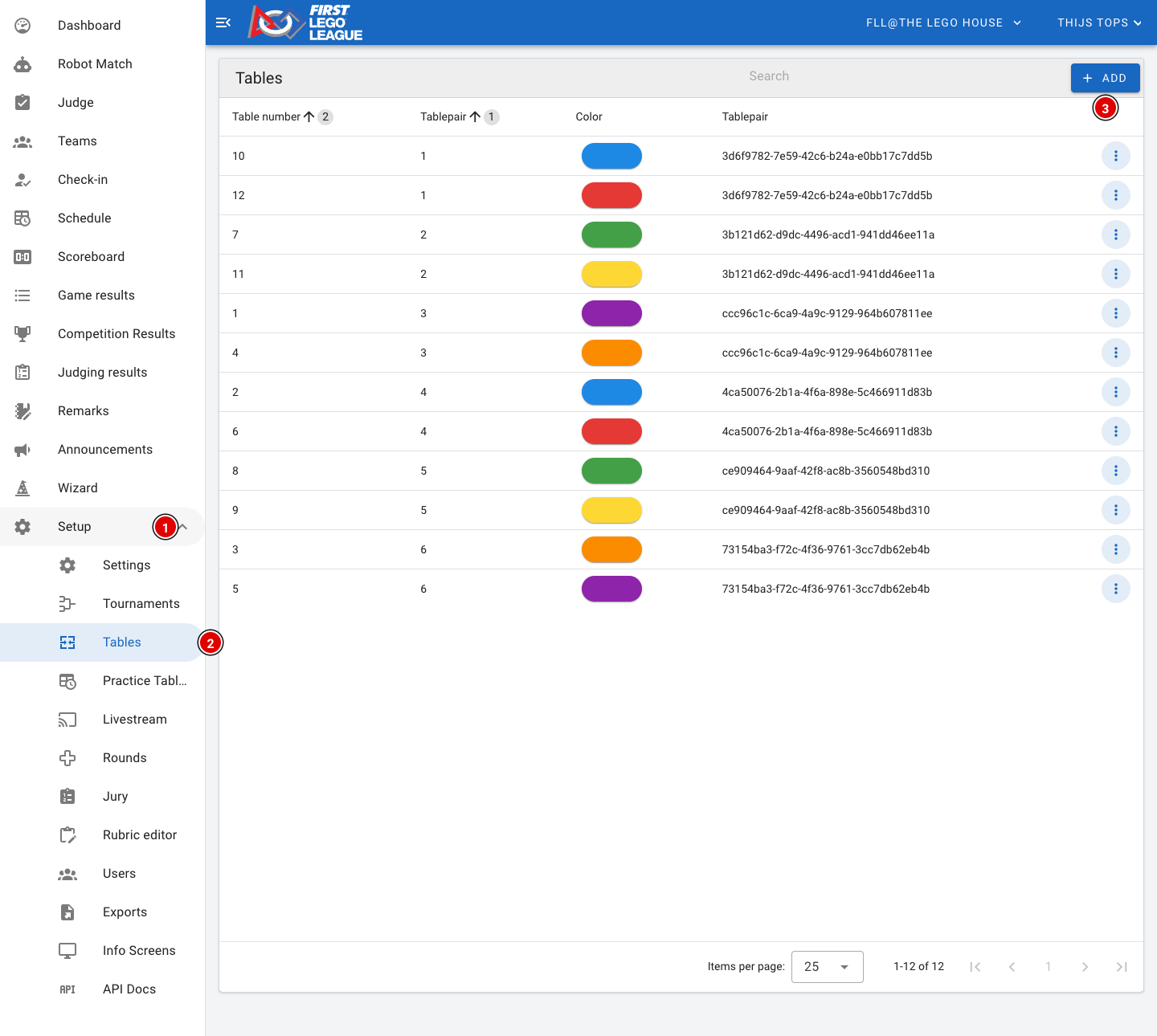
- Go through Setup (1) to Tables (2).
- For each table you see the table number, the table pair and the colour. Hover your mouse over the colour to see the name and the colour code.
- Click Add (3) to add a new table pair.
Setting up tables
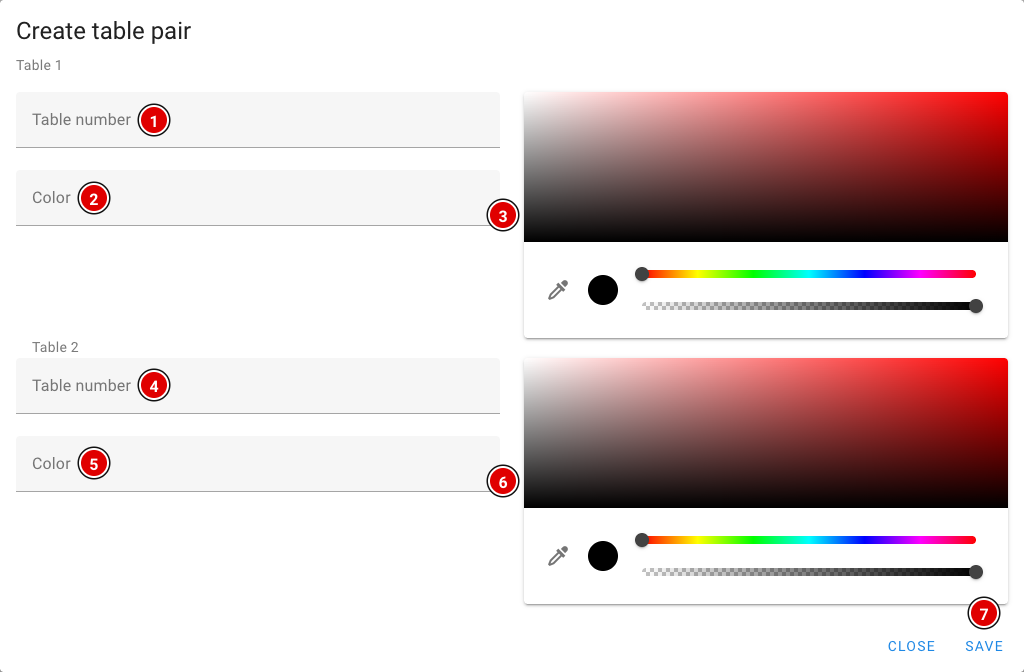
Tables are always created in pairs, because in the robot game 2 teams always play side by side. So you always fill in 2 tables at once.
- Table number (1): The number of the table. This must be a number. Start with 1 and keep numbering across all table pairs (1 and 2, then 3 and 4, and so on). Otherwise loading the schedule won't work.
- Color (2): The name of the table. Many regions use either the number or a colour here. The name can be anything.
- Colour picker (3): If the table has a colour, select it here. Otherwise select black. This colour is used in the schedule, for the referees and on the info screens.
- (4), (5) and (6) are exactly the same as (1), (2) and (3), but for the second table of the pair.
- Click Save (7) when all fields are filled in. The tables appear on the page.
- Repeat these steps until all tables have been created.
Want to change one table later, for example its colour? Use Edit through the 3 dots next to the table. You then only change that one table.
Choose clear colours that are easy to tell apart. Teams and referees often look for their table by colour, and the colour is also shown large on the info screens.
Juries and rubrics
Besides the robot game, teams are also assessed by judges. In FLLTools you set up two things for this: the juries (the judging panels or judging rooms the teams visit) and the rubrics the judges fill in.
The judging parts are only visible when the Judge Module is switched on. See the page Settings and modules.
Creating juries
A jury is a group of judges in one room who see one team after another throughout the day. In the day schedule every team gets a judging session with one of the juries.
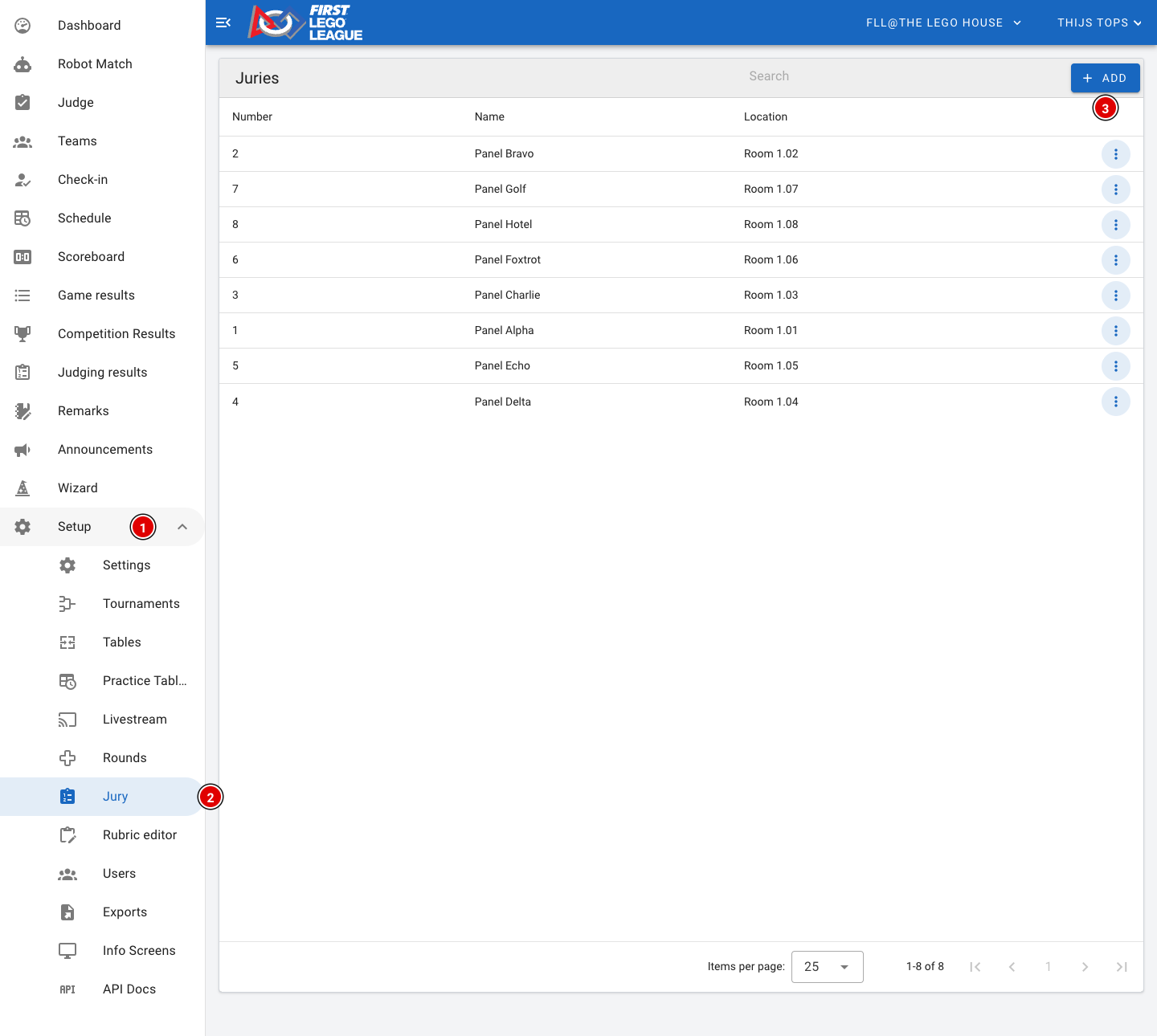
- Go through Setup (1) to Jury (2).
- You see a list of all juries, with their number, name and location.
- Click Add (3) to add a new jury.
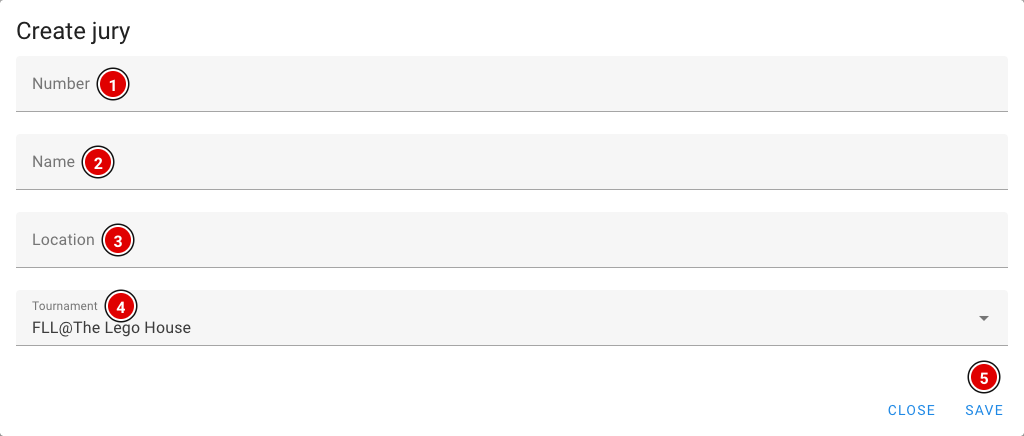
Number (1): The number of the jury. Start with 1 and keep counting. The schedule (both the generator and an imported schedule) links the judging sessions to the right jury through this number.
Name (2): The name of the jury, for example "Jury A" or "Panel Alpha". Teams see this name in their day schedule and on the info screens.
Location (3): The room or place where this jury sits, for example "Room 1.02". That way teams and volunteers know where to go.
Tournament (4): The tournament this jury belongs to.
Click Save (5). Repeat this until all juries have been created. Through the 3 dots next to a jury you can change or delete it later.
Rubrics
For each team the judges fill in a judging form, also called a rubric. The official rubrics of the season are already available in FLLTools, for example Innovation Project, Robot Design and the feedback form. In most cases you don't need to change anything here.
Choosing which rubrics you use
For each tournament you set which rubrics the judges use. You do this on the tournament itself: go through Setup to Tournaments and choose Edit for your tournament.
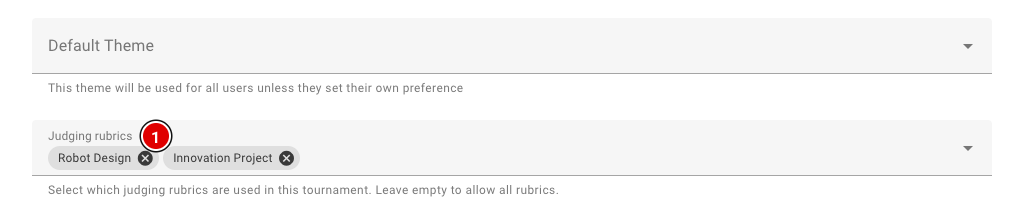
- In Judging rubrics (1), choose the rubrics that belong to your event.
- If you leave this field empty, all rubrics are available, and judges will also see rubrics from other seasons. So always choose the rubrics of the current season.
- Click Save at the bottom.
Which rubrics count towards the rankings for the judges' deliberation is set on the page Competition Results (see the Judges' deliberation chapter).
The rubric editor
Want to view or change a rubric, or load a rubric you received from us? Go through Setup to Rubric editor.
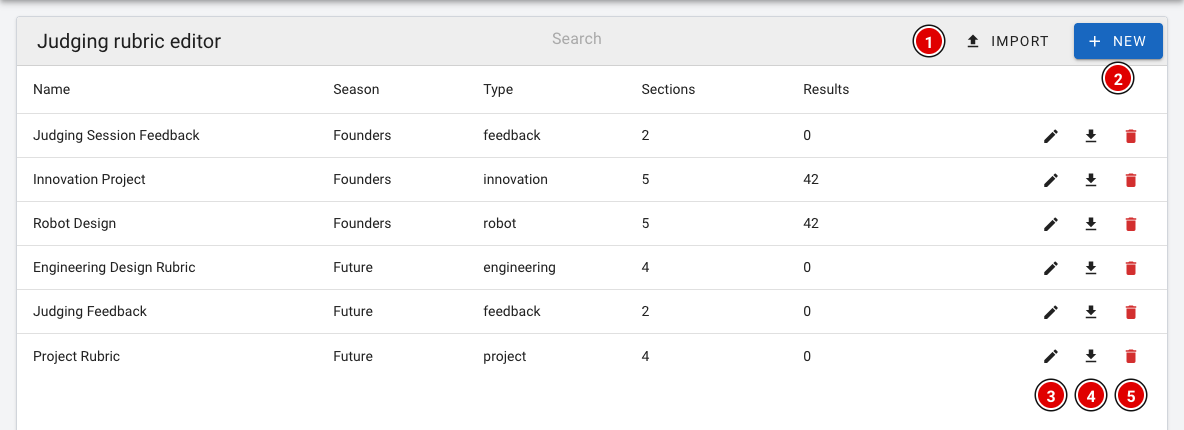
- For each rubric you see the name, the season, the type, the number of parts (Sections) and the number of completed forms (Results).
- Use Import (1) to load a rubric from a file (a .rubric.json file).
- Use New (2) to create a new, empty rubric. You then fill in the name, the season and optionally the type.
- The pencil (3) opens the rubric so you can change it.
- The download button (4) saves the rubric as a file. Handy as a backup, or to share the rubric with another region.
- The bin (5) deletes the rubric. A rubric that has already been used to assess teams can't be deleted.
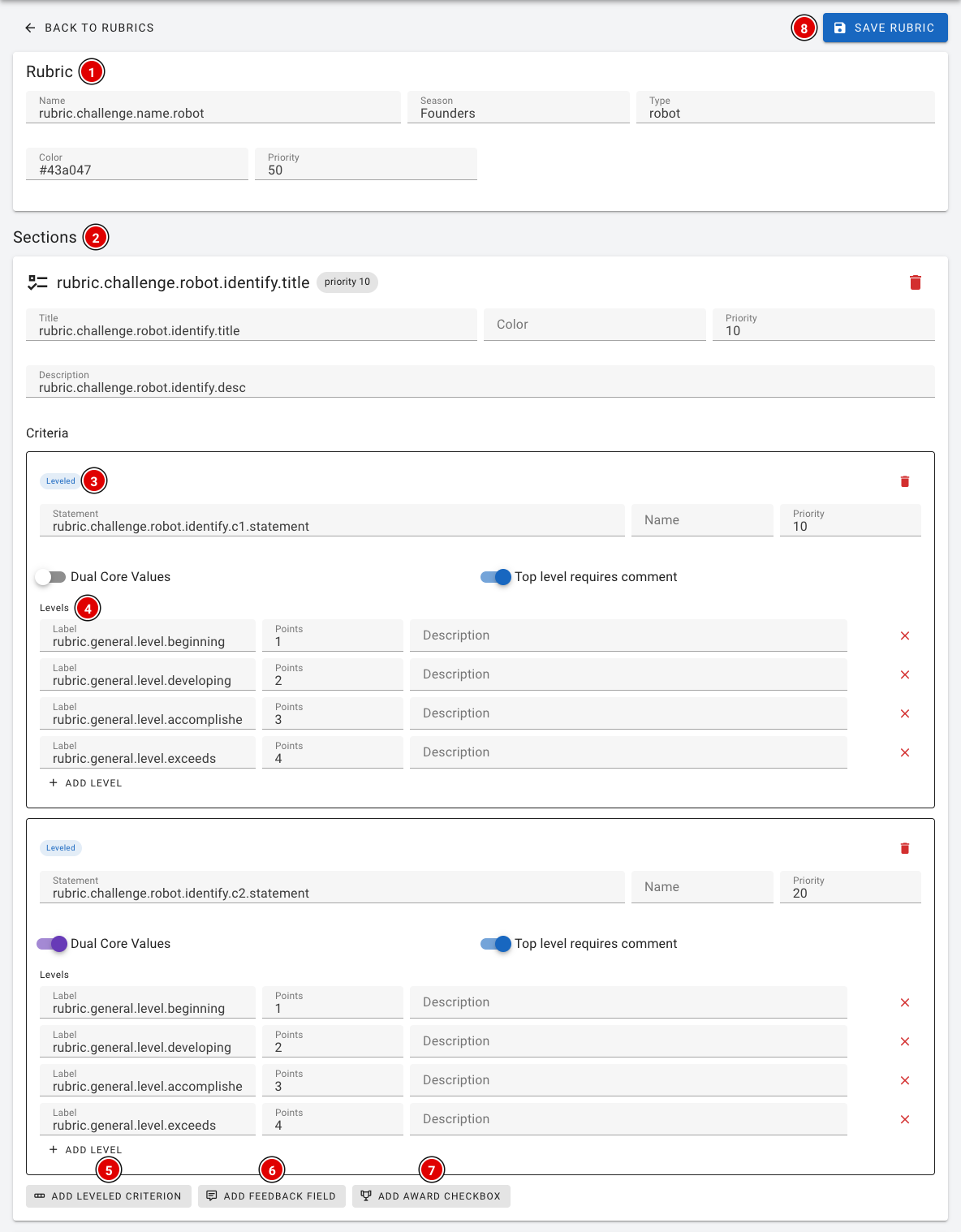
A rubric is built up as follows:
- Rubric (1): The general details: name, season, type, colour and priority (the order in which the rubrics are shown).
- Sections (2): The parts of the form, such as Identify, Design and Iterate. Each part has a title, colour, priority and description.
- Leveled (3): A criterion within a part, with the statement the judges assess the team on. Dual Core Values indicates that this criterion also counts for Core Values. With Top level requires comment, the judges must write an explanation when they choose the highest level.
- Levels (4): The levels the judges choose from (for example Beginning, Developing, Accomplished and Exceeds), each with a number of points.
- Add leveled criterion (5), Add feedback field (6) and Add award checkbox (7) add, respectively, a criterion, a text field for feedback or a checkbox for an award nomination to a part.
- Click Save rubric (8) to save all changes at once.
In the editor you sometimes see texts like rubric.challenge.robot.identify.title. These are translation keys: judges automatically see the text in their own language on their screen. So don't change these keys unless you're sure what you're doing.
Don't change a rubric once the judges have started working with it. In doubt? Contact thijs@flltools.nl.
Creating the users
Everyone who interacts with FLLTools needs a user account: referees, judges, the scoring desk and the organisation.
There are several roles, each with its own permissions.
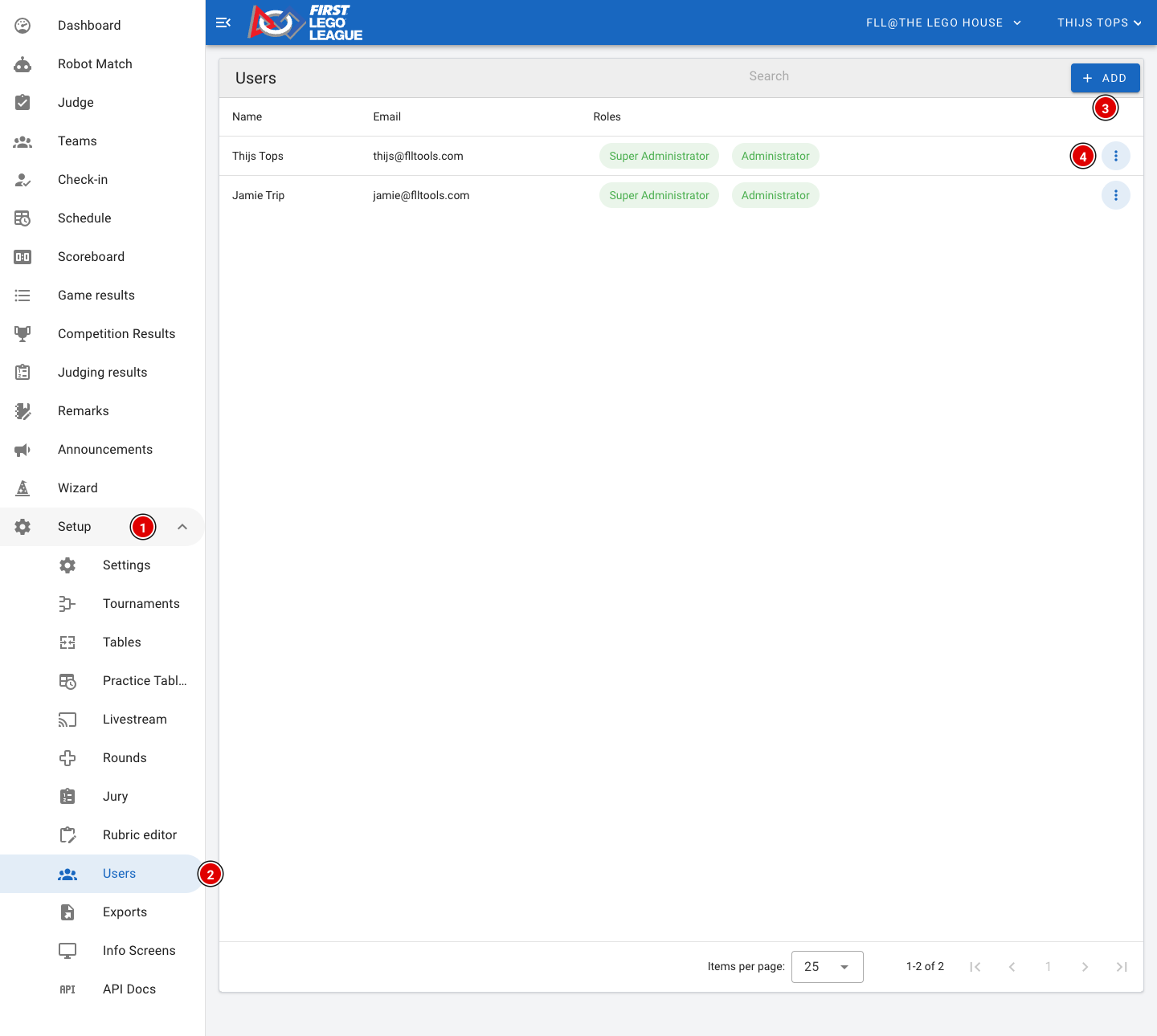
Creating new users:
- Go through Setup (1) to Users (2).
- Some users have already been created, including the account you are logged in with now. Possibly also accounts of the developers or other people who already have an account.
- Clicking Add (3) at the top of the page opens a window:
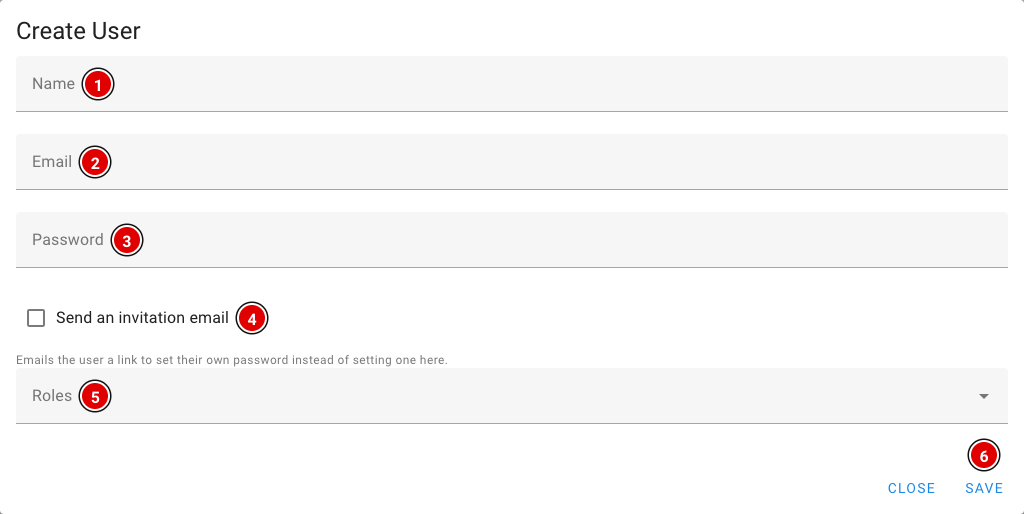
Name (1): Name of the person the account is for.
Email (2): E-mail address of the person. The person logs in with it.
Password (3): The password for this person. This field disappears when you switch on (4).
Send an invitation email (4): Switch this on to send the person an invitation by e-mail. The e-mail contains a link with which the person chooses their own password. The link is valid for 7 days.
Roles (5): A menu opens in which you can select one or more roles (see below).
- Click Save (6). The account is now active.
If you don't use Send an invitation email, the user doesn't receive an e-mail. You then have to pass on the login details to the person yourself.
The roles
A role determines what someone is allowed to do in FLLTools. Give everyone only the role they need.
- Super Administrator: For the FLLTools administrators. Can also log in as another user.
- Administrator: Full access to the event: tournaments, settings, users, teams, schedule, results and exports.
- Secretariat: For the scoring desk. Can manage teams, rounds, tables, the schedule, check-in, remarks and announcements, view and correct all scores and judging forms, and fill in the results (Competition Results).
- Head Referee: For the head referee. Can enter scores, and also change and delete other people's scores.
- Referee: For referees. Can enter scores and view the match results.
- Head Judge: For the judge advisor / head judge. Can fill in judging forms, view and correct all judging forms, change rubrics and fill in the results (Competition Results).
- Judge: For judges. Can fill in judging forms and view and change their own forms.
- Coach: For coaches. Can change their own team's details and, after the event, view their own team's judging forms. Coaches are usually created automatically when you invite them on the team (see Entering teams into the system).
- User and Guest: Only viewing rights on the public parts, such as the scoreboard and the schedule.
All roles except User and Guest can also add remarks about teams.
Changing a user
Click the 3 dots (4) next to a user in the list and choose Edit. You then reach that user's page:
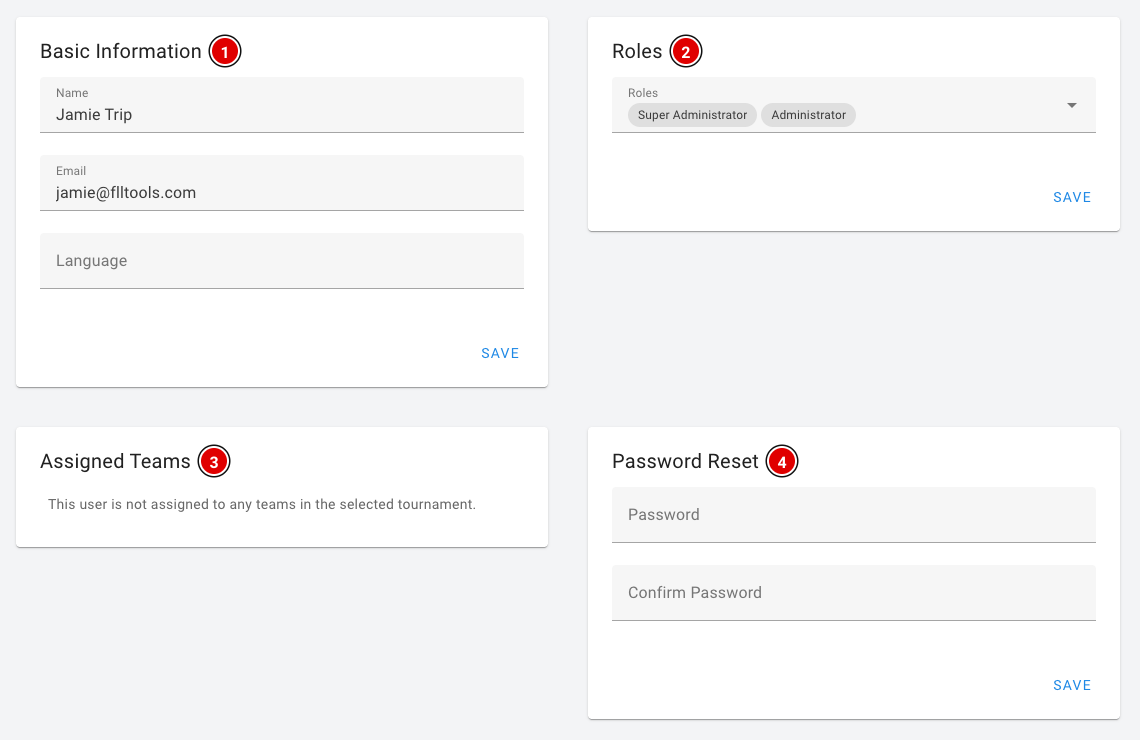
- Basic Information (1): Name, e-mail address and language of the user.
- Roles (2): Add or remove roles here.
- Assigned Teams (3): The teams this user is linked to in the current tournament, for example as a coach.
- Password Reset (4): Set a new password. Enter the password twice.
Each block has its own Save button, so click Save in the block you changed.
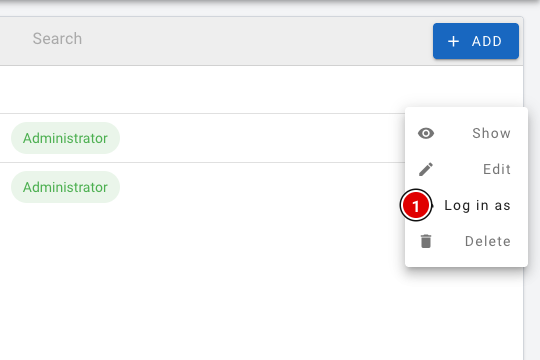
Super Administrators also see the Log in as (1) option in the menu. With it you can temporarily log in as that user, for example to check what a referee or judge sees. A message at the top of the screen then shows a button to return to your own account.
FLLTools Unified Login
For volunteers who help at several (regional) finals, and for regional partners / operational partners, we have the FLLTools Unified Login. With it you can log in to every event with the same login, through the Login with SSO button on the login screen.
You then need just one login to log in everywhere. Would you like to use this? Send an e-mail to thijs@flltools.com and you'll receive a login.
Entering teams into the system
There are 2 ways to enter the teams:
- Manually
- Through a file upload
To start, go to the Teams page (1).
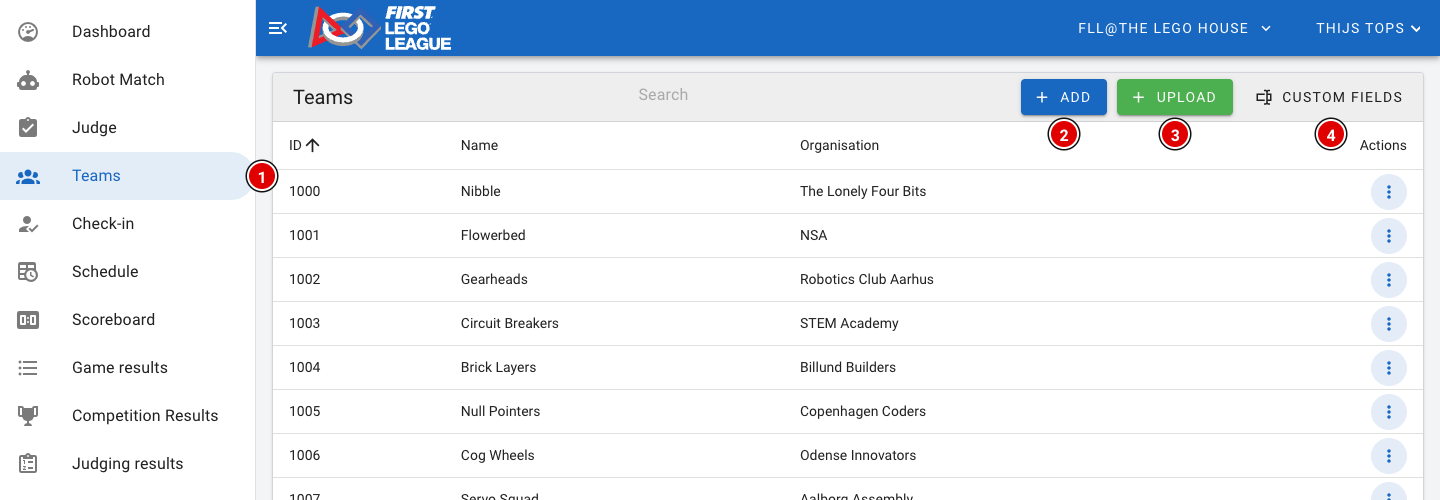
Entering teams manually
- To enter a team manually, click Add (2).
- The following window opens:
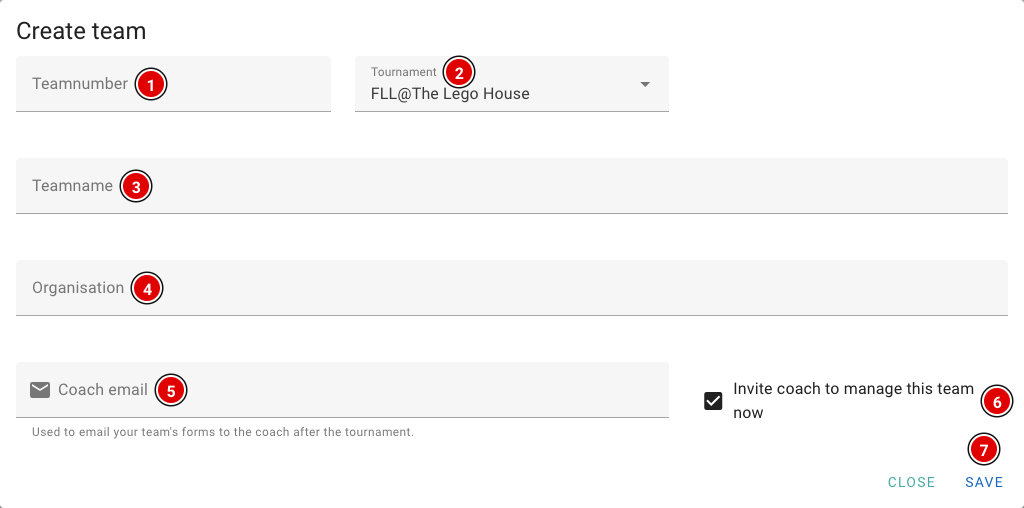
Teamnumber (1): Enter the team number here (for example the number from your registration system). This must be a unique number and may not contain letters.
Tournament (2): The tournament the team takes part in. Usually the right tournament is already filled in.
Teamname (3): The name of the team.
Organisation (4): The school, club or organisation of the team.
Coach email (5): The e-mail address of the (head) coach. This field is required. Among other things, the address is used to send the judging forms to the coach after the event.
Invite coach to manage this team now (6): When this is on, the coach immediately receives an invitation by e-mail. With it the coach can create their own account and complete the team details, such as the team photo, the team cheer and the descriptions of the robot and the project. This option is only visible when the Advanced Team Management module is switched on.
- Click Save (7) to save the team.
- The window stays open and the team number automatically goes up by 1, so you can quickly enter the next team. Click Close when you're done.
Through a file upload
Already have your teams in a spreadsheet? Then you can load them all at once with the Upload (3) button.
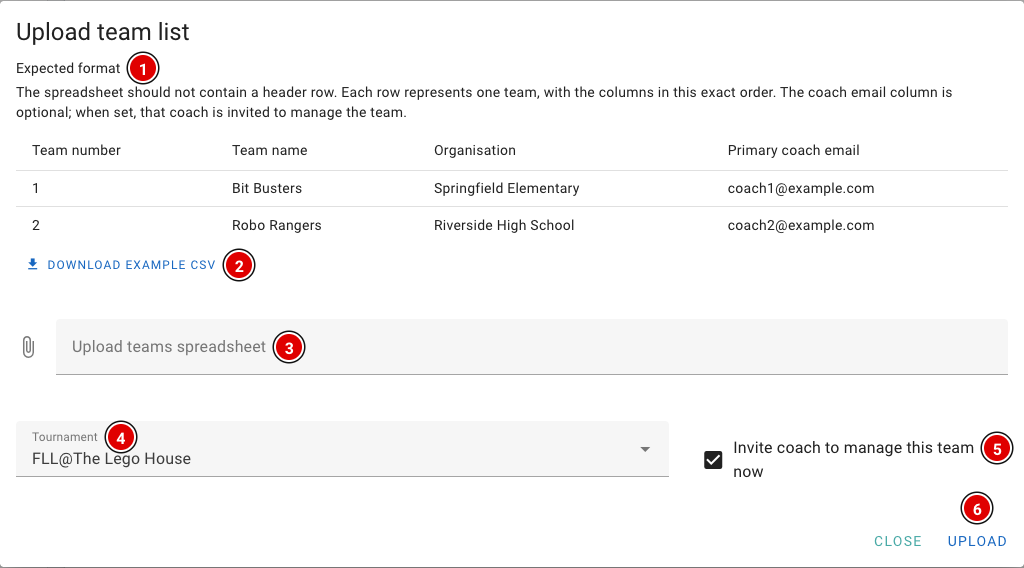
- Expected format (1) shows what the file should look like. Download example CSV (2) downloads an example file you can fill in straight away.
- Choose your file (Excel or CSV) in Upload teams spreadsheet (3).
- In Tournament (4), choose which tournament the teams should be loaded into.
- With Invite coach to manage this team now (5), all coaches with an e-mail address in the file immediately receive an invitation (only when Advanced Team Management is on). This option is on by default. Don't want to e-mail the coaches yet? Then untick it.
- Click Upload (6).
The file format
Use an Excel or CSV file with the columns in this order:
- Column A: team number
- Column B: team name
- Column C: organisation
- Column D: e-mail address of the head coach (optional)
Do NOT use a header row, or the upload will fail. Each row is one team.
Most registration systems can export the teams to Excel or CSV. Rearrange the export in Excel if needed so the columns are in the order above, without a header row. In the Netherlands, you can use the export from the PTvT regional partner portal in the same way.
Extra team fields (Custom fields)
Want to keep extra information per team, such as a pit number? Then you can create extra fields yourself through Custom fields (4).
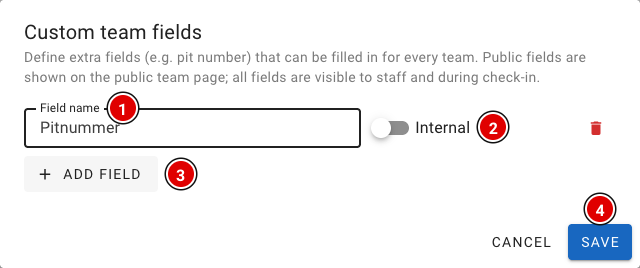
- Click Add field (3) to add a field.
- Enter the name of the field in Field name (1), for example "Pit number".
- The Internal / Public (2) switch determines whether the field is also shown on the public team page. Internal fields are only visible to the organisation and at check-in.
- Click Save (4).
You fill in the value of these fields per team on the team's page. See Updating a team.
Creating the day schedule
The day schedule is the backbone of your event. It shows when and where each team has to be with the judges, which table it plays at, and when there are breaks or other activities. The schedule is used in many places in FLLTools: for the referees (filling in the team automatically), on the info screens, on the public team pages and in the exports.
There are two ways to create a schedule:
- Let FLLTools generate it (recommended)
- Import a schedule you created with an external tool
The schedule is only visible when the Schedule Module is switched on. The button to generate a schedule appears when the Schematic Generator Module is on as well. See the page Settings and modules.
Before you start
The schedule is built from the data you have already entered. So first check that it is complete:
- All teams are in the system (see Entering teams into the system).
- The rounds have been created, with ascending priorities starting at 1 (see Creating the rounds and the tables).
- All table pairs have been created, numbered from 1.
- All juries have been created, numbered from 1 (see Juries and rubrics).
- The tournament has the correct start and end time, match length and judging session length (see Creating the tournament).
Does a team arrive later, leave earlier, need extra time or not attend judging? You can set this per team on the team's page, in the Scheduling block (Needs extra time, Does not attend judging, Available from and Available until). The generator takes this into account.
The schedule overview
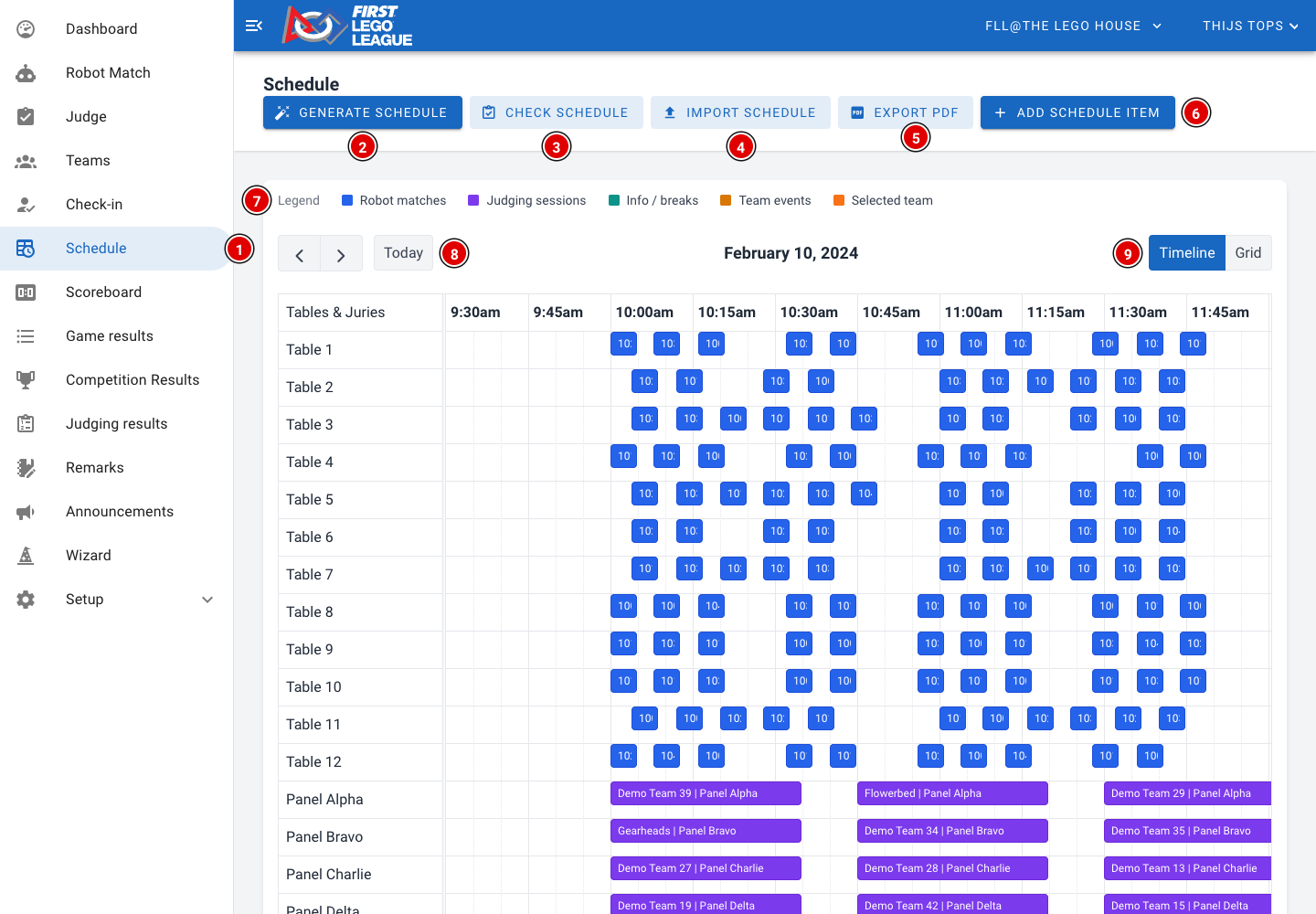
- Go to Schedule (1) in the menu.
- Generate schedule (2): Let FLLTools create a schedule (see below).
- Check schedule (3): Check that every team has all its matches and its judging session.
- Import schedule (4): Import a schedule from an external tool.
- Export PDF (5): Download the complete schedule as a PDF, showing for each time which team is at which table and with which jury.
- Add schedule item (6): Add a single item to the schedule yourself.
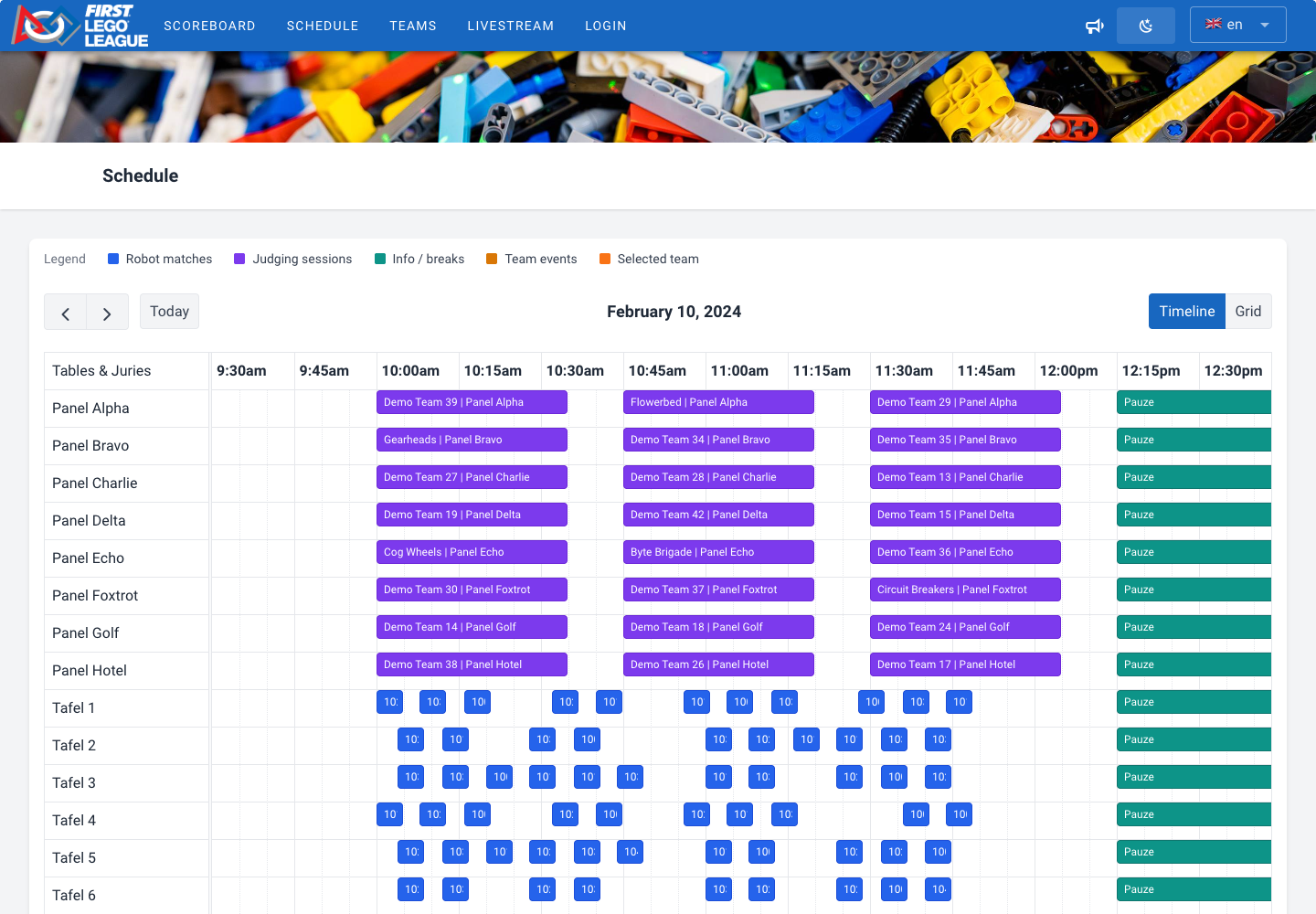
- The Legend (7) shows what the colours mean: blue are robot matches, purple judging sessions, green info and breaks, and orange other team activities.
- Use the arrows and Today (8) to move between days. Handy if your event spans several days.
- Timeline / Grid (9) switches between a timeline (tables and juries below each other) and a grid (tables and juries next to each other).
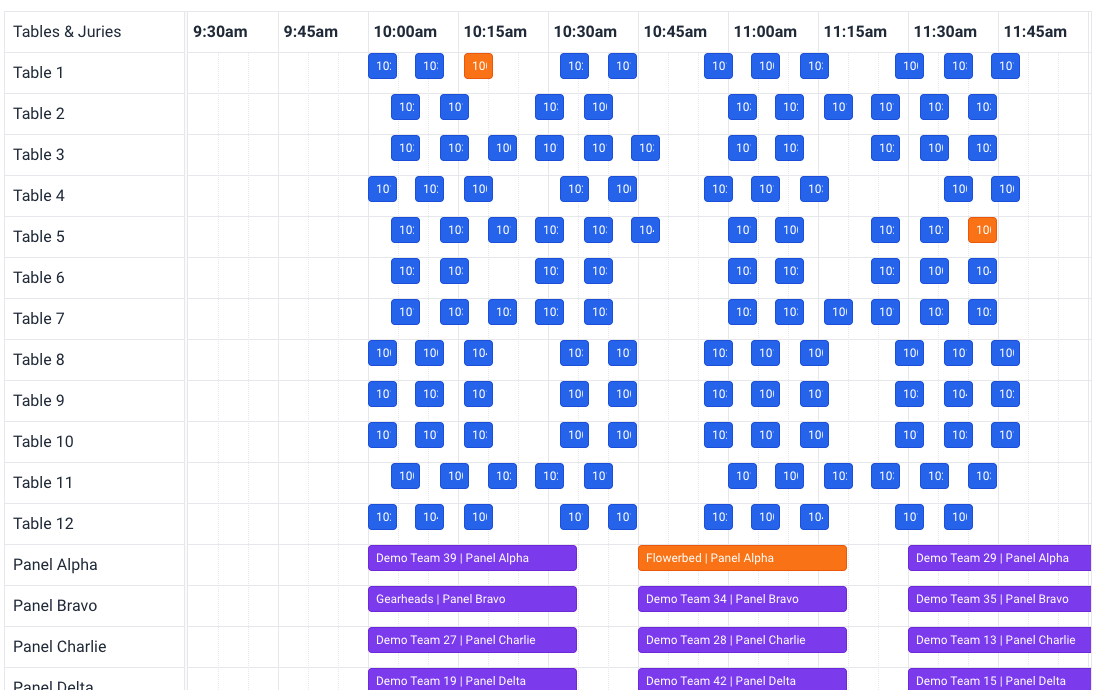
Following a team
Click a block in the schedule once. All items of that team are then highlighted in orange, so you see the team's whole day at a glance.
Moving items and changing times
- Drag a block to another time, or to another table or jury.
- Drag the edge of a block to make it longer or shorter.
- Double-click a block to see its details. Here you can also enter an exact start and end time if you want to place an item outside the 5-minute grid. Then click Save.
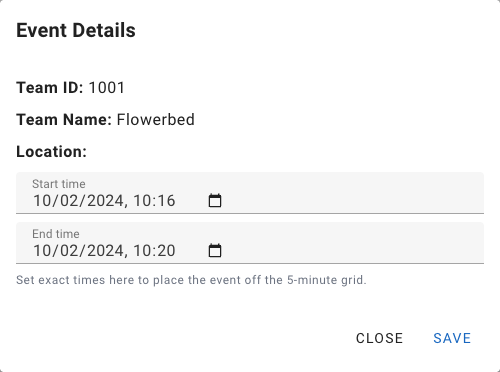
Changes are saved immediately. If a change isn't possible, for example because it clashes with another item, you get a message and the block jumps back.
Generating a schedule
FLLTools can create a complete schedule itself: every team gets one judging session and one match per round, without any clashes. Click Generate schedule.
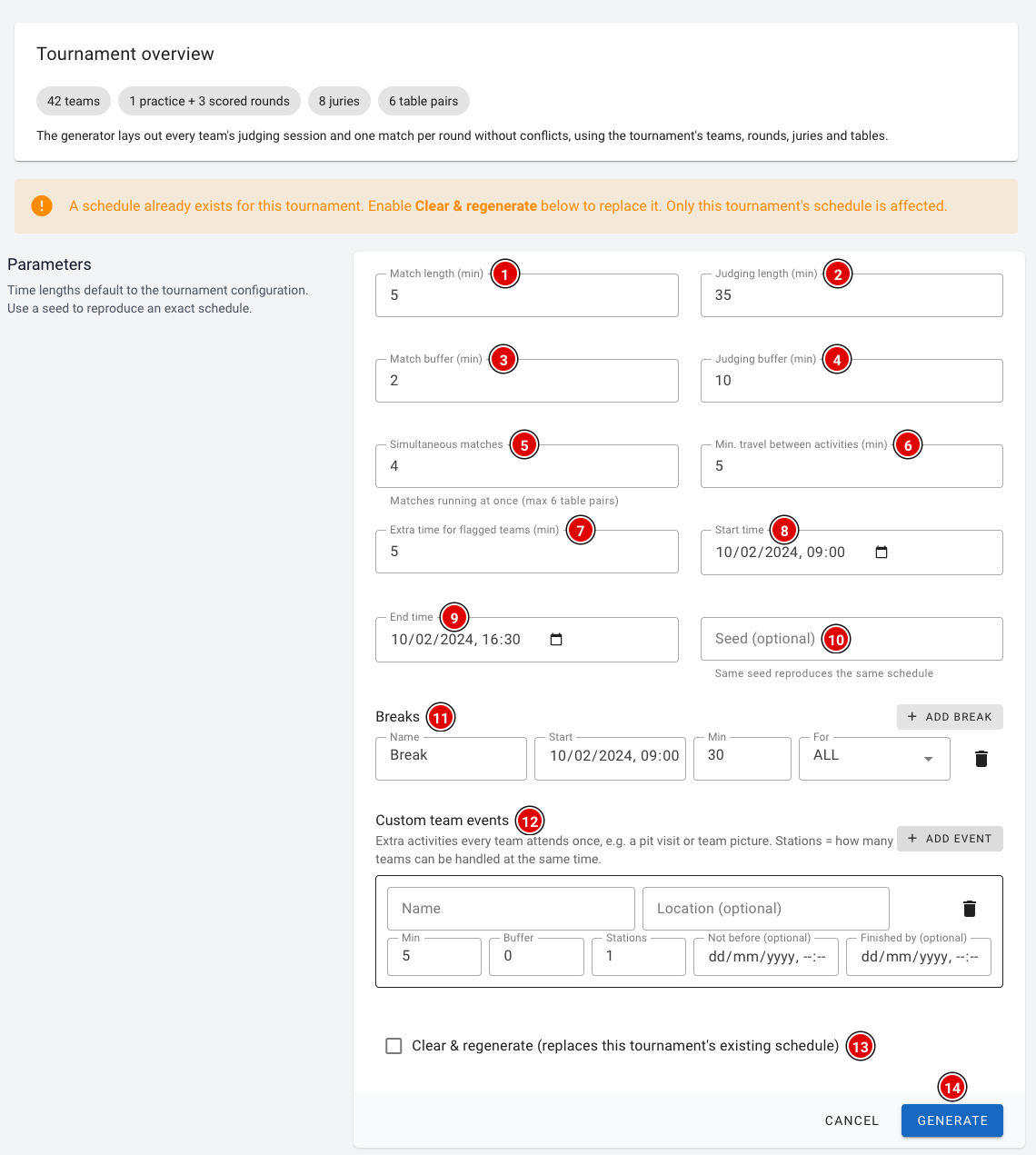
At the top you see an overview of what goes into the schedule: the number of teams, rounds, juries and table pairs. Not right? Then first adjust the teams, rounds, juries or tables.
The times are taken from the tournament by default. You can change them here:
Match length (1): The length of a robot match in minutes.
Judging length (2): The length of a judging session in minutes.
Match buffer (3): Extra minutes between two matches at the same table, for example to reset the table.
Judging buffer (4): Extra minutes between two judging sessions, for example for the judges to discuss and fill in the forms.
Simultaneous matches (5): How many matches are played at the same time. This can be at most the number of table pairs.
Min. travel between activities (6): The minimum number of minutes a team has between two items, to walk from the judges to the table (or the other way round).
Extra time for flagged teams (7): How many extra minutes teams get that have Needs extra time switched on.
Start time (8) and End time (9): The start and end of the schedule.
Seed (10): Optional. With the same seed you get exactly the same schedule. Leave this empty if you don't know what to do with it.
Breaks (11): Click Add break to add a break, such as lunch or the opening ceremony. Fill in the name, the start and the duration, and choose under For who the break applies to: ALL (everyone), TABLE (only the robot matches) or JURY (only the judges).
Custom team events (12): Click Add event for an extra activity every team has to attend once, for example a pit visit or the team photo. Fill in the name, an optional location, the duration, the buffer and the number of Stations (how many teams can be there at the same time). Optionally you specify from when until when the activity takes place.
Clear & regenerate (13): Is there already a schedule? Tick this box to replace the existing schedule. Only this tournament's schedule is replaced.
Click Generate (14). After a few seconds you return to the schedule overview with the new schedule. Couldn't all teams be scheduled? Then you end up on the Check schedule page (see below).
As soon as scores or judging forms have been entered, a new schedule can no longer be generated, because those results are linked to the schedule. You then see this message:
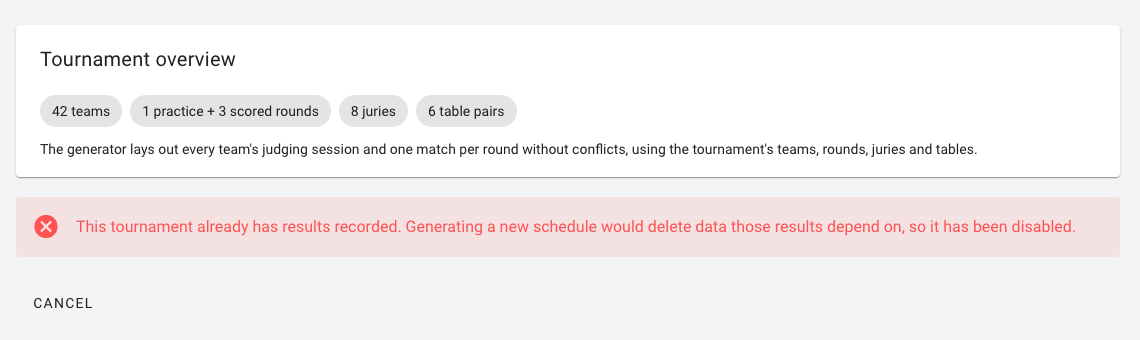
Still want to change something? Then adjust the schedule by hand in the schedule overview.
Checking the schedule
Check schedule shows how many matches and judging sessions each team has. Teams with something missing are highlighted.
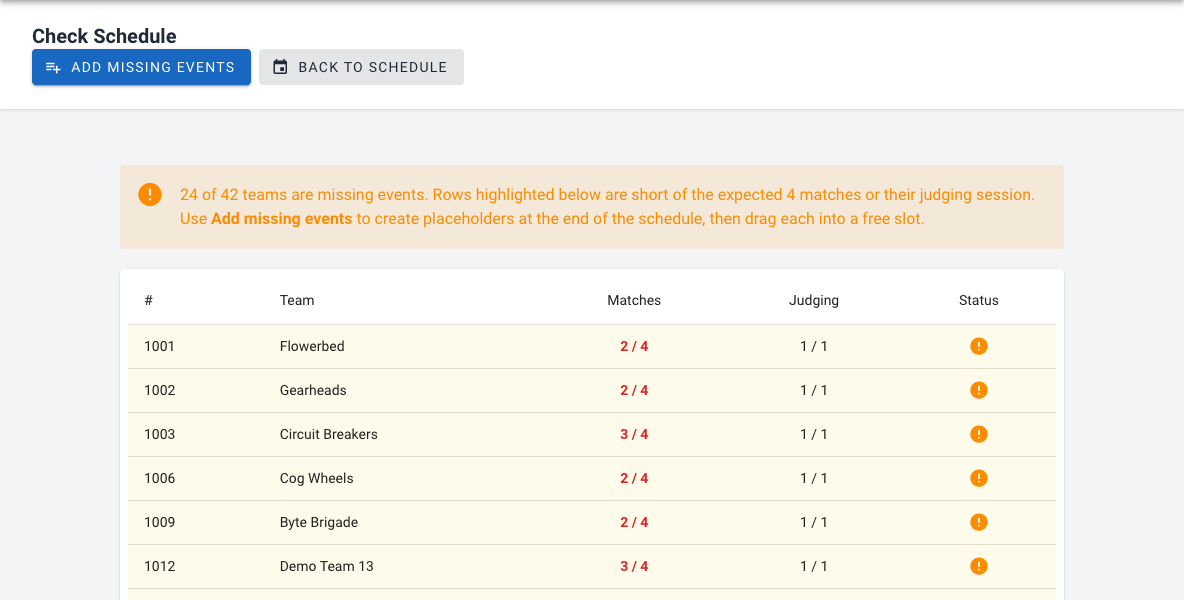
- Click Add missing events to create a block at the end of the schedule for every missing item.
- Go back to the schedule and drag these blocks to a free spot.
Adding an item yourself
Use Add schedule item to add a single item. First choose the type:
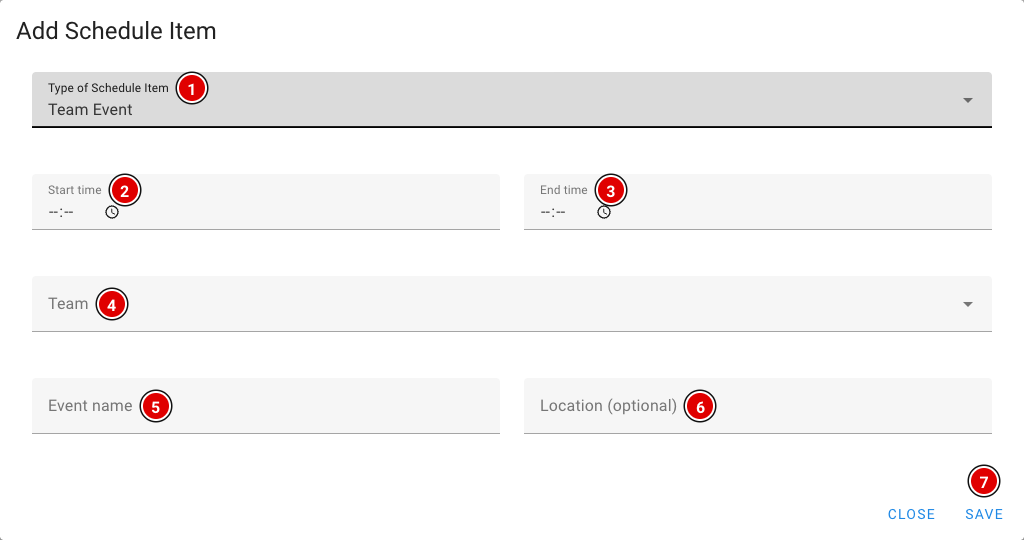
- Info Block: A general block, such as the opening ceremony, lunch or the awards ceremony. You enter a type, a text and a category (Jury, Table or All), and choose whether the end time is shown.
- Jury Session: A judging session. You choose the jury and the team.
- Robot Match: A robot match. You choose the round, the table and the team.
- Team Event: Another activity for a team, such as a pit visit. You choose the team and fill in the name and optionally the location.
For each type, fill in the Start time and End time and click Save.
Importing a schedule
Created the schedule with an external tool? Then you can import it through Import schedule.
- The import page has a link to the schedule generator at https://koenvanwijk.github.io/fll-schedule/.
- Fill in your event's details there and download the file.
- On the import page, choose Paste JSON and paste the contents of the file, or choose Load from URL and enter the web address of the file.
- Click Import schedule.
The import is a BETA feature and will probably not be developed further. Preferably use the built-in generator. When importing, the rounds (priority), tables and juries must be numbered from 1, or loading will fail.
The schedule for the head referee
https://yourevent.flltools.nl/schedule/headReferee has an overview especially for the head referee: for each time you see which team should be at which table. A dash means the table is free. Replace "yourevent" with the name of your event.
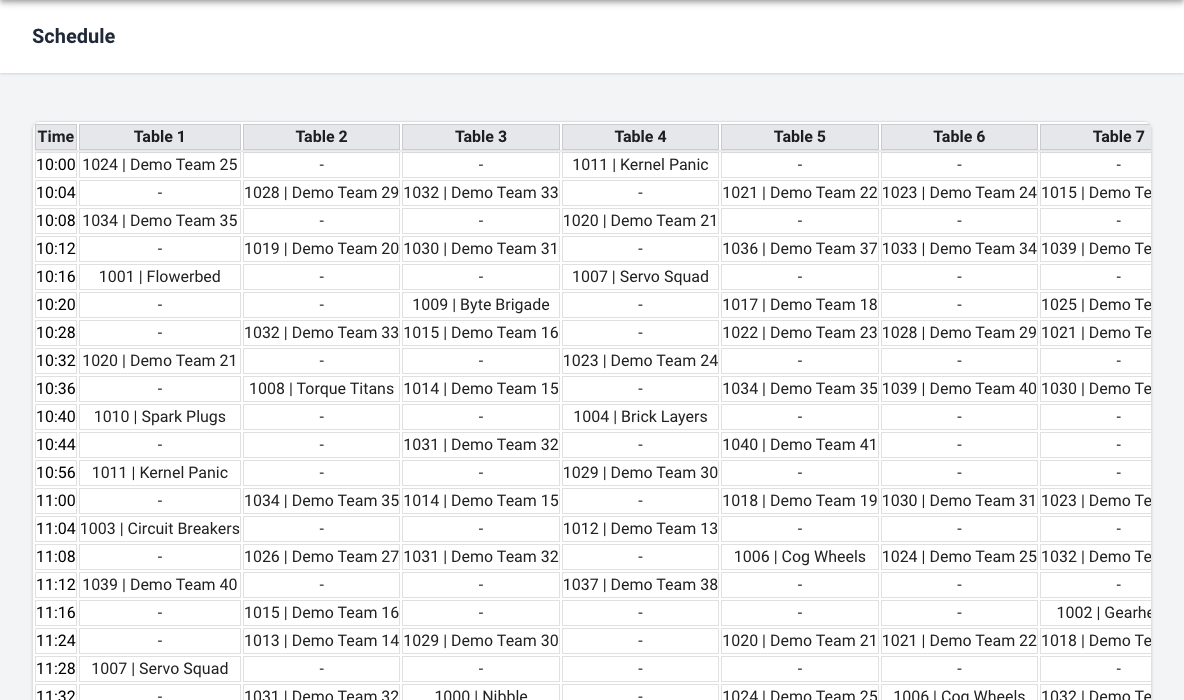
The public schedule
Teams, coaches and visitors can view the schedule through Schedule in the menu of the public website, at https://yourevent.flltools.nl/home/schedule. Nothing can be changed there. In addition, each team sees its own day schedule on its team page (see Team features).
A few days before the event
The steps to take once all team names are final.
Updating a team
If a team passes on a name change or other details, you can update them yourself. All of a team's information is on one team page.
Opening the team page
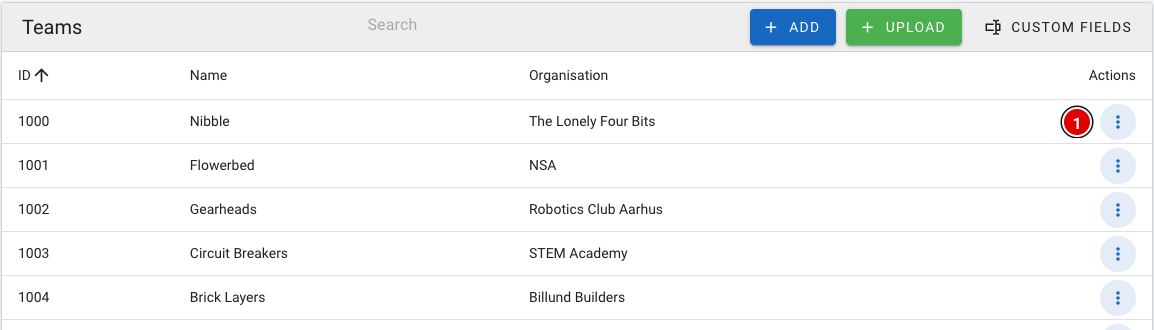
- Go to the Teams page through the menu.
- At the end of each row are 3 dots (1); click them.
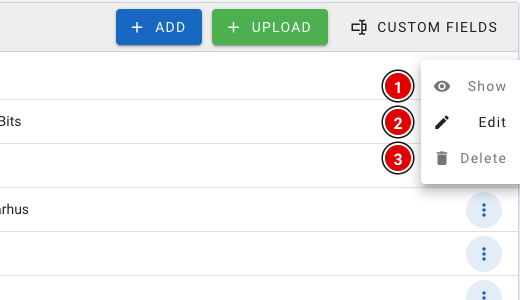
The parts of the team page
The team page is divided into blocks. Which blocks you see depends on the modules that are switched on (see the page Settings and modules).
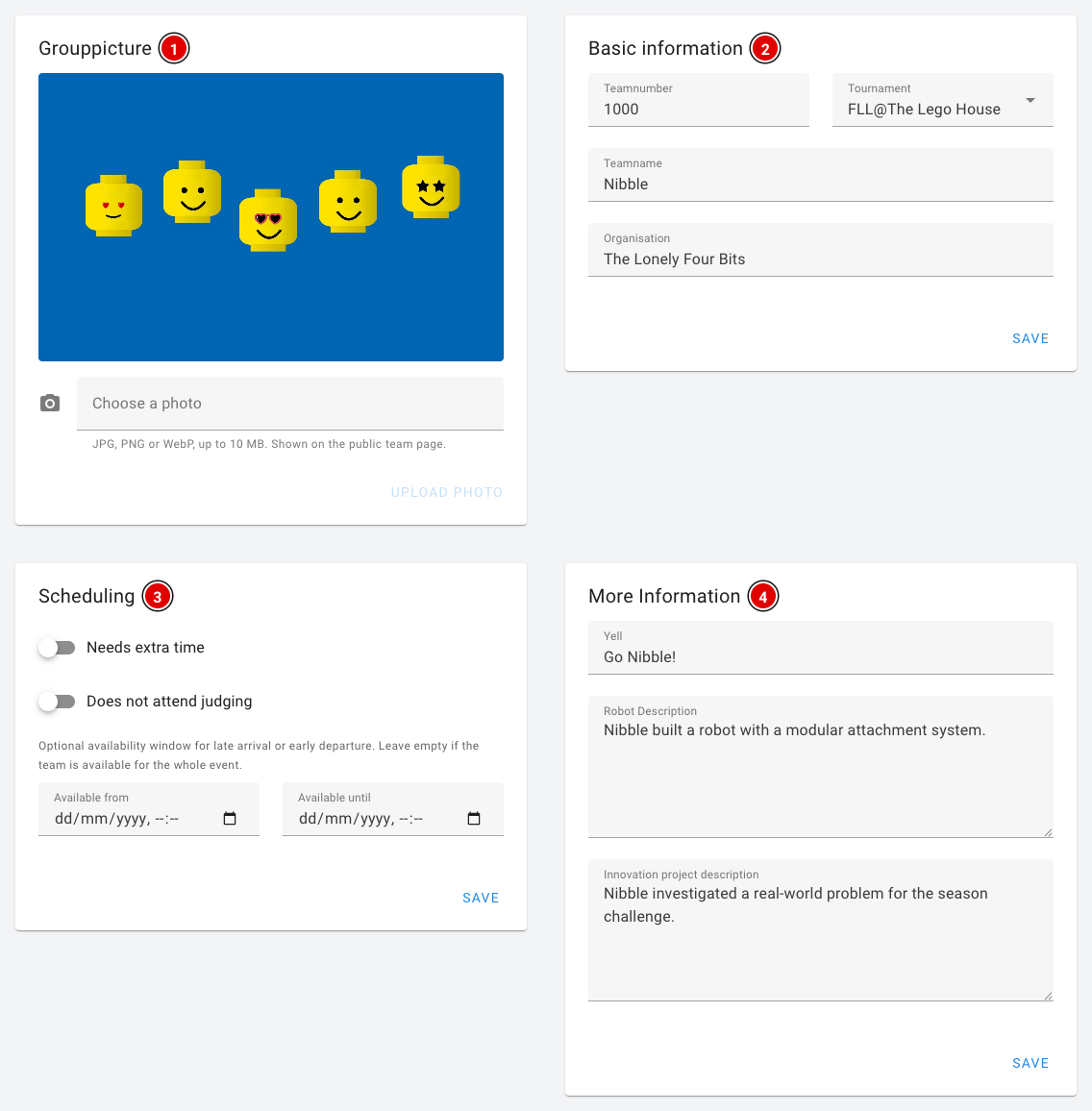
Grouppicture (1): The team photo. This block is visible when the Advanced Team Management module is on. Use Choose a photo and Upload photo to put a photo on the team page. The photo is saved straight away, separately from the Save buttons. See the page Uploading team photos.
Basic information (2): The Teamnumber, the Tournament the team belongs to, the Teamname and the Organisation (school, club or organisation). The team number must be a unique number, without letters.
Scheduling (3): Wishes for the schedule generator. This block is visible when the Schedule module is on.
- Needs extra time: the team gets extra time in the schedule.
- Does not attend judging: the team doesn't take part in judging and gets no judging session.
- Available from / Available until: fill these in if a team arrives later or has to leave earlier. Leave them empty if the team is present all day.
These wishes are only used when you (re)generate the schedule. See the page Creating the day schedule.
More Information (4): The Yell (team cheer), a Robot Description and an Innovation project description. These texts appear on the public team page (see Team features).
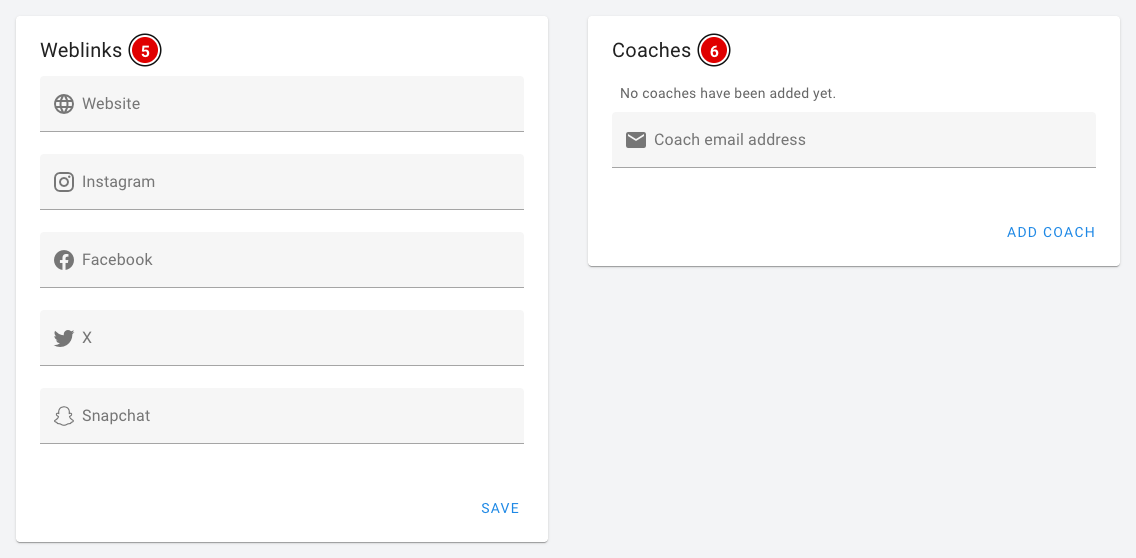
Weblinks (5): The team's website and social media: Website, Instagram, Facebook, X and Snapchat.
Coaches (6): This is where you link a coach to the team. Enter the coach's e-mail address and click Add coach. The coach then receives an e-mail:
- Doesn't the coach have an account yet? Then an account is created and the coach receives a link to set their own password.
- Does the coach already have an account? Then the coach receives a message that they have been added to an additional team.
- The bin icon next to a coach removes the link again. The coach's account remains.
The coach can then update the team details themselves. See the heading The coach portal on the page Team features.
Custom information: If you have created your own team fields (for example a pit number), a Custom information block also appears, in which you fill them in per team. How to create these fields is explained on the page Entering teams into the system.
Saving
- Click Save to save the changes. Each block has its own Save button, but they all save the whole page. So you can change several blocks first and then press Save once.
- A message appears at the bottom of the screen when saving has succeeded.
Uploading team photos
When the Advanced Team Management module is on, every team can have a team photo. The photo appears on the public team page, so parents, visitors and other teams can see who is behind a team name. As the organiser you can upload the photo, but coaches can also do it themselves through the coach portal.
Uploading a team photo
- Go to the Teams page through the menu and open the team using the 3 dots and Show or Edit (see the page Updating a team).
- In the Grouppicture block, click Choose a photo (1) and select the photo on your computer.
- Click Upload photo (2).
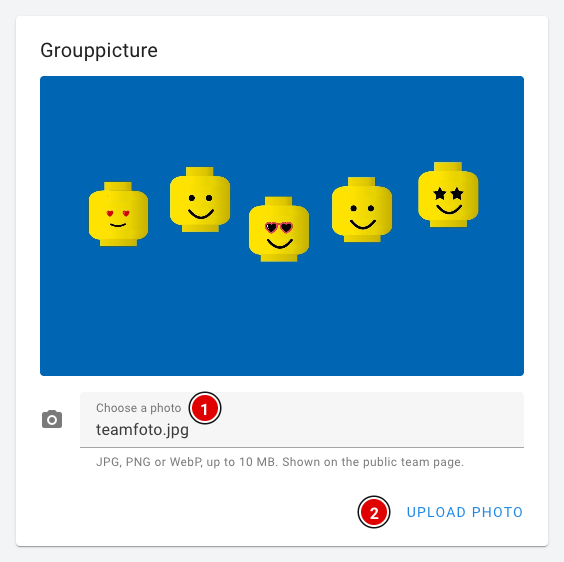
The photo is saved straight away, so you don't need to press any of the Save buttons on the team page. The message The team photo has been updated. appears at the bottom of the screen.
You can upload a JPG, PNG or WebP photo of up to 10 MB. A landscape photo works best: the photo is cropped to fill the whole block, and with a portrait photo heads are easily cut off.
Replacing or removing a team photo
After uploading, the new photo is shown in the block.
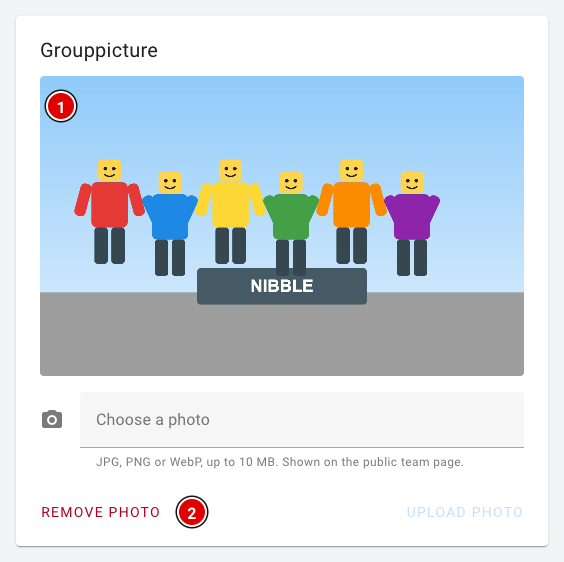
- The team photo (1): This is how the photo looks now. Want a different photo? Simply upload a new one the same way. The old photo is then replaced and deleted.
- Remove photo (2) removes the uploaded photo. The team page then shows the default image again, or no photo at all if there isn't one. This button only appears when a photo has been uploaded.
The team photo on the public team page
The team photo (1) is shown at the top of the team information on the public team page, above the team number, the team name and the yell. Anyone can view this page without logging in. You can read more about the team page on the page Team features.
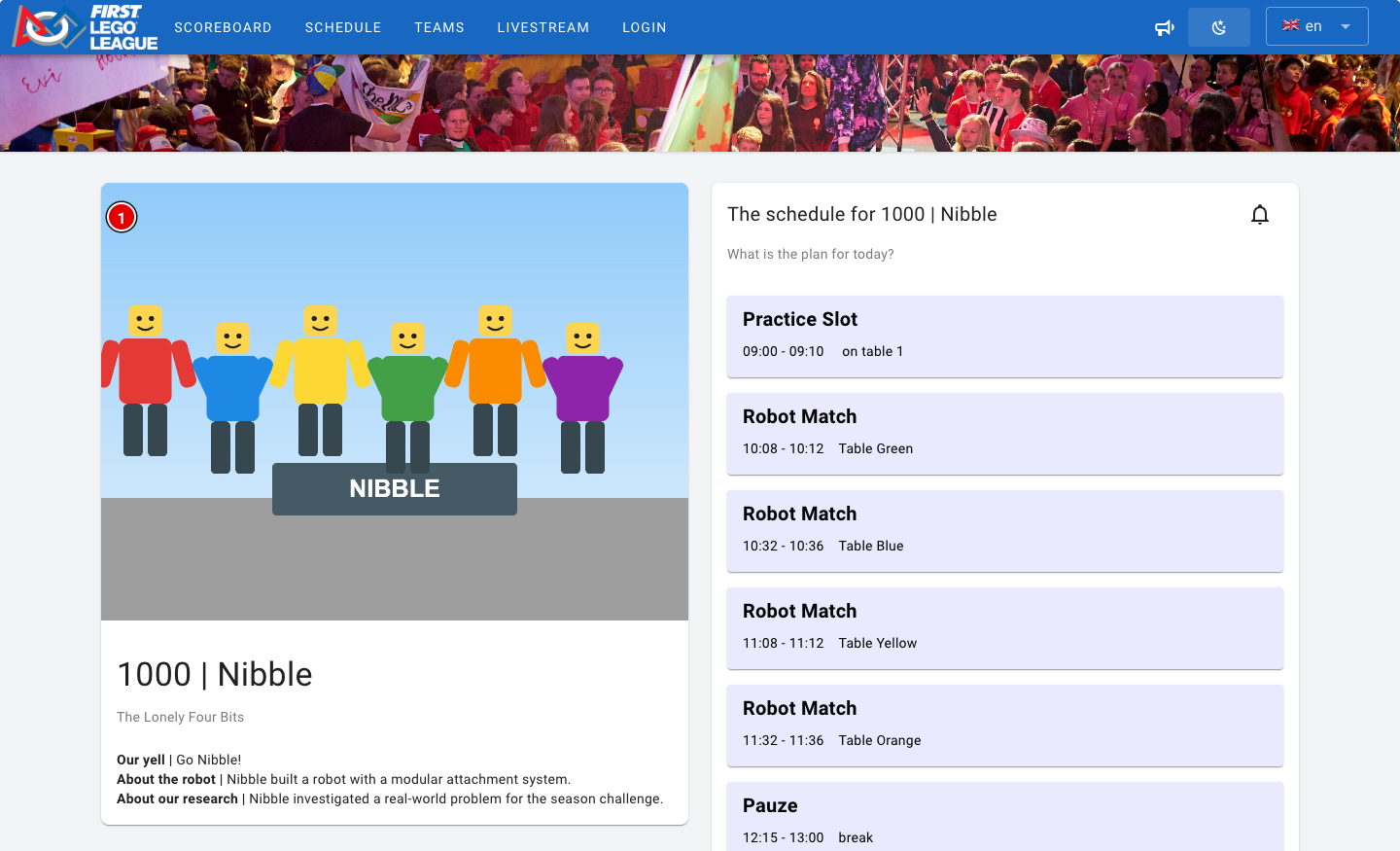
The team photo is visible to everyone. Teams often consist of minors, so only upload a photo if the team (and the parents) have given permission.
Coaches upload their own team photo
If you have linked a coach to the team (see Coaches on the page Updating a team), the coach can take care of the team photo themselves. That way you don't have to collect all the photos.
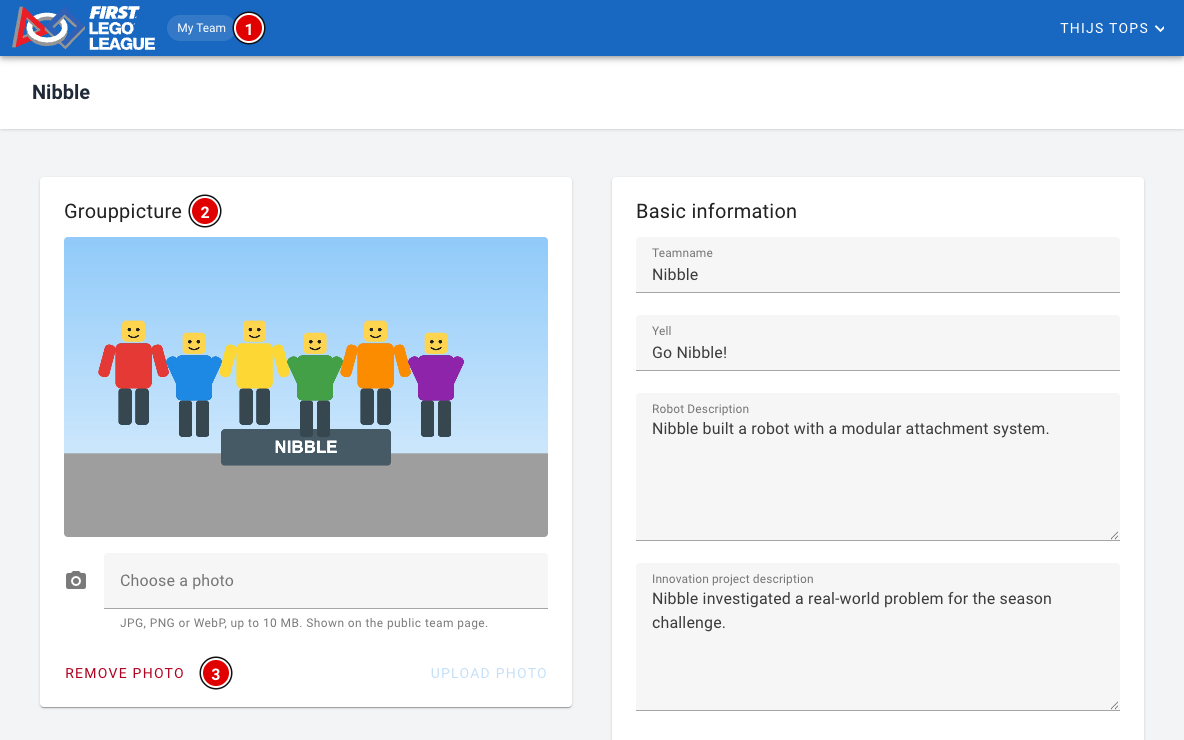
- The coach logs in and reaches their team's page through My Team (1).
- In the Grouppicture (2) block, uploading works exactly as described above: Choose a photo and then Upload photo.
- With Remove photo (3) the coach can remove the photo again.
If the coach uploads a new photo, it replaces any photo you had already uploaded, and the other way round. A team always has just one team photo.
Creating the exports
The available exports can differ per event. For special requests, there may be more or fewer options on the page. The example below assumes a standard regional final.
All exports are created with the data in FLLTools at that moment: team names, team numbers, the schedule and the results. So only create the exports once the teams and the schedule are complete.
The exports page
Go through Setup to Exports.
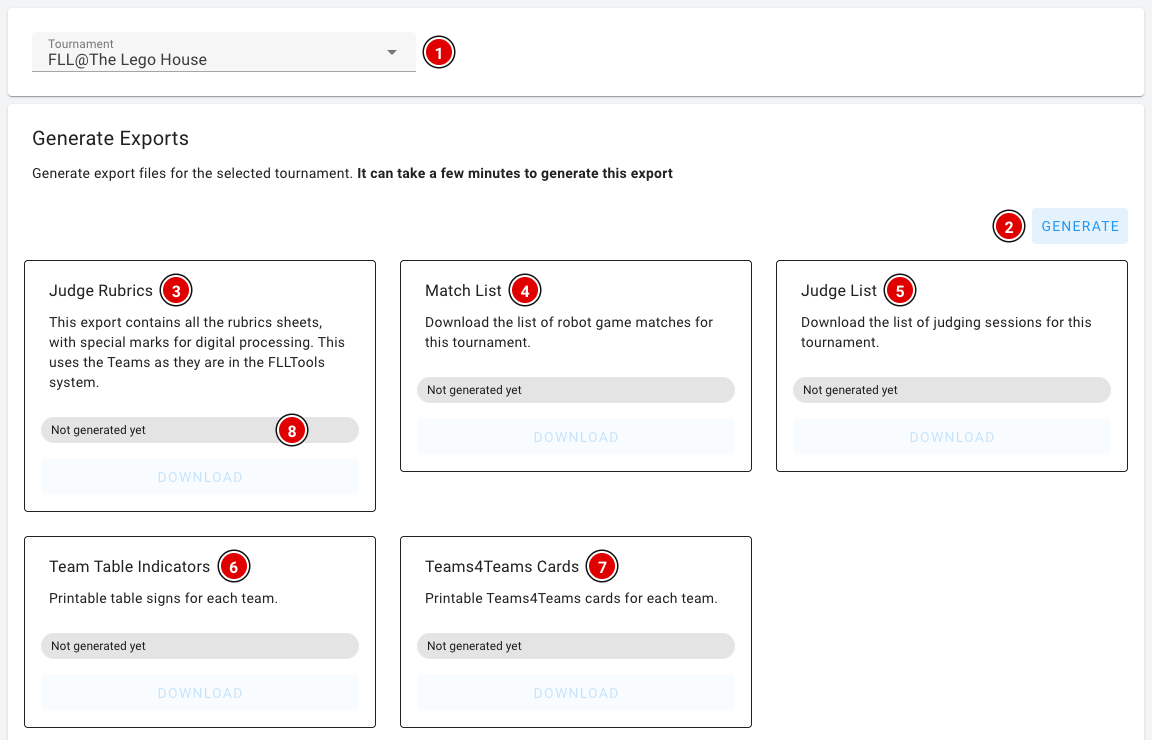
- Choose the Tournament (1) at the top. By default this is the tournament you are working in at that moment. All exports on this page use this tournament.
- Click Generate (2). The PDFs are then created in the background. This can take a few minutes.
- Each card shows the status (8): Not generated yet, Generating… or Ready with the time the file was created. As soon as a file is ready, the Download button on that card becomes active. You don't need to refresh the page.
Changed something after generating, such as a team name or the schedule? Click Generate again. The existing files are then replaced by new ones.
Explanation of the exports:
- Judge Rubrics (3): All judging forms (rubrics). The team names and team numbers are already filled in. If you use the Judge Forms Scanner, these forms are required, because the scanner uses the markers on the forms.
- Match List (4): An overview for the referees showing when each team should be at which table.
- Judge List (5): An overview of the times when each team has to appear before which jury.
- Team Table Indicators (6): Name cards for the tables: one A4 page (landscape) per team with the team number, team name and organisation.
- Teams4Teams Cards (7): Printable Teams4Teams cards for every team.
Judging results and OJS
Below the generated exports are two more cards. These files are created immediately when you click them; you don't need to press Generate first.
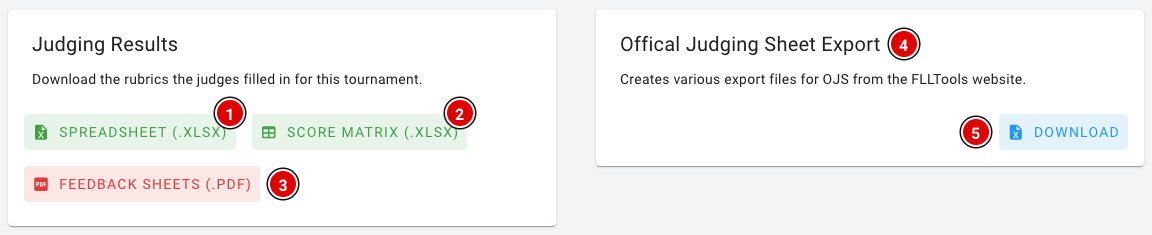
Judging Results: The judging forms the judges filled in digitally (see Judges' briefing). There are three downloads:
- Spreadsheet (.xlsx) (1): All completed rubrics in one Excel file, with one line per team, rubric and judge, including the scores and the feedback.
- Score matrix (.xlsx) (2): An Excel file with one tab per rubric. Each row is a team, each column an assessment criterion, containing the chosen score (1 to 4).
- Feedback sheets (.pdf) (3): The completed rubrics as a PDF, one form per page, sorted by team number. You can hand these to the teams at the end of the day.
Official Judging Sheet Export (4): Download (5) gives you an Excel file with all robot game scores and the Gracious Professionalism scores. You create this export at the end of the competition day. How to put this data into OJS is explained in the Judges' deliberation chapter on the page FLLTools export to OJS.
Your own PDFs
When the Custom PDF Templates module is switched on, you also see the Custom PDF Templates block at the bottom of the page. With it you create, for example, certificates or badges with your own design. This is explained on the page Custom PDF templates.
The PDF exports can't be customised. Want an export with your own design? Use the custom PDF templates, or contact thijs@flltools.nl.
Custom PDF templates
With custom PDF templates you create documents with your own design, such as certificates, badges or name cards. You upload a background (for example the design of a certificate) and place data on it, such as the team name and team number. FLLTools then creates a PDF in one go with a page for every team.
This feature is part of the Custom PDF Templates module. Don't see the parts on this page? Switch the module on through Setup and Settings (see the page Settings and modules). The feature is still in BETA.
The template overview
You reach the templates through Setup, Exports and then the Manage Templates button in the Custom PDF Templates block.
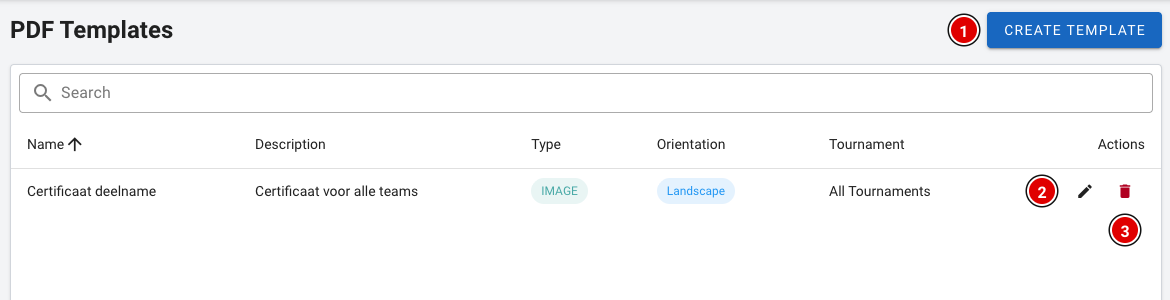
- Create Template (1) creates a new template.
- The pencil (2) changes an existing template.
- The bin (3) deletes a template. You are asked to confirm this first.
Creating a template
Click Create Template. First fill in the template details:
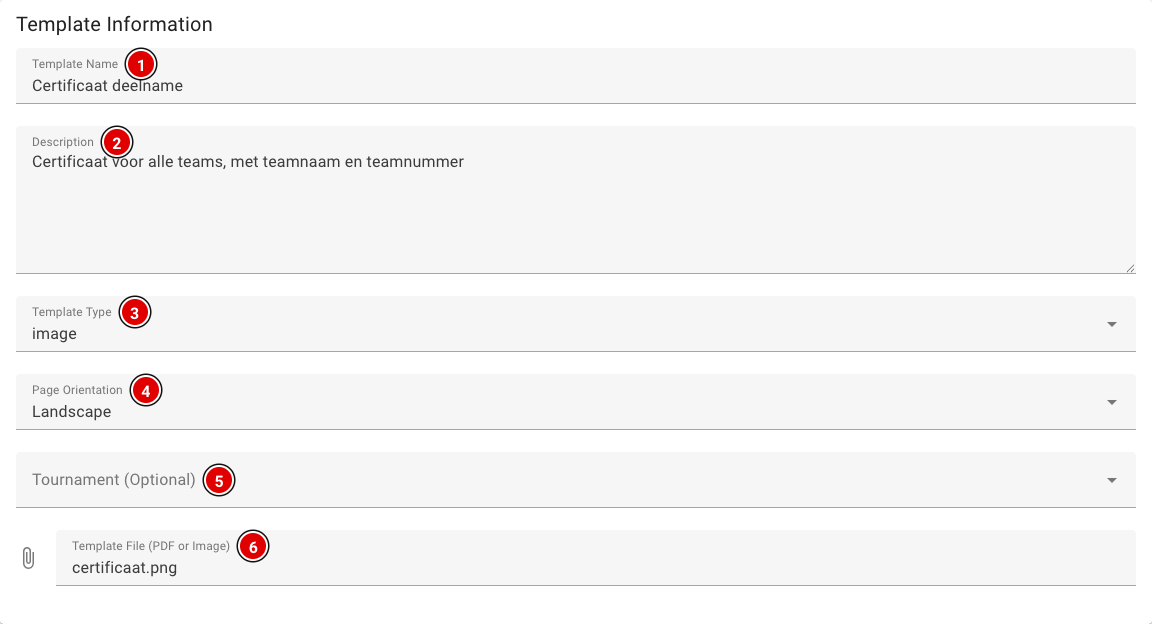
Template Name (1): The name of the template, for example "Participation certificate".
Description (2): A short description. This field is optional.
Template Type (3): Filled in automatically based on the file you upload (image or pdf).
Page Orientation (4): Choose Portrait or Landscape. The document is always created on A4.
Tournament (Optional) (5): Link the template to one tournament. If you leave this empty, you can use the template for all tournaments.
Template File (6): The background of the document, at most 10 MB.
Use an image (PNG or JPG) in A4 proportions for the background. Only then will you see the design in the editor and will it come out correctly in the PDF.
Placing data on the background
As soon as you have chosen an image, it appears in the Template Editor.
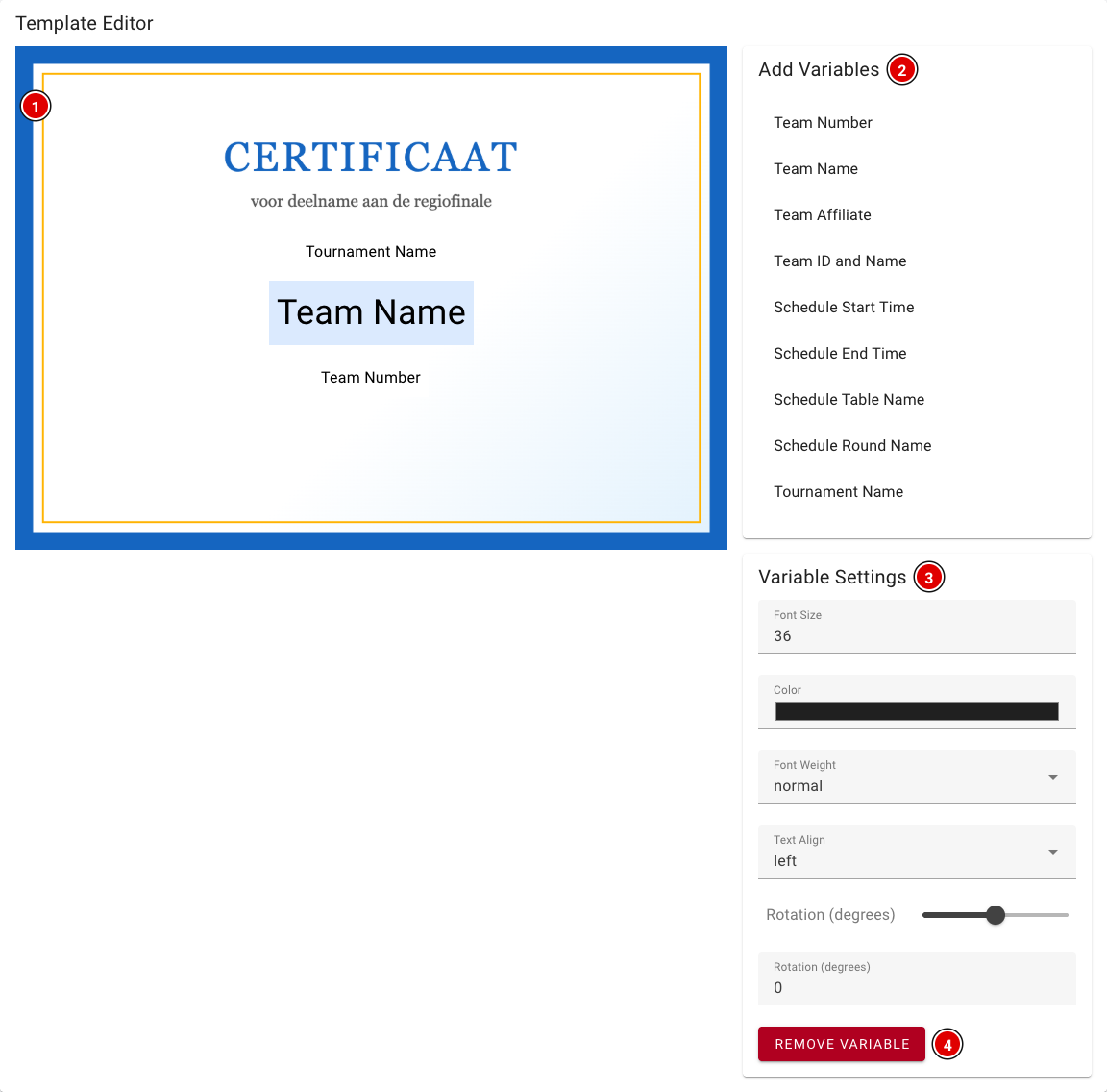
- Preview (1): Shows the background with the placed data. Drag an item with the mouse to where it should go.
- Add Variables (2): Click an item to add it. You can choose from:
- Team Number, Team Name, Team Affiliate (organisation) and Team ID and Name (for example "042 | Nibble")
- Schedule Start Time, Schedule End Time, Schedule Table Name and Schedule Round Name: the time, table number and round of one of the team's robot matches
- Tournament Name
- Variable Settings (3): Click a placed item to select it. You can then change the Font Size, Color, Font Weight (normal or bold), Text Align and Rotation here.
- Remove Variable (4): Removes the selected item.
The schedule data is filled in with one robot match of the team. Want to show all matches per team? Use the Match List on the exports page.
Click Create Template at the bottom to save the template. You change an existing template in the same way; then click Update Template. If you don't upload a new file while editing, the current background is kept.
Creating the PDF
You create the PDFs on the exports page, in the Custom PDF Templates block.
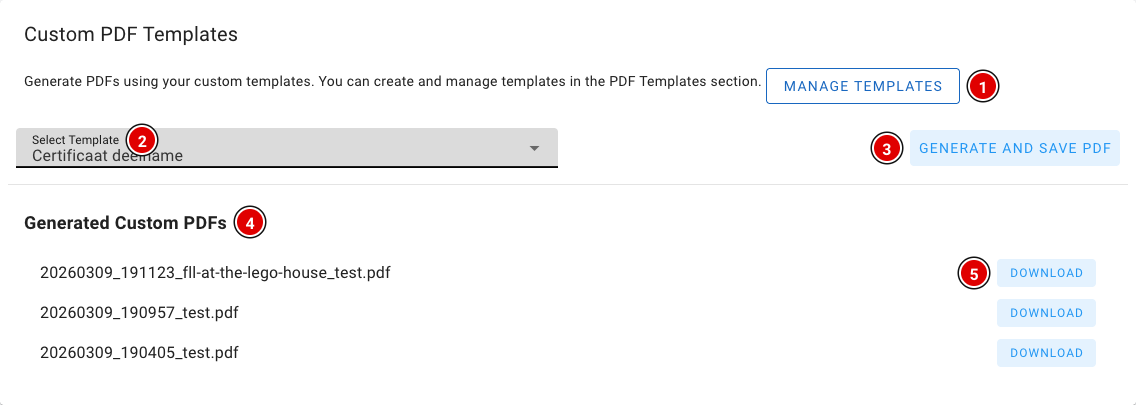
- Check at the top of the exports page that the right tournament is selected.
- Manage Templates (1) takes you to the template overview.
- Choose the template in Select Template (2).
- Click Generate and Save PDF (3). FLLTools creates a PDF with a page for every team in the tournament.
- The created files are listed under Generated Custom PDFs (4), with the date and time in the file name. Click Download (5) to get a file.
Have an idea for an export that would be useful more often? Let us know at thijs@flltools.nl, and we'll see whether it can become a standard part of FLLTools.
How the timer works
FLLTools includes a match timer for the robot game. The timer counts down the 2 minutes and 30 seconds of a match and plays the familiar match sounds. You can show the timer on several screens at once and control it from one place, or through the API.
Test this feature beforehand on the computers and screens you will use on competition day, including the sound. Some browsers occasionally give errors. Running into something? Contact thijs@flltools.nl.
The timer screen
- On the computer connected to the audience screen, go to https://yourevent.flltools.nl/timer. This page is the timer itself. You don't need to log in for it.
- Put the browser in full-screen mode (usually with the F11 key).
- Leave this page open for the whole match session. The timer screen itself has no buttons; you control it from somewhere else.

All timer screens are synchronised with the server. So it doesn't matter when a screen was opened or how that computer's clock is set: if you refresh a screen during a match, it immediately picks up the correct time again.
Controlling the timer

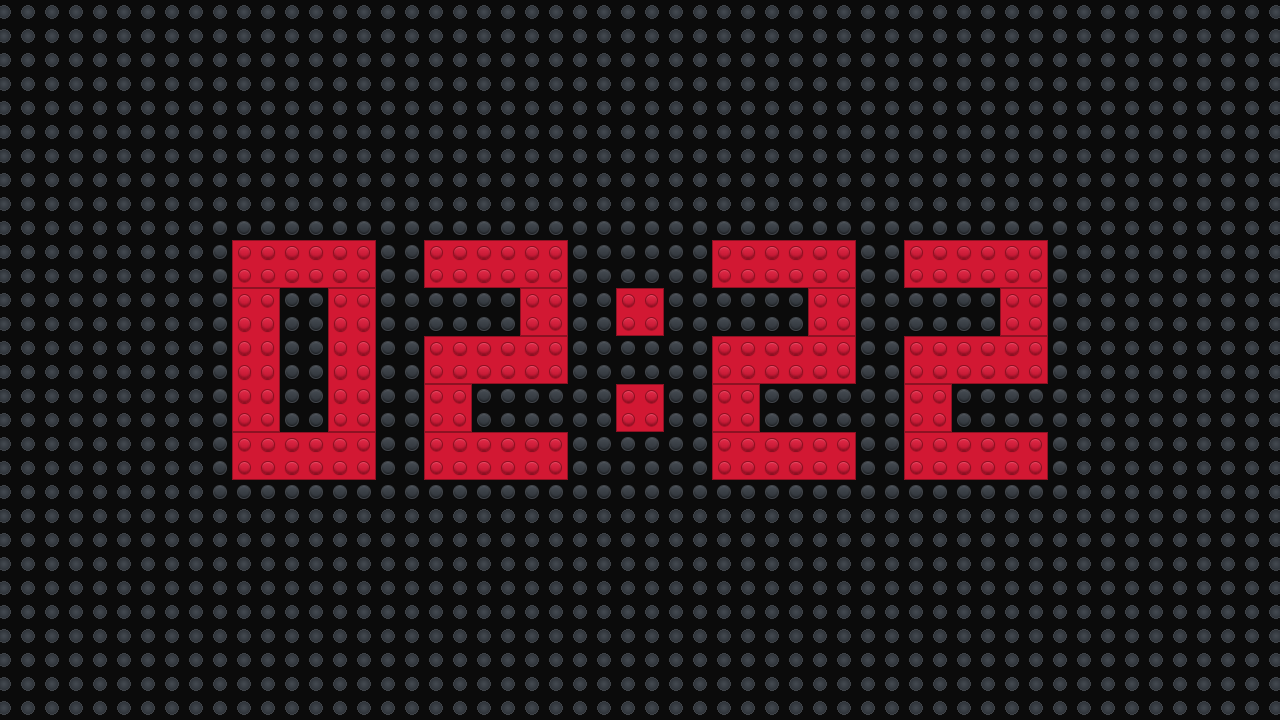
- Start (1): Starts a match. The timer screen first shows 3, 2, 1 and then LEGO, after which the timer starts counting down from 2:30. If the timer was paused, it continues where it left off (again after the countdown).
- End (2): Stops the match and sets the timer back to 2:30.
- Pause (3): Freezes the timer at the current time. Use this if a match has to be interrupted.
- Reset (4): Sets the timer back to 2:30, ready for the next match.

Sounds
The timer plays a sound at the key moments, so nobody has to watch the numbers:
- Start sound: right after 3, 2, 1, LEGO, when the match begins.
- End game: when there are 30 seconds left.
- End sound: when the timer reaches 0:00.
After a match has ended, the timer automatically resets itself to 2:30 after about 10 seconds.
Browsers often only play sound after someone has clicked on the page. So after opening the timer screen, click on the page once, and do a sound check before the first match. Also make sure that computer's speakers are on.
The timer on an info screen
Want to show both the timer and the teams of that table pair at the competition tables? Use the Timer + Table Pair Screen info screen. This timer is synchronised with the timer screen and is controlled with the same buttons. How to create an info screen is explained on the page Info screens.
Control through the API
The timer can also be controlled by another system, for example a physical start button. For this you create an API token with the result.create permission. The endpoints (start, pause, end, reset and toggle) are in the API documentation, through Setup and API Docs, under the Timer heading. Want to use this and need help? Contact thijs@flltools.nl.
Tips
- Switch off sleep mode and the screensaver on the computer with the timer screen, so the timer doesn't disappear halfway through a match.
- Does a screen seem out of sync? Refresh the screen, or press Reset to set everything back to 2:30.
Info screens
With info screens you show on TVs and projectors in the venue what's going on: which team is at a table, who is with the judges, the scoreboard standings and more. You set up a screen once and then open it on a computer connected to the screen. The screen updates itself automatically.
Info screens are part of the Info Screen Module. Don't see the button in the menu? Switch the module on through Setup → Settings (see the page Settings and modules).
Types of info screens
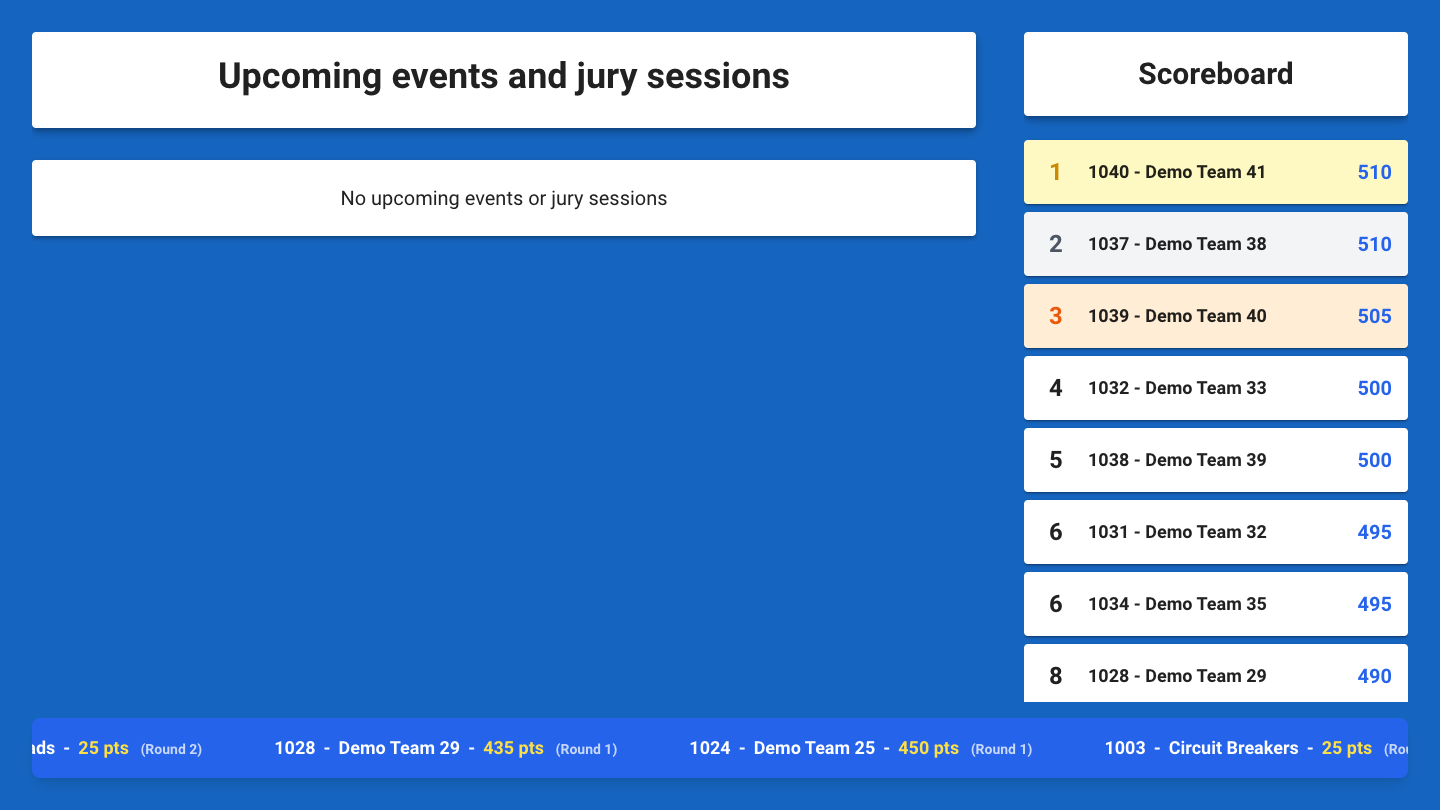
- General Info: an overview for the main hall. On the left the upcoming items and judging sessions, on the right the scoreboard and at the bottom a scrolling bar with the latest scores.
- Table Screen: for one competition table. Shows which team is playing now and who comes next, with the times.
- Table Pair Screen: the same, but for a table pair side by side.
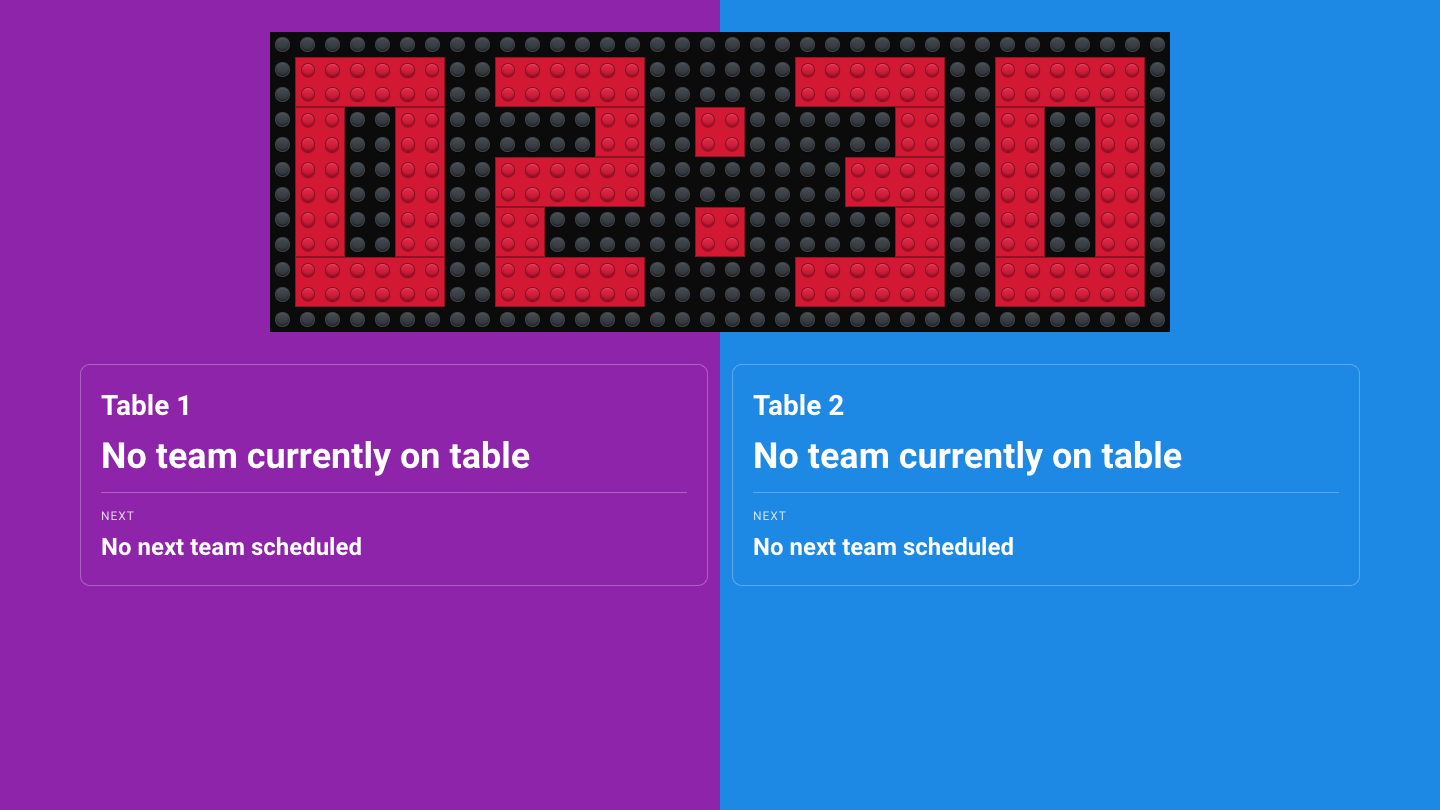
- Timer + Table Pair Screen: a table pair with the match timer above it. Handy when one screen at the field has to show both the timer and the teams.
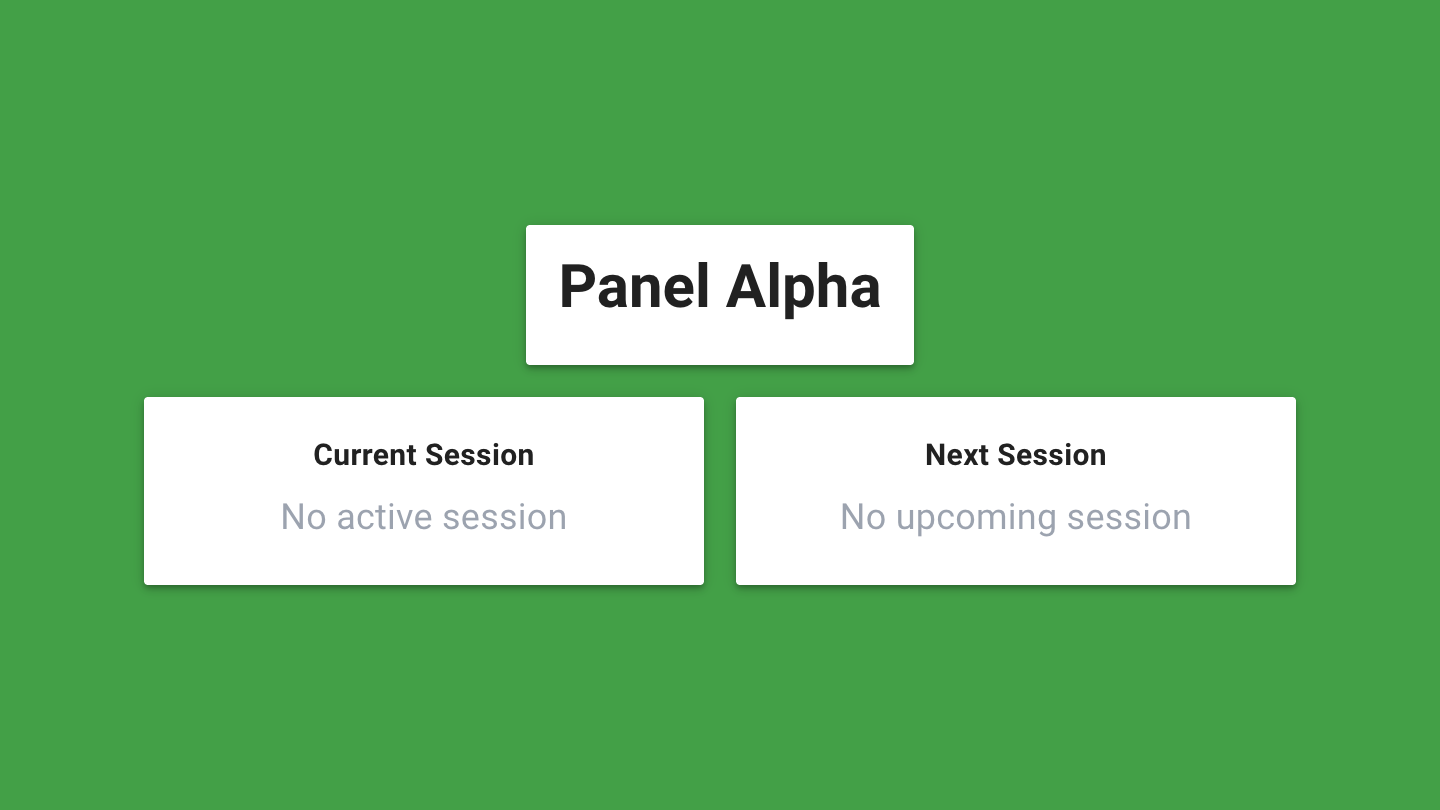
- Jury Screen: for one judging room. Shows the current and the next session. Ideal next to the door of the judging room.
- Stream Overlay: an overlay for the livestream, see the page Livestream.
- Practice Tables: shows for each practice table who is practising now, who comes next and how many slots are still free. See the page Practice tables and reservations.
Creating an info screen
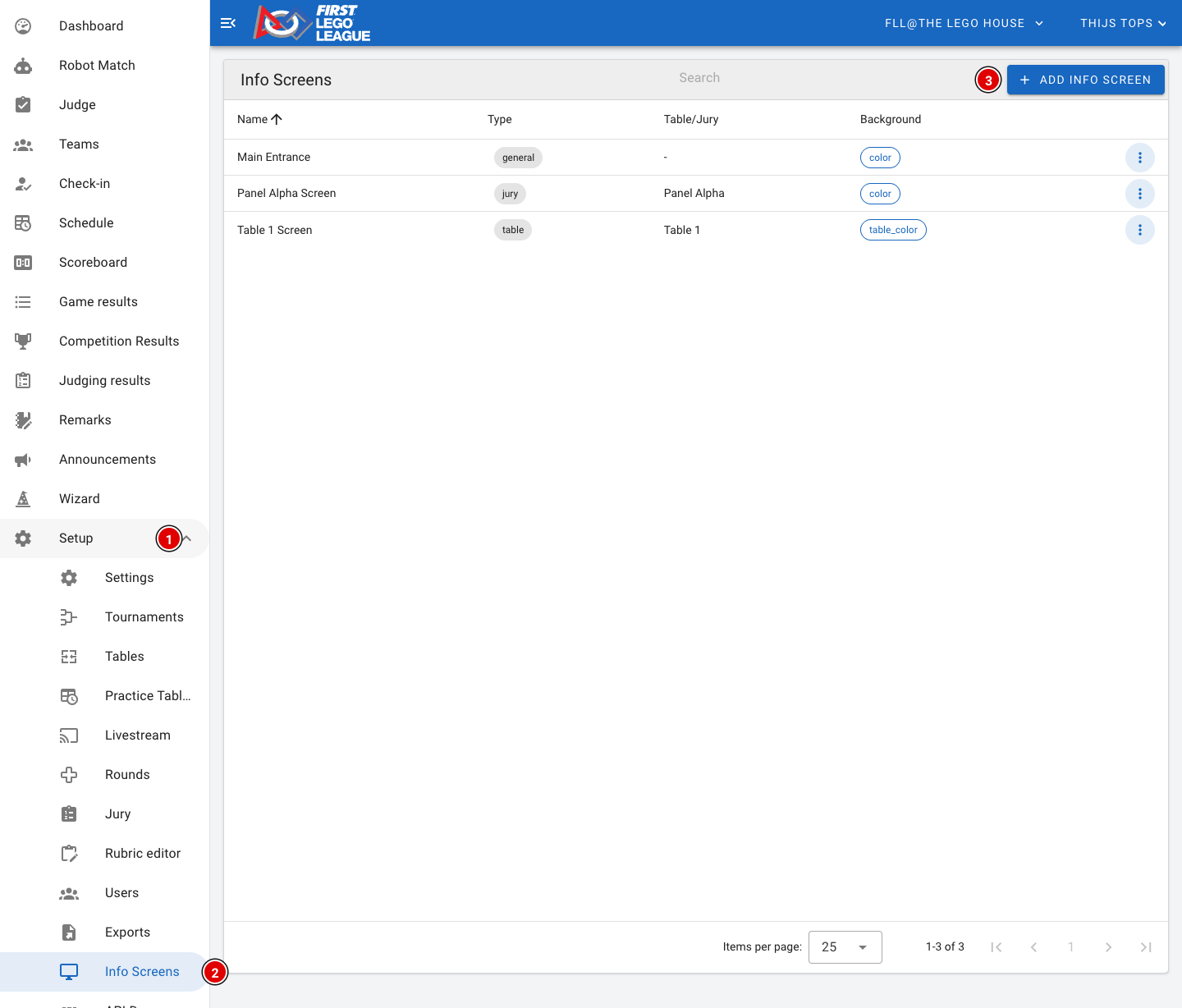
- Go through Setup (1) to Info Screens (2). You see a list of all screens that have already been created.
- Click Add Info Screen (3). A window opens.
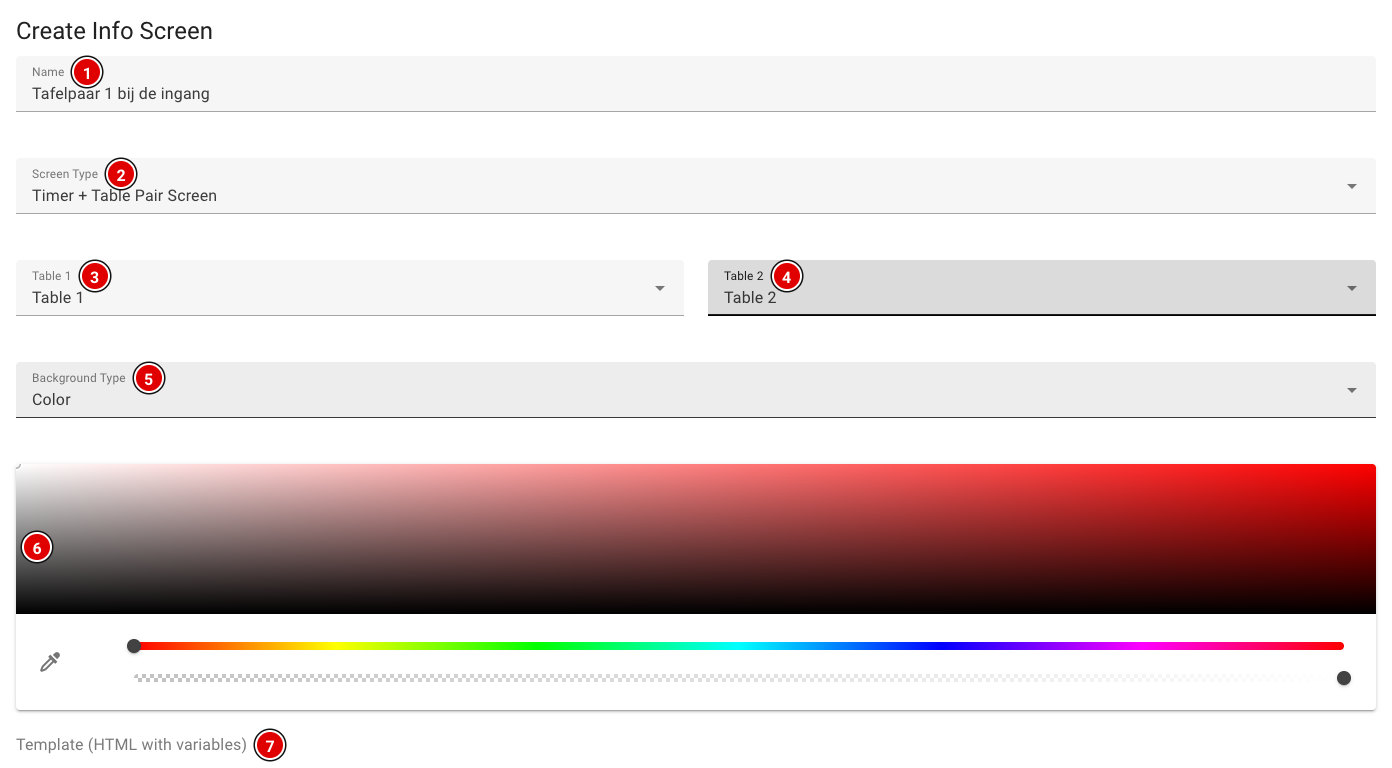
Name (1): A recognisable name, for example the place where the screen hangs ("Table pair 1 at the entrance"). You'll see this name again when you choose the screen on the computer.
Screen Type (2): The type of screen, see the overview above.
Table 1 (3) and Table 2 (4): Only for a (Timer +) Table Pair Screen: choose the two tables. For a Table Screen you choose one table, for a Jury Screen you choose the jury.
Background Type (5): The background of the screen:
- Color: a fixed colour, which you choose with the colour picker (6).
- Image: an image. Enter the web address (URL) of the image.
- Table Color (for table screens): only for table screens. The screen automatically gets the colour of the table; for a table pair each half gets the colour of its own table.
Template (7): Optional. If you leave this empty, the screen uses the default layout. That's fine for most events.
- Click Create at the bottom of the window. The screen appears in the list.
- Through the 3 dots next to a screen you can change it (Edit) or delete it (Delete).
Creating your own layout (template)
Want to decide yourself what's on the screen, for example a welcome text with the current time? Use the template editor at the bottom of the window.
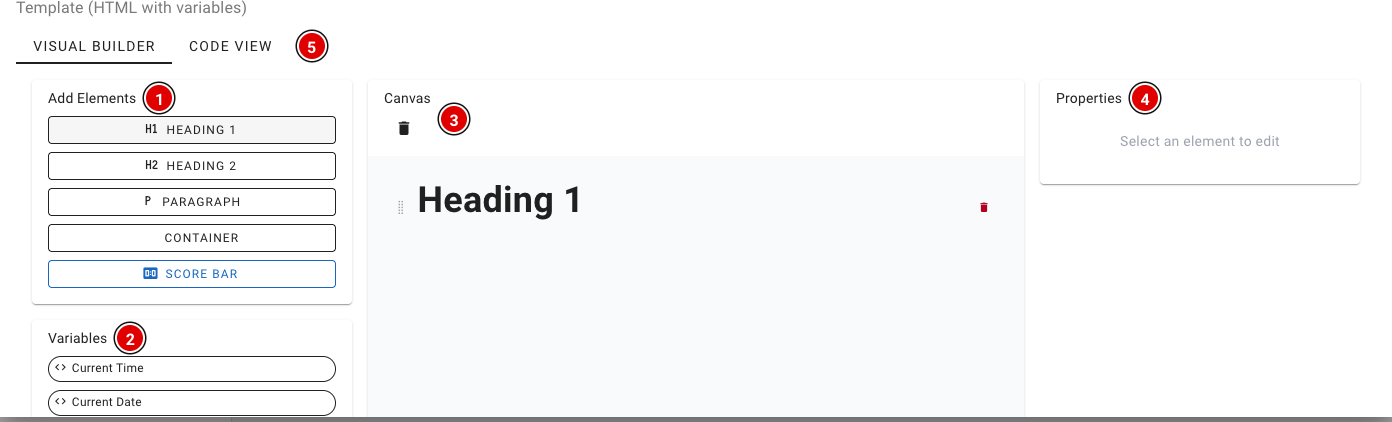
- Add Elements (1) adds headings, text, a container or a score bar (Score Bar).
- Variables (2) contains data that is filled in automatically, such as the current time and date, the next item, the latest score and the leader. Which variables you see depends on the type of screen: a table screen, for example, also has the current and the next team.
- The Canvas (3) shows your layout. You can drag and delete elements.
- Click an element to change it under Properties (4).
- Through Code View (5) you can also edit the HTML directly. This is only needed for advanced users.
Opening the screen on a TV or projector
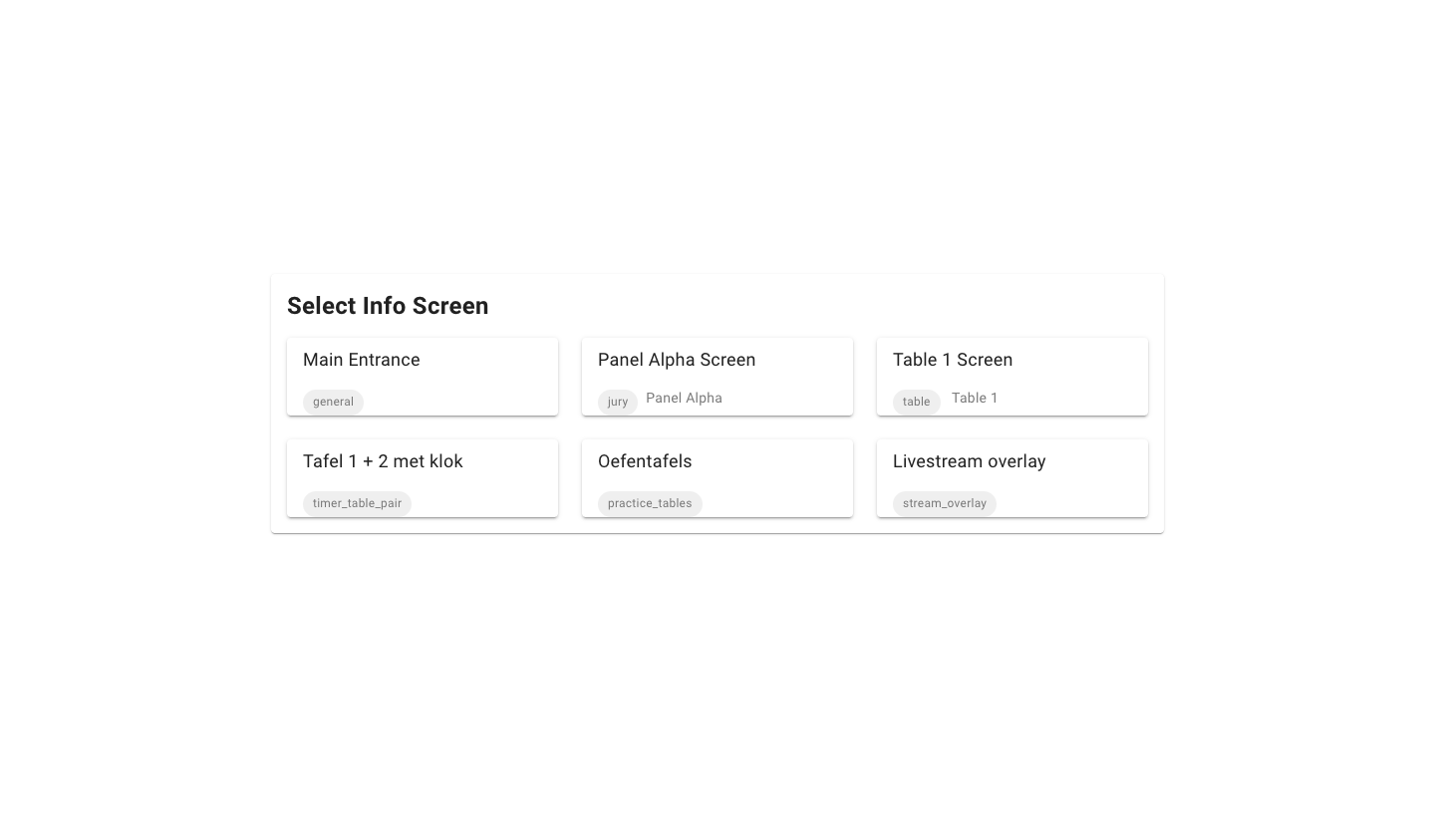
- On the computer connected to the screen, open a browser and go to https://yourevent.flltools.nl/info-screens/select. Replace "yourevent" with the name of your event. No login is needed.
- You see a card for every screen that has been created. Click the screen you want to show.
- Put the browser in full-screen mode (usually the F11 key) and leave the screen on.
The screen refreshes every 30 seconds. When a new score comes in, the screen is updated immediately. So you don't need to touch it all day.
This is what a General Info screen with the default layout looks like:
And a Timer + Table Pair Screen, with the timer above the two tables in their own table colour:
A Jury Screen shows the current and the next session of one jury:
Language of the screen
Info screens are in English by default. Want another language? Add ?lang= with the language code to the address of the screen, for example ?lang=nl for Dutch, ?lang=be for Flemish or ?lang=fr for French.
Tips
- Test the screens beforehand on the computers you will use at the event.
- Switch off sleep mode and the screensaver on the computers, or the screen will go black halfway through the day.
- Is a screen empty? Check that you chose the right table, table pair or jury, and that the day schedule has been loaded. Table and jury screens get their information from the schedule.
Livestream
Broadcasting your event live through Twitch or YouTube? Then you can show the stream on your event's public site. Visitors then don't have to look for the right link themselves.
The livestream is part of the Livestream Module. Switch it on through Setup → Settings if you don't see the Livestream button in the menu (see the page Settings and modules).
Setting up the livestream
- Go through Setup to Livestream.
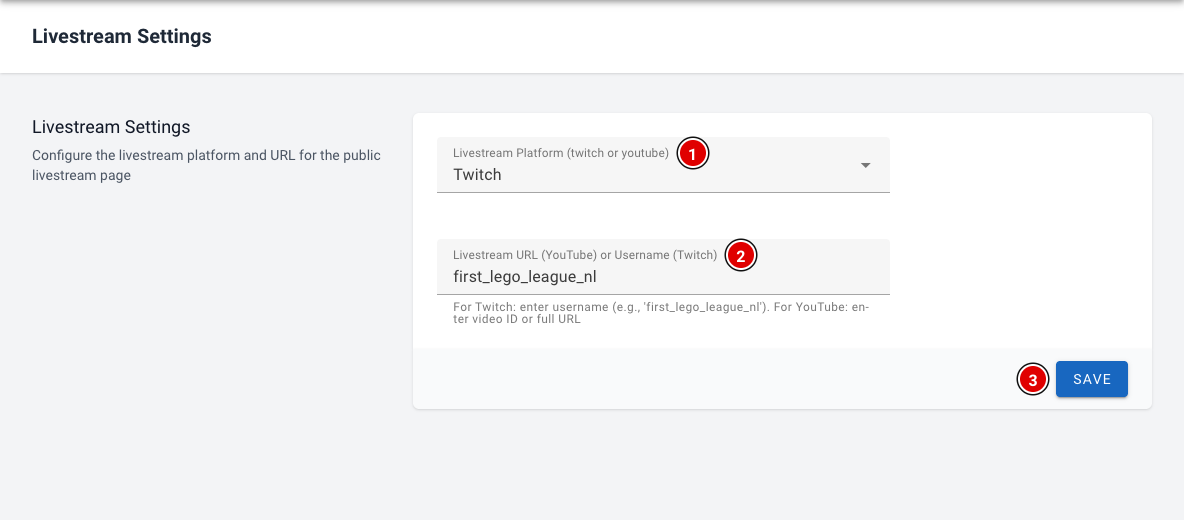
Livestream Platform (1): Choose Twitch or YouTube.
Livestream URL or Username (2):
- For Twitch, enter the channel name, for example first_lego_league_nl.
- For YouTube, enter the video ID, or paste the full address of the video (a youtube.com/watch?v=… or youtu.be/… link).
Click Save (3). The public page shows the stream straight away.
The public livestream page
Visitors find the stream through Livestream in the menu of the public site, or directly at https://yourevent.flltools.nl/livestream. Replace "yourevent" with the name of your event.
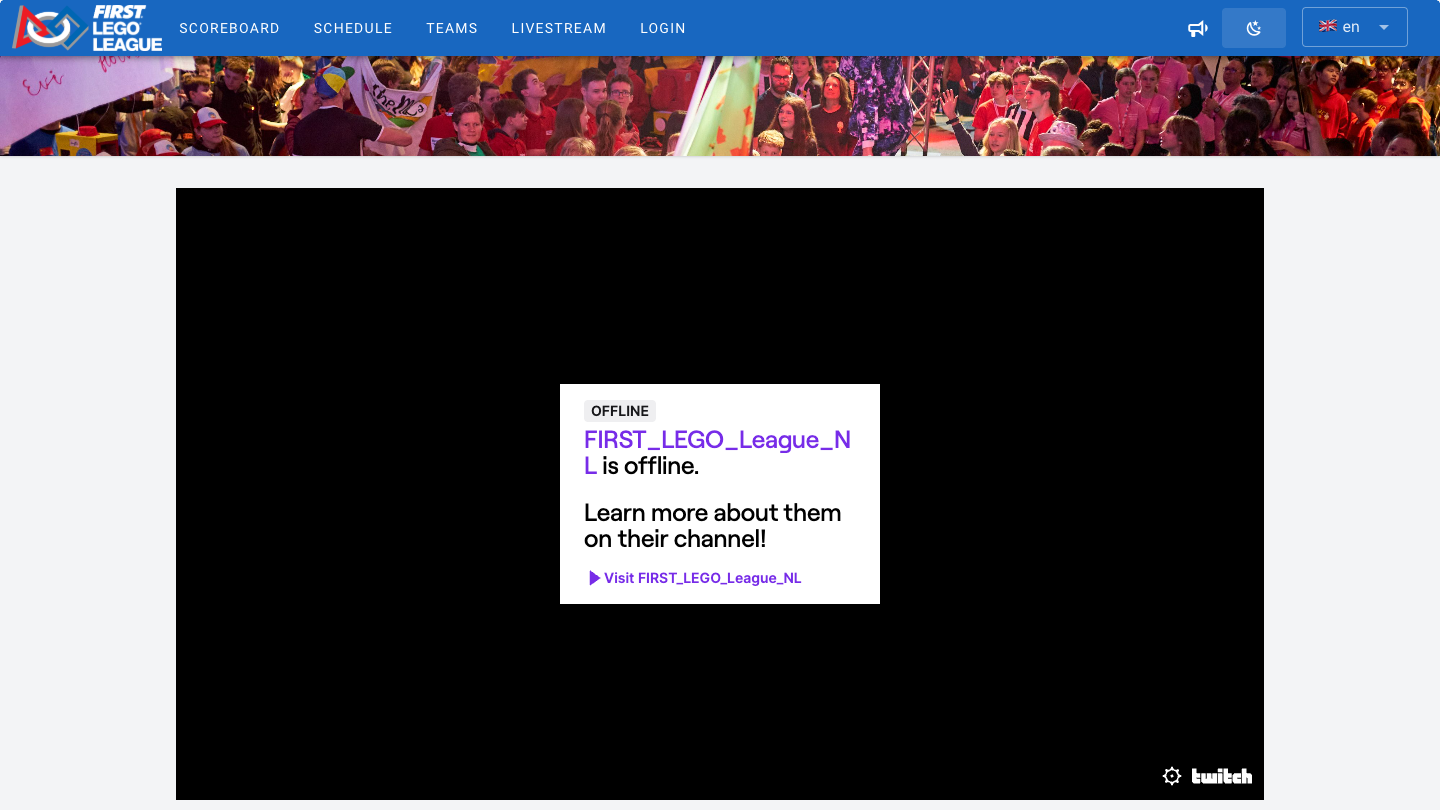
The player works like the normal Twitch or YouTube player: viewers can adjust the sound and put the video in full screen. If the stream isn't live (yet), Twitch shows this in the player.
Scores on screen with the Stream Overlay
Producing the broadcast yourself, for example with OBS? Then create an info screen of the Stream Overlay type (see the page Info screens). The overlay shows a scoreboard, a scrolling bar with the latest scores and a notification as soon as a new score comes in.
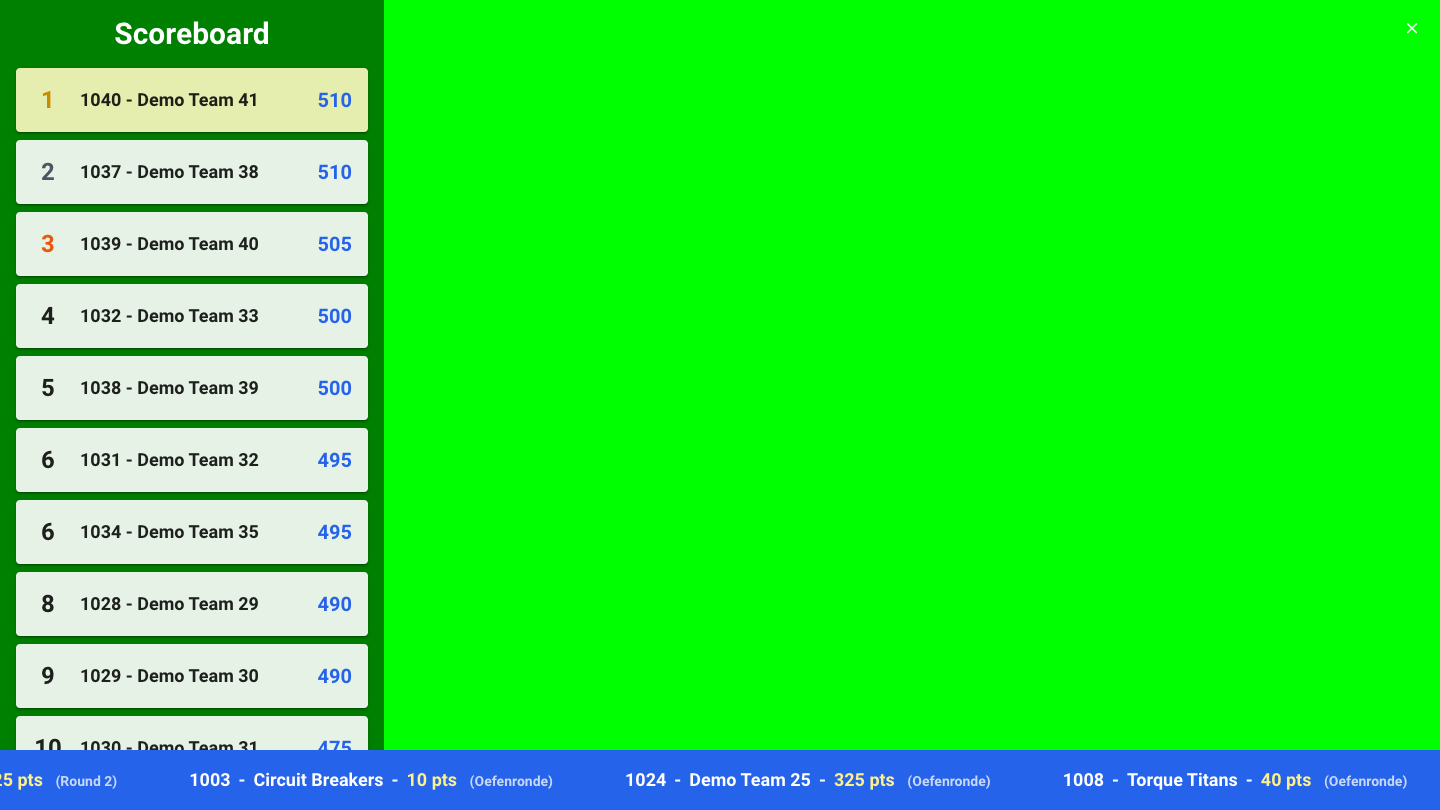
- Choose a bright background colour, for example green, as in the example. You can filter that colour out in your streaming software (chroma key), so only the scoreboard and the bar appear over your video.
- The cross at the top right hides the scoreboard. Click the button that then appears to show the scoreboard again. The scrolling bar always stays visible.
- Add the screen in your streaming software as a browser source with the address of the info screen.
Tips
- Check the channel name or video link beforehand. With a small typo the player stays empty.
- Open the public page on another device before the event, so you're sure the right stream is shown.
Practice tables and reservations
Many events have practice tables where teams can test their robot one more time. With FLLTools, teams book a practice slot themselves on a screen (for example a touchscreen or tablet) next to the practice tables. You set for each table how long a practice slot lasts and when the table is open. FLLTools automatically turns this into time slots.
For this the Practice Table Reservations module must be switched on. You do this through Setup → Settings (see the page Settings and modules). If the module is off, teams see on the reservation screen that no slots are available.
Creating practice tables
- Go through Setup to Practice Tables.
- You see a list of all practice tables, with the colour, the slot length, the opening and closing time and the number of reservations.
- Click Add (1) to add a practice table.
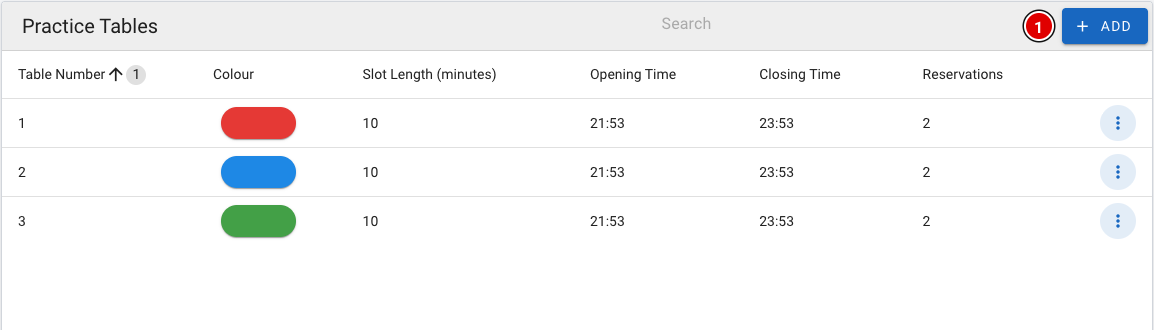
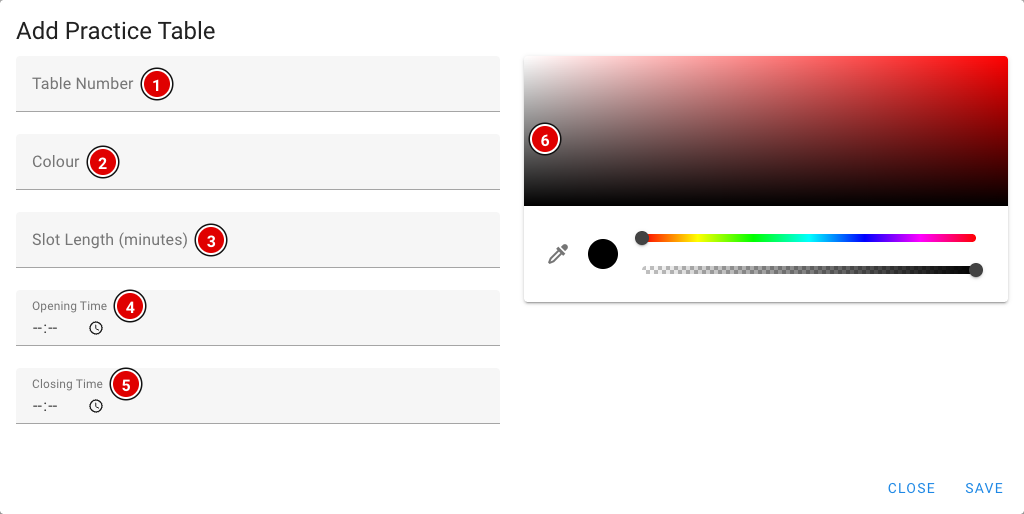
Table Number (1): The number of the practice table, for example 1, 2, 3.
Colour (2): The name of the table's colour, for example "Red". This helps teams find the right table quickly.
Slot Length (minutes) (3): How long a practice slot lasts, in minutes.
Opening Time (4): From what time the table is open for practice.
Closing Time (5): Until what time the table is open.
Colour picker (6): The colour teams see on the reservation screen and the info screen.
Click Save. The time slots are created automatically. A table open from 09:00 to 10:00 with a 15-minute slot, for example, gives four slots: 09:00, 09:15, 09:30 and 09:45.
Maximum number of reservations per team
How many practice slots a team may book ahead at the same time is set through Setup → Settings in Max practice reservations per team (2 by default). As soon as a practice slot has passed, it no longer counts and the team can book a new slot.
Viewing and cancelling reservations
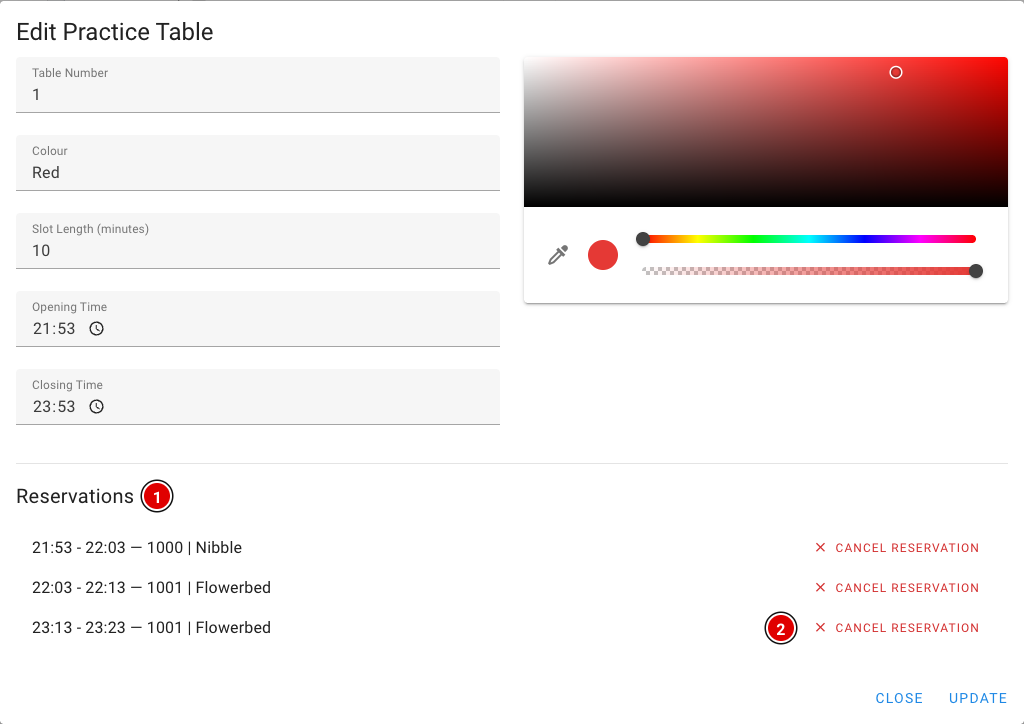
- In the list, click the 3 dots next to a practice table and choose Edit.
- At the bottom of the window are all Reservations (1) for this table, with the time and the team.
- Cancel Reservation (2) cancels a reservation. The slot then becomes available for another team.
- Want to change the table itself? Change the fields and click Update.
How a team books a slot
Place a computer, tablet or touchscreen next to the practice tables showing the page https://yourevent.flltools.nl/practice-reservation. Replace "yourevent" with the name of your event. No login is needed.
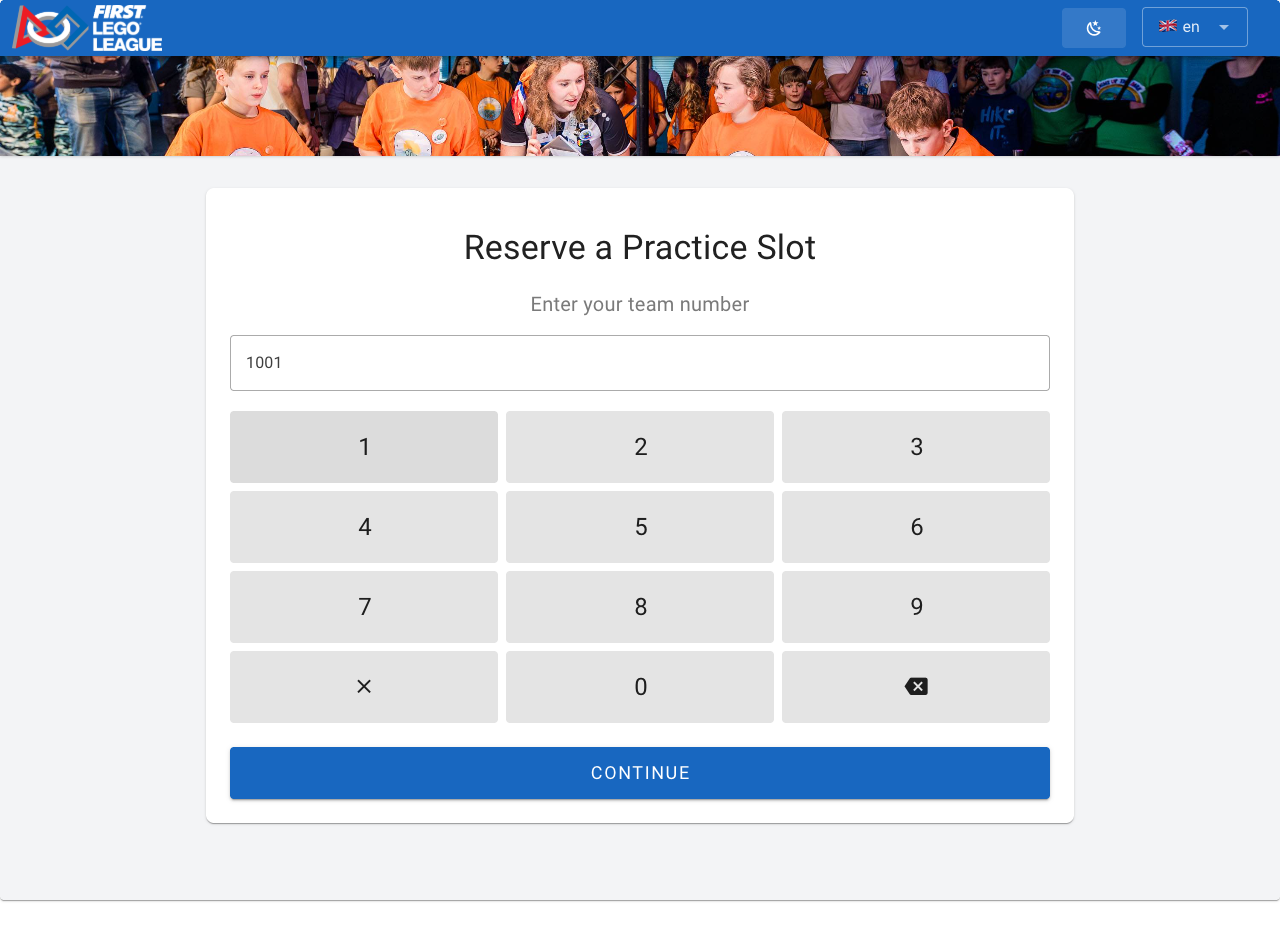
Step 1: Entering the team number
The team taps in its team number with the large number keys (or the keyboard) and presses Continue. If the number doesn't exist, a message appears and the team can try again.
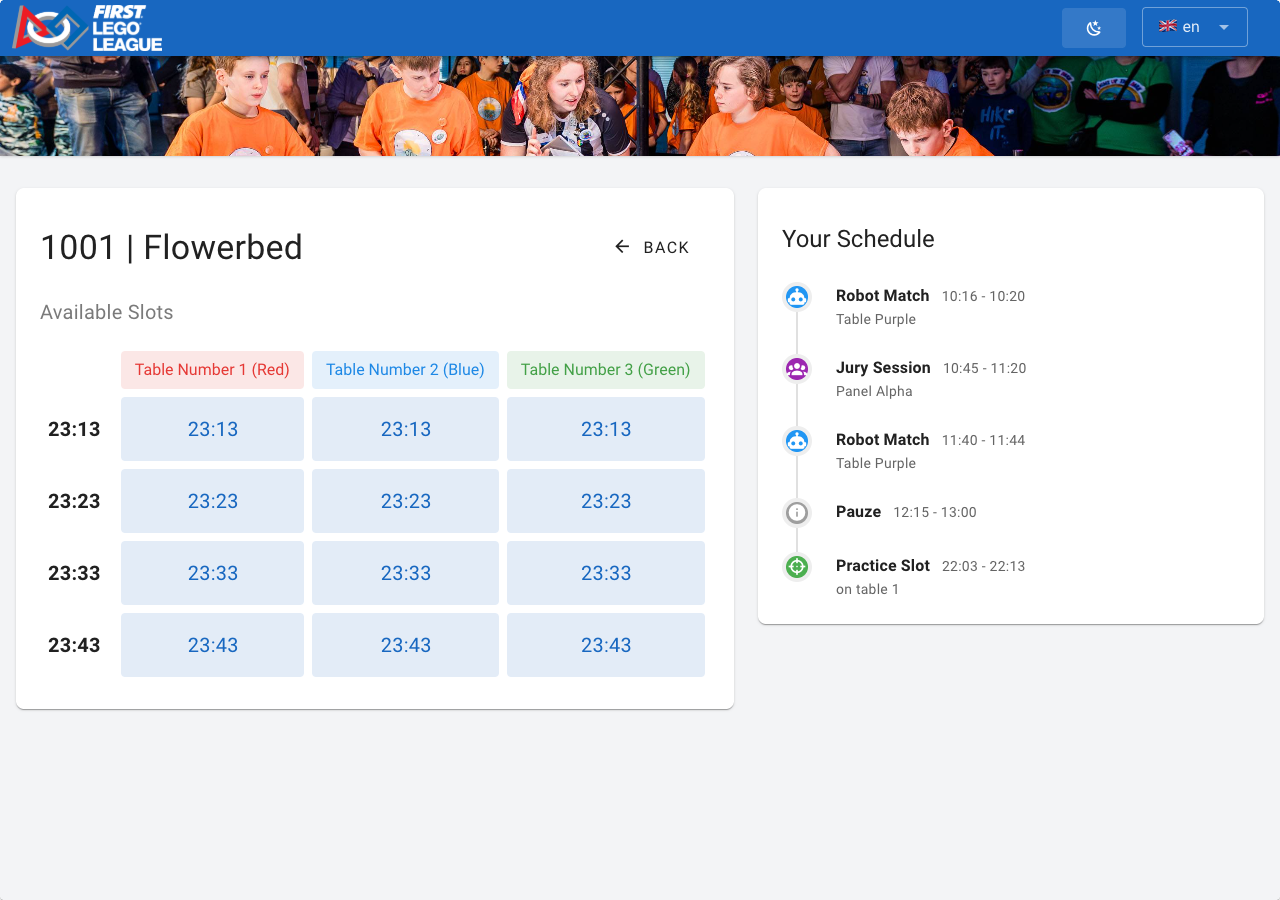
Step 2: Choosing a time
The team now sees all free time slots: each column is a practice table, each row a time. An empty spot means that table is already taken or closed at that time. On the right is Your Schedule, the team's day schedule, so it can choose a time that doesn't clash with a match or judging session.
After choosing a time, the screen asks for confirmation. The team presses Confirm to book, or Cancel to go back.
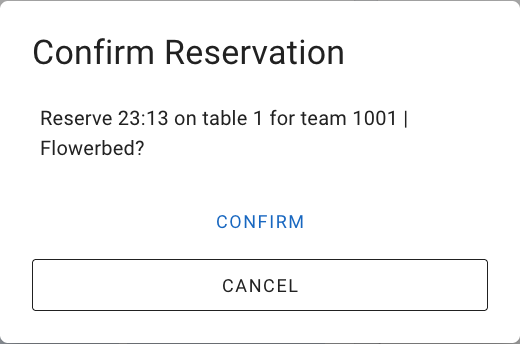
Step 3: Done
The team sees Reserved!. Make Another Reservation lets it book another slot (if the maximum hasn't been reached yet); Done takes the screen back to the start.
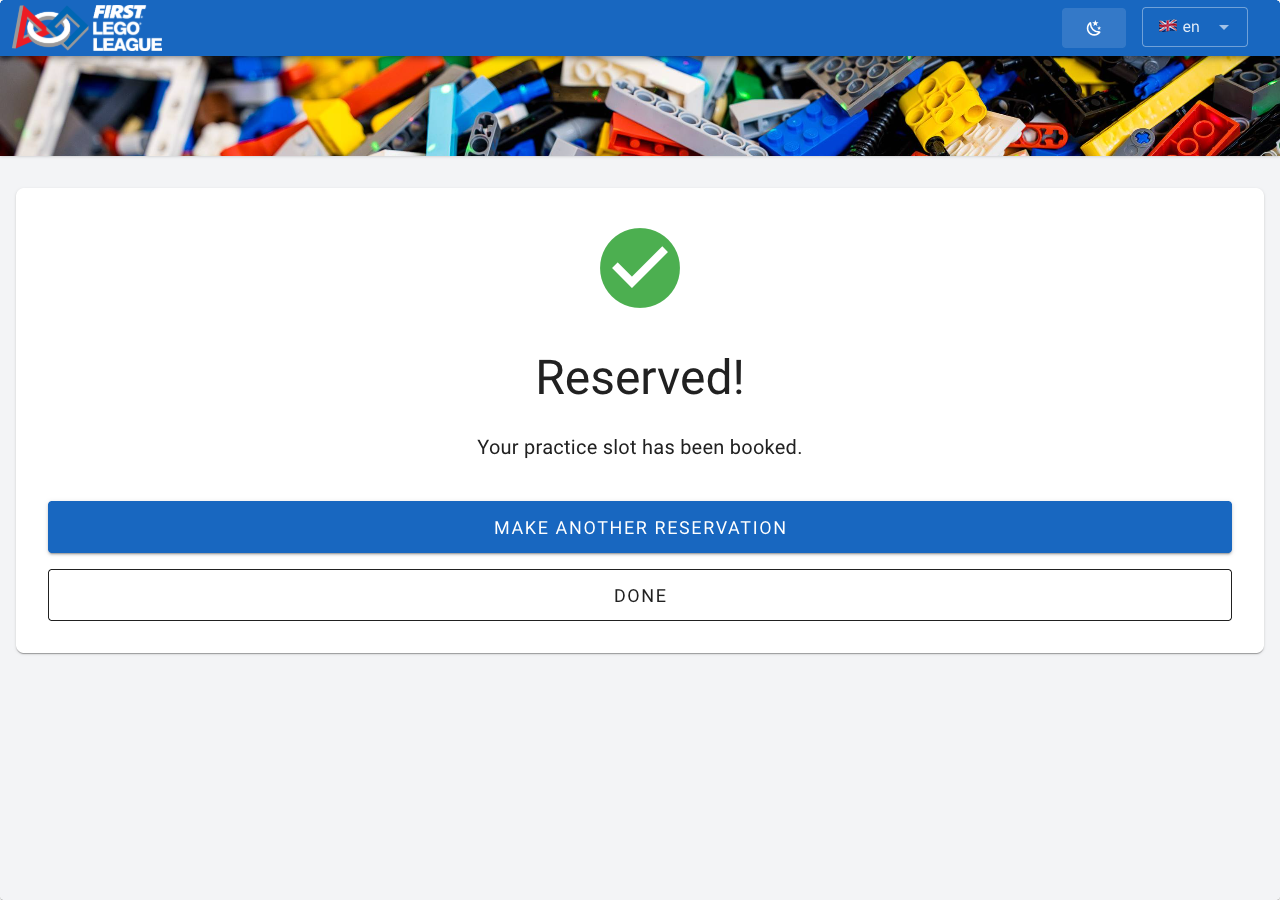
Good to know:
- After 15 seconds without a touch, the screen automatically returns to the start. That way the previous team's details don't stay on screen. This doesn't happen while confirming.
- If two teams choose the same slot at the same time, the second team gets a message that the slot has just been taken and chooses another time.
- If a team has reached the maximum number of reservations, the screen says so.
- Booked practice slots also appear in the schedule on the public team page.
Practice tables on an info screen
With an info screen of the Practice Tables type you show at the practice tables who is practising now (Now), who comes next (Next) and how many slots are still free. See the page Info screens.
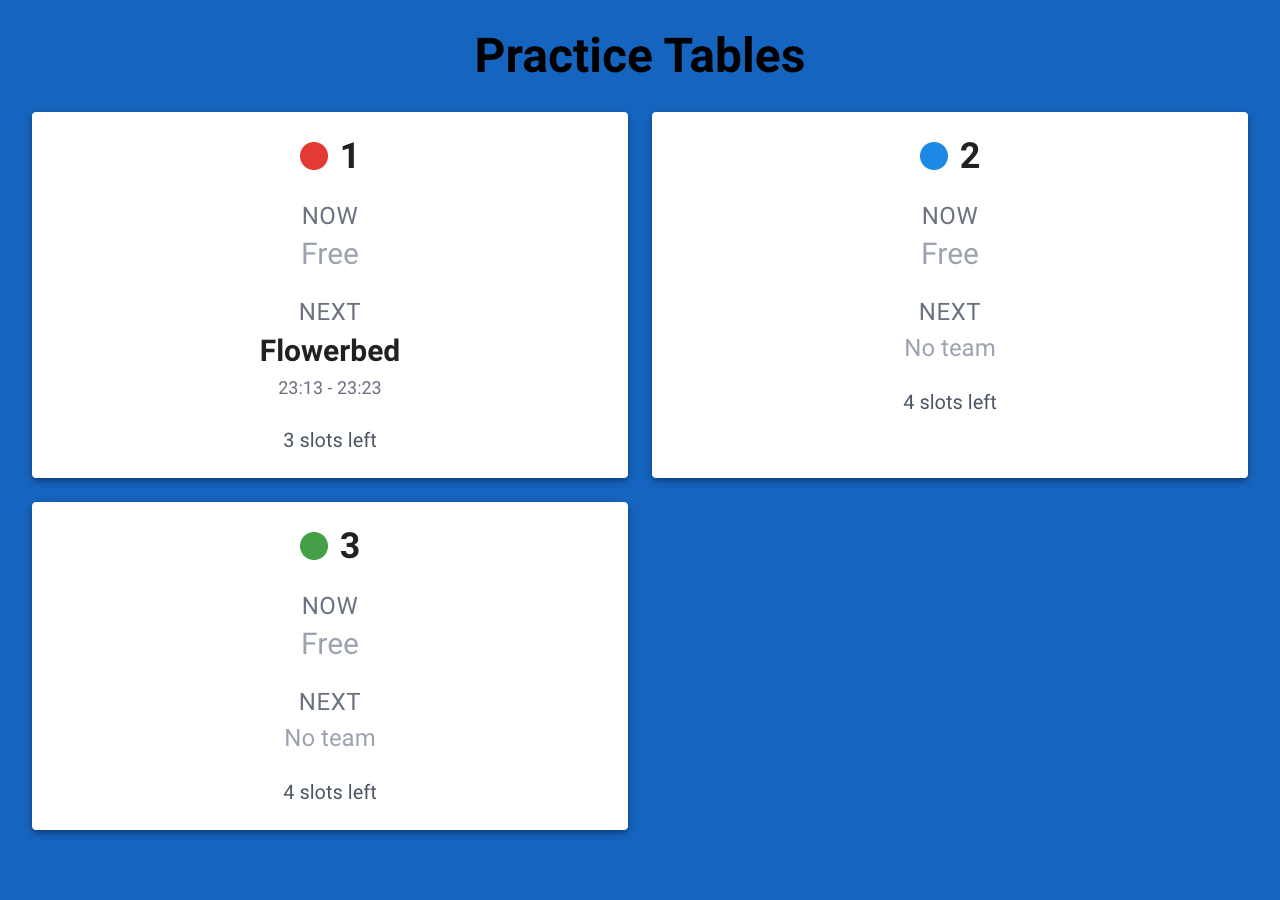
Team features
FLLTools has a public section where teams, coaches, parents and visitors can look up their team without logging in. In addition, when the Advanced Team Management module is on, coaches can update their team's details themselves.
The team list
https://yourevent.flltools.nl/team has a public list of all teams. Visitors also get here through Teams (1) in the menu at the top of the public pages.
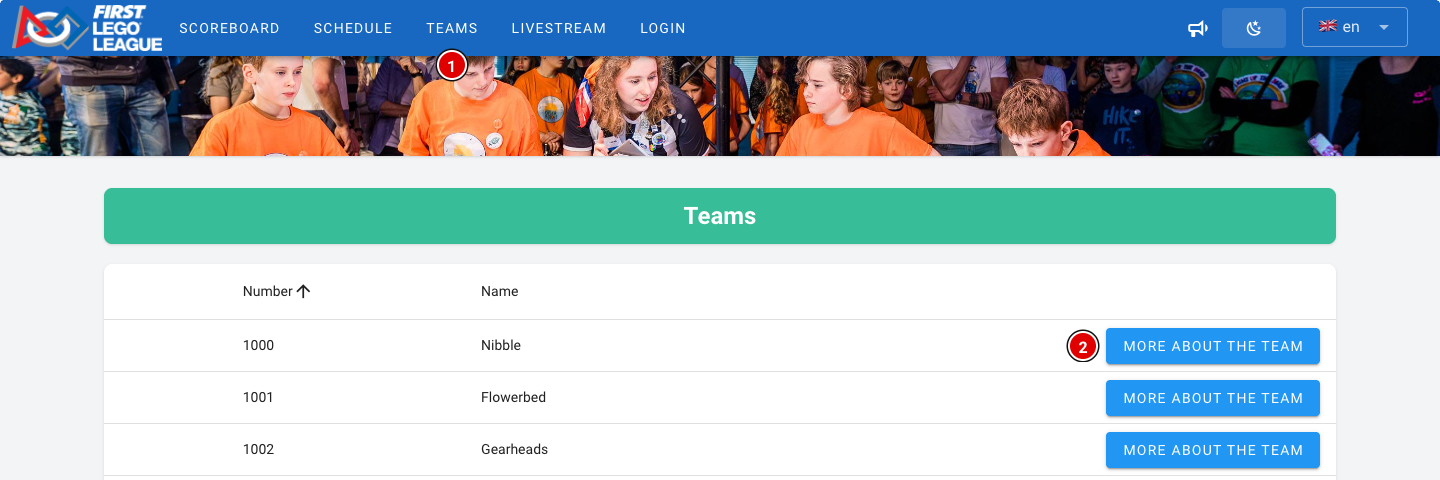
- Clicking the More about the team (2) button opens the team page.
- The list refreshes automatically as soon as new scores come in.
The team page
The content of the team page depends on which modules are switched on. With all modules on, the page looks like this:
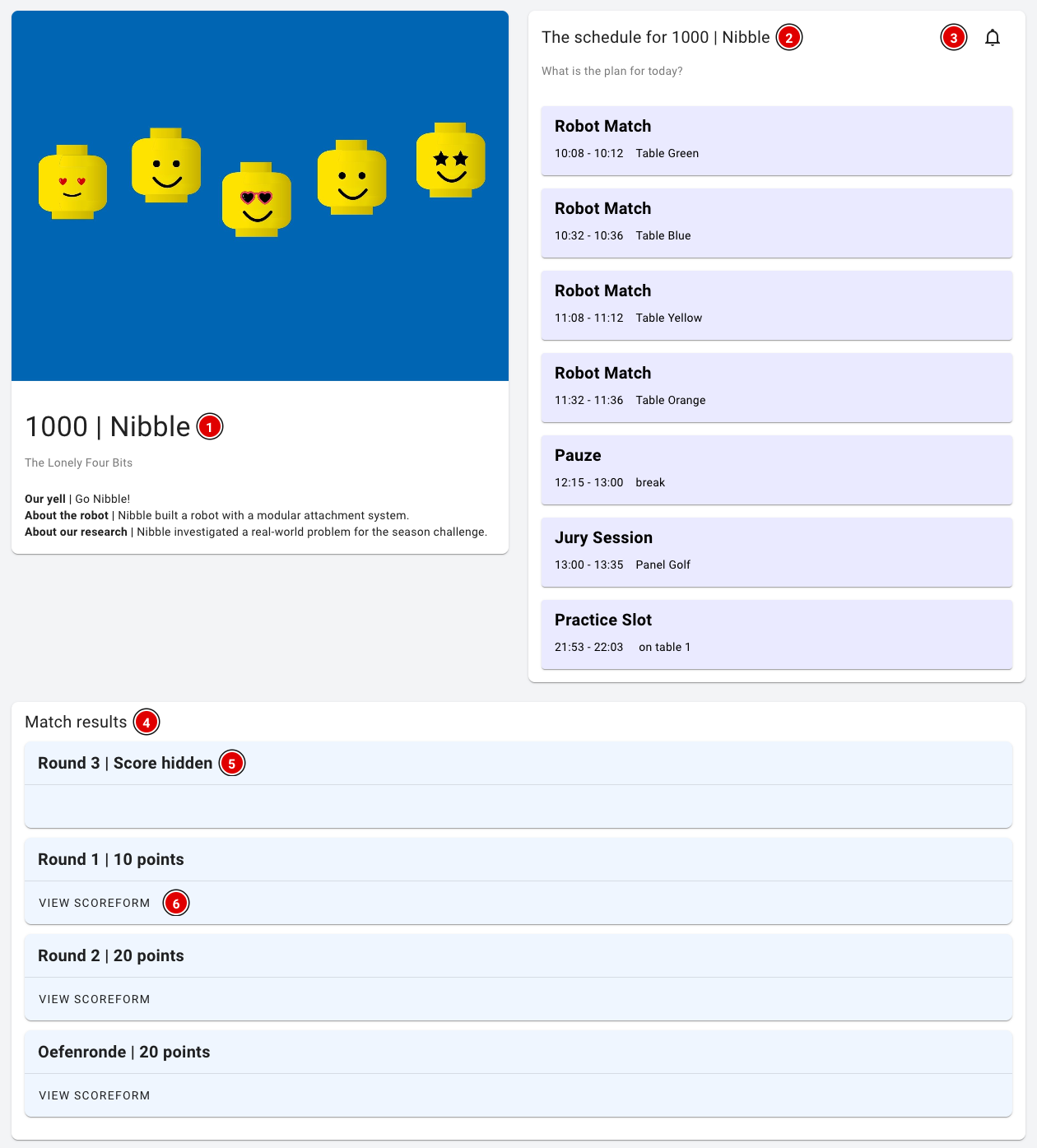
- Team information (1): The team number, team name and organisation. With the Advanced Team Management module, the team photo, the team cheer (yell) and the descriptions of the robot and the innovation project are added here too. If you have created your own team fields set to Public (for example the pit number), they are shown here as well.
- Day schedule (2): With the Schedule module, the team sees where and when it is expected: robot matches (with the table), judging sessions (with the jury), breaks and other items from the schedule, and booked practice tables.
- Reminders (3): With the bell, visitors can sign up for a notification just before each of the team's items. See below.
- Match results (4): The team's scores per round.
- A round with hidden scores shows Score hidden (5). That keeps the excitement until the awards ceremony. See also the page Making the last round visible.
- View scoreform (6) lets the team view the fully completed score sheet of that round.
The match results are only shown on the team page when Publish results automatically is on (through Setup and Settings). When this setting is off, the team sees a message that the results will be published after the tournament.
Reminders for teams
Teams and parents can get a notification on their own phone shortly before the team has to be somewhere. No account is needed for this.
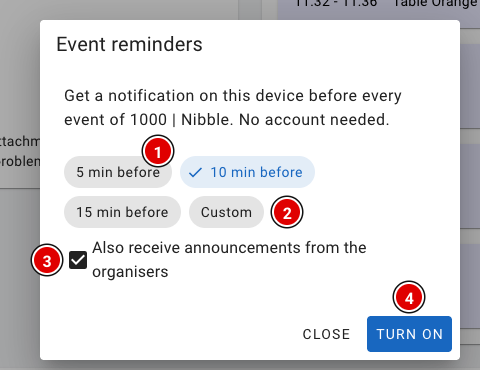
- Click the bell on the team page.
- Choose how many minutes in advance the notification should come: 5, 10 or 15 min before (1), or choose Custom (2) and enter a number of minutes yourself (1 to 240).
- Leave Also receive announcements from the organisers (3) ticked to also receive announcements from the organisation (see the page Announcements).
- Click Turn on (4) and allow the browser to show notifications.
There is a notification for every robot match, judging session, practice table reservation and other item in that team's schedule. Through the same bell the visitor can change or switch off the notifications again.
Notifications work in most browsers on Android and on a computer. On an iPhone they only work after the website has first been added to the home screen. If notifications are blocked for the website, the visitor first has to allow them in the browser settings.
The coach portal
When the Advanced Team Management module is on, you can add coaches to their team (see the page Updating a team). The coach receives an e-mail and can then log in. After logging in, the coach goes straight to their team's page. If someone coaches several teams, they choose the team first.
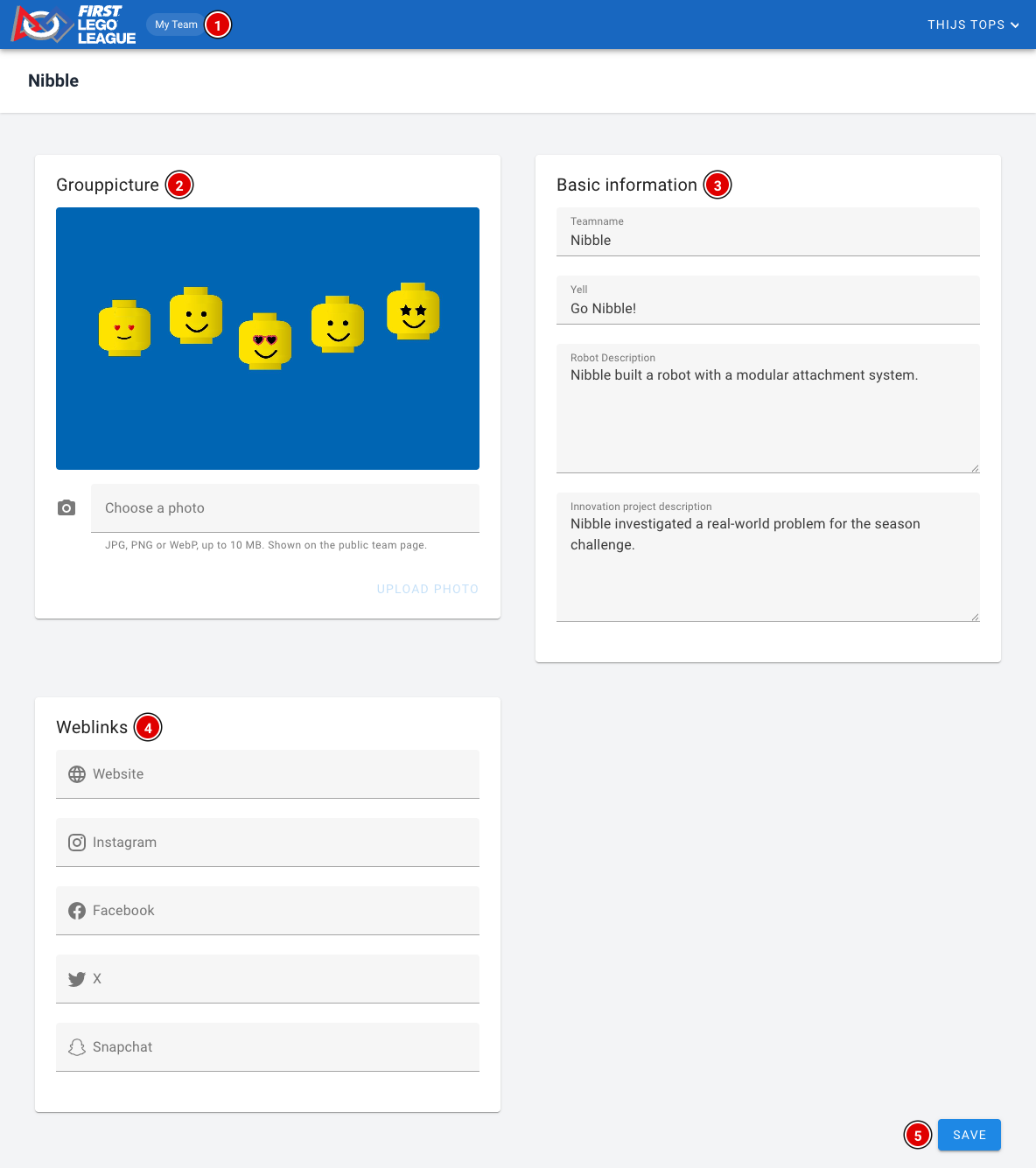
- My Team (1): Always takes the coach back to their team(s).
- Grouppicture (2): The coach can upload, replace or remove a team photo themselves. See the page Uploading team photos.
- Basic information (3): The coach can change the team name, the team cheer (yell) and the descriptions of the robot and the innovation project.
- Weblinks (4): The team's website and social media.
- Save (5) saves the changes. They are immediately visible on the public team page. The team photo has its own button and doesn't need Save.
Only the organisation can change the team number, the tournament and the organisation.
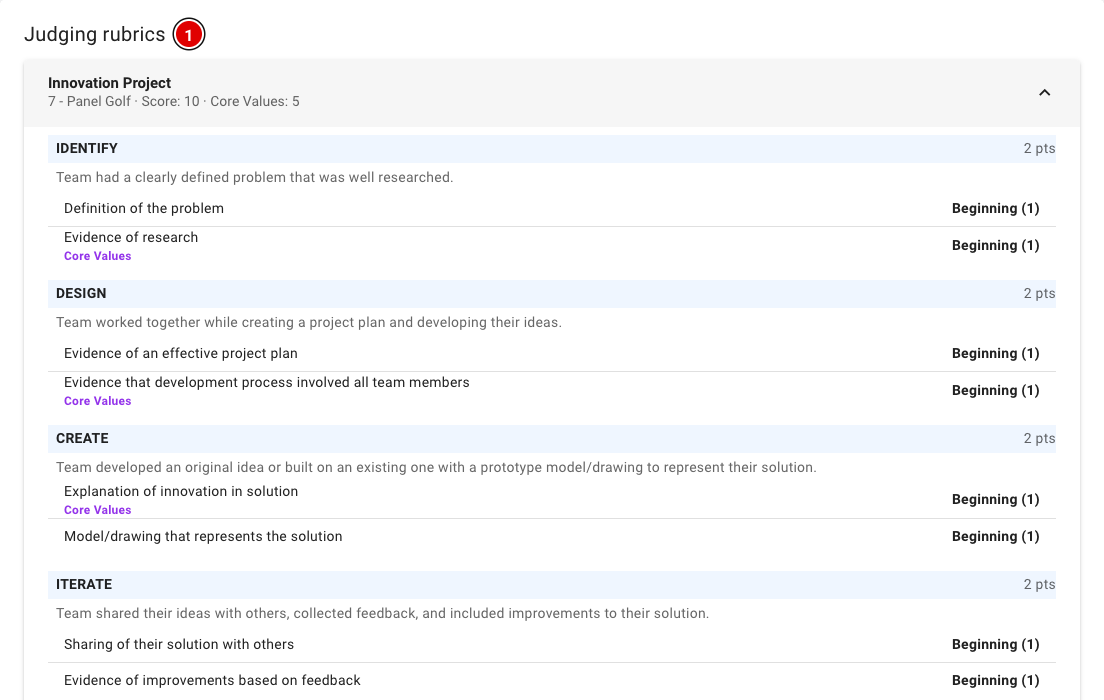
After the tournament (once the tournament's end time has passed), the coach also sees the team's completed judging forms, under Judging rubrics (1). Each form shows which jury filled it in, with the score and the chosen levels per criterion.
Preparing OJS
OJS (Official Judging Spreadsheet) is the official Excel file from FIRST in which the judging and robot scores come together and which is used to decide the awards. Whether you need OJS depends on how you do the judging.
Do you need OJS?
- Digital judging in FLLTools: if the judges fill in the rubrics in FLLTools, FLLTools calculates the rankings itself on the Competition Results page. There you see for each team the robot scores, the rankings for Core Values, Innovation Project and Robot Design, and the Champion's score. OJS is then not needed. See the page Competition Results: determining the results in the Judges' deliberation chapter.
- Judging on paper: if the judges only use paper forms, or your operational partner asks for OJS, prepare OJS as described below. You get the robot scores and the Gracious Professionalism scores from FLLTools later, see FLLTools export to OJS.
Not sure which way your region works? Ask your operational partner or e-mail thijs@flltools.nl.
Preparing OJS (a few days before the event)
- Download the OJS spreadsheet for the current season from the volunteer resources page of FIRST. Always use this season's version.
- Open the file in Microsoft Excel. Features can get lost in other programs.
- Fill in the "Team and Program Information" tab with all teams beforehand. Use the same team numbers as in FLLTools, so you can easily paste the scores later.
- Put the file on the scoring desk laptop and make a backup, for example on a USB stick.
- Also download the "Awards and Allocations" document from the judging toolkit; you'll need it during the judges' deliberation.
How to work with OJS during the judges' deliberation is explained on the page Working with OJS.
Hidden pages
Not every FLLTools page has a button or a link in the menu. Some pages are meant for a big screen, a kiosk or a specific volunteer, and you don't want visitors to end up there by accident. You open these pages by typing the address into the browser's address bar yourself.
Always add the address after the address of your environment. For the timer, for example, that becomes https://yourevent.flltools.nl/timer. Replace "yourevent" with the name of your event.
Pages for competition day
| Address | What is it? | Login needed? | More information |
|---|---|---|---|
| /timer | The timer for the audience screen, without buttons. You control the timer from another computer. | No | How the timer works |
| /scoreboard/kiosk | The scoreboard without a menu or login button, for a big screen or a device in the venue. | No | The scoreboard |
| /info-screens/select | This is where you choose which info screen a TV or projector shows. After that, each screen has its own address (/info-screens/...), which you can also bookmark. | No | Info screens |
| /practice-reservation | The reservation screen at the practice tables. Teams type in their team number and choose a free time. | No | Practice tables and reservations |
| /schedule/headReferee | An overview for the head referee: which team is at which table at each time. | Yes | Creating the day schedule |
| /scorecalculator | A score calculator that teams and referees can use to work out the score of a match themselves. | No | See below |
| /admin/scoresheets | The score sheet editor: the missions, questions and points of the robot game. | Yes, admin only | See below |
| /open-source | A list of all open source packages FLLTools is built with, with their licences. | No | See below |
Put a kiosk or timer screen in full-screen mode (usually with the F11 key). That way nobody sees the address bar, and nobody can go to another page by accident.
The score calculator
https://yourevent.flltools.nl/scorecalculator shows the season's score sheet, exactly as the referees use it. No login is needed. Teams can use it to work out a match score at home or in the pits, and referees can practise with it during the referee briefing (see the page Referee briefing).
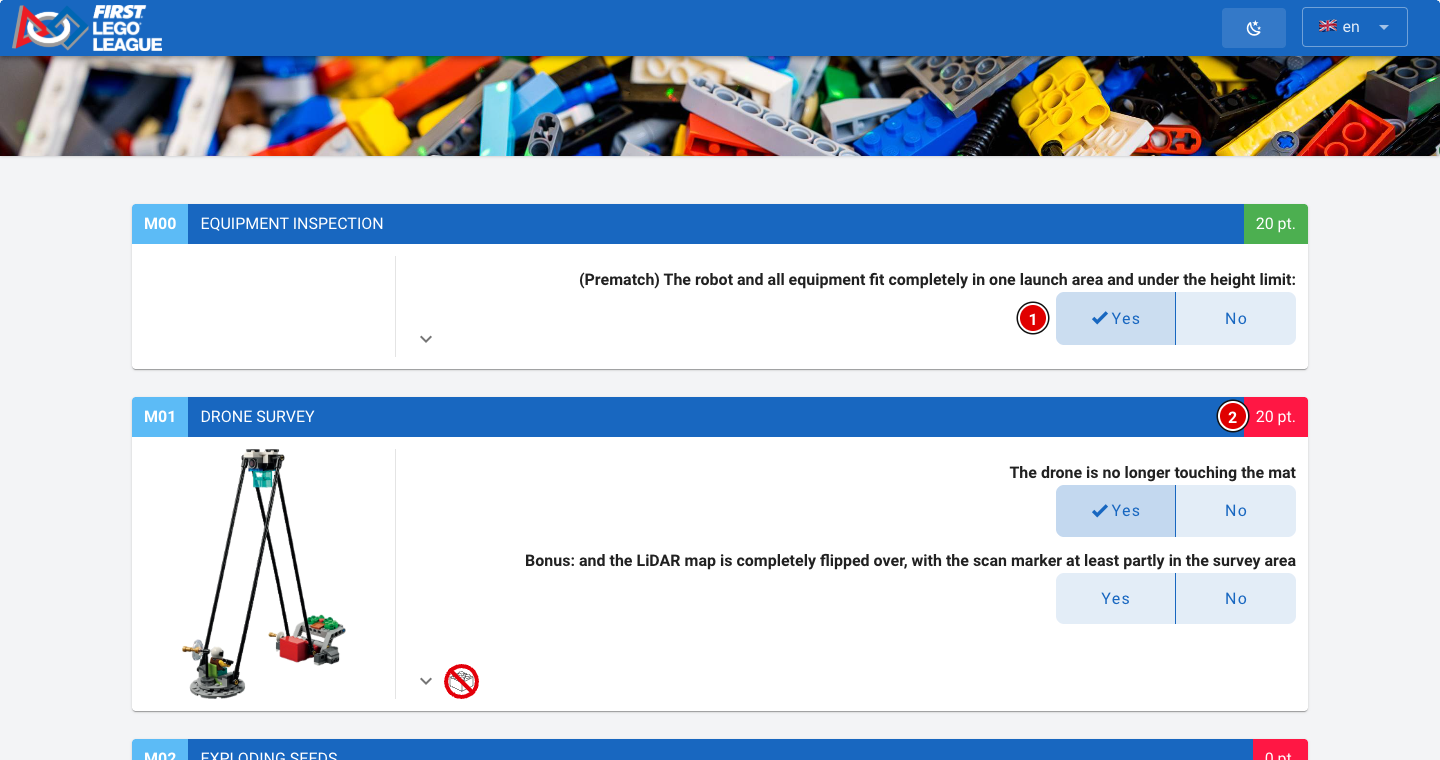
- For each mission, click the right answers, for example Yes (1).
- On the right of each mission's bar you see the points (2) that mission earns.
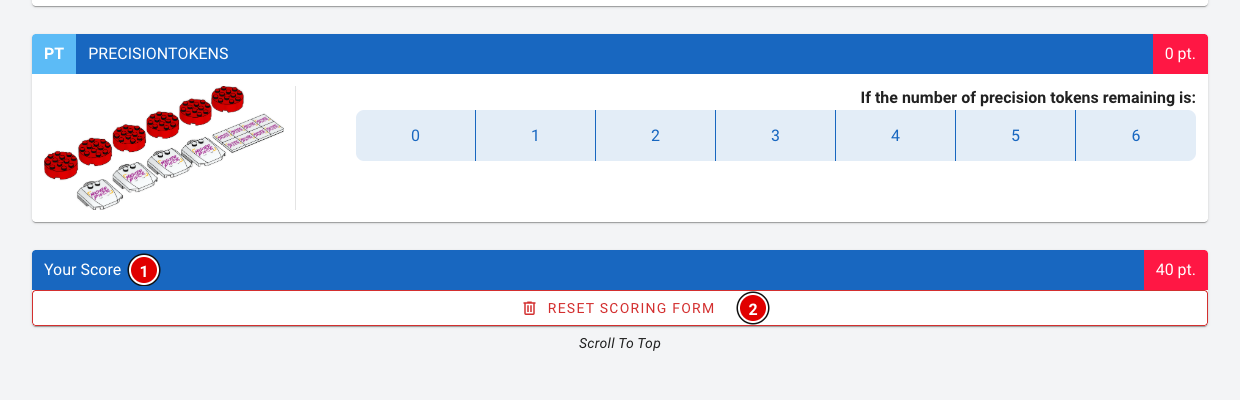
- At the bottom, Your Score (1) shows the total score.
- Reset scoring form (2) clears the form again.
A score in the score calculator isn't saved anywhere and doesn't count towards the results. Competition scores are entered through Robot Match (see the page Scoring desk).
The score sheet editor
https://yourevent.flltools.nl/admin/scoresheets lists all score sheets in FLLTools, one per season. This is where you view, change or export a score sheet, or add a new one. Only users with the admin role can open this page.
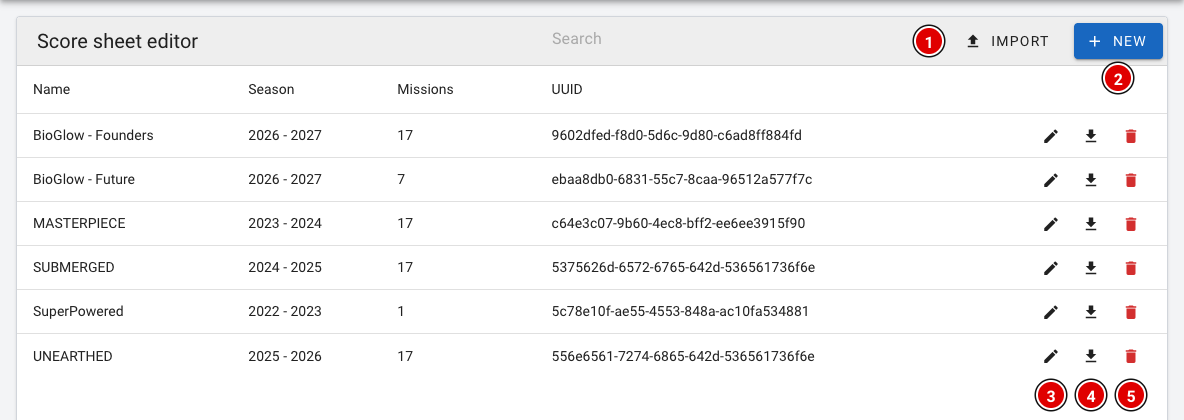
- Import (1) loads a score sheet that was exported earlier, for example from another environment.
- New (2) creates a new, empty score sheet.
- The pencil (3) opens a score sheet so you can change it.
- The download arrow (4) exports the score sheet as a file.
- The bin (5) deletes the score sheet. This isn't possible once match scores have been entered with it.
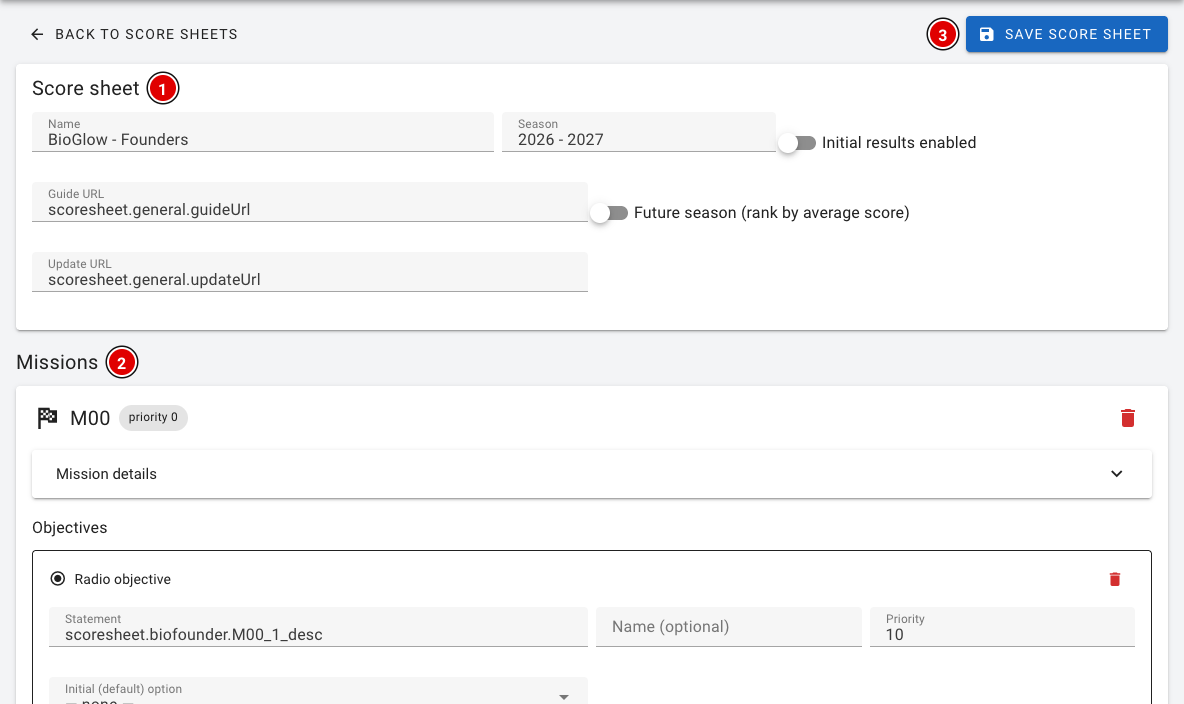
- Score sheet (1): The name and season of the sheet, with the links to the season's guide and updates.
- Missions (2): For each mission, the questions, the possible answers and the points. At the bottom, Add mission adds a mission.
- Click Save score sheet (3) to save the changes.
A change to a score sheet applies straight away to every tournament that uses it, including scores that have already been entered. So never change a score sheet during a tournament, and export it first as a backup. Texts such as scoresheet.general.yes refer to the translations in FLLTools; leave them as they are, or referees will no longer see the text in their own language.
Open source packages
https://yourevent.flltools.nl/open-source lists all open source packages FLLTools uses, with the version and licence of each package. You won't need this page during the tournament, but it's useful if someone asks what FLLTools is built with.
Technical pages
These pages are mainly meant for whoever manages FLLTools or wants to check something:
- /timer/test: Shows all of the timer's digits. Useful for checking beforehand that the timer is easy to read on the audience screen.
- /healthcheck: Only shows "OK" when FLLTools is running. Used to monitor the server.
- /app-version: Shows the version of FLLTools that is currently running.
Competition day
Team check-in
The check-in module keeps track of which teams have reported in on arrival on competition day. At the registration desk you can see at a glance whether everyone is there, and when you check a team in you have the most important information for that team right at hand.
The check-in page is only visible when the Team Check-in Module is switched on in Setup → Settings. Users with the secretariat or admin role can use check-in.
The overview
- Click Check-in in the menu.
- You will see a list of all teams in the current tournament.
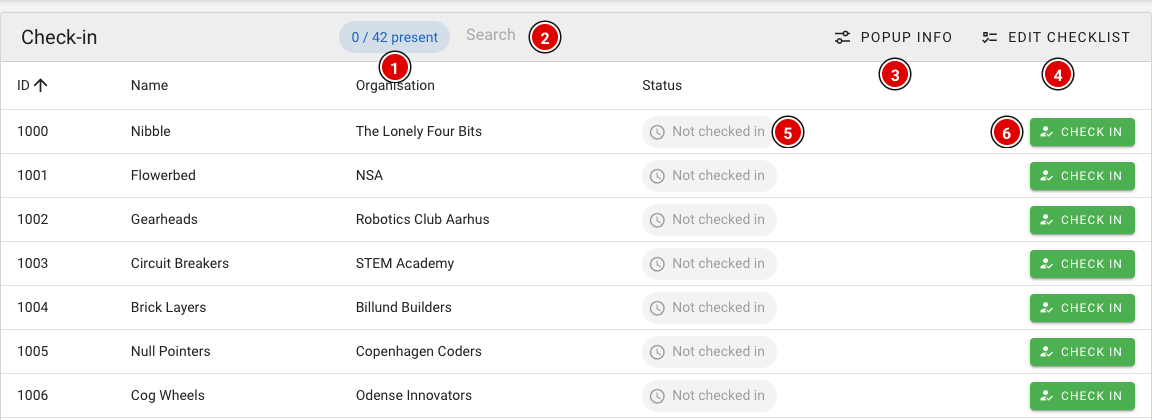
- Present (1): Counter showing how many teams have already checked in, for example 12 / 42 present.
- Search (2): Quickly search by team number, team name or organisation.
- Popup info (3): Choose which information you see when checking a team in (see below).
- Edit checklist (4): Set up a list of reminders for the desk (see below).
- Status (5): Not checked in or Checked in.
- Check in (6): Checks the team in.
Checking a team in
- Find the team and click Check in.
- If a checklist or popup information has been set up, a Before you check them in window opens first. It shows, for example, at what time and with which jury the team is expected.
- Click Check in again in the window to confirm, or Cancel to go back.
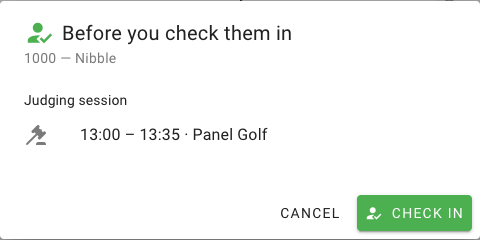
After check-in the status changes to Checked in (2) and the counter (1) goes up. Checked in the wrong team by mistake? Click Undo (3).

Setting up the popup info
With Popup info you choose which information appears in the check-in window. This applies to all teams.
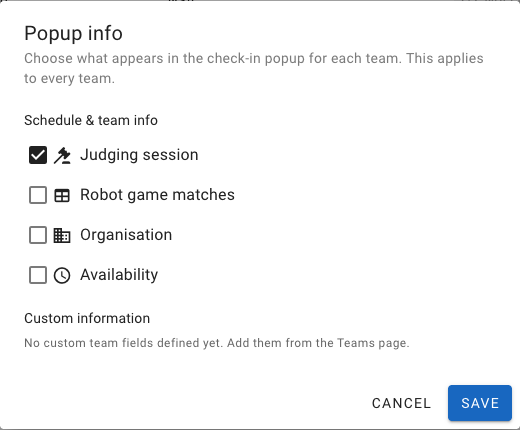
- Judging session: Time and jury of the team's judging session(s). This is on by default.
- Robot game matches: The team's matches, with time and table.
- Organisation: The team's organisation (school, club).
- Availability: When the team is available, if this has been filled in for the team.
- Custom information: Your own team fields created on the Teams page (via Custom fields). See the page Entering teams into the system.
Click Save to store your choice.
Checklist for the desk
With Edit checklist you create a list of reminders for the volunteers at the desk, for example collecting consent forms. These items appear in the check-in window and can be ticked off there.
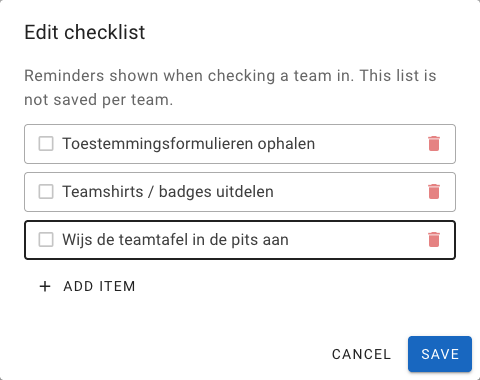
- Click Add item to add an item and use the bin icon to remove one.
- Click Save to store the checklist.
The checklist is only a reminder. Ticking items off is not saved per team. If you want to record something for a specific team, use Remarks.
Referee briefing
At the referee briefing, the head referee goes through this season's rules and updates. This has to happen every year. This document only explains the scoring tool for referees and is not a replacement for the briefing.
Before the event, every referee receives a login for the event's FLLTools website. The scoring tool works on a laptop, tablet and phone.
Entering the match details
- Click Robot Match in the menu.
- The top block contains the details of the match:
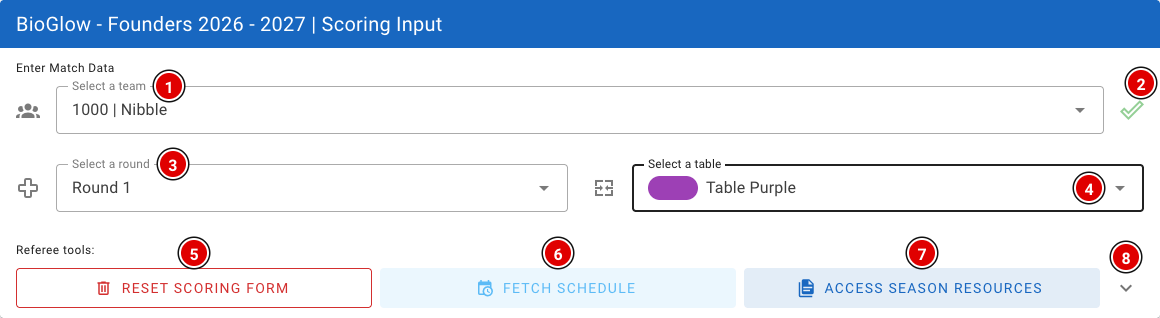
- Choose the team at Select a team (1). There is a built-in search, so a few letters of the team name or the team number are usually enough.
- The tick (2) locks the team selection, so you don't change the team by accident while scrolling through the form. Click it again to change the team.
- Choose the round at Select a round (3). If you work with a schedule, the round is filled in automatically. Always double-check it with the team.
- At Select a table (4), choose the table where the referee is standing. Tables are shown with their colour.
- Reset scoring form (5) clears the entire score sheet.
- Fetch schedule (6) loads the team that the schedule says is at your table right now (see below).
- Access season resources (7) opens a menu that gives quick access to the Challenge Guide (game rules) and the Challenge Updates during the match.
- The arrow (8) opens the scoring tool settings.
Settings and fetching the team from the schedule
- Enable Images (1): Shows pictures of the mission models with the mission input. This is on by default. On a small phone it can be useful to switch it off.
- Select table from schedule (2): Choose the table where you are refereeing. This choice is remembered on the device.
- Auto fetch (3): When switched on, the team, round and table are filled in from the schedule as soon as you open the page or have submitted a score. That way the next team is ready straight away.
- Local Results (4) and the connection status (5): see Working without internet further down.
Fetch schedule and Auto fetch only work when the Schedule module is switched on and there is a schedule in FLLTools. See the page Creating the day schedule.
Mission input
The mission input is empty by default. The referee fills it in at the end of the match. Each mission has one or more questions. Usually you choose the answer with a button (for example Yes / No). For questions where you need to count something, use the minus (1) and plus (3) buttons, or type the number directly in the box (2).
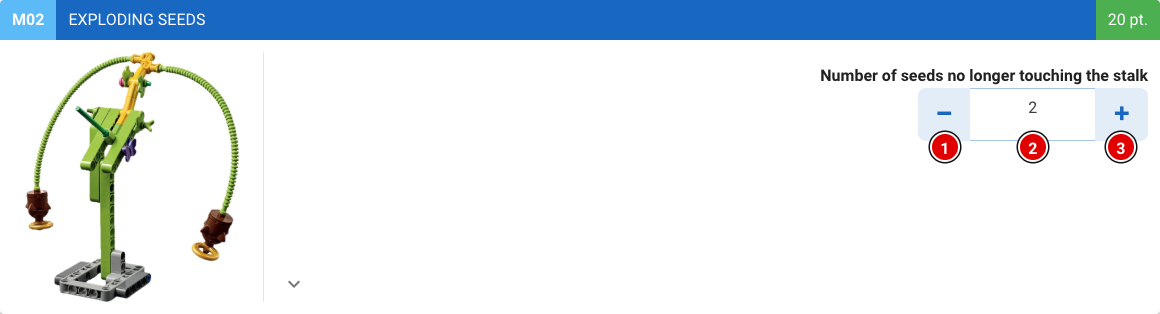
Some questions only appear when they apply, for example a bonus question that only counts if the first part of the mission succeeded. So answer the questions from top to bottom. Each mission has 3 states:
1. Not (fully) completed
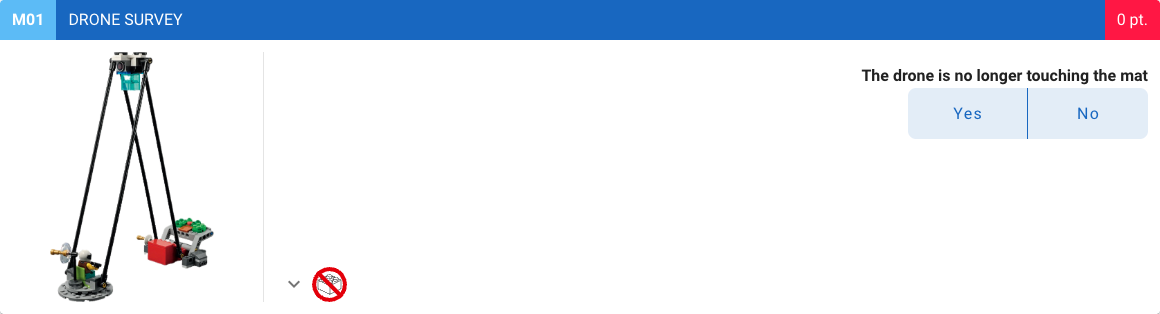
You can recognise this state by the red score.
2. Fully completed, points scored
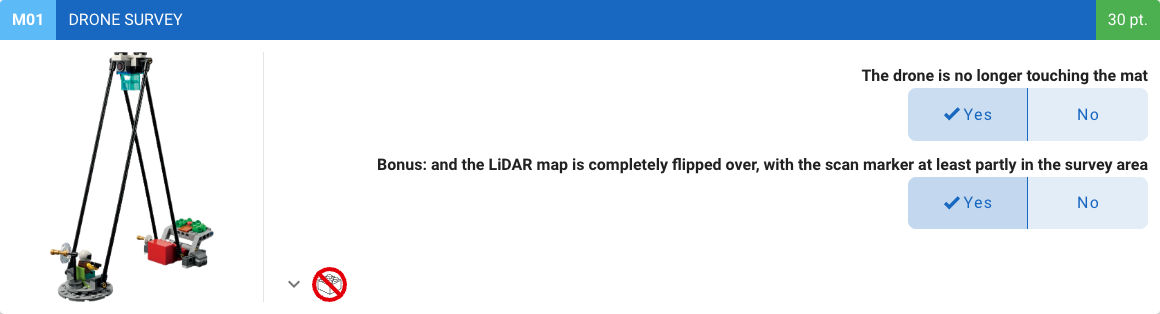
You can recognise this state by the green box next to the points.
3. Fully completed, no points scored
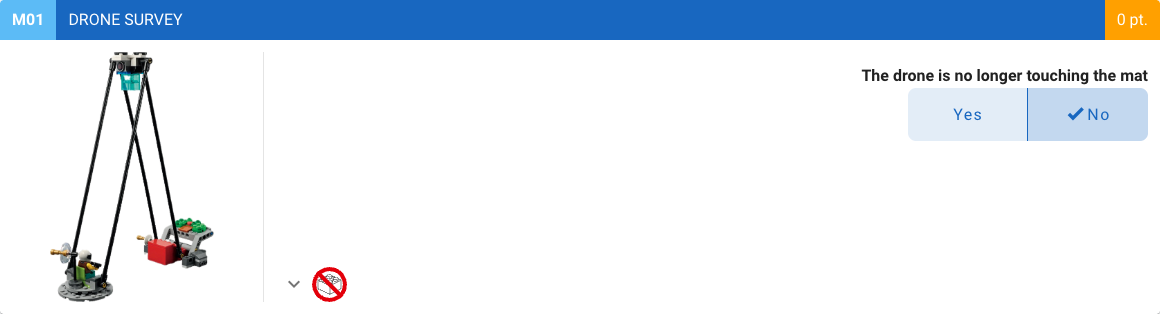
You can recognise this state by the orange box next to the points.
These states let you quickly see which missions are missing or have not been filled in correctly.
Signature and saving
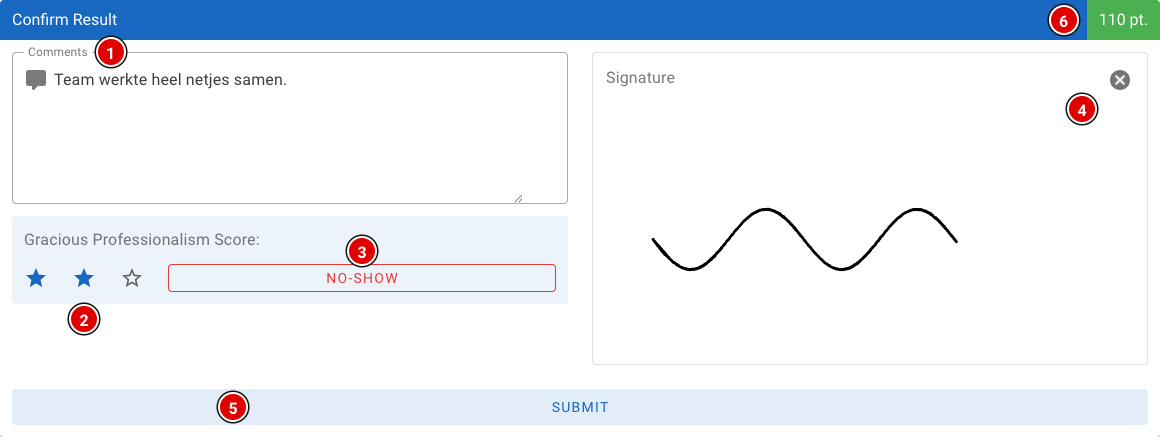
This block is at the bottom, below all missions. It is filled in last.
- Comments (1): Here you can add a comment. It is automatically also saved as a remark (category Table) for the team and taken into account during the judges' deliberation. So note anything that stands out about a team, both negative and positive.
- Gracious Professionalism Score (2): Give the team 1 to 3 stars. This is required; without stars the score cannot be saved.
- No-Show (3): Didn't the team show up? Click this button instead of giving stars.
- Signature (4): The signature. Every team must sign to confirm everything has been filled in correctly. The cross in the top right clears the signature.
- Submit (5): Saves the score. The total score is shown in the top right (6).
As long as something is missing, the button says what is wrong, for example Signature required or Scoresheet invalid. When the score sheet is invalid, a Fix It button appears. Clicking it scrolls the screen to the mission that has not been filled in correctly.
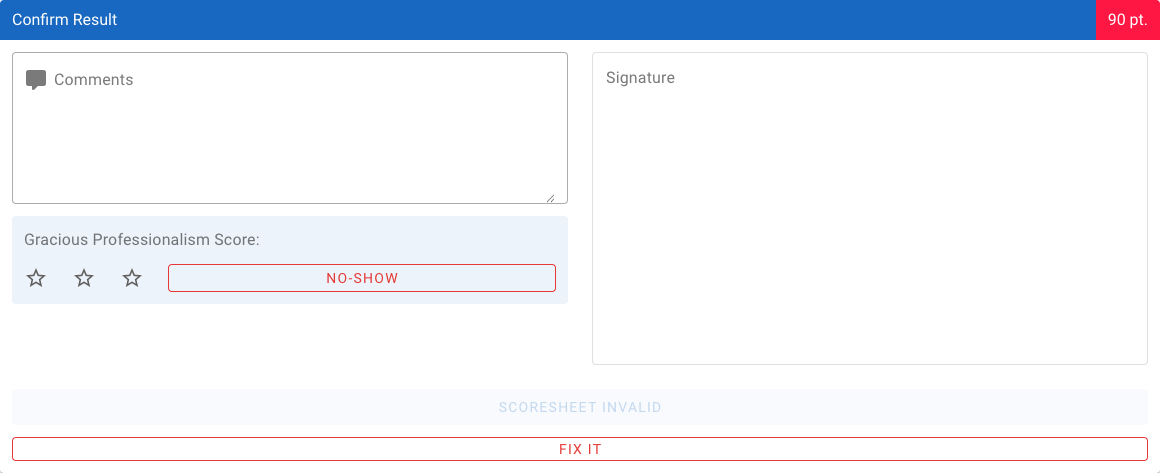
After saving, a confirmation with the team name and score appears, and the form is cleared for the next team.
For rounds with hidden scores (for example the last round), the total score can be shown blurred to the referee. Tap Tap to reveal score to see it anyway. You configure this with Hide score on referee input for hidden rounds in Setup → Settings.
Working without internet
Wi-Fi dropped out? No problem, the scoring tool keeps working. If you submit a score without an internet connection, it is stored safely on the device. You will get a message that the score has been saved locally.

- Local Results (1): The number of scores still waiting on the device.
- View Local Results (2): Shows which scores are still waiting, with team, round, table and score.
- Upload Local Results (3): Sends the waiting scores. This also happens automatically as soon as the connection is back.
- The connection status (4) shows whether the device is online or offline.
Do not close the browser or clear the browser data while there are still local results on the device. At the end of the day, check that Local Results is at 0.
Transferring scores with QR codes
If a device can't get back online at all, you can transfer the local scores to another device with QR codes, for example to the laptop at the scoring desk.
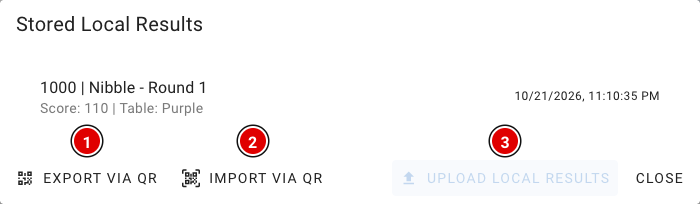
- Open View Local Results and click Export via QR (1). With Import via QR (2) you can also receive scores from another device on this screen. Upload Local Results (3) sends the scores when there is a connection.
- A series of QR codes appears that changes automatically. Hold the screen in front of the camera of the receiving device. With the buttons below the QR code you can pause, go back or forward, and change the speed.
- The receiving device (usually the scoring desk) reads the codes. How that works is described on the page Scoring desk.
- When reading has succeeded, the receiving device shows a 6-character verification code. Enter this code at Verification code and click Verify code & delete transferred. Only then are the scores removed from the referee's device.
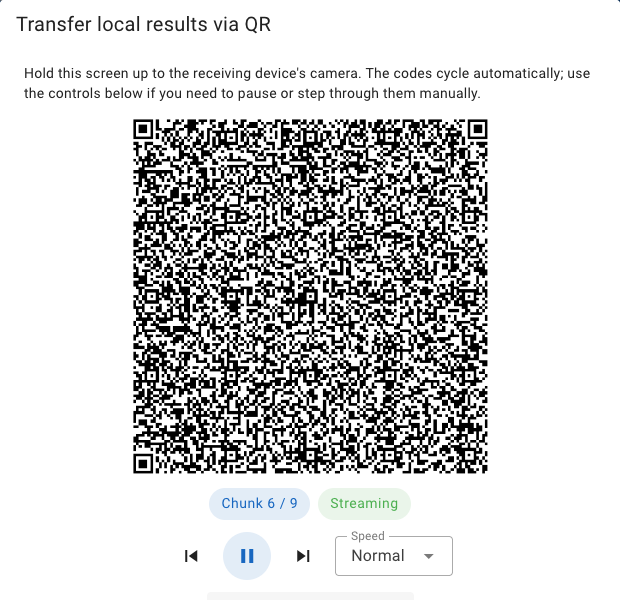
Judges' briefing
At the judges' briefing, the head judge goes through this season's rules and updates. This has to happen every year. This document only explains the forms and the judging tool for the judges and is not a replacement for the briefing.
The judges can assess teams in two ways: on paper using the judging forms from the exports, or digitally in FLLTools. Agree with the head judge in advance which method you will use.
Judging on paper
Extra important: make sure the judges tick exactly 1 box in each row, otherwise it is hard for the scoring desk to see what the score is.
The judges must assess each team on its own merits; teams may not be compared with each other. After each round the forms are collected and taken to the scoring desk.
The information below only applies to events that use Juryscan. Not sure whether you use it? Then you don't need to read this.
When Juryscan is used, the boxes must be filled in completely with a black pen or marker.
Was a box filled in incorrectly by mistake? Ask the head judge or the scoring desk for a new form. Otherwise the automated system may read the scan incorrectly.
Judging digitally
Digital judging is only possible when the Judge Module is switched on in Setup → Settings, the juries have been created and the tournament has the correct judging forms (rubrics). See the page about juries and rubrics.
The Judge portal
Judges who (only) have the judge role are taken to the Judge portal automatically after logging in. This is a simple environment with only what a judge needs.
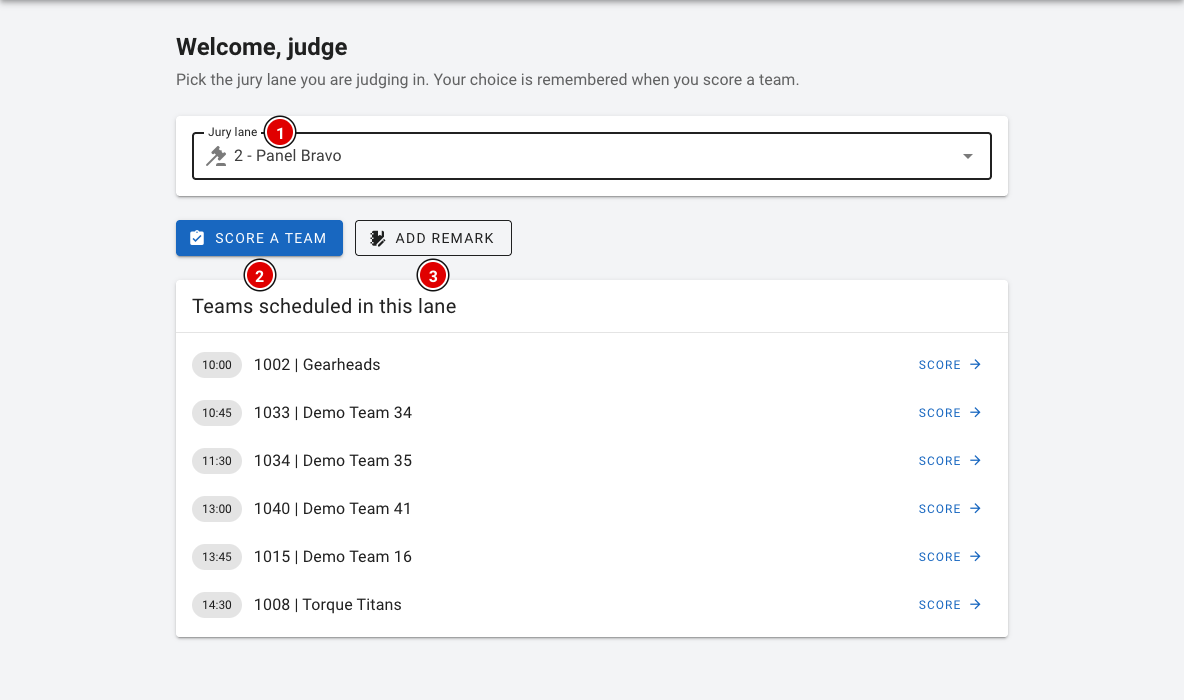
- At Jury lane (1), choose the jury (room) you are judging in. This choice is remembered.
- If there is a schedule, a list of the teams and times in your room appears under Teams scheduled in this lane. Click Score next to a team to assess that team straight away.
- Score a team (2) opens the judging form and lets you choose the team yourself.
- Add remark (3) lets you add a remark about a team for the judges' deliberation. See the page Remarks.
- Under Judging results in the menu you will find the assessments you entered yourself. You can still open and change them there.
Head judges, the scoring desk and administrators use the Judge button in the regular menu.
Assessing a team

- Team (1): Choose the team you are assessing. Type a few letters or the team number to search.
- Jury (2): The jury (room) in which the team is assessed.
- Rubric (3): The judging form, for example Innovation Project or Robot Design.
- Local Results (4): Just like for referees, assessments are stored locally when there is no internet and sent automatically later. See Working without internet on the page Referee briefing; it works exactly the same for judges, including transferring with QR codes.
Below that is the form, divided into sections as in the official judging form.
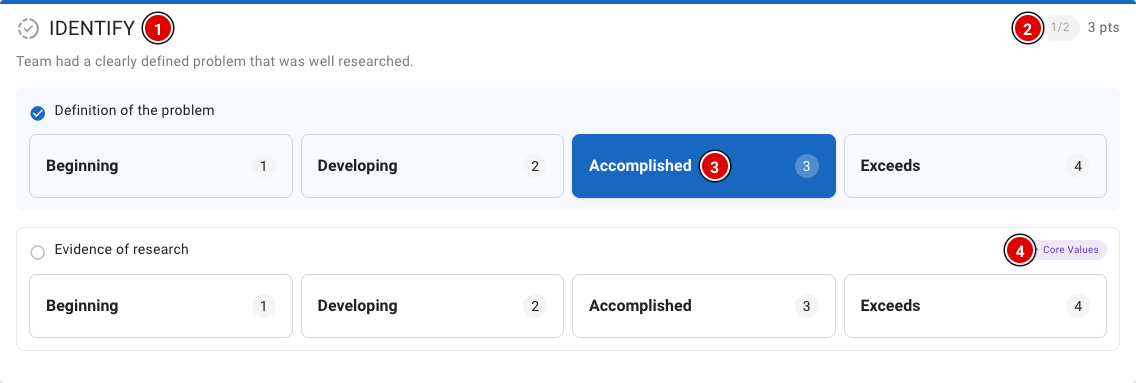
- Each section (1) has a short description and one or more criteria.
- In the top right (2) you can see how many criteria of this section have been filled in, and how many points that gives.
- For each criterion, choose the level (3) that fits best: Beginning (1), Developing (2), Accomplished (3) or Exceeds (4). You can always change your choice.
- Criteria with the Core Values (4) label also count towards the Core Values assessment.
At the bottom of the form is the Confirm rubric block.
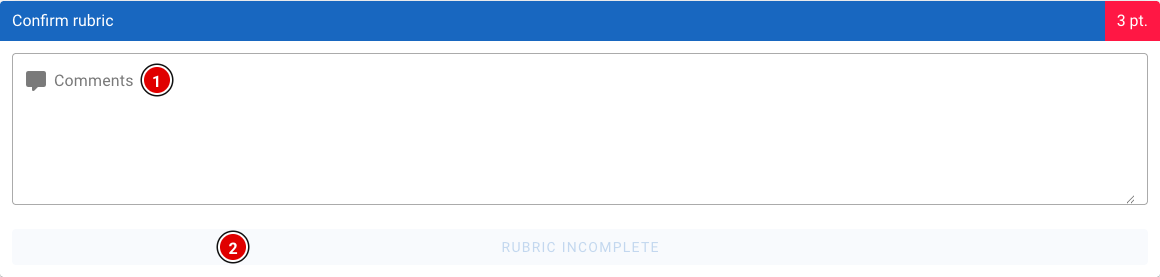
- Comments (1): Space for comments about the team.
- The button (2) shows Rubric incomplete as long as not all criteria have been filled in. When everything is filled in, the button changes to Submit and you can save the assessment.
Digital judging works the same way: assess each team on its own merits and do not compare teams with each other. The rankings are calculated automatically later on the page Competition Results.
Scoring desk
The scoring desk may not have many tasks, but it plays a crucial role. The desk keeps track of whether all scores come in correctly and checks for any mistakes. At the end of the day, the scoring desk makes sure all results are ready for the judges' deliberation.
Users with the secretariat role have access to everything on this page.
The dashboard
After logging in you land on the Dashboard. Here you can see at a glance how the day is going.
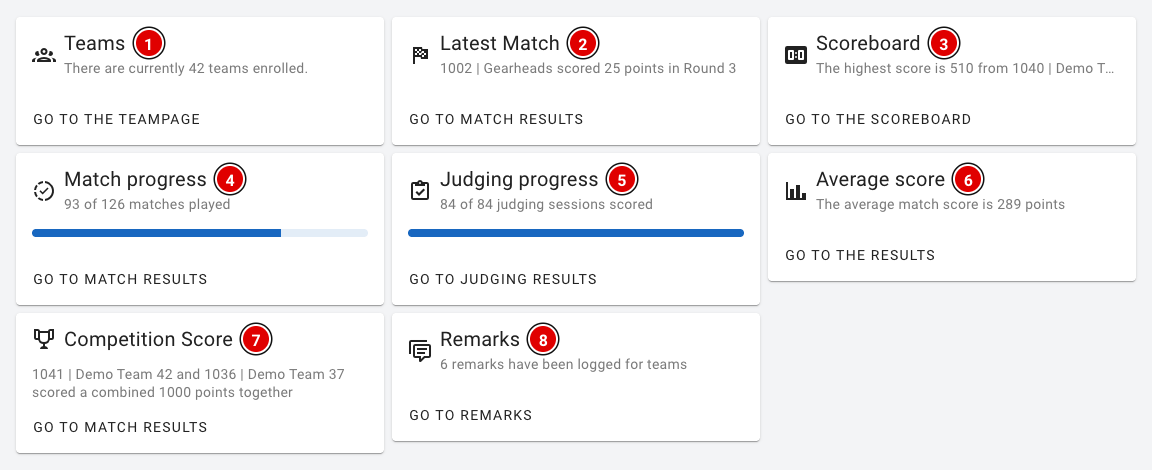
- Teams (1): The number of registered teams.
- Latest Match (2): The most recently entered score.
- Scoreboard (3): The highest score so far.
- Match progress (4): How many of the matches in the schedule have been played and entered.
- Judging progress (5): How many judging sessions have been assessed.
- Average score (6): The average match score.
- Competition Score (7): The two teams that achieved the highest combined score in a single match (playing at the same time on a table pair).
- Remarks (8): The number of remarks recorded about teams.
Checking match scores
Via Game results in the menu you can see all entered robot matches. The list refreshes automatically as soon as a new score comes in.
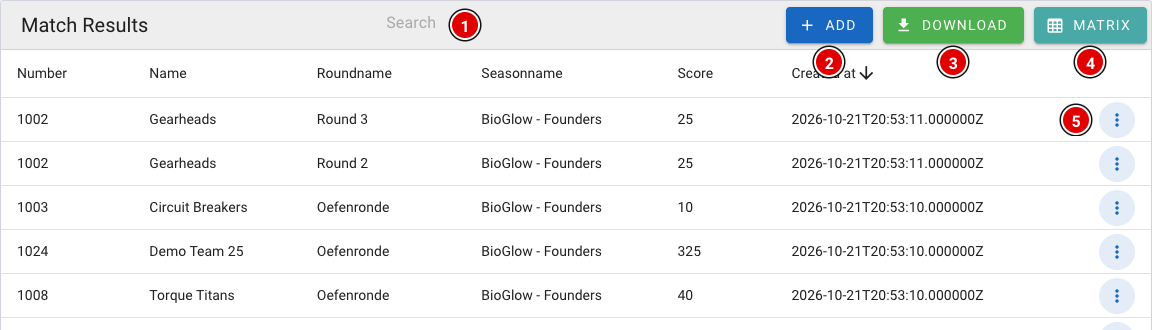
- Search (1): Search by team number, team name or round.
- Add (2): Enter a score yourself, for example from a paper score sheet. This works the same as for the referees (see Referee briefing).
- Download (3): Download an Excel file with all scores.
- Matrix (4): Opens the overview per team and round (see below).
- 3 dots (5): Opens the menu for a score.
Correcting a score
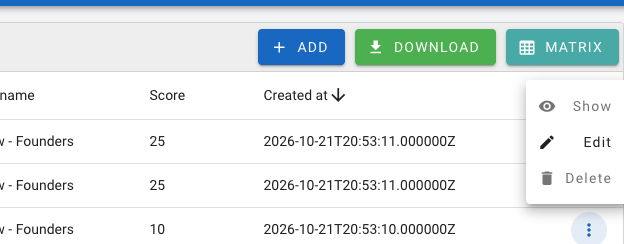
- Show: View the complete score sheet as it was filled in.
- Edit: Open the score sheet to fix a mistake. Change the answers and save the form.
- Delete: Delete the score, for example if a match was entered twice or for the wrong team.
If in doubt, always check with the head referee before you change or delete a score.
The matrix
The matrix shows all teams below each other and all rounds side by side. This lets you quickly see where a score is still missing or where something has been entered twice.
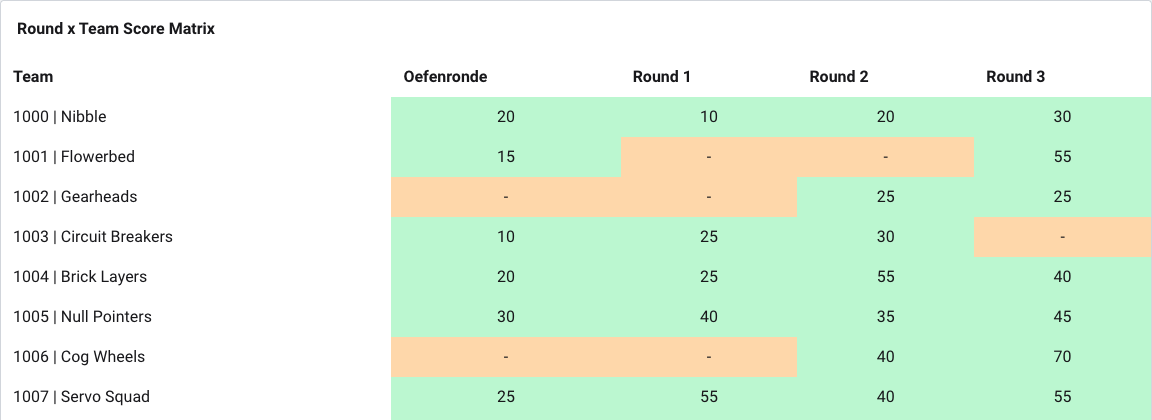

- Orange: There is no score yet for this team in this round. Check the schedule to see whether the match should already have been played.
- Green: There is exactly one score. That is how it should be.
- Red: There are several scores for the same team in the same round. Click the underlined score: a window opens with all scores in that cell, with table, who entered it and when. Open the score with Open referee result or delete the wrong one with Delete. The cell then turns green again.
Checking judging results
If the judges assess digitally, you will find all assessments under Judging results.
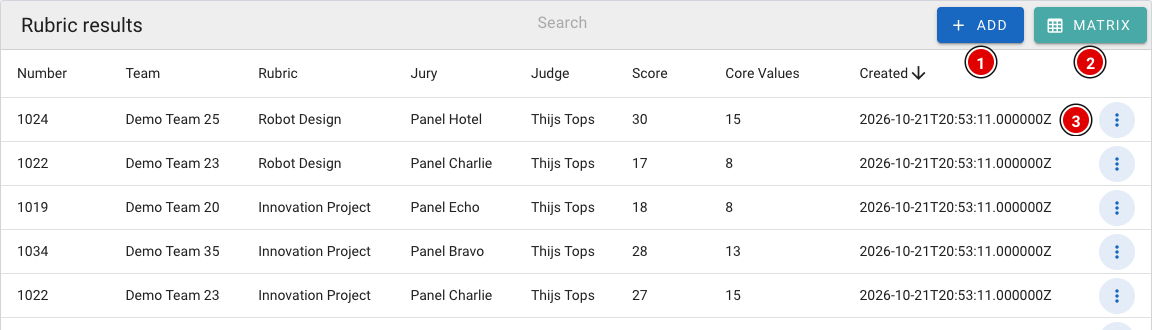
- Add (1): Enter an assessment yourself, for example from a paper judging form.
- Matrix (2): Overview of all teams and judging forms, with the same colours as for the match scores.
- 3 dots (3): View (Show), change (Edit) or delete (Delete) an assessment.
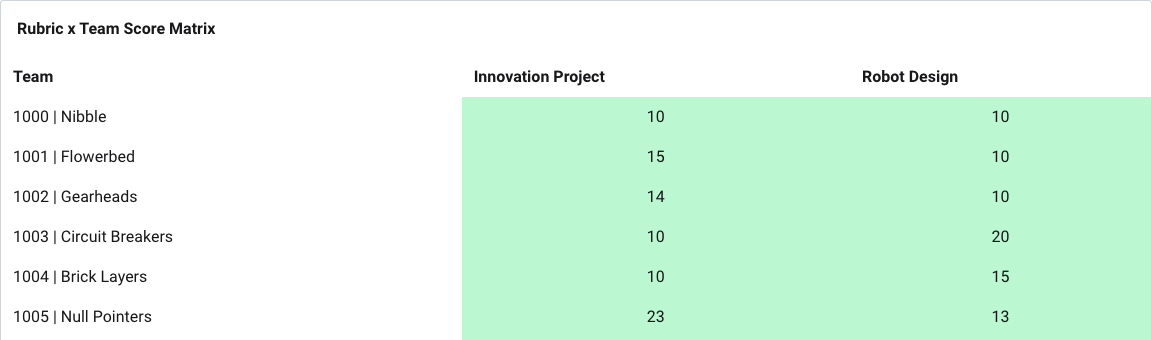
Receiving scores via QR codes
If a referee or judge has been without internet for a long time, the locally stored scores can be transferred to the scoring desk laptop via QR codes.
- Go via Setup to Settings and scroll to Import results via QR.
- Choose Import Referee Results (1) for match scores or Import Rubric Results (2) for judging results.

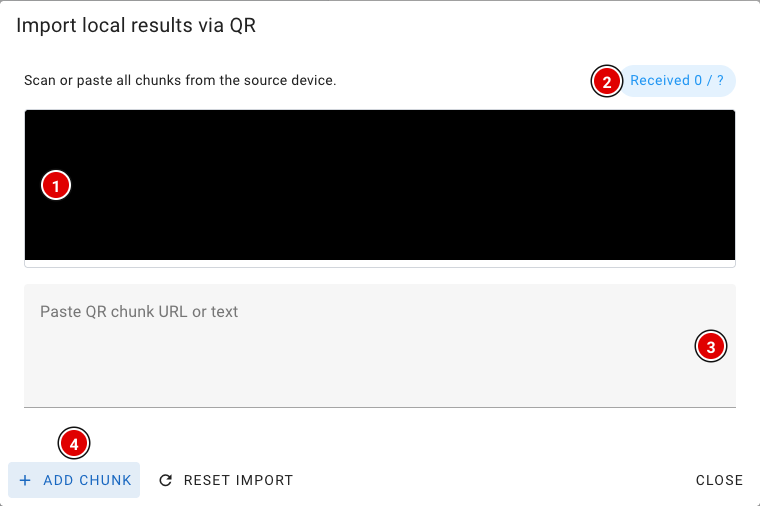
- The camera view (1) appears. Hold the camera in front of the screen with the changing QR codes on the other device. Allow the browser to use the camera.
- Received (2) shows how many codes have been received.
- Camera not working? Scan the codes with another scanner, paste the text or link into the box (3), and click Add chunk (4).
- Once all codes are in, a 6-character verification code appears. Pass it on to the referee or judge; they enter it on their own device so the scores can be safely removed there.
- The received scores are now stored as local results on the scoring desk laptop. On this laptop, open Robot Match (for match scores) or Judge (for judging results); if the laptop is online, the scores are sent automatically. Then check in the matrix that everything has arrived.
At the end of the day
- Check both matrices to make sure there are no orange or red cells left.
- Check that every referee and judge device shows Local Results: 0.
- Prepare the results for the judges' deliberation. See the chapter Judges' deliberation, with the pages Competition Results and OJS.
The scoreboard
FLLTools has a live scoreboard. As soon as a referee saves a score, the ranking is recalculated and the scoreboard refreshes by itself. So there is no need to reload the page.
There are 3 versions of the scoreboard.
Public scoreboard
This is the scoreboard visitors land on when they visit the site. You can find it at https://yourevent.flltools.nl/scoreboard (replace "yourevent" with the name of your event), or via Scoreboard (1) in the menu at the top.
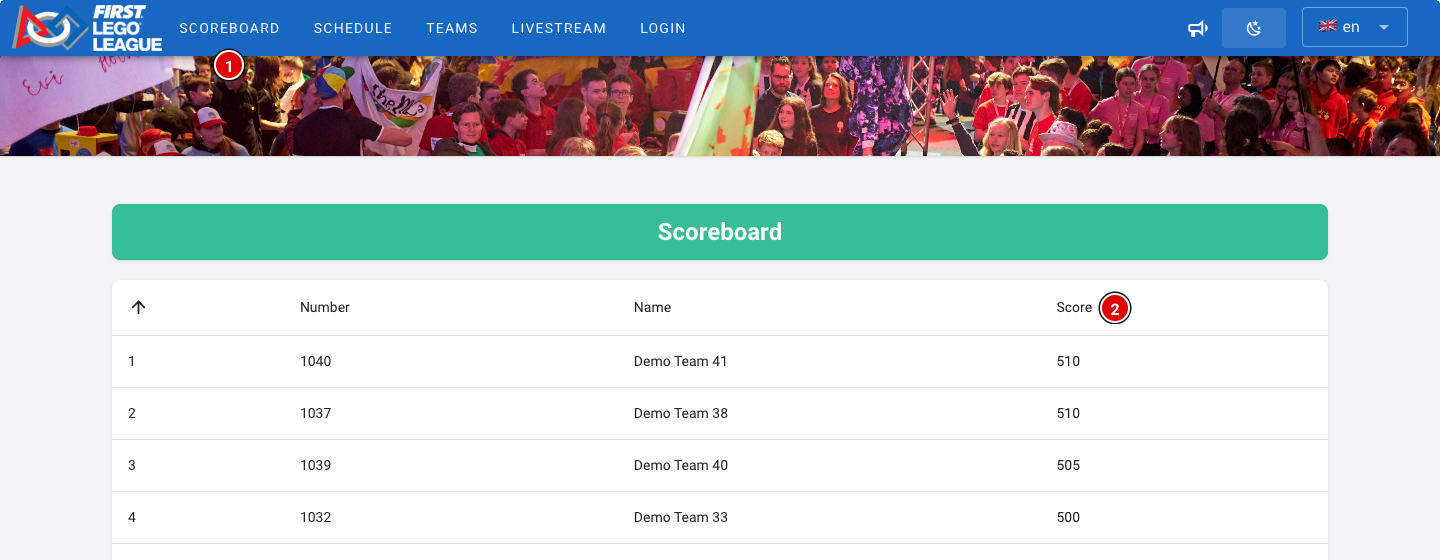
- Teams are ranked by their best score (2) across all rounds. Only the best match counts, as in the official FLL rules.
- If two teams have the same best score, the second-best score decides, then the third, and so on. Teams that are completely tied share the same place.
- Practice rounds and hidden rounds are not counted on this scoreboard. The practice round doesn't count towards the result, and the hidden rounds (usually the last round) keep the suspense going until the awards ceremony.
- A team appears on the scoreboard as soon as it has a score in a round that counts.
- If you run several tournaments, the public scoreboard shows the tournament selected at Public Tournament in Setup → Settings.
When playing with a score sheet for a future or trial season, teams are ranked by their average score instead of their best score.
Kiosk scoreboard
Want to show the scoreboard on a big screen or a publicly accessible device in the venue? Use https://yourevent.flltools.nl/scoreboard/kiosk. This scoreboard shows the same ranking, but without the menu and without a login button. Visitors can't navigate anywhere else from this screen.
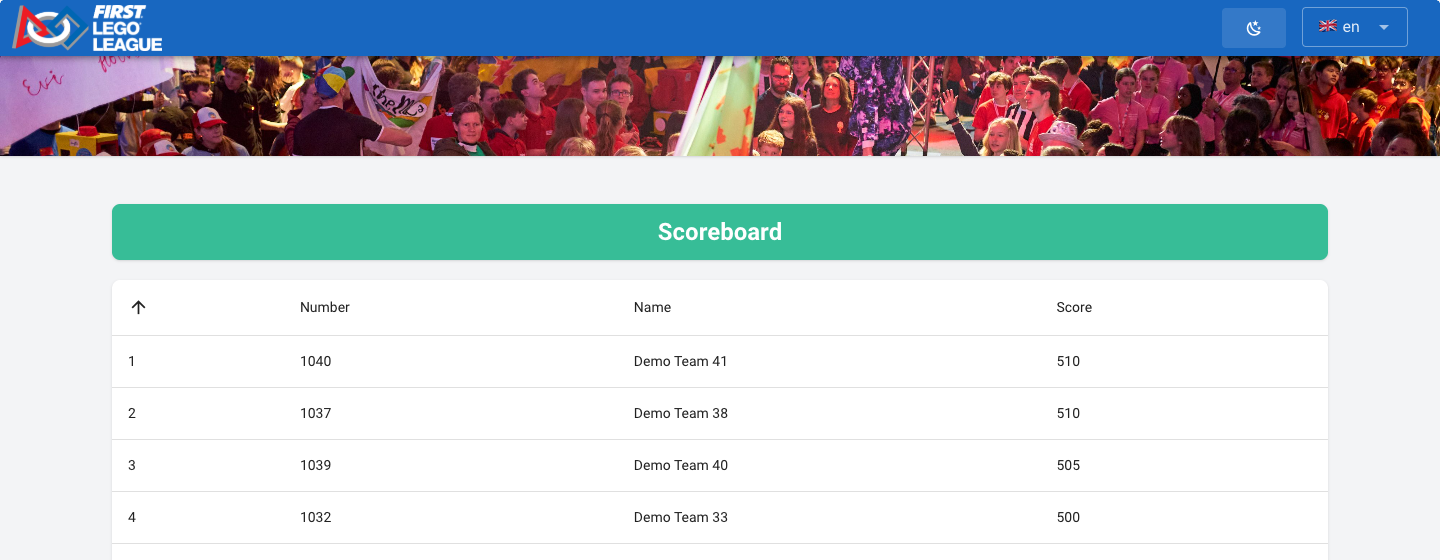
- Open the page in a browser on the computer connected to the screen.
- Put the browser in full-screen mode (usually with the F11 key).
- Turn off sleep mode and the screensaver on the computer, so the scoreboard stays visible all day.
Want to show the schedule, the timer or the tables on a screen as well as the scoreboard? Use the info screens. See the page about Info screens.
Administrative scoreboard
Logged-in users can find the administrative scoreboard via Scoreboard (1) in the menu. The same applies as for the public scoreboard, except that only the practice rounds are left out here. Hidden rounds are counted for logged-in users.
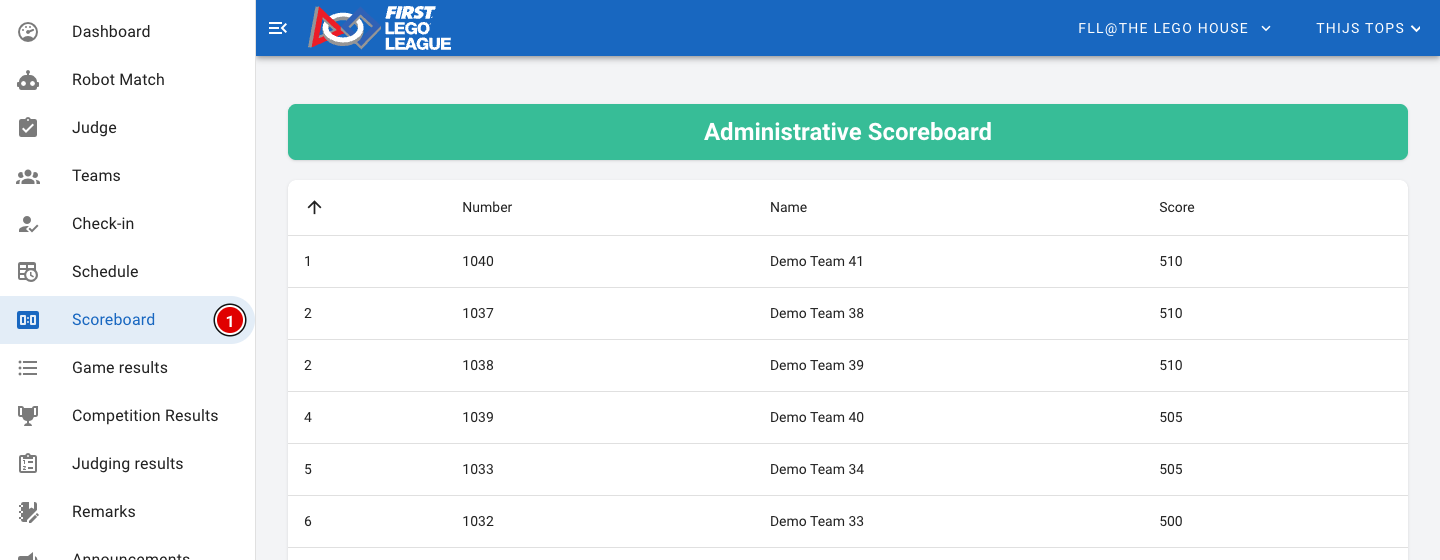
So don't show the administrative scoreboard on a public screen while rounds are still hidden. After the awards ceremony you make the hidden round visible; see the page Making the last round visible.
Remarks
The Remarks module is switched on by default. This is where remarks about teams are collected, so they are easy to find during the judges' deliberation. Remarks are placed in different categories and can be both positive and negative.
Where do remarks come from?
- Referees: Whatever a referee enters under Comments on the score sheet is automatically saved as a remark for the team, in the Table category.
- Judges: Via Add remark in the Judge portal. Judges only see and edit their own remarks there (under Remarks in their menu).
- Other volunteers: Anyone with a role (referee, judge, secretariat, administrator) can add a remark to inform the judges' deliberation, for example the volunteers in the pits or at check-in.
The overview
Go to Remarks in the menu. This overview is visible to the scoring desk and administrators, and only shows the remarks of the current tournament.
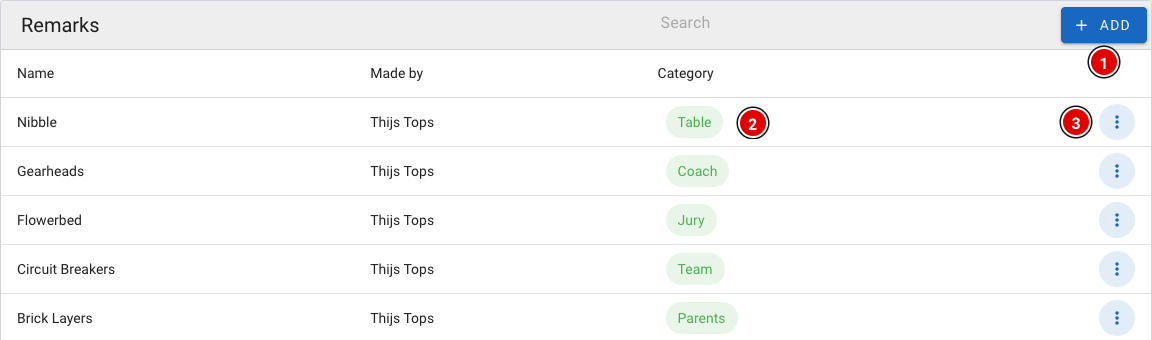
- Add (1) adds a new remark.
- The category (2) shows where the remark came from.
- Via the 3 dots (3) you can open (Show), change (Edit) or delete (Delete) a remark. Only an administrator can change and delete remarks.
The remarks themselves are not shown in the overview, in case other people are looking over your shoulder. You can read a remark by opening it via the menu.
Adding a remark
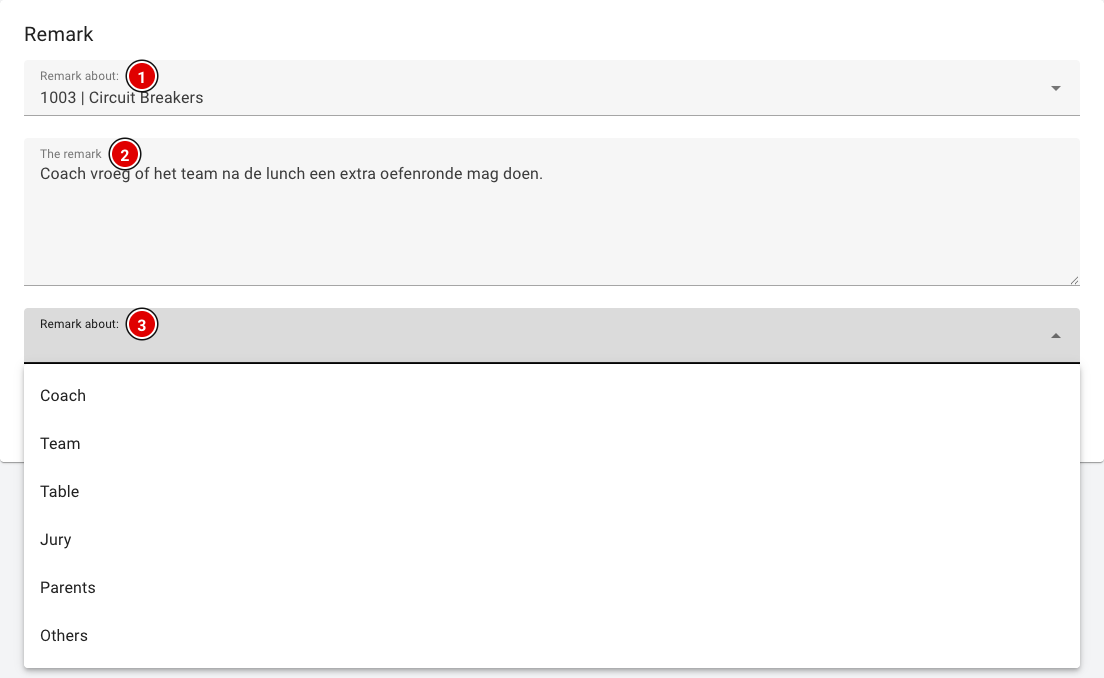
- Remark about (1): Choose the team the remark is about. Type a few letters or the team number to search.
- The remark (2): The remark itself. Keep it short and factual.
- Category (3): Who or where the remark comes from: Coach, Team, Table, Jury, Parents or Others. Note: in the tool this field is currently also labelled "Remark about:".
- Click Save to store the remark.
At the moment, remarks are deleted at the end of the year. We are working on keeping remarks across seasons, so that problems don't depend on volunteers remembering them but can be tracked systematically.
Announcements
With announcements you can send a push message to the phones and computers of visitors, coaches and volunteers during competition day. Useful for messages such as "Lunch is ready", "The awards ceremony starts in 10 minutes" or a change to the schedule.
How do people receive announcements?
A message only arrives on devices that have signed up:
- Visitors, teams and coaches: On the public website there is a megaphone button (1) at the top. Tap it and allow the browser to show notifications. No account is needed. Tapping it again switches announcements off.
- Volunteers with an account: They switch notifications on via their profile, with Enable Notifications under Notifications. See the page Logging in and finding your way around.

Put up a sign at the entrance or ask the host to mention that visitors can switch on announcements via the megaphone on the website. On an iPhone, push notifications only work after the website has been added to the home screen.
Sending an announcement
Announcements can be sent by the scoring desk and administrators.
- Click Announcements (1) in the menu.
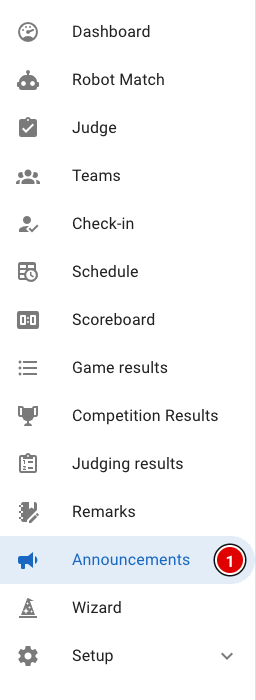
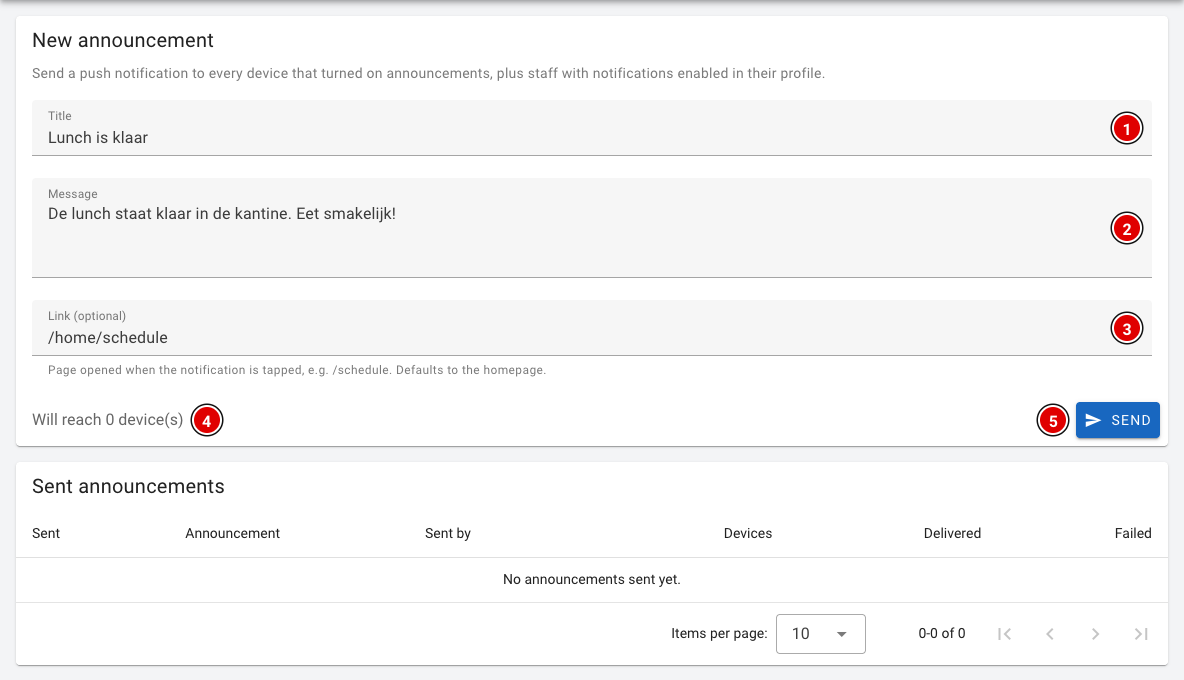
- Title (1): The title of the message, for example "Lunch is ready".
- Message (2): The message itself. Keep it short; only a little text is visible on a phone.
- Link (optional) (3): The page that opens when someone taps the notification, for example /home/schedule for the schedule or /scoreboard for the scoreboard. If you leave it empty, the homepage opens.
- Will reach (4): How many devices the message will reach.
- Click Send (5).
A confirmation question appears. Click Send again to actually send the message.
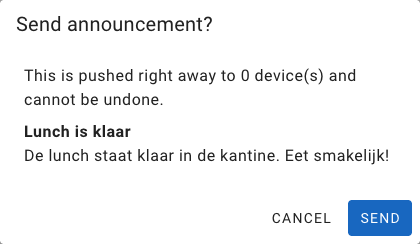
A sent announcement arrives immediately and cannot be recalled. So read the message carefully before you send it.
Sent announcements
Under Sent announcements you can see all previously sent messages, who sent them, to how many devices (Devices), and on how many devices the message was delivered (Delivered) or failed (Failed).
Do you see a message that web push is not configured? Then FLLTools can't send push messages on this environment (yet). Contact thijs@flltools.nl.
Judges' deliberation
Competition Results: determining the results
The Competition Results page helps the head judge during the judges' deliberation. FLLTools puts all robot scores and judging assessments side by side and calculates the rankings automatically, in the same way as the official spreadsheet (OJS). The head judge can record directly for each team which award it receives.
The rankings are recalculated every time from the scores in FLLTools, so you don't need to retype anything. Only the choices for awards, places, advancement and comments are saved.
This page is visible to users with the Head Judge, Secretariat or Administrator role. They can also fill in the awards.
The overview
Click Competition Results in the menu on the left.
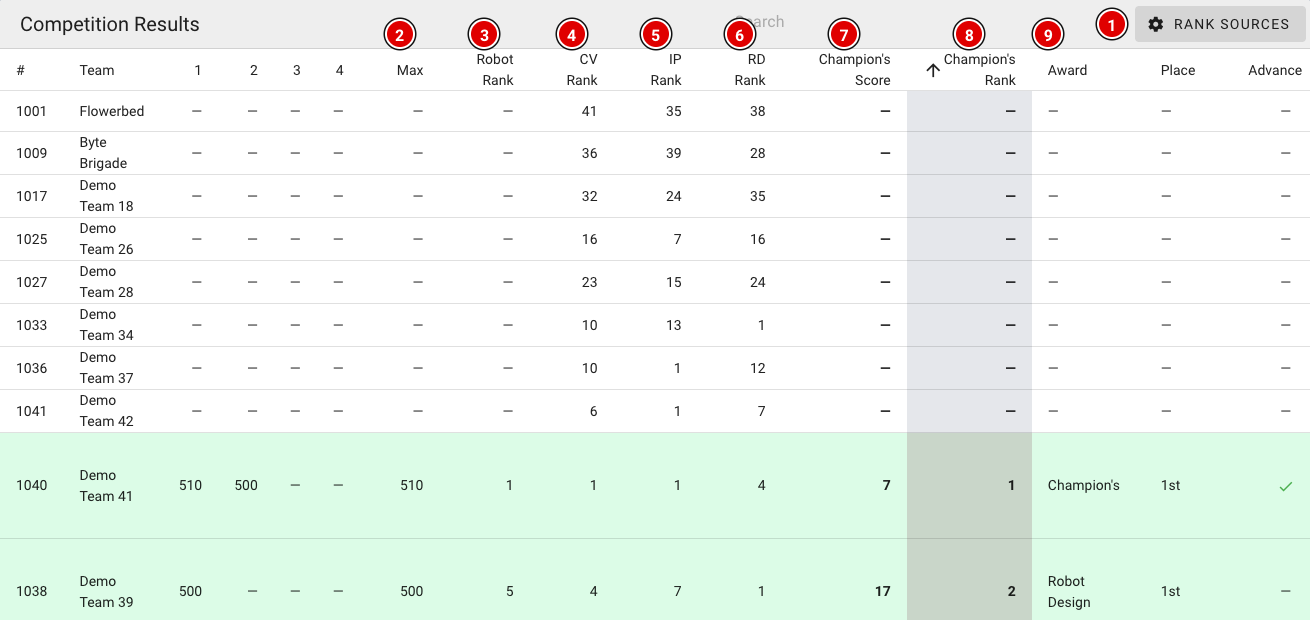
Each row is a team. The columns:
- 1 to 4: the team's four highest robot scores, from high to low.
- Max (2): the highest robot score.
- Robot Rank (3): the place in the robot game. It is based on the highest score. With an equal highest score, the second-highest score counts, and so on. This is the same order as on the scoreboard.
- CV Rank (4): the place for Core Values. The Core Values points from the two judging forms (Innovation Project and Robot Design) are added to the Gracious Professionalism score the referees gave per match.
- IP Rank (5): the place based on the total score of the Innovation Project form.
- RD Rank (6): the place based on the total score of the Robot Design form.
- Champion's Score (7): the four places added together (Robot + CV + IP + RD). The lower, the better.
- Champion's Rank (8): the place based on the Champion's Score. Number 1 is the candidate for the Champion's award.
- Award (9), Place, Advance and Comment: the head judge's choices (see below).
Teams with the same score share the same place (for example 1, 2, 2, 4). The list is sorted by Champion's Rank by default. Click a column header to sort by another column, for example by IP Rank when discussing the Innovation Project award. Use the search field to find a team quickly.
Is something still missing for a team, for example a judging assessment or a robot score? Then a dash (–) is shown and the team gets no Champion's Score. These teams are at the bottom of the list. In that case, check with the scoring desk that all forms have been entered.
Practice rounds don't count. Rounds that are still set to Hide scores also don't count (yet) towards the robot scores and the Robot Rank. Keep this in mind if the last round is still hidden during the judges' deliberation. See also the page Making the last round visible.
Which forms count (Rank sources)
FLLTools needs to know which judging form belongs to the Innovation Project and which to Robot Design. Check this before the judges' deliberation.
- Click Rank sources (1) in the top right (see the first image).
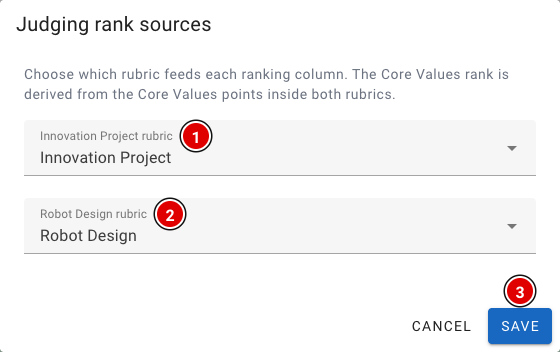
Innovation Project rubric (1): The form whose total score determines the IP Rank.
Robot Design rubric (2): The form whose total score determines the RD Rank.
The CV Rank is calculated automatically from the Core Values points in these two forms. Click Save (3) to store your choice. The choice applies to the current tournament.
If you haven't chosen anything here yet, FLLTools automatically uses the first Innovation Project and Robot Design forms in the system. If a team was assessed by several judges with the same form, the most recently entered form counts.
Recording awards
- Click the pencil icon at the end of a team's row.
- A window opens:
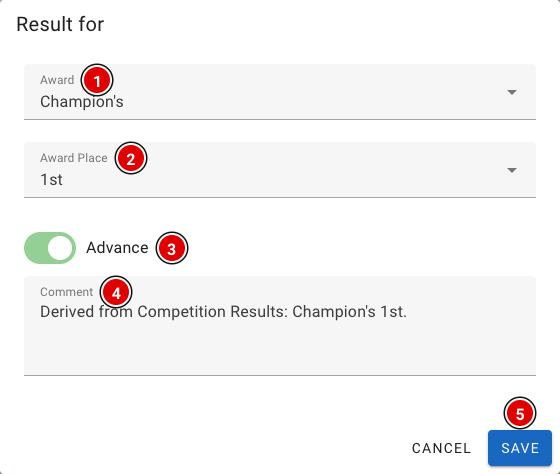
Award (1): Choose the award from the list (Champion's, Core Values, Innovation Project, Robot Design, Robot Performance, Breakthrough, Rising All-Star, Motivate). You can also type your own name, for example for a local award.
Award Place (2): The place, for example 1st, 2nd or 3rd. You can type your own value here as well.
Advance (3): Switch this on if the team advances to the next level, for example the national or international final.
Comment (4): Space for an explanation, for example the reason for the choice or text for the host.
- Click Save (5).
- Teams with an award turn green in the overview. Advancing teams get a tick in the Advance column.
- Want to undo a choice? Clear all fields, switch Advance off and click Save.
The rankings are an aid. The final decision always rests with the judges. Follow the official rules in the “Awards and Allocations” document in the judging toolkit.
FLLTools export to OJS
Do you use OJS (Official Judging Spreadsheet) for the judges' deliberation? Then you don't need to retype the robot scores. FLLTools creates an Excel file that you can paste into OJS.
Go via Setup to Exports. At the bottom of the page you will find the cards below:
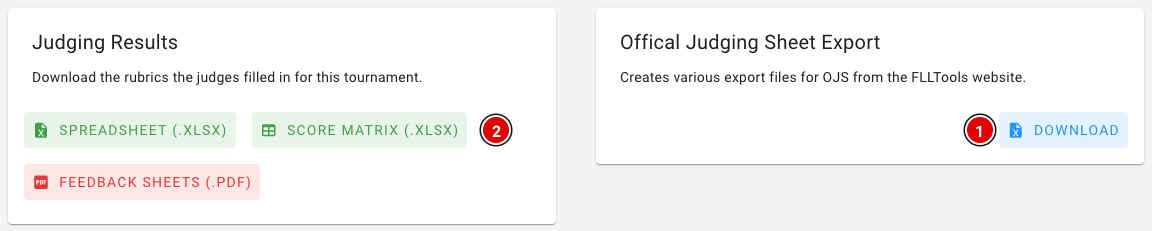
Robot scores and Gracious Professionalism
- On the Offical Judging Sheet Export card, click Download (1).
- You get an Excel file (export.xlsx). You don't need to click Generate first.
The file contains one row per team with:
- Teamnumber and Teamname;
- Max score: the highest robot score;
- the robot score for each competition round (excluding practice rounds);
- the Gracious Professionalism score for each competition round (columns GP …).
Paste the scores into the right tabs in OJS: the robot scores on the “Robot Game Scores” tab and the GP scores in the Gracious Professionalism columns on the “Core Values Input” tab. Use Paste Special > Values, so the formulas in OJS are not overwritten. Check that the team order in OJS matches the order in the export.
Judging assessments
Are the judging assessments entered in FLLTools? Then you can download them from Judging Results:
- Score Matrix (.xlsx) (2): one tab per form (for example Innovation Project and Robot Design) with one row per team and the chosen score (1 to 4) per section. Handy for copying the rubric scores into OJS.
- Spreadsheet (.xlsx): all completed forms in one list, including judge and feedback.
- Feedback sheets (.pdf): the completed forms, one per page, to hand to the teams at the end of the day.
Tip: with the Competition Results page, FLLTools calculates the rankings itself, without OJS. See the page Competition Results: determining the results.
Working with OJS
Are all robot scores and judging assessments entered in FLLTools? Then you can also use the Competition Results page. It calculates the same rankings as OJS (Robot Game, Core Values, Innovation Project, Robot Design and Champion's), and you can record the awards there. If you work with OJS, for example because you have to submit the spreadsheet to your operational partner, follow the steps below.
Important before you start
- You can find the spreadsheets for the current season on this web page.
- The spreadsheet is designed for Microsoft Excel. Some functionality may be lost in other programs. Also pay attention to the version of Excel you are using.
- Many columns in the various tabs contain formulas. Be careful not to change or delete these formulas by accident.
- When you copy data into the input tabs, use Paste Special > Values. This prevents the formatting or formulas from being overwritten.
Step 1.
Open the “Team and Program Information” tab. Fill in the team details there. This information automatically appears in the other tabs. You may notice that team names are not visible in the “Robot Game Scores” tab. These cells are hidden on purpose and must not be filled in manually.
Step 2.
Collect the rubric scores from the judges and the Robot Game scores from the referees. Then enter this data in the corresponding tabs of the workbook.
- You can export the Robot Game scores and Gracious Professionalism scores from FLLTools. See the page FLLTools export to OJS.
- Core Values scores (except the referees' Gracious Professionalism scores) must be entered in columns C to L on the “Core Values Input” tab.
- The referees' Gracious Professionalism scores must be entered in columns P–Q on the “Core Values Input” tab.
- When referees hand in paper score sheets, the Robot Game scores must be calculated using the FLLTools score calculator (https://rekenmachine.flltools.nl).
Step 3.
When all data has been entered, go to the “Results and Rankings” tab to see all information together in one overview.
Step 4.
Now you can assign the awards based on the rankings. Use the “Awards and Allocations” document from the judging toolkit for this (you can find it here).
After the event
Making the last round visible
Don't forget to make the last round visible after the awards ceremony! Then the teams can see the final results of the day too.
During competition day the last round is usually set to Hide scores. That keeps the results exciting until the awards ceremony. As long as a round is hidden, its scores are not shown on:
- the public scoreboard;
- the info screens (scoreboard, ticker and livestream overlay);
- the public team pages (they show "Score hidden");
- the Competition Results page (the robot scores of that round don't count there yet).
Logged-in users can still see the hidden scores on the administrative scoreboard and under Game results.
Making the round visible
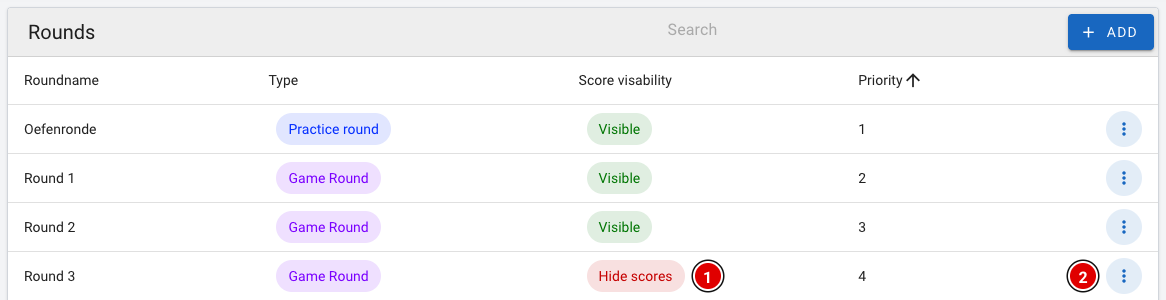
- Go via Setup to Rounds.
- You can recognise the hidden round by the red Hide scores (1) label.
- Click the 3 dots (2) at the end of that row.
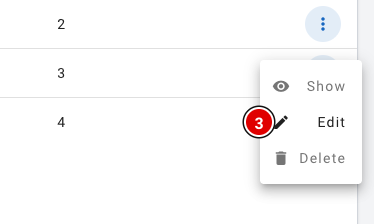
- Click Edit (3).
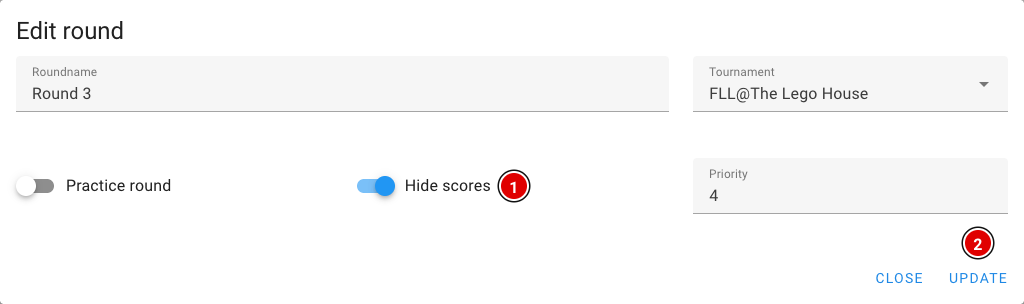
- Switch Hide scores (1) off.
- Click Update (2).
- The list now shows the green Visible label for the round.
The public scoreboard and the info screens update automatically. Visitors don't need to reload the page.
Results on the team pages
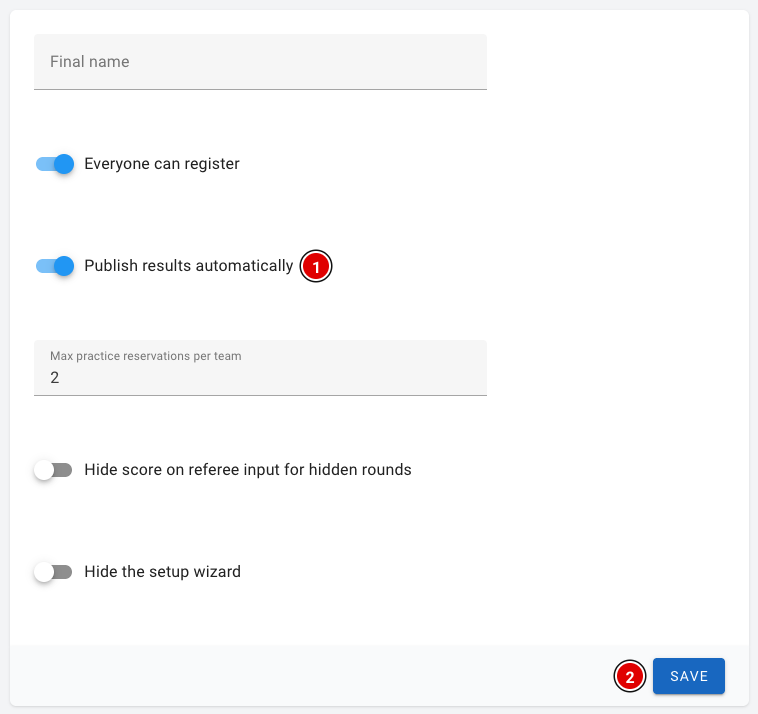
Whether match results appear on the public team pages depends on the Publish results automatically (1) setting. You'll find it via Setup and Settings.
- When it is on, a team sees the scores per round on its own team page and can view the completed score sheets. Scores of hidden rounds stay hidden until you make the round visible.
- When it is off, no match results are shown on the team pages at all.
- Only want to show the results after the awards ceremony? Then switch the setting on at that point and click Save (2).
The public scoreboard does not use this setting. It always shows the scores of the visible rounds (excluding practice rounds).