This page is visible to users with the **Head Judge**, **Secretariat** or **Administrator** role. They can also fill in the awards.
### The overview Click **Competition Results** in the menu on the left. [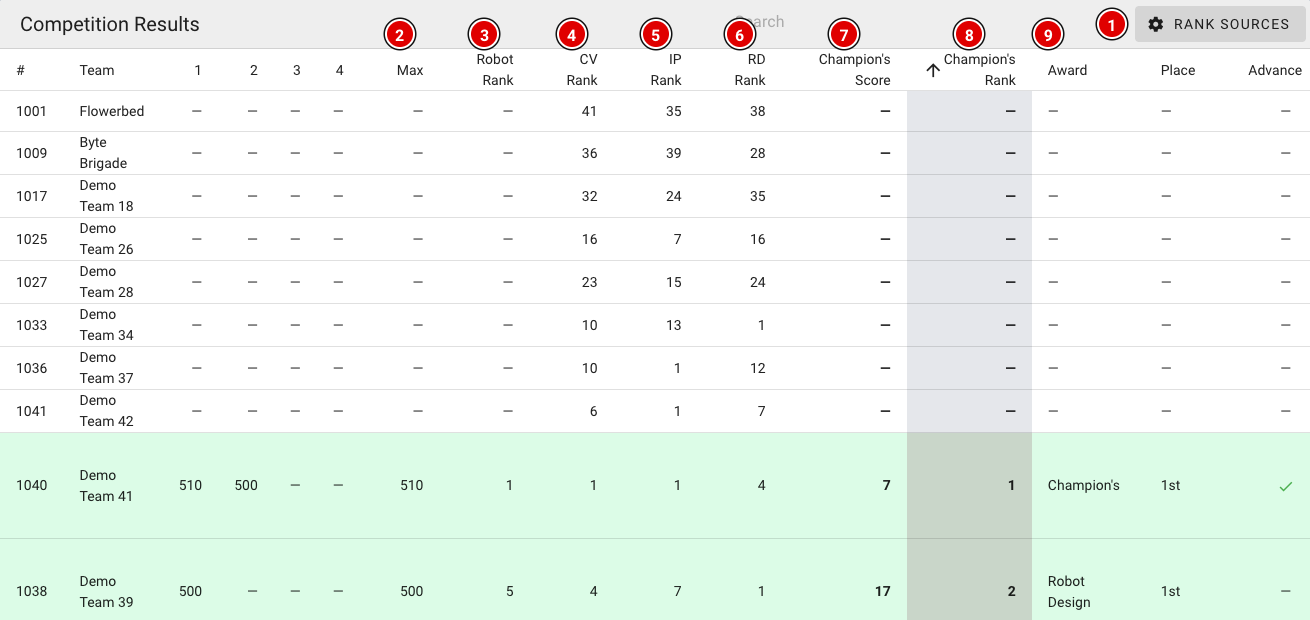](https://docs.flltools.com/uploads/images/gallery/2026-10/competition-results-01.png) Each row is a team. The columns: - **1 to 4**: the team's four highest robot scores, from high to low. - **Max (2)**: the highest robot score. - **Robot Rank (3)**: the place in the robot game. It is based on the highest score. With an equal highest score, the second-highest score counts, and so on. This is the same order as on the scoreboard. - **CV Rank (4)**: the place for Core Values. The Core Values points from the two judging forms (Innovation Project and Robot Design) are added to the Gracious Professionalism score the referees gave per match. - **IP Rank (5)**: the place based on the total score of the Innovation Project form. - **RD Rank (6)**: the place based on the total score of the Robot Design form. - **Champion's Score (7)**: the four places added together (Robot + CV + IP + RD). The lower, the better. - **Champion's Rank (8)**: the place based on the Champion's Score. Number 1 is the candidate for the Champion's award. - **Award (9)**, **Place**, **Advance** and **Comment**: the head judge's choices (see below). Teams with the same score share the same place (for example 1, 2, 2, 4). The list is sorted by Champion's Rank by default. Click a column header to sort by another column, for example by IP Rank when discussing the Innovation Project award. Use the search field to find a team quickly. Is something still missing for a team, for example a judging assessment or a robot score? Then a dash (–) is shown and the team gets no Champion's Score. These teams are at the bottom of the list. In that case, check with the scoring desk that all forms have been entered.Practice rounds don't count. Rounds that are still set to **Hide scores** also don't count (yet) towards the robot scores and the Robot Rank. Keep this in mind if the last round is still hidden during the judges' deliberation. See also the page [Making the last round visible](https://docs.flltools.com/books/flltools-documentation-english/page/making-the-last-round-visible).
### Which forms count (Rank sources) FLLTools needs to know which judging form belongs to the Innovation Project and which to Robot Design. Check this before the judges' deliberation. - Click **Rank sources (1)** in the top right (see the first image). [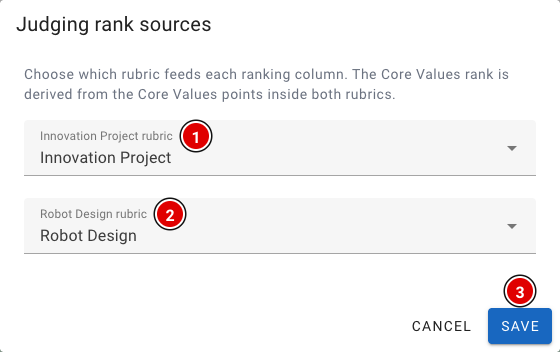](https://docs.flltools.com/uploads/images/gallery/2026-10/competition-results-02.png) **Innovation Project rubric (1):** The form whose total score determines the IP Rank. **Robot Design rubric (2):** The form whose total score determines the RD Rank. The CV Rank is calculated automatically from the Core Values points in these two forms. Click **Save (3)** to store your choice. The choice applies to the current tournament.If you haven't chosen anything here yet, FLLTools automatically uses the first Innovation Project and Robot Design forms in the system. If a team was assessed by several judges with the same form, the most recently entered form counts.
### Recording awards - Click the pencil icon at the end of a team's row. - A window opens: [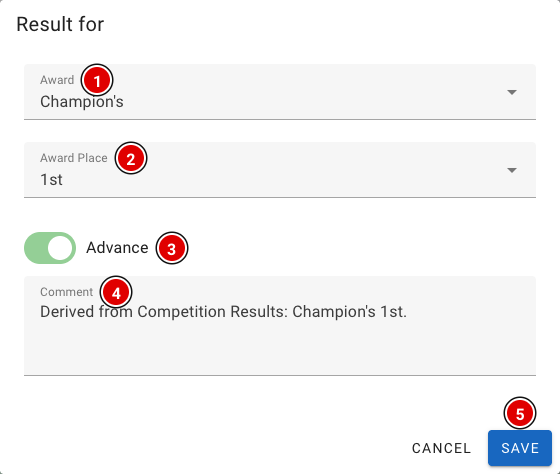](https://docs.flltools.com/uploads/images/gallery/2026-10/competition-results-03.png) **Award (1):** Choose the award from the list (Champion's, Core Values, Innovation Project, Robot Design, Robot Performance, Breakthrough, Rising All-Star, Motivate). You can also type your own name, for example for a local award. **Award Place (2):** The place, for example 1st, 2nd or 3rd. You can type your own value here as well. **Advance (3):** Switch this on if the team advances to the next level, for example the national or international final. **Comment (4):** Space for an explanation, for example the reason for the choice or text for the host. - Click **Save (5)**. - Teams with an award turn green in the overview. Advancing teams get a tick in the **Advance** column. - Want to undo a choice? Clear all fields, switch Advance off and click **Save**.The rankings are an aid. The final decision always rests with the judges. Follow the official rules in the **“Awards and Allocations”** document in the judging toolkit.