Changed something after generating, such as a team name or the schedule? Click **Generate** again. The existing files are then replaced by new ones.
Explanation of the exports: - **Judge Rubrics (3)**: All judging forms (rubrics). The team names and team numbers are already filled in. If you use the **Judge Forms Scanner**, these forms are required, because the scanner uses the markers on the forms. - **Match List (4)**: An overview for the referees showing when each team should be at which table. - **Judge List (5)**: An overview of the times when each team has to appear before which jury. - **Team Table Indicators (6)**: Name cards for the tables: one A4 page (landscape) per team with the team number, team name and organisation. - **Teams4Teams Cards (7)**: Printable Teams4Teams cards for every team. ### Judging results and OJS Below the generated exports are two more cards. These files are created immediately when you click them; you don't need to press **Generate** first. [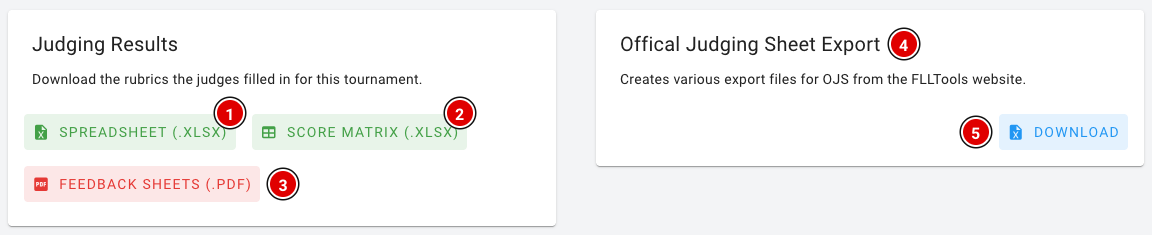](https://docs.flltools.com/uploads/images/gallery/2026-10/exports-02.png) **Judging Results:** The judging forms the judges filled in digitally (see [Judges' briefing](https://docs.flltools.com/books/flltools-documentation-english/page/judges-briefing)). There are three downloads: - **Spreadsheet (.xlsx) (1)**: All completed rubrics in one Excel file, with one line per team, rubric and judge, including the scores and the feedback. - **Score matrix (.xlsx) (2)**: An Excel file with one tab per rubric. Each row is a team, each column an assessment criterion, containing the chosen score (1 to 4). - **Feedback sheets (.pdf) (3)**: The completed rubrics as a PDF, one form per page, sorted by team number. You can hand these to the teams at the end of the day. **Official Judging Sheet Export (4):** **Download (5)** gives you an Excel file with all robot game scores and the Gracious Professionalism scores. You create this export at the end of the competition day. How to put this data into OJS is explained in the *Judges' deliberation* chapter on the page [FLLTools export to OJS](https://docs.flltools.com/books/flltools-documentation-english/page/flltools-export-to-ojs). ### Your own PDFs When the *Custom PDF Templates* module is switched on, you also see the **Custom PDF Templates** block at the bottom of the page. With it you create, for example, certificates or badges with your own design. This is explained on the page [Custom PDF templates](https://docs.flltools.com/books/flltools-documentation-english/page/custom-pdf-templates). The PDF exports can't be customised. Want an export with your own design? Use the custom PDF templates, or contact