Creating the tournament
The e-mail you received contains the login details. Log in to your FLLTools event (see the page Logging in and finding your way around).
- For the rest of the instructions we use the link yourevent.flltools.nl.
- Replace "yourevent" with the name of your event.
- The language is set to English by default. You can change this in the user menu. The buttons and icons are in the same place in every language.
You can also create the tournament with the Setup Wizard. It opens automatically if there is no tournament yet. See the page The Setup Wizard. This page explains how to create and manage a tournament through the menu, and what all the fields mean.
Going to the Tournaments page
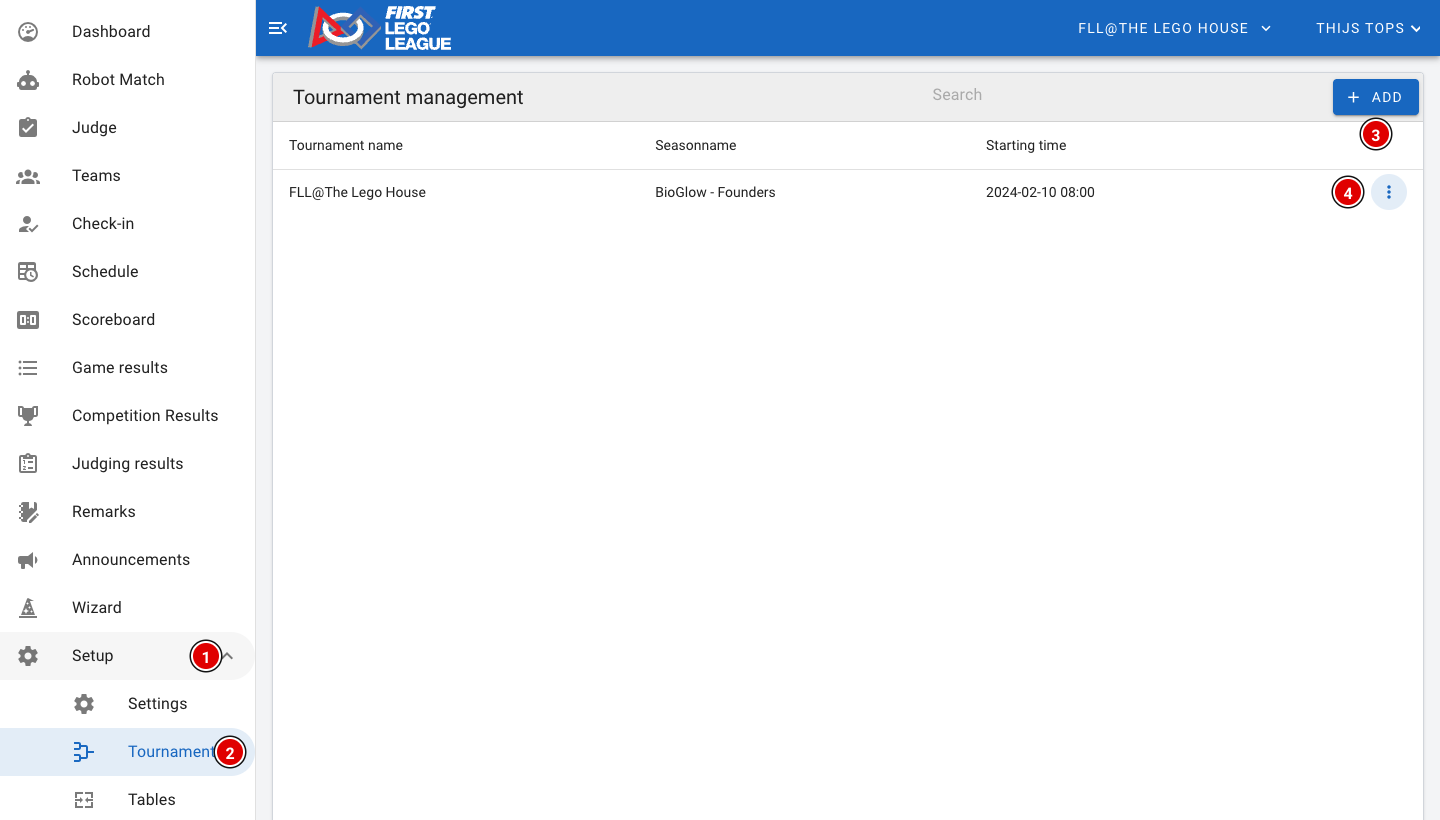
- Click Setup (1) and then Tournaments (2).
- You now see a list of all tournaments, with the season and the start time.
FLLTools can manage several tournaments at the same time. This is handy, for example, when a region spreads its teams over two days. Each tournament has its own teams, rounds, juries, schedule and results.
Creating a tournament
- Click Add (3).
- A window opens where you can enter all the details.
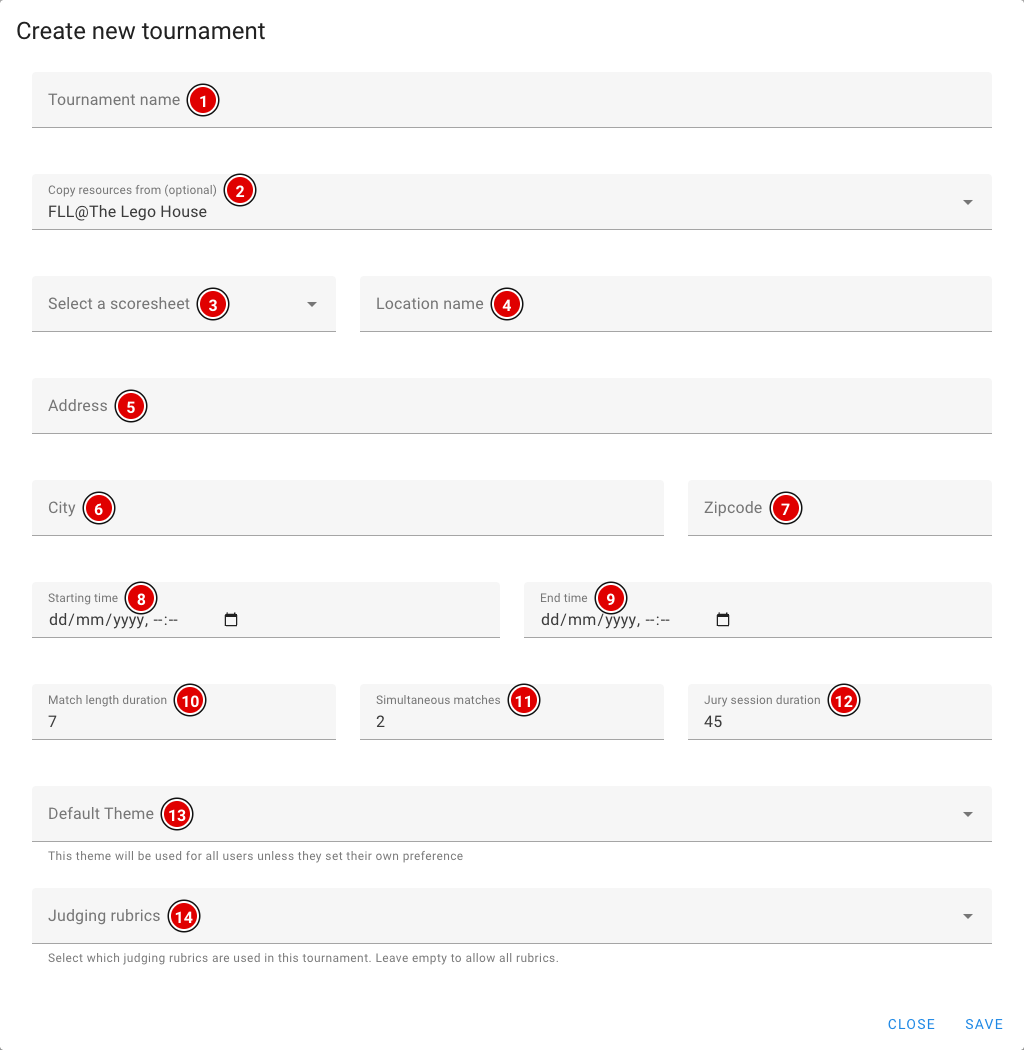
Tournament name (1): Enter the name of the tournament, for example "Regional final".
Copy resources from (optional) (2): Choose an existing tournament to copy the rounds, juries, tables and chosen rubrics from. This saves a lot of work when you create a second day or a similar event. Teams are not copied. By default this field contains the tournament you are currently working in. Want to start with an empty tournament? Then clear this field.
Select a scoresheet (3): Choose the score sheet of the current season. Need a different score sheet for an off-season event? Let us know and we'll load the right one.
Location name (4): Name of the venue, for example "Building".
Address (5): Address of the venue.
City (6): City of the venue.
Zipcode (7): Postcode of the venue.
Starting time (8): Enter the date and start time of the competition day. This is used to create the day schedule.
End time (9): Enter the date and the planned end time. This is also used for the day schedule.
Match length duration (10): The length of a robot match in minutes. We advise 7 minutes per match.
Simultaneous matches (11): The number of matches played at the same time. Each match is played on a table pair, so this is usually equal to the number of table pairs (half the number of tables).
Jury session duration (12): The length of a judging session, including the time for the judges to discuss. For a good schedule we recommend a multiple of 9 minutes, with a minimum of 42 minutes. This matches the official flow:
- 4 minutes to walk in
- 30 minutes of judging
- 4 minutes to tidy up
- 4 minutes to fill in the forms
Default Theme (13): The colour theme all users of this tournament see. Users who have chosen their own theme in their profile keep their own theme. If you leave this empty, the default theme is used.
Judging rubrics (14): Choose which rubrics the judges use at this tournament. If you leave this field empty, all rubrics are available. This only matters if you use the Judge Module.
When everything is filled in, click Save at the bottom of the window. You then return to the Tournaments page, with your tournament now in the list.
Editing or deleting a tournament
At the end of each row are 3 dots (4) (see the first image). Click them:
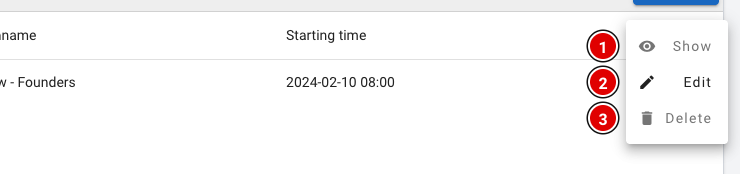
- Show (1): view the tournament details.
- Edit (2): change the details. The same window opens as when creating it. Click Update to save.
- Delete (3): delete the tournament.
Only delete a tournament if you are sure you no longer need it. All data belonging to the tournament can then no longer be used.
Switching between tournaments

The top bar shows which tournament you are working in (1). Everything you see and do in the tool (teams, schedule, results, exports) belongs to this tournament.
- Have more than one tournament? Click the name. A list of all tournaments opens.
- Click the tournament you want to work in. The page reloads with that tournament's data.
Which tournament visitors see on the public scoreboard and team pages is set in Public Tournament on the Settings page. See the page Settings and modules.
The tournament has now been created and you can move on to the next step.