Creating the users
Everyone who interacts with FLLTools needs a user account: referees, judges, the scoring desk and the organisation.
There are several roles, each with its own permissions.
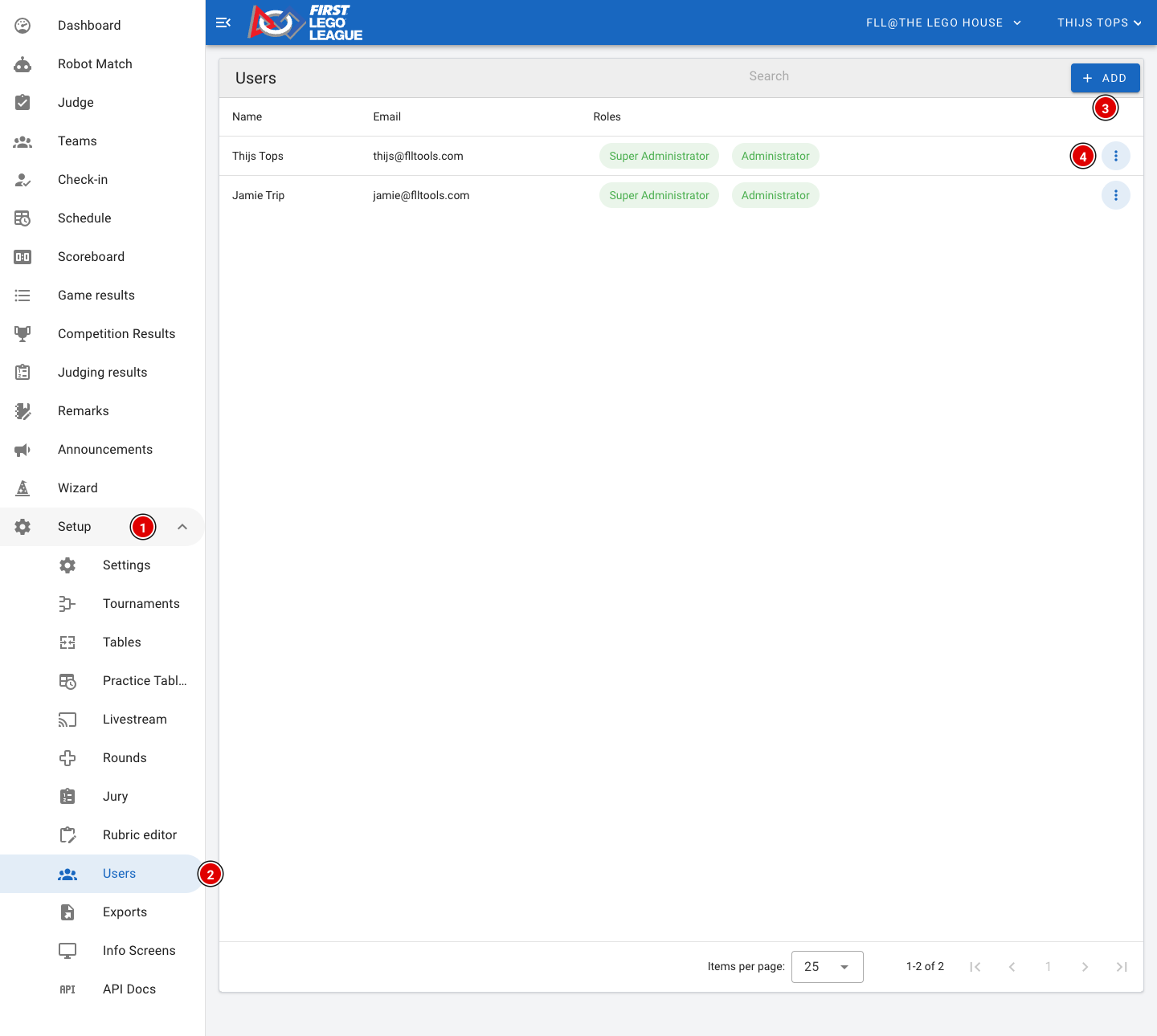
Creating new users:
- Go through Setup (1) to Users (2).
- Some users have already been created, including the account you are logged in with now. Possibly also accounts of the developers or other people who already have an account.
- Clicking Add (3) at the top of the page opens a window:
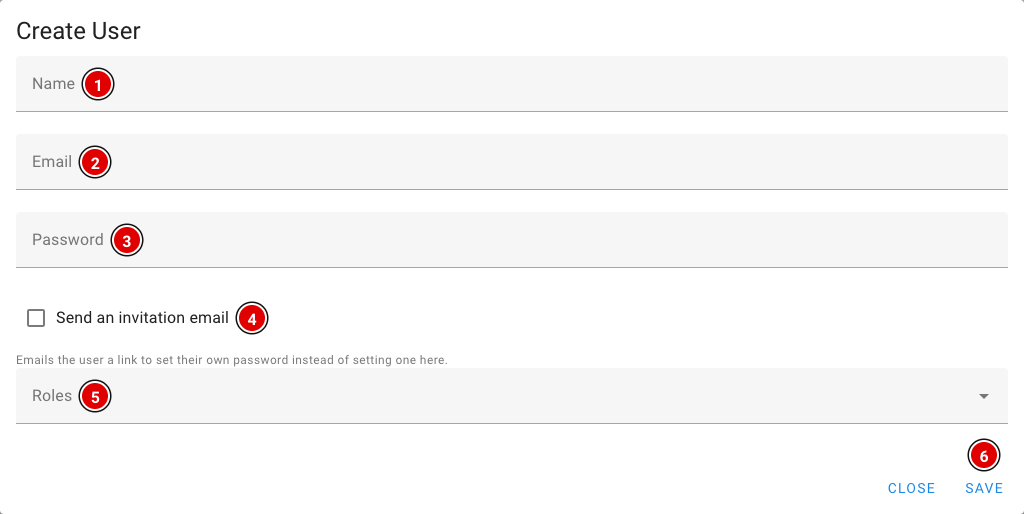
Name (1): Name of the person the account is for.
Email (2): E-mail address of the person. The person logs in with it.
Password (3): The password for this person. This field disappears when you switch on (4).
Send an invitation email (4): Switch this on to send the person an invitation by e-mail. The e-mail contains a link with which the person chooses their own password. The link is valid for 7 days.
Roles (5): A menu opens in which you can select one or more roles (see below).
- Click Save (6). The account is now active.
If you don't use Send an invitation email, the user doesn't receive an e-mail. You then have to pass on the login details to the person yourself.
The roles
A role determines what someone is allowed to do in FLLTools. Give everyone only the role they need.
- Super Administrator: For the FLLTools administrators. Can also log in as another user.
- Administrator: Full access to the event: tournaments, settings, users, teams, schedule, results and exports.
- Secretariat: For the scoring desk. Can manage teams, rounds, tables, the schedule, check-in, remarks and announcements, view and correct all scores and judging forms, and fill in the results (Competition Results).
- Head Referee: For the head referee. Can enter scores, and also change and delete other people's scores.
- Referee: For referees. Can enter scores and view the match results.
- Head Judge: For the judge advisor / head judge. Can fill in judging forms, view and correct all judging forms, change rubrics and fill in the results (Competition Results).
- Judge: For judges. Can fill in judging forms and view and change their own forms.
- Coach: For coaches. Can change their own team's details and, after the event, view their own team's judging forms. Coaches are usually created automatically when you invite them on the team (see Entering teams into the system).
- User and Guest: Only viewing rights on the public parts, such as the scoreboard and the schedule.
All roles except User and Guest can also add remarks about teams.
Changing a user
Click the 3 dots (4) next to a user in the list and choose Edit. You then reach that user's page:
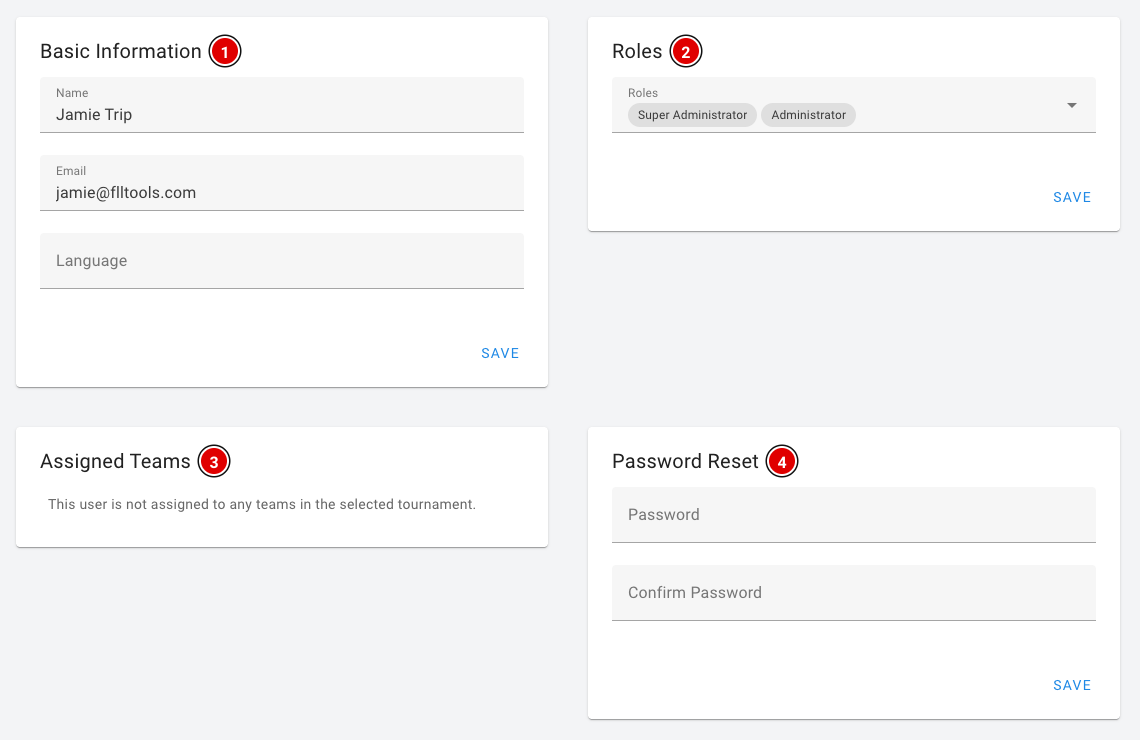
- Basic Information (1): Name, e-mail address and language of the user.
- Roles (2): Add or remove roles here.
- Assigned Teams (3): The teams this user is linked to in the current tournament, for example as a coach.
- Password Reset (4): Set a new password. Enter the password twice.
Each block has its own Save button, so click Save in the block you changed.
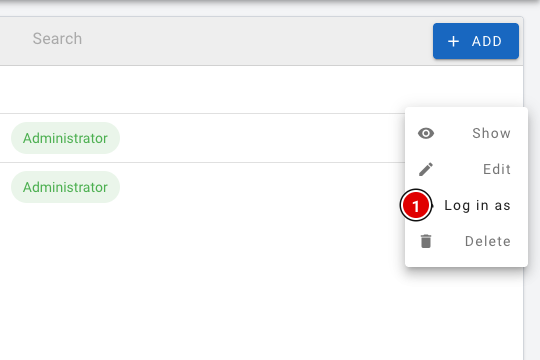
Super Administrators also see the Log in as (1) option in the menu. With it you can temporarily log in as that user, for example to check what a referee or judge sees. A message at the top of the screen then shows a button to return to your own account.
FLLTools Unified Login
For volunteers who help at several (regional) finals, and for regional partners / operational partners, we have the FLLTools Unified Login. With it you can log in to every event with the same login, through the Login with SSO button on the login screen.
You then need just one login to log in everywhere. Would you like to use this? Send an e-mail to thijs@flltools.com and you'll receive a login.