Entering teams into the system
There are 2 ways to enter the teams:
- Manually
- Through a file upload
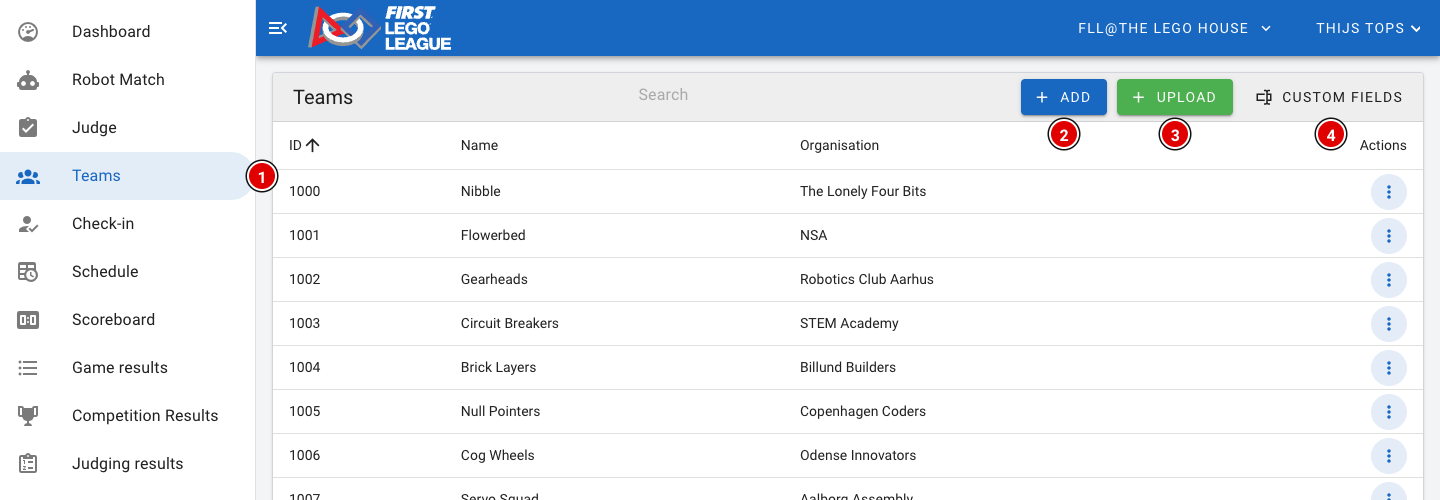
To start, go to the Teams page (1).
Entering teams manually
- To enter a team manually, click Add (2).
- The following window opens:
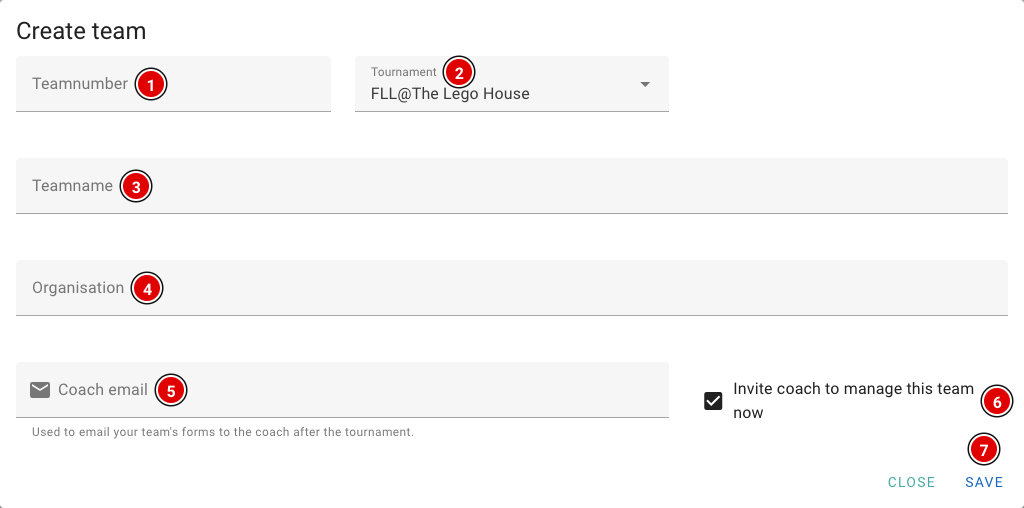
Teamnumber (1): Enter the team number here (for example the number from your registration system). This must be a unique number and may not contain letters.
Tournament (2): The tournament the team takes part in. Usually the right tournament is already filled in.
Teamname (3): The name of the team.
Organisation (4): The school, club or organisation of the team.
Coach email (5): The e-mail address of the (head) coach. This field is required. Among other things, the address is used to send the judging forms to the coach after the event.
Invite coach to manage this team now (6): When this is on, the coach immediately receives an invitation by e-mail. With it the coach can create their own account and complete the team details, such as the team photo, the team cheer and the descriptions of the robot and the project. This option is only visible when the Advanced Team Management module is switched on.
- Click Save (7) to save the team.
- The window stays open and the team number automatically goes up by 1, so you can quickly enter the next team. Click Close when you're done.
Through a file upload
Already have your teams in a spreadsheet? Then you can load them all at once with the Upload (3) button.
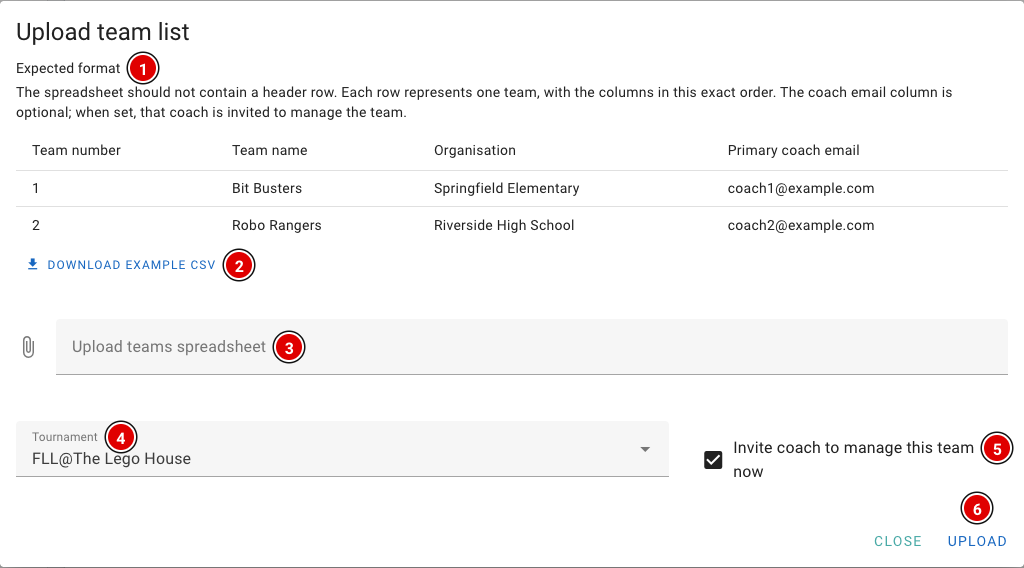
- Expected format (1) shows what the file should look like. Download example CSV (2) downloads an example file you can fill in straight away.
- Choose your file (Excel or CSV) in Upload teams spreadsheet (3).
- In Tournament (4), choose which tournament the teams should be loaded into.
- With Invite coach to manage this team now (5), all coaches with an e-mail address in the file immediately receive an invitation (only when Advanced Team Management is on). This option is on by default. Don't want to e-mail the coaches yet? Then untick it.
- Click Upload (6).
The file format
Use an Excel or CSV file with the columns in this order:
- Column A: team number
- Column B: team name
- Column C: organisation
- Column D: e-mail address of the head coach (optional)
Do NOT use a header row, or the upload will fail. Each row is one team.
Most registration systems can export the teams to Excel or CSV. Rearrange the export in Excel if needed so the columns are in the order above, without a header row. In the Netherlands, you can use the export from the PTvT regional partner portal in the same way.
Extra team fields (Custom fields)
Want to keep extra information per team, such as a pit number? Then you can create extra fields yourself through Custom fields (4).
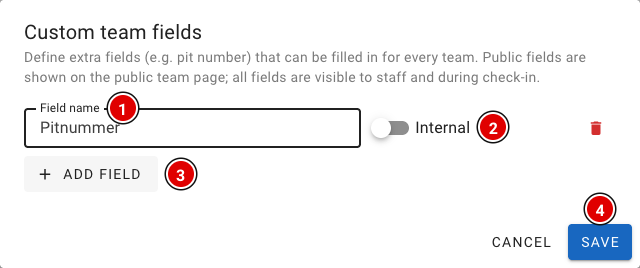
- Click Add field (3) to add a field.
- Enter the name of the field in Field name (1), for example "Pit number".
- The Internal / Public (2) switch determines whether the field is also shown on the public team page. Internal fields are only visible to the organisation and at check-in.
- Click Save (4).
You fill in the value of these fields per team on the team's page. See Updating a team.