Info screens
With info screens you show on TVs and projectors in the venue what's going on: which team is at a table, who is with the judges, the scoreboard standings and more. You set up a screen once and then open it on a computer connected to the screen. The screen updates itself automatically.
Info screens are part of the Info Screen Module. Don't see the button in the menu? Switch the module on through Setup → Settings (see the page Settings and modules).
Types of info screens
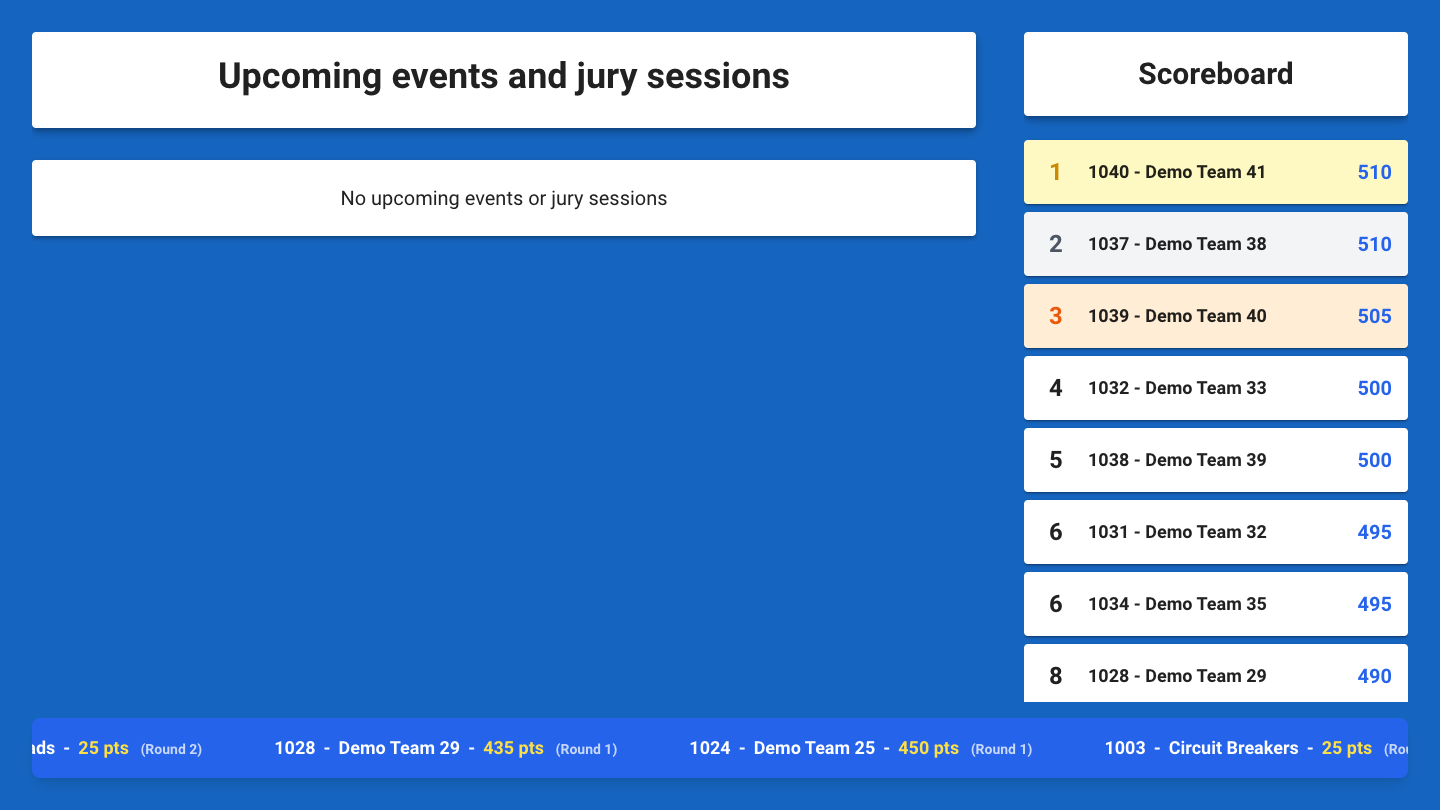
- General Info: an overview for the main hall. On the left the upcoming items and judging sessions, on the right the scoreboard and at the bottom a scrolling bar with the latest scores.
- Table Screen: for one competition table. Shows which team is playing now and who comes next, with the times.
- Table Pair Screen: the same, but for a table pair side by side.
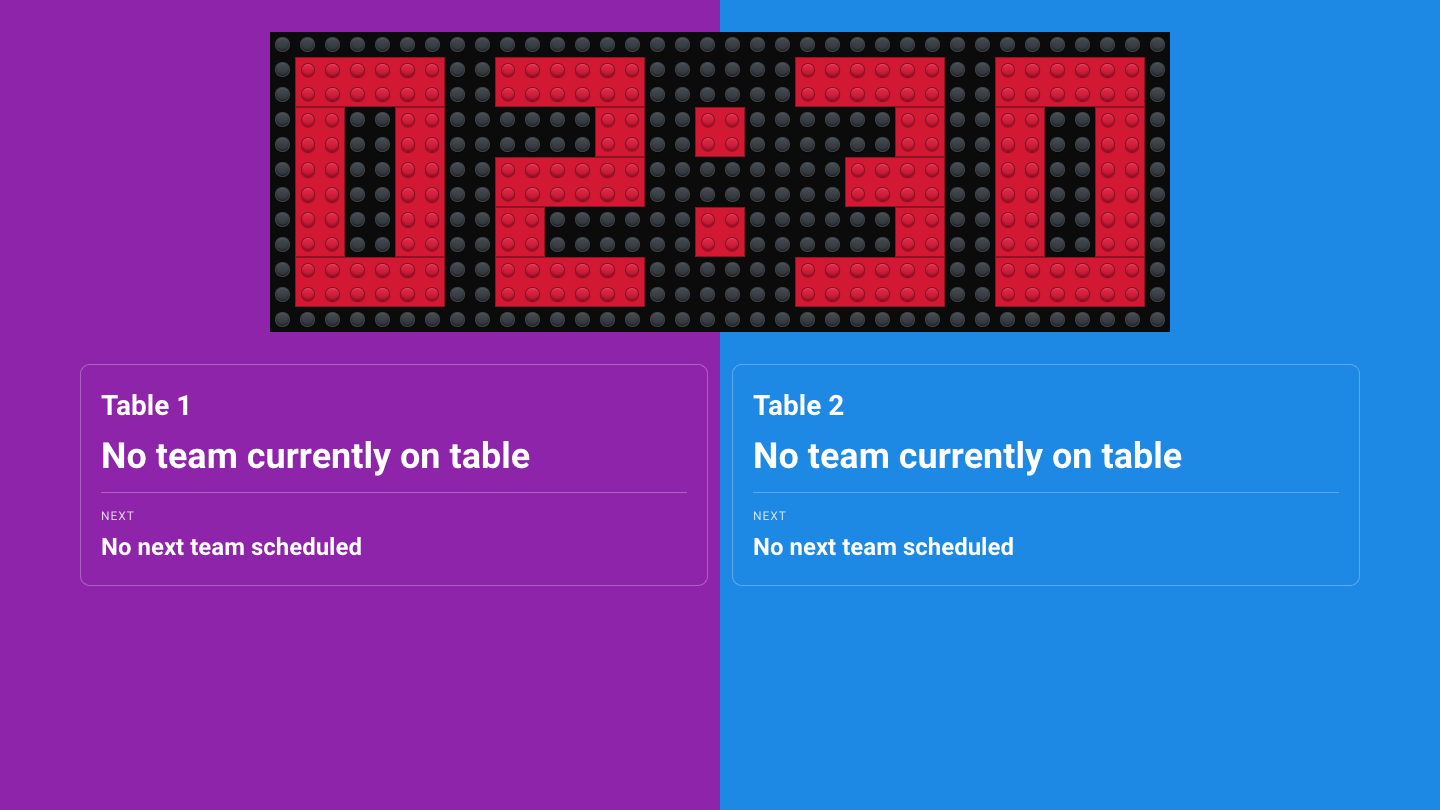
- Timer + Table Pair Screen: a table pair with the match timer above it. Handy when one screen at the field has to show both the timer and the teams.
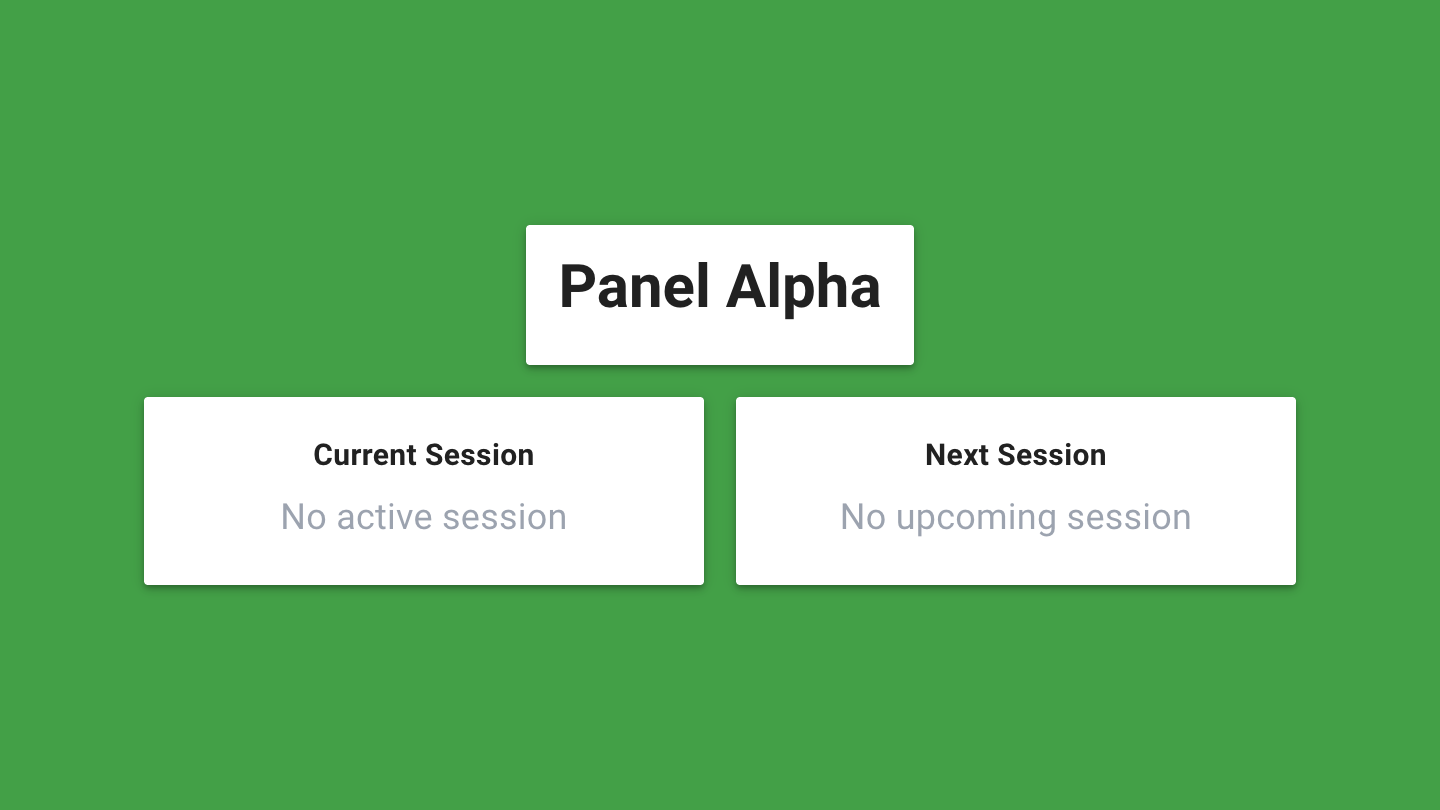
- Jury Screen: for one judging room. Shows the current and the next session. Ideal next to the door of the judging room.
- Stream Overlay: an overlay for the livestream, see the page Livestream.
- Practice Tables: shows for each practice table who is practising now, who comes next and how many slots are still free. See the page Practice tables and reservations.
Creating an info screen
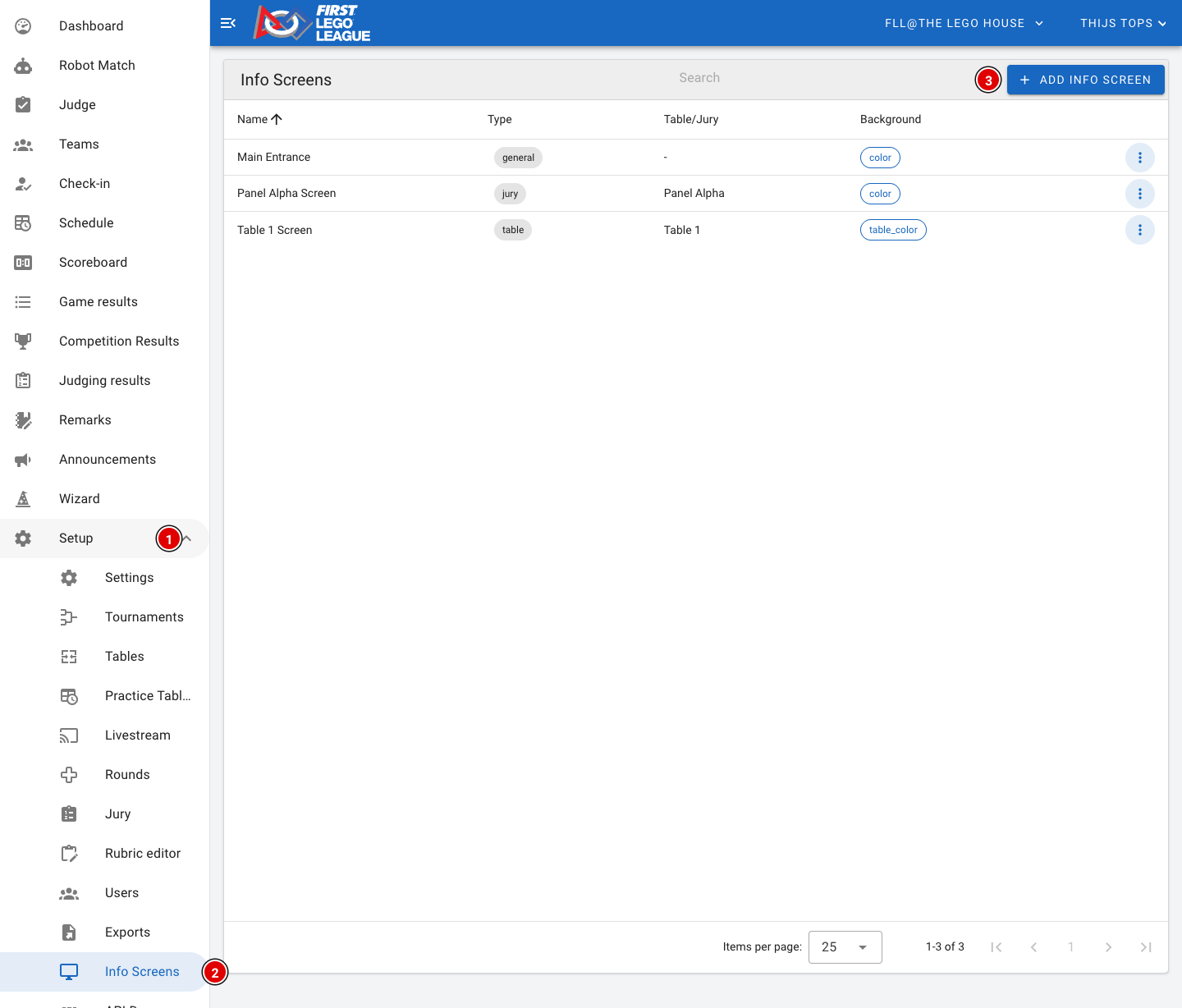
- Go through Setup (1) to Info Screens (2). You see a list of all screens that have already been created.
- Click Add Info Screen (3). A window opens.
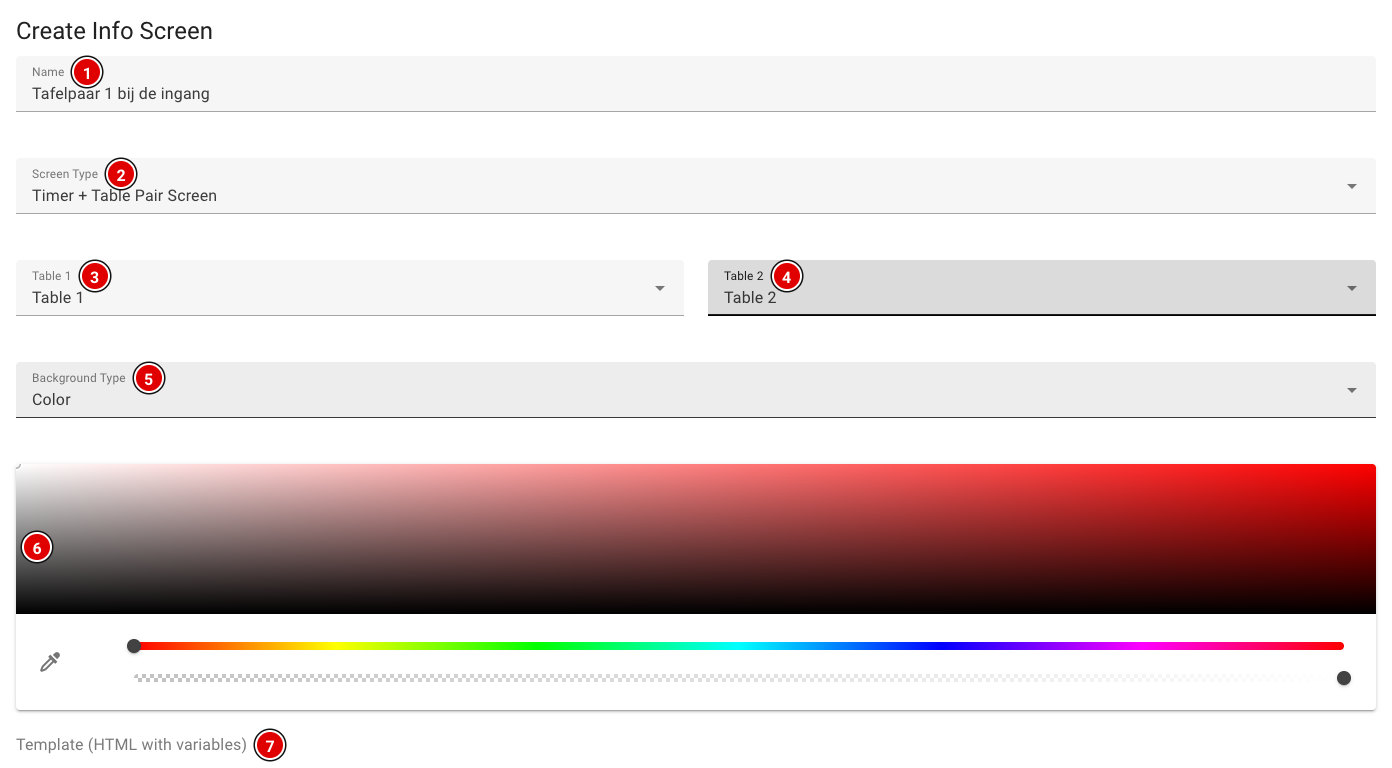
Name (1): A recognisable name, for example the place where the screen hangs ("Table pair 1 at the entrance"). You'll see this name again when you choose the screen on the computer.
Screen Type (2): The type of screen, see the overview above.
Table 1 (3) and Table 2 (4): Only for a (Timer +) Table Pair Screen: choose the two tables. For a Table Screen you choose one table, for a Jury Screen you choose the jury.
Background Type (5): The background of the screen:
- Color: a fixed colour, which you choose with the colour picker (6).
- Image: an image. Enter the web address (URL) of the image.
- Table Color (for table screens): only for table screens. The screen automatically gets the colour of the table; for a table pair each half gets the colour of its own table.
Template (7): Optional. If you leave this empty, the screen uses the default layout. That's fine for most events.
- Click Create at the bottom of the window. The screen appears in the list.
- Through the 3 dots next to a screen you can change it (Edit) or delete it (Delete).
Creating your own layout (template)
Want to decide yourself what's on the screen, for example a welcome text with the current time? Use the template editor at the bottom of the window.
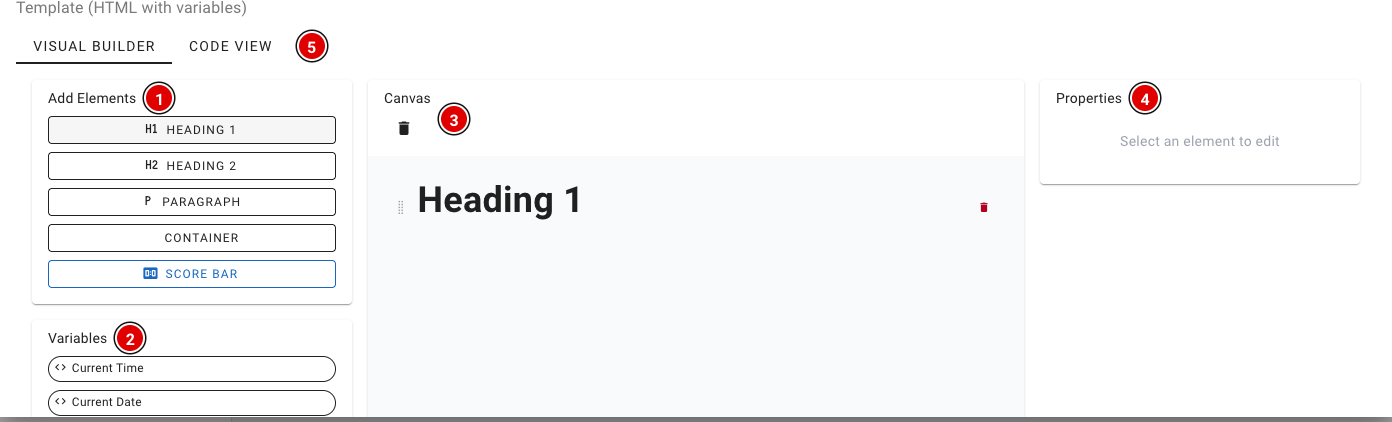
- Add Elements (1) adds headings, text, a container or a score bar (Score Bar).
- Variables (2) contains data that is filled in automatically, such as the current time and date, the next item, the latest score and the leader. Which variables you see depends on the type of screen: a table screen, for example, also has the current and the next team.
- The Canvas (3) shows your layout. You can drag and delete elements.
- Click an element to change it under Properties (4).
- Through Code View (5) you can also edit the HTML directly. This is only needed for advanced users.
Opening the screen on a TV or projector
- On the computer connected to the screen, open a browser and go to https://yourevent.flltools.nl/info-screens/select. Replace "yourevent" with the name of your event. No login is needed.
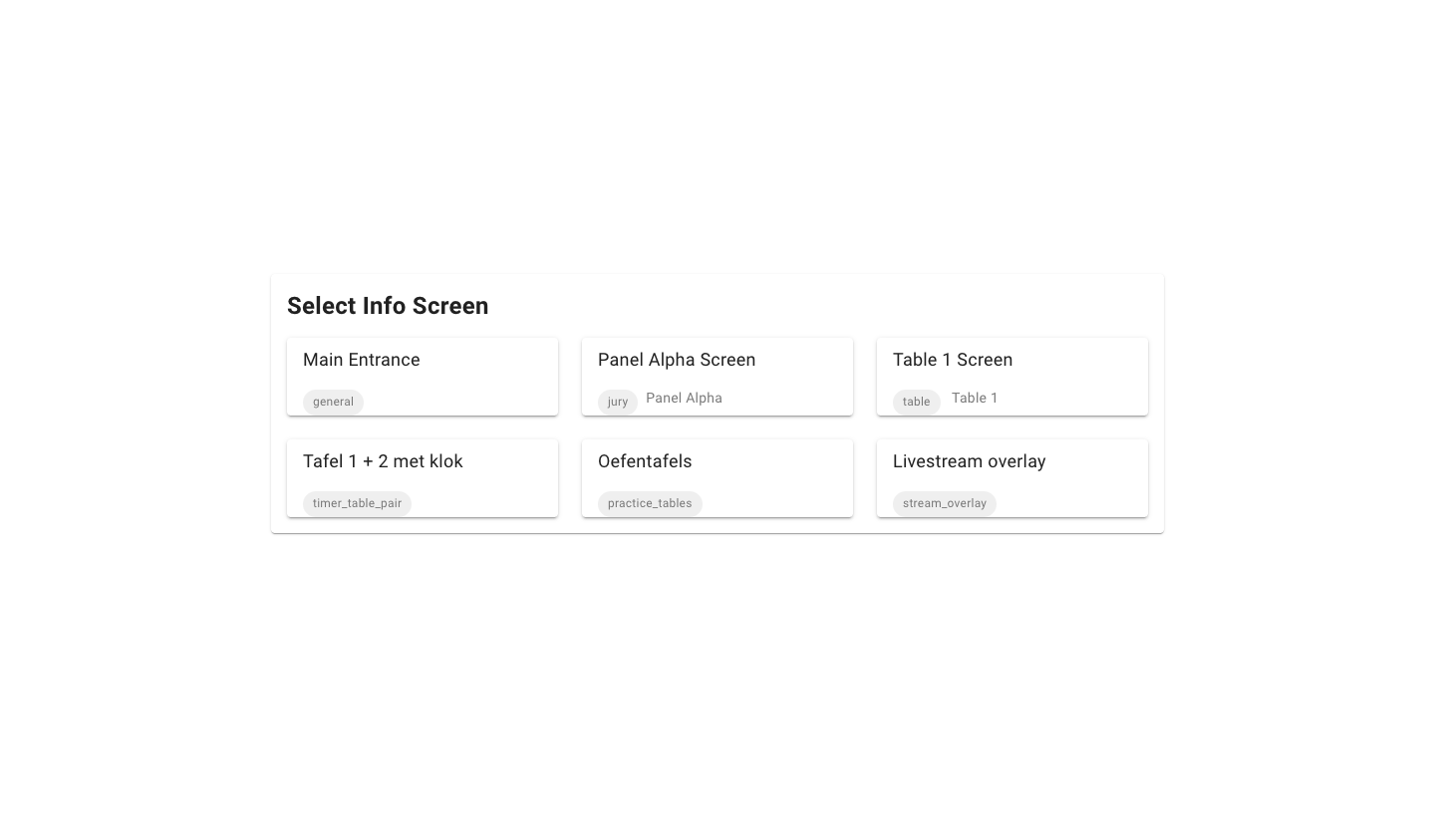
- You see a card for every screen that has been created. Click the screen you want to show.
- Put the browser in full-screen mode (usually the F11 key) and leave the screen on.
The screen refreshes every 30 seconds. When a new score comes in, the screen is updated immediately. So you don't need to touch it all day.
This is what a General Info screen with the default layout looks like:
And a Timer + Table Pair Screen, with the timer above the two tables in their own table colour:
A Jury Screen shows the current and the next session of one jury:
Language of the screen
Info screens are in English by default. Want another language? Add ?lang= with the language code to the address of the screen, for example ?lang=nl for Dutch, ?lang=be for Flemish or ?lang=fr for French.
Tips
- Test the screens beforehand on the computers you will use at the event.
- Switch off sleep mode and the screensaver on the computers, or the screen will go black halfway through the day.
- Is a screen empty? Check that you chose the right table, table pair or jury, and that the day schedule has been loaded. Table and jury screens get their information from the schedule.