At the judges' briefing, the head judge goes through this season's rules and updates. This has to happen every year. This document only explains the forms and the judging tool for the judges and is not a replacement for the briefing.
The judges can assess teams in two ways: on paper using the judging forms from the exports, or digitally in FLLTools. Agree with the head judge in advance which method you will use. ### Judging on paper Extra important: make sure the judges tick exactly 1 box in each row, otherwise it is hard for the scoring desk to see what the score is. The judges must assess each team on its own merits; teams may not be compared with each other. After each round the forms are collected and taken to the scoring desk.The information below only applies to events that use Juryscan. Not sure whether you use it? Then you don't need to read this.
When Juryscan is used, the boxes must be filled in completely with a black pen or marker. Was a box filled in incorrectly by mistake? Ask the head judge or the scoring desk for a new form. Otherwise the automated system may read the scan incorrectly. ### Judging digitallyDigital judging is only possible when the **Judge Module** is switched on in **Setup** → **Settings**, the juries have been created and the tournament has the correct judging forms (rubrics). See the page about juries and rubrics.
#### The Judge portal Judges who (only) have the *judge* role are taken to the **Judge portal** automatically after logging in. This is a simple environment with only what a judge needs. [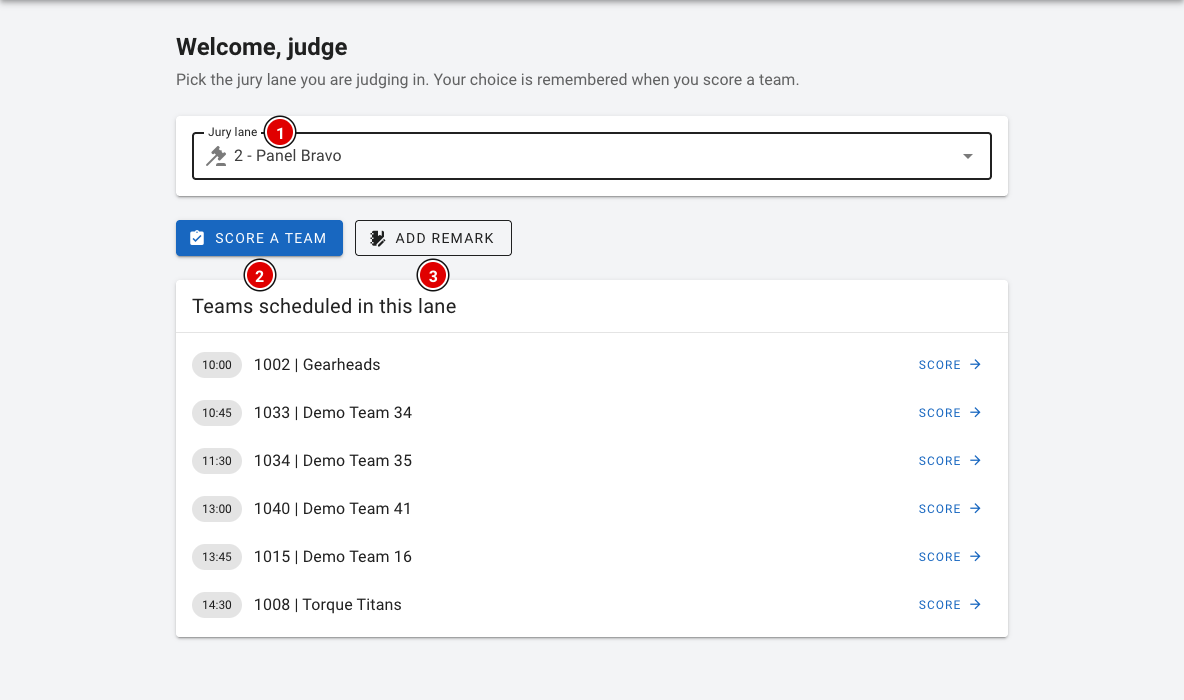](https://docs.flltools.com/uploads/images/gallery/2026-10/jurybriefing-04.png) - At **Jury lane (1)**, choose the jury (room) you are judging in. This choice is remembered. - If there is a schedule, a list of the teams and times in your room appears under *Teams scheduled in this lane*. Click **Score** next to a team to assess that team straight away. - **Score a team (2)** opens the judging form and lets you choose the team yourself. - **Add remark (3)** lets you add a remark about a team for the judges' deliberation. See the page [Remarks](https://docs.flltools.com/books/flltools-documentation-english/page/remarks). - Under **Judging results** in the menu you will find the assessments you entered yourself. You can still open and change them there. Head judges, the scoring desk and administrators use the **Judge** button in the regular menu. #### Assessing a team [](https://docs.flltools.com/uploads/images/gallery/2026-10/jurybriefing-01.png) - **Team (1)**: Choose the team you are assessing. Type a few letters or the team number to search. - **Jury (2)**: The jury (room) in which the team is assessed. - **Rubric (3)**: The judging form, for example *Innovation Project* or *Robot Design*. - **Local Results (4)**: Just like for referees, assessments are stored locally when there is no internet and sent automatically later. See *Working without internet* on the page [Referee briefing](https://docs.flltools.com/books/flltools-documentation-english/page/referee-briefing); it works exactly the same for judges, including transferring with QR codes. Below that is the form, divided into sections as in the official judging form. [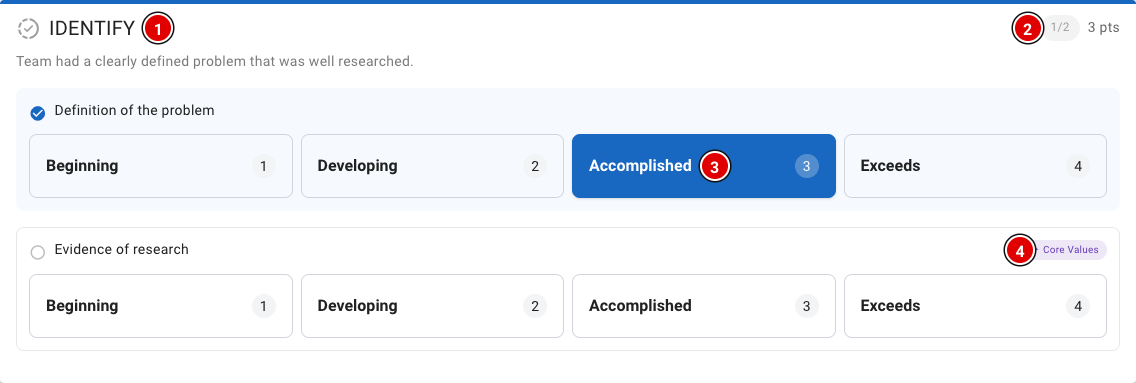](https://docs.flltools.com/uploads/images/gallery/2026-10/jurybriefing-02.png) - Each section **(1)** has a short description and one or more criteria. - In the top right **(2)** you can see how many criteria of this section have been filled in, and how many points that gives. - For each criterion, choose the level **(3)** that fits best: *Beginning* (1), *Developing* (2), *Accomplished* (3) or *Exceeds* (4). You can always change your choice. - Criteria with the **Core Values (4)** label also count towards the Core Values assessment. At the bottom of the form is the *Confirm rubric* block. [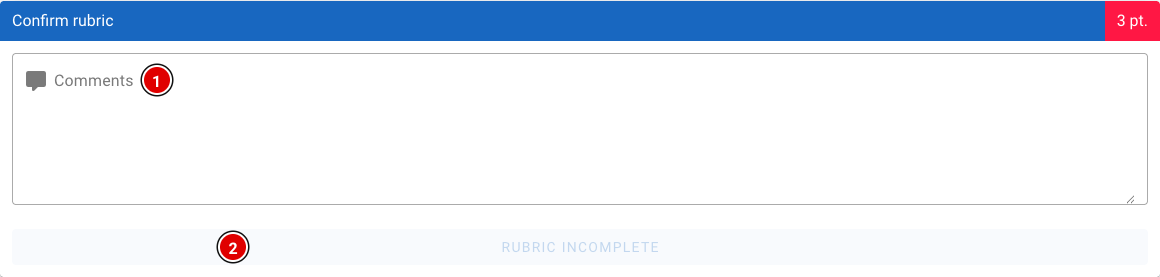](https://docs.flltools.com/uploads/images/gallery/2026-10/jurybriefing-03.png) - **Comments (1)**: Space for comments about the team. - The button **(2)** shows *Rubric incomplete* as long as not all criteria have been filled in. When everything is filled in, the button changes to **Submit** and you can save the assessment.Digital judging works the same way: assess each team on its own merits and do not compare teams with each other. The rankings are calculated automatically later on the page [Competition Results](https://docs.flltools.com/books/flltools-documentation-english/page/competition-results-determining-the-results).