For this the **Practice Table Reservations** module must be switched on. You do this through Setup → Settings (see the page [Settings and modules](https://docs.flltools.com/books/flltools-documentation-english/page/settings-and-modules)). If the module is off, teams see on the reservation screen that no slots are available.
### Creating practice tables - Go through **Setup** to **Practice Tables**. - You see a list of all practice tables, with the colour, the slot length, the opening and closing time and the number of reservations. - Click **Add (1)** to add a practice table. [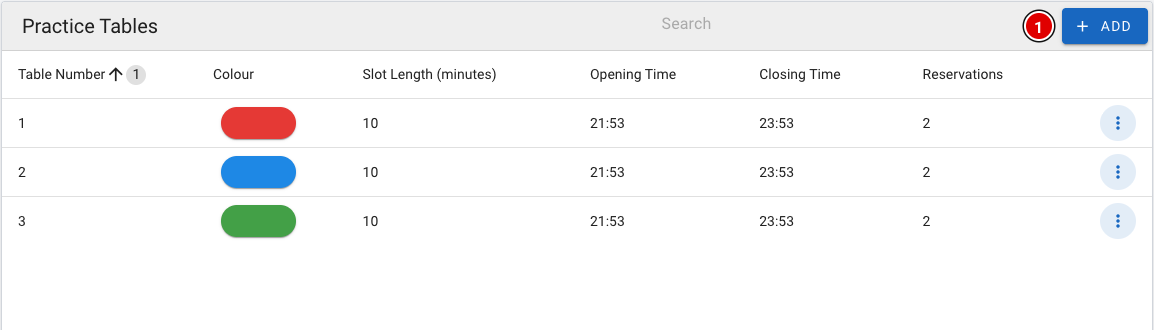](https://docs.flltools.com/uploads/images/gallery/2026-10/oefentafels-01.png) [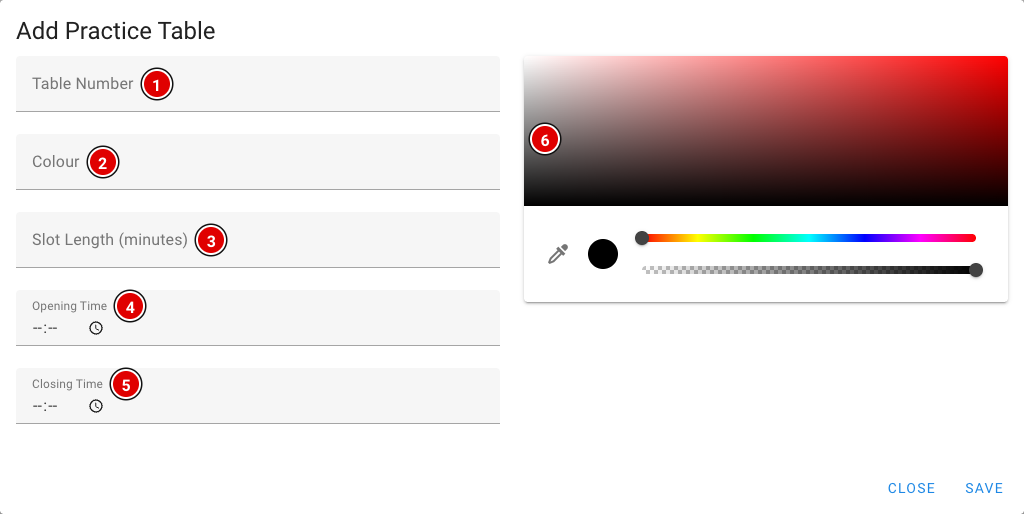](https://docs.flltools.com/uploads/images/gallery/2026-10/oefentafels-02.png) **Table Number (1):** The number of the practice table, for example 1, 2, 3. **Colour (2):** The name of the table's colour, for example "Red". This helps teams find the right table quickly. **Slot Length (minutes) (3):** How long a practice slot lasts, in minutes. **Opening Time (4):** From what time the table is open for practice. **Closing Time (5):** Until what time the table is open. **Colour picker (6):** The colour teams see on the reservation screen and the info screen. Click **Save**. The time slots are created automatically. A table open from 09:00 to 10:00 with a 15-minute slot, for example, gives four slots: 09:00, 09:15, 09:30 and 09:45. #### Maximum number of reservations per team How many practice slots a team may book ahead at the same time is set through Setup → Settings in **Max practice reservations per team** (2 by default). As soon as a practice slot has passed, it no longer counts and the team can book a new slot. ### Viewing and cancelling reservations - In the list, click the **3 dots** next to a practice table and choose **Edit**. - At the bottom of the window are all **Reservations (1)** for this table, with the time and the team. - **Cancel Reservation (2)** cancels a reservation. The slot then becomes available for another team. - Want to change the table itself? Change the fields and click **Update**. [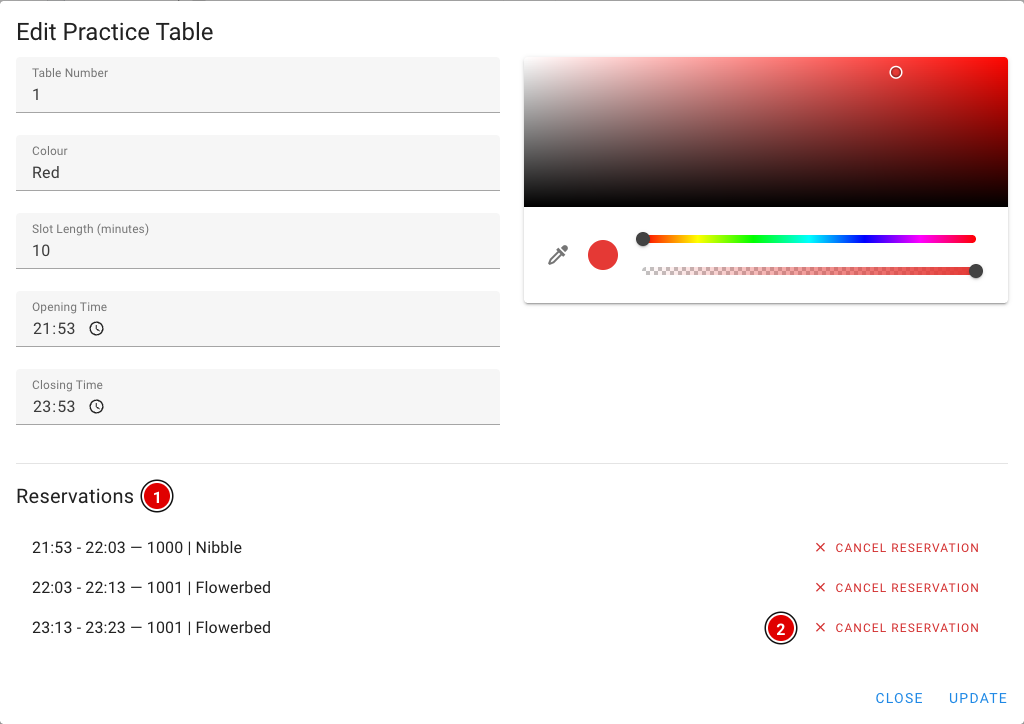](https://docs.flltools.com/uploads/images/gallery/2026-10/oefentafels-08.png)**Delete** in the menu deletes the whole practice table, including its time slots.
### How a team books a slot Place a computer, tablet or touchscreen next to the practice tables showing the page [https://**yourevent**.flltools.nl/practice-reservation](https://yourevent.flltools.nl/practice-reservation). Replace "yourevent" with the name of your event. No login is needed. #### Step 1: Entering the team number The team taps in its team number with the large number keys (or the keyboard) and presses **Continue**. If the number doesn't exist, a message appears and the team can try again. [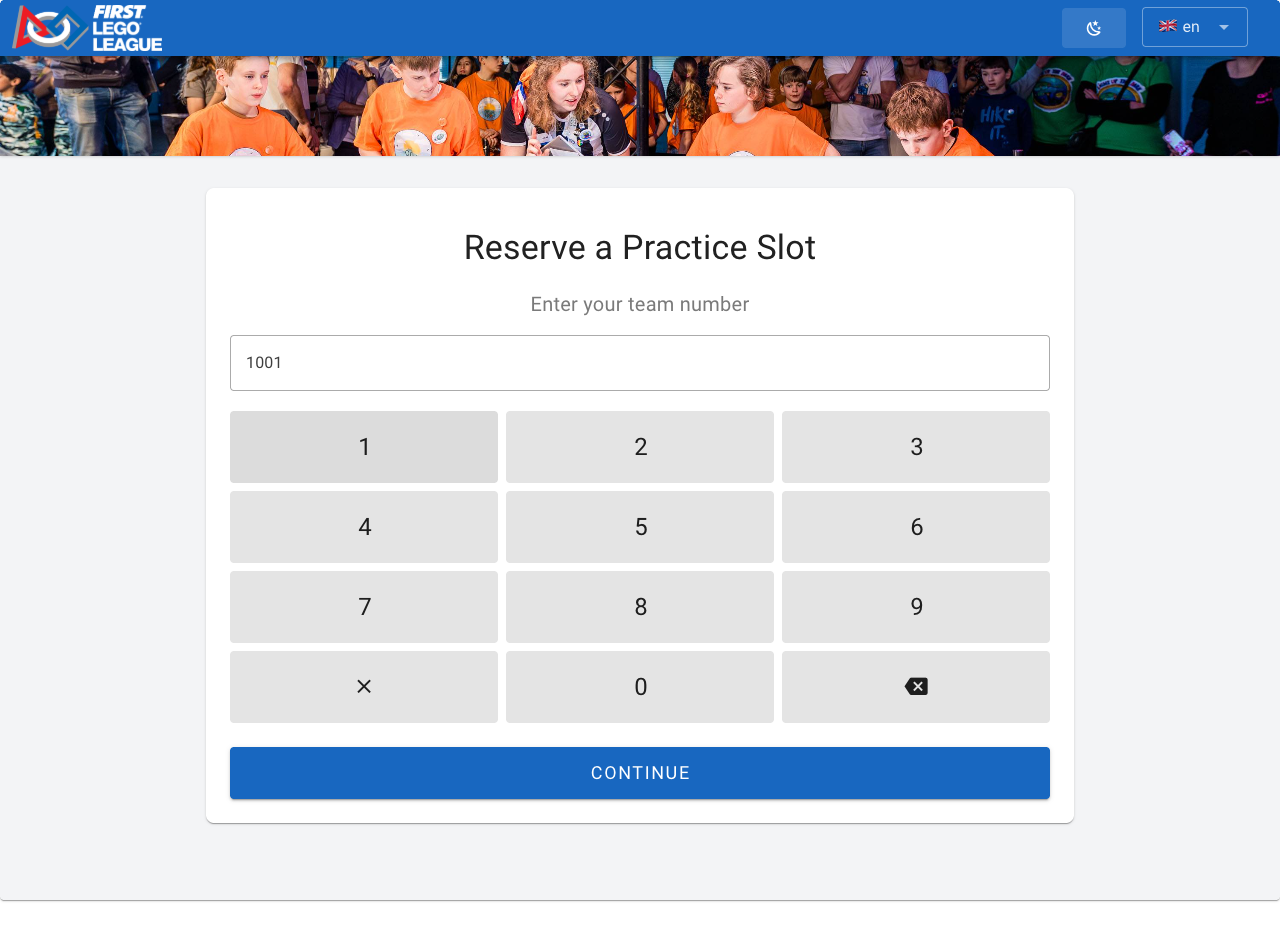](https://docs.flltools.com/uploads/images/gallery/2026-10/oefentafels-03.png) #### Step 2: Choosing a time The team now sees all free time slots: each column is a practice table, each row a time. An empty spot means that table is already taken or closed at that time. On the right is **Your Schedule**, the team's day schedule, so it can choose a time that doesn't clash with a match or judging session. [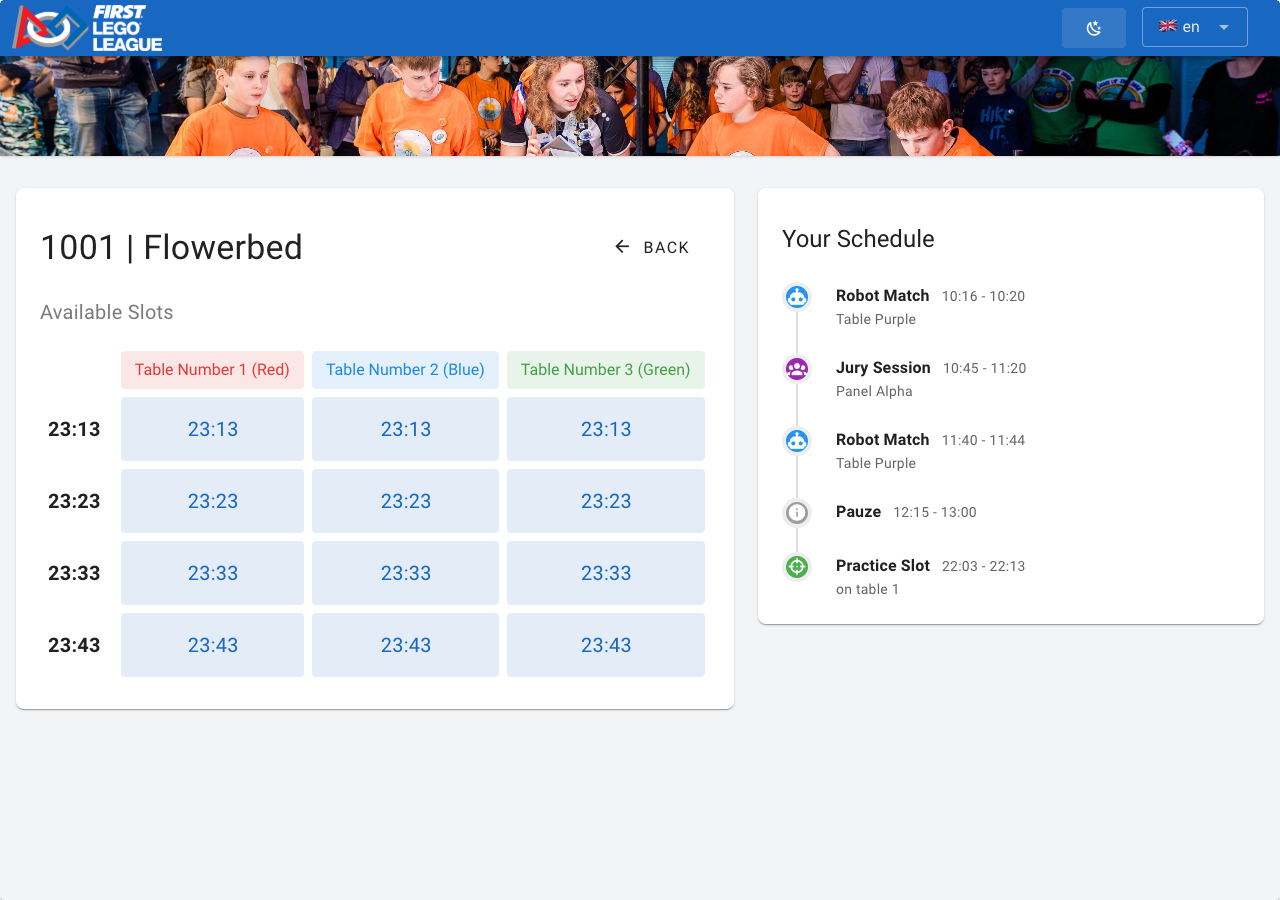](https://docs.flltools.com/uploads/images/gallery/2026-10/oefentafels-04.png) After choosing a time, the screen asks for confirmation. The team presses **Confirm** to book, or **Cancel** to go back. [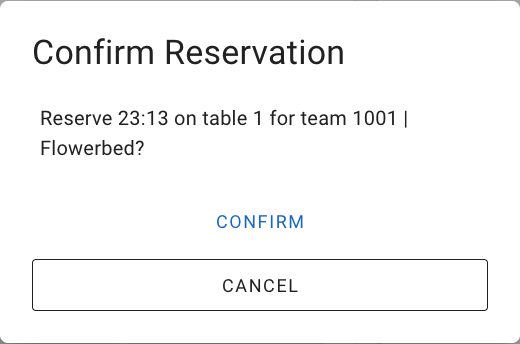](https://docs.flltools.com/uploads/images/gallery/2026-10/oefentafels-05.png) #### Step 3: Done The team sees **Reserved!**. **Make Another Reservation** lets it book another slot (if the maximum hasn't been reached yet); **Done** takes the screen back to the start. [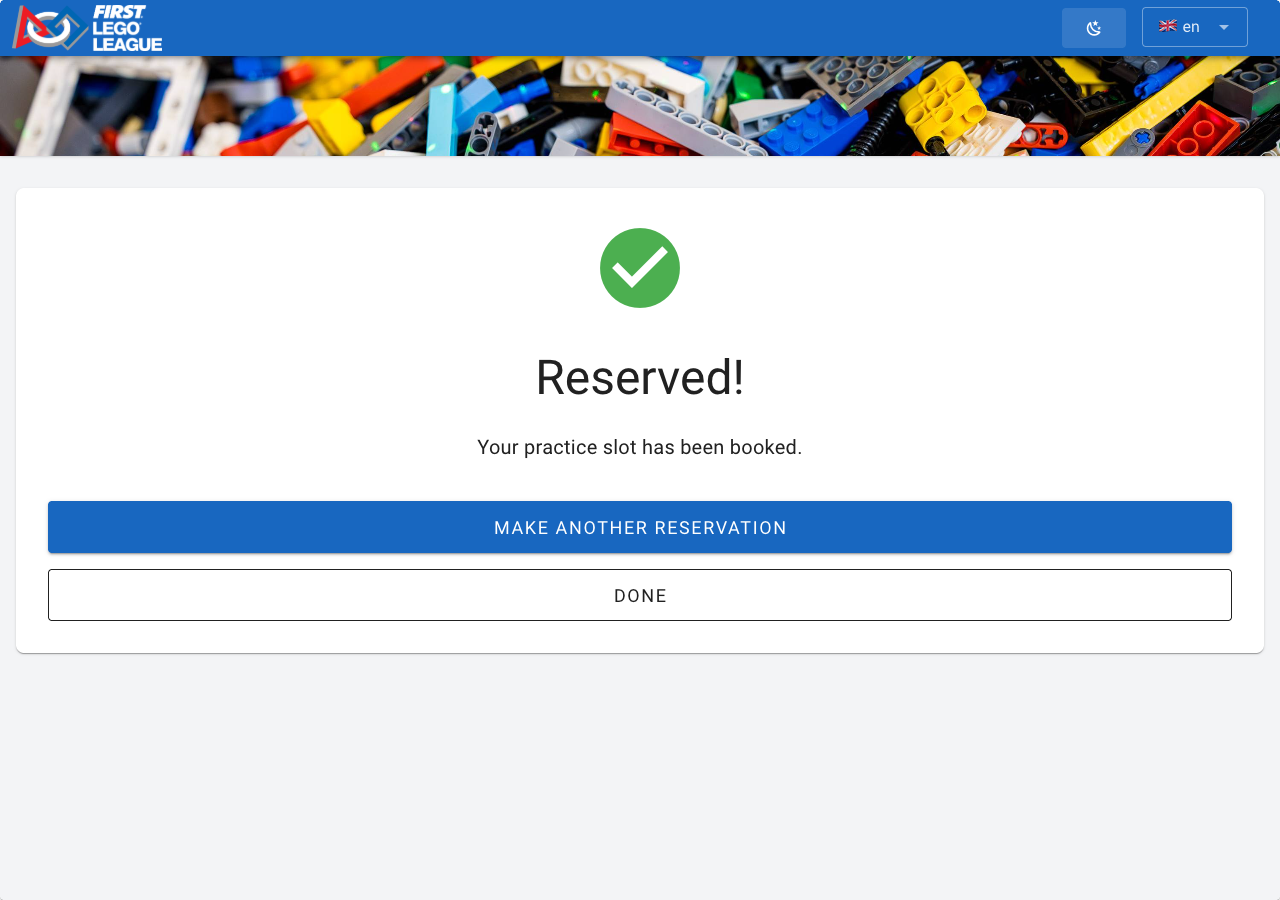](https://docs.flltools.com/uploads/images/gallery/2026-10/oefentafels-06.png) Good to know: - After 15 seconds without a touch, the screen automatically returns to the start. That way the previous team's details don't stay on screen. This doesn't happen while confirming. - If two teams choose the same slot at the same time, the second team gets a message that the slot has just been taken and chooses another time. - If a team has reached the maximum number of reservations, the screen says so. - Booked practice slots also appear in the schedule on the public team page. ### Practice tables on an info screen With an info screen of the **Practice Tables** type you show at the practice tables who is practising now (**Now**), who comes next (**Next**) and how many slots are still free. See the page [Info screens](https://docs.flltools.com/books/flltools-documentation-english/page/info-screens). [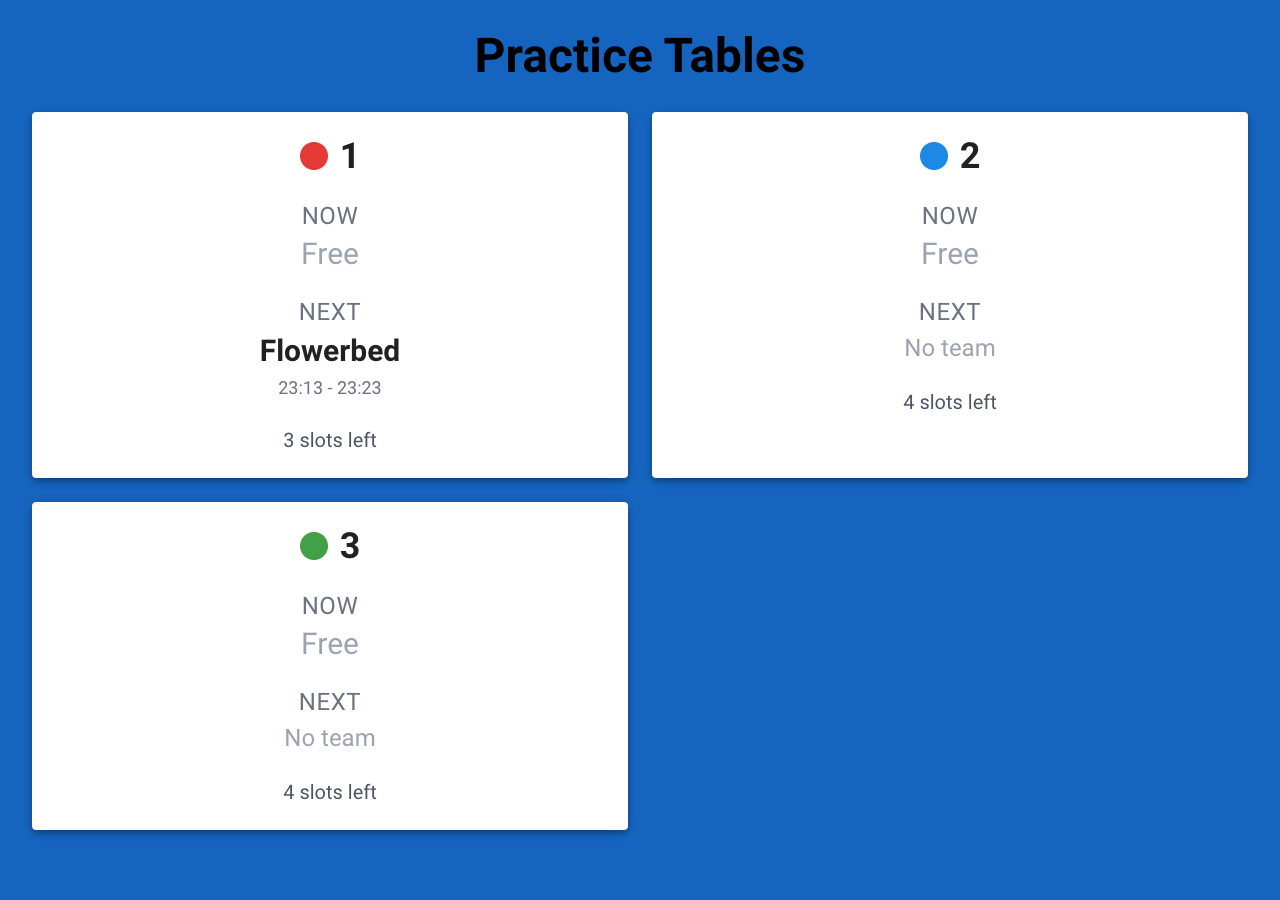](https://docs.flltools.com/uploads/images/gallery/2026-10/oefentafels-07.png)