Referee briefing
At the referee briefing, the head referee goes through this season's rules and updates. This has to happen every year. This document only explains the scoring tool for referees and is not a replacement for the briefing.
Before the event, every referee receives a login for the event's FLLTools website. The scoring tool works on a laptop, tablet and phone.
Entering the match details
- Click Robot Match in the menu.
- The top block contains the details of the match:
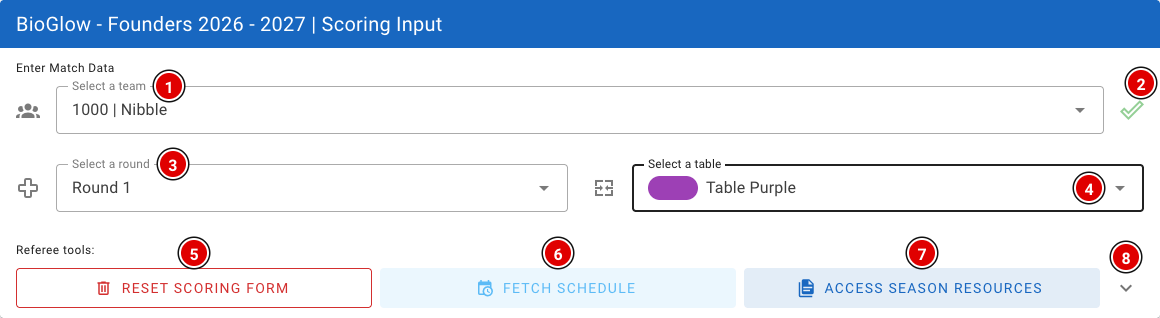
- Choose the team at Select a team (1). There is a built-in search, so a few letters of the team name or the team number are usually enough.
- The tick (2) locks the team selection, so you don't change the team by accident while scrolling through the form. Click it again to change the team.
- Choose the round at Select a round (3). If you work with a schedule, the round is filled in automatically. Always double-check it with the team.
- At Select a table (4), choose the table where the referee is standing. Tables are shown with their colour.
- Reset scoring form (5) clears the entire score sheet.
- Fetch schedule (6) loads the team that the schedule says is at your table right now (see below).
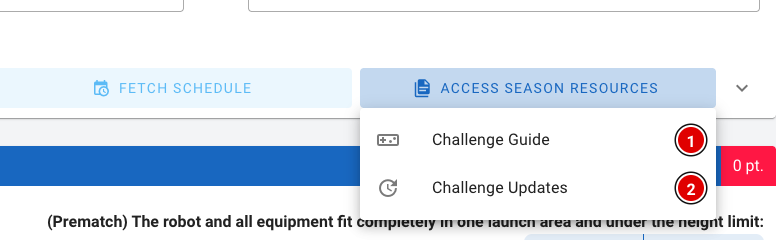
- Access season resources (7) opens a menu that gives quick access to the Challenge Guide (game rules) and the Challenge Updates during the match.
- The arrow (8) opens the scoring tool settings.
Settings and fetching the team from the schedule
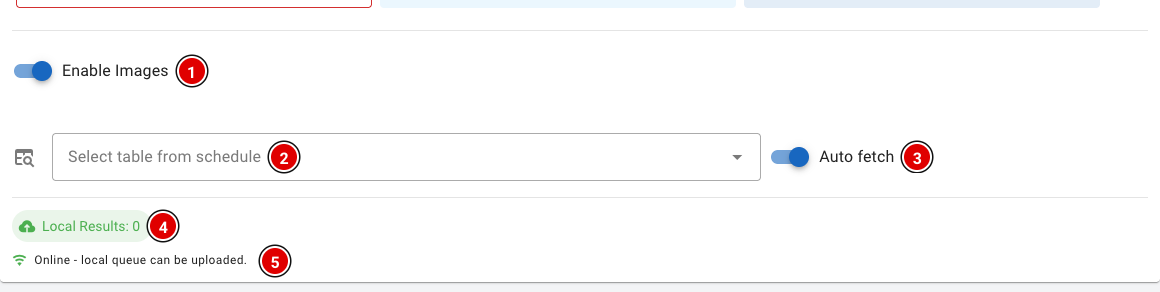
- Enable Images (1): Shows pictures of the mission models with the mission input. This is on by default. On a small phone it can be useful to switch it off.
- Select table from schedule (2): Choose the table where you are refereeing. This choice is remembered on the device.
- Auto fetch (3): When switched on, the team, round and table are filled in from the schedule as soon as you open the page or have submitted a score. That way the next team is ready straight away.
- Local Results (4) and the connection status (5): see Working without internet further down.
Fetch schedule and Auto fetch only work when the Schedule module is switched on and there is a schedule in FLLTools. See the page Creating the day schedule.
Mission input
The mission input is empty by default. The referee fills it in at the end of the match. Each mission has one or more questions. Usually you choose the answer with a button (for example Yes / No). For questions where you need to count something, use the minus (1) and plus (3) buttons, or type the number directly in the box (2).
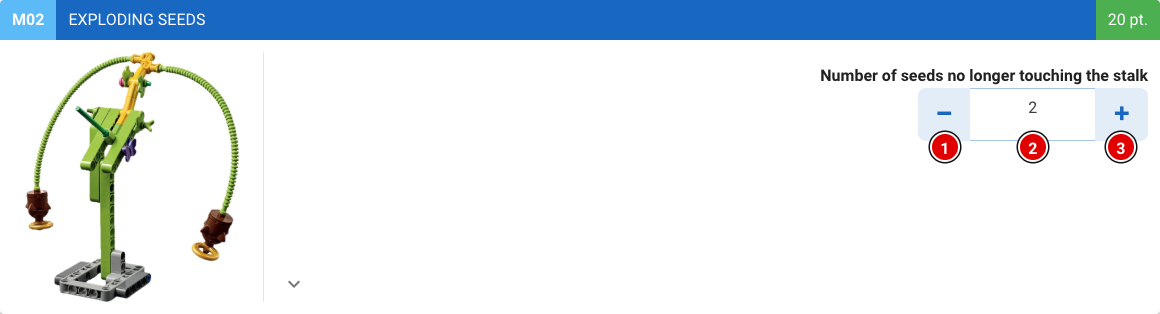
Some questions only appear when they apply, for example a bonus question that only counts if the first part of the mission succeeded. So answer the questions from top to bottom. Each mission has 3 states:
1. Not (fully) completed
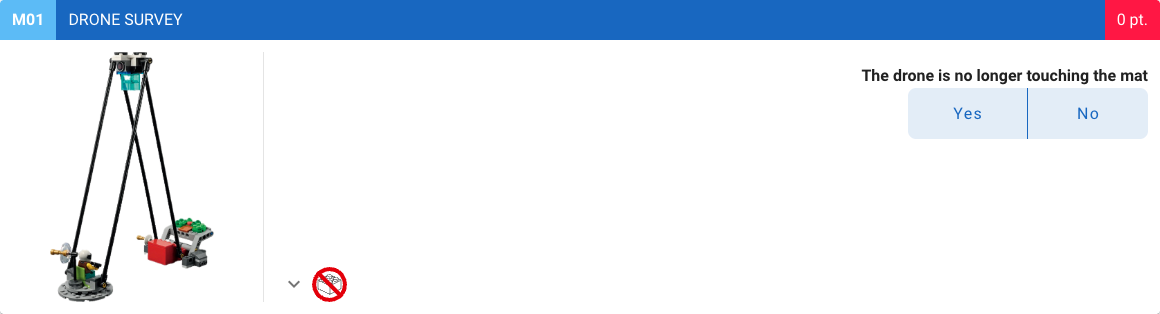
You can recognise this state by the red score.
2. Fully completed, points scored
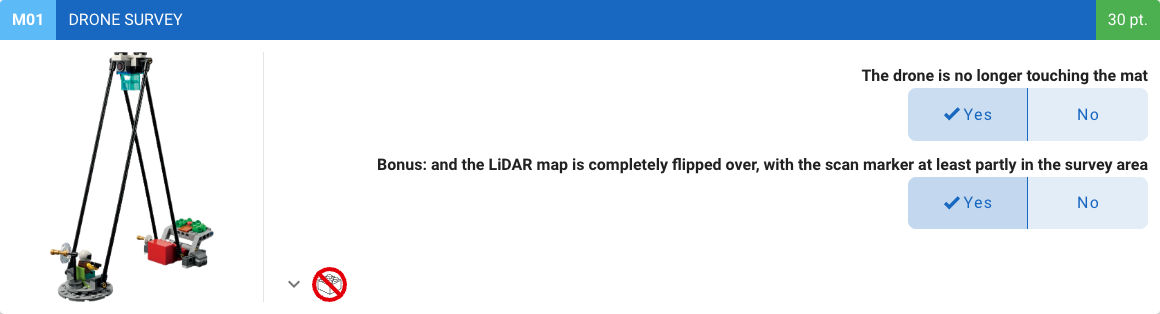
You can recognise this state by the green box next to the points.
3. Fully completed, no points scored
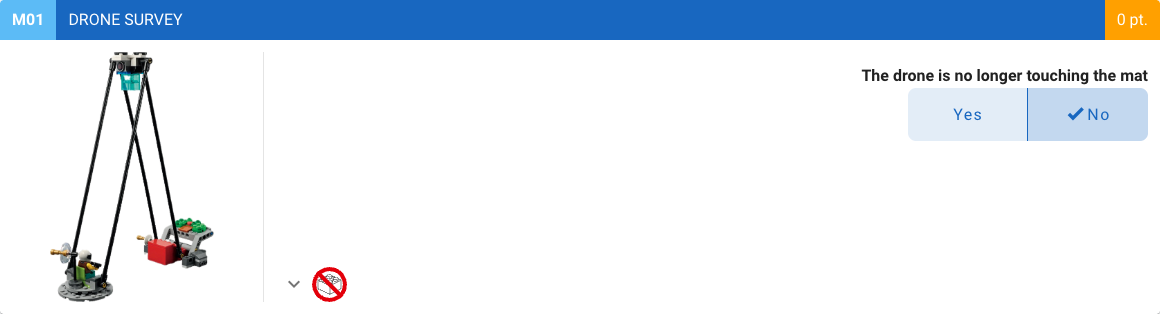
You can recognise this state by the orange box next to the points.
These states let you quickly see which missions are missing or have not been filled in correctly.
Signature and saving
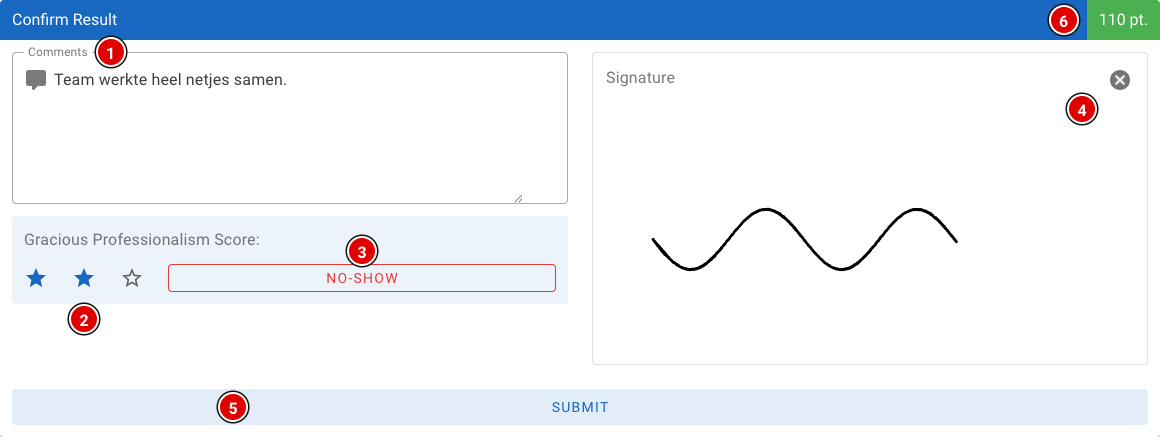
This block is at the bottom, below all missions. It is filled in last.
- Comments (1): Here you can add a comment. It is automatically also saved as a remark (category Table) for the team and taken into account during the judges' deliberation. So note anything that stands out about a team, both negative and positive.
- Gracious Professionalism Score (2): Give the team 1 to 3 stars. This is required; without stars the score cannot be saved.
- No-Show (3): Didn't the team show up? Click this button instead of giving stars.
- Signature (4): The signature. Every team must sign to confirm everything has been filled in correctly. The cross in the top right clears the signature.
- Submit (5): Saves the score. The total score is shown in the top right (6).
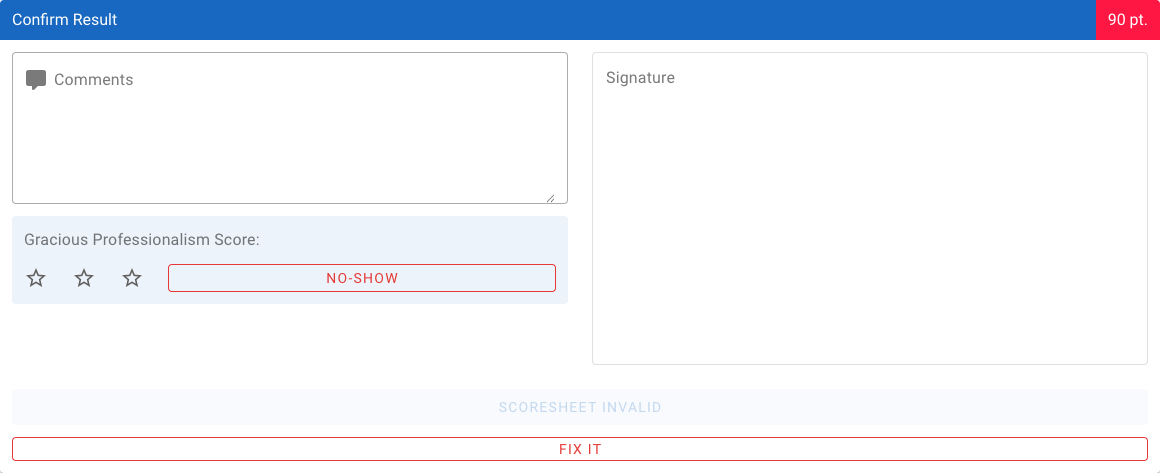
As long as something is missing, the button says what is wrong, for example Signature required or Scoresheet invalid. When the score sheet is invalid, a Fix It button appears. Clicking it scrolls the screen to the mission that has not been filled in correctly.
After saving, a confirmation with the team name and score appears, and the form is cleared for the next team.
For rounds with hidden scores (for example the last round), the total score can be shown blurred to the referee. Tap Tap to reveal score to see it anyway. You configure this with Hide score on referee input for hidden rounds in Setup → Settings.
Working without internet
Wi-Fi dropped out? No problem, the scoring tool keeps working. If you submit a score without an internet connection, it is stored safely on the device. You will get a message that the score has been saved locally.

- Local Results (1): The number of scores still waiting on the device.
- View Local Results (2): Shows which scores are still waiting, with team, round, table and score.
- Upload Local Results (3): Sends the waiting scores. This also happens automatically as soon as the connection is back.
- The connection status (4) shows whether the device is online or offline.
Do not close the browser or clear the browser data while there are still local results on the device. At the end of the day, check that Local Results is at 0.
Transferring scores with QR codes
If a device can't get back online at all, you can transfer the local scores to another device with QR codes, for example to the laptop at the scoring desk.
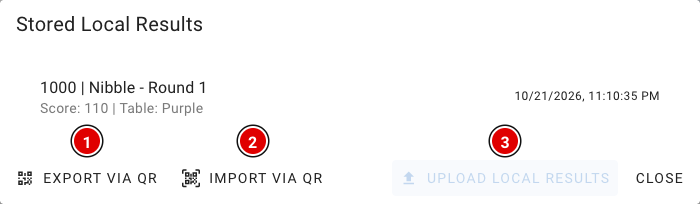
- Open View Local Results and click Export via QR (1). With Import via QR (2) you can also receive scores from another device on this screen. Upload Local Results (3) sends the scores when there is a connection.
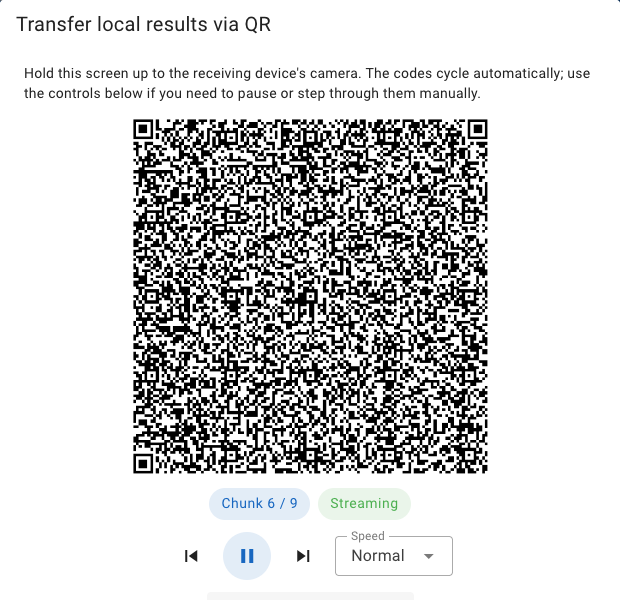
- A series of QR codes appears that changes automatically. Hold the screen in front of the camera of the receiving device. With the buttons below the QR code you can pause, go back or forward, and change the speed.
- The receiving device (usually the scoring desk) reads the codes. How that works is described on the page Scoring desk.
- When reading has succeeded, the receiving device shows a 6-character verification code. Enter this code at Verification code and click Verify code & delete transferred. Only then are the scores removed from the referee's device.