The check-in page is only visible when the **Team Check-in Module** is switched on in **Setup** → **Settings**. Users with the *secretariat* or *admin* role can use check-in.
### The overview - Click **Check-in** in the menu. - You will see a list of all teams in the current tournament. [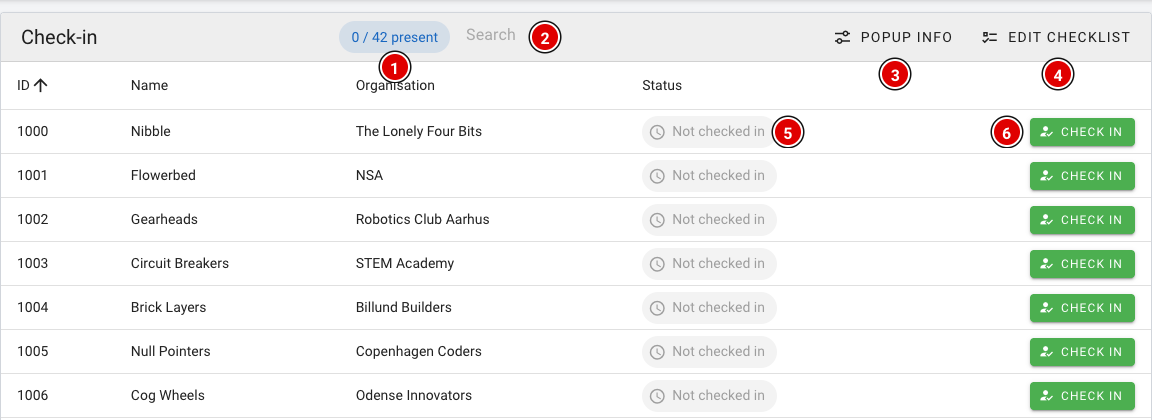](https://docs.flltools.com/uploads/images/gallery/2026-10/checkin-01.png) - **Present (1)**: Counter showing how many teams have already checked in, for example *12 / 42 present*. - **Search (2)**: Quickly search by team number, team name or organisation. - **Popup info (3)**: Choose which information you see when checking a team in (see below). - **Edit checklist (4)**: Set up a list of reminders for the desk (see below). - **Status (5)**: *Not checked in* or *Checked in*. - **Check in (6)**: Checks the team in. ### Checking a team in - Find the team and click **Check in**. - If a checklist or popup information has been set up, a *Before you check them in* window opens first. It shows, for example, at what time and with which jury the team is expected. - Click **Check in** again in the window to confirm, or **Cancel** to go back. [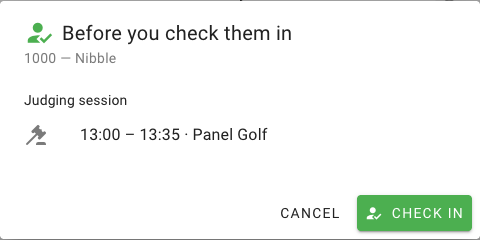](https://docs.flltools.com/uploads/images/gallery/2026-10/checkin-04.png) After check-in the status changes to **Checked in (2)** and the counter **(1)** goes up. Checked in the wrong team by mistake? Click **Undo (3)**. [](https://docs.flltools.com/uploads/images/gallery/2026-10/checkin-05.png) ### Setting up the popup info With **Popup info** you choose which information appears in the check-in window. This applies to all teams. [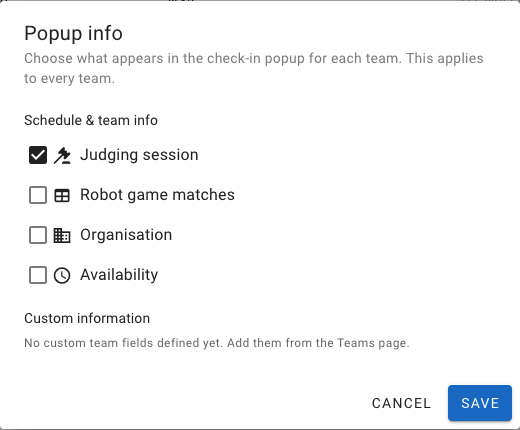](https://docs.flltools.com/uploads/images/gallery/2026-10/checkin-02.png) - **Judging session**: Time and jury of the team's judging session(s). This is on by default. - **Robot game matches**: The team's matches, with time and table. - **Organisation**: The team's organisation (school, club). - **Availability**: When the team is available, if this has been filled in for the team. - **Custom information**: Your own team fields created on the Teams page (via **Custom fields**). See the page [Entering teams into the system](https://docs.flltools.com/books/flltools-documentation-english/page/entering-teams-into-the-system). Click **Save** to store your choice. ### Checklist for the desk With **Edit checklist** you create a list of reminders for the volunteers at the desk, for example collecting consent forms. These items appear in the check-in window and can be ticked off there. [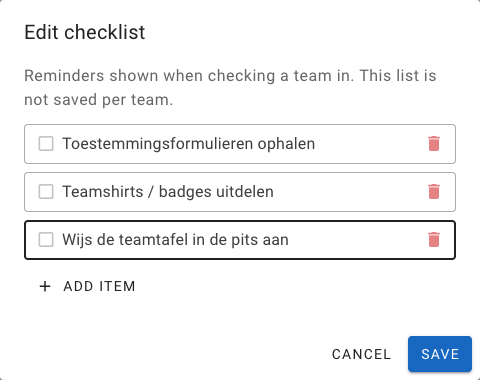](https://docs.flltools.com/uploads/images/gallery/2026-10/checkin-03.png) - Click **Add item** to add an item and use the bin icon to remove one. - Click **Save** to store the checklist.The checklist is only a reminder. Ticking items off is not saved per team. If you want to record something for a specific team, use [Remarks](https://docs.flltools.com/books/flltools-documentation-english/page/remarks).