Team features
FLLTools has a public section where teams, coaches, parents and visitors can look up their team without logging in. In addition, when the Advanced Team Management module is on, coaches can update their team's details themselves.
The team list
https://yourevent.flltools.nl/team has a public list of all teams. Visitors also get here through Teams (1) in the menu at the top of the public pages.
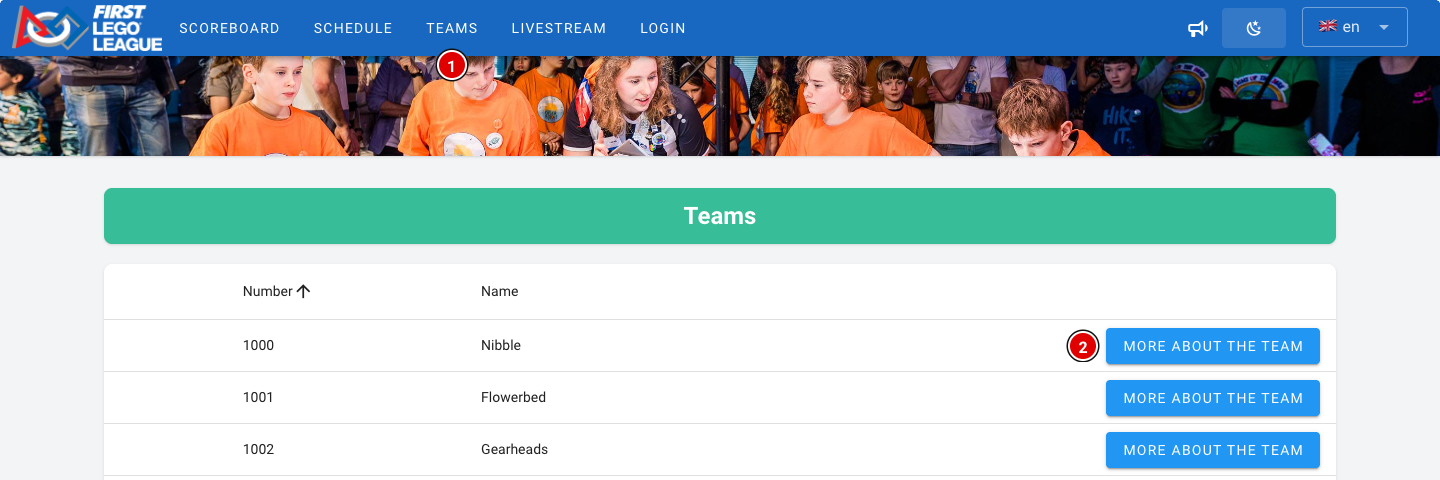
- Clicking the More about the team (2) button opens the team page.
- The list refreshes automatically as soon as new scores come in.
The team page
The content of the team page depends on which modules are switched on. With all modules on, the page looks like this:
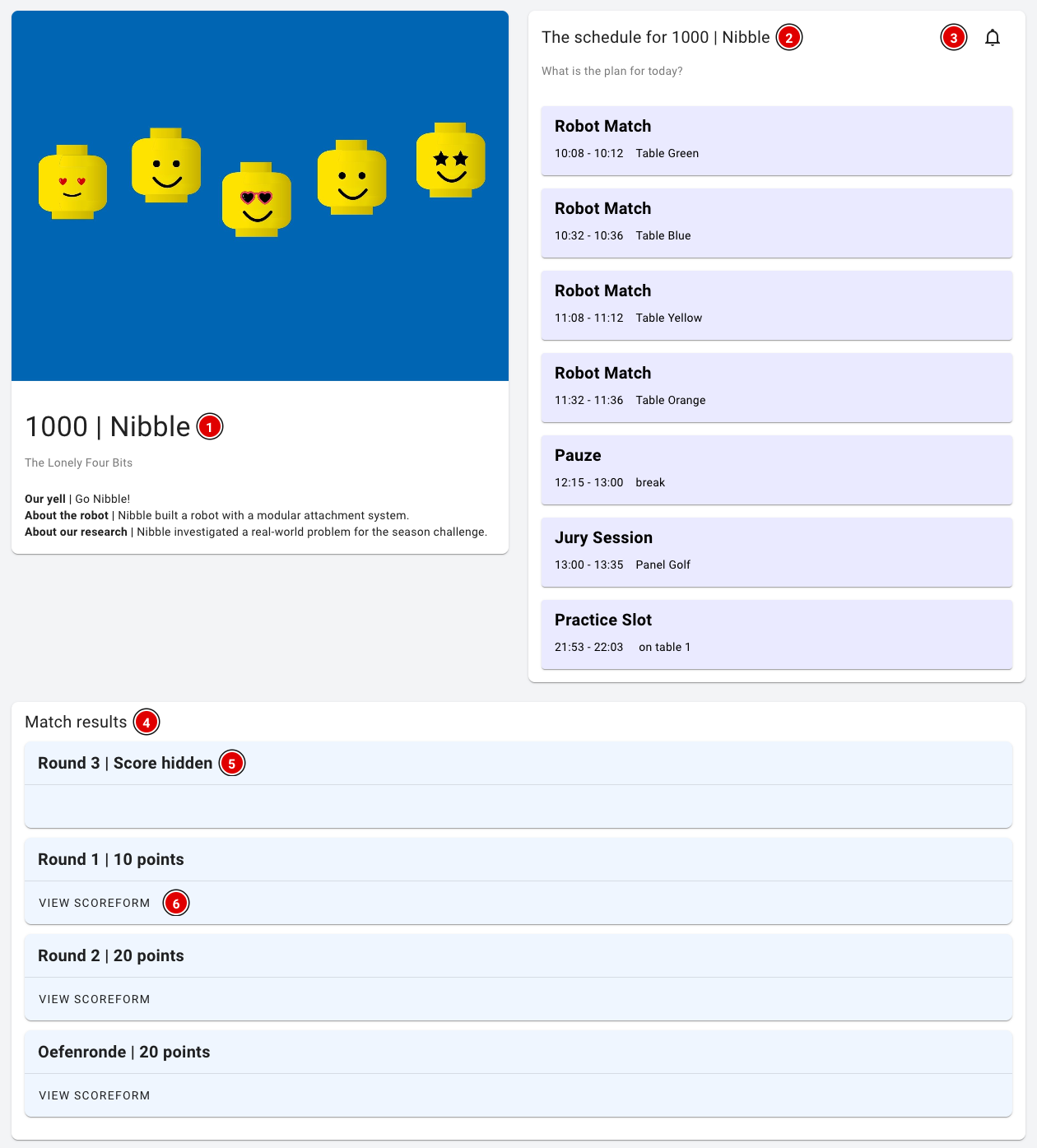
- Team information (1): The team number, team name and organisation. With the Advanced Team Management module, the team photo, the team cheer (yell) and the descriptions of the robot and the innovation project are added here too. If you have created your own team fields set to Public (for example the pit number), they are shown here as well.
- Day schedule (2): With the Schedule module, the team sees where and when it is expected: robot matches (with the table), judging sessions (with the jury), breaks and other items from the schedule, and booked practice tables.
- Reminders (3): With the bell, visitors can sign up for a notification just before each of the team's items. See below.
- Match results (4): The team's scores per round.
- A round with hidden scores shows Score hidden (5). That keeps the excitement until the awards ceremony. See also the page Making the last round visible.
- View scoreform (6) lets the team view the fully completed score sheet of that round.
The match results are only shown on the team page when Publish results automatically is on (through Setup and Settings). When this setting is off, the team sees a message that the results will be published after the tournament.
Reminders for teams
Teams and parents can get a notification on their own phone shortly before the team has to be somewhere. No account is needed for this.
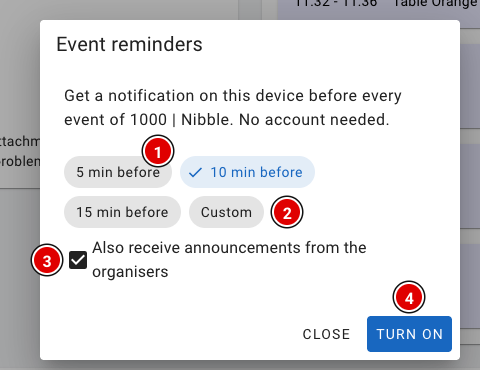
- Click the bell on the team page.
- Choose how many minutes in advance the notification should come: 5, 10 or 15 min before (1), or choose Custom (2) and enter a number of minutes yourself (1 to 240).
- Leave Also receive announcements from the organisers (3) ticked to also receive announcements from the organisation (see the page Announcements).
- Click Turn on (4) and allow the browser to show notifications.
There is a notification for every robot match, judging session, practice table reservation and other item in that team's schedule. Through the same bell the visitor can change or switch off the notifications again.
Notifications work in most browsers on Android and on a computer. On an iPhone they only work after the website has first been added to the home screen. If notifications are blocked for the website, the visitor first has to allow them in the browser settings.
The coach portal
When the Advanced Team Management module is on, you can add coaches to their team (see the page Updating a team). The coach receives an e-mail and can then log in. After logging in, the coach goes straight to their team's page. If someone coaches several teams, they choose the team first.
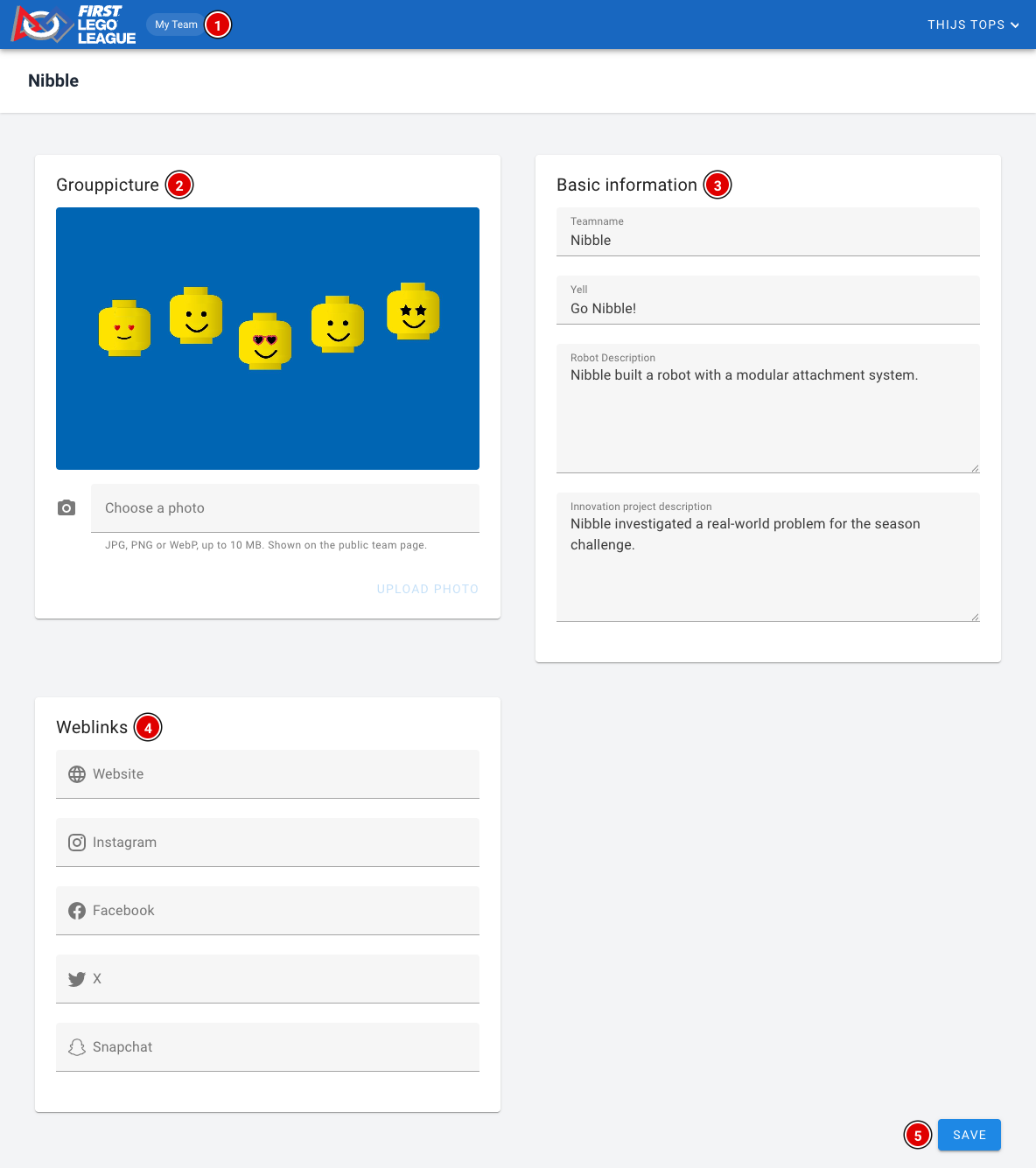
- My Team (1): Always takes the coach back to their team(s).
- Grouppicture (2): The coach can upload, replace or remove a team photo themselves. See the page Uploading team photos.
- Basic information (3): The coach can change the team name, the team cheer (yell) and the descriptions of the robot and the innovation project.
- Weblinks (4): The team's website and social media.
- Save (5) saves the changes. They are immediately visible on the public team page. The team photo has its own button and doesn't need Save.
Only the organisation can change the team number, the tournament and the organisation.
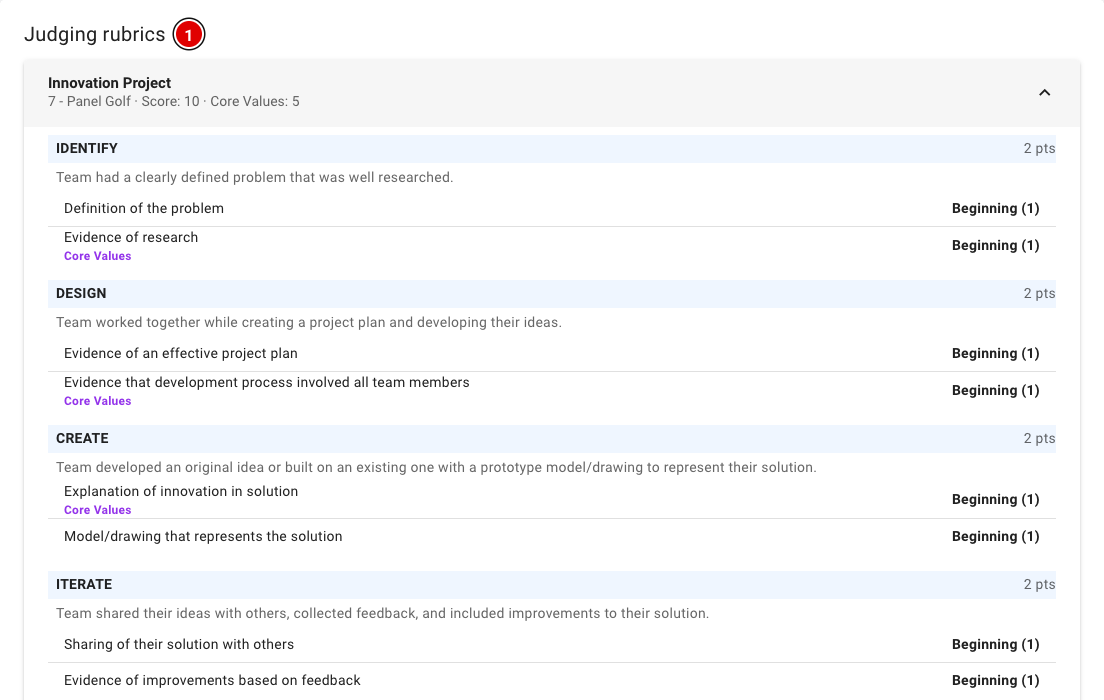
After the tournament (once the tournament's end time has passed), the coach also sees the team's completed judging forms, under Judging rubrics (1). Each form shows which jury filled it in, with the score and the chosen levels per criterion.