The Setup Wizard
The Setup Wizard takes you step by step through the most important settings of your event: the tournament, the tables, the rounds, the modules and the teams. For a standard regional final you're done in a few minutes.
- Logging in for the first time and there is no tournament yet? Then the wizard opens automatically.
- You can always reopen the wizard later through Wizard in the menu.
- Everything you set up in the wizard can be changed later through Setup in the menu. The other pages in this chapter explain each part in more detail.
At the top right of the wizard you can choose the language. At the bottom of each step are the Back and Next buttons to move between steps.
Step 1: Welcome
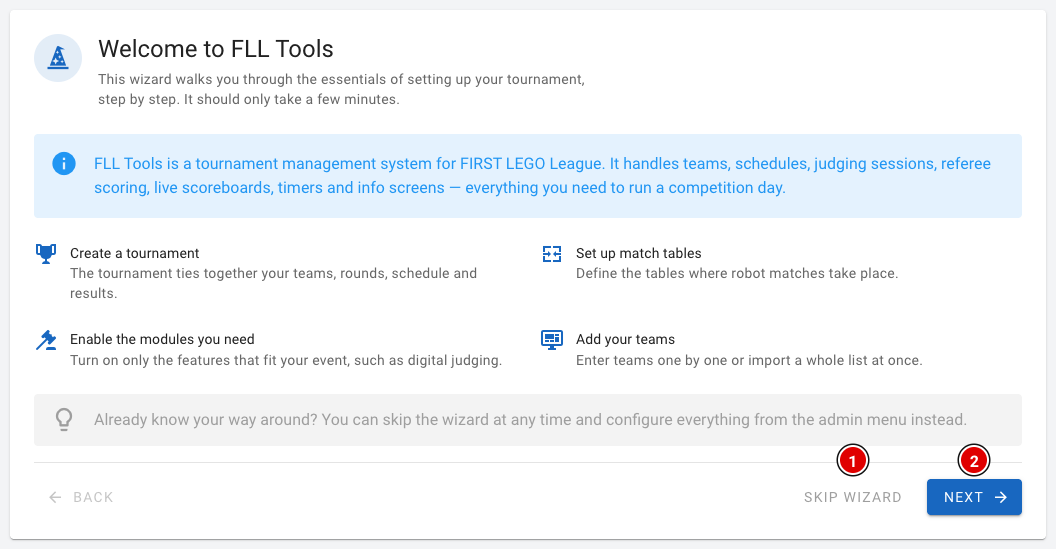
- The first step briefly explains what the wizard does.
- Already know the tool well? Click Skip wizard (1). You go straight to the dashboard and set everything up through the menu.
- Click Next (2) to start.
Step 2: Tournament
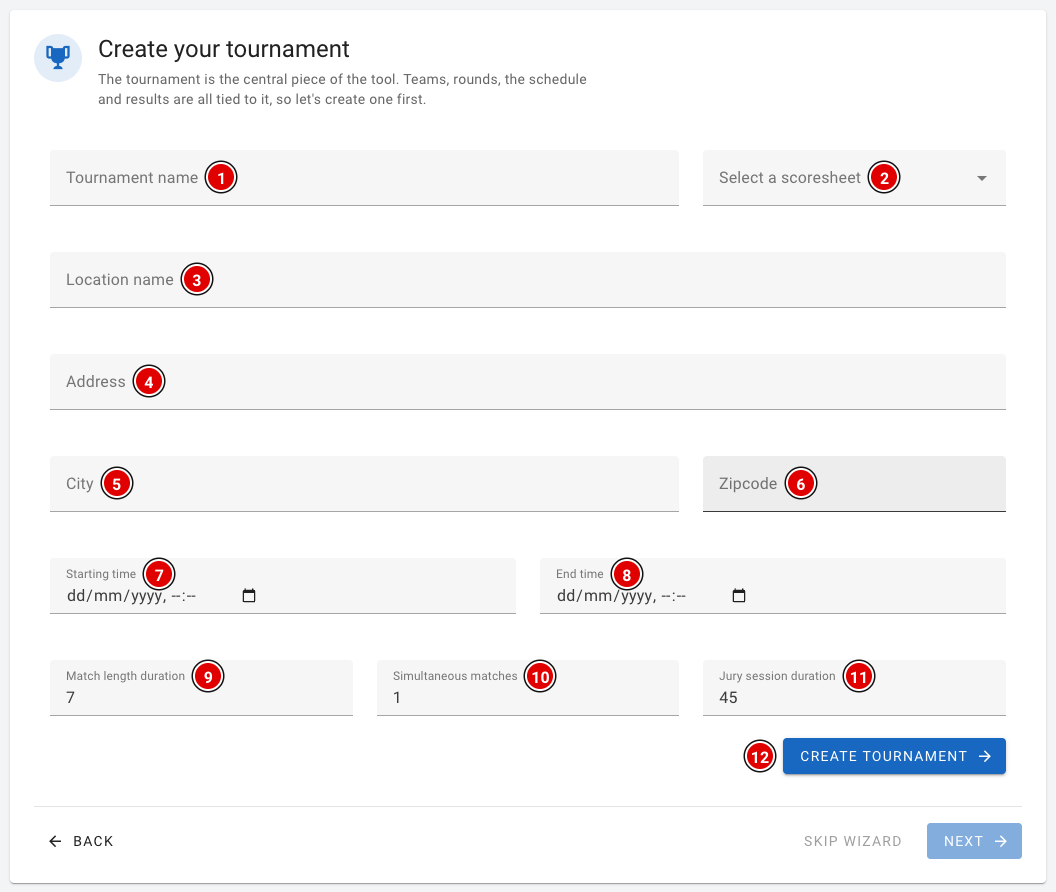
The tournament is the core of the tool: teams, rounds, the schedule and the results all belong to it. Fill in the fields:
- Tournament name (1) and Select a scoresheet (2): the name of your event and the score sheet of the current season.
- Location name (3), Address (4), City (5) and Zipcode (6): the venue of the event.
- Starting time (7) and End time (8): the start and end time of the competition day.
- Match length duration (9), Simultaneous matches (10) and Jury session duration (11): these are used to create the day schedule.
- Click Create tournament (12).
A detailed explanation of all fields, with advice on the times, is on the page Creating the tournament. You can only continue to the next steps once the tournament has been created.
Step 3: Tables
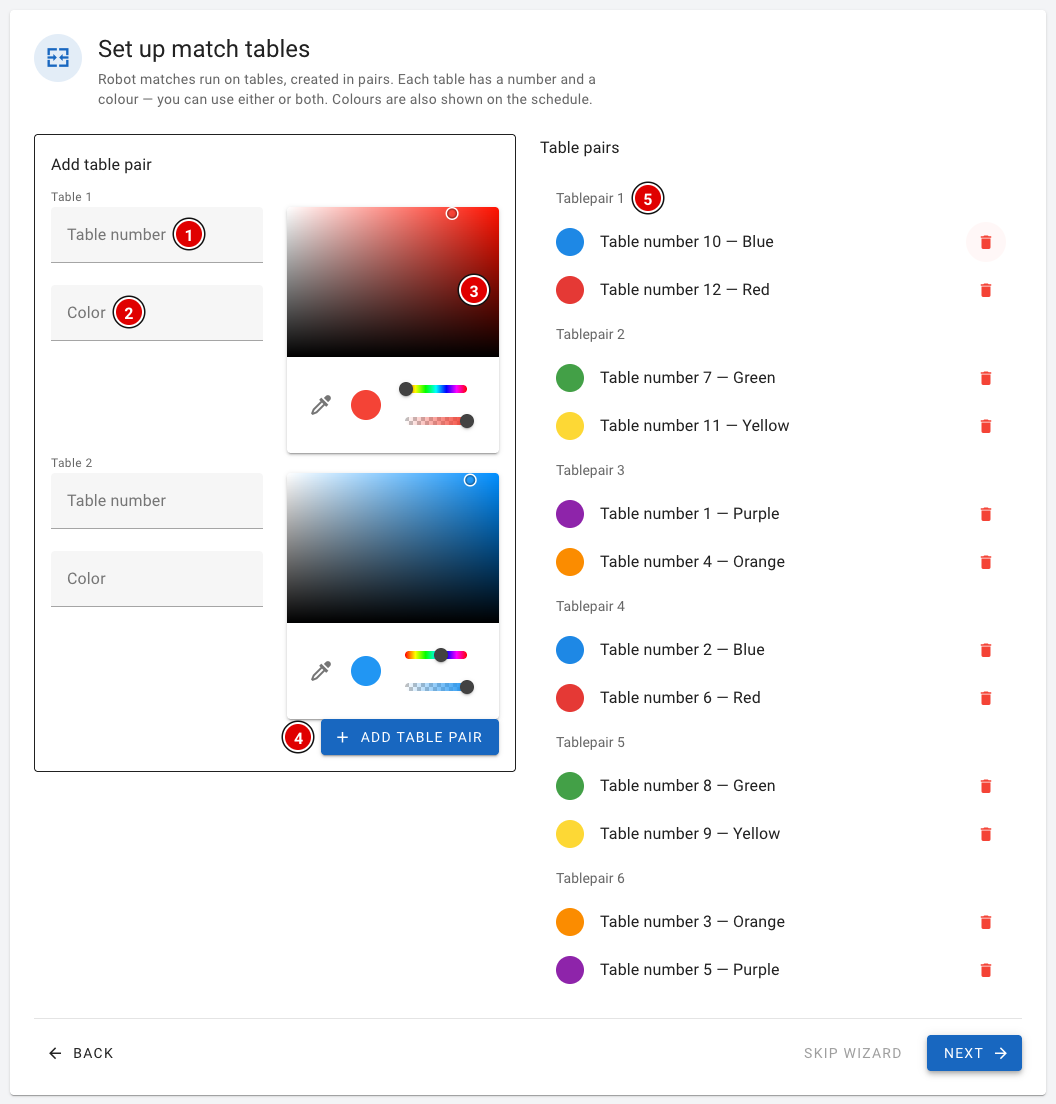
Robot matches are played on tables, and you always create tables in pairs. For both tables of the pair you fill in:
- Table number (1): the number of the table.
- Color (2): the name of the table, for example a colour.
- Colour picker (3): the colour used to show the table in the schedule and on the screens.
- Click Add table pair (4). The pair appears on the right in the Table pairs (5) list. Use the bin icon to remove a table again.
- Repeat this until all tables have been created.
Step 4: Rounds
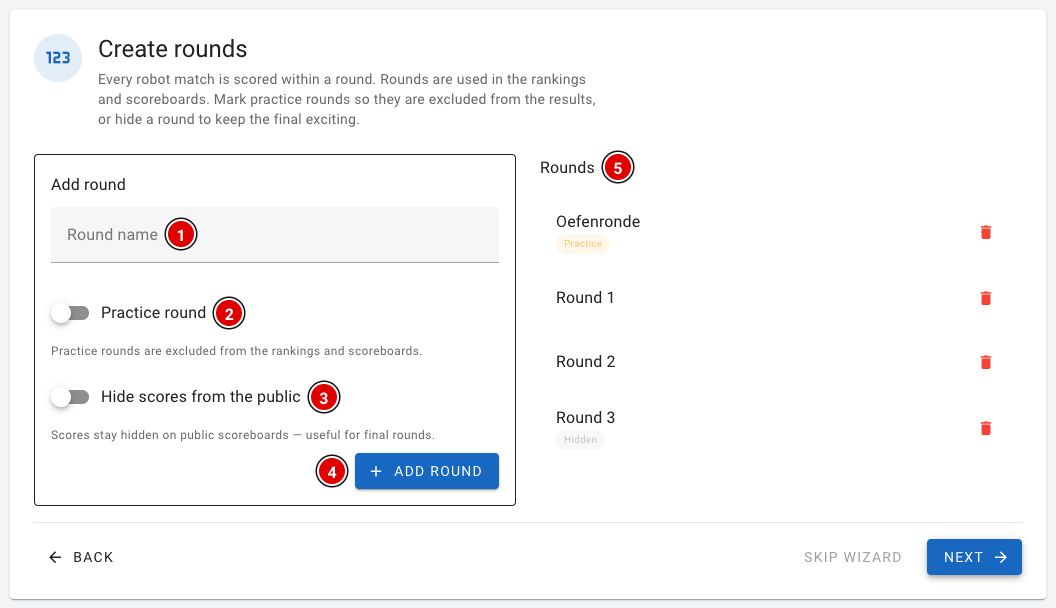
- Enter the name of the round in Round name (1), for example "Practice round" or "Round 1".
- Switch on Practice round (2) for a practice round. Practice rounds don't count in the rankings or on the scoreboards.
- Switch on Hide scores from the public (3) if the scores of this round should stay hidden on the public scoreboards. This is handy for the last round, so it stays exciting until the awards ceremony.
- Click Add round (4). The round appears in the Rounds (5) list.
Create the rounds in the order in which they are played, starting with the practice round.
Step 5: Modules
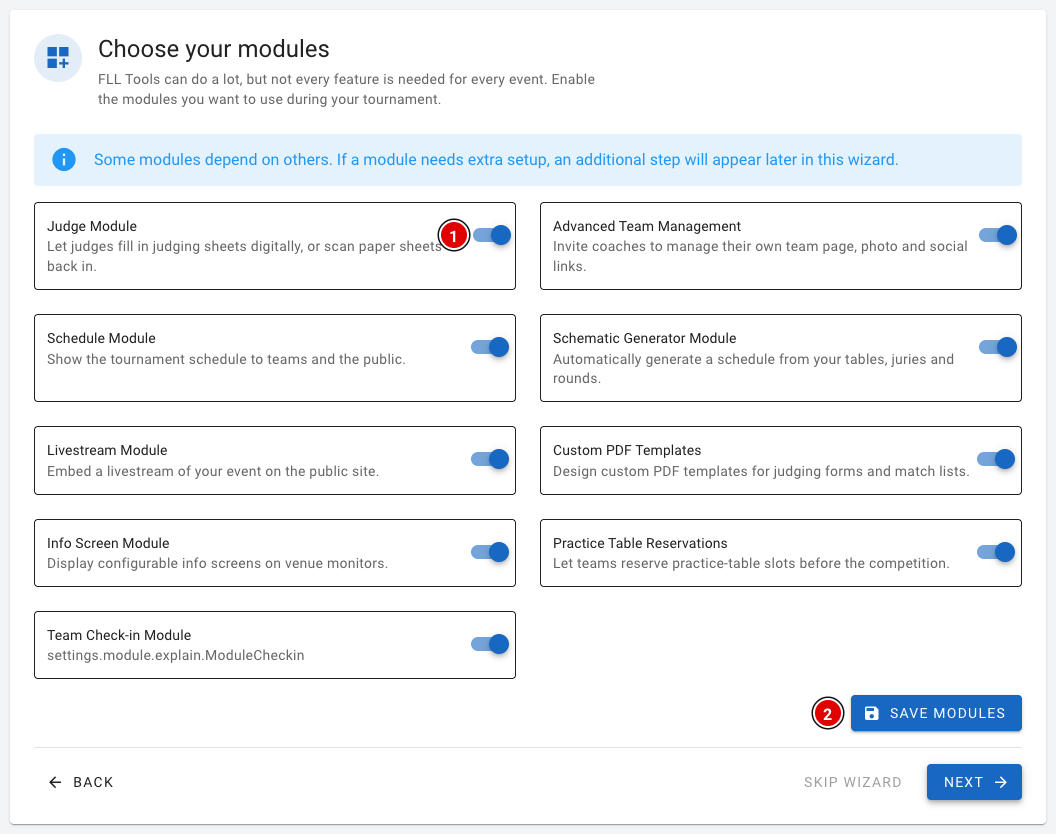
- Use the switches (1) to turn on the modules you want to use at your event. Each module has a short explanation. More information is on the page Settings and modules.
- Click Save modules (2).
Some modules need extra settings. If you switch on the Judge Module, Practice Table Reservations or Livestream Module, an extra step appears in the wizard for it.
Step 6: Judging (only with the Judge Module)
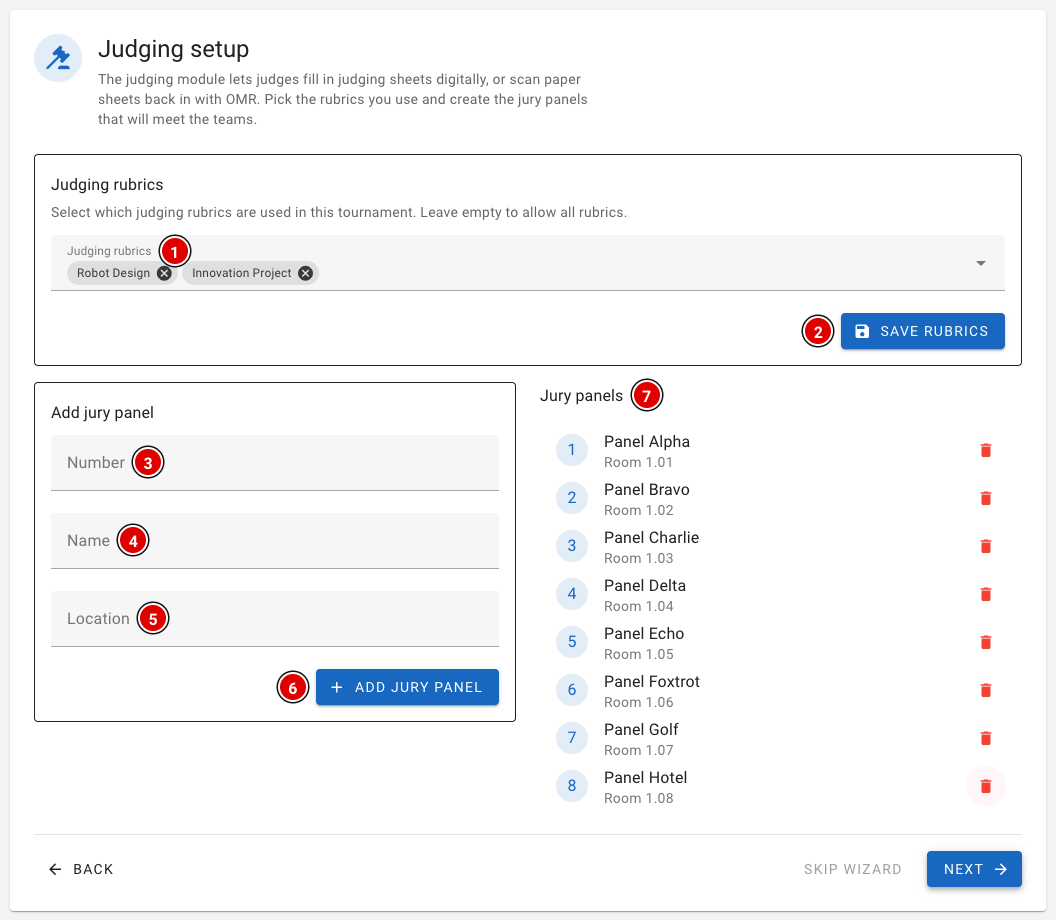
- In Judging rubrics (1), choose which rubrics are used at your event. If you leave this field empty, all rubrics are available. Click Save rubrics (2).
- Then create the judging panels. Fill in the Number (3), the Name (4) and the Location (5) (for example the room) and click Add jury panel (6).
- The judging panels appear in the Jury panels (7) list.
Step 7: Practice tables (only with Practice Table Reservations)
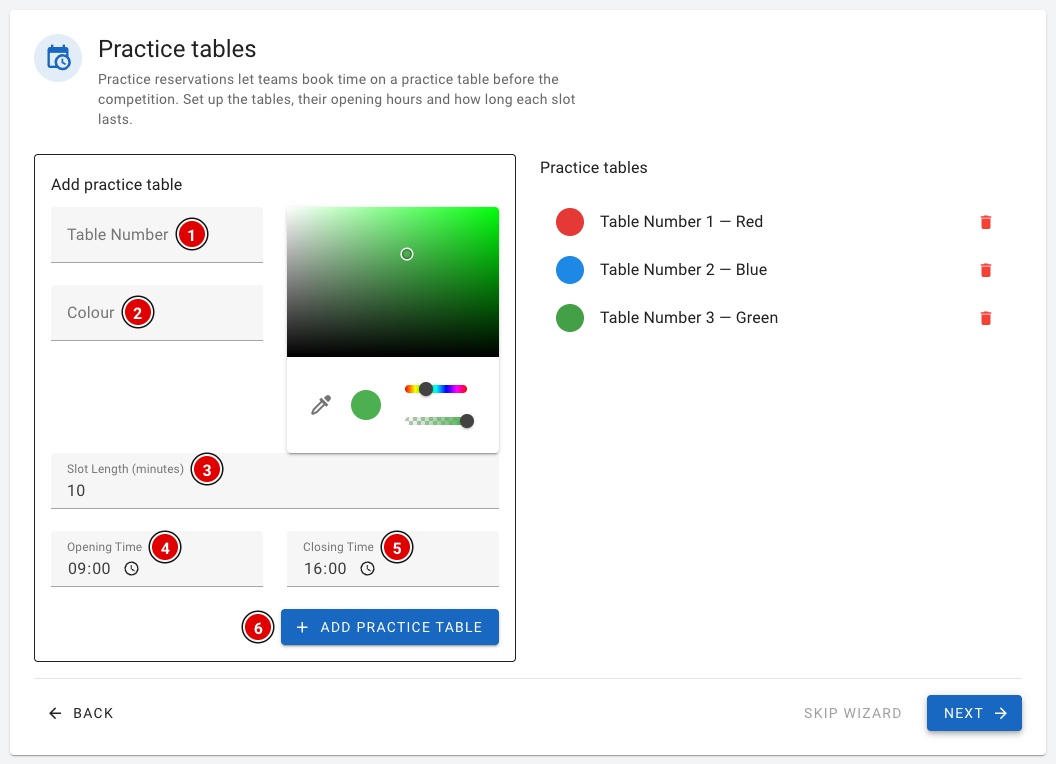
- Fill in the Table Number (1) and the Colour (2) of the practice table and pick a colour.
- In Slot Length (minutes) (3), enter how long a team may practise per reservation.
- In Opening Time (4) and Closing Time (5), enter when the table is available. FLLTools automatically divides this time into time slots.
- Click Add practice table (6).
More about booking practice tables is on the page Practice tables and reservations.
Step 8: Livestream (only with the Livestream Module)
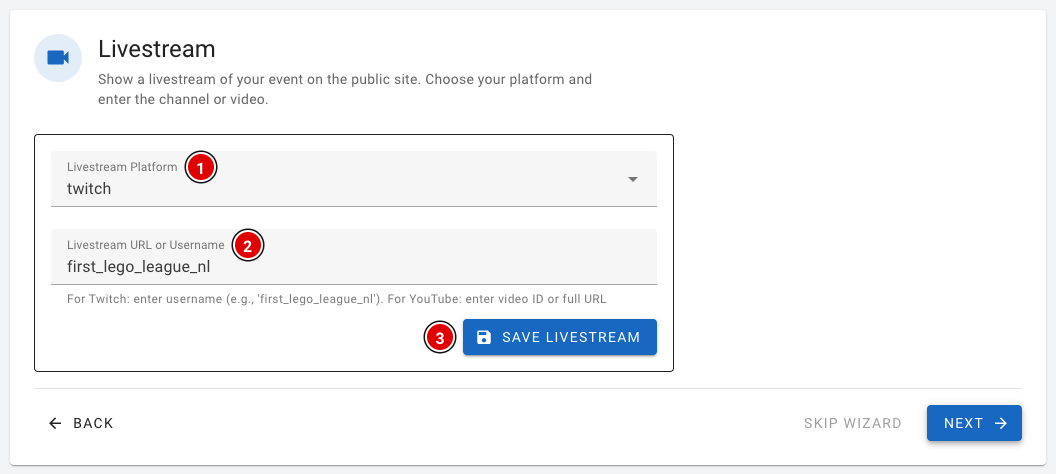
- In Livestream Platform (1), choose whether you stream through Twitch or YouTube.
- In Livestream URL or Username (2), enter the username of the Twitch channel, or the link or video ID of the YouTube video.
- Click Save livestream (3).
Step 9: Teams
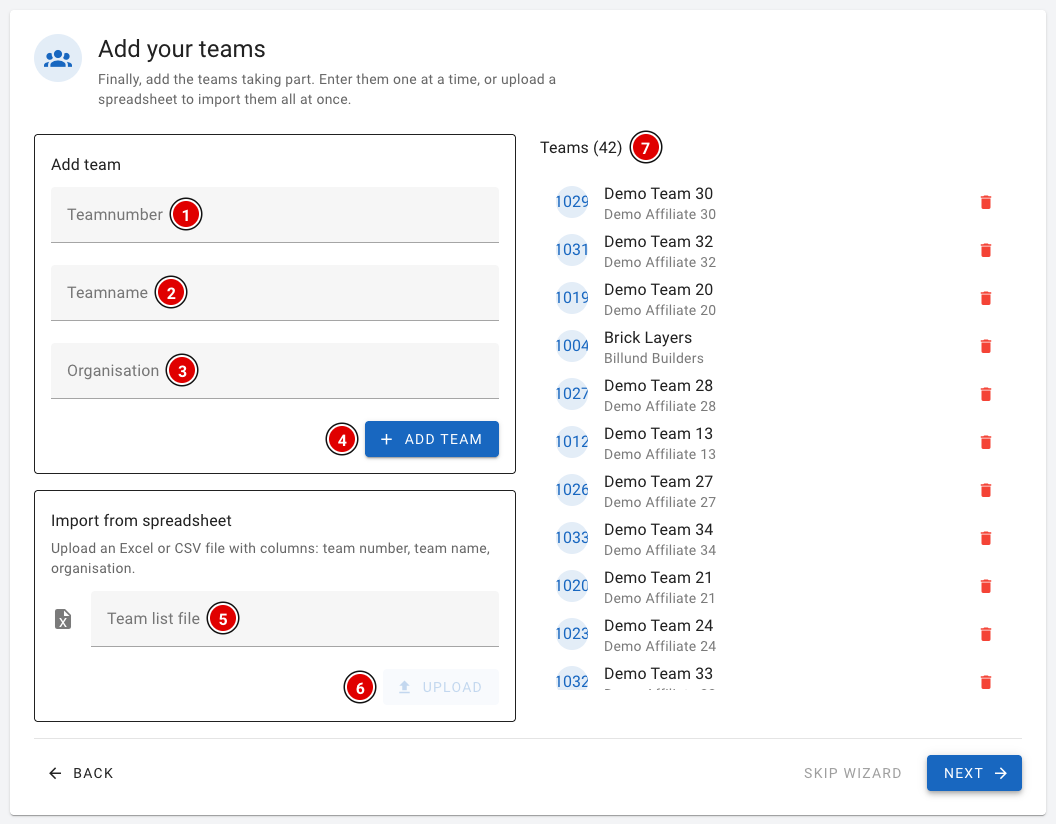
Finally you add the teams. You can do this one team at a time or all at once with a file.
- One at a time: fill in the Teamnumber (1), the Teamname (2) and the Organisation (3) and click Add team (4). The team number must be a unique number and may not contain letters.
- With a file: choose an Excel or CSV file in Team list file (5) and click Upload (6). Column A is the team number, column B the team name and column C the organisation. Do NOT use a header row, or the upload will fail.
- The teams appear on the right in the Teams (7) list.
More about entering teams, for example with an export from your registration system, is on the page Entering teams into the system.
Step 10: Done!
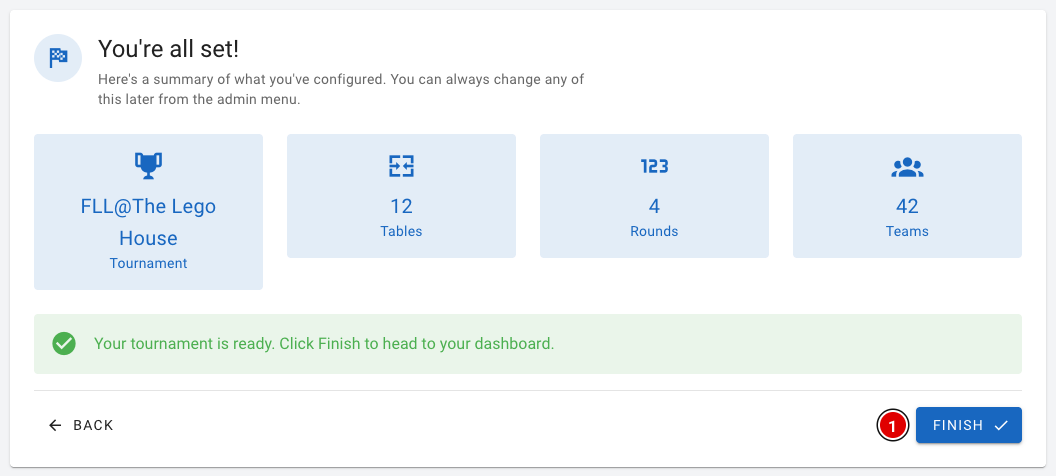
You see a summary of what you have set up: the tournament and the number of tables, rounds and teams. Click Finish (1) to go to the dashboard.
After the wizard you're not quite finished yet. Don't forget:
- the user accounts for referees and judges (see Creating the users);
- the day schedule (see Creating the day schedule);
- the other settings (see Settings and modules).
Hiding the wizard
Not using the wizard? Then you can hide it. Go through Setup to Settings and switch on Hide the setup wizard. The Wizard button then disappears from the menu and the wizard no longer opens automatically.