Uploading team photos
When the Advanced Team Management module is on, every team can have a team photo. The photo appears on the public team page, so parents, visitors and other teams can see who is behind a team name. As the organiser you can upload the photo, but coaches can also do it themselves through the coach portal.
Uploading a team photo
- Go to the Teams page through the menu and open the team using the 3 dots and Show or Edit (see the page Updating a team).
- In the Grouppicture block, click Choose a photo (1) and select the photo on your computer.
- Click Upload photo (2).
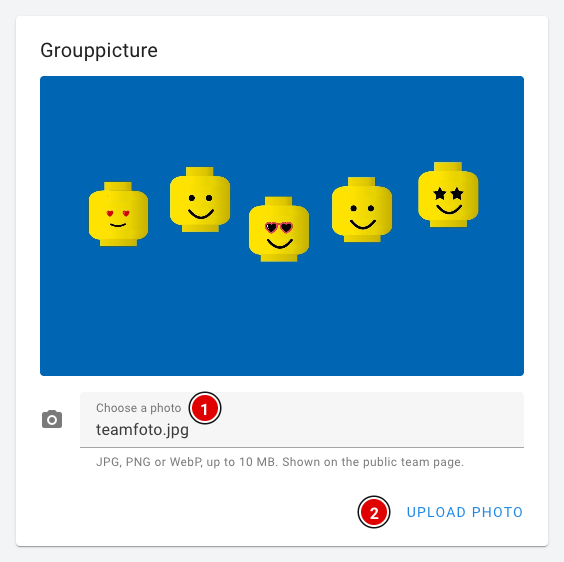
The photo is saved straight away, so you don't need to press any of the Save buttons on the team page. The message The team photo has been updated. appears at the bottom of the screen.
You can upload a JPG, PNG or WebP photo of up to 10 MB. A landscape photo works best: the photo is cropped to fill the whole block, and with a portrait photo heads are easily cut off.
Replacing or removing a team photo
After uploading, the new photo is shown in the block.
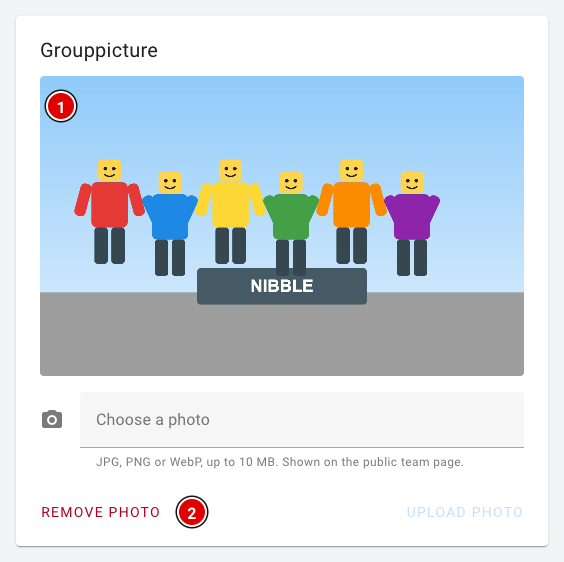
- The team photo (1): This is how the photo looks now. Want a different photo? Simply upload a new one the same way. The old photo is then replaced and deleted.
- Remove photo (2) removes the uploaded photo. The team page then shows the default image again, or no photo at all if there isn't one. This button only appears when a photo has been uploaded.
The team photo on the public team page
The team photo (1) is shown at the top of the team information on the public team page, above the team number, the team name and the yell. Anyone can view this page without logging in. You can read more about the team page on the page Team features.
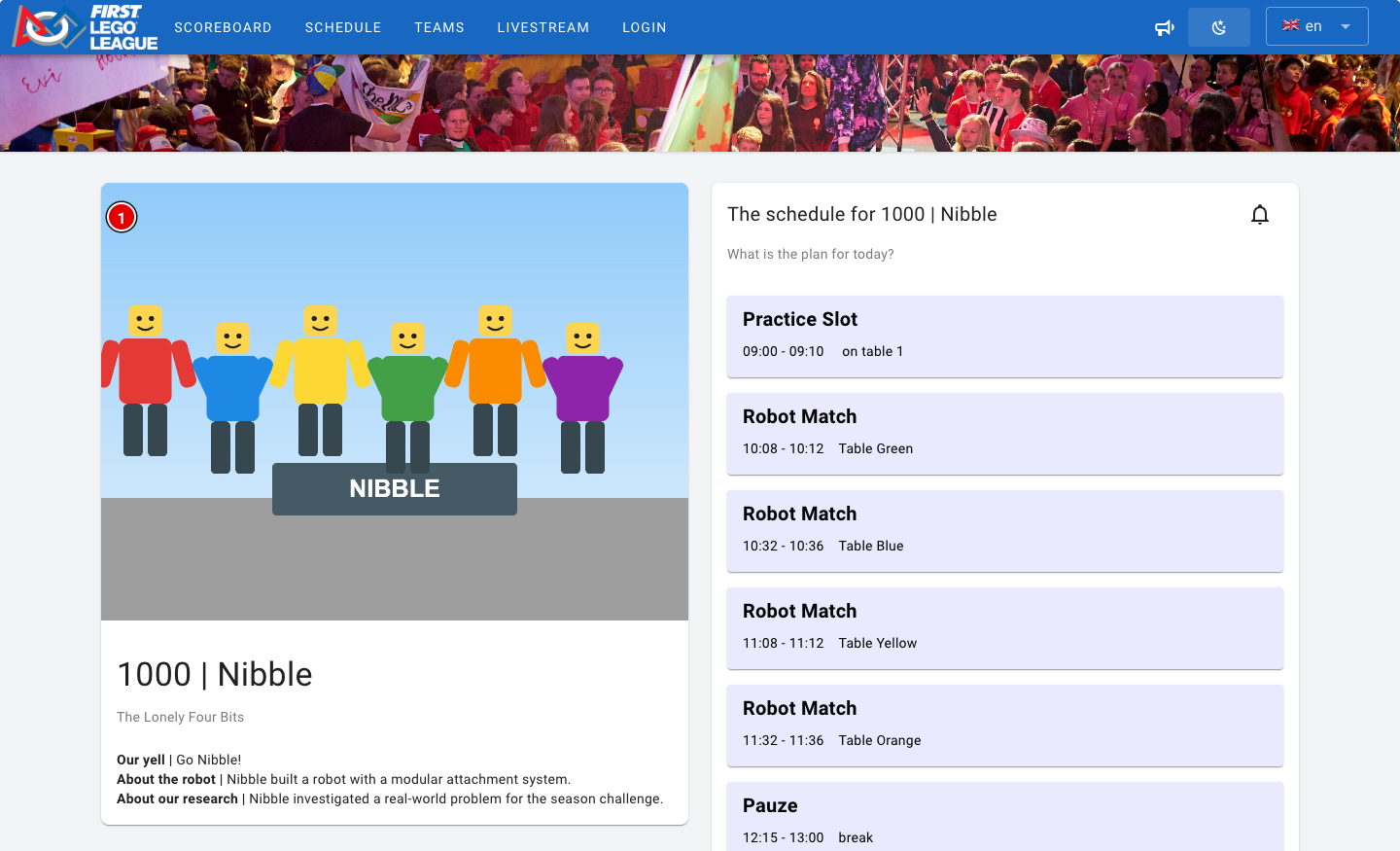
The team photo is visible to everyone. Teams often consist of minors, so only upload a photo if the team (and the parents) have given permission.
Coaches upload their own team photo
If you have linked a coach to the team (see Coaches on the page Updating a team), the coach can take care of the team photo themselves. That way you don't have to collect all the photos.
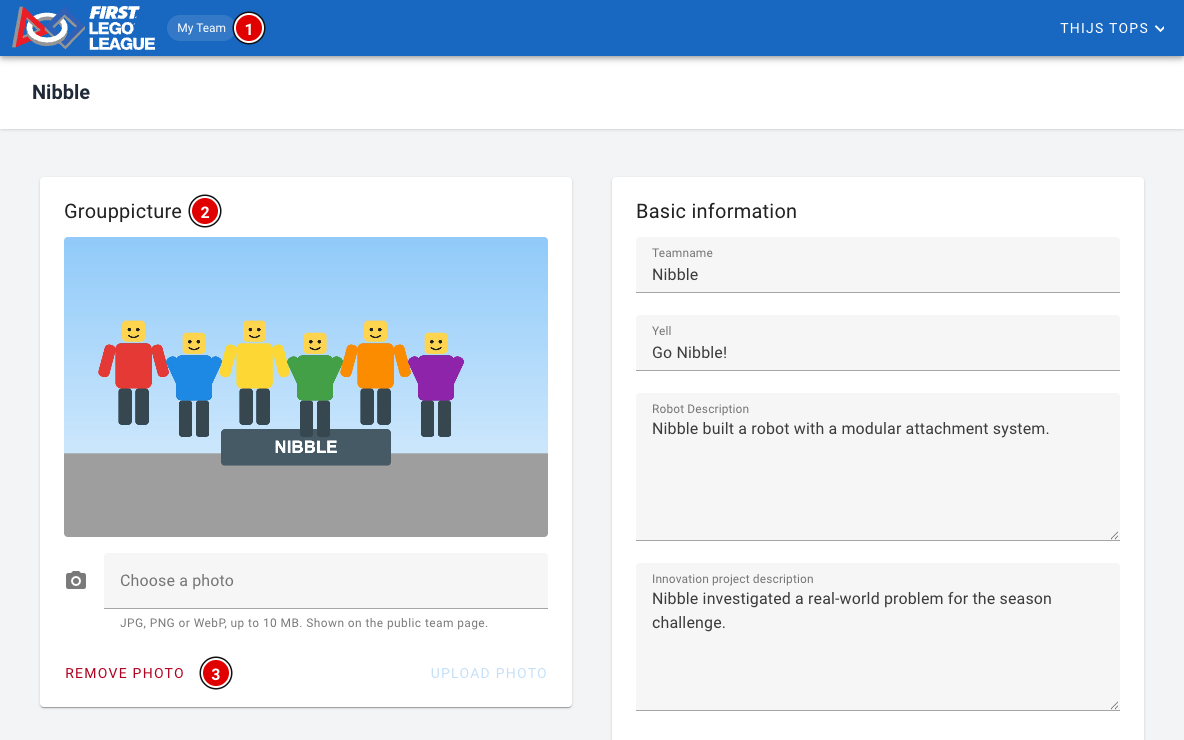
- The coach logs in and reaches their team's page through My Team (1).
- In the Grouppicture (2) block, uploading works exactly as described above: Choose a photo and then Upload photo.
- With Remove photo (3) the coach can remove the photo again.
If the coach uploads a new photo, it replaces any photo you had already uploaded, and the other way round. A team always has just one team photo.