
How the timer works
…FLLTools includes a match timer for the robot game. The timer counts down the 2 minutes and 30 seconds of a match and plays the familiar match sounds. You can show the timer on several screens at once and control it from one place, or through the API.
Test this feature beforehand on the computers and screens you will use on competition day, including the sound. Some browsers occasionally give errors. Running into something? Contact thijs@flltools.nl.
The timer screen
- On the computer connected to the audience screen, go to https://yourevent.flltools.nl/timer. This page is the timer itself. You don't need to log in for it.
- Put the browser in full-screen mode (usually with the F11 key).
- Leave this page open for the whole match session. The timer screen itself has no buttons; you control it from somewhere else.
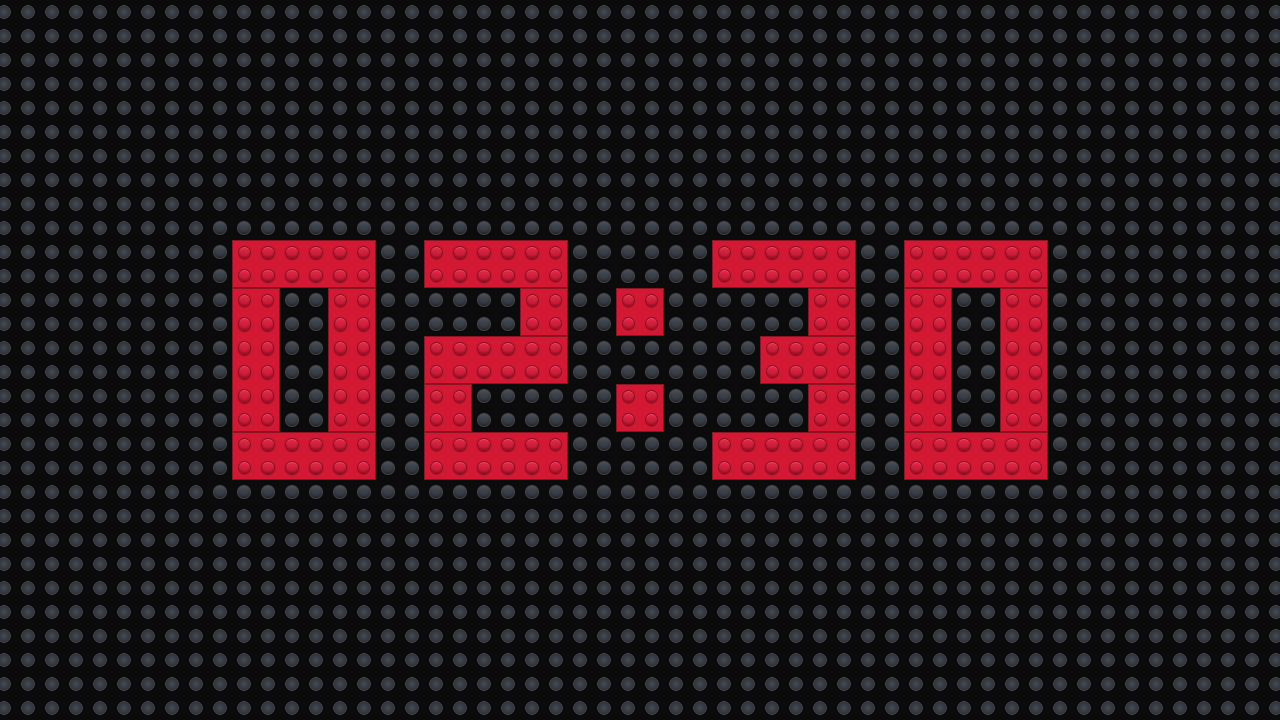
All timer screens are synchronised with the server. So it doesn't matter when a screen was opened or how that computer's clock is set: if you refresh a screen during a match, it immediately picks up the correct time again.
Controlling the timer

- Start (1): Starts a match. The timer screen first shows 3, 2, 1 and then LEGO, after which the timer starts counting down from 2:30. If the timer was paused, it continues where it left off (again after the countdown).
- End (2): Stops the match and sets the timer back to 2:30.
- Pause (3): Freezes the timer at the current time. Use this if a match has to be interrupted.
- Reset (4): Sets the timer back to 2:30, ready for the next match.

Sounds
The timer plays a sound at the key moments, so nobody has to watch the numbers:
- Start sound: right after 3, 2, 1, LEGO, when the match begins.
- End game: when there are 30 seconds left.
- End sound: when the timer reaches 0:00.
After a match has ended, the timer automatically resets itself to 2:30 after about 10 seconds.
Browsers often only play sound after someone has clicked on the page. So after opening the timer screen, click on the page once, and do a sound check before the first match. Also make sure that computer's speakers are on.
The timer on an info screen
Want to show both the timer and the teams of that table pair at the competition tables? Use the Timer + Table Pair Screen info screen. This timer is synchronised with the timer screen and is controlled with the same buttons. How to create an info screen is explained on the page Info screens.
Control through the API
The timer can also be controlled by another system, for example a physical start button. For this you create an API token with the result.create permission. The endpoints (start, pause, end, reset and toggle) are in the API documentation, through Setup and API Docs, under the Timer heading. Want to use this and need help? Contact thijs@flltools.nl.
Tips
- Switch off sleep mode and the screensaver on the computer with the timer screen, so the timer doesn't disappear halfway through a match.
- Does a screen seem out of sync? Refresh the screen, or press Reset to set everything back to 2:30.