
Juries and rubrics
Besides the robot game, teams are also assessed by judges. In FLLTools you set up two things for this: the juries (the judging panels or judging rooms the teams visit) and the rubrics the judges fill in.
The judging parts are only visible when the Judge Module is switched on. See the page Settings and modules.
Creating juries
A jury is a group of judges in one room who see one team after another throughout the day. In the day schedule every team gets a judging session with one of the juries.
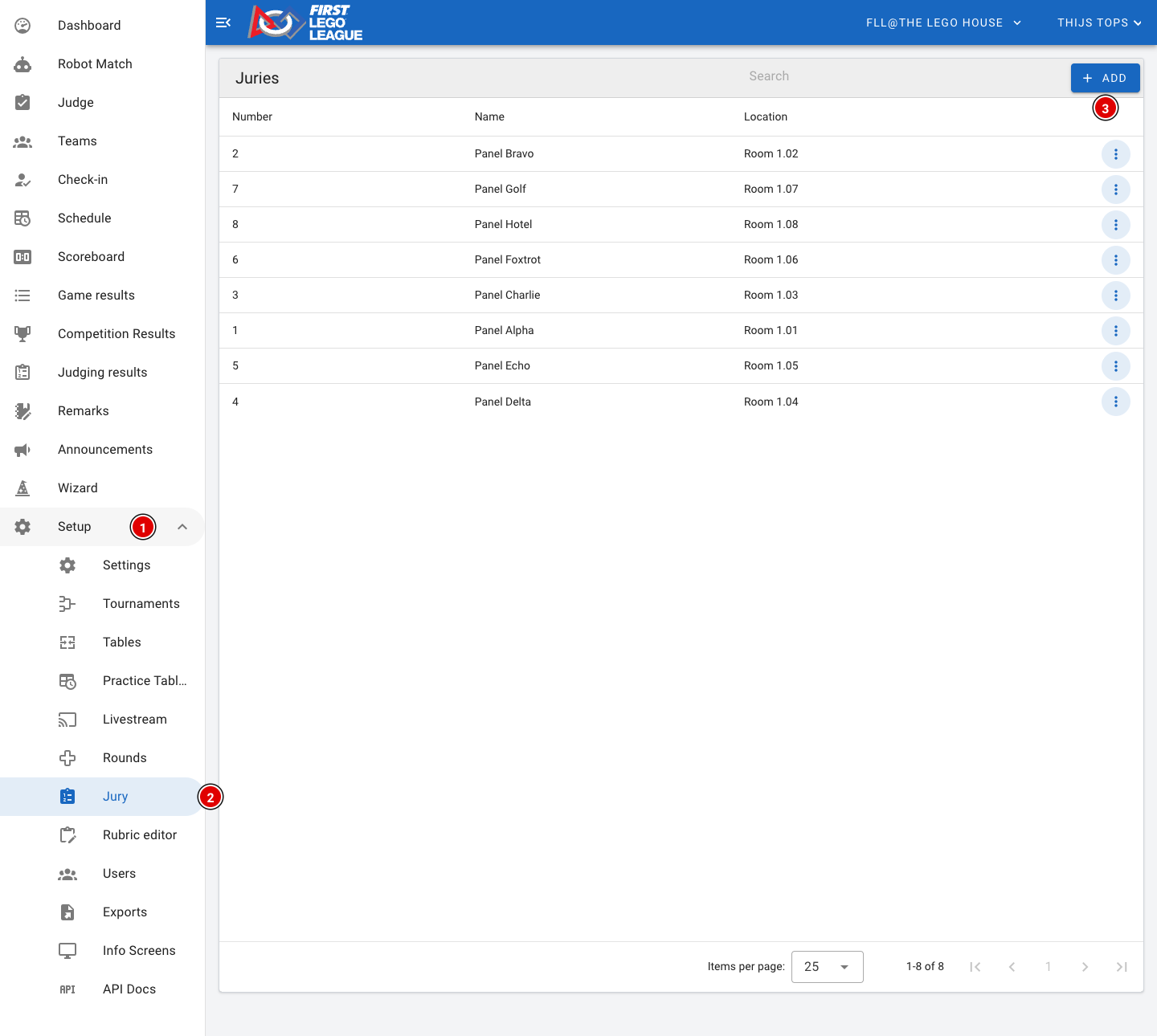
- Go through Setup (1) to Jury (2).
- You see a list of all juries, with their number, name and location.
- Click Add (3) to add a new jury.
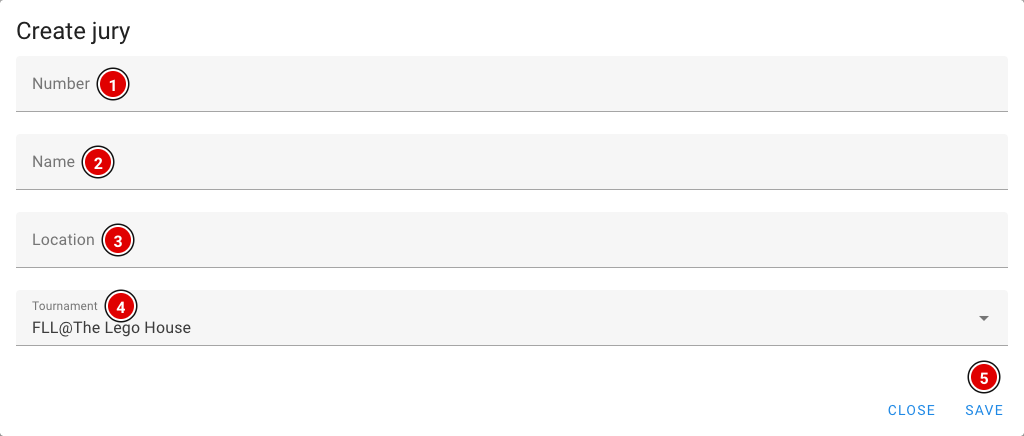
Number (1): The number of the jury. Start with 1 and keep counting. The schedule (both the generator and an imported schedule) links the judging sessions to the right jury through this number.
Name (2): The name of the jury, for example "Jury A" or "Panel Alpha". Teams see this name in their day schedule and on the info screens.
Location (3): The room or place where this jury sits, for example "Room 1.02". That way teams and volunteers know where to go.
Tournament (4): The tournament this jury belongs to.
Click Save (5). Repeat this until all juries have been created. Through the 3 dots next to a jury you can change or delete it later.
Rubrics
For each team the judges fill in a judging form, also called a rubric. The official rubrics of the season are already available in FLLTools, for example Innovation Project, Robot Design and the feedback form. In most cases you don't need to change anything here.
Choosing which rubrics you use
For each tournament you set which rubrics the judges use. You do this on the tournament itself: go through Setup to Tournaments and choose Edit for your tournament.
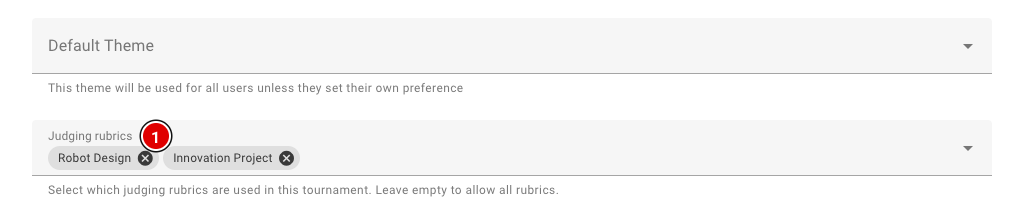
- In Judging rubrics (1), choose the rubrics that belong to your event.
- If you leave this field empty, all rubrics are available, and judges will also see rubrics from other seasons. So always choose the rubrics of the current season.
- Click Save at the bottom.
Which rubrics count towards the rankings for the judges' deliberation is set on the page Competition Results (see the Judges' deliberation chapter).
The rubric editor
Want to view or change a rubric, or load a rubric you received from us? Go through Setup to Rubric editor.
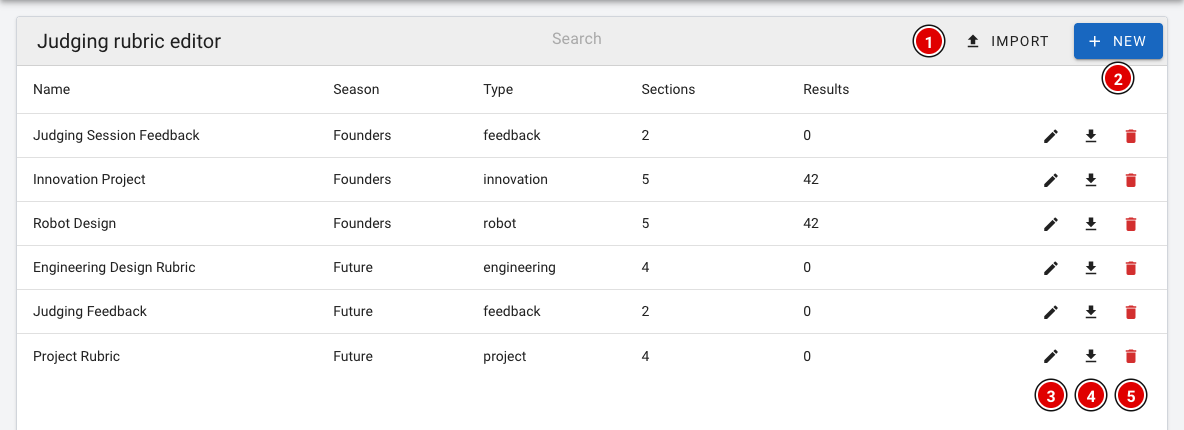
- For each rubric you see the name, the season, the type, the number of parts (Sections) and the number of completed forms (Results).
- Use Import (1) to load a rubric from a file (a .rubric.json file).
- Use New (2) to create a new, empty rubric. You then fill in the name, the season and optionally the type.
- The pencil (3) opens the rubric so you can change it.
- The download button (4) saves the rubric as a file. Handy as a backup, or to share the rubric with another region.
- The bin (5) deletes the rubric. A rubric that has already been used to assess teams can't be deleted.
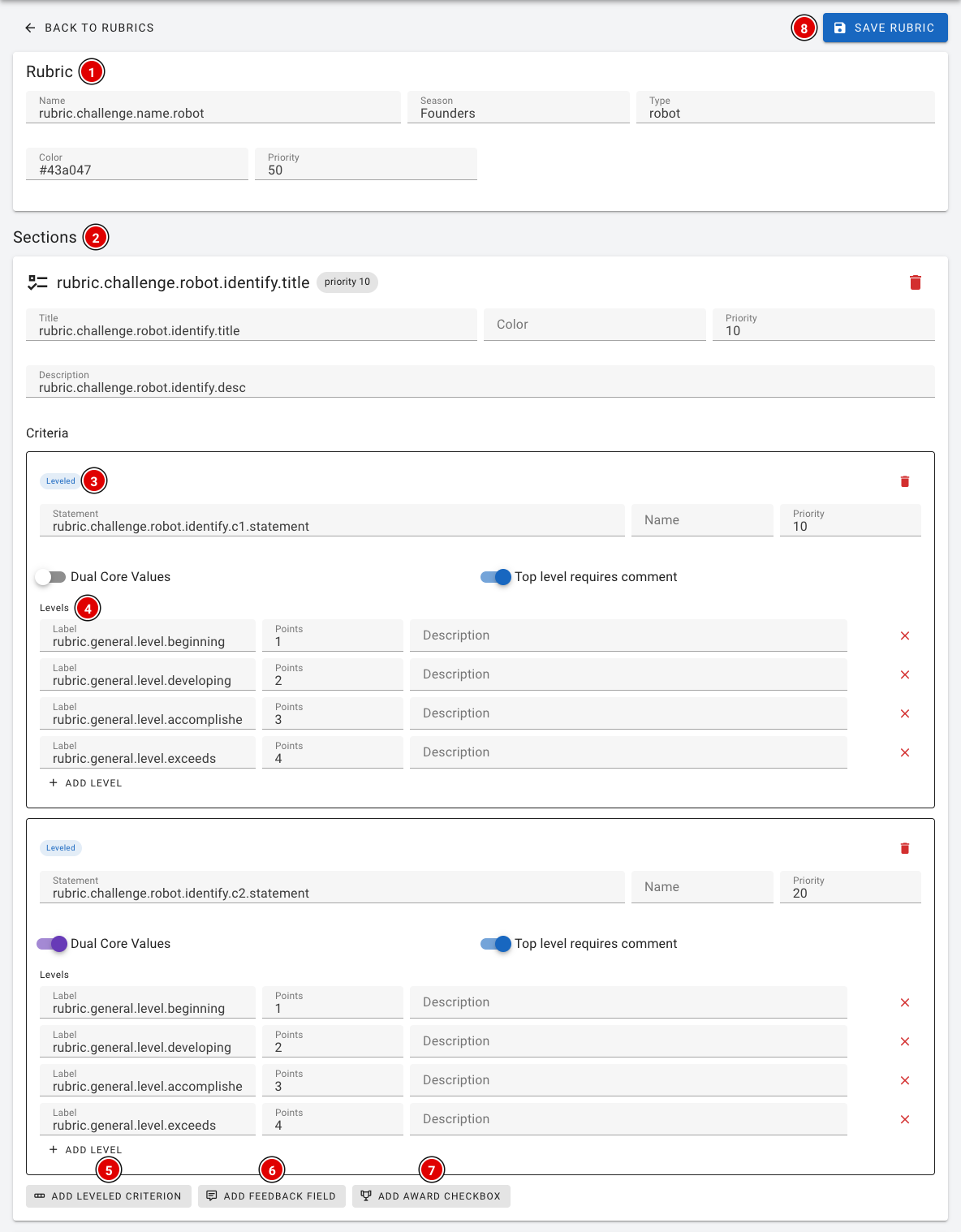
A rubric is built up as follows:
- Rubric (1): The general details: name, season, type, colour and priority (the order in which the rubrics are shown).
- Sections (2): The parts of the form, such as Identify, Design and Iterate. Each part has a title, colour, priority and description.
- Leveled (3): A criterion within a part, with the statement the judges assess the team on. Dual Core Values indicates that this criterion also counts for Core Values. With Top level requires comment, the judges must write an explanation when they choose the highest level.
- Levels (4): The levels the judges choose from (for example Beginning, Developing, Accomplished and Exceeds), each with a number of points.
- Add leveled criterion (5), Add feedback field (6) and Add award checkbox (7) add, respectively, a criterion, a text field for feedback or a checkbox for an award nomination to a part.
- Click Save rubric (8) to save all changes at once.
In the editor you sometimes see texts like rubric.challenge.robot.identify.title. These are translation keys: judges automatically see the text in their own language on their screen. So don't change these keys unless you're sure what you're doing.
Don't change a rubric once the judges have started working with it. In doubt? Contact thijs@flltools.nl.