
Livestream
Broadcasting your event live through Twitch or YouTube? Then you can show the stream on your event's public site. Visitors then don't have to look for the right link themselves.
The livestream is part of the Livestream Module. Switch it on through Setup → Settings if you don't see the Livestream button in the menu (see the page Settings and modules).
Setting up the livestream
- Go through Setup to Livestream.
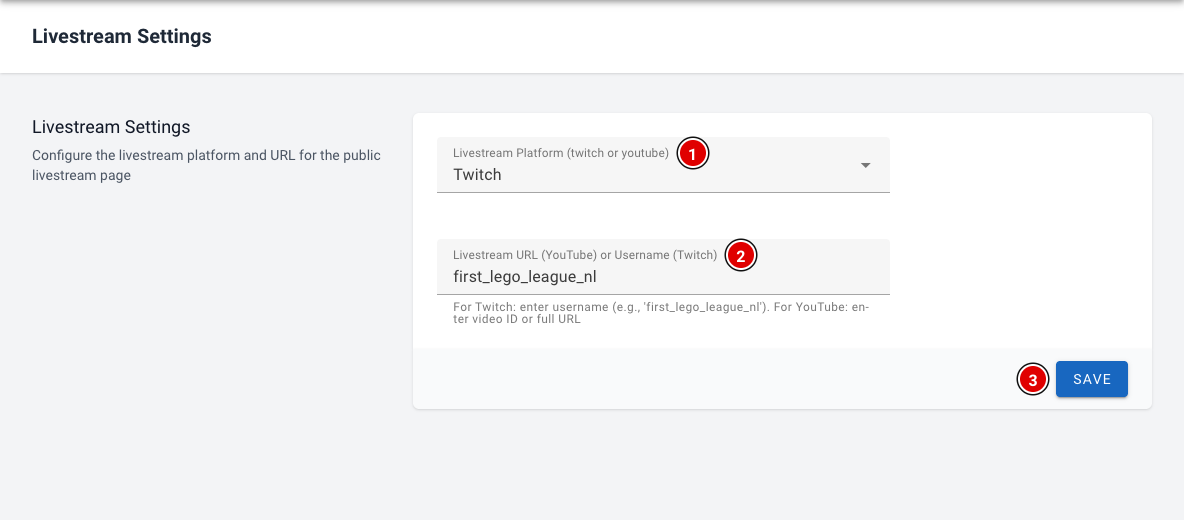
Livestream Platform (1): Choose Twitch or YouTube.
Livestream URL or Username (2):
- For Twitch, enter the channel name, for example first_lego_league_nl.
- For YouTube, enter the video ID, or paste the full address of the video (a youtube.com/watch?v=… or youtu.be/… link).
Click Save (3). The public page shows the stream straight away.
The public livestream page
Visitors find the stream through Livestream in the menu of the public site, or directly at https://yourevent.flltools.nl/livestream. Replace "yourevent" with the name of your event.
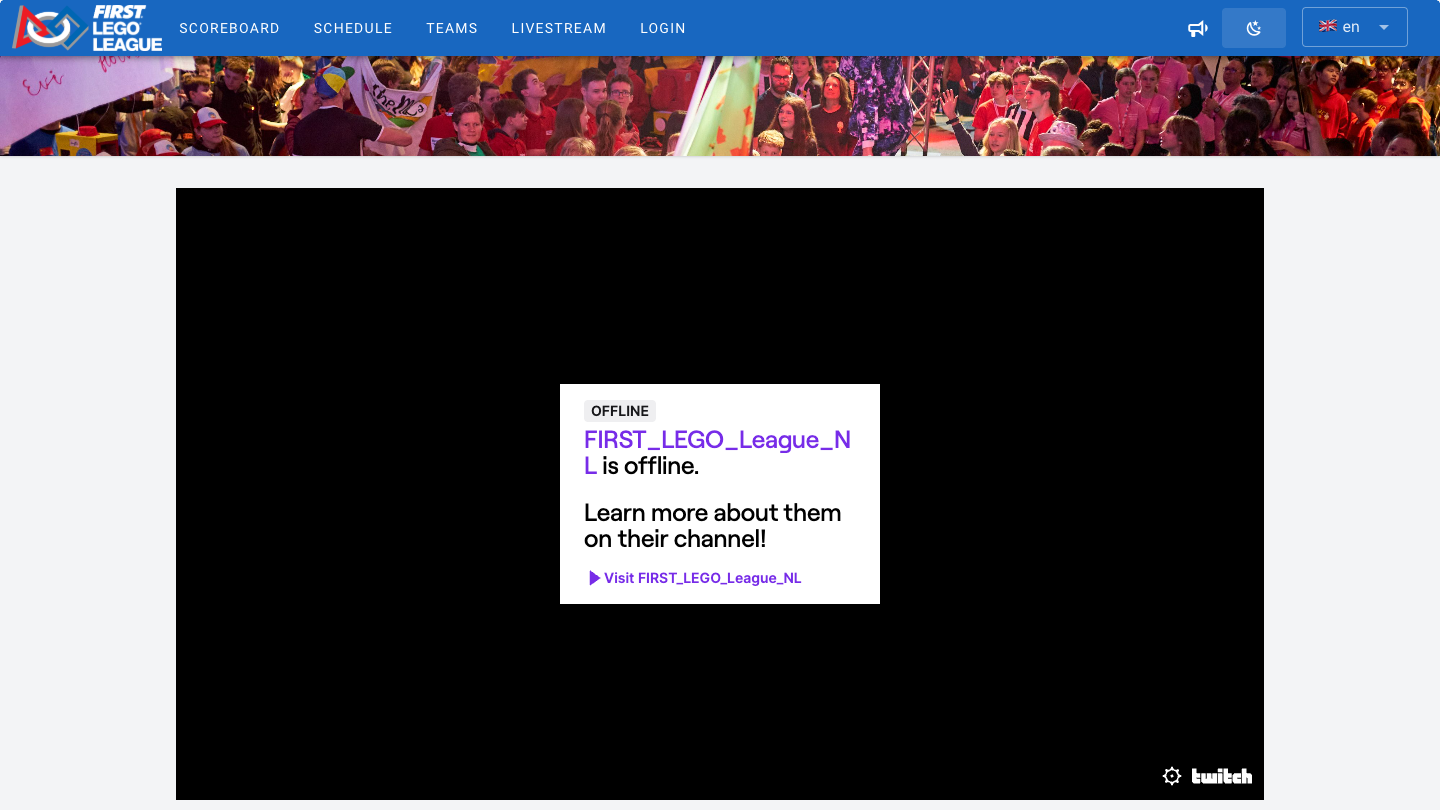
The player works like the normal Twitch or YouTube player: viewers can adjust the sound and put the video in full screen. If the stream isn't live (yet), Twitch shows this in the player.
Scores on screen with the Stream Overlay
Producing the broadcast yourself, for example with OBS? Then create an info screen of the Stream Overlay type (see the page Info screens). The overlay shows a scoreboard, a scrolling bar with the latest scores and a notification as soon as a new score comes in.
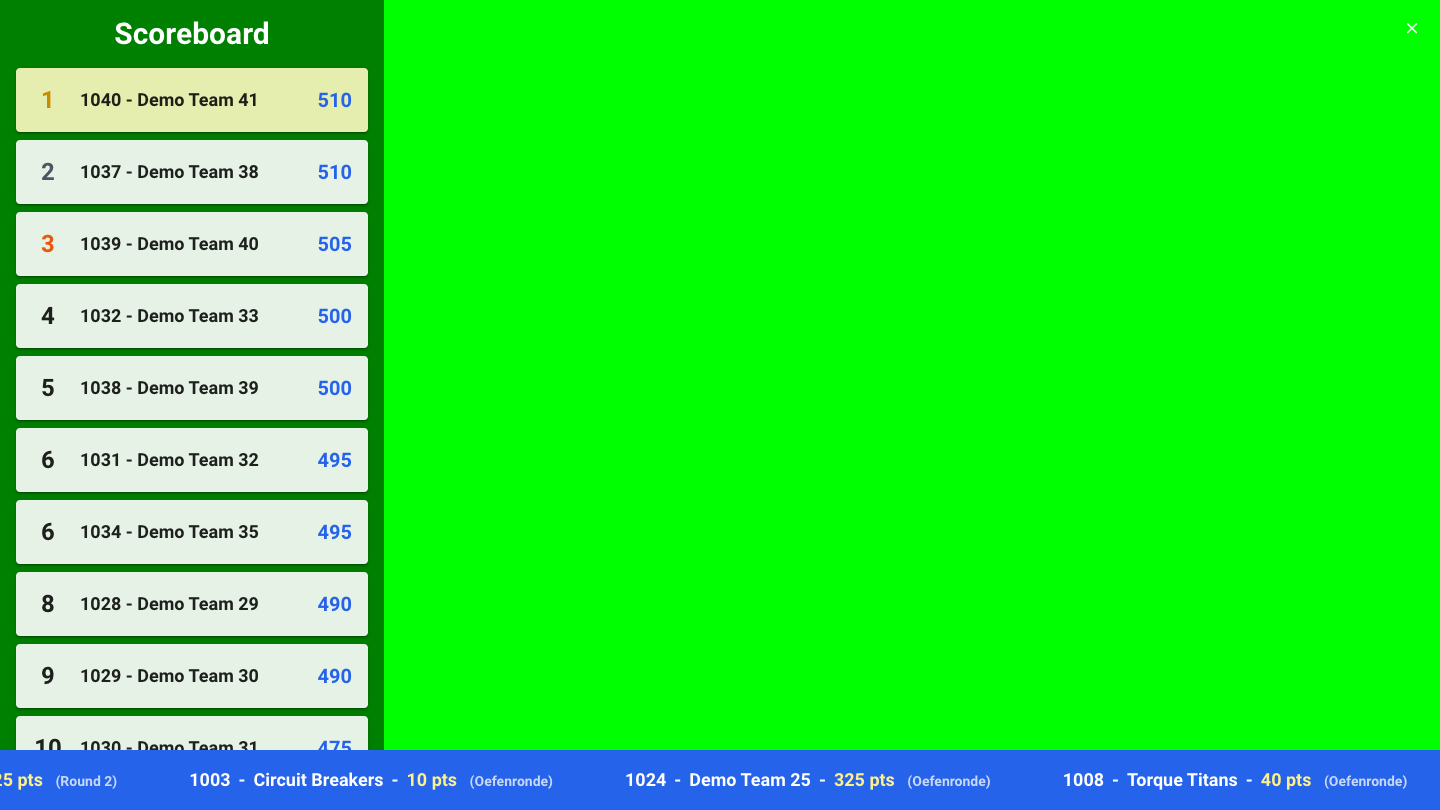
- Choose a bright background colour, for example green, as in the example. You can filter that colour out in your streaming software (chroma key), so only the scoreboard and the bar appear over your video.
- The cross at the top right hides the scoreboard. Click the button that then appears to show the scoreboard again. The scrolling bar always stays visible.
- Add the screen in your streaming software as a browser source with the address of the info screen.
Tips
- Check the channel name or video link beforehand. With a small typo the player stays empty.
- Open the public page on another device before the event, so you're sure the right stream is shown.