
Scoring desk
The scoring desk may not have many tasks, but it plays a crucial role. The desk keeps track of whether all scores come in correctly and checks for any mistakes. At the end of the day, the scoring desk makes sure all results are ready for the judges' deliberation.
Users with the secretariat role have access to everything on this page.
The dashboard
After logging in you land on the Dashboard. Here you can see at a glance how the day is going.
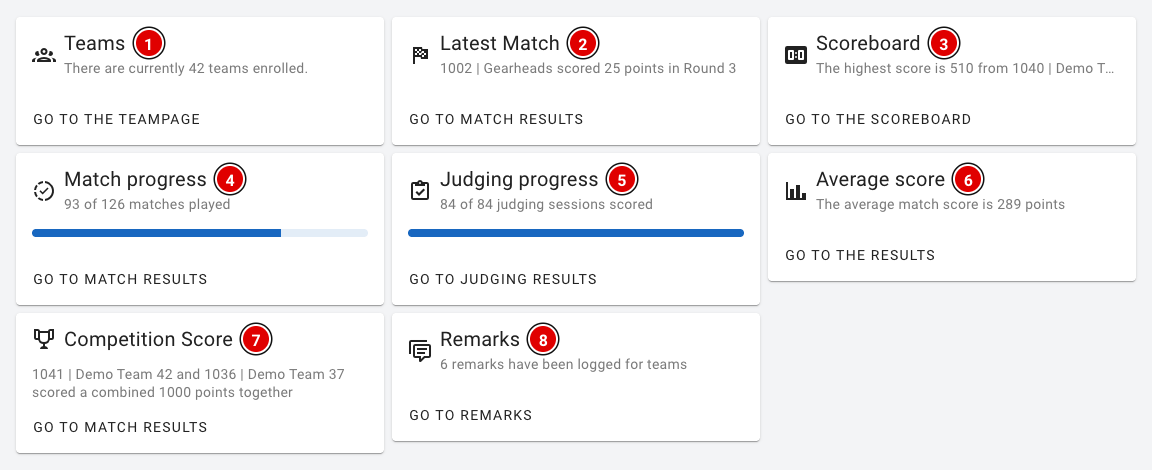
- Teams (1): The number of registered teams.
- Latest Match (2): The most recently entered score.
- Scoreboard (3): The highest score so far.
- Match progress (4): How many of the matches in the schedule have been played and entered.
- Judging progress (5): How many judging sessions have been assessed.
- Average score (6): The average match score.
- Competition Score (7): The two teams that achieved the highest combined score in a single match (playing at the same time on a table pair).
- Remarks (8): The number of remarks recorded about teams.
Checking match scores
Via Game results in the menu you can see all entered robot matches. The list refreshes automatically as soon as a new score comes in.
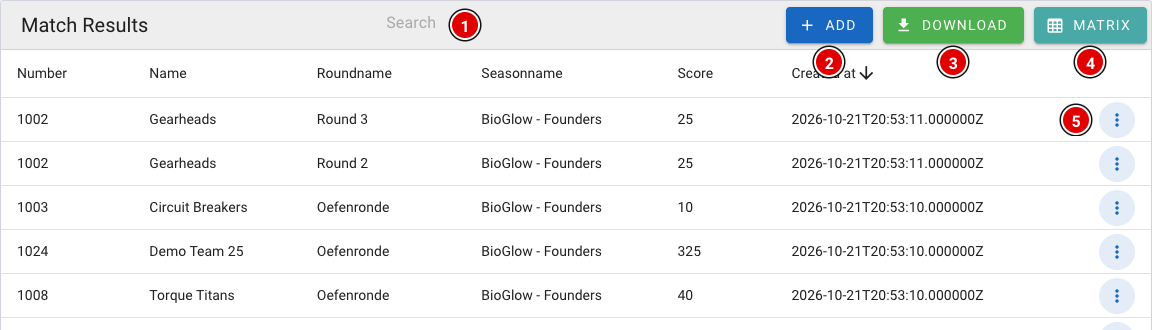
- Search (1): Search by team number, team name or round.
- Add (2): Enter a score yourself, for example from a paper score sheet. This works the same as for the referees (see Referee briefing).
- Download (3): Download an Excel file with all scores.
- Matrix (4): Opens the overview per team and round (see below).
- 3 dots (5): Opens the menu for a score.
Correcting a score
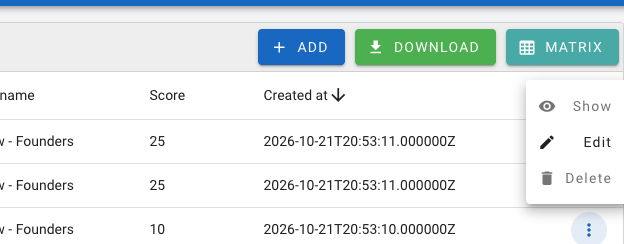
- Show: View the complete score sheet as it was filled in.
- Edit: Open the score sheet to fix a mistake. Change the answers and save the form.
- Delete: Delete the score, for example if a match was entered twice or for the wrong team.
If in doubt, always check with the head referee before you change or delete a score.
The matrix
The matrix shows all teams below each other and all rounds side by side. This lets you quickly see where a score is still missing or where something has been entered twice.
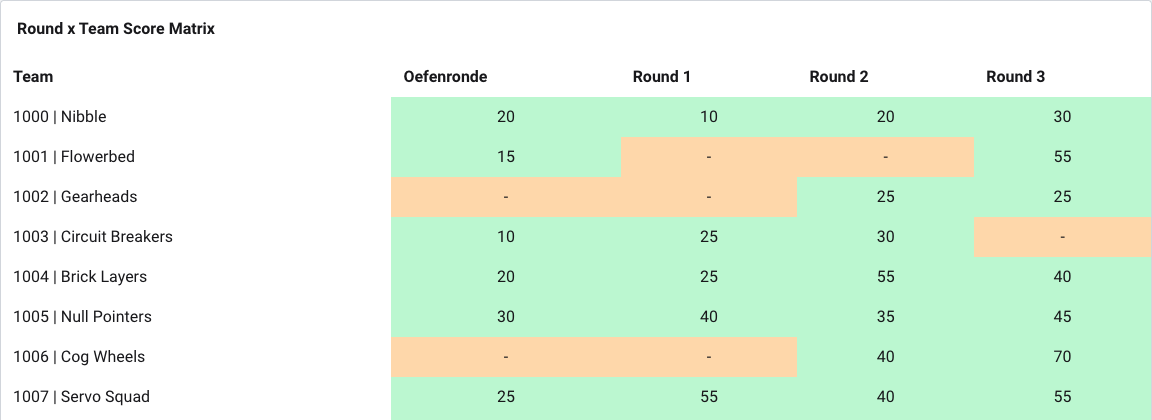

- Orange: There is no score yet for this team in this round. Check the schedule to see whether the match should already have been played.
- Green: There is exactly one score. That is how it should be.
- Red: There are several scores for the same team in the same round. Click the underlined score: a window opens with all scores in that cell, with table, who entered it and when. Open the score with Open referee result or delete the wrong one with Delete. The cell then turns green again.
Checking judging results
If the judges assess digitally, you will find all assessments under Judging results.
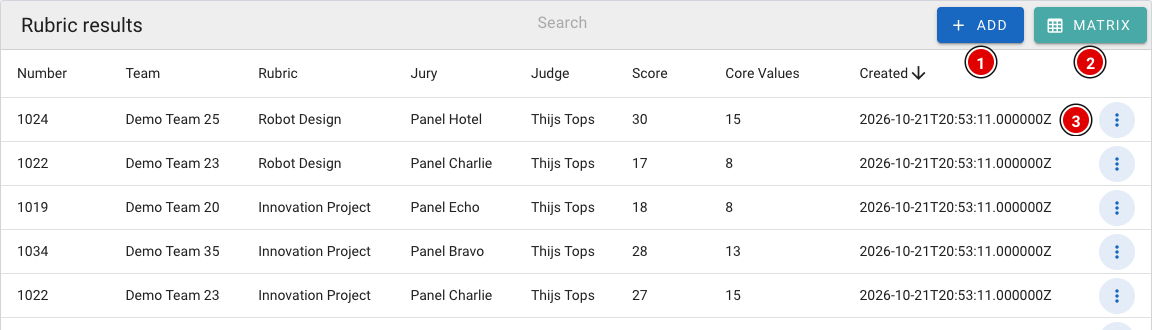
- Add (1): Enter an assessment yourself, for example from a paper judging form.
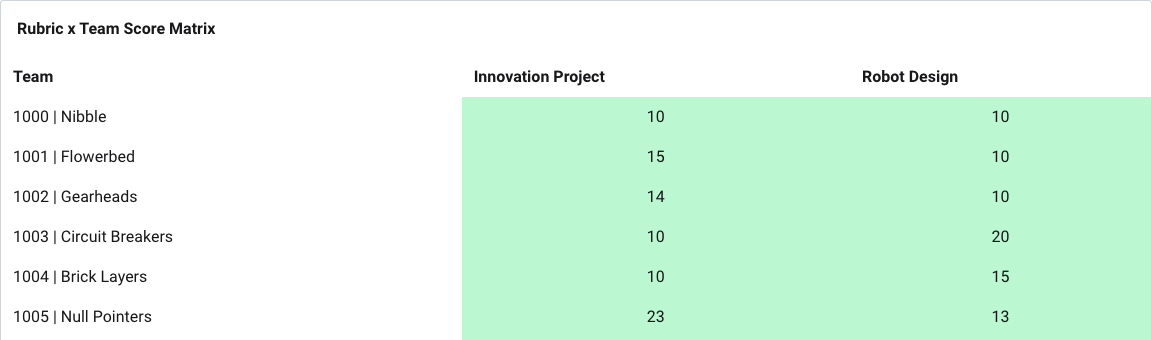
- Matrix (2): Overview of all teams and judging forms, with the same colours as for the match scores.
- 3 dots (3): View (Show), change (Edit) or delete (Delete) an assessment.
Receiving scores via QR codes
If a referee or judge has been without internet for a long time, the locally stored scores can be transferred to the scoring desk laptop via QR codes.
- Go via Setup to Settings and scroll to Import results via QR.
- Choose Import Referee Results (1) for match scores or Import Rubric Results (2) for judging results.

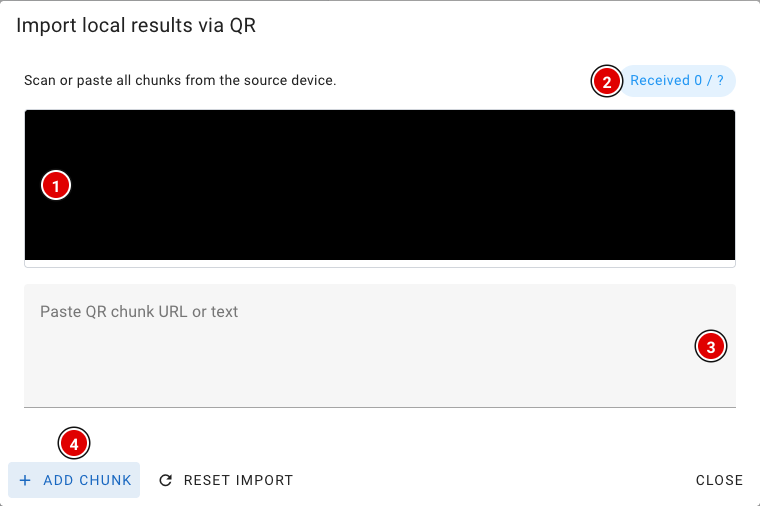
- The camera view (1) appears. Hold the camera in front of the screen with the changing QR codes on the other device. Allow the browser to use the camera.
- Received (2) shows how many codes have been received.
- Camera not working? Scan the codes with another scanner, paste the text or link into the box (3), and click Add chunk (4).
- Once all codes are in, a 6-character verification code appears. Pass it on to the referee or judge; they enter it on their own device so the scores can be safely removed there.
- The received scores are now stored as local results on the scoring desk laptop. On this laptop, open Robot Match (for match scores) or Judge (for judging results); if the laptop is online, the scores are sent automatically. Then check in the matrix that everything has arrived.
At the end of the day
- Check both matrices to make sure there are no orange or red cells left.
- Check that every referee and judge device shows Local Results: 0.
- Prepare the results for the judges' deliberation. See the chapter Judges' deliberation, with the pages Competition Results and OJS.