
Settings and modules
On the Settings page you decide how FLLTools works at your event. This is also where you switch the modules on or off: the parts of the tool you don't need at every event.
Go through Setup to Settings. The page consists of several blocks, one below the other. Each block has its own Save button, so save each block separately after changing something.
Basic settings
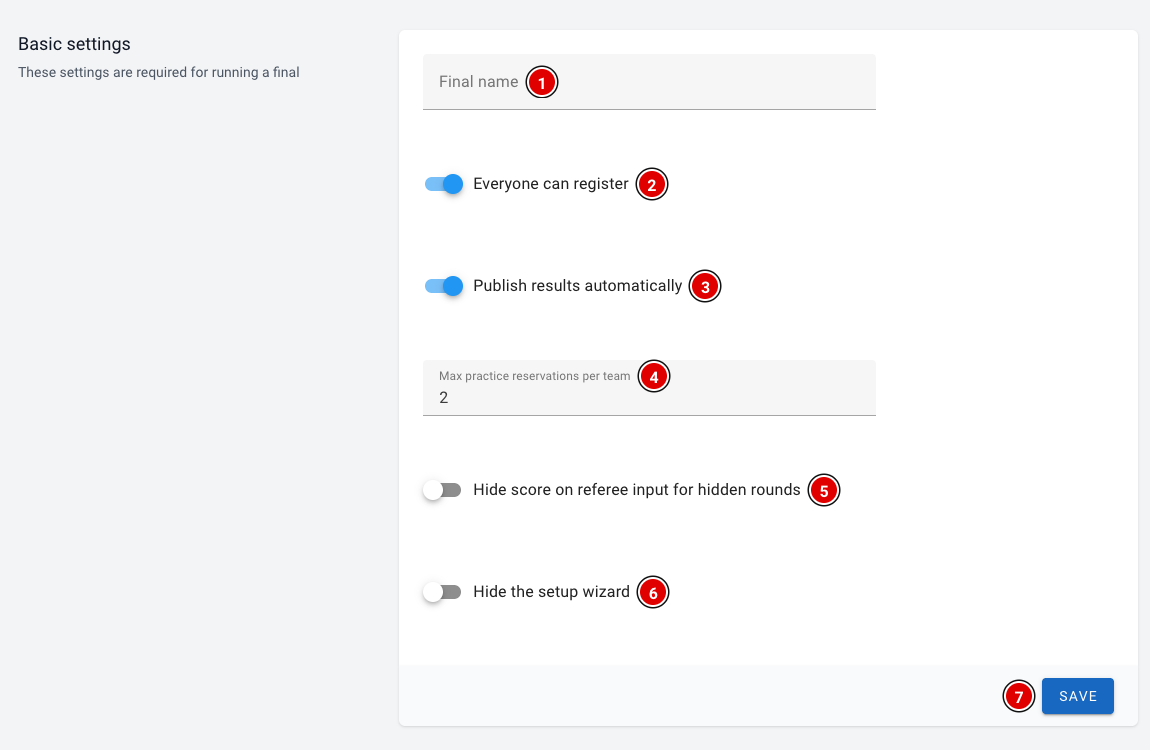
Final name (1): The name of your event. It is shown on the login screen, below the title.
Everyone can register (2): Intended to let visitors create their own account. You don't need this for a regional final: you create the accounts yourself (see the page Creating the users).
Publish results automatically (3): When this is on, visitors see the teams' match results on the public team pages, including the filled-in score sheet. When it is off, the results are not visible there for visitors who aren't logged in. Rounds with hidden scores always stay hidden.
Max practice reservations per team (4): How many practice table reservations a team may hold at the same time. Only relevant if you use the Practice Table Reservations module.
Hide score on referee input for hidden rounds (5): When this is on, the total score on the referee screen is blurred in rounds with hidden scores, so a team can't look along. The referee can reveal the score by tapping it.
Hide the setup wizard (6): Hides the Wizard button in the menu. The wizard then no longer opens automatically either. See the page The Setup Wizard.
Click Save (7) to save the changes in this block.
Timer and modules
Timer
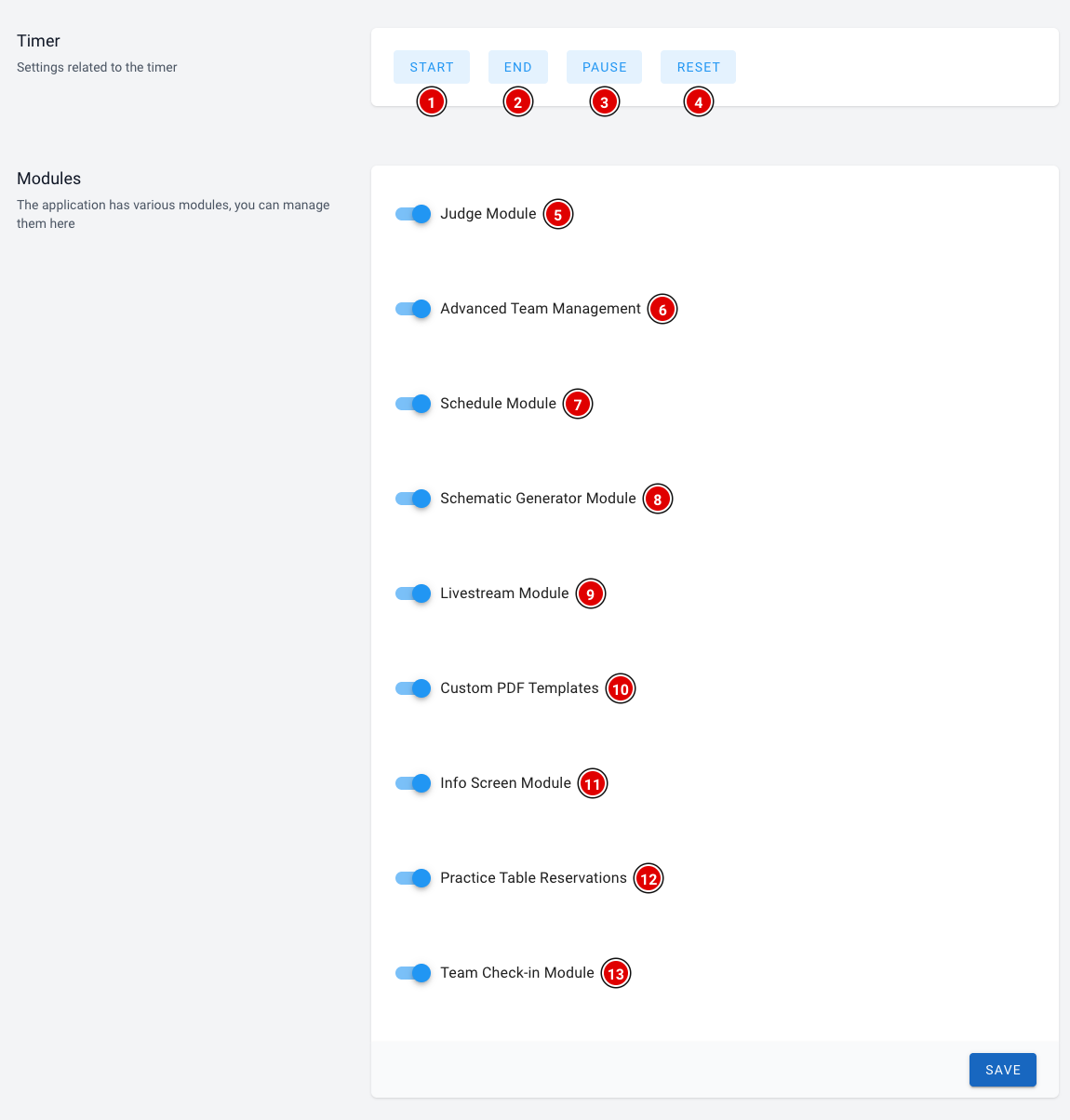
The Start (1), End (2), Pause (3) and Reset (4) buttons control the match timer on all screens. Each button opens in a new tab. How the timer works is explained on the page How the timer works.
Modules
Switch a module on with its switch and click Save at the bottom of the block. After saving, the matching pages appear in the menu. If you switch a module off, they disappear again. Your data is kept.
- Judge Module (5): digital judging. Judges fill in the rubrics on a tablet or laptop, or paper forms are scanned in. Among other things, Judge and Judging results appear in the menu, and Jury and the Rubric editor under Setup.
- Advanced Team Management (6): coaches receive an invitation to maintain the team page themselves, with a team photo, descriptions and social media links. This extra information is then also shown on the public team page.
- Schedule Module (7): the day schedule. Teams and the public see on the public site and the team pages where and when they need to be.
- Schematic Generator Module (8): automatically creates a day schedule based on your teams, tables, juries and rounds. A button to generate the schedule then appears on the schedule page. See the page Creating the day schedule.
- Livestream Module (9): shows the livestream (Twitch or YouTube) of your event on the public site.
- Custom PDF Templates (10): design your own PDF documents, such as name cards or certificates, with the team details filled in automatically.
- Info Screen Module (11): screens in the venue showing, for example, the schedule, the tables, the timer or the scoreboard.
- Practice Table Reservations (12): teams book a time slot on a practice table themselves.
- Team Check-in Module (13): keep track of which teams have reported on arrival. Check-in appears in the menu.
It's best to leave a module you don't need switched off. That keeps the menu tidy for all volunteers. You can always switch modules on later.
Public Tournament and QR import
Public Tournament
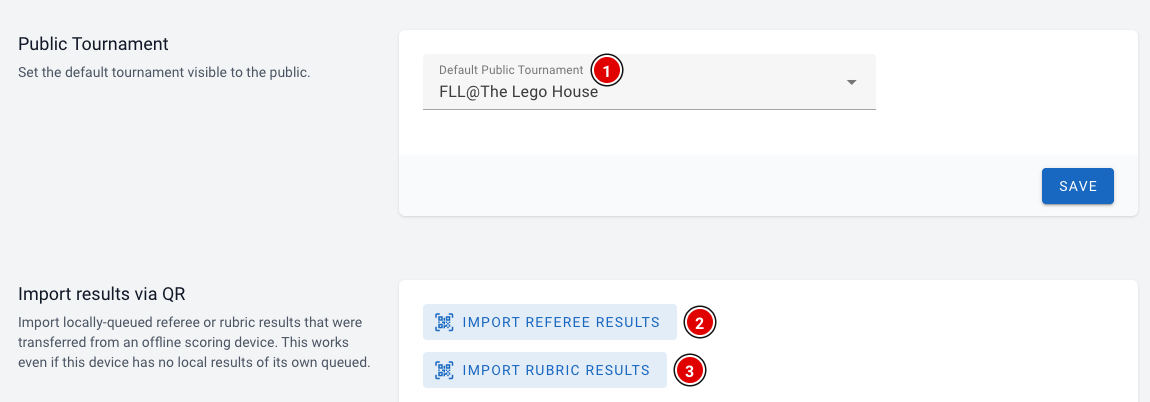
In Default Public Tournament (1) you choose which tournament visitors see on the public pages, such as the scoreboard and the team pages. This is especially important if you have several tournaments. Click Save to save.
Import results via QR
Referees and judges can enter results without internet. Those results are stored on their device. If they can't be sent later, they can be transferred with a QR code. Import Referee Results (2) reads a QR code with match results, Import Rubric Results (3) one with judging results. You scan the QR codes with the device's camera. If the browser doesn't support the camera, you can also paste the code as text. More about this is on the page Referee briefing.