
Team check-in
The check-in module keeps track of which teams have reported in on arrival on competition day. At the registration desk you can see at a glance whether everyone is there, and when you check a team in you have the most important information for that team right at hand.
The check-in page is only visible when the Team Check-in Module is switched on in Setup → Settings. Users with the secretariat or admin role can use check-in.
The overview
- Click Check-in in the menu.
- You will see a list of all teams in the current tournament.
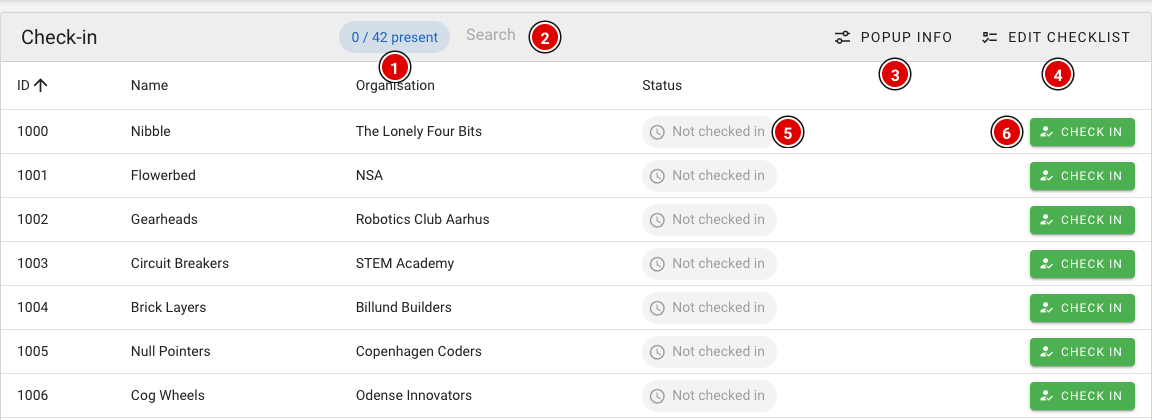
- Present (1): Counter showing how many teams have already checked in, for example 12 / 42 present.
- Search (2): Quickly search by team number, team name or organisation.
- Popup info (3): Choose which information you see when checking a team in (see below).
- Edit checklist (4): Set up a list of reminders for the desk (see below).
- Status (5): Not checked in or Checked in.
- Check in (6): Checks the team in.
Checking a team in
- Find the team and click Check in.
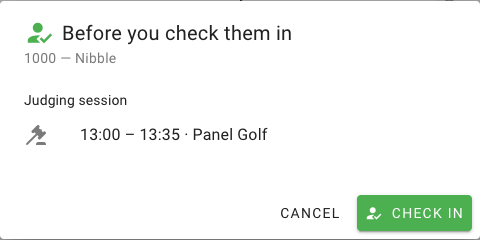
- If a checklist or popup information has been set up, a Before you check them in window opens first. It shows, for example, at what time and with which jury the team is expected.
- Click Check in again in the window to confirm, or Cancel to go back.
After check-in the status changes to Checked in (2) and the counter (1) goes up. Checked in the wrong team by mistake? Click Undo (3).

Setting up the popup info
With Popup info you choose which information appears in the check-in window. This applies to all teams.
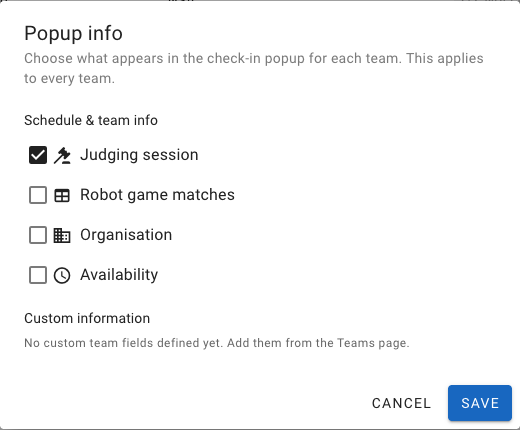
- Judging session: Time and jury of the team's judging session(s). This is on by default.
- Robot game matches: The team's matches, with time and table.
- Organisation: The team's organisation (school, club).
- Availability: When the team is available, if this has been filled in for the team.
- Custom information: Your own team fields created on the Teams page (via Custom fields). See the page Entering teams into the system.
Click Save to store your choice.
Checklist for the desk
With Edit checklist you create a list of reminders for the volunteers at the desk, for example collecting consent forms. These items appear in the check-in window and can be ticked off there.
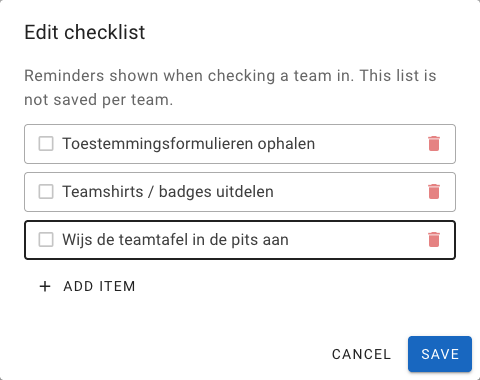
- Click Add item to add an item and use the bin icon to remove one.
- Click Save to store the checklist.
The checklist is only a reminder. Ticking items off is not saved per team. If you want to record something for a specific team, use Remarks.