
Updating a team
If a team passes on a name change or other details, you can update them yourself. All of a team's information is on one team page.
Opening the team page
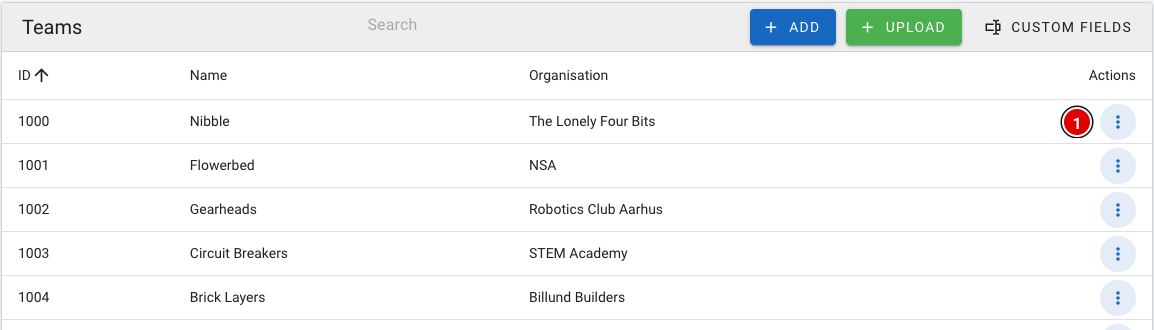
- Go to the Teams page through the menu.
- At the end of each row are 3 dots (1); click them.
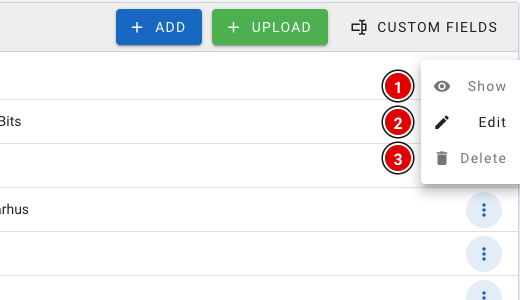
The parts of the team page
The team page is divided into blocks. Which blocks you see depends on the modules that are switched on (see the page Settings and modules).
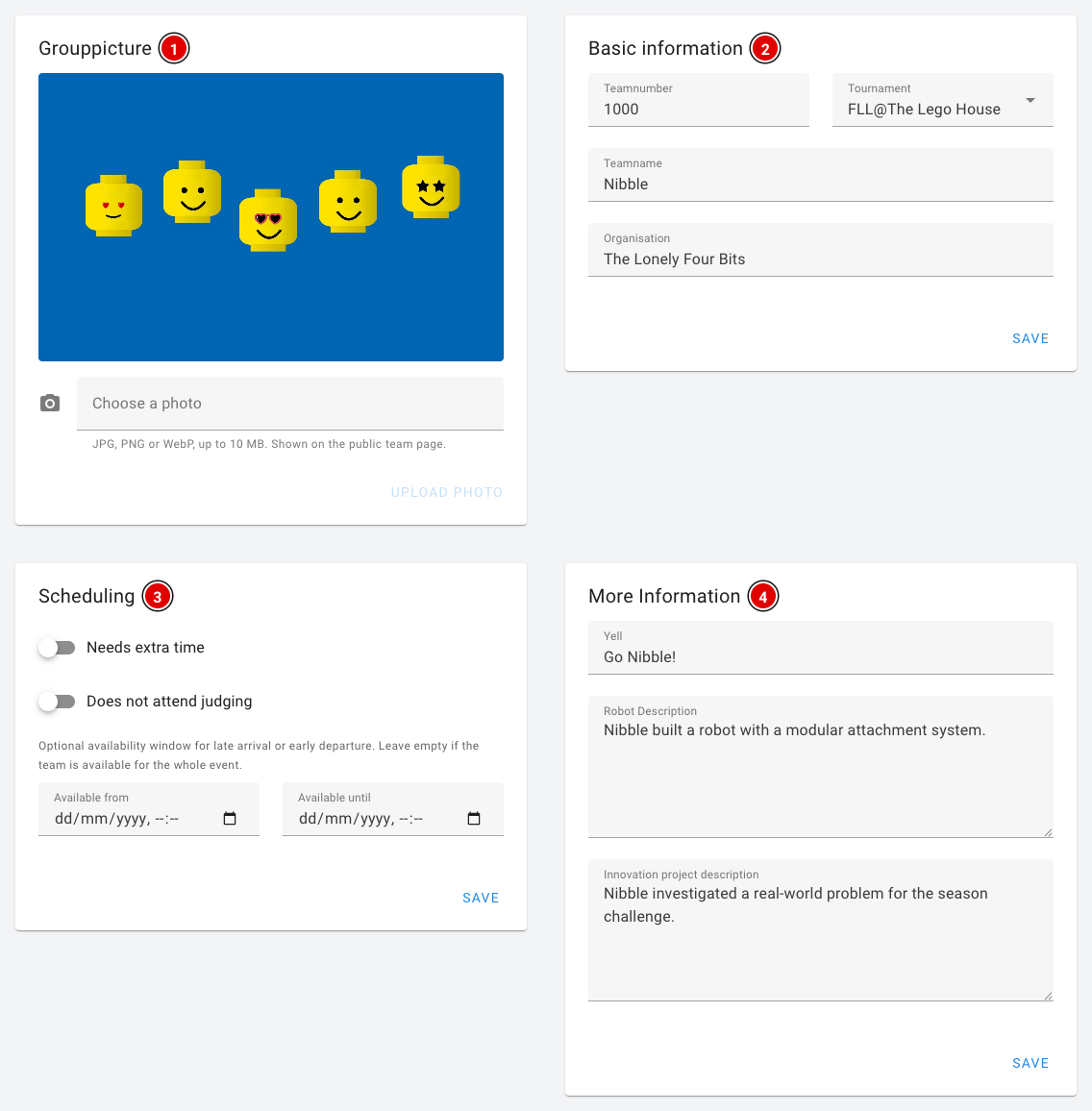
Grouppicture (1): Space for theThe team photo. This block is visible when the Advanced Team Management module is on. UploadingUse Choose a teamphoto and Upload photo isn't possible here yet; contact thijs@flltools.nl if you want to showput teama photosphoto on the team pages.page. The photo is saved straight away, separately from the Save buttons. See the page Uploading team photos.
Basic information (2): The Teamnumber, the Tournament the team belongs to, the Teamname and the Organisation (school, club or organisation). The team number must be a unique number, without letters.
Scheduling (3): Wishes for the schedule generator. This block is visible when the Schedule module is on.
- Needs extra time: the team gets extra time in the schedule.
- Does not attend judging: the team doesn't take part in judging and gets no judging session.
- Available from / Available until: fill these in if a team arrives later or has to leave earlier. Leave them empty if the team is present all day.
These wishes are only used when you (re)generate the schedule. See the page Creating the day schedule.
More Information (4): The Yell (team cheer), a Robot Description and an Innovation project description. These texts appear on the public team page (see Team features).
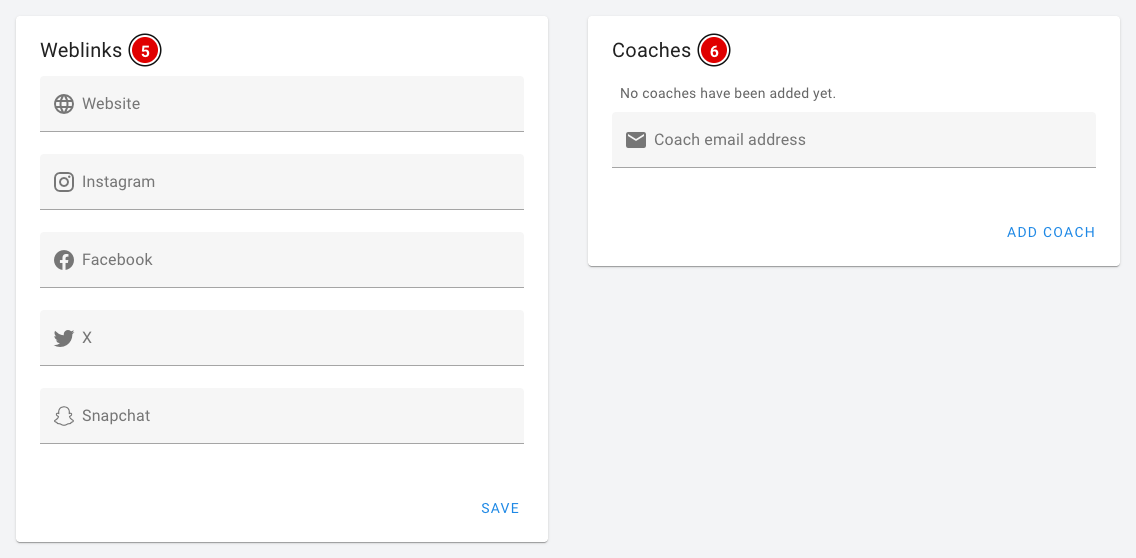
Weblinks (5): The team's website and social media: Website, Instagram, Facebook, X and Snapchat.
Coaches (6): This is where you link a coach to the team. Enter the coach's e-mail address and click Add coach. The coach then receives an e-mail:
- Doesn't the coach have an account yet? Then an account is created and the coach receives a link to set their own password.
- Does the coach already have an account? Then the coach receives a message that they have been added to an additional team.
- The bin icon next to a coach removes the link again. The coach's account remains.
The coach can then update the team details themselves. See the heading The coach portal on the page Team features.
Custom information: If you have created your own team fields (for example a pit number), a Custom information block also appears, in which you fill them in per team. How to create these fields is explained on the page Entering teams into the system.
Saving
- Click Save to save the changes. Each block has its own Save button, but they all save the whole page. So you can change several blocks first and then press Save once.
- A message appears at the bottom of the screen when saving has succeeded.