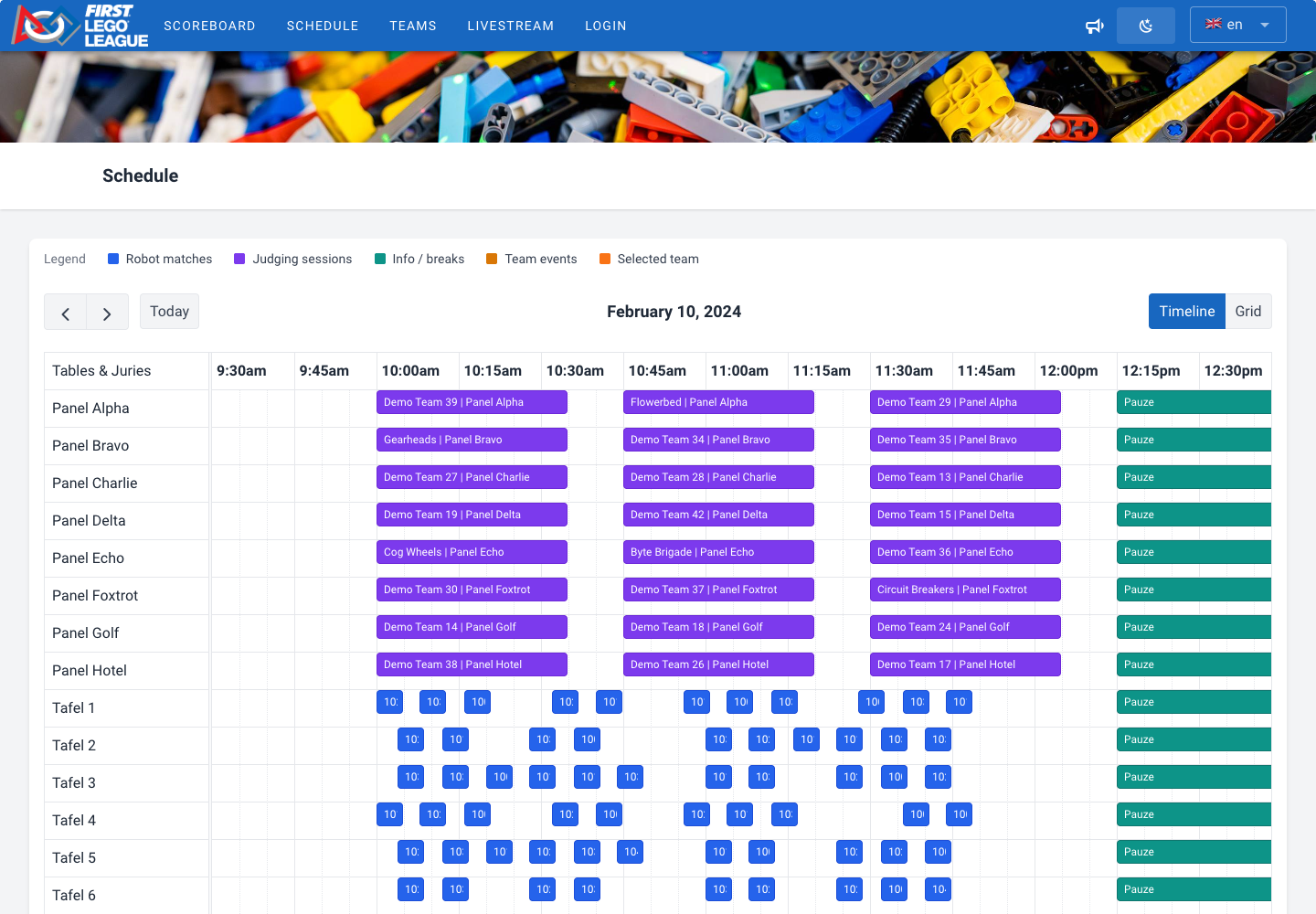
Creating the day schedule
…The day schedule is the backbone of your event. It shows when and where each team has to be with the judges, which table it plays at, and when there are breaks or other activities. The schedule is used in many places in FLLTools: for the referees (filling in the team automatically), on the info screens, on the public team pages and in the exports.
There are two ways to create a schedule:
- Let FLLTools generate it (recommended)
- Import a schedule you created with an external tool
The schedule is only visible when the Schedule Module is switched on. The button to generate a schedule appears when the Schematic Generator Module is on as well. See the page Settings and modules.
Before you start
The schedule is built from the data you have already entered. So first check that it is complete:
- All teams are in the system (see Entering teams into the system).
- The rounds have been created, with ascending priorities starting at 1 (see Creating the rounds and the tables).
- All table pairs have been created, numbered from 1.
- All juries have been created, numbered from 1 (see Juries and rubrics).
- The tournament has the correct start and end time, match length and judging session length (see Creating the tournament).
Does a team arrive later, leave earlier, need extra time or not attend judging? You can set this per team on the team's page, in the Scheduling block (Needs extra time, Does not attend judging, Available from and Available until). The generator takes this into account.
The schedule overview
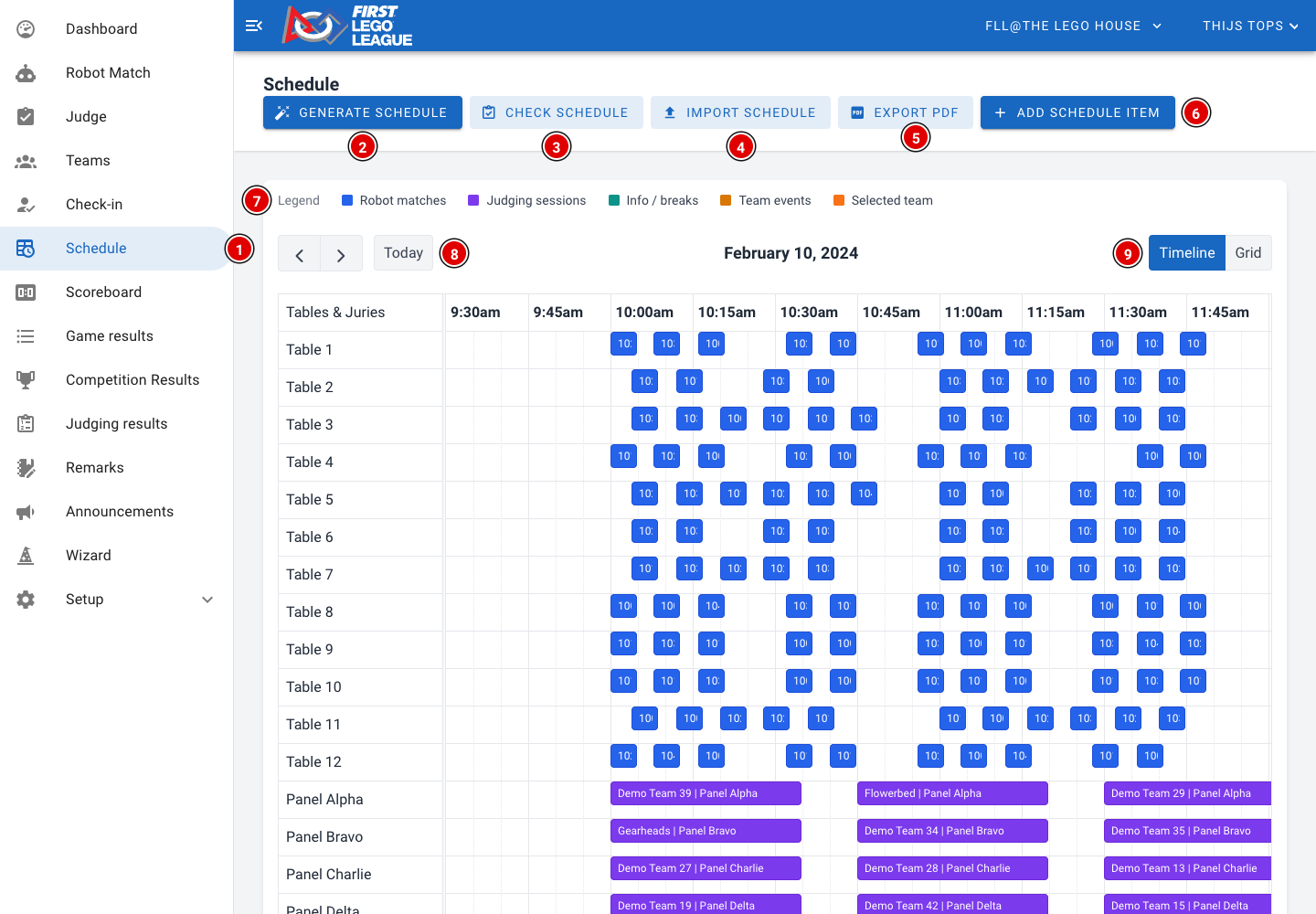
- Go to Schedule (1) in the menu.
- Generate schedule (2): Let FLLTools create a schedule (see below).
- Check schedule (3): Check that every team has all its matches and its judging session.
- Import schedule (4): Import a schedule from an external tool.
- Export PDF (5): Download the complete schedule as a PDF, showing for each time which team is at which table and with which jury.
- Add schedule item (6): Add a single item to the schedule yourself.
- The Legend (7) shows what the colours mean: blue are robot matches, purple judging sessions, green info and breaks, and orange other team activities.
- Use the arrows and Today (8) to move between days. Handy if your event spans several days.
- Timeline / Grid (9) switches between a timeline (tables and juries below each other) and a grid (tables and juries next to each other).
Following a team
Click a block in the schedule once. All items of that team are then highlighted in orange, so you see the team's whole day at a glance.
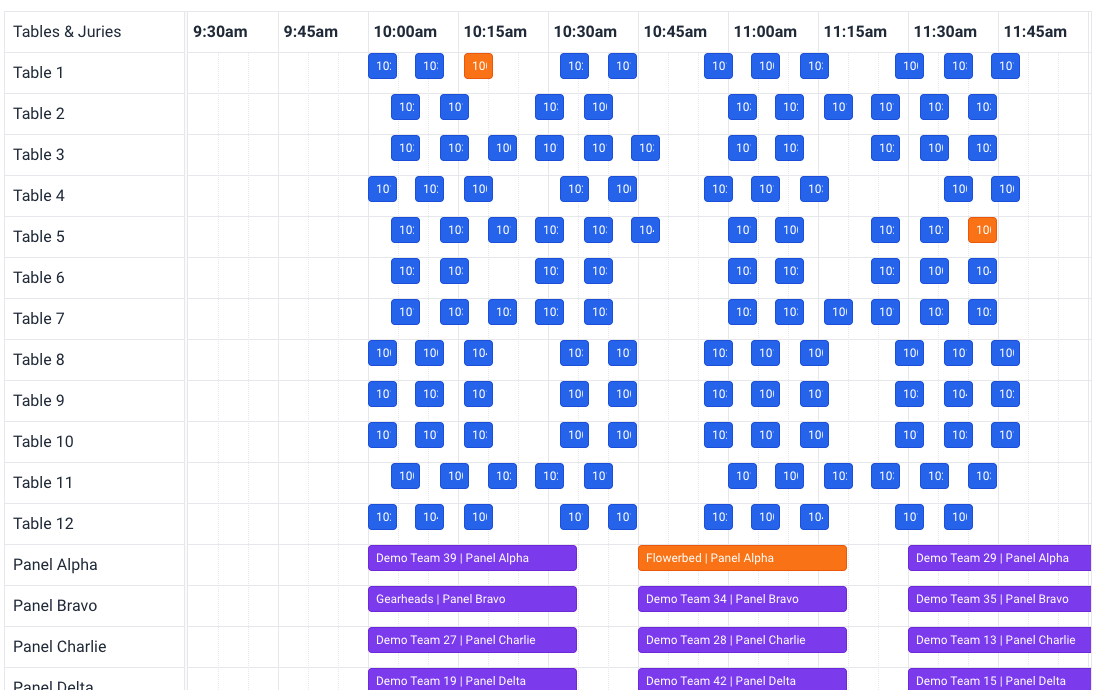
Moving items and changing times
- Drag a block to another time, or to another table or jury.
- Drag the edge of a block to make it longer or shorter.
- Double-click a block to see its details. Here you can also enter an exact start and end time if you want to place an item outside the 5-minute grid. Then click Save.
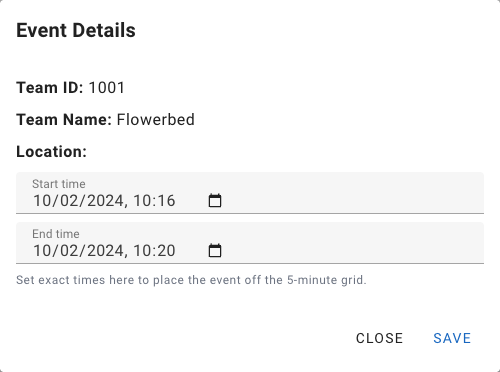
Changes are saved immediately. If a change isn't possible, for example because it clashes with another item, you get a message and the block jumps back.
Generating a schedule
FLLTools can create a complete schedule itself: every team gets one judging session and one match per round, without any clashes. Click Generate schedule.
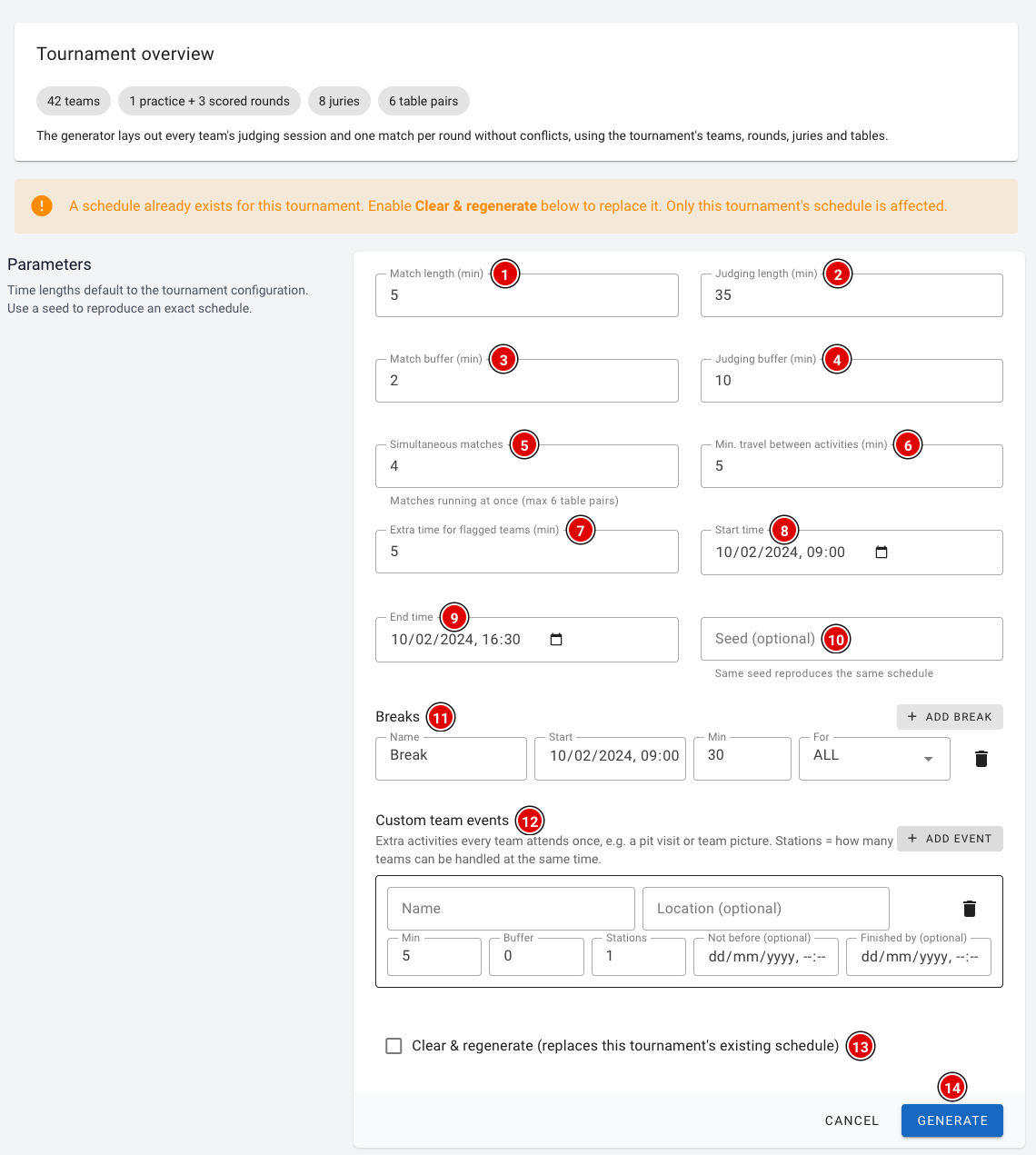
At the top you see an overview of what goes into the schedule: the number of teams, rounds, juries and table pairs. Not right? Then first adjust the teams, rounds, juries or tables.
The times are taken from the tournament by default. You can change them here:
Match length (1): The length of a robot match in minutes.
Judging length (2): The length of a judging session in minutes.
Match buffer (3): Extra minutes between two matches at the same table, for example to reset the table.
Judging buffer (4): Extra minutes between two judging sessions, for example for the judges to discuss and fill in the forms.
Simultaneous matches (5): How many matches are played at the same time. This can be at most the number of table pairs.
Min. travel between activities (6): The minimum number of minutes a team has between two items, to walk from the judges to the table (or the other way round).
Extra time for flagged teams (7): How many extra minutes teams get that have Needs extra time switched on.
Start time (8) and End time (9): The start and end of the schedule.
Seed (10): Optional. With the same seed you get exactly the same schedule. Leave this empty if you don't know what to do with it.
Breaks (11): Click Add break to add a break, such as lunch or the opening ceremony. Fill in the name, the start and the duration, and choose under For who the break applies to: ALL (everyone), TABLE (only the robot matches) or JURY (only the judges).
Custom team events (12): Click Add event for an extra activity every team has to attend once, for example a pit visit or the team photo. Fill in the name, an optional location, the duration, the buffer and the number of Stations (how many teams can be there at the same time). Optionally you specify from when until when the activity takes place.
Clear & regenerate (13): Is there already a schedule? Tick this box to replace the existing schedule. Only this tournament's schedule is replaced.
Click Generate (14). After a few seconds you return to the schedule overview with the new schedule. Couldn't all teams be scheduled? Then you end up on the Check schedule page (see below).
As soon as scores or judging forms have been entered, a new schedule can no longer be generated, because those results are linked to the schedule. You then see this message:
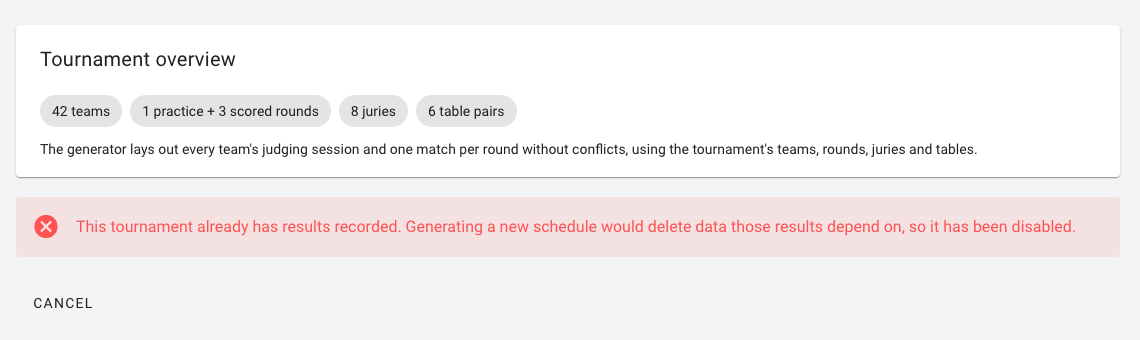
Still want to change something? Then adjust the schedule by hand in the schedule overview.
Checking the schedule
Check schedule shows how many matches and judging sessions each team has. Teams with something missing are highlighted.
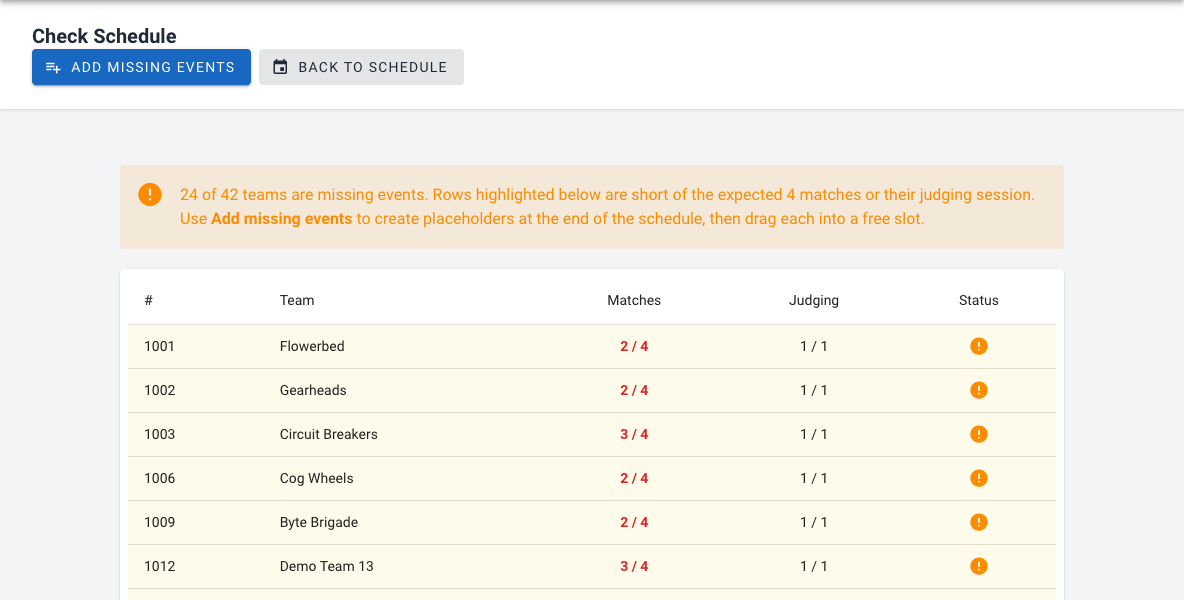
- Click Add missing events to create a block at the end of the schedule for every missing item.
- Go back to the schedule and drag these blocks to a free spot.
Adding an item yourself
Use Add schedule item to add a single item. First choose the type:
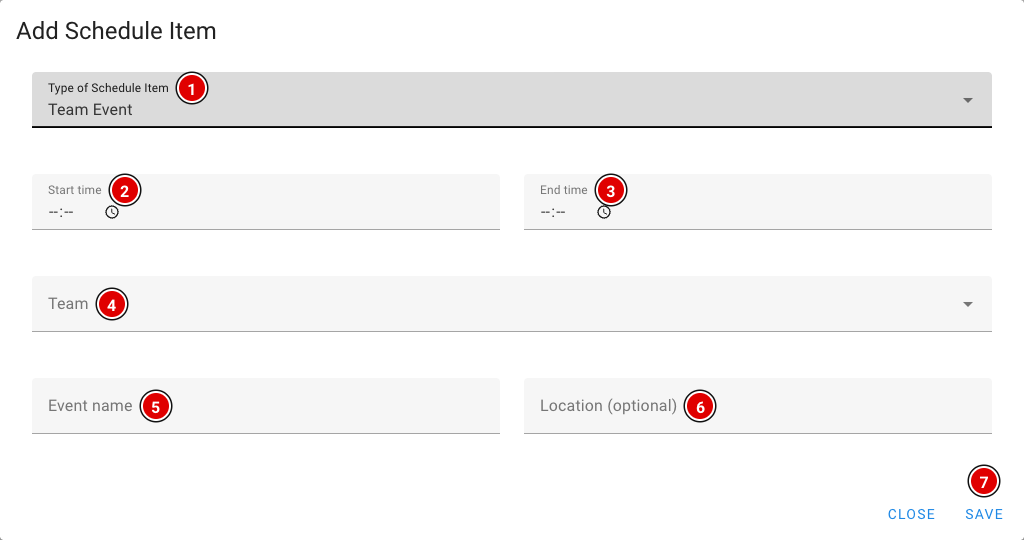
- Info Block: A general block, such as the opening ceremony, lunch or the awards ceremony. You enter a type, a text and a category (Jury, Table or All), and choose whether the end time is shown.
- Jury Session: A judging session. You choose the jury and the team.
- Robot Match: A robot match. You choose the round, the table and the team.
- Team Event: Another activity for a team, such as a pit visit. You choose the team and fill in the name and optionally the location.
For each type, fill in the Start time and End time and click Save.
Importing a schedule
Created the schedule with an external tool? Then you can import it through Import schedule.
- The import page has a link to the schedule generator at https://koenvanwijk.github.io/fll-schedule/.
- Fill in your event's details there and download the file.
- On the import page, choose Paste JSON and paste the contents of the file, or choose Load from URL and enter the web address of the file.
- Click Import schedule.
The import is a BETA feature and will probably not be developed further. Preferably use the built-in generator. When importing, the rounds (priority), tables and juries must be numbered from 1, or loading will fail.
The schedule for the head referee
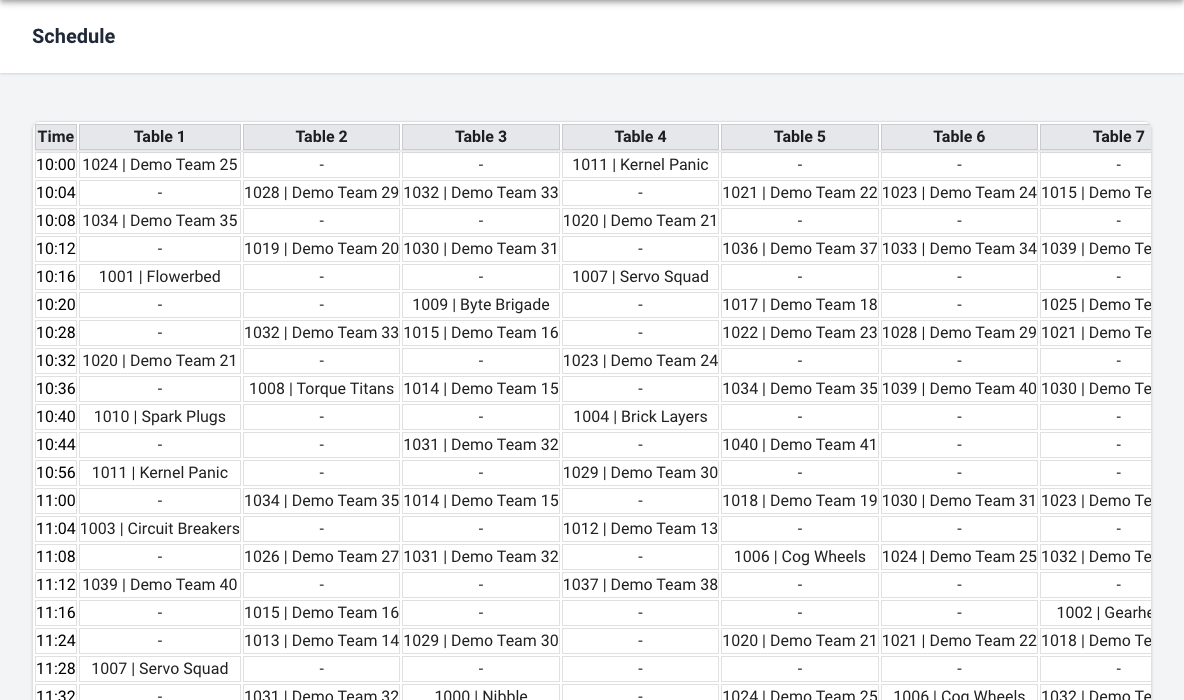
https://yourevent.flltools.nl/schedule/headReferee has an overview especially for the head referee: for each time you see which team should be at which table. A dash means the table is free. Replace "yourevent" with the name of your event.
The public schedule
Teams, coaches and visitors can view the schedule through Schedule in the menu of the public website, at https://yourevent.flltools.nl/home/schedule. Nothing can be changed there. In addition, each team sees its own day schedule on its team page (see Team features).