
Creating the rounds and the tables
The next steps are creating the rounds and the tables. Both are an essential part of the scoring tool. Referees choose a round and a table for every match, and the scoreboard, the results and the day schedule are all organised by round and by table. So make sure both are set up correctly before you continue.
Adjusting the rounds
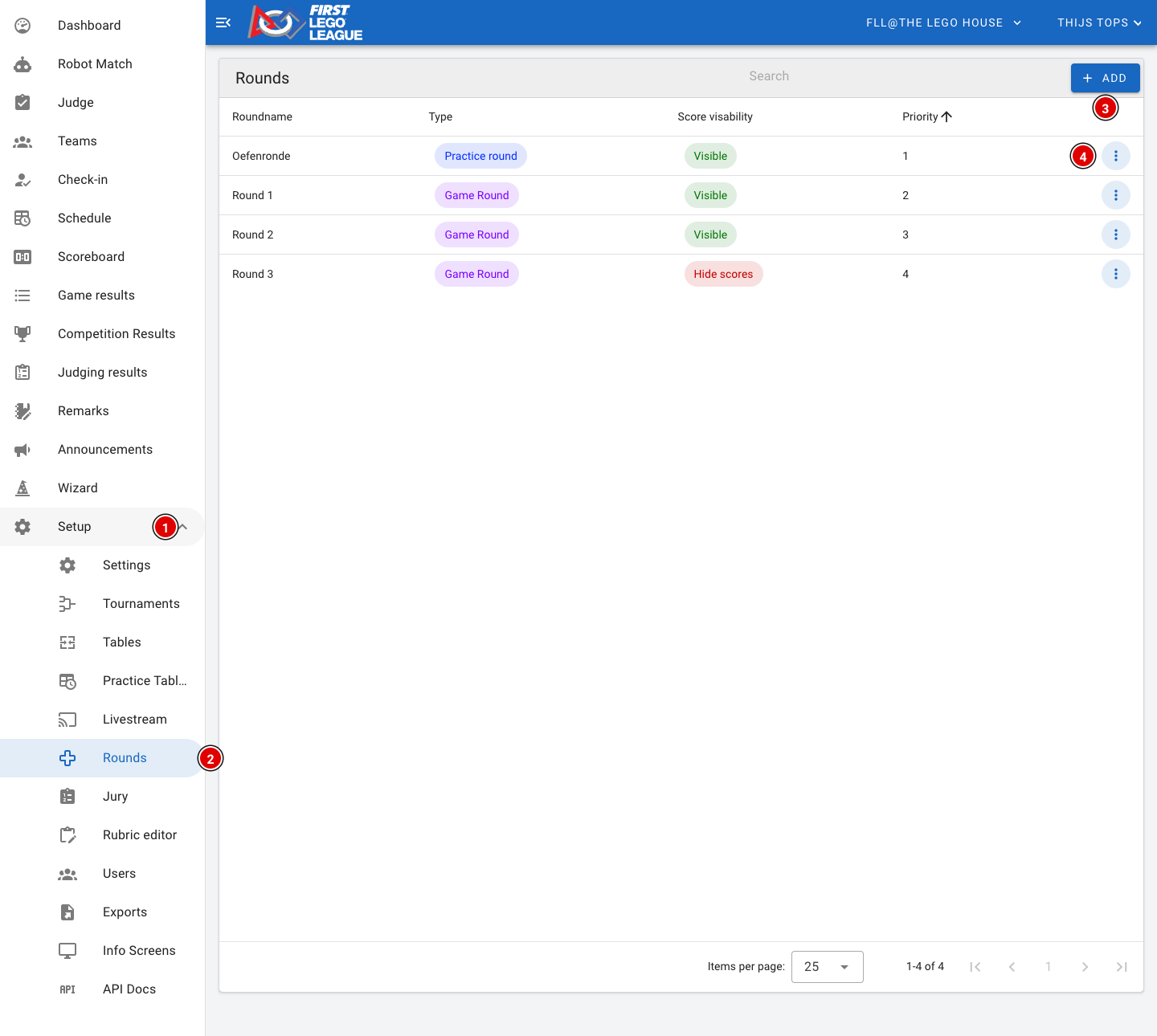
- Go through Setup (1) to Rounds (2).
- A new environment has 4 rounds by default:
- 1 practice round
- 3 real rounds
- For each round you see the type (Practice round or Game Round), whether the scores are visible (Visible or Hide scores) and the priority.
- Use Add (3) to create a new round.
- Through the 3 dots (4) at the end of a row you can view (Show), change (Edit) or delete (Delete) a round.
Check that the last round is set to Hide scores if you only want to show the results of that round after the awards ceremony. Not set correctly? Change it through Edit.
Creating or changing a round
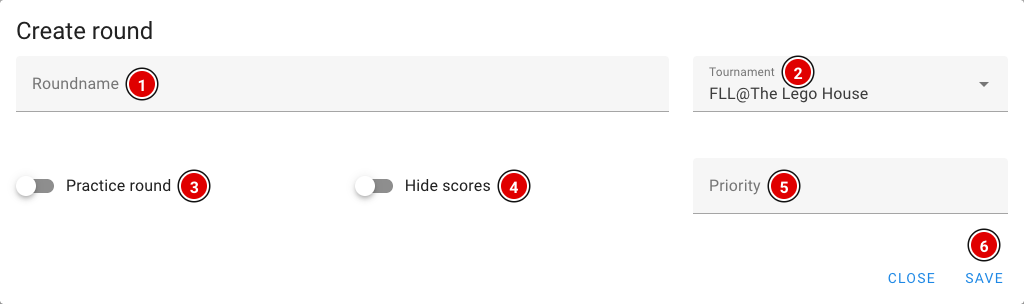
Roundname (1): The name of the round, for example "Practice round" or "Round 1". Referees, teams and the public see this name.
Tournament (2): The tournament this round belongs to. Usually the right tournament is already filled in.
Practice round (3): Switch this on for a practice round. Scores of a practice round don't count towards the results and are not shown on the public scoreboard.
Hide scores (4): Switch this on if the scores of this round may not be publicly visible (yet). This is usually used for the last round, so it stays exciting until the awards ceremony. See also Making the last round visible.
Priority (5): The order of the rounds. A lower number comes first.
Click Save (6) to save the round. Want to change an existing round? Choose Edit in the menu next to the round; you'll see the same window.
Make sure there are no duplicate priorities and that they are in ascending order.
Note: if you load a schedule (see Creating the day schedule), make sure the priorities start at 1 and go up: the practice round 1, round 1 = 2, and so on. The schedule links the matches to the right round through the priority. Otherwise an error will occur.
A round that already has scores linked to it can no longer be deleted.
Creating the tables
Tables are a fixed part of FLLTools, so you no longer need to switch anything on in the settings.
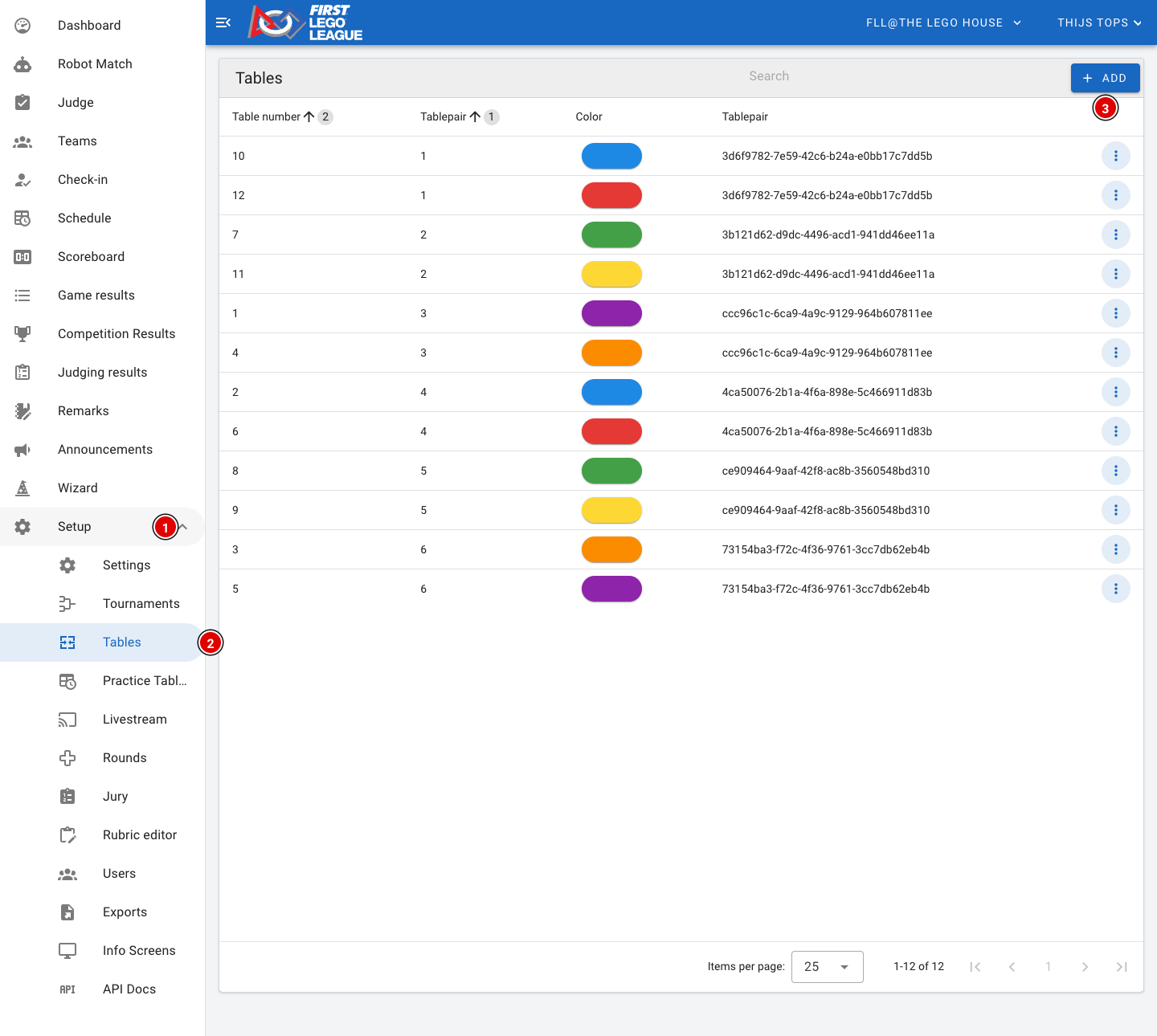
- Go through Setup (1) to Tables (2).
- For each table you see the table number, the table pair and the colour. Hover your mouse over the colour to see the name and the colour code.
- Click Add (3) to add a new table pair.
Setting up tables
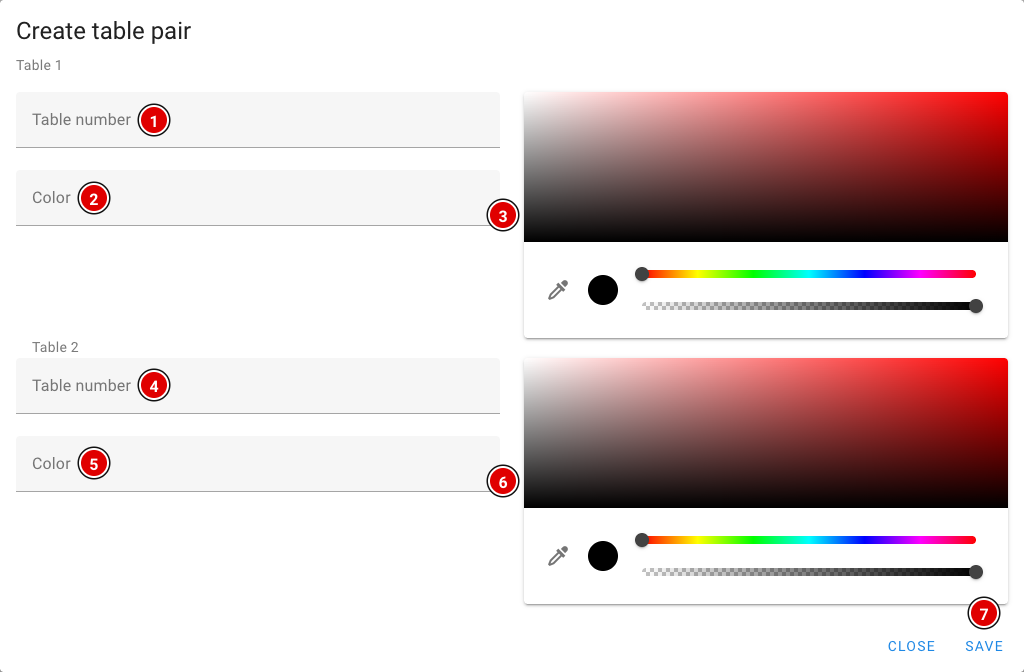
Tables are always created in pairs, because in the robot game 2 teams always play side by side. So you always fill in 2 tables at once.
- Table number (1): The number of the table. This must be a number. Start with 1 and keep numbering across all table pairs (1 and 2, then 3 and 4, and so on). Otherwise loading the schedule won't work.
- Color (2): The name of the table. Many regions use either the number or a colour here. The name can be anything.
- Colour picker (3): If the table has a colour, select it here. Otherwise select black. This colour is used in the schedule, for the referees and on the info screens.
- (4), (5) and (6) are exactly the same as (1), (2) and (3), but for the second table of the pair.
- Click Save (7) when all fields are filled in. The tables appear on the page.
- Repeat these steps until all tables have been created.
Want to change one table later, for example its colour? Use Edit through the 3 dots next to the table. You then only change that one table.
Choose clear colours that are easy to tell apart. Teams and referees often look for their table by colour, and the colour is also shown large on the info screens.
No Comments