
Custom PDF templates
With custom PDF templates you create documents with your own design, such as certificates, badges or name cards. You upload a background (for example the design of a certificate) and place data on it, such as the team name and team number. FLLTools then creates a PDF in one go with a page for every team.
This feature is part of the Custom PDF Templates module. Don't see the parts on this page? Switch the module on through Setup and Settings (see the page Settings and modules). The feature is still in BETA.
The template overview
You reach the templates through Setup, Exports and then the Manage Templates button in the Custom PDF Templates block.
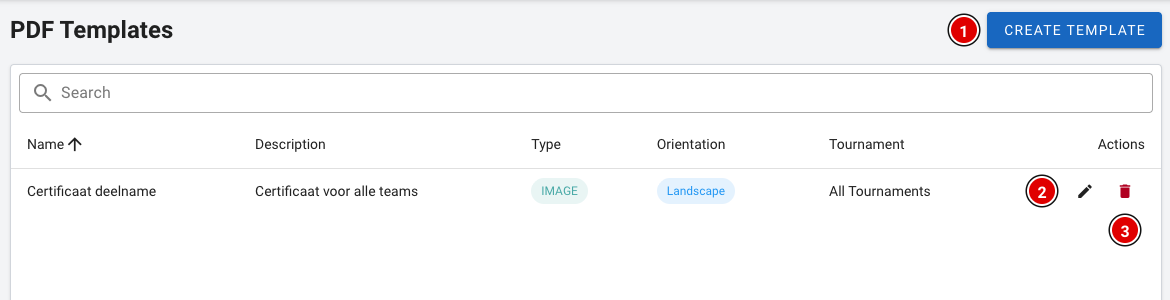
- Create Template (1) creates a new template.
- The pencil (2) changes an existing template.
- The bin (3) deletes a template. You are asked to confirm this first.
Creating a template
Click Create Template. First fill in the template details:
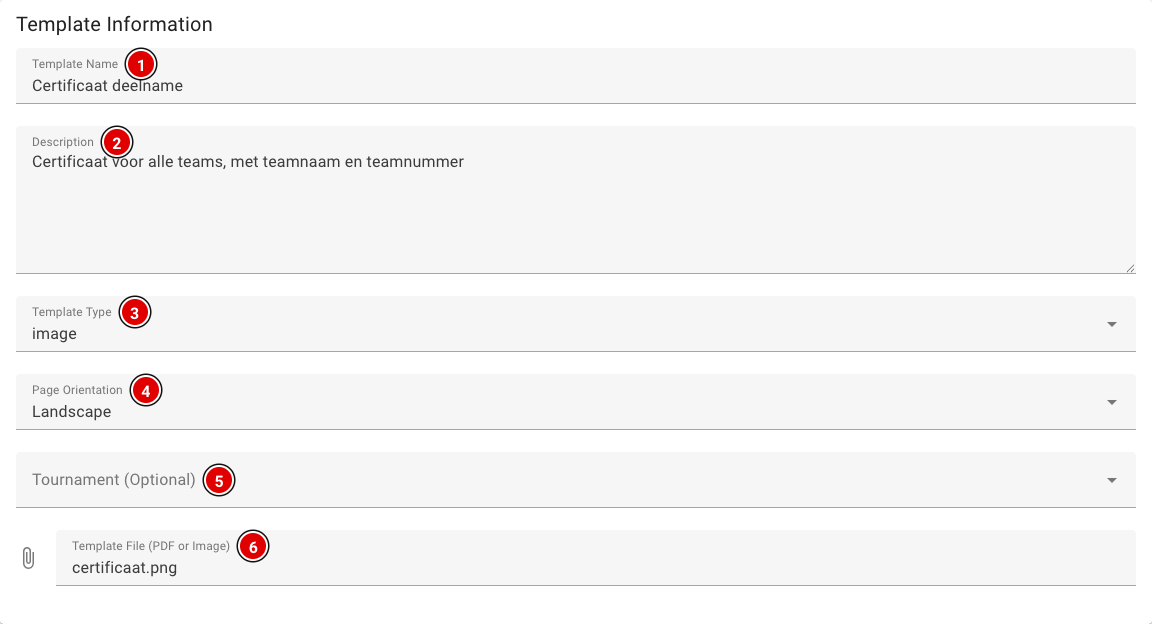
Template Name (1): The name of the template, for example "Participation certificate".
Description (2): A short description. This field is optional.
Template Type (3): Filled in automatically based on the file you upload (image or pdf).
Page Orientation (4): Choose Portrait or Landscape. The document is always created on A4.
Tournament (Optional) (5): Link the template to one tournament. If you leave this empty, you can use the template for all tournaments.
Template File (6): The background of the document, at most 10 MB.
Use an image (PNG or JPG) in A4 proportions for the background. Only then will you see the design in the editor and will it come out correctly in the PDF.
Placing data on the background
As soon as you have chosen an image, it appears in the Template Editor.
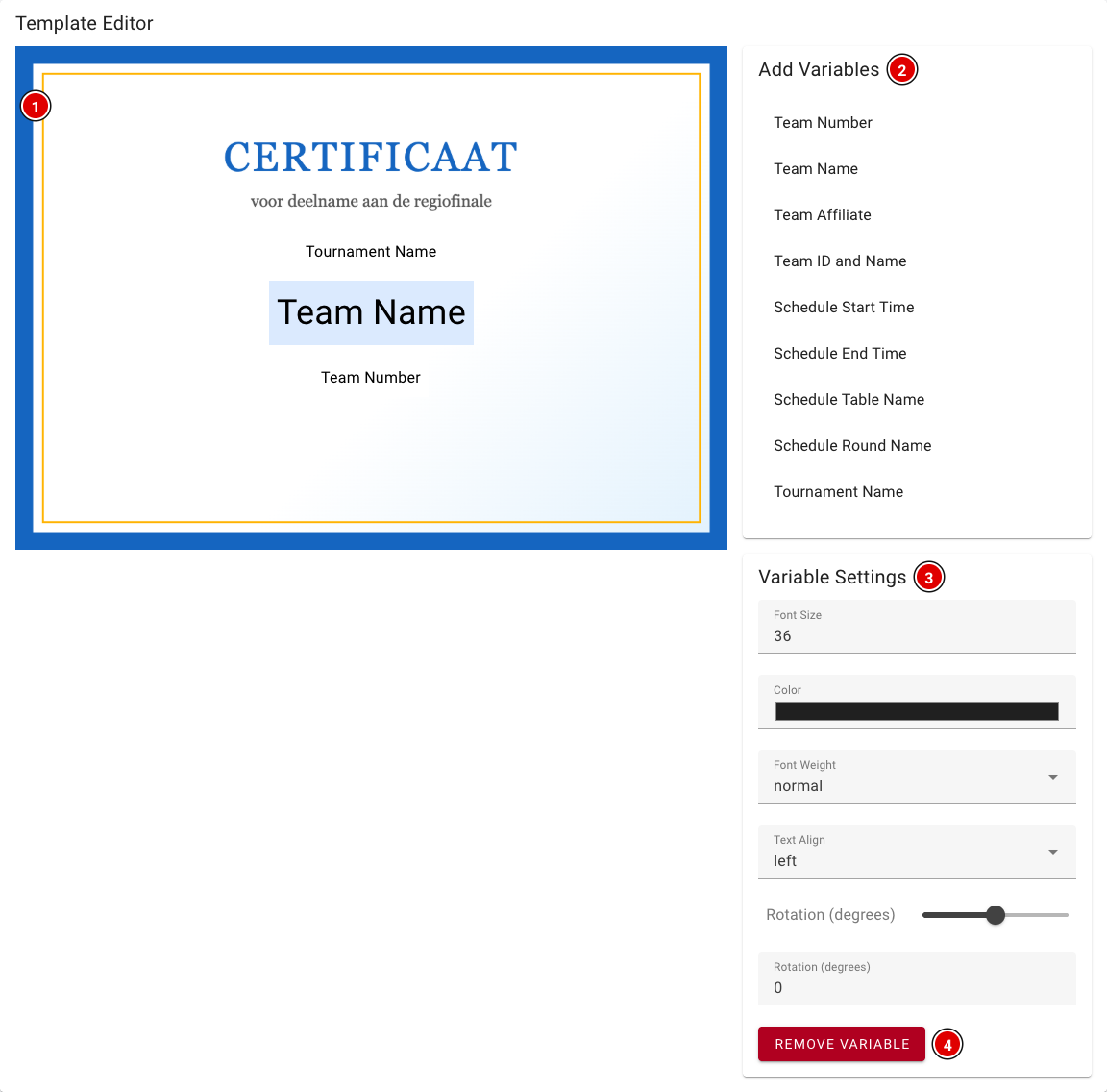
- Preview (1): Shows the background with the placed data. Drag an item with the mouse to where it should go.
- Add Variables (2): Click an item to add it. You can choose from:
- Team Number, Team Name, Team Affiliate (organisation) and Team ID and Name (for example "042 | Nibble")
- Schedule Start Time, Schedule End Time, Schedule Table Name and Schedule Round Name: the time, table number and round of one of the team's robot matches
- Tournament Name
- Variable Settings (3): Click a placed item to select it. You can then change the Font Size, Color, Font Weight (normal or bold), Text Align and Rotation here.
- Remove Variable (4): Removes the selected item.
The schedule data is filled in with one robot match of the team. Want to show all matches per team? Use the Match List on the exports page.
Click Create Template at the bottom to save the template. You change an existing template in the same way; then click Update Template. If you don't upload a new file while editing, the current background is kept.
Creating the PDF
You create the PDFs on the exports page, in the Custom PDF Templates block.
- Check at the top of the exports page that the right tournament is selected.
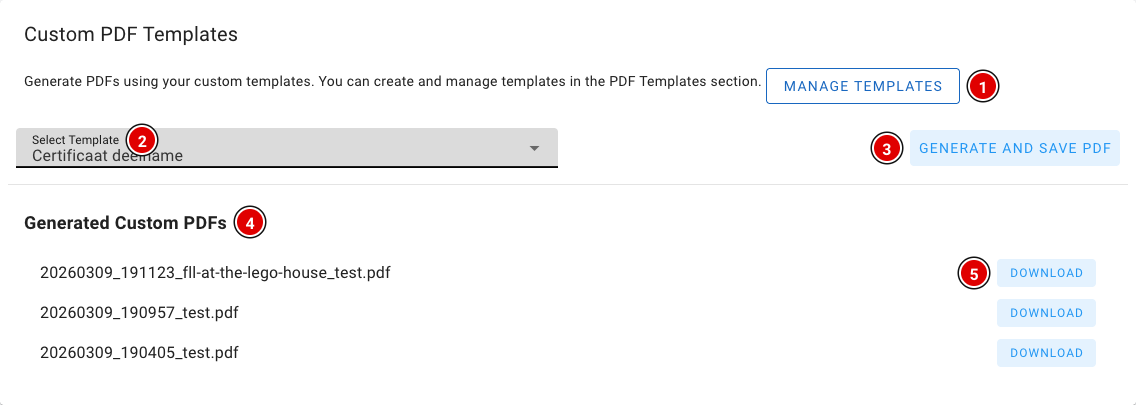
- Manage Templates (1) takes you to the template overview.
- Choose the template in Select Template (2).
- Click Generate and Save PDF (3). FLLTools creates a PDF with a page for every team in the tournament.
- The created files are listed under Generated Custom PDFs (4), with the date and time in the file name. Click Download (5) to get a file.
Have an idea for an export that would be useful more often? Let us know at thijs@flltools.nl, and we'll see whether it can become a standard part of FLLTools.
No Comments