
FLLTools export to OJS
Do you use OJS (Official Judging Spreadsheet) for the judges' deliberation? Then you don't need to retype the robot scores. FLLTools creates an Excel file that you can paste into OJS.
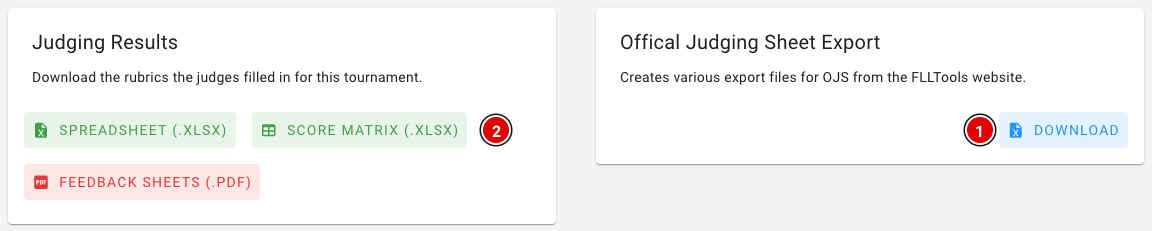
Go via Setup to Exports. At the bottom of the page you will find the cards below:
Robot scores and Gracious Professionalism
- On the Offical Judging Sheet Export card, click Download (1).
- You get an Excel file (export.xlsx). You don't need to click Generate first.
The file contains one row per team with:
- Teamnumber and Teamname;
- Max score: the highest robot score;
- the robot score for each competition round (excluding practice rounds);
- the Gracious Professionalism score for each competition round (columns GP …).
Paste the scores into the right tabs in OJS: the robot scores on the “Robot Game Scores” tab and the GP scores in the Gracious Professionalism columns on the “Core Values Input” tab. Use Paste Special > Values, so the formulas in OJS are not overwritten. Check that the team order in OJS matches the order in the export.
Judging assessments
Are the judging assessments entered in FLLTools? Then you can download them from Judging Results:
- Score Matrix (.xlsx) (2): one tab per form (for example Innovation Project and Robot Design) with one row per team and the chosen score (1 to 4) per section. Handy for copying the rubric scores into OJS.
- Spreadsheet (.xlsx): all completed forms in one list, including judge and feedback.
- Feedback sheets (.pdf): the completed forms, one per page, to hand to the teams at the end of the day.
Tip: with the Competition Results page, FLLTools calculates the rankings itself, without OJS. See the page Competition Results: determining the results.
No Comments