
Hidden pages
Not every FLLTools page has a button or a link in the menu. Some pages are meant for a big screen, a kiosk or a specific volunteer, and you don't want visitors to end up there by accident. You open these pages by typing the address into the browser's address bar yourself.
Always add the address after the address of your environment. For the timer, for example, that becomes https://yourevent.flltools.nl/timer. Replace "yourevent" with the name of your event.
Pages for competition day
| Address | What is it? | Login needed? | More information |
|---|---|---|---|
| /timer | The timer for the audience screen, without buttons. You control the timer from another computer. | No | How the timer works |
| /scoreboard/kiosk | The scoreboard without a menu or login button, for a big screen or a device in the venue. | No | The scoreboard |
| /info-screens/select | This is where you choose which info screen a TV or projector shows. After that, each screen has its own address (/info-screens/...), which you can also bookmark. | No | Info screens |
| /practice-reservation | The reservation screen at the practice tables. Teams type in their team number and choose a free time. | No | Practice tables and reservations |
| /schedule/headReferee | An overview for the head referee: which team is at which table at each time. | Yes | Creating the day schedule |
| /scorecalculator | A score calculator that teams and referees can use to work out the score of a match themselves. | No | See below |
| /admin/scoresheets | The score sheet editor: the missions, questions and points of the robot game. | Yes, admin only | See below |
| /open-source | A list of all open source packages FLLTools is built with, with their licences. | No | See below |
Put a kiosk or timer screen in full-screen mode (usually with the F11 key). That way nobody sees the address bar, and nobody can go to another page by accident.
The score calculator
https://yourevent.flltools.nl/scorecalculator shows the season's score sheet, exactly as the referees use it. No login is needed. Teams can use it to work out a match score at home or in the pits, and referees can practise with it during the referee briefing (see the page Referee briefing).
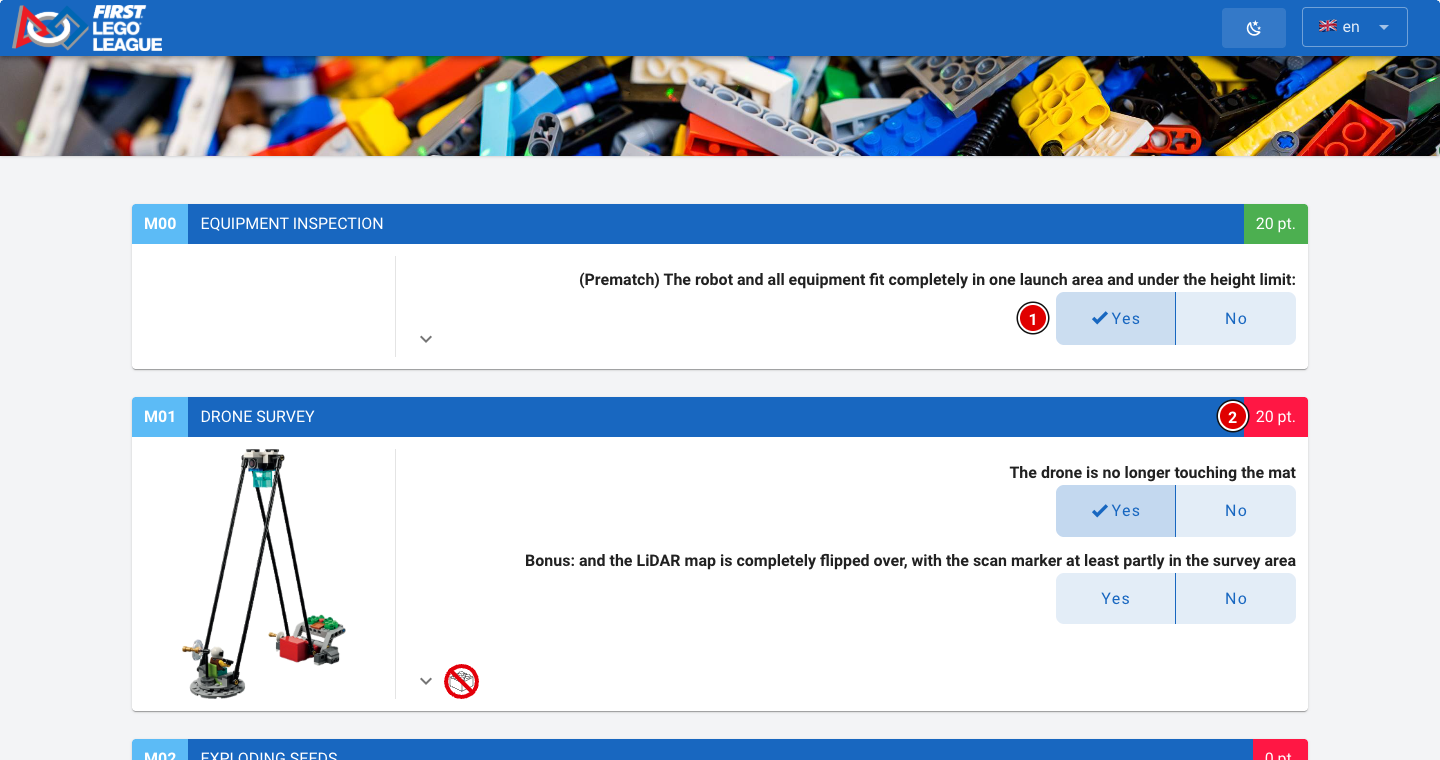
- For each mission, click the right answers, for example Yes (1).
- On the right of each mission's bar you see the points (2) that mission earns.
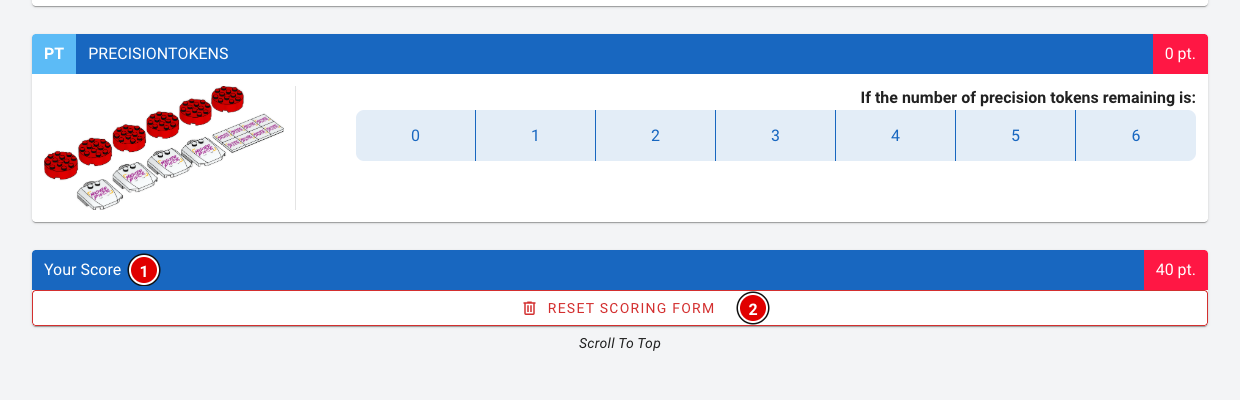
- At the bottom, Your Score (1) shows the total score.
- Reset scoring form (2) clears the form again.
A score in the score calculator isn't saved anywhere and doesn't count towards the results. Competition scores are entered through Robot Match (see the page Scoring desk).
The score sheet editor
https://yourevent.flltools.nl/admin/scoresheets lists all score sheets in FLLTools, one per season. This is where you view, change or export a score sheet, or add a new one. Only users with the admin role can open this page.
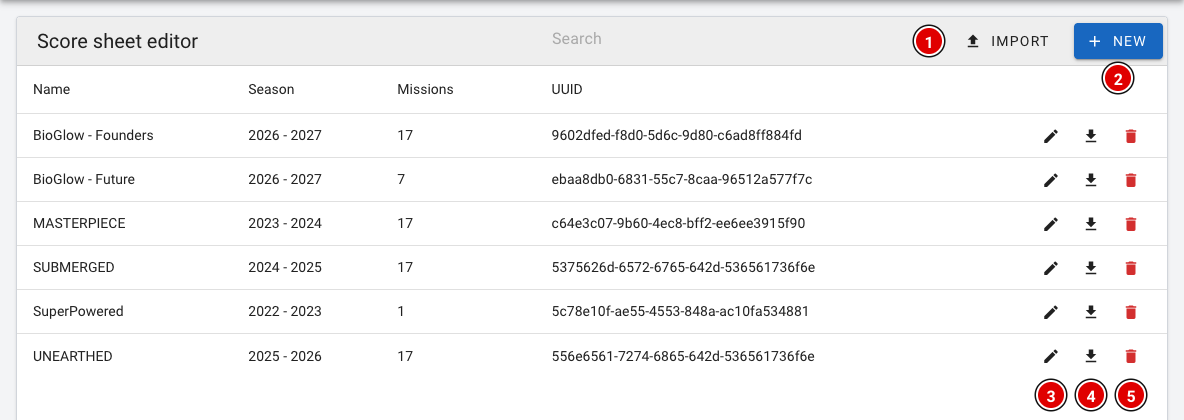
- Import (1) loads a score sheet that was exported earlier, for example from another environment.
- New (2) creates a new, empty score sheet.
- The pencil (3) opens a score sheet so you can change it.
- The download arrow (4) exports the score sheet as a file.
- The bin (5) deletes the score sheet. This isn't possible once match scores have been entered with it.
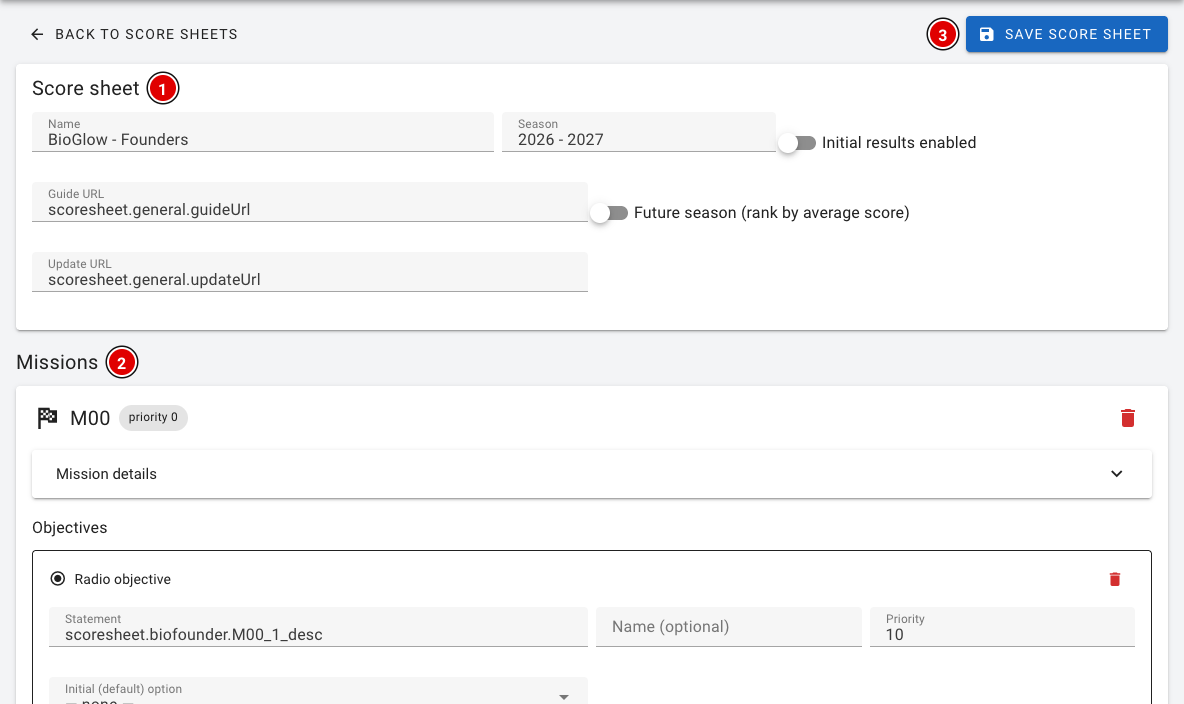
- Score sheet (1): The name and season of the sheet, with the links to the season's guide and updates.
- Missions (2): For each mission, the questions, the possible answers and the points. At the bottom, Add mission adds a mission.
- Click Save score sheet (3) to save the changes.
A change to a score sheet applies straight away to every tournament that uses it, including scores that have already been entered. So never change a score sheet during a tournament, and export it first as a backup. Texts such as scoresheet.general.yes refer to the translations in FLLTools; leave them as they are, or referees will no longer see the text in their own language.
Open source packages
https://yourevent.flltools.nl/open-source lists all open source packages FLLTools uses, with the version and licence of each package. You won't need this page during the tournament, but it's useful if someone asks what FLLTools is built with.
Technical pages
These pages are mainly meant for whoever manages FLLTools or wants to check something:
- /timer/test: Shows all of the timer's digits. Useful for checking beforehand that the timer is easy to read on the audience screen.
- /healthcheck: Only shows "OK" when FLLTools is running. Used to monitor the server.
- /app-version: Shows the version of FLLTools that is currently running.
No Comments