
Practice tables and reservations
Many events have practice tables where teams can test their robot one more time. With FLLTools, teams book a practice slot themselves on a screen (for example a touchscreen or tablet) next to the practice tables. You set for each table how long a practice slot lasts and when the table is open. FLLTools automatically turns this into time slots.
For this the Practice Table Reservations module must be switched on. You do this through Setup → Settings (see the page Settings and modules). If the module is off, teams see on the reservation screen that no slots are available.
Creating practice tables
- Go through Setup to Practice Tables.
- You see a list of all practice tables, with the colour, the slot length, the opening and closing time and the number of reservations.
- Click Add (1) to add a practice table.
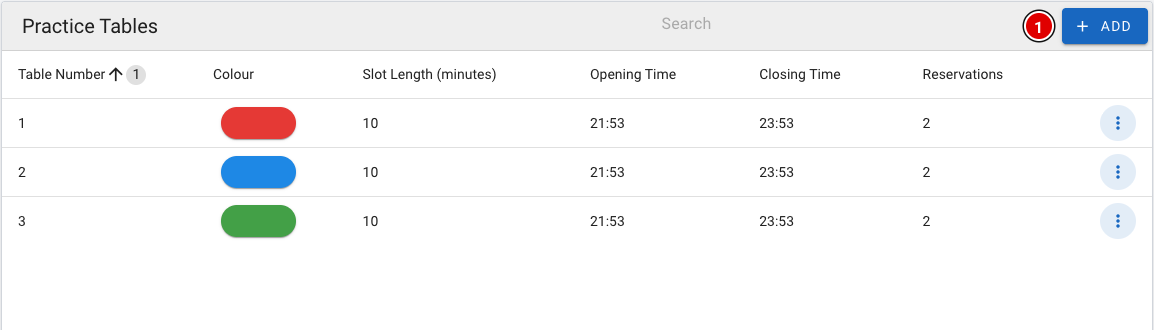
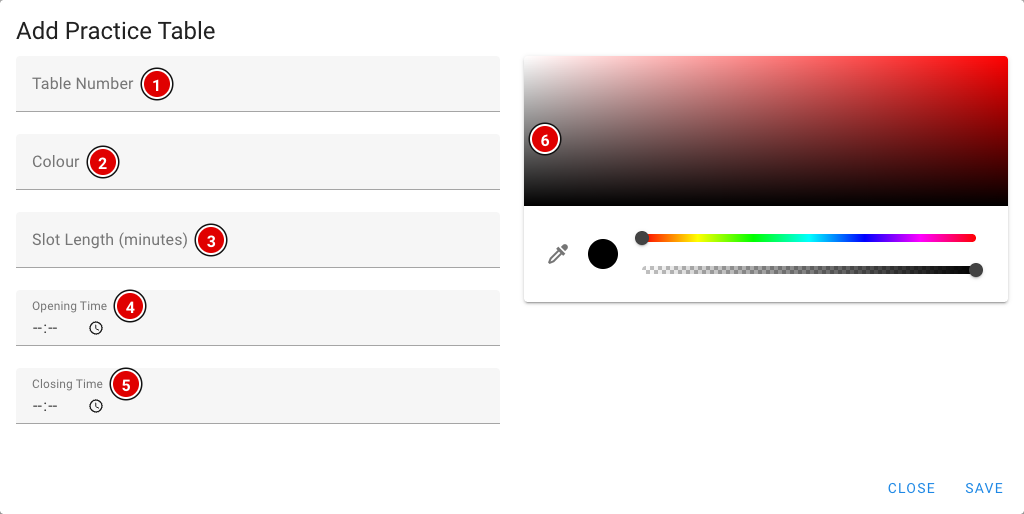
Table Number (1): The number of the practice table, for example 1, 2, 3.
Colour (2): The name of the table's colour, for example "Red". This helps teams find the right table quickly.
Slot Length (minutes) (3): How long a practice slot lasts, in minutes.
Opening Time (4): From what time the table is open for practice.
Closing Time (5): Until what time the table is open.
Colour picker (6): The colour teams see on the reservation screen and the info screen.
Click Save. The time slots are created automatically. A table open from 09:00 to 10:00 with a 15-minute slot, for example, gives four slots: 09:00, 09:15, 09:30 and 09:45.
Maximum number of reservations per team
How many practice slots a team may book ahead at the same time is set through Setup → Settings in Max practice reservations per team (2 by default). As soon as a practice slot has passed, it no longer counts and the team can book a new slot.
Viewing and cancelling reservations
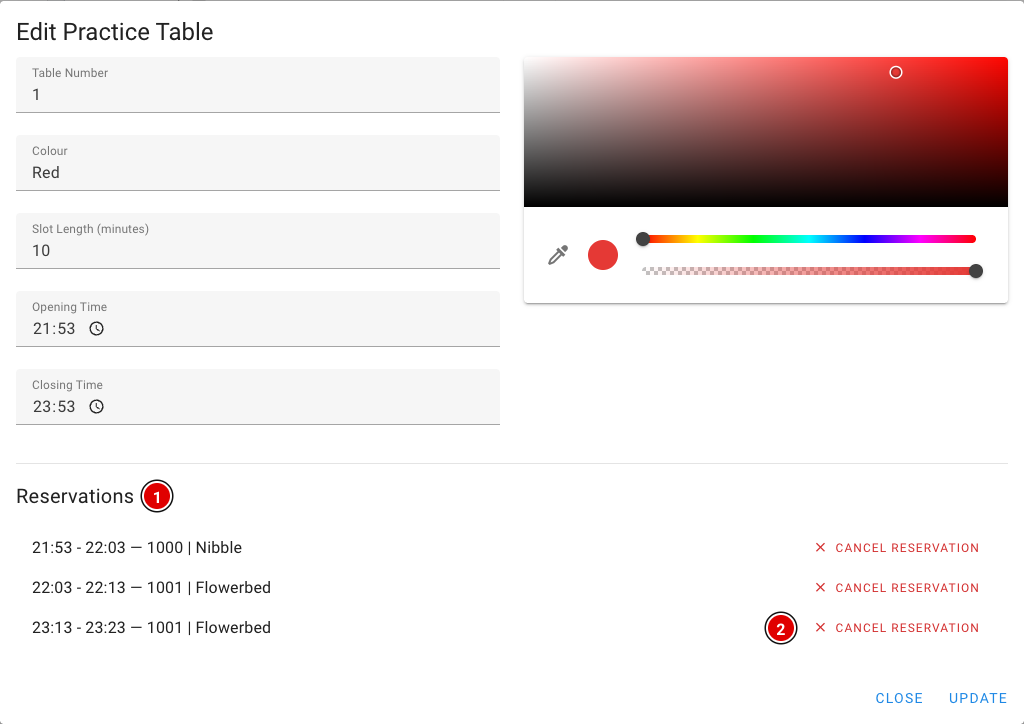
- In the list, click the 3 dots next to a practice table and choose Edit.
- At the bottom of the window are all Reservations (1) for this table, with the time and the team.
- Cancel Reservation (2) cancels a reservation. The slot then becomes available for another team.
- Want to change the table itself? Change the fields and click Update.
How a team books a slot
Place a computer, tablet or touchscreen next to the practice tables showing the page https://yourevent.flltools.nl/practice-reservation. Replace "yourevent" with the name of your event. No login is needed.
Step 1: Entering the team number
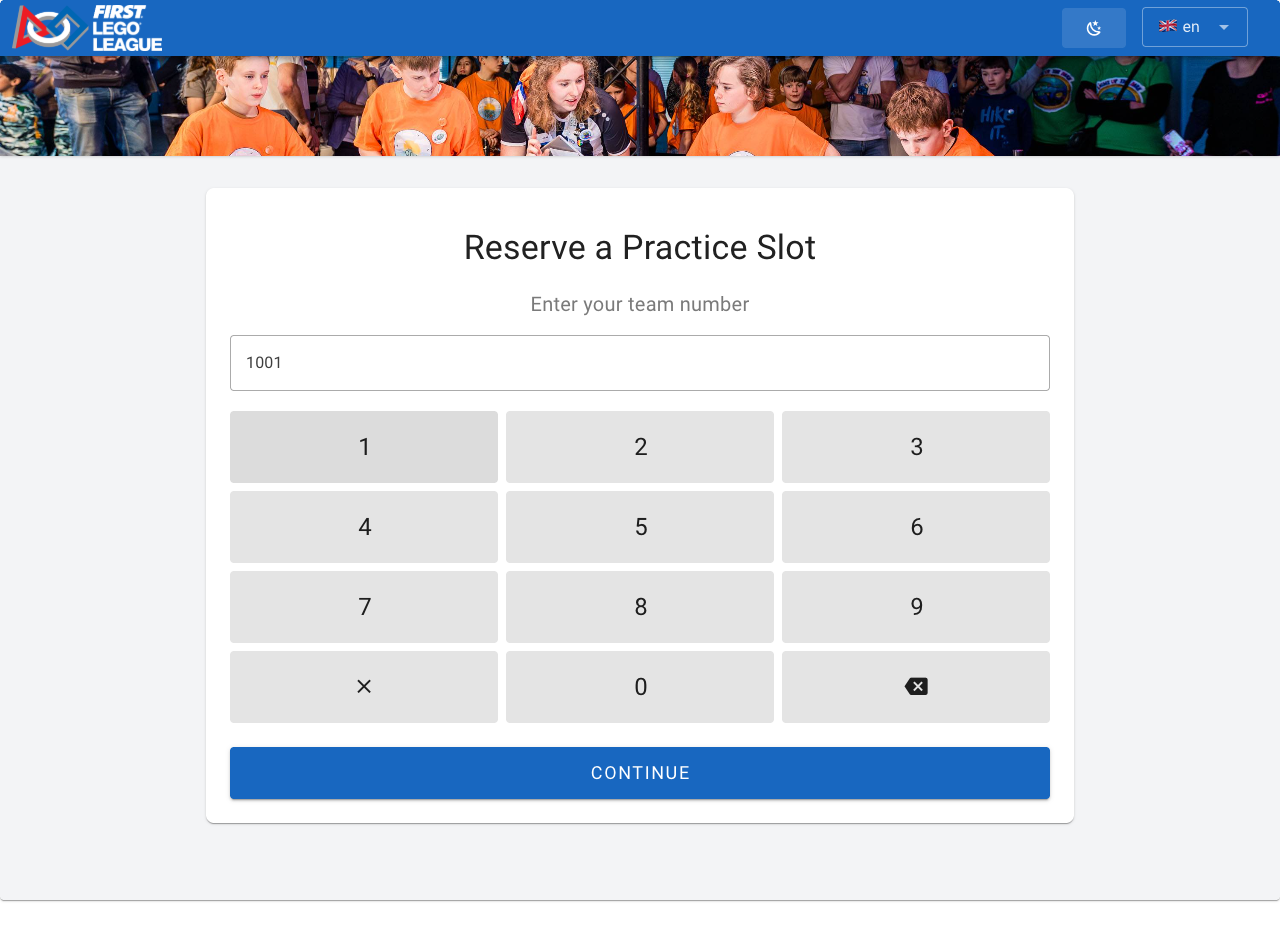
The team taps in its team number with the large number keys (or the keyboard) and presses Continue. If the number doesn't exist, a message appears and the team can try again.
Step 2: Choosing a time
The team now sees all free time slots: each column is a practice table, each row a time. An empty spot means that table is already taken or closed at that time. On the right is Your Schedule, the team's day schedule, so it can choose a time that doesn't clash with a match or judging session.
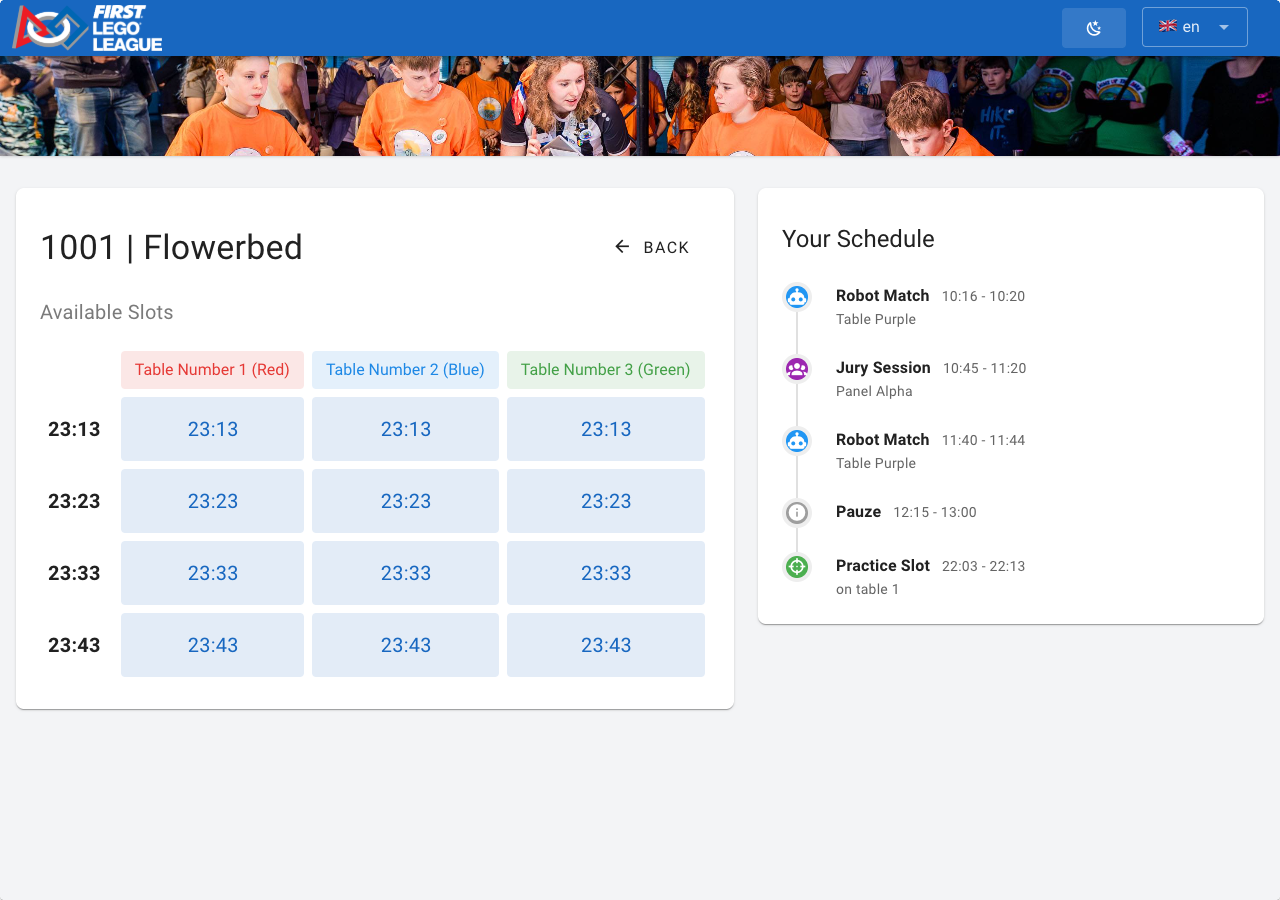
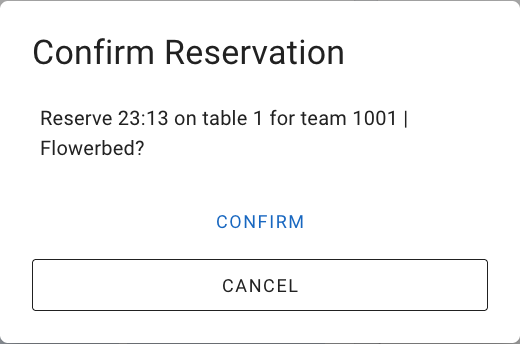
After choosing a time, the screen asks for confirmation. The team presses Confirm to book, or Cancel to go back.
Step 3: Done
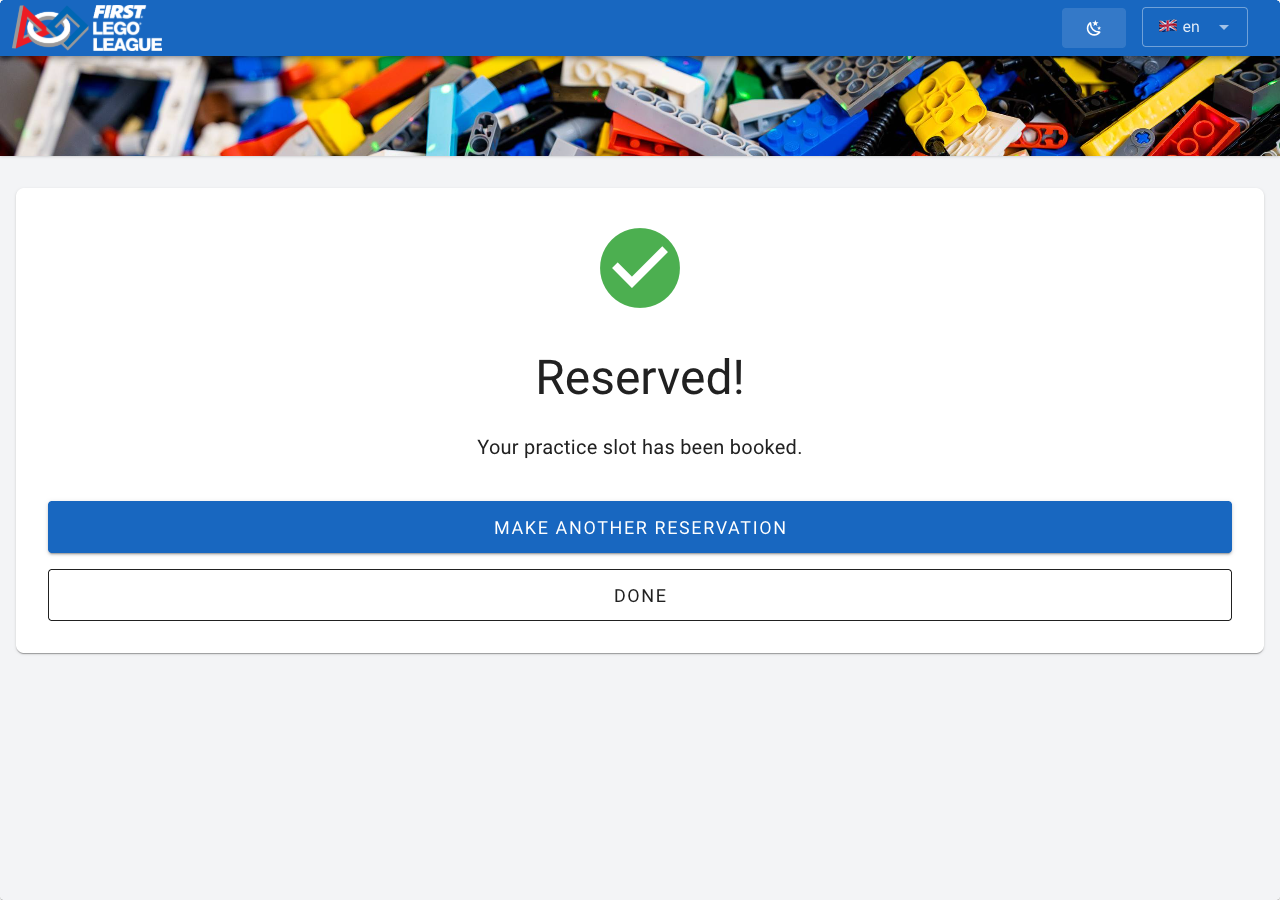
The team sees Reserved!. Make Another Reservation lets it book another slot (if the maximum hasn't been reached yet); Done takes the screen back to the start.
Good to know:
- After 15 seconds without a touch, the screen automatically returns to the start. That way the previous team's details don't stay on screen. This doesn't happen while confirming.
- If two teams choose the same slot at the same time, the second team gets a message that the slot has just been taken and chooses another time.
- If a team has reached the maximum number of reservations, the screen says so.
- Booked practice slots also appear in the schedule on the public team page.
Practice tables on an info screen
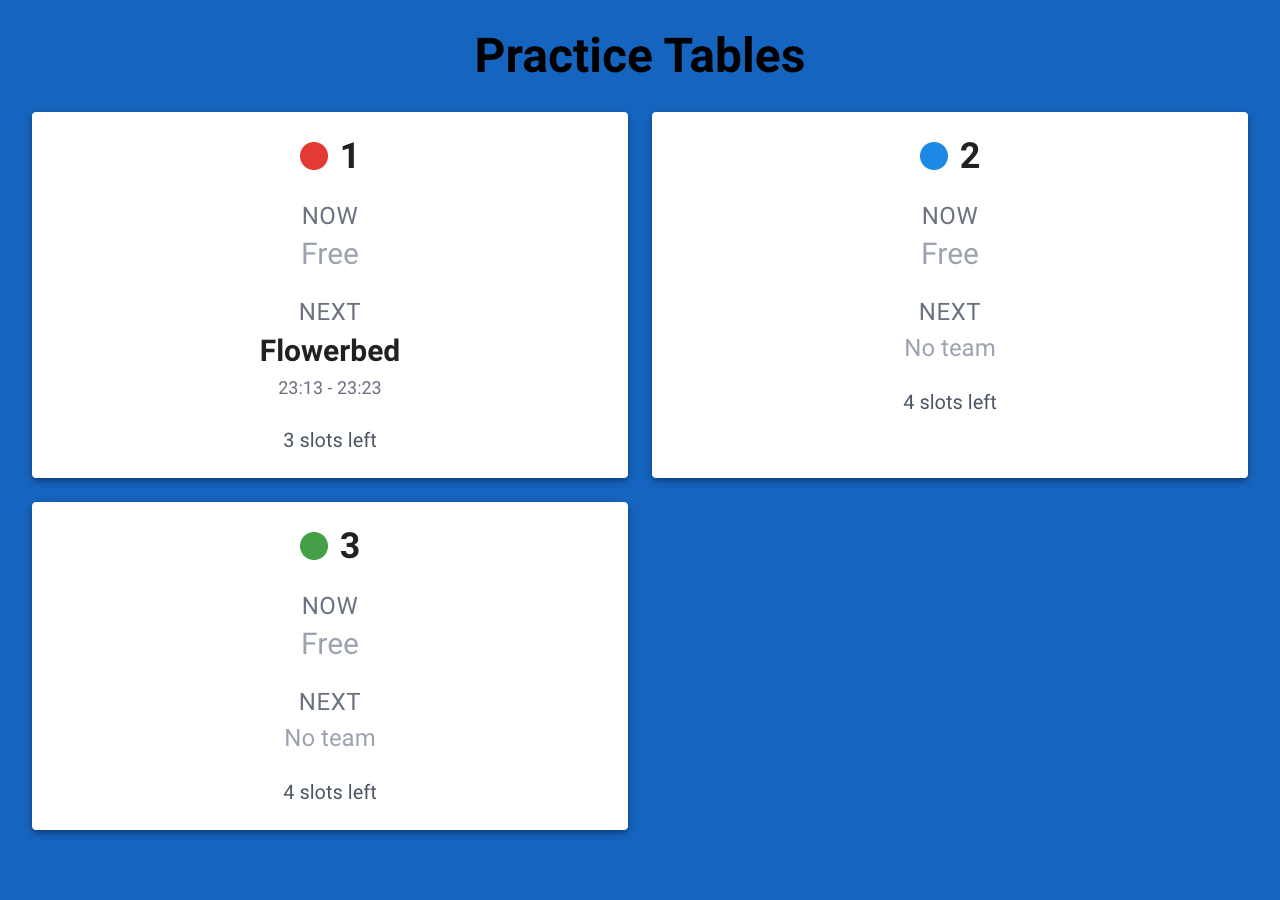
With an info screen of the Practice Tables type you show at the practice tables who is practising now (Now), who comes next (Next) and how many slots are still free. See the page Info screens.
No Comments