
Logging in and finding your way around
This page explains how to log in to FLLTools and how to find your way around the tool. In the instructions we use the link yourevent.flltools.nl. Replace "yourevent" with the name of your event.
Logging in
Go to https://yourevent.flltools.nl/login.
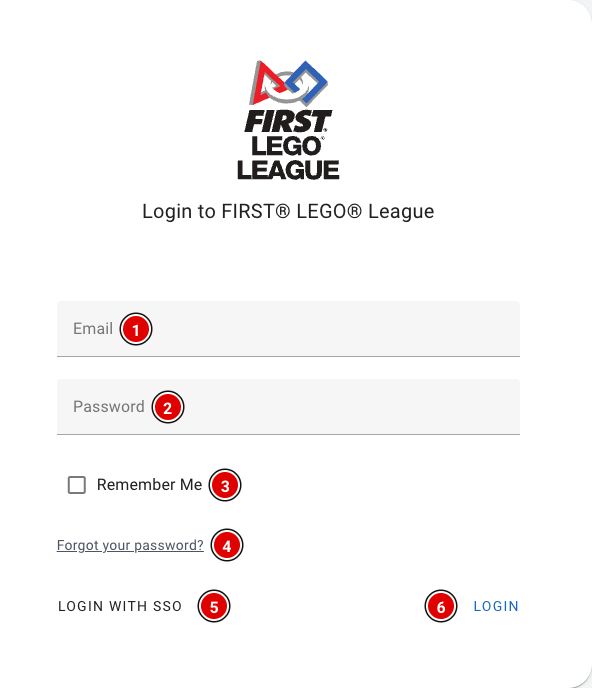
- Enter your e-mail address in Email (1) and your password in Password (2).
- Tick Remember Me (3) if you want to stay logged in on this device. Don't do this on a shared computer.
- Forgot your password? Click Forgot your password? (4) and you'll receive an e-mail to set a new password.
- Click Login (6).
After logging in you arrive at the dashboard. If there is no tournament yet and you are allowed to create tournaments, the Setup Wizard opens automatically (see the page The Setup Wizard).
FLLTools Unified Login
For volunteers who help at several (regional) finals, and for regional partners / operational partners, there is the FLLTools Unified Login. With it you log in to every event with the same details. Click Login with SSO (5) and log in on the page that opens. You are then taken back to FLLTools automatically.
Would you like to use this? Send an e-mail to thijs@flltools.com and you'll receive a login.
Finding your way around
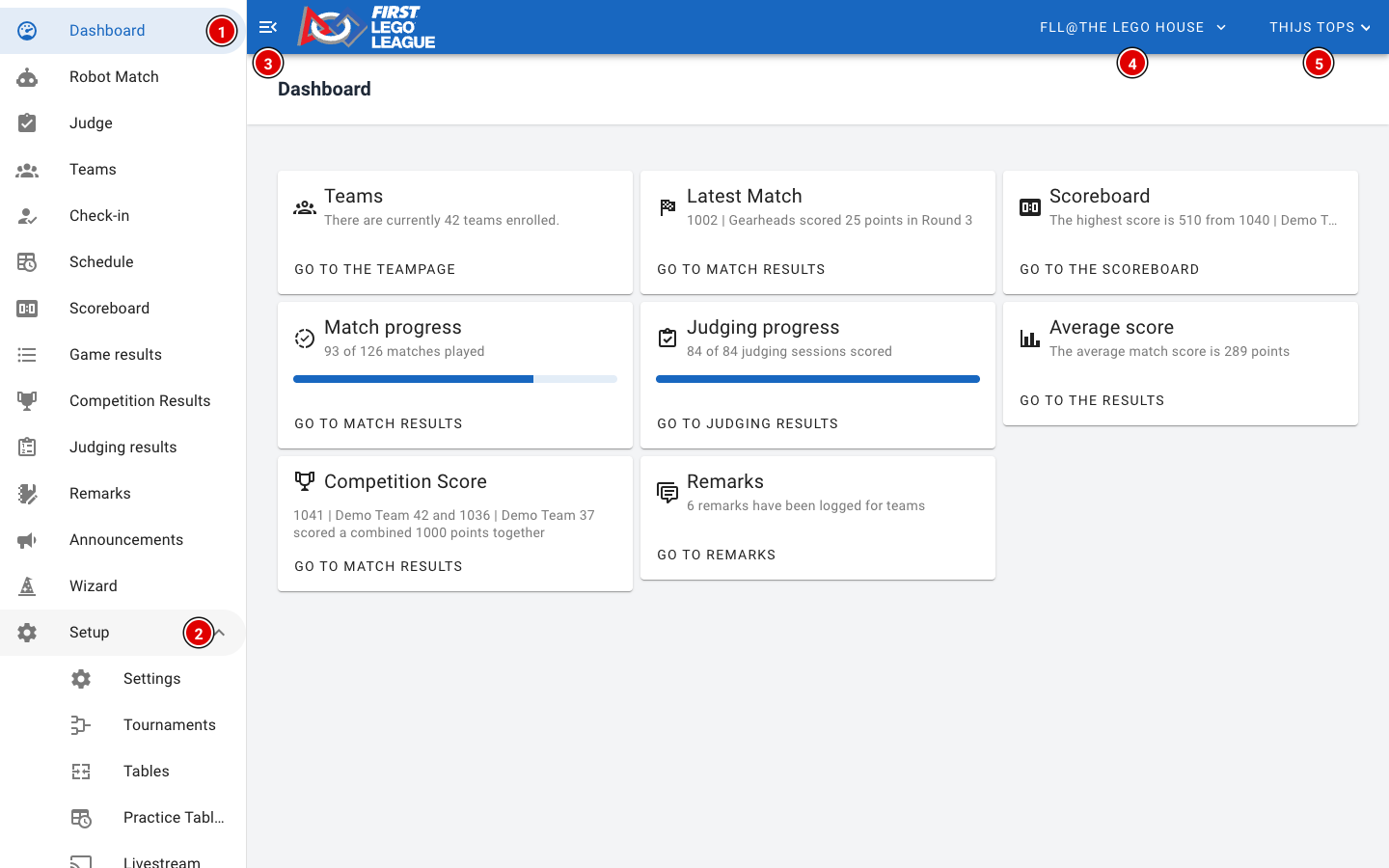
The Dashboard gives an overview of the event: the number of teams, the latest match, the highest score, how many matches and judging sessions have been entered, and how many remarks there are. The buttons on the cards take you straight to the matching page.
The user menu
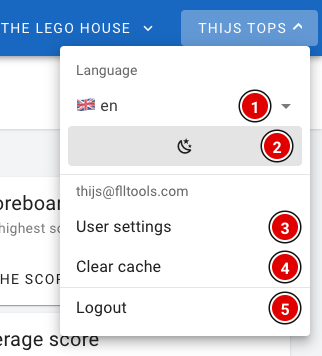
- Language (1): choose the language of the tool: English, Dutch, Belgian (Flemish) or French. The buttons and icons are in the same place in every language. This manual uses the English names.
- Dark mode (2): switch between a light and a dark view. Handy in a dark venue.
- User settings (3): your profile page, see below.
- Clear cache (4): wipes all data the tool has stored on this device. Only use this if the tool behaves strangely, for example after an update.
- Logout (5): log out on this device.
Be careful with Clear cache on a referee tablet! Results entered offline that haven't been sent yet are wiped too. First check that all results have been uploaded.
Your profile
Through User settings you reach your profile page.
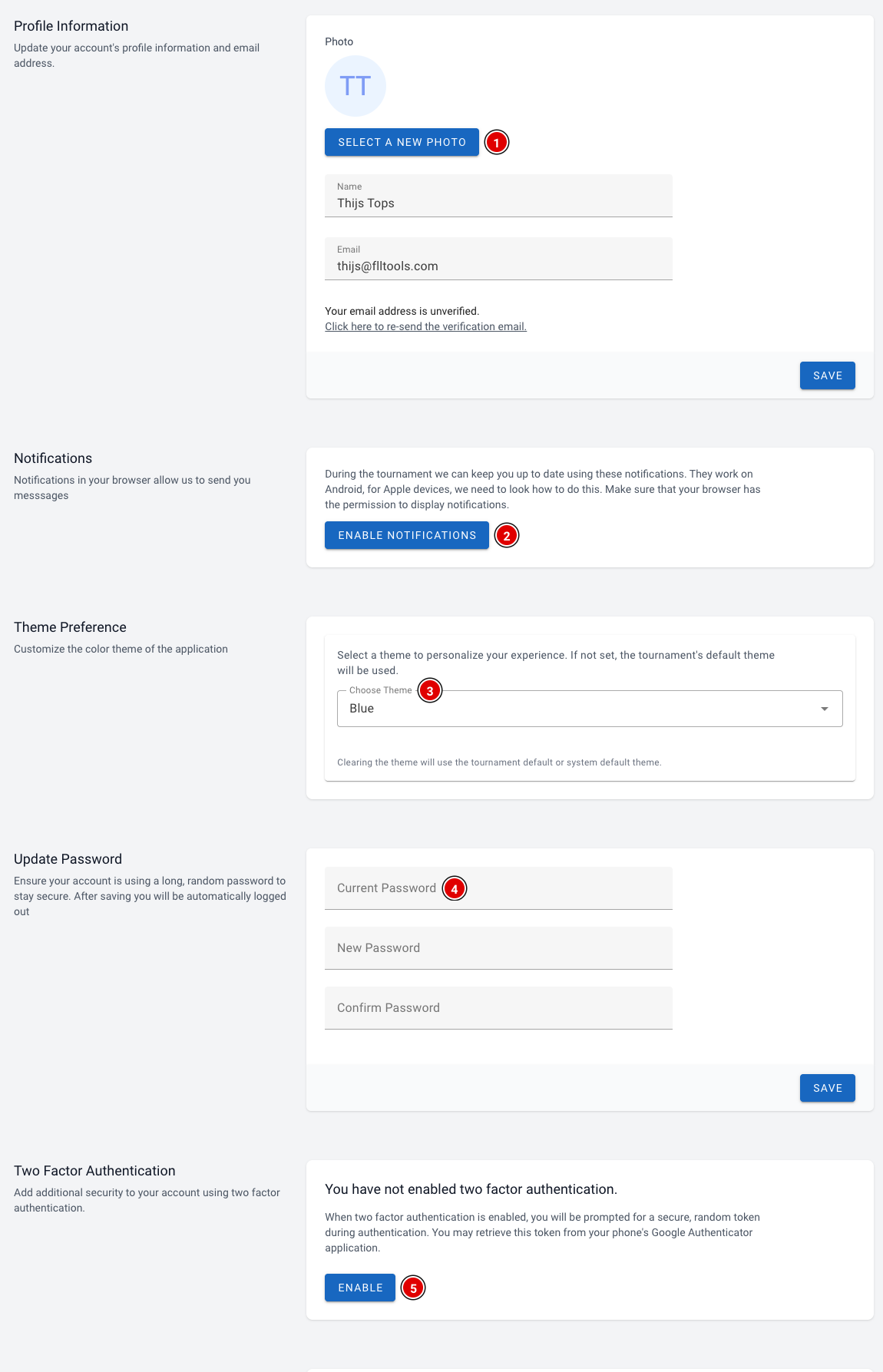
- Select a new photo (1): set a profile photo. Below it you can change your name and e-mail address. Click Save to save.
- Enable notifications (2): receive notifications in your browser during the event, for example announcements from the organisation. Your browser asks for permission; click allow. This works on Android and on a computer.
- Choose Theme (3): choose a colour theme for your account. If you don't choose one, the tournament's default theme is used.
- Update Password (4): change your password. After saving you are logged out automatically and log in again with your new password.
- Two Factor Authentication (5): switch on extra security. You scan a QR code with an authenticator app on your phone (for example Google Authenticator) and enter a code from that app when you log in. Keep the recovery codes you receive somewhere safe, for example in a password manager.
At the bottom of the page you see on which devices you are logged in. Logout all other devices logs you out everywhere except on the device you are using now. Handy if you have been logged in on a shared computer.
No Comments